
How to Add a Gmail Account to Outlook (Full IMAP Setup)
If you want your Gmail and your other email in one place, learning how to add Gmail to Outlook is the quickest win — ten minutes of setup and your Gmail inbox, folders and sent mail sit right next to your other accounts. This guide covers both the Classic Outlook and the New Outlook route, the full manual IMAP settings for when the automatic setup does not work, and the fixes for the problems people actually hit, like Outlook saying your password is wrong.
You do not need to be technical. In the normal setup you never touch server settings at all — Outlook and Google handle them behind a sign-in window. The manual settings table is here as a backup for older Outlook versions and stubborn setups.
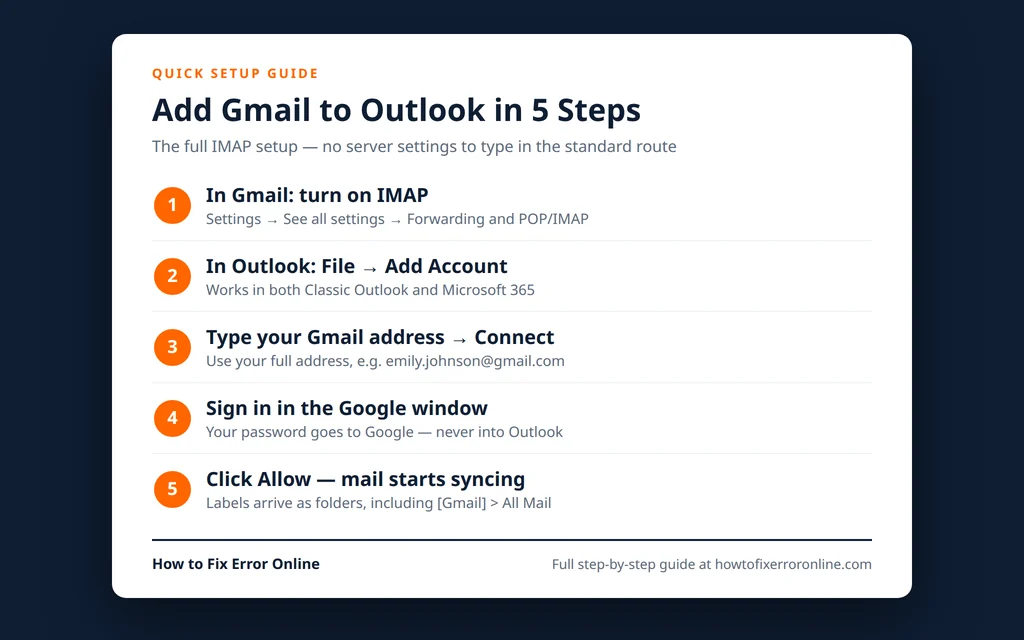
Quick Answer: In Classic Outlook, click File > Add Account, type your Gmail address, click Connect, then sign in inside the Google window that opens and click Allow. IMAP is already switched on in modern Gmail accounts, so in most cases that is the whole job. The New Outlook route is the same idea: Add account, enter the Gmail address, and complete the Google sign-in.
Table of Contents
Before You Start: Three Quick Checks
1. Know your Google password and have your phone nearby. The setup opens a real Google sign-in window. If you use 2-Step Verification, Google will send a prompt or code to your phone during setup — that is normal, not an error.
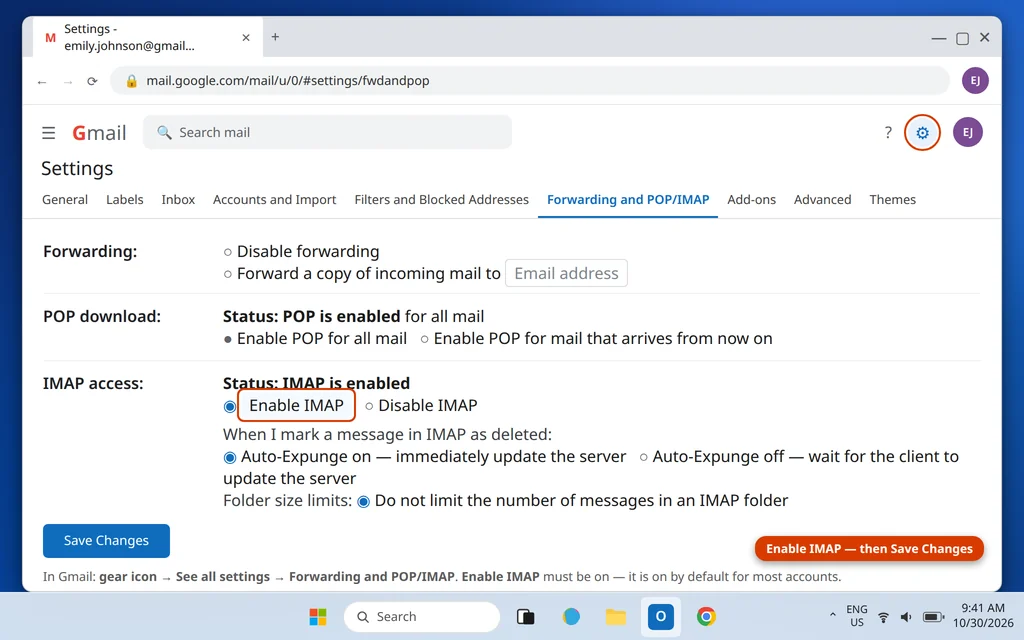
2. Confirm IMAP is turned on in Gmail. IMAP is enabled by default on modern Gmail accounts, but older accounts and some Google Workspace accounts may have it off, and Outlook cannot connect without it.
- Open Gmail in your browser and click the gear icon (top right).
- Click See all settings.
- Open the Forwarding and POP/IMAP tab.
- In the IMAP access section, make sure Enable IMAP is selected.
- Click Save Changes at the bottom.
3. Understand the app password question. Old guides tell you to generate a Gmail “app password” before you start. For the standard setup in current Outlook versions you do not need one: Outlook connects through Google’s own sign-in window (called OAuth), so your password goes to Google, never into Outlook. An app password is only needed in the less common manual route when Google asks for one — and Google only offers app passwords if 2-Step Verification is turned on for your account. There is a full explanation in the FAQ below.
How to Add Gmail to Outlook Classic (Desktop)
This is the setup most people mean by “how to add gmail to outlook classic” and “how to add gmail to outlook 365” — the desktop app on Windows.
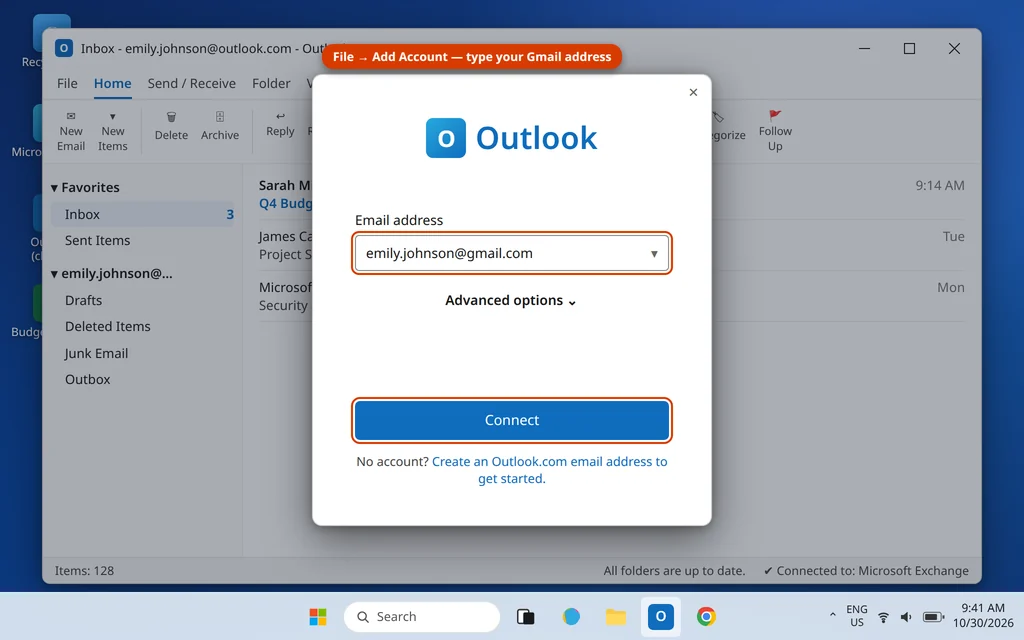
- Open Outlook and click File (top left).
- Click Add Account.
- Type your full Gmail address (for example, emily.johnson@gmail.com) and click Connect.
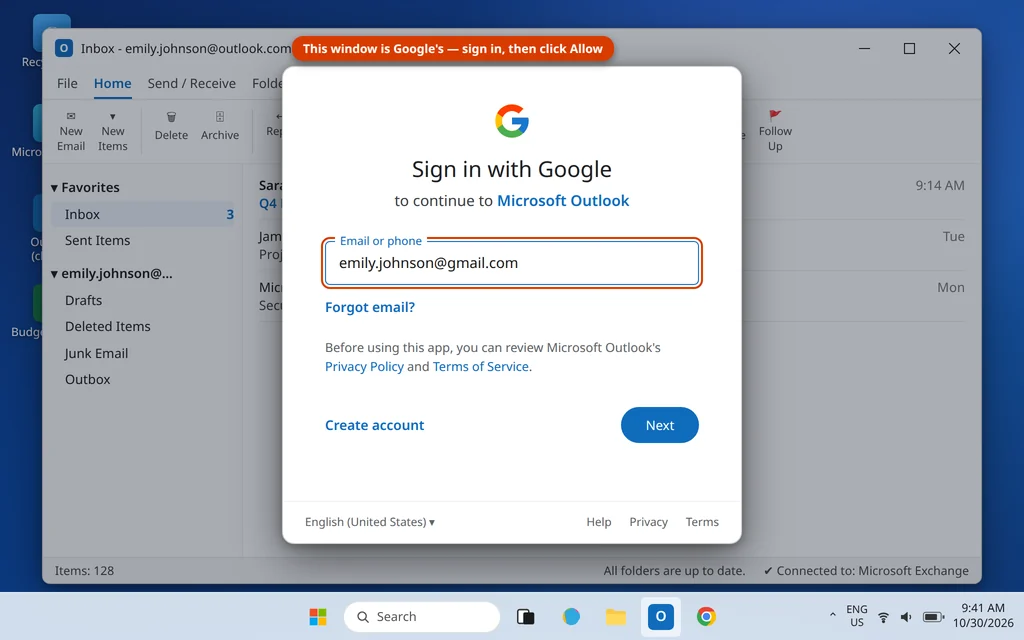
- A Google sign-in window opens. Sign in with your Google account and complete any 2-Step Verification prompt. This window belongs to Google — Outlook never sees your password.
- Google shows what Outlook is asking to access. Click Allow.
- Outlook confirms the account was added. Click Done (you can untick “Set up Outlook Mobile on my phone” if it appears and you do not want it).
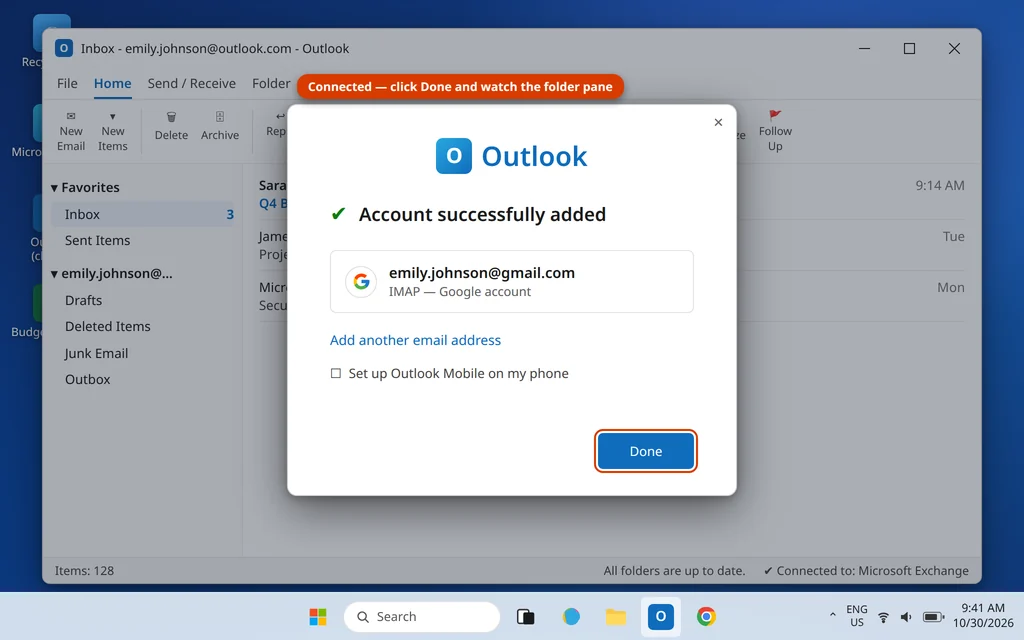
Your Gmail appears in the folder pane on the left and starts downloading. On a large mailbox the first sync can take a while — watch the status bar at the bottom of Outlook; it shows progress until it reads “All folders are up to date.”
Add Gmail to the New Outlook
The new Outlook app uses the same Google sign-in, with a slightly different path:
- Open the new Outlook app and click the gear icon (top right) to open Settings.
- Go to Accounts > Email accounts and click Add account.
- Enter your Gmail address and click Continue — or pick Google from the provider list.
- Complete the Google sign-in window and click Allow, exactly as in the Classic route.
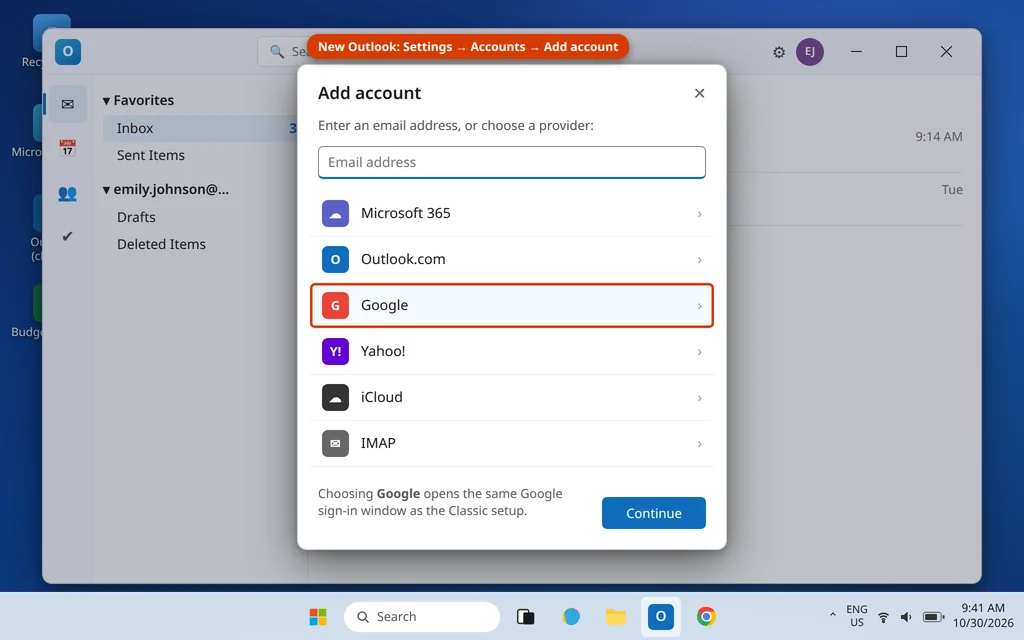
The new Outlook also syncs your Google Calendar and Contacts with the account — something the Classic IMAP connection does not do (see “What Syncs and What Does Not” below).
Manual Setup: Full Gmail IMAP Settings for Outlook
Use this route — “add gmail account to outlook manually” — if the automatic setup fails, or you are on an older Outlook version. In Classic Outlook: File > Add Account, enter your address, open Advanced options, tick Let me set up my account manually, click Connect, and choose IMAP. Then use exactly these settings: Google’s own guide to adding Gmail to another email client lists the same server details.
| Setting | Incoming mail (IMAP) | Outgoing mail (SMTP) |
|---|---|---|
| Server | imap.gmail.com | smtp.gmail.com |
| Port | 993 | 587 (or 465) |
| Encryption method | SSL/TLS | STARTTLS (port 587) or SSL/TLS (port 465) |
| User name | Your full Gmail address | Your full Gmail address |
| Password | Your Google password — or an app password (see below) | Same as incoming |
Leave Require logon using Secure Password Authentication (SPA) unticked on both tabs — Gmail does not use SPA, and ticking it is a common cause of failed setups.
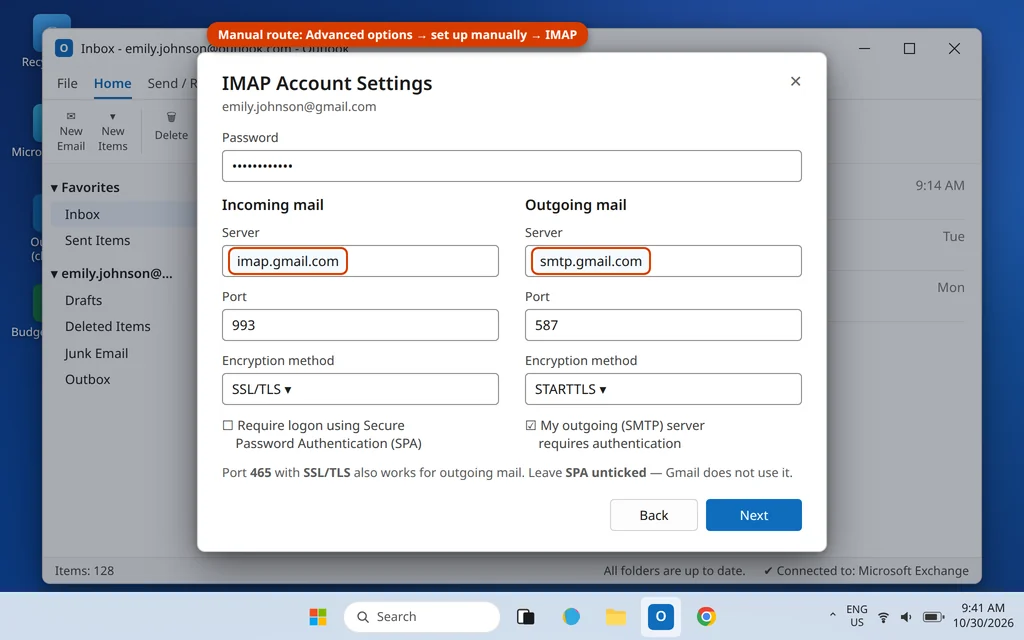
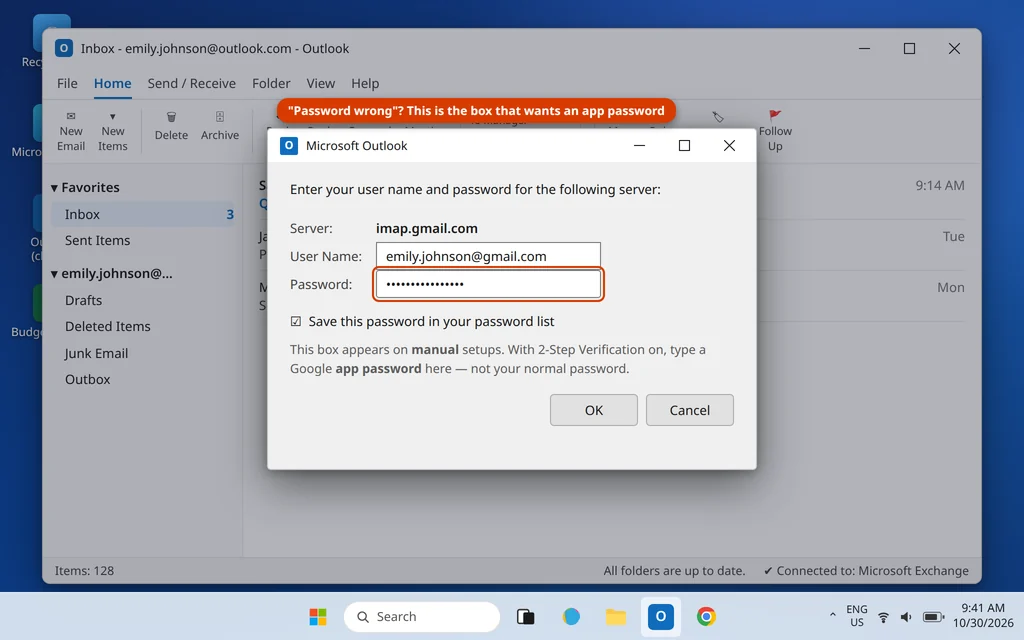
When the password field rejects your normal password: if your account has 2-Step Verification on, Google may refuse your regular password in a manual setup. Create an app password instead: go to your Google Account > Security > 2-Step Verification > App passwords, generate one for “Mail,” and type that 16-character code (no spaces) into Outlook’s password box. Do not use app passwords anywhere except the app you generated them for.
What Syncs — and What Does Not
Be clear about this before you rely on it:
- Email syncs fully, both ways. Read, delete, move or send in Outlook and Gmail on the web matches within moments, because IMAP mirrors the server.
- In Classic Outlook, calendar and contacts do NOT sync over IMAP. Your Google Calendar and Google Contacts will not appear in Classic Outlook. Your options are the new Outlook (which syncs Google calendar and contacts through the same sign-in), or, for paid Google Workspace accounts, Google’s own Workspace Sync tool.
- Signatures, rules and settings do not transfer. Outlook rules and signatures are created inside Outlook; your Gmail filters stay on Google’s side and keep working on incoming mail before it reaches Outlook.
If your Gmail is now connected but incoming mail is not arriving, our guide to Outlook not receiving emails walks through the sync and folder checks in order.
Why Gmail Labels Look Like Folders in Outlook
Gmail does not use folders — it uses labels — and Outlook shows each label as a folder. Three things follow from that:
- A message with two labels appears in two folders in Outlook. It is one email, not a duplicate; deleting it from one place deletes it everywhere.
- A special [Gmail] folder group holds the system labels: All Mail (everything in the account, including archived mail), Sent Mail, Drafts, Starred, Important, Spam and Trash.
- Because All Mail contains a copy of everything, it looks as if every email exists twice. That is normal Gmail behavior in any IMAP app, not an Outlook bug.
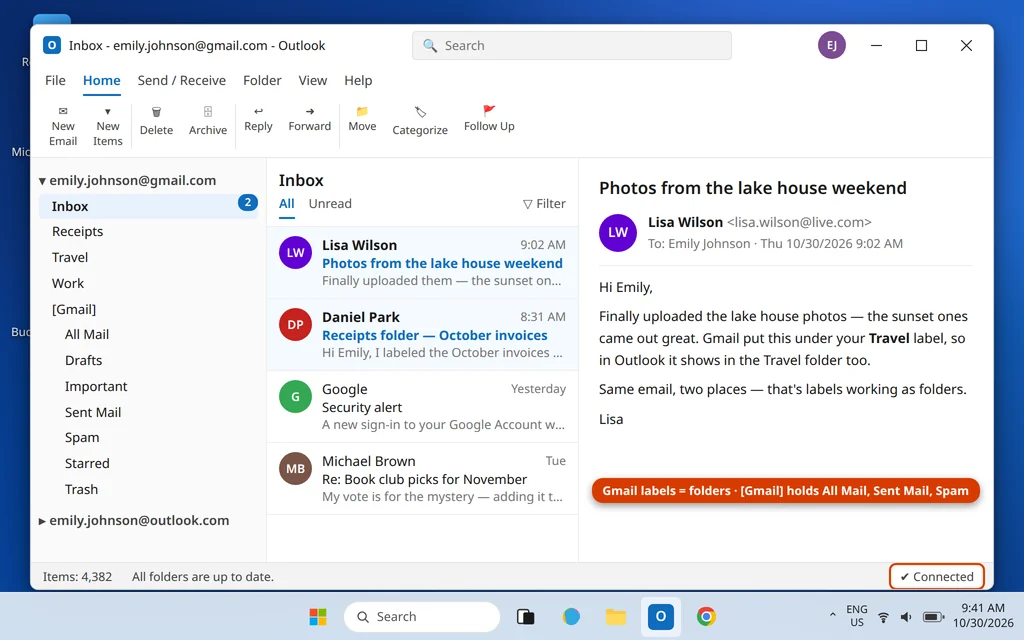
If a label is missing from Outlook entirely, check it is set to Show in IMAP: in Gmail Settings > Labels, each label has a “Show in IMAP” option on the right.
Troubleshooting: When Gmail Will Not Connect to Outlook
Outlook keeps opening the sign-in window in a loop. The Google window closes or reappears without finishing. Close Outlook completely, set Microsoft Edge or Chrome as your default browser (the sign-in window borrows your default browser’s session), make sure the browser is not blocking cookies for accounts.google.com, then start again from File > Add Account. Signing in to Gmail in that browser first also helps.
Outlook says my password is wrong. In the standard setup you type your password into Google’s window, not into Outlook — so first check you completed that window rather than closing it early. If Outlook is showing its own password box (common after a manual setup, or when an older saved password has gone stale), it wants either your current Google password or, with 2-Step Verification on, an app password as described above. A password that changed recently will also trigger this until the new one is entered.
Gmail is in Outlook but not syncing or not updating. Press F9 (Send/Receive All) and watch the status bar. Then open Send / Receive > Send/Receive Groups > Define Send/Receive Groups and make sure the Gmail account is included. In the Classic app you can also right-click the account name, choose IMAP Folders, click Query, and confirm the folders you expect are subscribed — unsubscribed folders do not download.
Sent items seem to be missing. Gmail stores sent mail in [Gmail] > Sent Mail, not in a local “Sent Items” folder. Look there first. If Outlook is also saving a second copy in a local folder, that is a leftover setting from a POP setup — the Gmail copy is the real one.
How to Remove a Gmail Account From Outlook
- In Classic Outlook, click File > Account Settings > Account Settings.
- On the Email tab, select the Gmail account and click Remove.
- Confirm with Yes. (In the new Outlook: Settings > Accounts > Email accounts > select the account > Remove.)
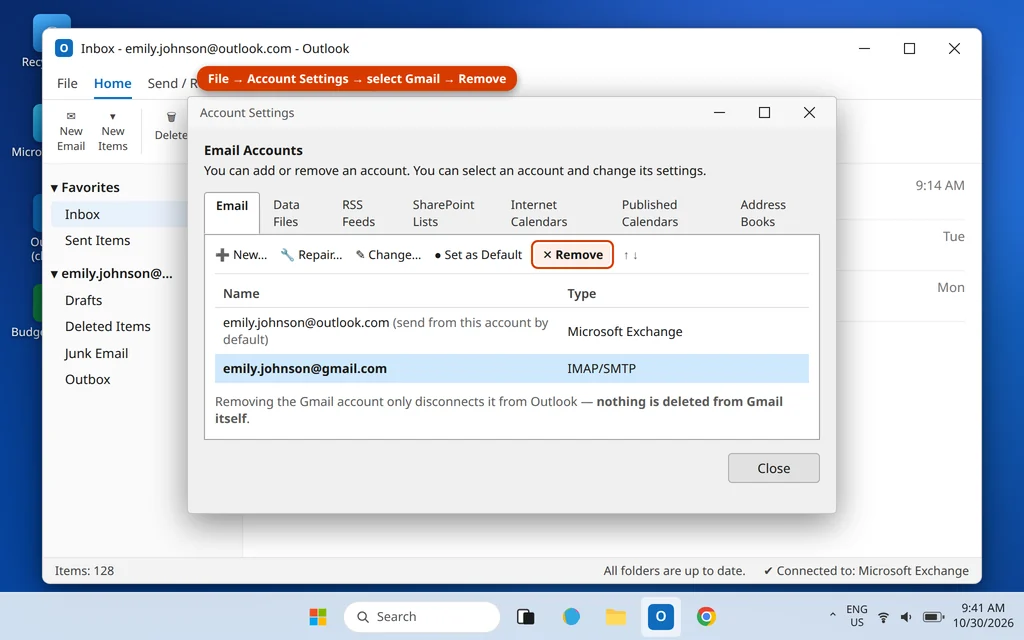
Removing the account only disconnects it from Outlook and deletes Outlook’s local copy. Nothing is deleted from Gmail itself — sign in at gmail.com and everything is still there. You can re-add the account at any time with the steps above.
Setting up a work address instead of a personal Gmail? Our guide to setting up a business email in Outlook covers Microsoft 365 and custom-domain accounts.
Frequently Asked Questions
Do I need an app password to add Gmail to Outlook?
Not for the standard setup. Current Outlook versions connect through Google’s sign-in window, and your password never goes into Outlook. You only need an app password for a manual IMAP setup when Google requires one — and Google only lets you create app passwords if 2-Step Verification is switched on for your account.
What are the Gmail IMAP settings for Outlook?
Incoming: imap.gmail.com, port 993, SSL/TLS. Outgoing: smtp.gmail.com, port 587 with STARTTLS (or port 465 with SSL/TLS). Your user name is your full Gmail address, and Require logon using Secure Password Authentication (SPA) stays unticked.
Will my Gmail calendar and contacts sync to Outlook?
Not in Classic Outlook — its IMAP connection carries email only. The new Outlook syncs Google Calendar and Contacts along with mail when you add the account. Paid Google Workspace users also have Google’s Workspace Sync tool for Classic Outlook.
Why does Outlook keep saying my Gmail password is not working?
Usually one of three things: the Google sign-in window was closed before you clicked Allow, your Google password changed and Outlook still holds the old one in a manual setup, or your account has 2-Step Verification and the manual connection needs an app password instead of your normal password. It is rarely a sign your account is hacked — check myaccount.google.com > Security if you want peace of mind.
Why is my Gmail in Outlook not showing sent items?
Because Gmail files sent mail under [Gmail] > Sent Mail. Expand the [Gmail] group in the folder pane and look there. If that folder is missing, enable Show in IMAP for Sent Mail in Gmail Settings > Labels, then restart Outlook.
Why is my Gmail account in Outlook not syncing new mail?
First press F9 to force a Send/Receive. Then check the label is set to Show in IMAP in Gmail Settings > Labels, and in Classic Outlook right-click the account > IMAP Folders > Query to make sure the folder is subscribed. Large mailboxes can also just need time — leave Outlook open with the status bar showing “All folders are up to date” before judging it stuck.
Can I use POP instead of IMAP for Gmail in Outlook?
You can (server pop.gmail.com, port 995, SSL/TLS — the “setup gmail in outlook pop3” route), but IMAP is the better choice for almost everyone: POP downloads mail to one computer and does not keep Outlook and Gmail in sync. Pick IMAP unless you have a specific reason not to.
Still cannot connect your Gmail? Tell us which step fails and the exact message Outlook shows on our Contact page — servicedesk@howtofixerroronline.com, available 24 hours — and see our other Email Errors guides, including email stuck in the Outlook Outbox and emails bouncing back.
Pingback: How to Migrate Gmail to Microsoft 365: Personal & Business Guide (2026)
Pingback: Migrate Outlook to Google Workspace: Move Email, Contacts & Calendar (2026)