
Outlook Keeps Asking for Password? 9 Fixes
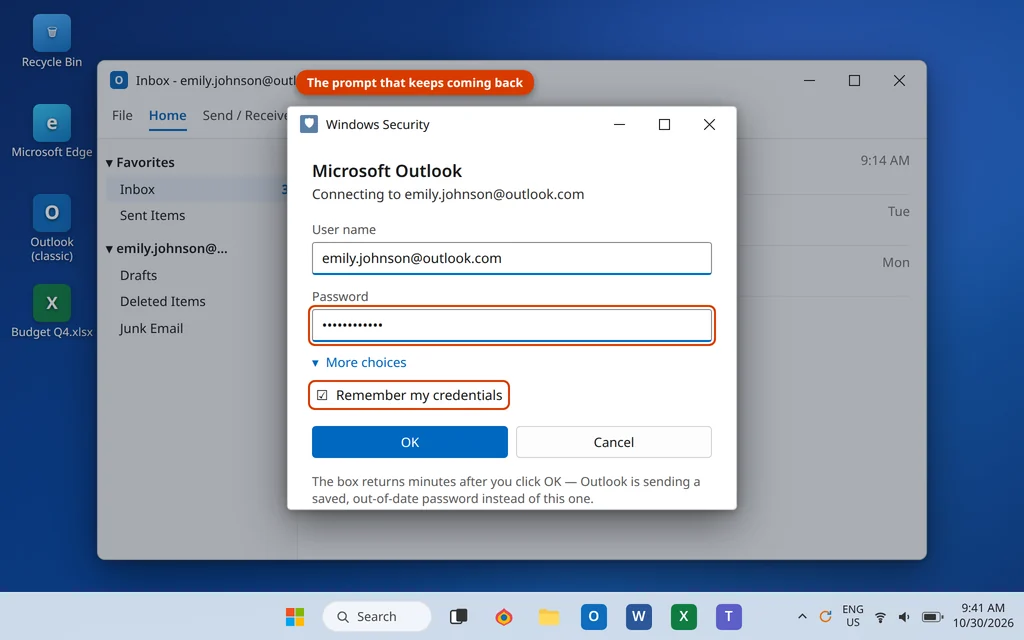
You type your password into Outlook, it works for a few minutes — then the box pops up again. And again. If Outlook keeps asking for your password even though you are typing it correctly, the problem is almost never the password itself. Something on your PC is feeding Outlook an old, damaged or mismatched sign-in, so the server keeps rejecting it and Outlook keeps asking.
This guide works through the causes in the order they actually occur, from a two-minute credential cleanup to a fresh Outlook profile. It covers Classic Outlook on Windows 11 and Windows 10 in full, and the new Outlook app where its steps differ (near the end). Work through the fixes in order, testing Outlook for a few minutes after each one.
Quick Answer: When Outlook keeps asking for a password, first make sure you are typing your current password (especially if you changed it recently). If the prompt keeps coming back, open Control Panel > Credential Manager > Windows Credentials and remove the stored Outlook and Office credentials, then restart Outlook and sign in fresh. If you use a Yahoo, AOL or other IMAP account, Outlook may need an app password instead of your normal password. A stale work account under Settings > Accounts > Access work or school and a damaged Outlook profile are the other common causes.
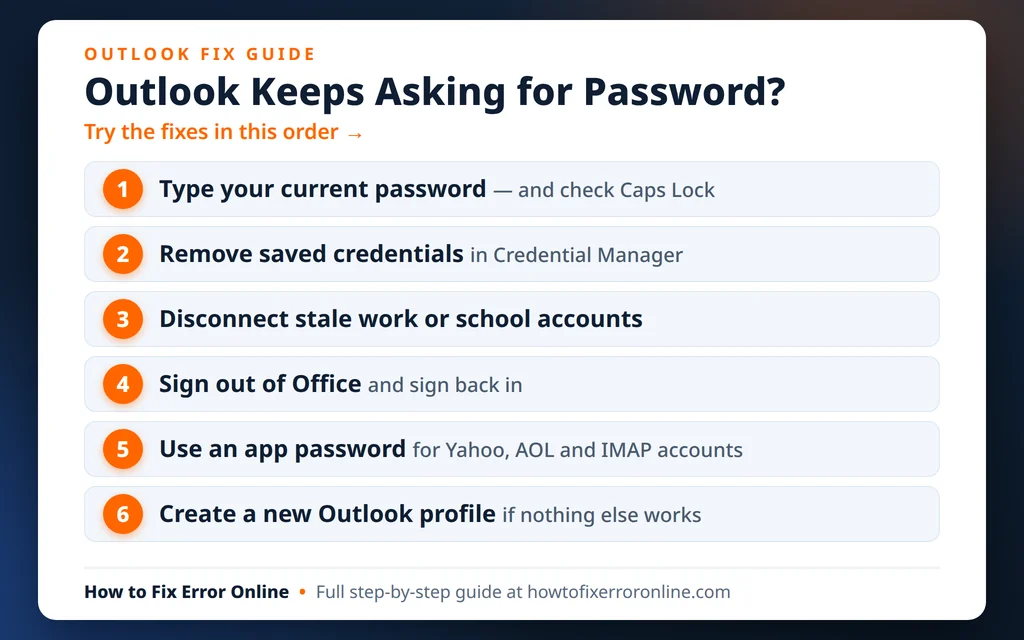
Table of Contents
Why Does Outlook Keep Asking for Your Password?
Outlook asks once, saves the answer, and should stay quiet. It loops when the saved answer stops working. What that means depends on your account type:
Work or school accounts (Microsoft 365 / Exchange)
- A saved credential is out of date. Windows stores your Outlook sign-in in Credential Manager. If the stored copy is old or damaged, Outlook keeps sending it, the server keeps refusing it, and the box comes back.
- You changed your password. Outlook does not always pick up a new work password straight away — it keeps trying the old one it has saved.
- A stale work account is connected to Windows. An old employer’s or school’s account under Settings > Accounts > Access work or school can make Office apps prompt for a sign-in that no longer exists.
- Your organization now requires modern sign-in. Microsoft 365 accounts sign in through a Microsoft sign-in window, often with multi-factor authentication (MFA). If Outlook is stuck showing an old-style password box, or you keep canceling the Microsoft window, the prompt returns every time.
Personal accounts (IMAP — Yahoo, AOL, Gmail, your internet provider)
- The account needs an app password, not your normal password. Yahoo, AOL, iCloud and Gmail (with 2-Step Verification) do not let Outlook sign in with your everyday password on IMAP connections. Without a special app password, every sign-in fails and Outlook asks again — forever.
- Cached credentials again — the same Credential Manager problem as above — or an outdated server/port from a manual setup, which fails sign-ins in a loop that looks exactly like a password problem.
A quick test before you start: sign in to your email in a web browser (outlook.com, mail.yahoo.com, gmail.com). If the password works there, your password is fine and the problem is on the Outlook/Windows side — which is everything below.
Fix 1: Make Sure You Are Typing the Current Password
It sounds obvious, but this is the most common cause of all — especially right after a password change. Outlook keeps asking for a password after a password change because it is still holding the old one, and if you keep typing from memory, you may be typing the old one too.
- Check Caps Lock is off — passwords treat capital and small letters as different.
- Open Notepad, type the password there so you can see it, and confirm it is exactly right. Delete it afterwards.
- Sign in to your email in a web browser with that password. If it fails there too, reset the password on the website first — Outlook cannot accept a password the website rejects.
- Back in Outlook’s prompt, enter the new password if you changed it recently.
- If the prompt has a Remember my credentials checkbox, check it before clicking OK, so Outlook saves this sign-in.
If the password is definitely correct and the box still returns within minutes, the saved copy on your PC is the problem. Go to Fix 2.
Fix 2: Remove the Saved Outlook Credentials in Credential Manager
Windows saves your Outlook sign-in in Credential Manager, and when that saved entry goes bad, Outlook sends the bad copy every time instead of asking you properly. Removing the entries forces Outlook to ask once, save a fresh copy, and stop looping. Your emails are not touched — this only clears saved sign-ins.
- Close Outlook completely.
- Open Control Panel (type “Control Panel” in the Windows search box).
- Click User Accounts, then Credential Manager.
- Click Windows Credentials.
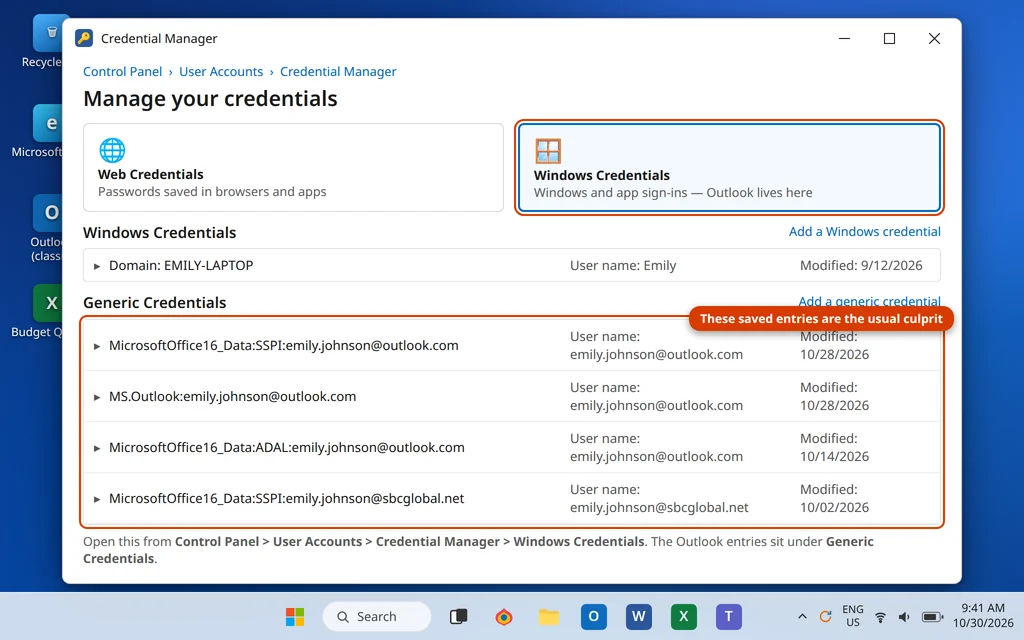
- Scroll to the Generic Credentials section. Look for entries that contain Outlook, that start with MicrosoftOffice16_Data or MS.Outlook, or that show your email address.
- Click an entry to expand it, then click Remove. Repeat for every Outlook and Office entry you find.
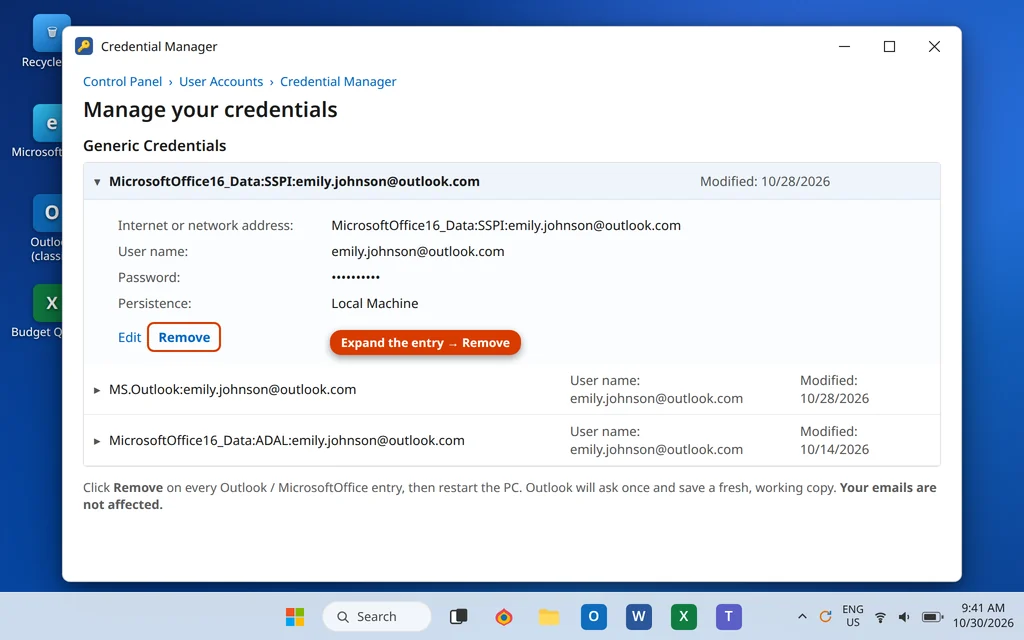
- Restart your PC, open Outlook, and enter your password when asked. Check Remember my credentials if offered.
For most people the loop ends here. If the prompt still comes back, the conflict is likely a Windows account, not a saved password — Fix 3.
Fix 3: Disconnect a Stale Work or School Account
Windows can keep an old work or school account connected in the background, and Office apps — Outlook included — keep trying to use it. If you changed jobs, left a school, or your company reissued your account, this is a prime suspect.
- Open Settings > Accounts > Access work or school.
- Look at the connected accounts. If one belongs to an old employer, an old school, or an account you no longer use, click it and choose Disconnect.
- Restart your PC and test Outlook.
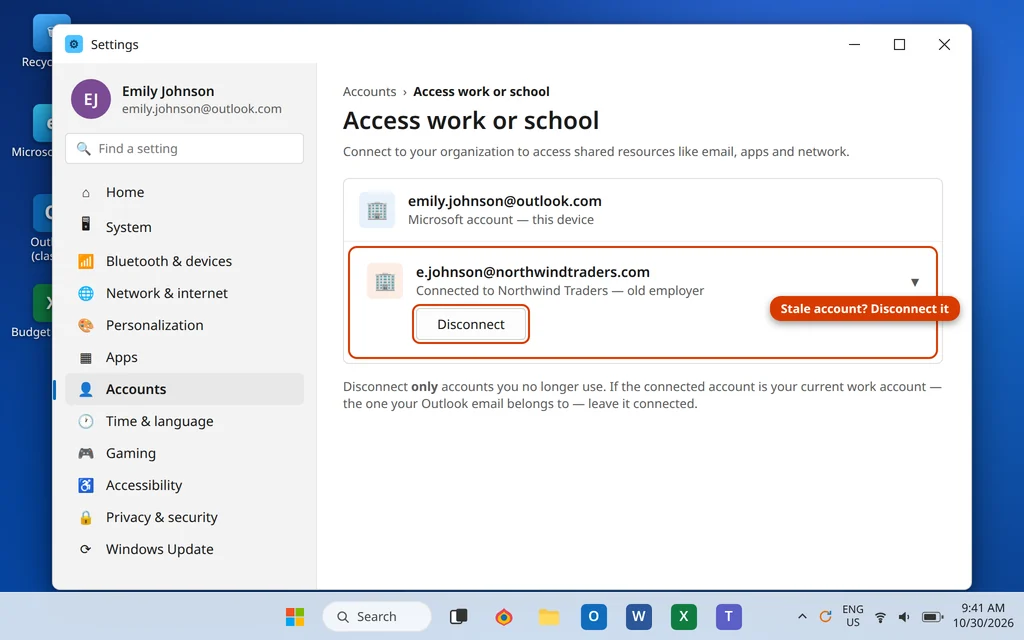
Important: only disconnect accounts that are genuinely old or unused. If the listed account is your current work account — the one your Outlook email belongs to — leave it connected, or you will have to set your email up again. If there is no stale account here, move on to Fix 4.
Fix 4: Complete the Modern Microsoft Sign-In (Don’t Cancel It)
For Microsoft 365 and Outlook.com accounts, Outlook signs you in through a Microsoft sign-in window — the one that may ask for a code from your phone (MFA). Two mistakes keep the loop going:
- Canceling the Microsoft window. If you close it because you expected a simple password box, Outlook has no completed sign-in, so it asks again a few minutes later. Next time it appears, finish it — password plus verification code.
- Running an old version of Office. Very old Outlook builds show a plain password box that modern Microsoft 365 servers no longer accept. Update Office: File > Account > Update Options > Update Now, then restart Outlook.
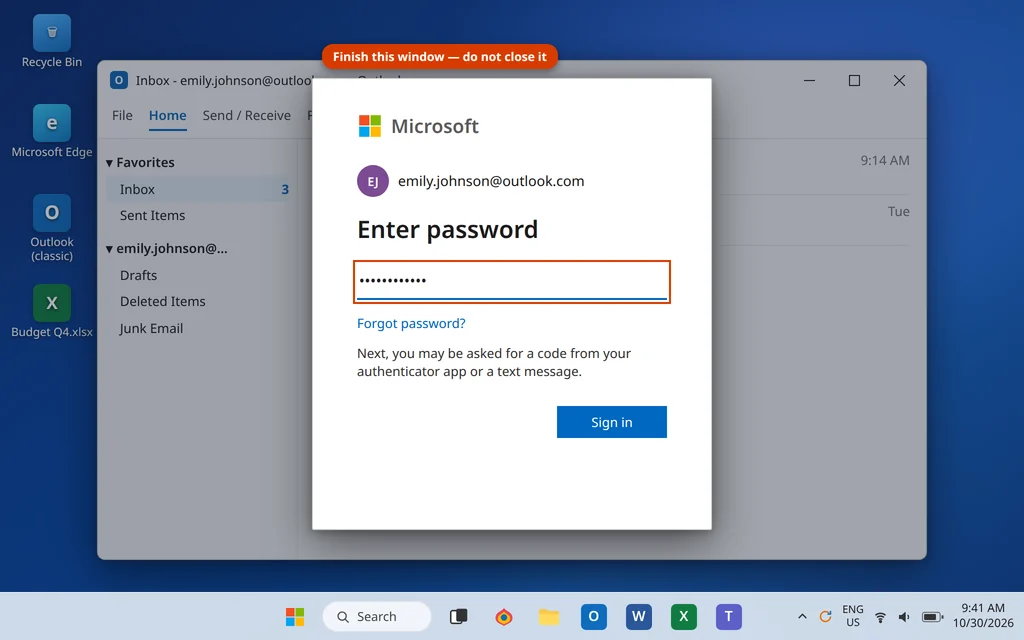
If your company or school manages the account, note that a locked or expired account also prompts endlessly — and only your IT admin can clear that.
Fix 5: Sign Out of Office and Sign Back In
If the saved credentials are fine but your Office identity is tangled — a common state after changing passwords or switching accounts — signing out of Office clears the cached identity for all Office apps at once.
- In Outlook, click File > Account (in some versions it is labelled Office Account).
- Under your account picture, click Sign out. If asked, confirm you want to sign out.
- Close all Office apps — Outlook, Word, Excel, Teams.
- Open Outlook again. It will ask you to sign in: use your email address and your current password, and complete MFA if asked.
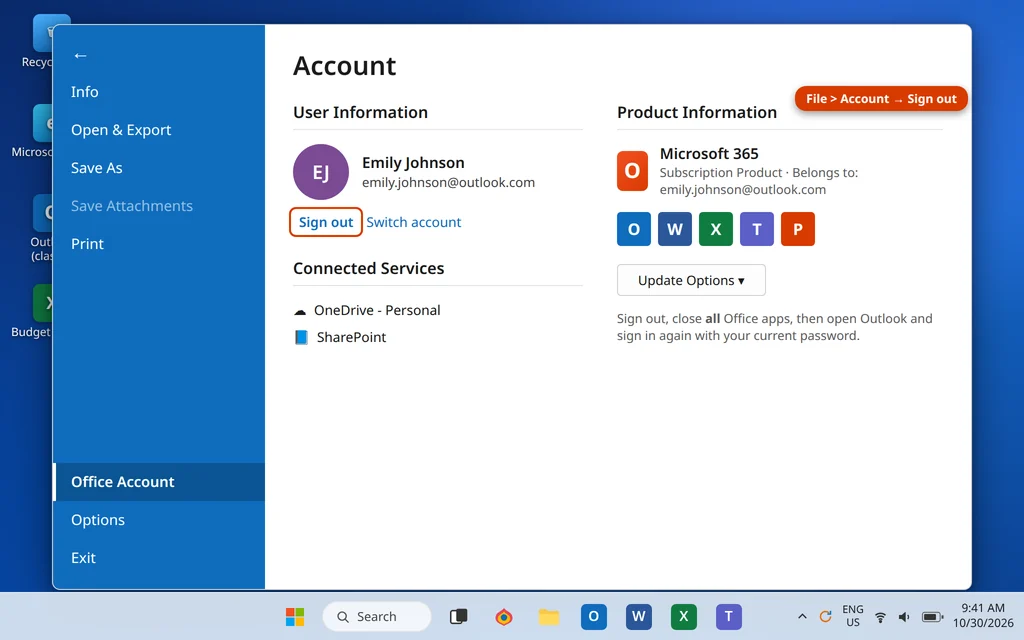
This is a deeper reset than Fix 2 and fixes many “even though it is correct” cases. If the loop continues, quickly rule out outside interference with Fix 6.
Fix 6: Rule Out VPN and Antivirus Interference
Some VPNs make Microsoft’s servers treat every sign-in as suspicious, and some antivirus “email protection” features sit between Outlook and the server and break the sign-in. Test quickly:
- Disconnect your VPN, restart Outlook, and wait 10 minutes. If the prompts stop, the VPN was the cause — reconnect it later or look for a mail exception setting in the VPN app.
- If your antivirus adds an Outlook add-in or email scanner, update the antivirus and test again. Never leave your main antivirus protection off — if its email scanner proves to be the culprit, disable just that feature per the vendor’s guidance.
If neither applies, the Office installation itself is next.
Fix 7: Repair the Office Installation
A damaged Office update can corrupt the parts of Outlook that handle sign-in. The built-in repair fixes program files only — your accounts, profiles and emails stay untouched.
- Close all Office apps, including Outlook.
- Open Settings > Apps > Installed apps.
- Find Microsoft 365 (or your Microsoft Office version), click the three dots next to it, and choose Modify.
- Choose Quick Repair and click Repair. When it finishes, open Outlook and test.
- If the prompts continue, repeat and choose Online Repair instead. It takes longer and needs an internet connection, but it rebuilds Office more deeply.
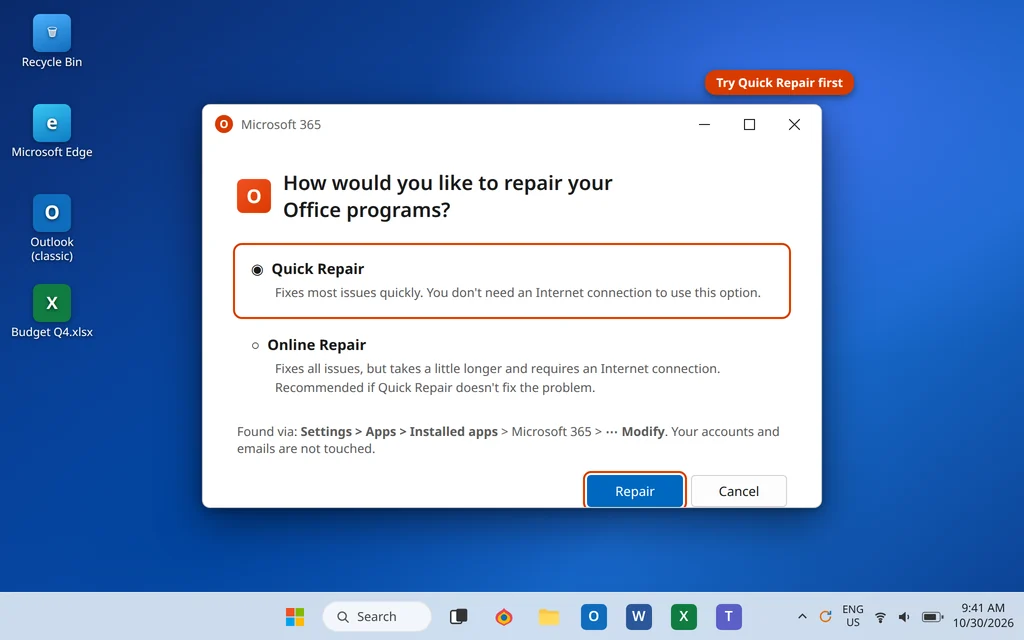
New Outlook app users: the new app is not repaired this way — see the new Outlook section below for its Repair and Reset steps.
Fix 8: Create a New Outlook Profile
If the loop survives everything above, your Outlook profile — the container that stores your account settings — is probably damaged. A new profile is the most reliable fix left, and it does not delete the old one.
- Close Outlook.
- Open Control Panel and click Mail (Microsoft Outlook).
- Click Show Profiles.
- Click Add, type a name like “Outlook New”, and click OK.
- Follow the wizard and add your email account with your current password.
- Back in the Mail window, under “When starting Microsoft Outlook, use this profile”, choose Always use this profile and select the new profile. Click Apply.
- Open Outlook and watch it for 10–15 minutes of normal use.
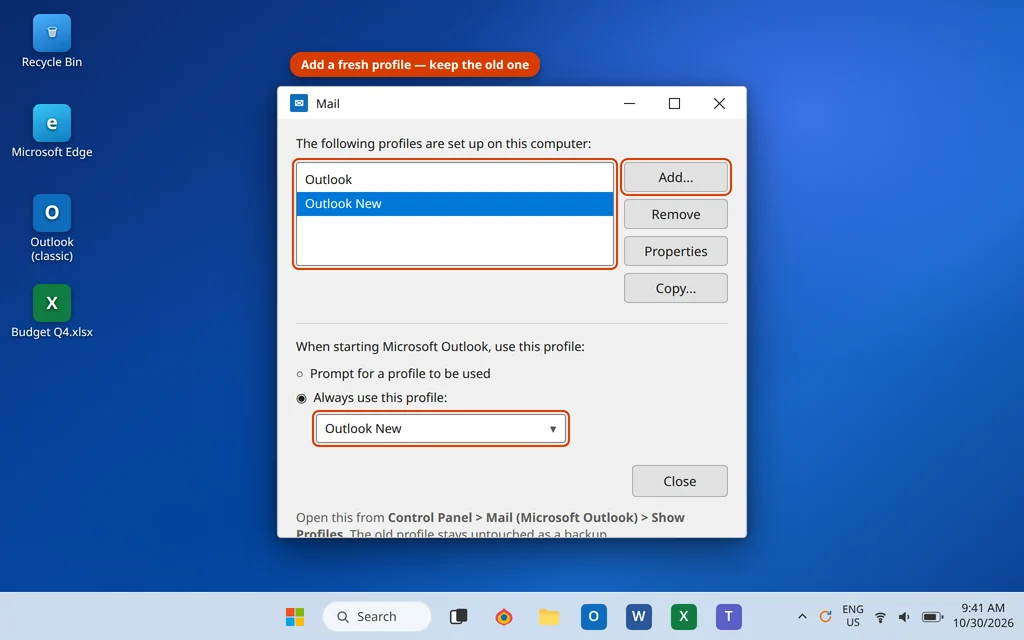
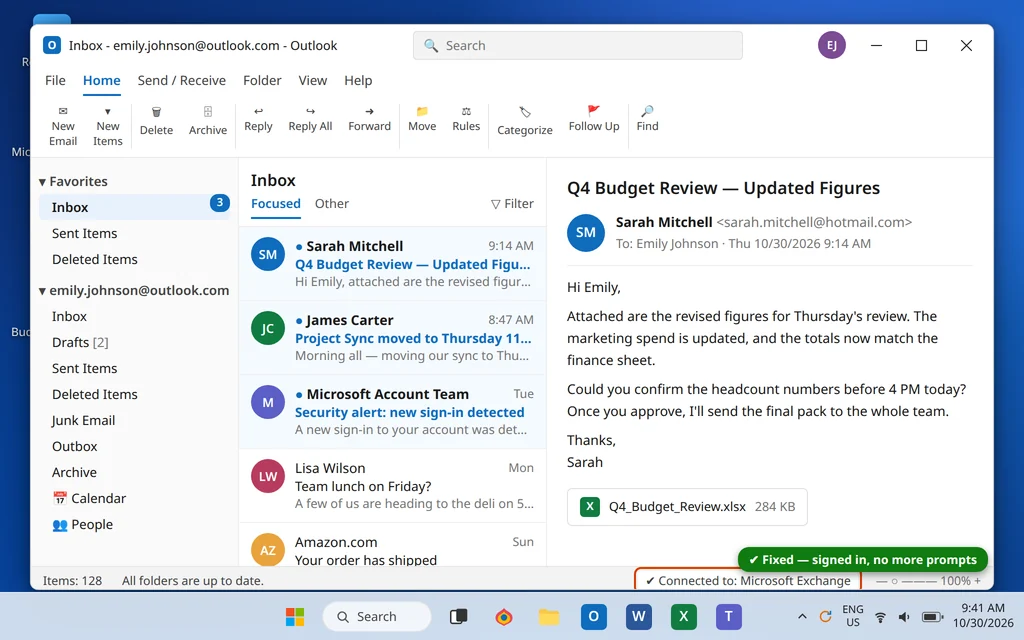
If the prompts are gone, keep using the new profile — the old one can be removed from the same window later, once any local .pst files you need are accounted for. If even a new profile prompts, re-check Fixes 3 and 4, and for a work account, contact your IT admin.
Fix 9: For IMAP Accounts, Use an App Password
If your looping account is IMAP — Yahoo Mail, AOL Mail, iCloud, Gmail with 2-Step Verification, or some provider accounts — your normal password will never satisfy Outlook. These providers require a separate app password: a special password you generate on their website, used only by Outlook.
- Sign in to your provider’s website and open its security settings.
- Look for App passwords (Yahoo calls it “Generate app password”; AOL has the same under Account Security) and create one for Outlook.
- Copy the app password it shows you — it is displayed once.
- In Outlook, when the prompt appears, paste the app password instead of your normal password (or enter it in File > Account Settings > Account Settings > Change for that account).
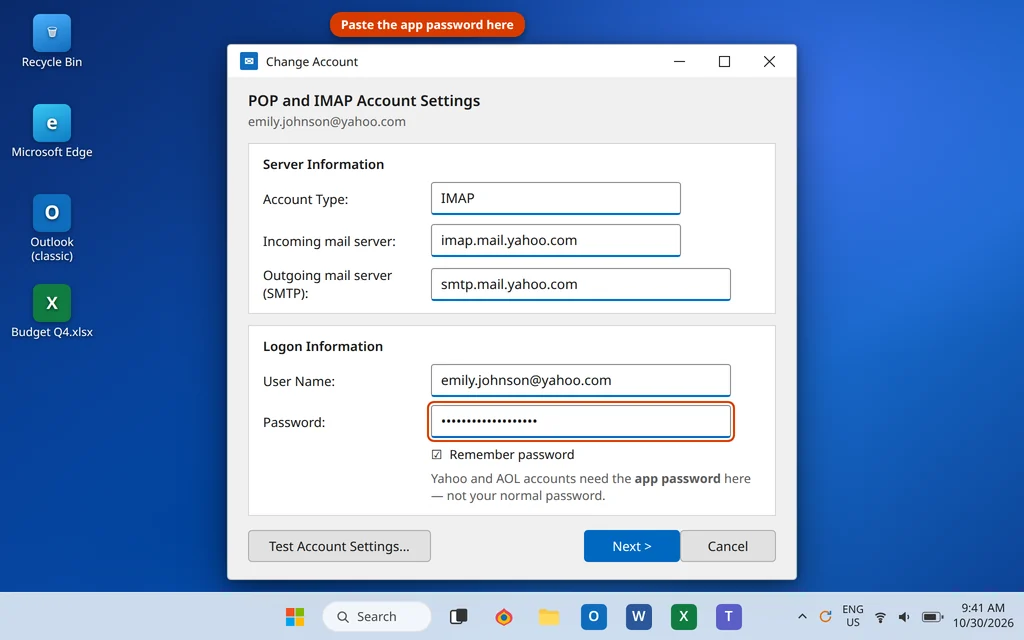
Our step-by-step walkthrough for Yahoo and AOL, including exactly where the app password option hides, is in our guide to adding Yahoo Mail or AOL Mail to Outlook. Gmail users sign in through Google’s own sign-in window instead, so no app password is needed when the account was added the normal way.
Using the New Outlook App?
The new Outlook app for Windows does not use Credential Manager entries or Control Panel profiles, so Fixes 2 and 8 do not apply. If the new app keeps asking for your password:
- Open the app’s Settings (gear icon) > Accounts, select the account, and choose Remove.
- Add the account again with your current password, completing the provider’s sign-in window fully.
- If it still loops, go to Windows Settings > Apps > Installed apps > Outlook (New) > Advanced options and click Repair; if that does not help, click Reset and add the account again. Reset signs you out, but your mail stays safe on the server.
How to Stop the Password Prompts Coming Back
- After a password change, type the new password at the first prompt and check “Remember my credentials” — do not keep dismissing it.
- Keep Office updated (File > Account > Update Options) so Outlook always shows the modern sign-in window.
- Remove old work accounts from Access work or school when you change jobs or finish school, and update Outlook the same day if you regenerate an IMAP app password.
Frequently Asked Questions
Why does Outlook keep asking for my password even though it is correct?
Because Outlook is usually not sending the password you just typed — it is sending a saved copy from Credential Manager that is old or damaged, so the server rejects it and asks again. Remove the saved Outlook credentials (Fix 2), restart Outlook, and type the password once more with “Remember my credentials” checked.
Why did Outlook start asking for my password after I changed it?
Outlook (and Windows) keep using the previously saved password until the stored copy is replaced. Type the new password at the prompt and check “Remember my credentials”; if the old one keeps being sent, clear the stored credentials as in Fix 2 and sign in fresh.
Why does Outlook keep asking for my IMAP or Yahoo password?
Yahoo, AOL, iCloud and similar IMAP accounts do not accept your normal password in Outlook — they require an app password generated in the provider’s security settings. Until you create one and enter it in Outlook (Fix 9), every sign-in fails and the prompt loops.
The new Outlook app keeps asking for my password. What do I do?
Remove the account in the app’s Settings > Accounts and add it again, completing the provider’s sign-in window. If the loop continues, use Windows Settings > Apps > Installed apps > Outlook (New) > Advanced options > Repair, then Reset if needed. The new app does not use the Credential Manager or Control Panel profile fixes.
Will removing credentials in Credential Manager delete my emails?
No. Credential Manager only stores saved sign-ins. Removing the Outlook and Office entries means Outlook asks for your password one more time and saves a fresh copy — your mail, folders, calendar and contacts are untouched.
I found a registry fix online. Should I use it?
Registry edits for this problem circulate on forums, but they are not part of Microsoft’s supported fix path for home users, and a wrong edit can break Office sign-in completely. The loop is caused by saved credentials, account conflicts, app passwords or a damaged profile — Fixes 2, 3, 8 and 9 cover all of those without touching the registry. Only edit the registry if your IT department instructs you to.
Outlook asks for a password, but only on my work account, while my personal account is fine. Why?
That pattern points to the work account’s side: a stale “Access work or school” connection (Fix 3), an unfinished modern sign-in or MFA step (Fix 4), or an account your admin has locked or expired. Personal accounts keep working because they do not depend on your organization’s sign-in rules.
Still getting password prompts? If Outlook will not open at all once it gives up asking, work through our Outlook not opening on Windows 11 guide. And if you are still stuck, tell us your account type (Microsoft 365, Outlook.com, Yahoo, Gmail…) on our Contact page — servicedesk@howtofixerroronline.com, available 24 hours.