
“Word Found Unreadable Content” Error? How to Recover Your File
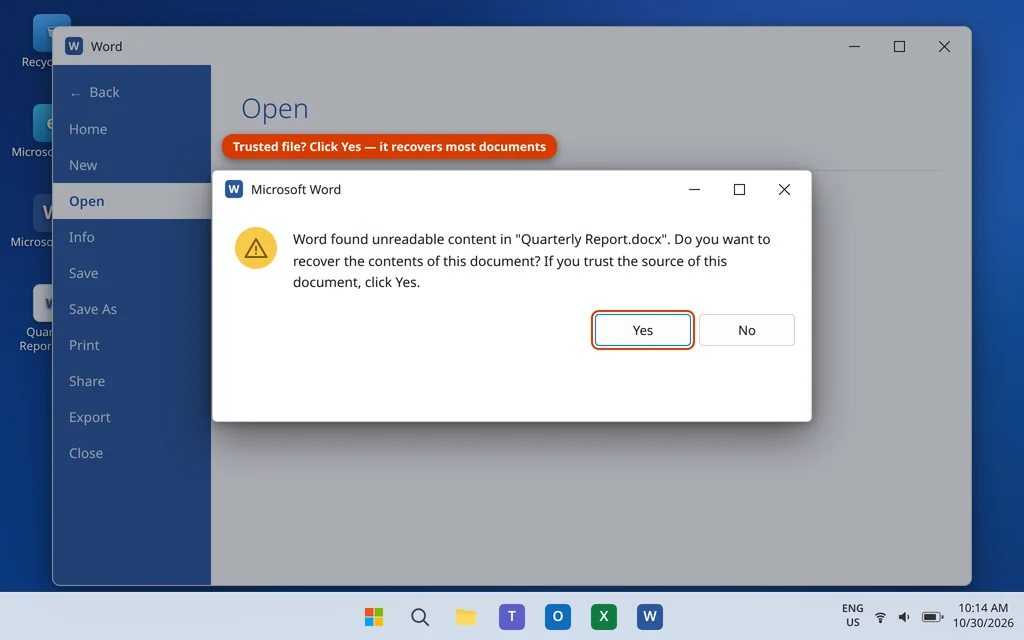
You double-click an important document and instead of your file, Word puts up a warning: “Word found unreadable content in [your file]. Do you want to recover the contents of this document? If you trust the source of this document, click Yes.” It looks alarming — the word “unreadable” makes it sound as if the document is gone. In most cases it is not. The error simply means one small part of the file is damaged, and Word is asking permission to rebuild the document around the damage.
Do not close that dialog in a panic, and do not delete the file. The first button in front of you — Yes — recovers most documents completely. If it does not, this guide walks through every other recovery route Word and Windows offer, in the order you should try them: Open and Repair, the Recover Text converter, inserting the file into a blank document, restoring a previous version, and one last-resort method that pulls the raw text out by hand.
This guide is for Microsoft Word on Windows 11 and Windows 10 (Microsoft 365 and Office 2021/2024), working with .docx files. If Word itself will not even start on your PC, fix that first with our guide to Microsoft Word not opening on Windows 11 — the recovery routes below assume Word opens.
Quick Answer: When you see “Word found unreadable content”, click Yes — Word rebuilds the document and recovers it in most cases. Save the recovered document under a new name immediately (File > Save As). If clicking Yes fails or the document opens damaged, use File > Open with Open and Repair, then the Recover Text from Any File converter, then a Previous Version of the file. Work on a copy of the file whenever you can, so the original stays untouched.
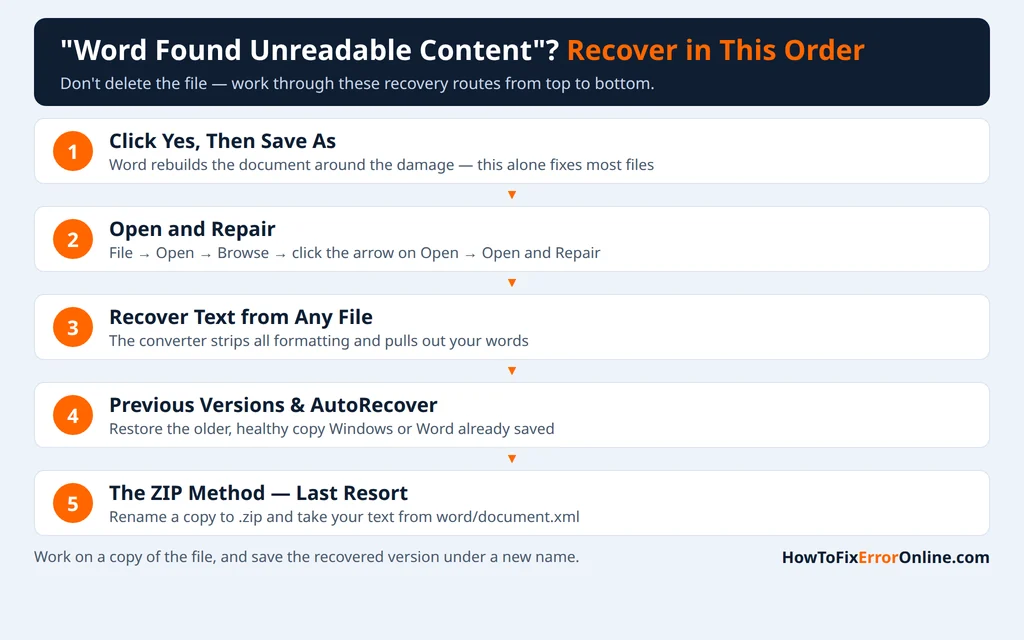
Table of Contents
What Does “Word Found Unreadable Content” Actually Mean?
A modern .docx file is not one solid block of data — it is a package of separate parts: your text, the styles, the images, and the XML instructions that tell Word how everything fits together. When Word opens the package and one part is broken or missing, it cannot trust the whole file, so it stops and asks you what to do:
“Word found unreadable content in Quarterly Report.docx. Do you want to recover the contents of this document? If you trust the source of this document, click Yes.”
The important detail is that the damage is usually in one part — often a formatting instruction, an embedded image, or a broken tag — while your actual text is intact. That is why recovery works so often: Word discards or rebuilds the broken part and opens everything else.
Common causes of this error:
- The file was interrupted while saving — Word or the PC shut down mid-save, or a USB drive was pulled out too early.
- The document came from another program — files created or converted by third-party tools sometimes contain XML that Word reads as invalid.
- A large, complex document — heavy track changes and embedded objects give the file more parts that can break.
- The file was damaged in transit — an email attachment or cloud sync that did not finish cleanly.
- It is not corruption at all — sometimes Windows has simply blocked the downloaded file, and Word reports it as unreadable. Recovery Route 7 covers that case, and it takes ten seconds to check.
Before You Start: Make a Copy of the File
Every recovery attempt is safer on a copy. In File Explorer, right-click the damaged file, choose Copy, right-click an empty spot in the same folder, and choose Paste. Work through the routes below on the copy (its name will end in “- Copy”). If a method makes things worse, your original is still exactly as it was.
Recovery Route 1: Click Yes and Let Word Recover the Document
This is the step the dialog is offering, and it succeeds more often than any other method in this guide.
- On the “Word found unreadable content” dialog, click Yes.
- Word works for a few seconds and opens the document. It may show a message that it made repairs, or the document may simply appear.
- Scroll through the document and check it — especially the end, and any tables, images, or sections with heavy formatting, since those are where recovered files lose pieces.
- Immediately click File > Save As and save it under a new name (for example, “Quarterly Report – Recovered.docx”). Do not save over the damaged original — if the recovery turns out to be incomplete, you want the original still available for the other routes.
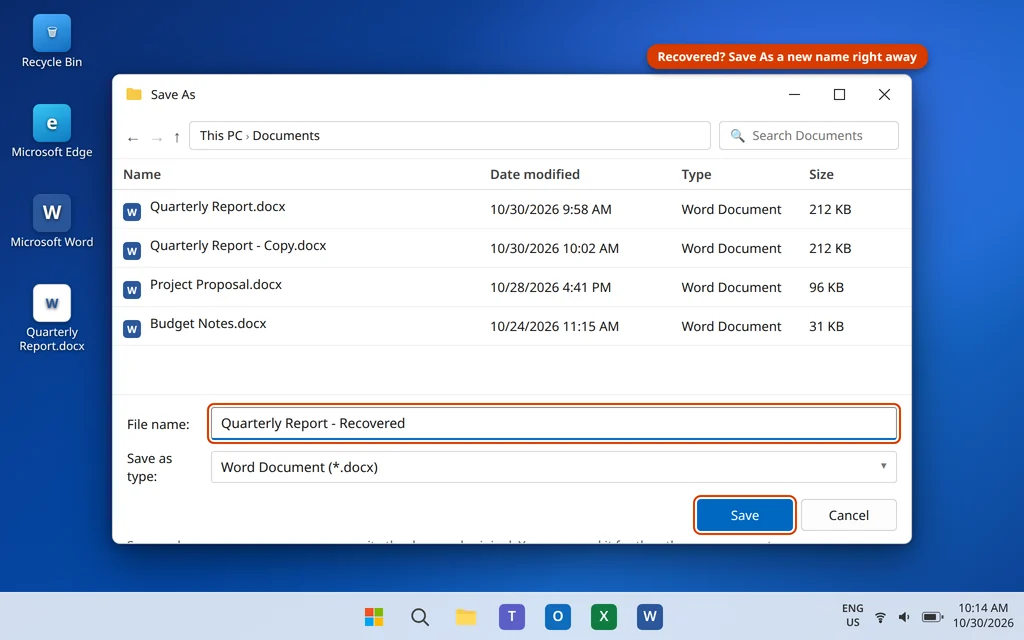
If the document looks complete, you are done. If Word says it cannot recover the file, or the document opens but is missing chunks of content, close it and move to Route 2 — still working on your copy.
Recovery Route 2: Use Open and Repair
Open and Repair is Word’s built-in repair tool, and it is more thorough than the quick recovery offered by the dialog. Many people never see it because it hides behind the arrow on the Open button.
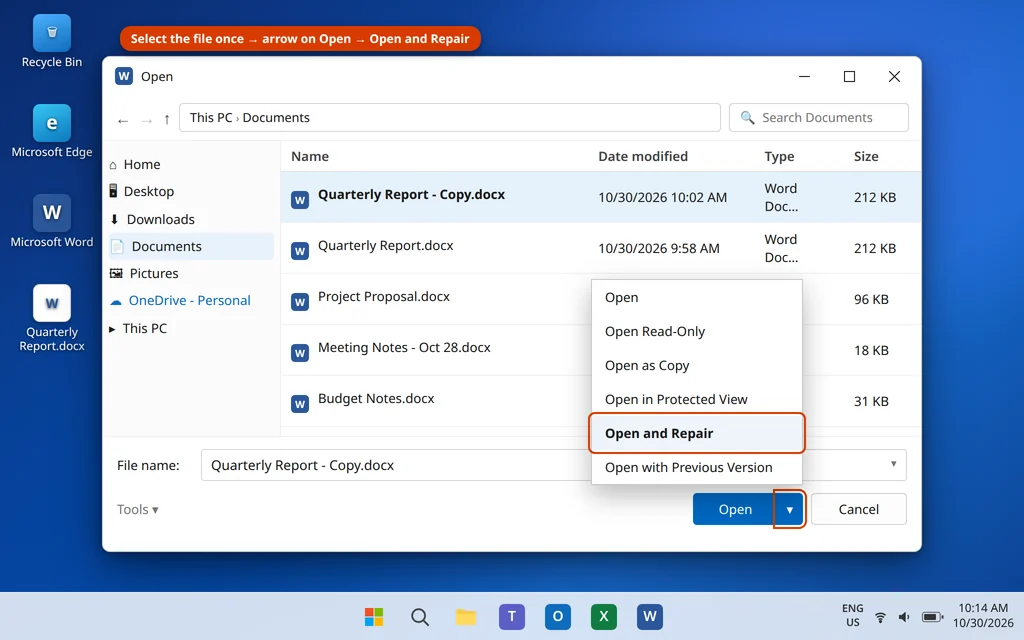
- Open Word to the start screen (do not double-click the damaged file).
- Click File > Open > Browse. The standard Windows Open dialog appears.
- Browse to your file and click it once to select it — do not double-click, or it will just open normally.
- Click the small arrow on the right side of the Open button, at the bottom right of the dialog.
- Click Open and Repair in the dropdown menu.
- Word repairs and opens the file. Check it carefully, then Save As a new name, as in Route 1.
Recovery Route 3: Strip the File Down to Its Raw Text (the .zip Method) — Advanced, Last Resort
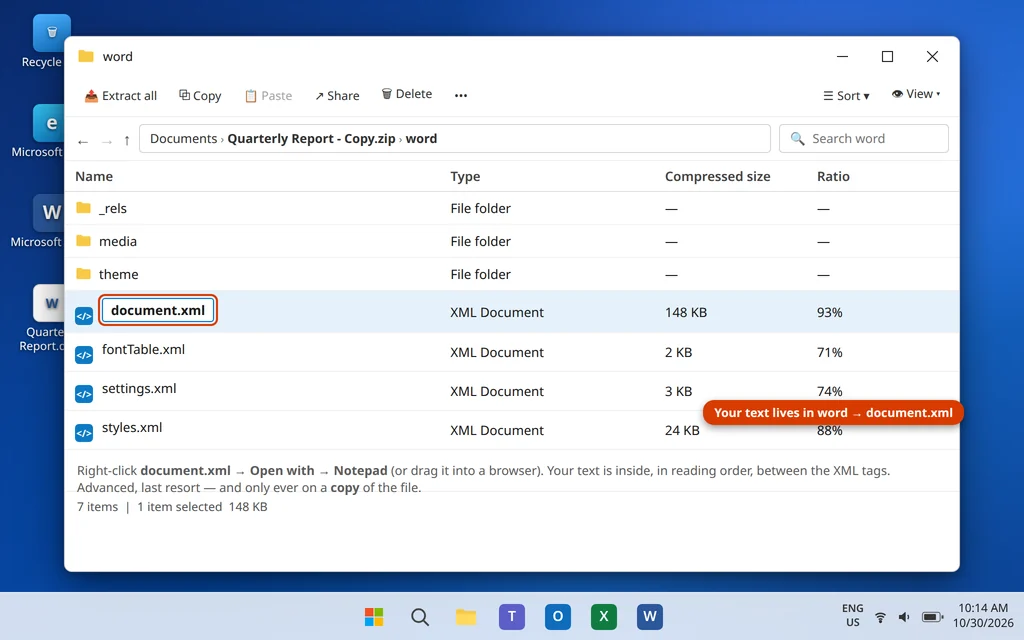
This route is for one situation: the document matters more for its words than its formatting, and Routes 1 and 2 have failed. It works because a .docx file is really a ZIP archive in disguise, and your text lives in one file inside it, called document.xml.
What you get is plain text — every paragraph, in order — with all formatting, images, and tables stripped out. It is a salvage operation, not a repair. Only try it on your copy, never the original.
- In File Explorer, make sure file extensions are visible: click View > Show > File name extensions.
- Right-click your copy of the file, choose Rename, and change only the ending from .docx to .zip. Windows will warn that the file might become unusable — click Yes (this is exactly why you are working on the copy).
- Double-click the new .zip file to open it like a folder, then open the word folder inside it.
- Find document.xml, right-click it, and choose Open with > Notepad (or drag it into a browser window).
- The screen fills with XML code, but your text is in there, in reading order, between the tags. Select the parts you need, copy them, and paste them into a new blank Word document.
Recovery Route 4: Open It With “Recover Text from Any File”
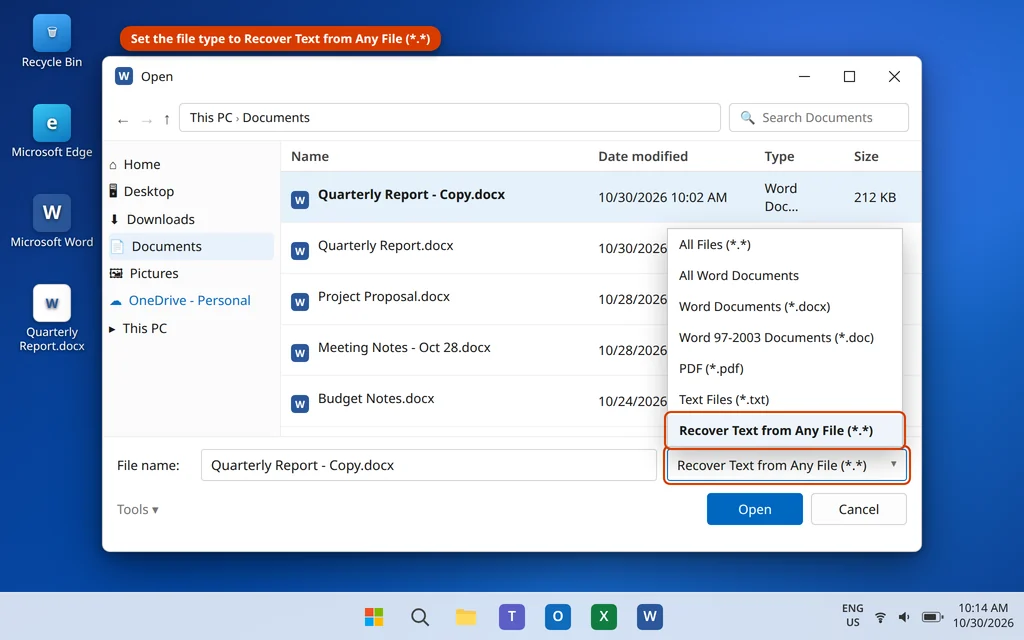
If Word cannot make sense of the file’s structure at all, this converter ignores the structure entirely and extracts whatever readable text it can find. Like Route 3, it returns unformatted text — but it is much simpler, and it works on files too damaged for Open and Repair.
- Open Word and click File > Open > Browse.
- At the bottom of the Open dialog, change the file type dropdown (it normally says “All Word Documents”) to Recover Text from Any File (*.*).
- Select your damaged file and click Open.
- Word opens a plain-text version of the document. There may be odd characters at the very beginning and end — those are leftovers from the file’s inner workings; just delete them.
- Copy the text into a fresh document, reapply your formatting, and save it as a new file.
Recovery Route 5: Insert the Damaged File Into a Blank Document
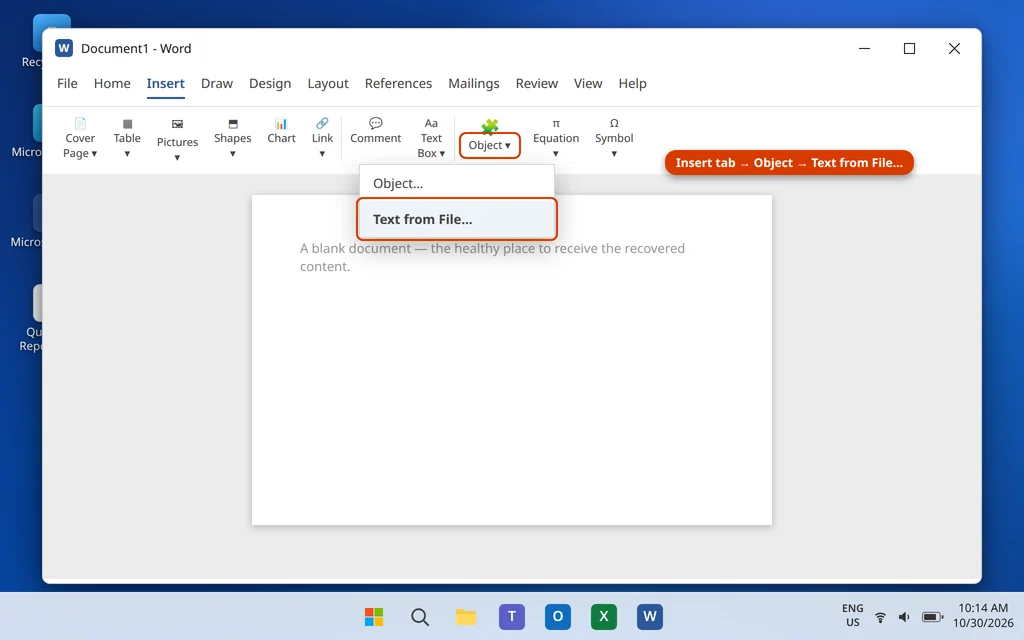
Sometimes Word refuses to open a damaged file but will happily insert its contents into a healthy document. The new document provides the clean structure; the old file just supplies the content.
- Open Word and create a new Blank document.
- Click the Insert tab on the ribbon.
- At the far right of the ribbon, click the arrow next to Object (in the Text group) and choose Text from File.
- Browse to your damaged file, select it, and click Insert.
- The document’s contents flow into the blank document. Check them, then save under a new name.
Recovery Route 6: Restore a Previous Version or an AutoRecover Copy
If repair is not working, step sideways: Windows and Word may already have an older, healthy copy of the document saved for you.
Previous Versions (Windows):
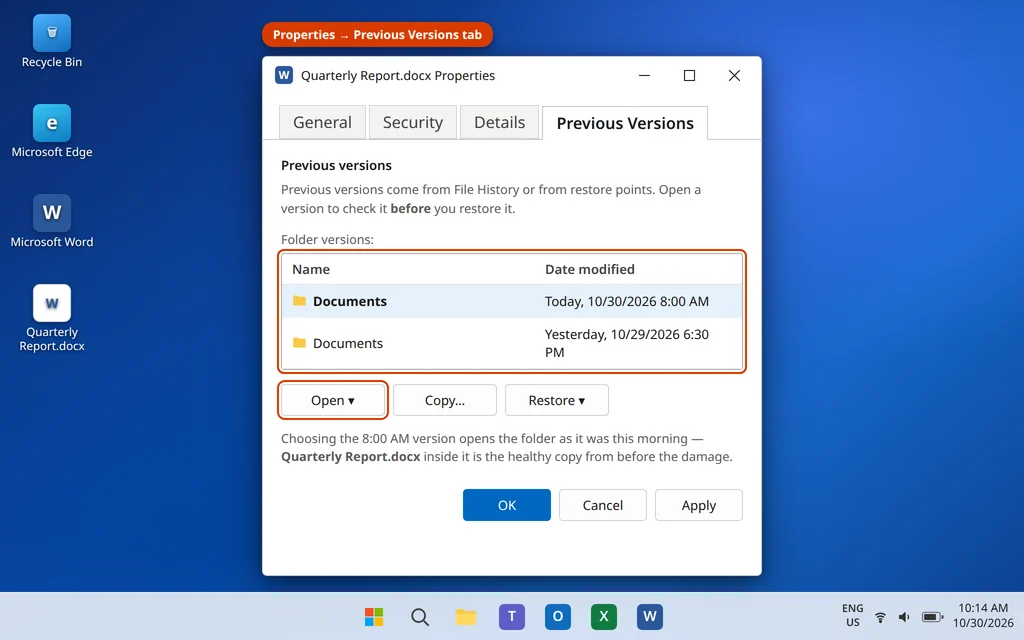
- In File Explorer, right-click the damaged file and choose Properties.
- Click the Previous Versions tab.
- If versions are listed, select one from before the problem started and click Open to look at it first — do not click Restore until you have confirmed it is the version you want, because Restore replaces the current file.
- If the older copy looks good, copy it somewhere safe, or click Restore to put it back in place of the damaged one.
AutoRecover and unsaved drafts (Word):
Word quietly saves backup copies while you work. To find them:
- Open Word and click File > Info.
- Click Manage Document and choose Recover Unsaved Documents.
- A folder opens containing Word’s saved drafts (.asd files). Open the one with the right name and date.
- If it is your missing content, click the Save As bar at the top of the window to keep it permanently.

If your document is stored in OneDrive, you have one more safety net: right-click the file in OneDrive (or open it at onedrive.com), choose Version history, and restore the copy from before the damage.
Recovery Route 7: Unblock the File — It May Not Be Corrupt at All
Files that arrive by email or download carry a mark from Windows: “this came from another computer.” Occasionally Word treats that mark as a problem and reports the file as unreadable when nothing is actually wrong with it. Checking takes ten seconds, so do it before anything drastic:
- Right-click the file in File Explorer and choose Properties.
- On the General tab, look at the bottom. If you see the message “This file came from another computer and might be blocked to help protect this computer,” check the Unblock box next to it.
- Click Apply, then OK, and open the file again.
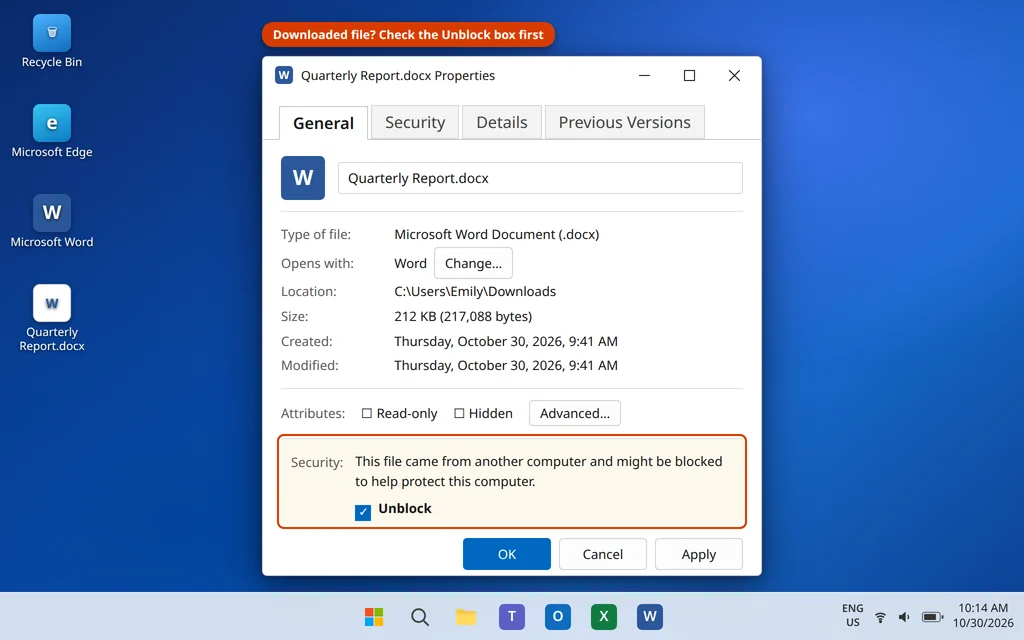
If the file opens normally now, it was never damaged — Windows protection was the whole problem. (Files inside a ZIP behave the same way: unblock or extract them properly with right-click > Extract All rather than opening the document straight from inside the ZIP.)
Recovery Route 8: Check Whether the Problem Is One File or Every File
A short diagnostic before you give up on a file: create a new blank document, type a line, save it, close it, and reopen it. If the new file also triggers errors, the problem is Word itself, not your document — see our guide to Word not responding or crashing, and run an Office repair from Settings > Apps > Installed apps > Microsoft 365 > Modify > Quick Repair. If the new file is fine, the damage is in that one document, and Routes 1–6 are where your recovery will come from.

How to Stop This Error From Happening Again
- Turn on AutoSave with OneDrive. With AutoSave on, every version is kept in Version history — a corrupt save is never the only copy. For important local files, saving a dated copy once in a while does the same job.
- Let saves finish. Most corruption happens when a save is interrupted. Do not pull a USB drive without ejecting it, and do not force-shut-down while a big document is saving.
- Be careful with converted files. Documents converted between formats (PDF to Word, or files from other office suites) are the most likely to contain XML Word dislikes. When you receive one, open it once and Save As a fresh .docx from Word itself — Word rewrites it in its own clean structure.
- Keep documents on healthy storage. If this error keeps happening to files from one USB stick or network folder, suspect the storage, not Word.
Frequently Asked Questions
Should I click Yes or No on “Word found unreadable content”?
Click Yes. Yes tells Word to recover the contents of the document — to rebuild it around the damaged part and open everything it can save. No simply cancels and leaves you locked out of the file. If you are worried about the original, make a copy of the file first (as described above) and click Yes on the copy.
Can I fully recover a corrupted Word file?
Often, yes. If the damage is in formatting or one embedded object, clicking Yes or Open and Repair usually restores the document almost completely. If the damage reaches the text itself, the Recover Text converter and the document.xml method can still pull out your words, though without formatting. The earlier the backup or previous version you have, the more complete the recovery.
Why does Word say my document has unreadable content when it opened fine yesterday?
Something changed the file between then and now: an interrupted save, a sync or email transfer that did not complete, a conversion by another program, or failing storage. Word reads the file fresh at every open, so damage that happened during a shutdown, an update, or a cloud sync only shows up at the next open.
Will Open and Repair change my formatting?
It can. Open and Repair rebuilds the damaged parts of the file, and occasionally a style, an image, or a complex table does not survive the rebuild exactly as it was. That is why the guide keeps repeating two habits: work on a copy, and Save As a new name after any successful repair, so you never overwrite your only version.
The error appears on a file I downloaded. Is it a virus?
Not usually — the error means Word found damaged or unexpected content, which is common in downloads that finished badly or were converted by another tool. If the file came from a source you do not trust, do not force it open: the dialog’s “If you trust the source of this document” wording is there for a reason. For a trusted download, check the Unblock box in the file’s Properties (Route 7) or ask the sender to send it again.
Where does Word keep AutoRecover files?
Word saves AutoRecover drafts automatically while you work. The easiest way to reach them is File > Info > Manage Document > Recover Unsaved Documents, which opens the folder directly. Finding a draft there is not guaranteed — it depends on how long the document was open and your AutoRecover interval — but it takes under a minute to check.
Word found unreadable content on a Mac — does this guide help?
Mostly, yes. The error and the first fixes are the same in Word for Mac: click Yes to recover, and use Open and Repair from the Open dialog. The Recover Text converter is also available there. The Windows-only parts are Previous Versions (on a Mac, use Time Machine or OneDrive version history instead) and the Properties > Unblock step.
Still can’t recover your document? Tell us what happens at each step — whether clicking Yes opens anything, and what Open and Repair reports — on our Contact page — servicedesk@howtofixerroronline.com, available 24 hours — and our other Microsoft Office guides cover Word, Excel, PowerPoint and OneDrive problems.