
Excel Not Responding or Keeps Crashing? 8 Fixes
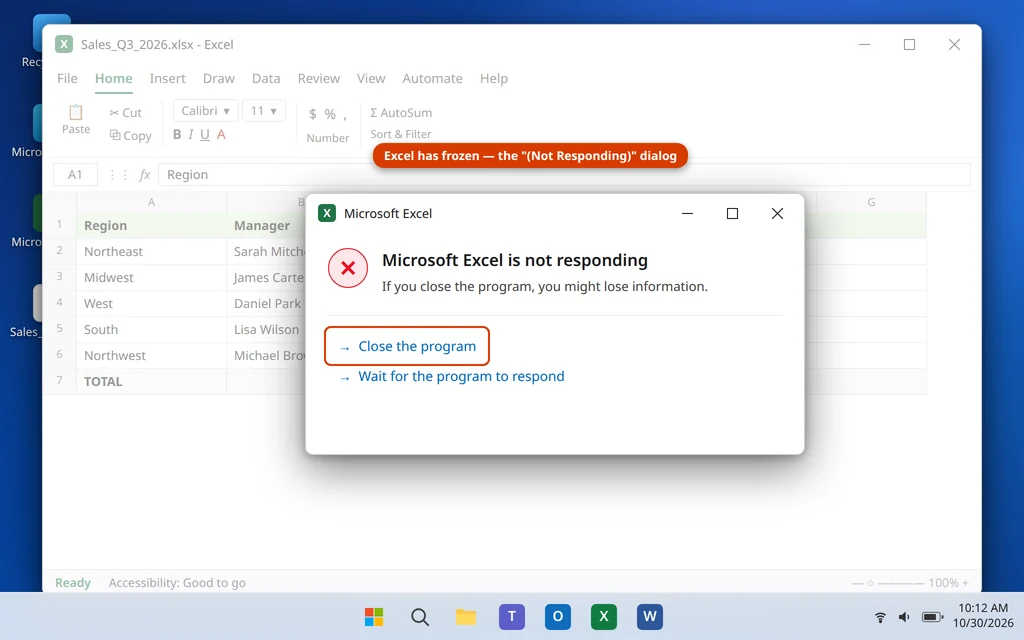
The screen fades, the title bar adds the words “(Not Responding),” and Windows pops up a gray box asking whether you want to close the program. If you are staring at Excel not responding in the middle of real work — a half-finished report, an unsaved budget — the freeze itself is only half the problem. The other half is not losing what you were working on.
This guide handles both halves in the right order. First, how to give Excel a chance to recover and how to get your unsaved work back if it does not. Then eight fixes, starting with the two-minute tests and ending with the repair options, so the freeze stops happening. Almost everything here works while Excel is closed, so you never need a working copy of Excel to fix it.
This guide is for the desktop version of Microsoft Excel on Windows 11 (Microsoft 365 and Office 2021/2024). If your problem is a specific workbook that will not open at all, our guide to an Excel file that won’t open covers that case in detail.
Quick Answer: Give Excel a real minute or two if the status bar shows it is still calculating — big workbooks are sometimes just busy, not frozen. If it is truly stuck, end it in Task Manager and reopen Excel: the Document Recovery pane usually offers your unsaved work back. For the freeze itself, start Excel in Safe Mode (
excel /safe) and disable COM add-ins, switch your default printer to Microsoft Print to PDF as a test, then update Office and run a Quick Repair.
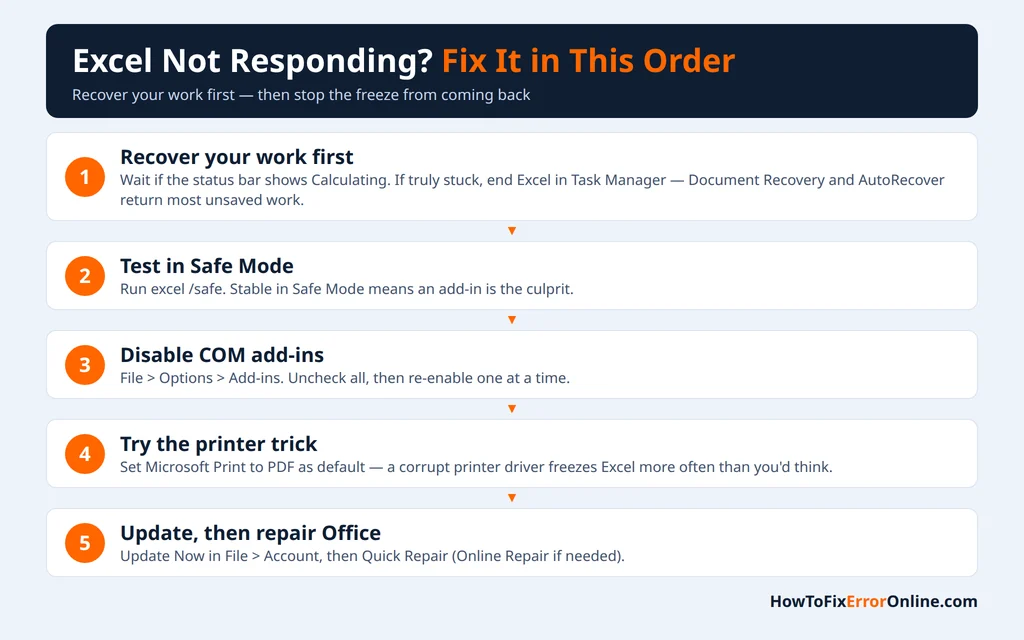
Table of Contents
Before You Close Excel: How to Recover Your Work
When Excel not responding how to save your file is the first question everyone asks, here is the honest answer: there is no button that saves a frozen Excel. Your realistic options are these:
Wait for a genuine recovery. If Excel comes back to life — it does happen, especially after a heavy calculation finishes — press Ctrl + S immediately, then keep a copy with File > Save As under a new name before you do anything else.
Use Document Recovery after a restart. When Excel restarts after a crash or a forced close, it normally opens a Document Recovery pane on the left listing the recovered versions of your files, marked [Recovered]. Click the drop-down arrow next to the newest one and choose Save As to keep it. Do this before opening anything else — the pane only appears on the first relaunch after the crash.
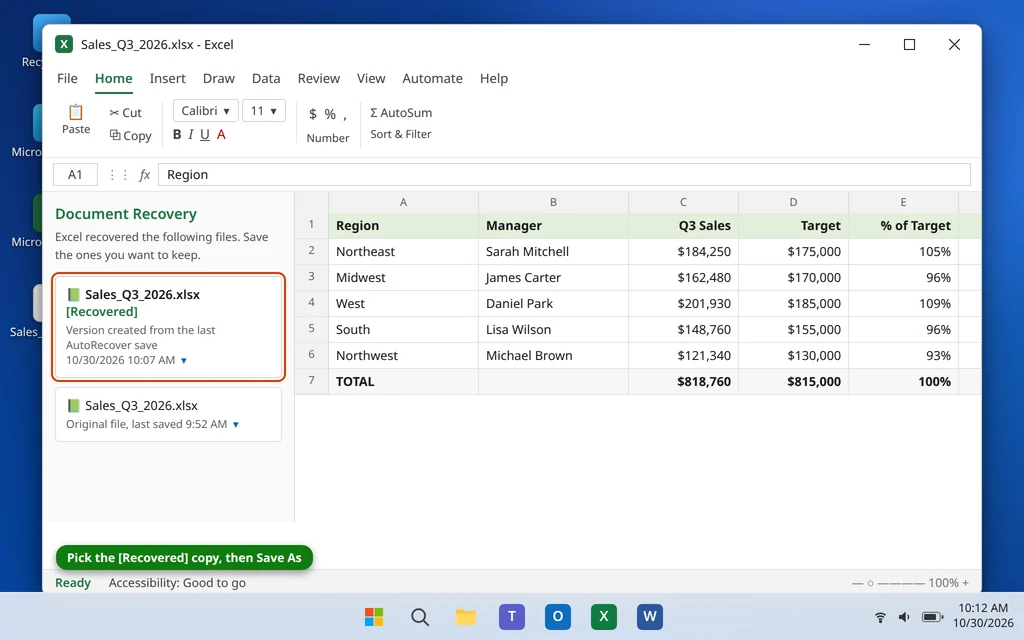
Check the AutoRecover folder. Excel quietly saves a temporary copy of open workbooks every 10 minutes by default. If the Document Recovery pane does not appear, open Excel, go to File > Options > Save, and note the AutoRecover file location shown there — open that folder in File Explorer and look for your workbook’s name. Lower the “Save AutoRecover information every” interval to 5 minutes on that same screen to halve what you can lose next time.
Know what is actually at risk. Everything up to the last AutoRecover point is usually recoverable; the last few minutes of typing are not. That gap is why the fixes below are worth finishing rather than just recovering and carrying on.
Why Does Excel Keep Not Responding or Crashing?
Excel freezes when one of the things it depends on stops answering. The usual suspects — each fix below maps to one of them:
- A faulty add-in. COM add-ins load with Excel and hook into almost everything it does. One broken or outdated add-in — PDF tools, accounting exports, reporting plug-ins — is the single most common cause of repeated crashes.
- A damaged or overloaded workbook. Corrupted sheets, thousands of volatile formulas, huge pivot tables, or links to files that no longer exist can hang Excel every time the file opens or recalculates.
- The default printer driver. Excel talks to your default printer constantly — to render pages, show Print Preview and even just to open some files. A corrupt or half-updated driver is a classic, little-known cause of Excel not responding when printing or opening.
- Outdated Office and damaged program files. Microsoft fixes freeze bugs in updates regularly, and an interrupted update or hard shutdown can corrupt Excel’s own files, after which it crashes no matter what you open.
- A graphics driver clash. Excel uses hardware graphics acceleration for rendering; on some PCs that clash freezes the window, particularly with chart-heavy workbooks.
Fix 1: Wait It Out Properly — Then Force Close if You Must
“Not Responding” does not always mean frozen. A workbook recalculating a large formula chain, refreshing a big pivot table, or pulling data from a network file can legitimately take minutes, and Windows labels it “Not Responding” the whole time.
- Look at the status bar at the bottom of the Excel window before the screen faded. If it shows Calculating with a percentage, or a cell count still changing, Excel is working. Wait — for a genuinely large file, two to five minutes is not unusual. This is the only real “excel not responding fix without closing” there is.
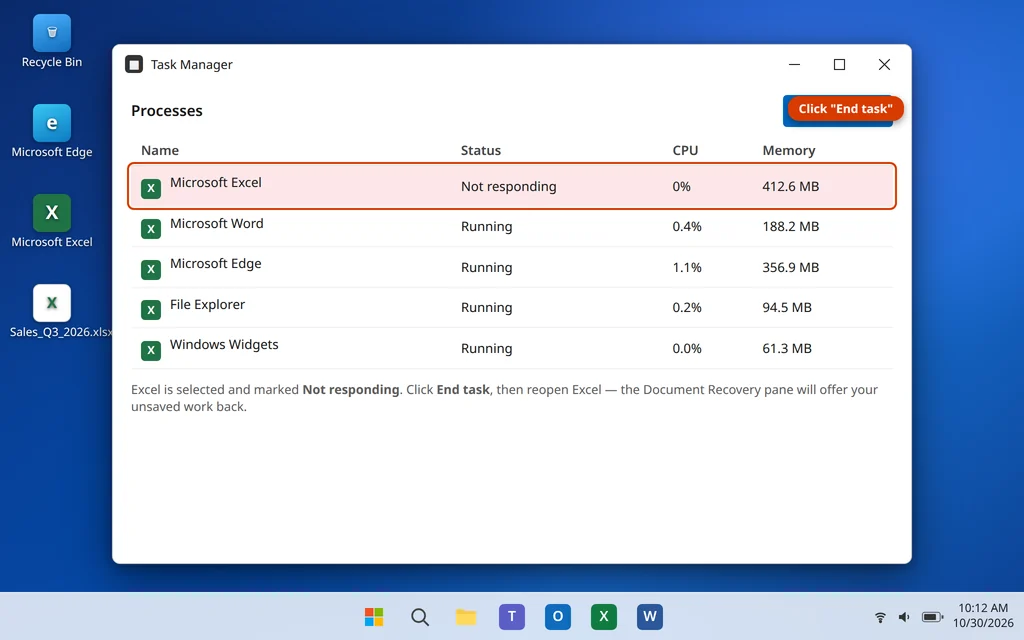
- If the status bar is static, the mouse pointer never changes, and several minutes pass with no change, Excel is truly stuck. Press Ctrl + Shift + Esc to open Task Manager.
- Find Microsoft Excel under Apps. It will usually say Not responding next to it. Select it and click End task.
- Reopen Excel and use the Document Recovery pane from the section above to get your work back.
Once you have recovered what you can, do not just carry on working — a freeze that happened once tends to repeat. Continue to Fix 2 to find the cause.
Fix 2: Start Excel in Safe Mode
Safe Mode starts Excel with no add-ins and no customizations. It is the cleanest test in this guide: if Excel runs fine in Safe Mode, the core program is healthy and something it normally loads is the problem.
- Close Excel completely (use Fix 1’s Task Manager step if it is stuck).
- Press Windows key + R, type
excel /safeand press Enter. (You can also hold the Ctrl key while clicking the Excel icon and click Yes when asked about Safe Mode.) - Excel opens with (Safe Mode) in the title bar. Open the workbook that usually causes trouble and use it normally for a few minutes.
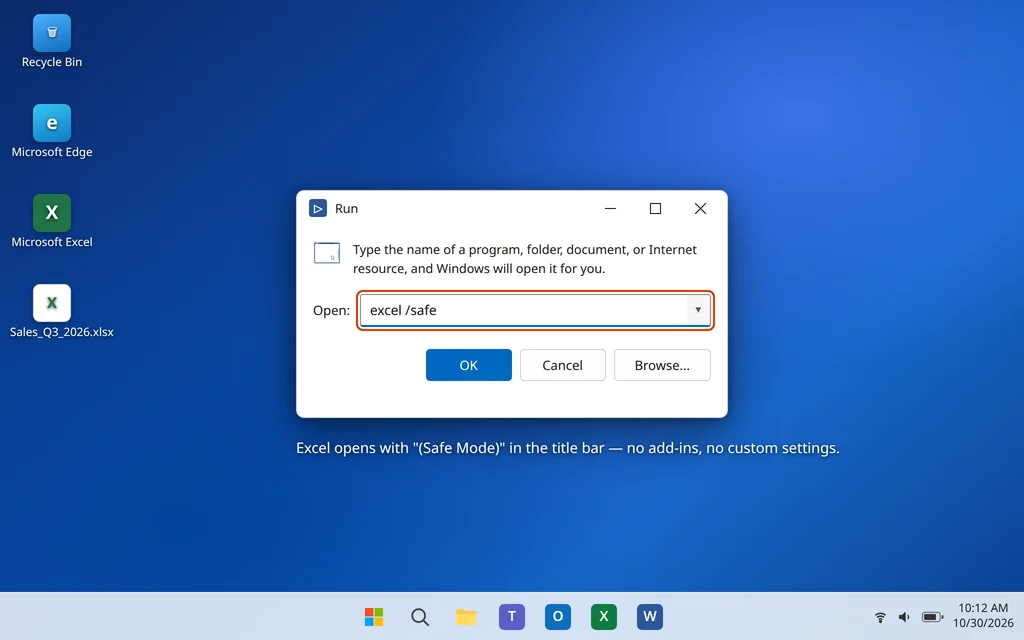
If Excel is stable in Safe Mode, an add-in is almost certainly your culprit — go straight to Fix 3. If Excel keeps crashing even in Safe Mode, add-ins are ruled out: skip to Fix 5 (printer), Fix 6 (update) and Fix 7 (repair).
Fix 3: Disable COM Add-Ins One by One
Do this from a normal Excel start if it stays open long enough, or from Safe Mode, where the settings still apply.
- Click File > Options > Add-ins.
- At the bottom of the window, set Manage to COM Add-ins and click Go.
- In the COM Add-ins dialog, uncheck every add-in and click OK.
- Restart Excel normally and test. If the freezing stops, an add-in was the cause.
- Turn the add-ins back on one at a time, restarting Excel after each, until the freeze returns — the last one you enabled is the faulty one. Leave it unchecked, update it from its maker’s website, or uninstall it.

While you are on the Add-ins screen, also set Manage to Excel Add-ins and click Go — uncheck anything there you do not recognize or no longer use. Old third-party reporting add-ins are frequent offenders on both lists.
Fix 4: Turn Off Hardware Graphics Acceleration
Excel uses your graphics hardware to draw the grid, charts and ribbons. On some driver and hardware combinations that causes exactly this freeze, and turning it off costs you nothing noticeable in everyday work.
- Click File > Options > Advanced.
- Scroll down to the Display section.
- Check Disable hardware graphics acceleration if your version shows it, then click OK and restart Excel.
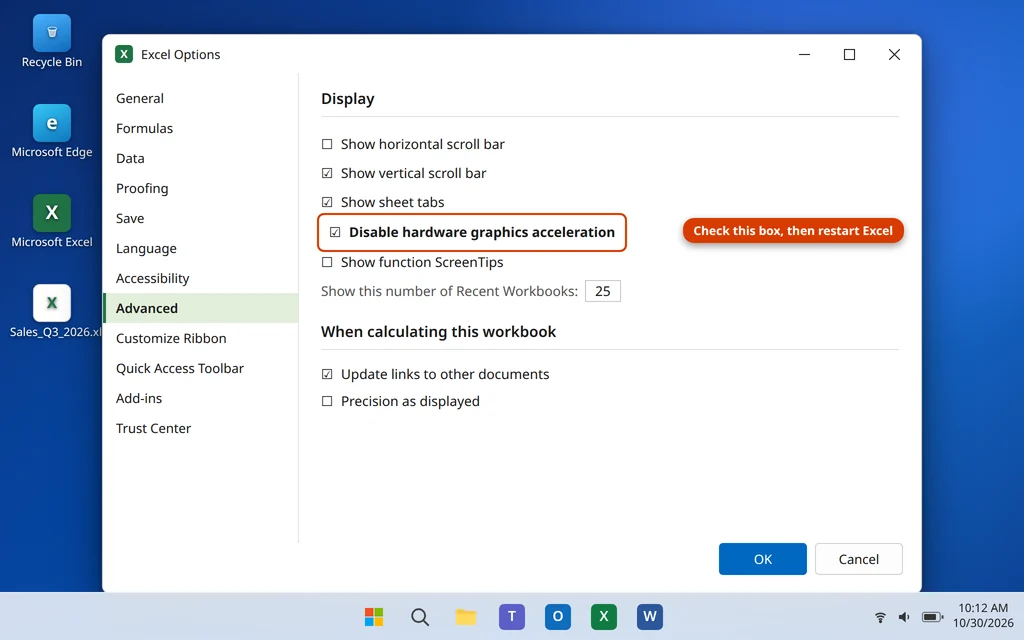
On the newest Microsoft 365 builds, Microsoft has been moving graphics handling into Windows itself, so the checkbox may not appear at all. If you do not see it, that is expected on your version — leave the setting alone and move on to Fix 5 rather than hunting for it elsewhere.
Fix 5: Change Your Default Printer to Microsoft Print to PDF
This sounds unrelated, which is why it gets missed. Excel asks your default printer how to lay out pages every time it opens a workbook, refreshes Print Preview, or prints. If that driver is corrupt — a common state after a Windows update — Excel hangs waiting for an answer that never comes. This is the fix behind a large share of “excel not responding when printing” reports.
- Open Settings > Bluetooth & devices > Printers & scanners.
- Scroll down and turn off “Let Windows manage my default printer”.
- Click Microsoft Print to PDF in the list, then click Set as default.
- Open Excel and test the workbook that froze, including a print preview.
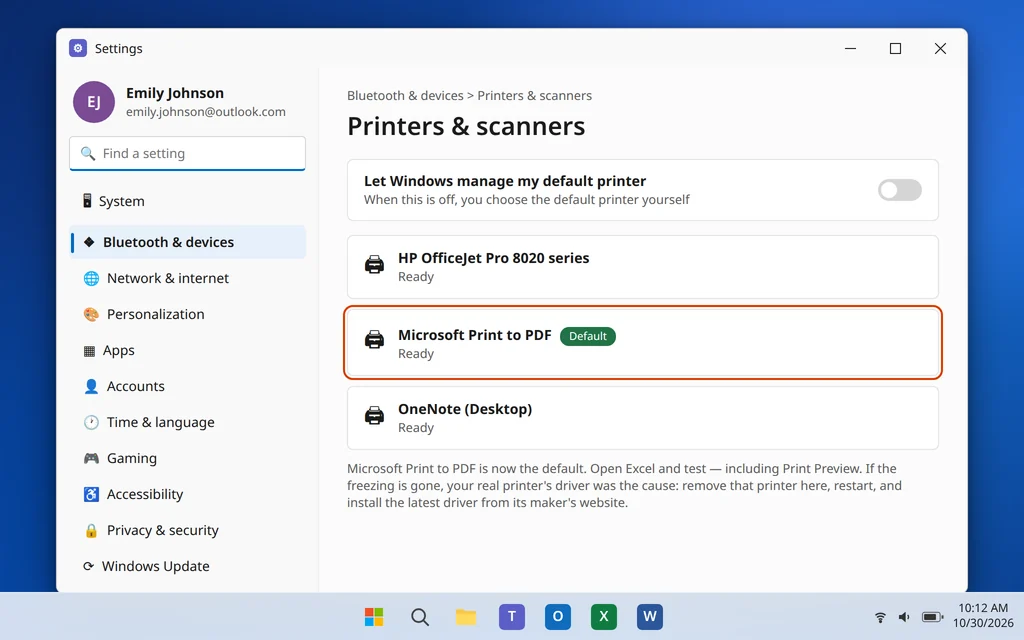
If Excel behaves now, the diagnosis is proven: your real printer’s driver is the problem. Remove the printer in the same Settings screen, restart the PC, install the latest driver from the printer maker’s website, then add the printer back. If Excel still freezes with the PDF printer as default, the driver was not the cause — continue to Fix 6.
Fix 6: Update Office
If your freezing started after a Windows 11 update, or your Office simply has not been updated in a while, an update is a realistic fix — Microsoft patches Excel stability bugs in most monthly releases.
- Open Excel (Safe Mode is fine if it will not stay open normally).
- Click File > Account.
- Click Update Options, then Update Now.
- Let the update download and finish, close Excel, and open it normally.
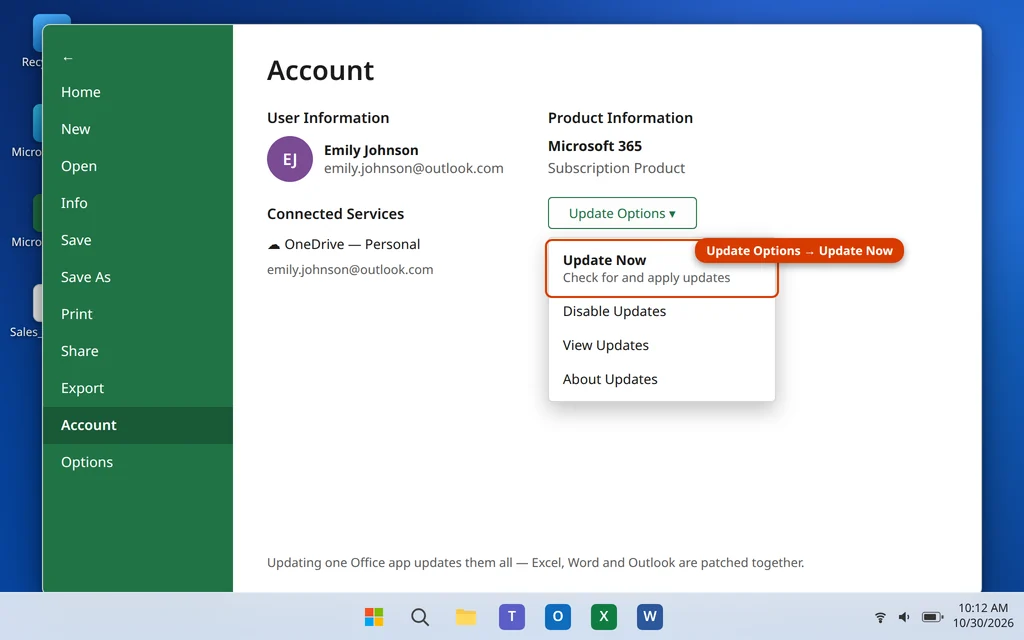
Also open Settings > Windows Update > Check for updates and install what is waiting there — printer and graphics drivers arrive that way too, and both are suspects in this guide.
Fix 7: Repair Office — Quick Repair First, Then Online Repair
When Excel crashes no matter which file you open, and Safe Mode did not save it, its own program files are probably damaged. The built-in repair rebuilds them without touching your workbooks or settings.
- Close all Office apps.
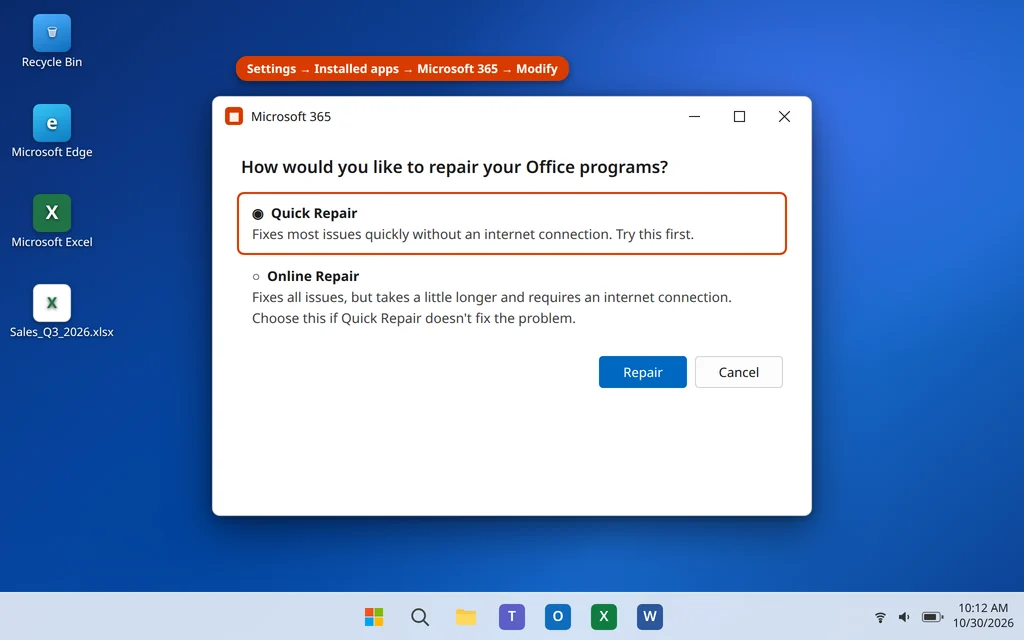
- Right-click the Start button and choose Installed apps.
- Find Microsoft 365 (or your version of Office), click the three dots next to it, and choose Modify.
- Choose Quick Repair and click Repair. It takes a few minutes and works offline.
- Test Excel. If it still freezes or crashes, repeat the steps and choose Online Repair — it re-downloads the Office program files, so it takes longer and needs the internet, but it fixes deeper damage.
After an Online Repair you may need to sign in to Office once to reactivate it. Your workbooks are separate files and are not affected by either repair.
Fix 8: If Only One Workbook Crashes Excel, Fix the File
When every other file works and one particular workbook crashes Excel on open, on save, or when you touch a certain sheet, the file itself is damaged — no amount of repairing Office will change that. The reliable rescue is to move its contents into a fresh workbook.
- Open Excel to a blank workbook (do not open the problem file).
- Try opening the problem file in Safe Mode (Fix 2) — files often open there even when a normal start crashes.
- If it opens, right-click each sheet tab, choose Move or Copy, check Create a copy, and copy the sheets into the new blank workbook. Then save the new workbook under a new name and work from it.
- If it will not open even in Safe Mode, click File > Open, browse to the file, click the small arrow next to the Open button, and choose Open and Repair. Click Repair; if that fails, repeat and choose Extract Data to at least recover values and formulas.
Two cautions: macros and some formatting may not survive the move into a new workbook, so check any VBA after copying macro-enabled (.xlsm) files. And if the file lives on OneDrive or a network drive, download a local copy and test that first — a sync or network problem can look exactly like a corrupt file.
How to Stop Excel Freezing Again
- Keep Office updated. Most crash fixes arrive silently in updates; postponing them keeps the bug.
- Audit your add-ins twice a year and remove what you no longer use — every enabled add-in is extra code in every session.
- Keep AutoRecover at 5 minutes (File > Options > Save). It is the difference between losing an afternoon and losing five minutes.
- Watch the pattern. Crashes only on print preview? Printer driver. Only after opening one file? The file. Only since an update? Run Fix 6, then Fix 7.
Frequently Asked Questions
How long should I wait when Excel is not responding?
Look at the status bar. If it says Calculating with a changing percentage, give it up to five minutes on a large workbook — Excel is working, not frozen. If nothing on screen or in the status bar changes for several minutes, it is stuck, and waiting longer will not help. End it with Fix 1 and recover your work from the Document Recovery pane.
Can I save my work when Excel is not responding, without closing it?
Only if Excel recovers on its own — then press Ctrl + S the moment it responds. There is no way to force a save into a frozen Excel. That is exactly what AutoRecover and the Document Recovery pane exist for: between them, you normally lose no more than the last few minutes of work.
Why does Excel keep crashing when opening a specific file?
Because that workbook itself is damaged — a corrupted sheet, broken external links, or a damaged pivot cache. Excel and other files are fine. Use Fix 8: open it in Safe Mode if you can, copy its sheets into a new workbook, and if it will not open at all, use Open and Repair from the drop-down next to the Open button.
Excel crashes even in Safe Mode. What does that mean?
It rules add-ins out, because Safe Mode loads none of them. The cause is then Excel’s own files, your printer driver, or an outdated installation. Go to Fix 5 (printer test), Fix 6 (update), and Fix 7 (Quick Repair, then Online Repair) — in that order.
Why does Excel stop responding when I try to print?
Almost always the printer driver. Excel asks the default printer for page measurements before it can show Print Preview or print, and a corrupt driver never answers. Fix 5 — switching the default to Microsoft Print to PDF — both tests and confirms this in two minutes.
Will repairing Office delete my workbooks or settings?
No. Quick Repair and Online Repair only replace the Office program files. Your workbooks, wherever you saved them, stay exactly where they are, and your Excel settings are kept. After an Online Repair you may be asked to sign in once to reactivate Office.
Why did Excel start freezing right after a Windows 11 update?
Updates sometimes replace or break printer and graphics drivers, hitting three of the classic freeze causes at once. Run Fix 6 to bring Office fully up to date, do the printer test in Fix 5, and finish with a Quick Repair if it continues.
Still stuck with Excel not responding? Tell us when it freezes — opening, saving, printing, or one particular file — on our Contact page — servicedesk@howtofixerroronline.com, available 24 hours. If Word is the app giving you trouble instead, our guide to Microsoft Word not opening on Windows 11 uses the same method for Word.