

Microsoft Teams Not Sending Messages? 7 Fixes
You type the message, hit Enter — and it just sits there. A little spinner turns next to it, Sending never goes away, or the message turns red with Failed to send. Meanwhile your coworkers are waiting for an answer you swear you already sent. When Microsoft Teams is not sending messages, the problem is almost always local and fixable: a stuck connection, an expired sign-in, or a corrupt app cache on your PC.
The telltale clue is what happens on your phone. If messages send fine from the Teams mobile app but not from the desktop app, your account is healthy and the fault is inside the desktop app — which is exactly what the fixes below target, in order. Fixes 2 and 3 solve this for most people and take under two minutes.
Quick Answer: First, click Retry under the failed message and check your internet connection. If messages still will not send, fully quit Teams (right-click its system tray icon > Quit) and reopen it. Still stuck? Sign out and back in (profile picture > Sign out) to refresh your sign-in. If it persists, reset the app: Settings > Apps > Microsoft Teams > Advanced options > Reset. Sending from teams.microsoft.com in a browser confirms whether the problem is the app or your account.
Table of Contents
What Sending, Retrying and Failed to Send Actually Mean
Teams shows you exactly where a message got stuck — it is worth reading the status before you start fixing:
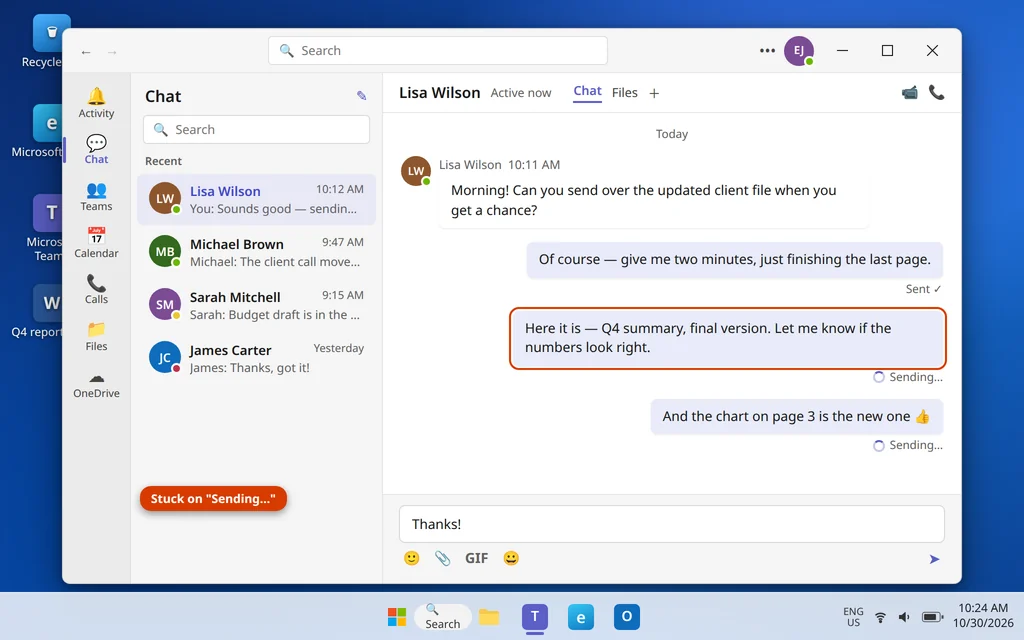
- A spinner with Sending that never finishes means Teams is still trying to reach the server. The message has not left your PC. This is usually a dropped connection, a VPN hiccup, or the app itself frozen mid-send.
- Retrying means Teams reached the server once, got interrupted, and is automatically trying again. A message can sit in retrying for a long time if your sign-in session has quietly expired.
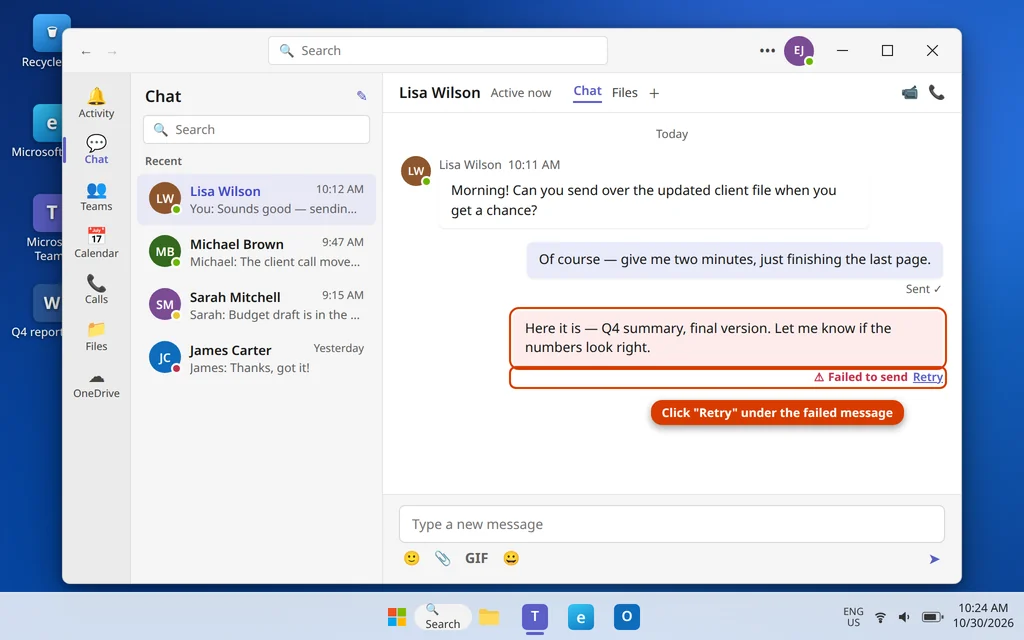
- Failed to send in red, with a Retry option, means Teams gave up. Tap Retry once your connection is back — but if every new message fails the same way, the cause is below, not the individual message.
- Messages arrive but yours will not send, or they fail only in the desktop app while the phone works — that pattern points at the app’s sign-in token or cache, not your account and not Microsoft’s servers.
- Failures to one person only are different again: that is often the other side (a guest/external account, or that person has left the organization), not your app.
There is one more possibility to rule out early: a genuine Microsoft service problem. It is rare, but if Teams is down for everyone, no local fix will help — Fix 1 shows you how to check.
Fix 1: Check the Message Status, Click Retry, and Check Your Connection
Start with the failed message itself — sometimes that really is all it needs.
- Find the message marked Failed to send and click Retry underneath it.
- Confirm you are actually online: open any website in your browser. If pages do not load either, fix the connection first (restart the router, reconnect to Wi-Fi, or unplug the network cable and plug it back in).
- If you use a VPN, disconnect it for a minute and try sending again — a dropped VPN tunnel is a classic cause of messages stuck on Sending. You can reconnect once the message goes through.
- Check whether it is just you: open the Microsoft 365 service health page (admins) or simply ask a coworker / check Teams on your phone. If nobody can send, it is a service issue on Microsoft’s side and the only fix is waiting — your queued messages usually deliver on their own when service returns.
If Retry works, you are done. If every message keeps failing, the app itself needs attention — move on.
Fix 2: Fully Restart Teams (Quit, Don’t Just Close the Window)
Clicking the X only hides Teams — it keeps running in the background, stuck session and all. A real quit forces a fresh connection to the server.
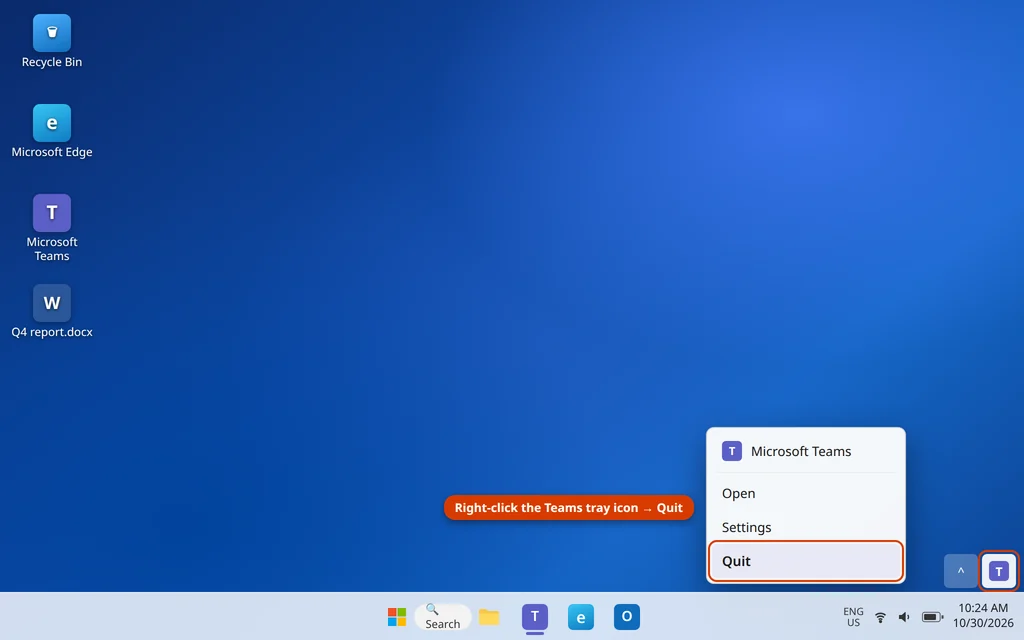
- Look at the system tray by the clock (click the ^ arrow if you do not see the Teams icon).
- Right-click the Teams icon and choose Quit.
- Wait a few seconds, then open Teams again from the Start menu.
- Send a test message — to yourself in a group chat with a coworker, or in any low-stakes chat.
This simple restart clears the stuck sending queue surprisingly often, because the failed sends were waiting on a connection that no longer exists. If messages still will not send after a clean restart, the sign-in itself is the next suspect.
Fix 3: Sign Out of Teams and Sign Back In
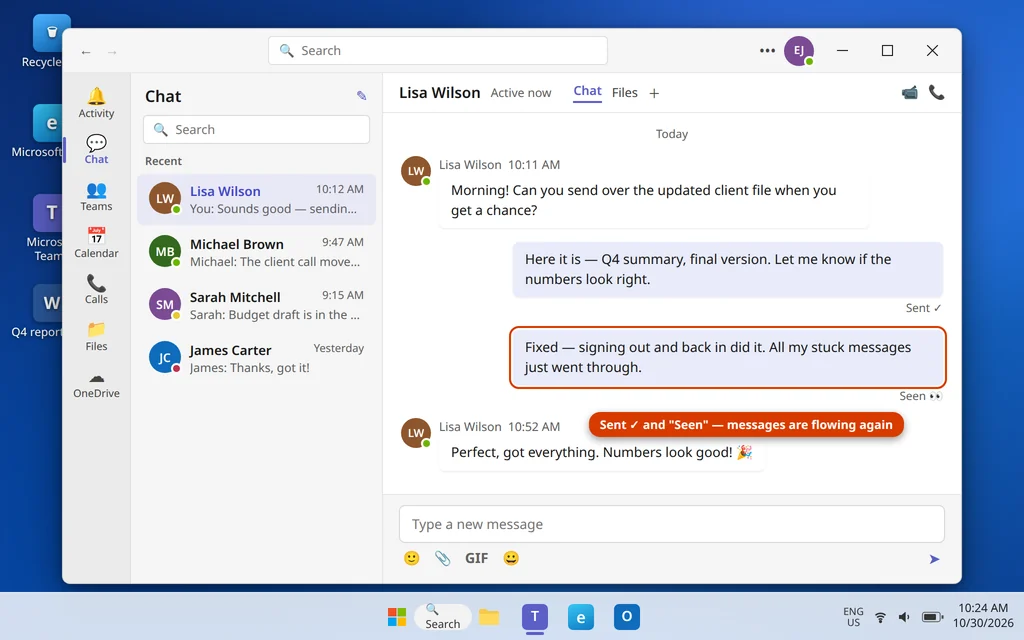
Teams signs you in with a token that refreshes quietly in the background. When that token expires or gets out of sync — after a password change, for example — Teams can receive messages but the server refuses to accept new ones from you. Signing out and back in forces a brand-new token.
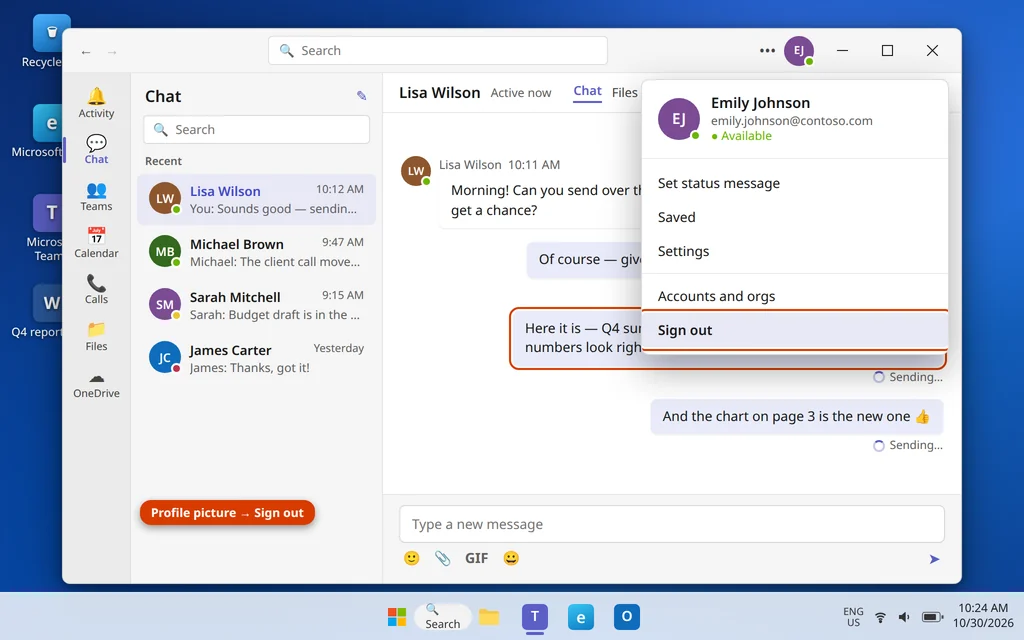
- Click your profile picture at the top-right of Teams.
- Choose Sign out.
- Teams restarts to the sign-in screen. Sign in again with your work account (emily.johnson@contoso.com style address) and complete any sign-in prompt or verification step.
- Try sending a message.
This fix is also why messages send on my phone but not on my PC is such a useful clue — the phone has its own, healthy token. If Teams instead keeps asking you to sign in over and over without ever settling, that is a related but different problem — see our guide to Microsoft Teams keeps asking me to sign in for the sign-in loop fixes.
Fix 4: Reset the Teams App (or Clear Its Cache Manually)
If the sign-in is fine but the app’s local data is corrupt, messages can queue forever. The cleanest fix on Windows 11 is the built-in Reset, which also wipes the cache — the new Teams has no separate clear cache button, and Reset is the way Microsoft intends you to do it.
- Open Settings > Apps > Installed apps.
- Find Microsoft Teams, click the three dots and choose Advanced options.
- Scroll to the Reset section. Try Repair first if you want to keep everything as-is; if sending still fails, come back and click Reset.
- Open Teams, sign in, and test a message.
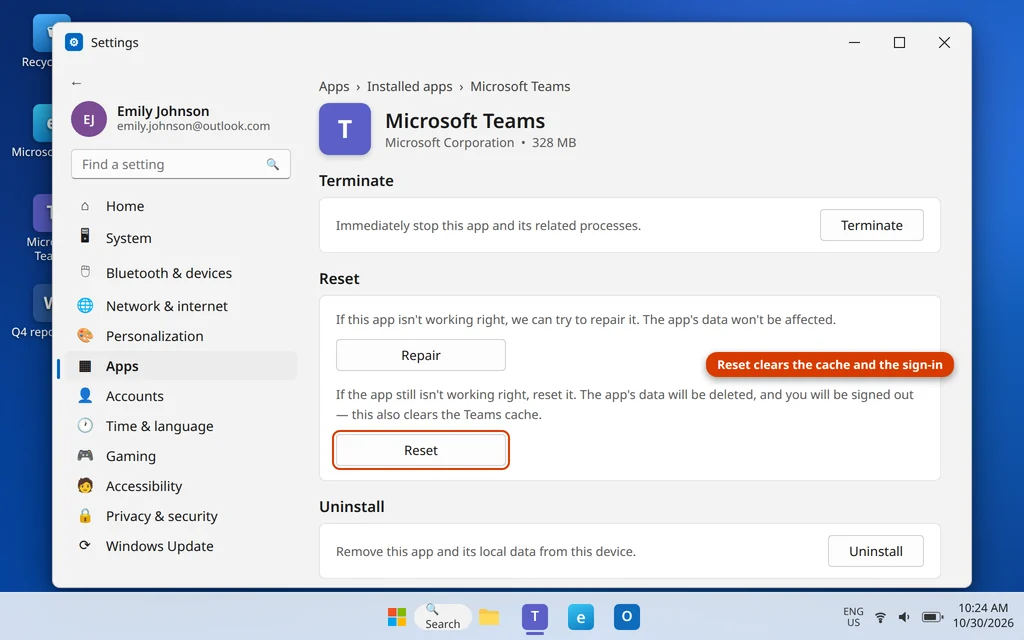
Your chats, teams and files are not deleted — they live in your account and reappear when you sign back in. Reset only removes the app’s local copies and settings.
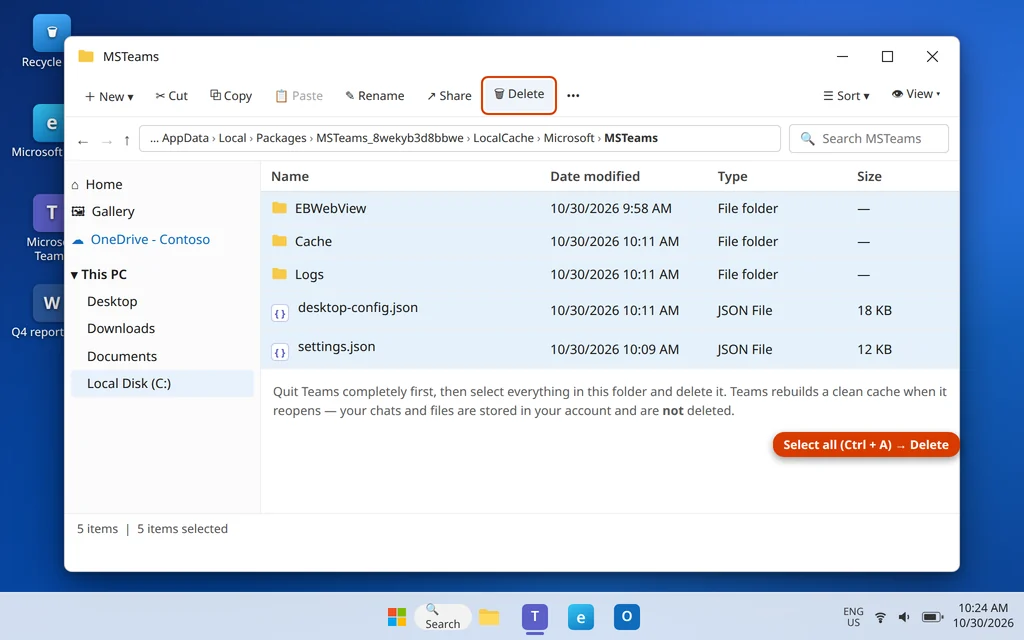
Prefer to clear the cache folder by hand? Quit Teams completely (Fix 2), press Windows key + R, paste the Teams cache folder path and press Enter. Select everything in the folder (Ctrl + A), delete it, and reopen Teams. The effect is the same as Reset, minus the sign-out.
Fix 5: Send From Teams on the Web to Isolate the Problem
Two minutes in the browser version tells you whether you are fixing the app or your account.
- Open teams.microsoft.com in Edge or Chrome and sign in with the same account.
- Open the same chat and send a message.
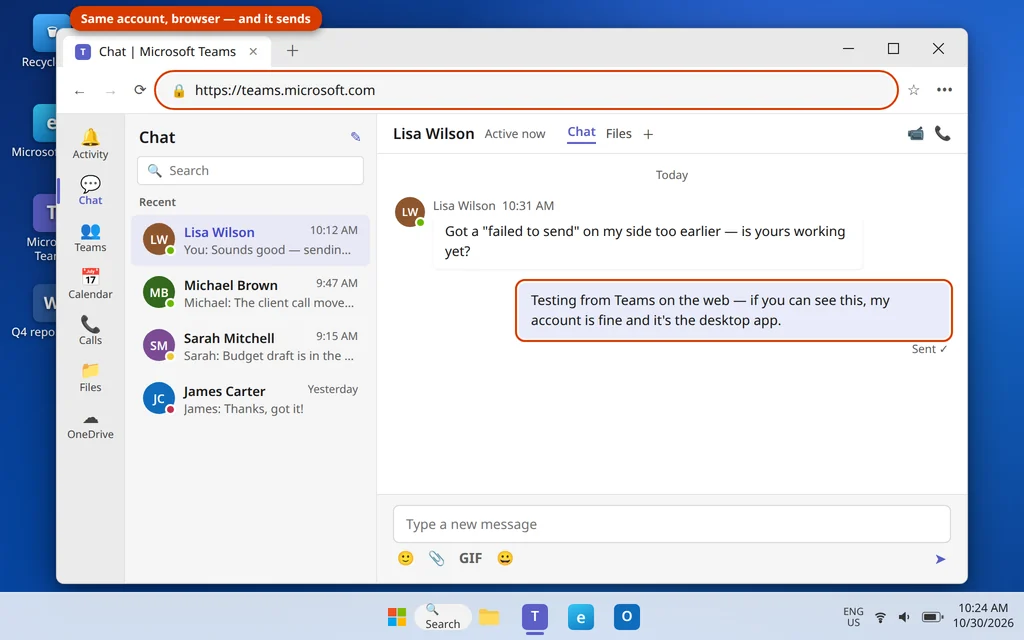
- It sends from the web: your account and Microsoft’s service are fine — the desktop app is the problem. Go back to Fix 4 (Reset), or jump to Fix 7 (reinstall).
- It fails on the web too: the problem is account- or service-side. Check the service health (Fix 1), confirm with a coworker whether they can send, and if it is only your account, your IT admin may need to check your license or mailbox — mention that sending fails on web and desktop; that detail saves them a lot of time.
You can keep working from the web app in the meantime — it is a full Teams client, not a read-only viewer. Our guide to Teams camera or microphone not working covers the browser permission checks if you end up taking meetings there too.
Fix 6: If It Is a File That Will Not Send, Check the Size
A message with a big attachment behaves differently: the text part is fine, but the send fails every time — this is the teams failed to send message too large search that brings many readers here. Chat uploads have size limits, and one oversized video or recording can also block the messages typed after it.
- Look at the failed message — if it carries a large file (a long meeting recording, a big video), that is your culprit.
- Delete the stuck message so it stops retrying and blocking the queue (hover the message > Delete, where your organization’s policy allows it).
- Upload the file to OneDrive instead (drag it into the chat — Teams stores chat files in OneDrive anyway — or upload at onedrive.com), then share the link in the chat.
- For a smaller file, try zipping it first (right-click > Compress to ZIP file) and sending the ZIP.
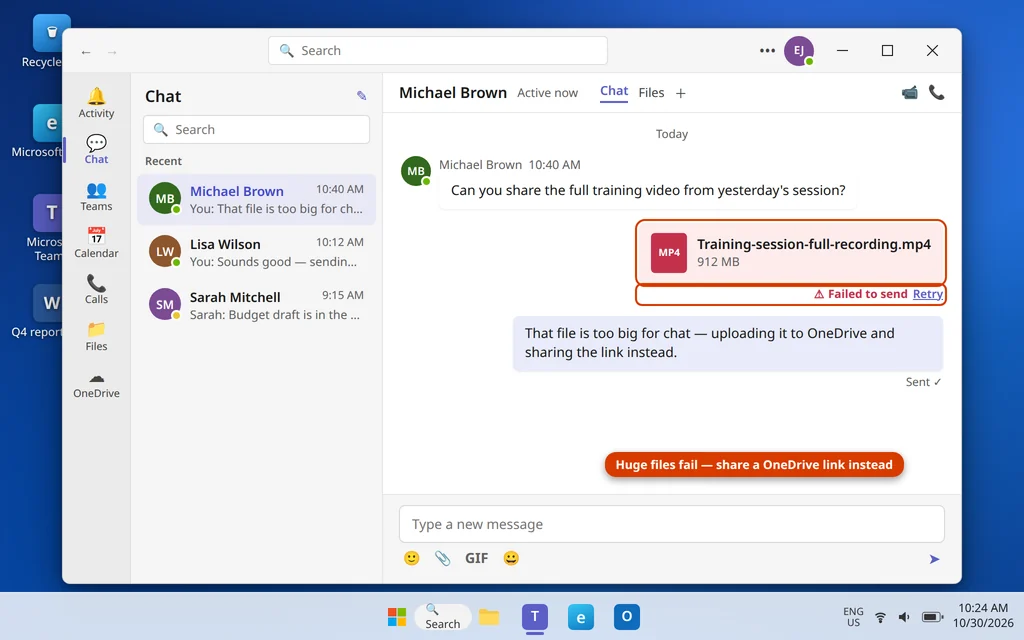
Once the oversized message is out of the queue, normal text messages usually start flowing again immediately.
Fix 7: Update Teams, or Reinstall It
If the app is damaged or badly out of date, Reset (Fix 4) sometimes is not enough. Teams normally updates itself automatically, but a stuck update can leave it half-patched.
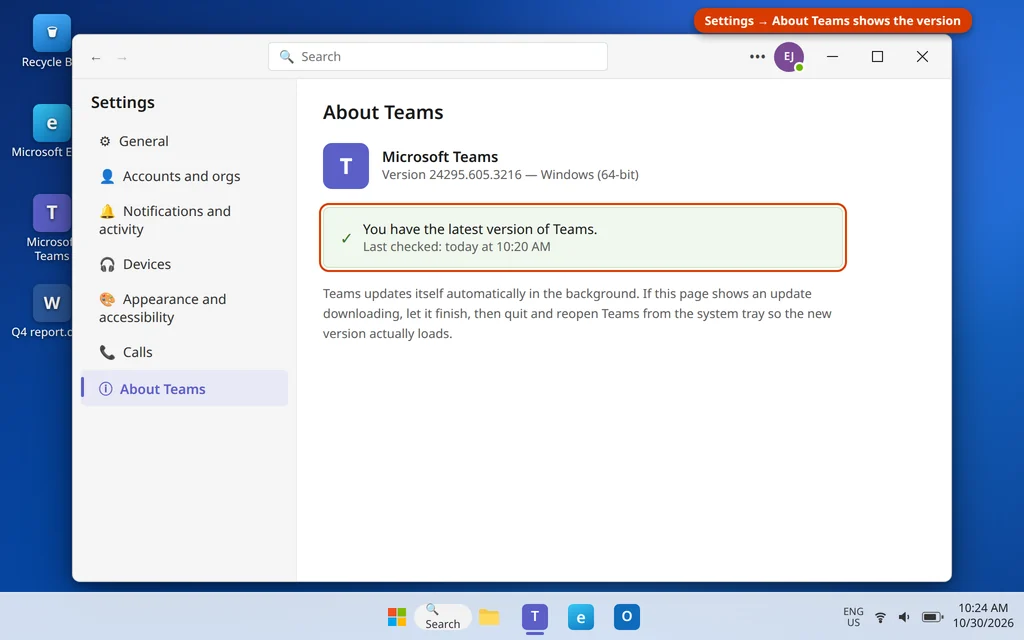
- Check the version: click the Settings and more menu by your profile picture > Settings > About Teams. If it shows an update downloading, let it finish, then quit and reopen Teams (Fix 2) so the new version loads.
- Still broken? Uninstall: Settings > Apps > Installed apps > Microsoft Teams > Uninstall.
- Restart your PC.
- Download a fresh copy from microsoft.com/microsoft-teams/download-app (or the Microsoft Store) and install it, then sign in.
A reinstall sounds drastic but takes about five minutes, and because everything is stored in your account, your chats and teams return exactly as they were. If Teams will not even open after the reinstall, that is a startup problem rather than a sending problem — work through our Teams not opening on Windows 11 guide next.
How to Stop Messages Getting Stuck in Future
- Quit Teams properly now and then — if you only ever close the window, the app can run for weeks on one aging session.
- Share big files as OneDrive links from the start instead of uploading them into chat.
- After changing your work password, sign out of Teams and back in on the desktop right away — do not wait for the token to fail mid-conversation.
- Keep Windows updated — the Teams app depends on Windows components that are patched through Windows Update.
Frequently Asked Questions
Why is my Teams message stuck on Sending?
It means the message never reached Microsoft’s server — usually a dropped internet or VPN connection, or the desktop app stuck on an old session. Fully quit Teams from the system tray (Fix 2) and reopen it; the message normally sends within seconds of the fresh connection.
Why do my Teams messages fail to send to one person only?
When sending works to everyone except one person, the problem is usually on their side or in how that chat is set up: the person may have left the organization, be a guest/external user your organization restricts, or have blocked the chat. Test by messaging someone else — if that works, do not reset your app; ask your IT admin to check the external/guest access for that contact.
Teams is receiving messages but not sending. What is wrong?
That one-way pattern almost always means your sign-in token has expired or desynced — receiving uses a lighter connection than sending. Sign out and back in (Fix 3) to force a fresh token. A recent password change is the most common trigger.
My messages send on my phone but not on my computer. Why?
Because each app holds its own sign-in and cache. The phone working proves your account is fine, so the desktop app is the fault: restart it fully (Fix 2), sign out and back in (Fix 3), then Reset it (Fix 4) if needed. No need to touch your account or password settings.
What does Retrying mean under a Teams message?
Teams tried to send, got interrupted (connection drop, laptop sleep, VPN change), and is automatically trying again. If Retrying never clears, the retry is failing for the same reason the original send did — work through Fixes 1-3 rather than waiting longer.
Will a stuck message eventually send on its own, or is it lost?
Usually it is not lost. Messages stuck on Sending or Retrying sit in the app’s outbox and deliver once the connection or sign-in is fixed — coworkers sometimes receive two or three of your queued messages at once. Only delete a stuck message if you no longer want it sent (or it is the oversized file from Fix 6).
Why does Teams say Failed to send when I attach a file?
Most often the file is too large for chat upload — long recordings and videos are the usual offenders. Delete the stuck message, upload the file to OneDrive, and paste the sharing link into the chat instead (Fix 6). If even small files fail, the cause is the connection or app — go back to Fixes 1-4.
Still stuck? Tell us exactly what your messages show — stuck on Sending, Retrying, or Failed to send, and whether the web app works — on our Contact page or at servicedesk@howtofixerroronline.com, available 24 hours. If your next problem is getting into the meeting rather than chatting in it, see our guide to can’t join a Teams meeting fixes.