
Windows Update Error 0x80070005 (Access Denied)? 8 Fixes
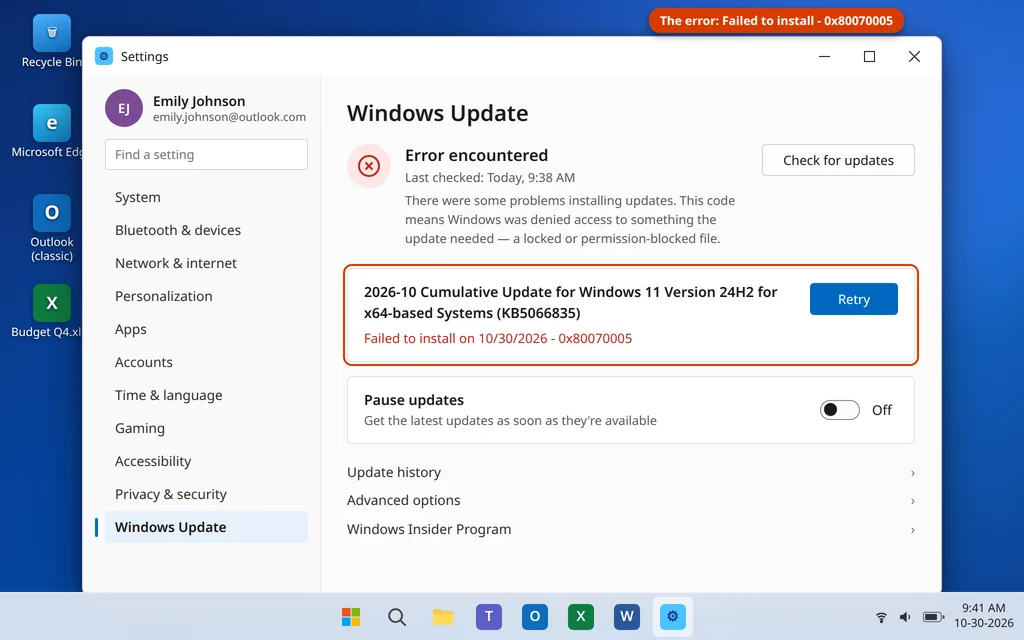
You run Windows Update, the download completes, the install gets partway — and then it stops with the code 0x80070005. Unlike most update errors, this one is not really about the update itself. When you hit the Windows Update error 0x80070005 on Windows 11, Windows is telling you it was refused permission: something the update needed to touch — a file, a folder, or a registry key — was locked or blocked, so the installer had to give up.
So this is a “find out what is doing the blocking” problem, not a broken-Windows problem, and the fixes below are ordered that way: the quick blocks first (a locked file, a protective antivirus, a full disk), then the deeper repairs for damaged permissions, and a repair upgrade only as a last resort. Most PCs are updating again within twenty minutes.
Quick Answer: Error 0x80070005 means “access denied” — the update was blocked from files it needs. Restart and retry while signed in as an administrator, run the Windows Update troubleshooter, and temporarily pause any third-party antivirus while the update installs (turn it back on right after). Still stuck? Reset the update cache (stop the wuauserv and bits services, rename the SoftwareDistribution folder, restart the services), then repair Windows itself with
DISM /Online /Cleanup-Image /RestoreHealthfollowed bysfc /scannow. If the error persists everywhere except a brand-new administrator account, your user profile’s permissions are damaged.
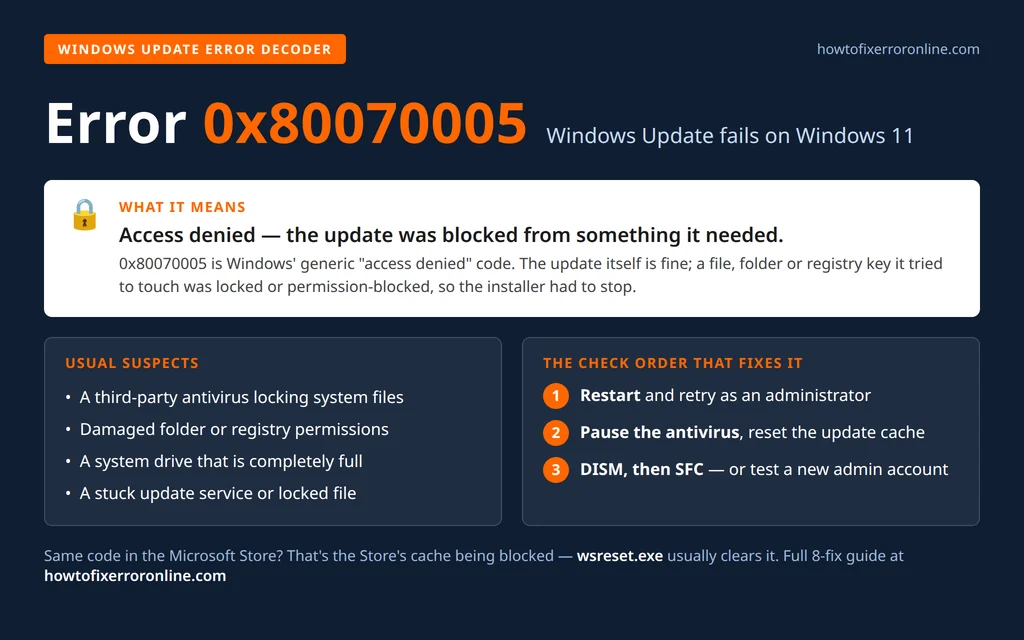
Table of Contents
What Does Windows Update Error 0x80070005 Mean?
0x80070005 is the dressed-up form of Windows’ oldest error of all: Access Denied (internally, Win32 error 5, shown in some places as E_ACCESSDENIED or even as the decimal number -2147024891). It is deliberately vague — Windows uses the same code whether the thing being denied is a file the installer tried to replace, a folder it tried to write to, or a registry key it tried to change. The update does not fail because the update is bad; it fails because, at some step, Windows reached for part of the system and got its hand slapped away.
The usual blockers behind a Windows Update 0x80070005 are:
- A third-party antivirus standing guard. Security suites monitor and lock system files while Windows is running. During an update — the one moment Windows legitimately rewrites hundreds of those files at once — the antivirus can block the installer exactly as it would block malware.
- Damaged permissions. Something — a crashed earlier update, a malware cleanup, an over-aggressive “tweaking” tool — has changed the access rights on folders or registry keys the update services rely on, so even Windows’ own services no longer have the access they should.
- A locked or stuck component. A file the update needs is held open by a running process, or an update service is stuck in a bad state from a previous failed attempt.
- A full system disk. When the C: drive runs out of room, writes start failing — and Windows often reports those failures as access denied rather than “out of space.”
Because the code only tells you that access was denied, not by what, the fixes work by removing the suspects one at a time. Start at Fix 1 and stop when the update goes through.
Fix 1: Restart, Retry, and Make Sure You Are Signed In as an Administrator
A restart clears locked files and resets any update service stuck mid-operation, and it matters more for this error than most: a file locked by a crashed process stays locked until the PC reboots. While you are at it, confirm your account is an administrator — an update run under a standard account can be denied permissions a local admin would sail through.
- Save your work and click Start > Power > Restart (Restart, not Shut down — Restart fully closes pending file operations).
- Sign back in and check your account type: open Settings > Accounts > Your info and look under your name. It should say Administrator. If it says Standard User, sign in with the PC’s administrator account instead (or have the admin approve the update).
- Wait two minutes for services to settle, then open Settings > Windows Update and click Retry or Check for updates.
If the update still ends in 0x80070005 after a clean restart under an administrator account, something specific is blocking it — keep going.
Fix 2: Run the Windows Update Troubleshooter
The built-in troubleshooter restarts the update services, checks their permissions and configuration, and repairs the common faults automatically. It is a two-minute step that clears the simple versions of this error.
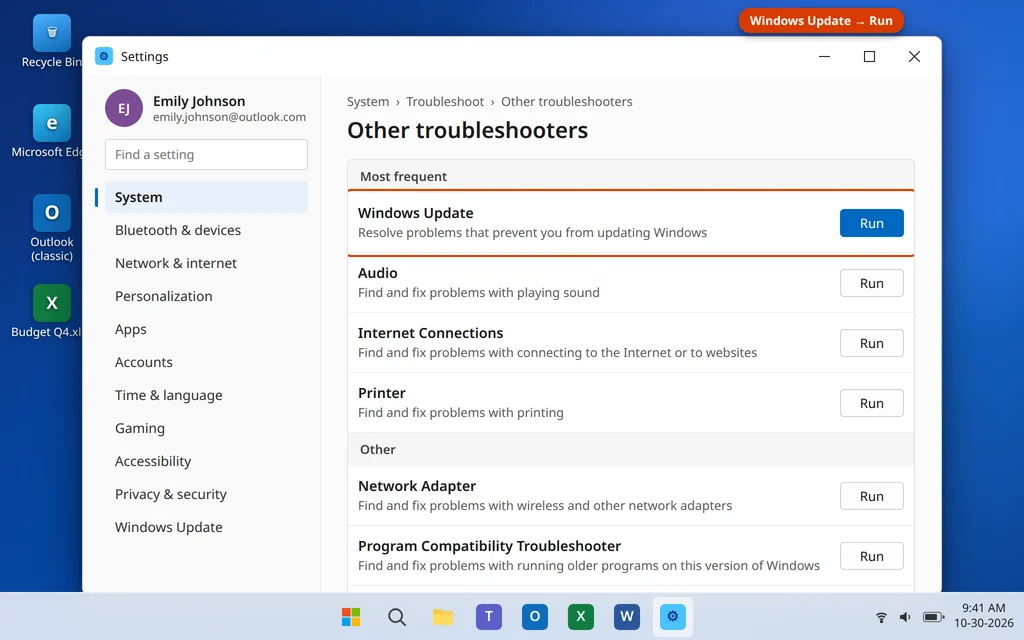
- Open Settings > System > Troubleshoot > Other troubleshooters.
- Find Windows Update at the top, under Most frequent, and click Run.
- Follow the prompts and let the checks complete. Apply any fix it offers.
- Restart the PC if it asks, then run Windows Update again.
Fix 3: Temporarily Pause Your Third-Party Antivirus
If you run a third-party antivirus (anything other than the built-in Windows Security), it is the single most likely blocker behind 0x80070005. Its real-time protection locks system files against changes — and an update is a large, rapid series of changes. Pausing protection for the length of one update removes the guard without leaving you exposed for long.
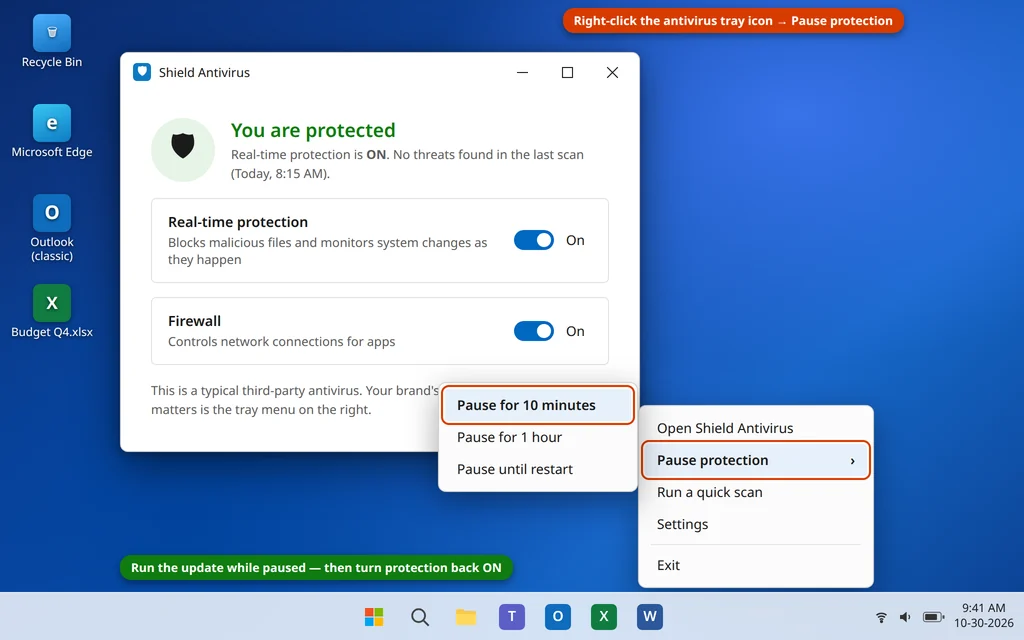
- Find your antivirus icon in the system tray (bottom-right, near the clock — click the ^ arrow if it is hidden).
- Right-click it and look for an option like Pause protection, Disable real-time protection, or Pause for…. Choose the shortest pause offered — 10 minutes, or until restart if that is the only option.
- Immediately run the update: Settings > Windows Update > Retry.
- When the update finishes (or fails), turn protection back on right away — reopen the antivirus from the Start menu and re-enable real-time protection if it does not resume by itself.
Two safety notes. Do not skip the re-enable step, and do not browse the web or open email attachments while protection is paused — just run the update. And if your only protection is the built-in Windows Security, leave it alone: it is designed to cooperate with Windows Update and is rarely the cause, so look below instead.
Fix 4: Free Up Disk Space on the C: Drive
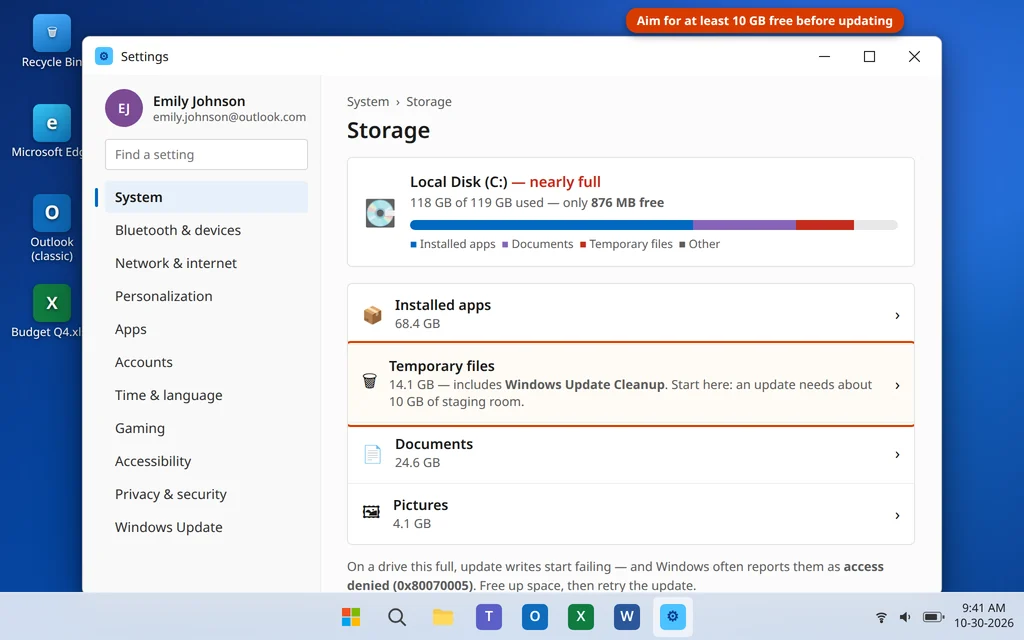
A nearly full system drive produces exactly this error: the update stages hundreds of files, a write fails for lack of room, and Windows reports it as access denied. Check before you assume the worst.
- Open Settings > System > Storage and look at the bar for Local Disk (C:).
- A cumulative update needs staging room — aim for at least 10 GB free. If you are below that, click Temporary files.
- Check the safe categories — Windows Update Cleanup, Temporary files, Recycle Bin — and leave Downloads unchecked unless you are sure everything in it is backed up. Click Remove files.
- Run Windows Update again.
Fix 5: Reset the Update Cache
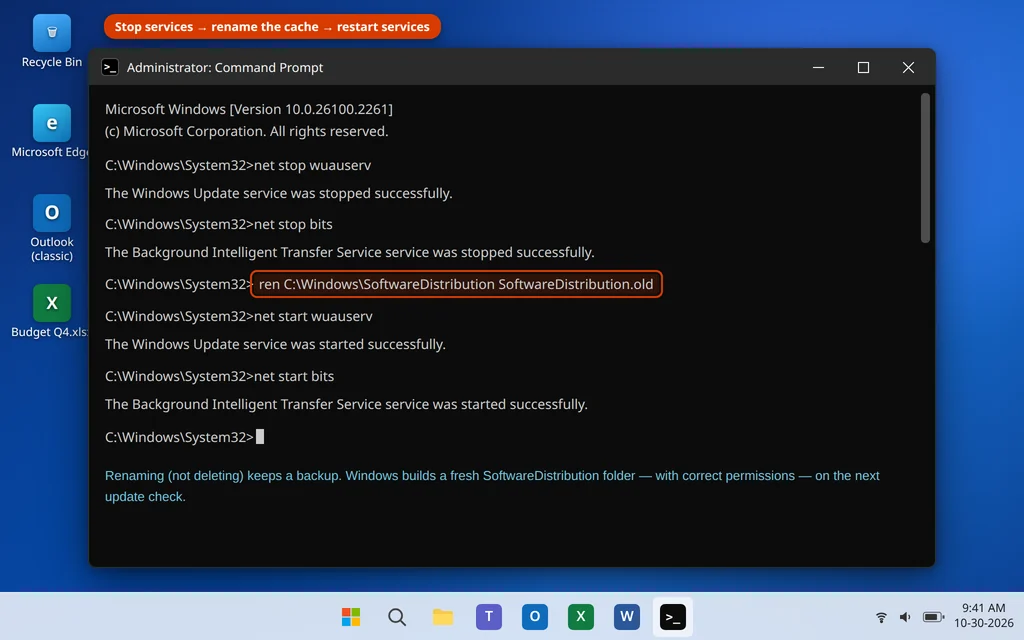
Everything Windows Update downloads lands in the SoftwareDistribution folder, and the bookkeeping for it lives there too. If a file in that folder is corrupted or its permissions got damaged by an earlier failed update, every new attempt can be denied at the same step. Renaming the folder forces Windows to build a fresh one — and renaming, not deleting, keeps a backup you can restore.
- Type
cmdin Windows search, right-click Command Prompt and choose Run as administrator. - Stop the update services, one line at a time, pressing Enter after each:
net stop wuauserv
net stop bits- Rename the cache folder:
ren C:\Windows\SoftwareDistribution SoftwareDistribution.old- Start the services again:
net start wuauserv
net start bits- Restart the PC, then run Windows Update. The update downloads and stages from scratch into a brand-new folder with fresh, correct permissions.
Once an update installs successfully, the SoftwareDistribution.old folder is just a backup taking up space — you can delete it after a few days.
Fix 6: Repair Windows With DISM and SFC
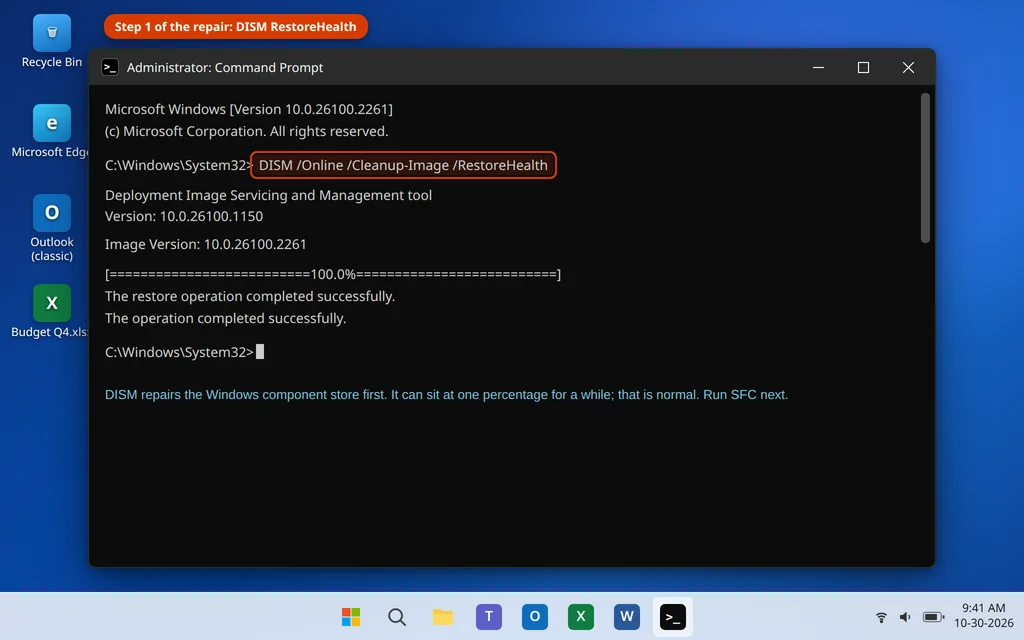
If access is being denied because Windows’ own system files or their permissions are damaged, the two built-in repair tools are the fix — in this order. DISM (Deployment Image Servicing and Management) repairs the component store Windows draws its parts from; SFC (System File Checker) then scans and repairs individual system files. DISM first, so SFC has clean material to work with.
- Open an administrator Command Prompt (as in Fix 5) and run:
DISM /Online /Cleanup-Image /RestoreHealth- Wait for it to finish — typically 10 to 30 minutes, staying connected to the internet, since DISM downloads clean component files from Windows Update. The percentage can sit in one place for a long while; that is normal, so do not close the window. Success ends with “The restore operation completed successfully.”
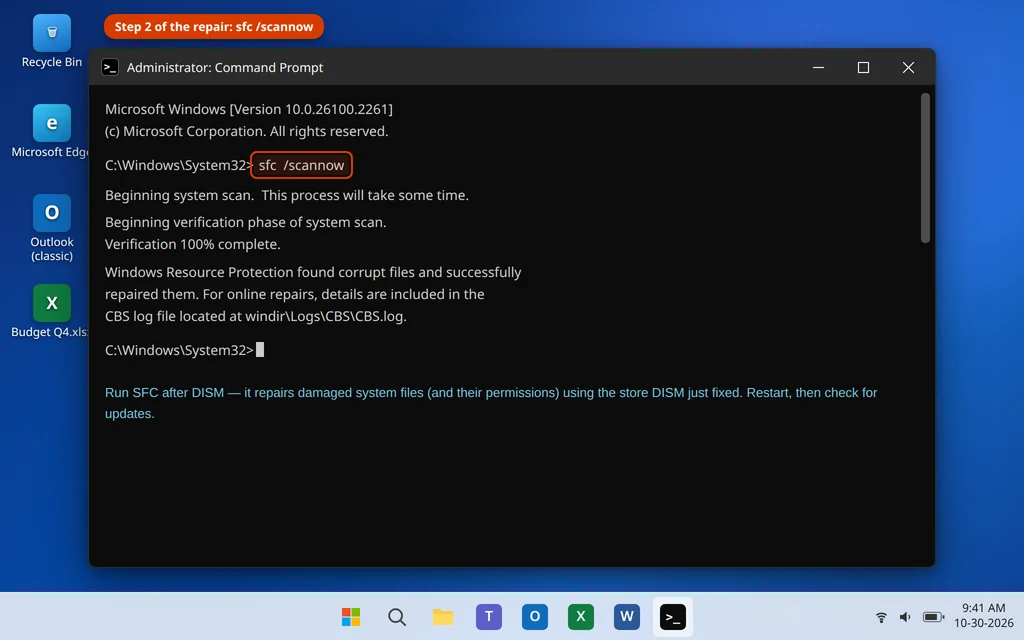
- When DISM completes, run the second command:
sfc /scannow- Let the scan reach 100%. Ideally it reports “Windows Resource Protection found corrupt files and successfully repaired them” — or that it found no integrity violations, which is also fine. Either way, restart the PC and run Windows Update again.
Fix 7: Try the Update From a New Administrator Account
Still denied after all that? Then the damage may live in your user profile — its permissions, its cached credentials, its registry hive — rather than in Windows itself. The clean test is a brand-new local administrator account: if the update installs there, you have found the problem without risking a single permission change to the system folders by hand.
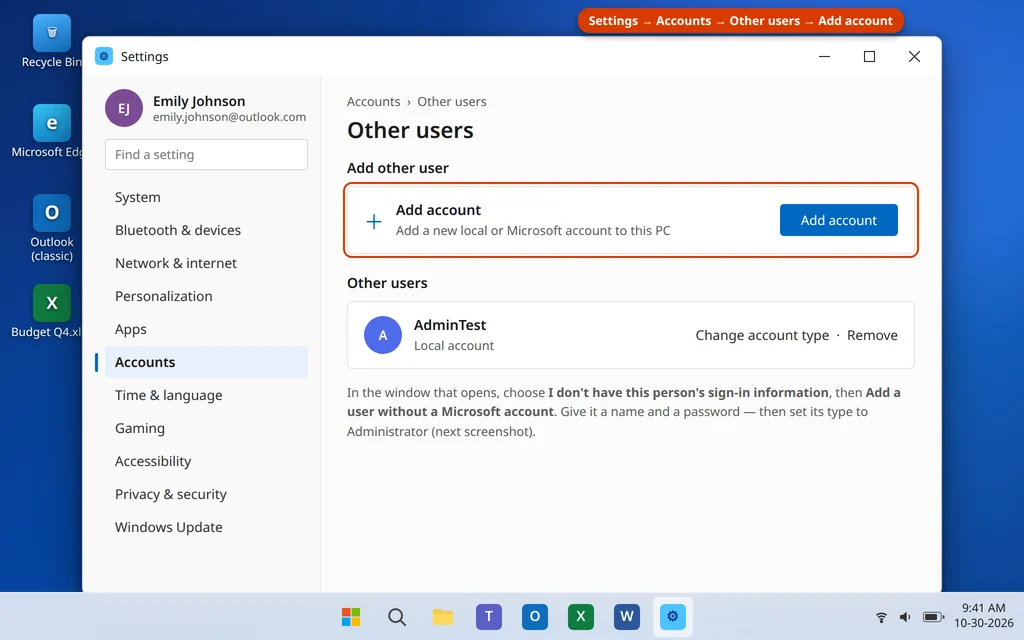
- Open Settings > Accounts > Other users and click Add account.
- In the Microsoft account window, click I don’t have this person’s sign-in information, then Add a user without a Microsoft account.
- Give the account a name (for example,
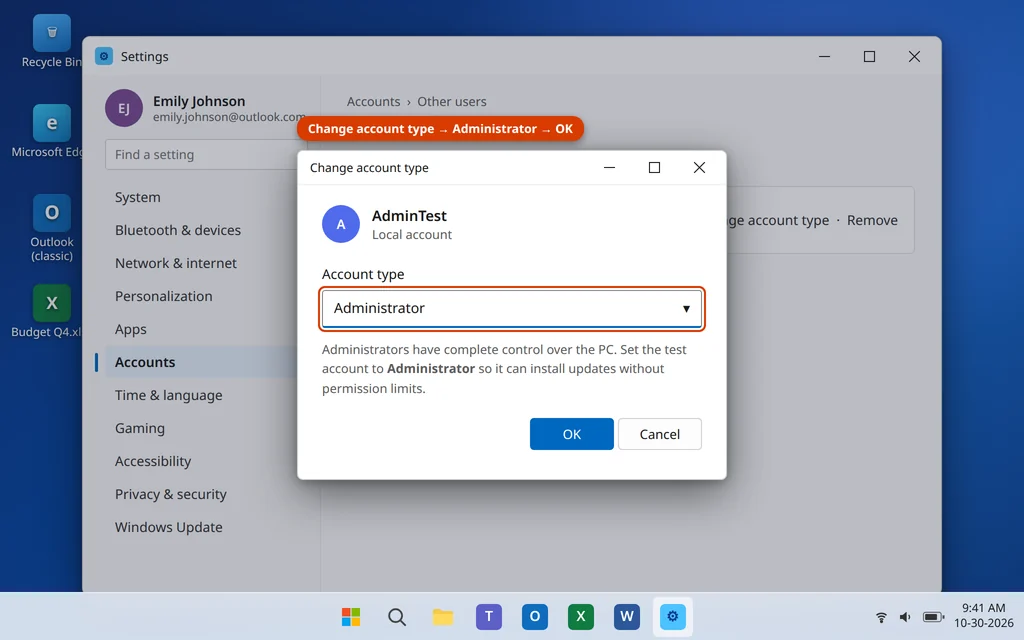
AdminTest) and a password, answer the security questions, and click Next. - The new account appears under Other users. Click it, choose Change account type, set it to Administrator, and click OK.
- Sign out of your account (Start > your profile picture > Sign out), sign in to the new account, wait a few minutes for it to finish setting itself up, then open Settings > Windows Update and run the update.
If the update succeeds from the new account, your original profile is the problem. You can keep using the new account as your daily admin, or move your files over to it (they are all under C:\Users\YourOldName) and retire the damaged profile. If the update fails with 0x80070005 in the fresh account too, the block is system-wide — Fix 8 is the reliable end of the road.
Fix 8: In-Place Repair Upgrade (Keeps Files and Apps)
The last resort is an in-place repair upgrade: reinstalling Windows 11 over the top of itself. It replaces every system file, service, and permission with fresh defaults — which is why it ends stubborn access denied errors that survive everything else — while keeping your personal files, installed apps and settings.
- Download the Windows 11 ISO (or the Media Creation Tool) from Microsoft’s official Windows 11 download page.
- If you downloaded the ISO, double-click it to mount it — it appears as a new drive in File Explorer. (With the Media Creation Tool, choose Create installation media, or simply run the tool’s upgrade option.)
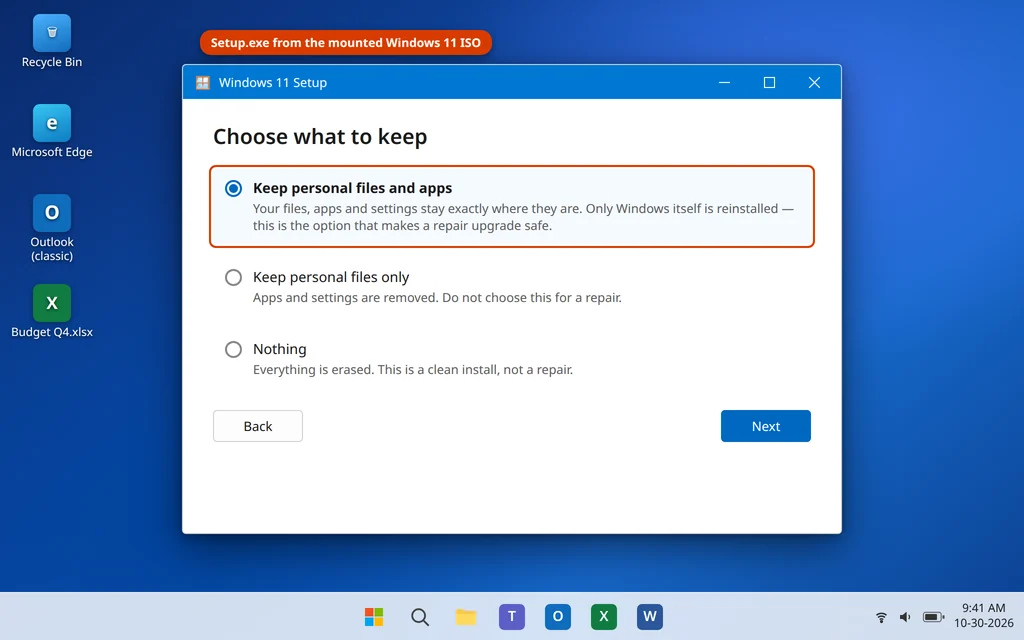
- Open the mounted drive and run setup.exe. Click Yes if Windows asks for permission.
- Click through the setup screens. When you reach Choose what to keep, select Keep personal files and apps — this selection is what makes it a repair instead of a reset.
- Click Install and let it run. The PC restarts several times; expect 30 to 60 minutes.
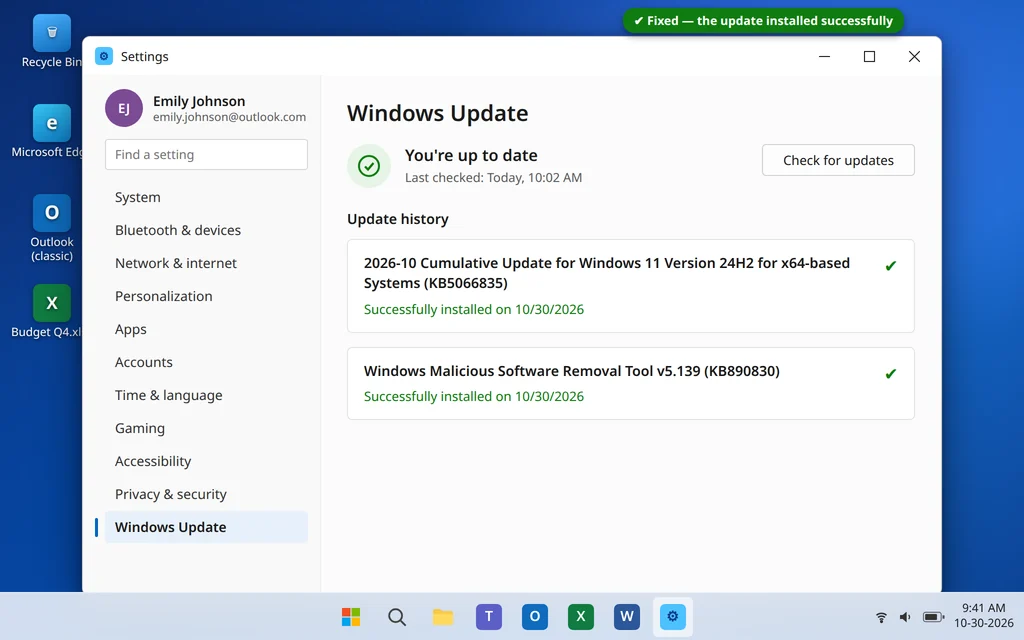
- Sign in and run Windows Update. The previously failing update should now install normally.
Seeing 0x80070005 in the Microsoft Store or the Xbox App Instead?
The same code turns up outside Windows Update — plenty of people meet it when the Microsoft Store refuses to install or update an app, or in the Xbox app. It is the identical “access denied” underneath, but the blocked thing is the Store’s own cache and app folders rather than Windows Update’s, so the quick fix is different: press Windows key + R, type wsreset.exe and press Enter. A blank window opens, the Store cache is cleared, and the Store relaunches itself after about ten seconds — then try the app again. Signing out of the Store and back in, and making sure your date and time are set automatically (Settings > Time & language > Date & time), clear most remaining Store cases. If the Store and Windows Update both throw 0x80070005 at you, that points back to system-wide permissions — go to Fix 6 and Fix 8 above.
How to Stop Error 0x80070005 Coming Back
- Keep one antivirus, and keep it updated. Stacked security suites locking the same files are a recurring cause; one current suite is both safer and quieter.
- Avoid permission “tweaker” and aggressive cleaner tools. Anything that resets, strips, or “optimizes” folder and registry permissions can recreate this exact error at the next update.
- Keep at least 10 GB free on the C: drive so updates always have staging room.
- Restart the PC now and then. Long uptimes accumulate locked files and pending operations; a weekly restart clears both.
- Note what changed. If 0x80070005 appears right after installing a new security tool, VPN client, or system utility, that tool is your prime suspect for the next round.
Frequently Asked Questions
What does error 0x80070005 mean?
It means Access Denied. Something the update needed to change — a file, a folder, or a registry key — was locked or permission-blocked, so Windows abandoned the install. The most common blockers are a third-party antivirus guarding system files, damaged permissions left behind by an earlier crash or cleanup, and a full system disk. You may also see the same code written as -2147024891, which is simply 0x80070005 in decimal form.
Why does it say “access is denied” when I am the administrator?
Because being an administrator does not override every block. An antivirus can lock a file against all accounts, Windows itself included; a file held open by a running service stays locked whoever asks; and if the permissions on a folder were damaged so that even the SYSTEM account Windows Update runs under lost access, an admin sign-in changes nothing. That is why the fixes remove the blocker rather than just “trying harder” as admin — and why the fresh-account test in Fix 7 is such a useful divide-and-conquer step.
Will renaming SoftwareDistribution delete my installed updates?
No. SoftwareDistribution is only the update working folder — downloads in progress and bookkeeping. Updates already installed live in the component store, and your update history stays intact. Renaming the folder makes Windows build a clean working folder with fresh permissions; the .old copy remains as a backup until you delete it, which is safe to do once an update has installed successfully and a few days have passed.
I am on version 24H2 — is error 0x80070005 different there?
No. The code and its meaning are the same across Windows 11 versions, including 24H2, and so are these fixes. Version-specific bugs do occasionally make one particular cumulative update fail for many people at once; if a brand-new update fails with 0x80070005 on a PC where updates normally work, pausing updates for a few days and letting Microsoft revise it is a reasonable move — but run Fixes 1 to 3 first, because the usual blockers are far more common than a bad update.
Is error 0x80070005 a virus?
No. It is a permissions error, not malware — the blockers are almost always legitimate software (an antivirus doing its job too aggressively) or leftover damage. That said, malware removal sometimes leaves broken permissions behind, so if this error appeared shortly after an infection was cleaned, run a Full scan in Windows Security as a precaution, then work through the fixes.
What is the difference between 0x80070005 and 0x80073712?
They fail for opposite reasons. Error 0x80070005 means Windows was not allowed to touch something — a permission or locking problem in an otherwise healthy system. Error 0x80073712 means the thing Windows needed was damaged — the component store itself is corrupt. A 0x80070005 is usually cured by removing the blocker (Fixes 1 to 5); a 0x80073712 needs the DISM repair described in our guide to Windows Update error 0x80073712.
Still getting error 0x80070005? Tell us which update is failing and which fix you reached, on our Contact page — servicedesk@howtofixerroronline.com, available 24 hours. More update codes are covered step by step in our guides to Windows Update error 0x80070002 and Windows Update error 0x80073712, and our Windows Errors category has fixes for many more.