
PC Slow After a Windows 11 Update? 9 Fixes
Your PC was fine yesterday. Windows installed an update overnight, and this morning everything crawls — apps take ages to open, the fan runs constantly, and even the Start menu lags. PC slow after Windows 11 update is one of the most searched-for problems right after every big update, and the good news is that it is usually temporary: in most cases Windows is still finishing the update’s background work, and the PC speeds up on its own within a day.
But not always. Sometimes the update itself is the problem — it switched settings back, replaced a driver, or simply has a bug. This guide works through the fixes in the right order, from “just wait, properly” to removing the update itself. Note this guide is for a slowdown that started with an update — if your PC was already slow before it, work through our general PC slow on Windows 11 speed-up guide instead.
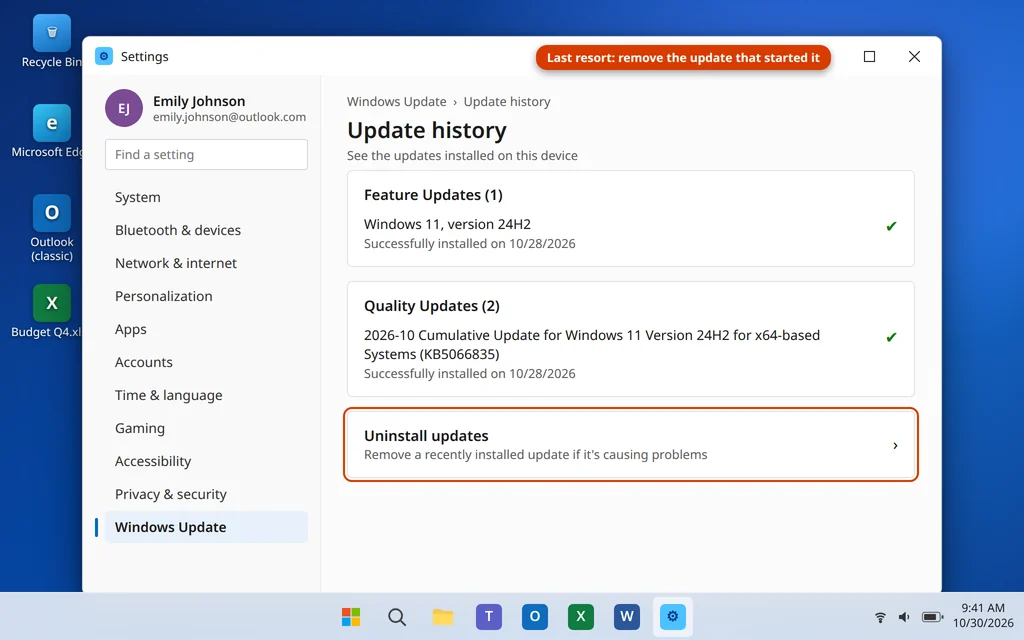
Quick Answer: Give it a day and restart twice — most post-update slowness is Windows still finishing background work (check Task Manager for Windows Modules Installer Worker, the Search Indexer and the .NET Runtime Optimization Service). Still slow after 48 hours? Check for updates again (the follow-up patch often fixes the slow one), disable startup apps the update re-enabled, clear Windows Update Cleanup files, install the real graphics driver from the manufacturer, and check your power mode. As a last resort, uninstall the update from Settings > Windows Update > Update history > Uninstall updates.
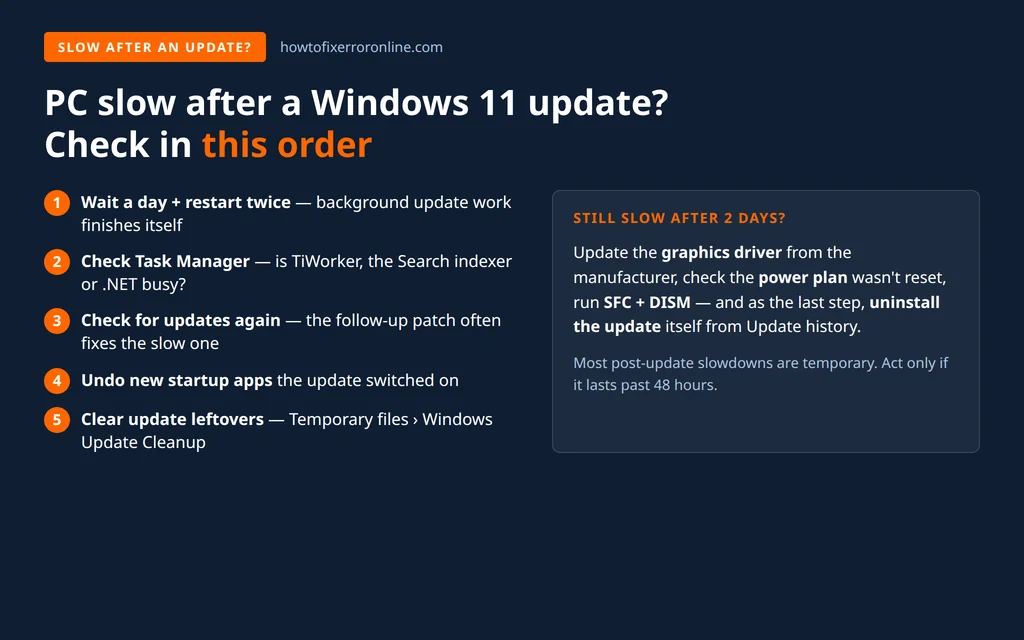
Table of Contents
Why Is My PC Slow After Windows 11 Update?
An update does not finish when the progress bar disappears. Four things commonly keep the PC busy — or genuinely slow it down — afterwards:
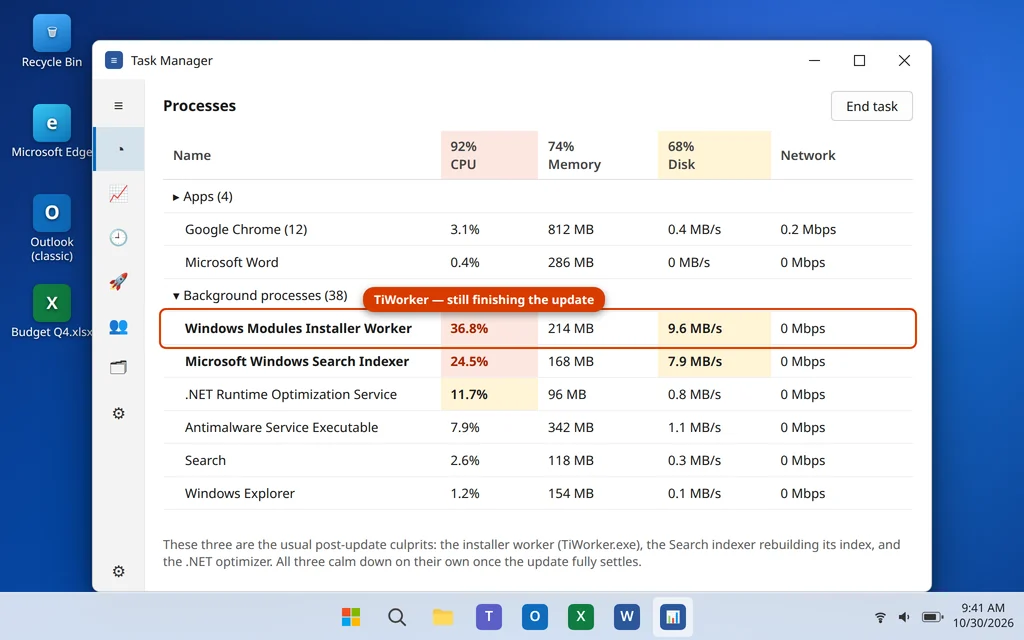
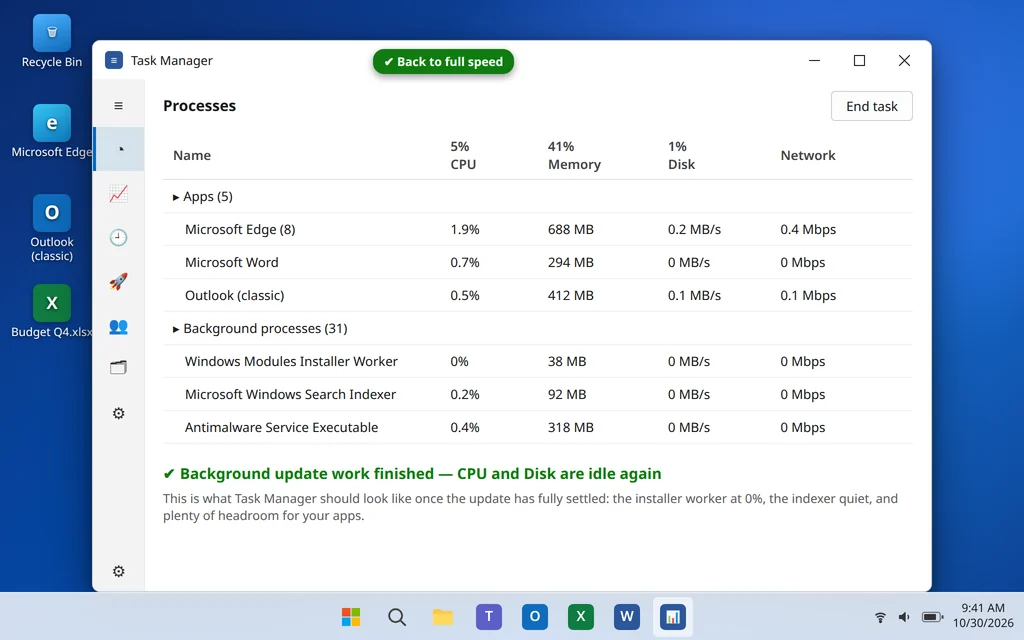
- Background finishing work. After installing, Windows keeps working for hours: the Windows Modules Installer Worker (TiWorker.exe) completes servicing tasks, the Search Indexer rebuilds the search index to include changed files, and the .NET Runtime Optimization Service pre-compiles updated .NET components. While these run, CPU and disk usage stay high and everything else feels sluggish.
- New features and services switched on. Feature updates arrive with new assistants, widgets and sync features enabled — and sometimes re-enable startup apps you had deliberately turned off.
- A driver replaced by a generic one. The update can swap your graphics driver for Microsoft’s basic fallback. The PC still works, but without proper acceleration it feels slow and the screen may look washed out or stuck at a low resolution.
- A buggy update. Occasionally the update itself has a performance problem. Microsoft usually ships a corrected version days later — which is why Fix 3 below is simply “check for updates again.”
Wait or Act? How to Tell the Difference
Wait (it’s normal) if: the slowdown began within the last 24 hours, Task Manager shows the installer worker, Search indexer or .NET service near the top of the CPU list, and things are gradually improving. Leave the PC plugged in and switched on — this work mostly runs while the PC is idle, so a laptop that sleeps all day takes longer to finish it.
Act (work through the fixes) if: more than 48 hours have passed with two proper restarts and it is still slow, it is getting worse instead of better, or you have a specific new symptom — flickering screen, low resolution, one app that broke, or disk stuck at 100% with no update process at the top. Then start at Fix 2.
Fix 1: Give It a Day — and Restart Twice, Properly
This is first because it genuinely fixes the majority of cases. “Properly” matters:
- Leave the PC on and plugged in for several hours, ideally overnight, so the background work can run while you’re not using it.
- Restart with Start > Power > Restart — twice, with a few minutes of use in between. Use Restart, not Shut down: with Fast Startup, Shut down saves part of the system state and does not fully clear pending update work.
- After the second restart, use the PC normally for 15 minutes before judging the speed — the first minutes after sign-in are always the busiest.
If your PC is still very slow after this, don’t keep waiting — move on.
Fix 2: Check Task Manager for the Actual Culprit
Guessing wastes time; Task Manager tells you exactly what is using your PC right now.
- Press Ctrl + Shift + Esc to open Task Manager (click More details if it opens small).
- On the Processes tab, click the CPU heading to sort busiest-first.
- Look for the update crew: Windows Modules Installer Worker, Microsoft Windows Search Indexer, .NET Runtime Optimization Service, and Antimalware Service Executable (it re-scans after updates).
- If those are at the top, the update is still settling — go back to Fix 1 and give it more time. You can expand the installer worker’s entry to confirm it belongs to Windows Update servicing.
- If something else is at the top — a browser with 40 tabs, a game launcher, an app you don’t recognize — that’s your culprit instead. Close it, and if you don’t recognize it, run a Full scan in Windows Security > Virus & threat protection > Scan options.
Fix 3: Check for Updates Again — Install the Follow-Up Patch
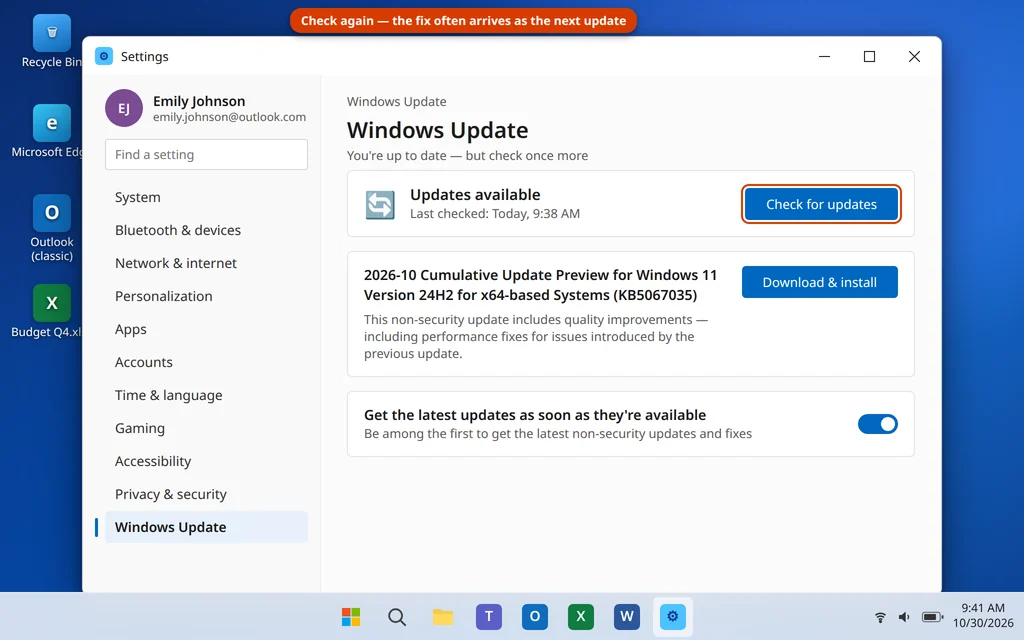
Counter-intuitive, but one of the most effective fixes on this list: when an update causes widespread slowness, Microsoft’s fix is delivered as another update — often a cumulative update preview or an out-of-band patch within days.
- Open Settings > Windows Update.
- Click Check for updates — even if the page says “You’re up to date.” That message only means nothing was pending at the last check.
- Install anything offered, including Optional updates previews if they mention performance or your exact problem, then restart.
- Check once more after restarting; patches sometimes arrive in two stages.
Fix 4: Disable Startup Apps the Update Switched Back On
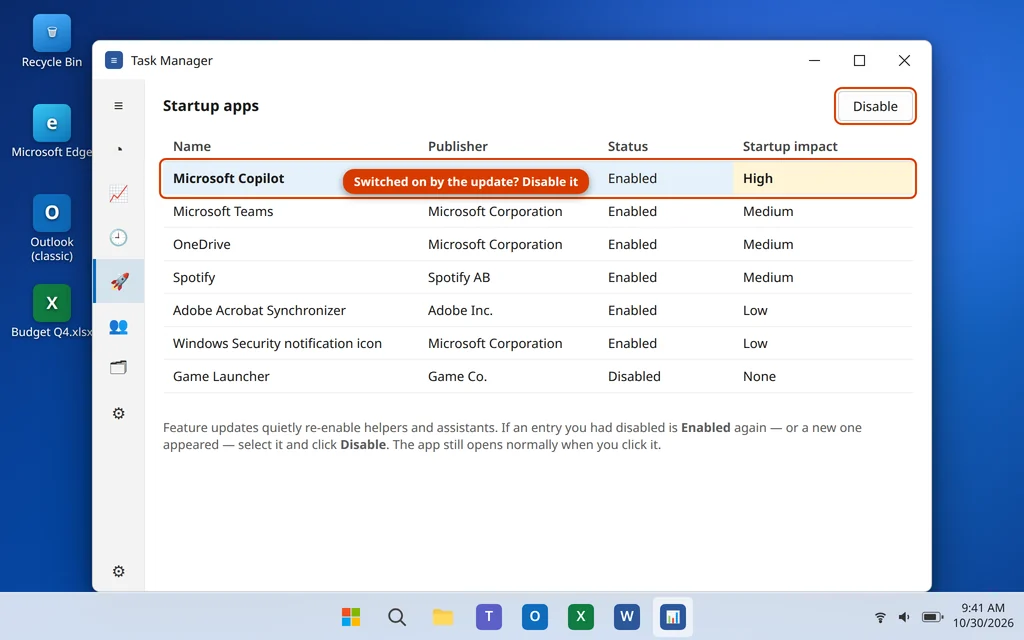
Feature updates quietly re-enable helpers, sync tools and assistants — so a PC that booted cleanly last week can suddenly start five extra programs at every sign-in.
- Press Ctrl + Shift + Esc and click Startup apps on the left.
- Sort by Status and look at everything Enabled — especially anything you don’t remember turning on, or remember turning off.
- Select each one you don’t need the moment you sign in and click Disable. Game launchers, chat apps, updaters and assistants are safe to disable — they still open normally when clicked.
- The same list lives in Settings > Apps > Startup if you prefer toggles.
Keep your antivirus enabled. Restart and compare the time from sign-in to a usable desktop.
Fix 5: Clear the Update Leftovers (Storage Sense and Temporary Files)
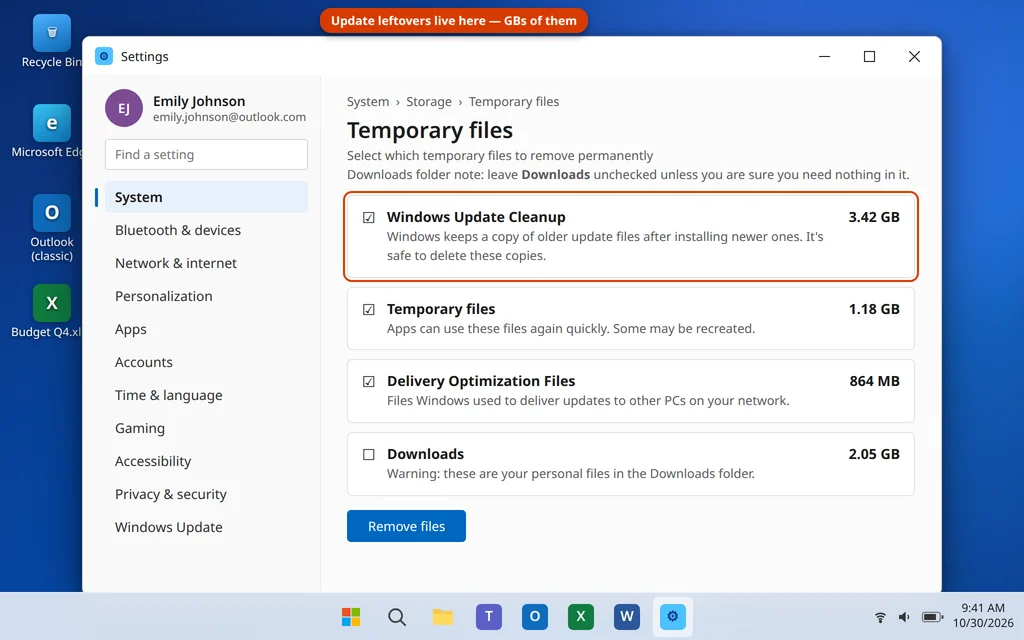
Every update leaves gigabytes behind: the downloaded packages, the delivery cache, and — after a feature update — a complete copy of your previous Windows version. A nearly full C: drive makes the post-update slowdown much worse.
- Open Settings > System > Storage > Temporary files.
- Check Windows Update Cleanup and Delivery Optimization Files.
- After a feature update you may also see Previous Windows installation(s) — often 10 GB or more. Check it only if you’re sure you won’t roll back: deleting it removes the option to return to the previous version.
- Leave Downloads unchecked (those are your own files), then click Remove files.
- Back on the Storage page, turn on Storage Sense so temporary files are cleaned automatically from now on.
Fix 6: Update Your Drivers — Especially Graphics — From the Manufacturer
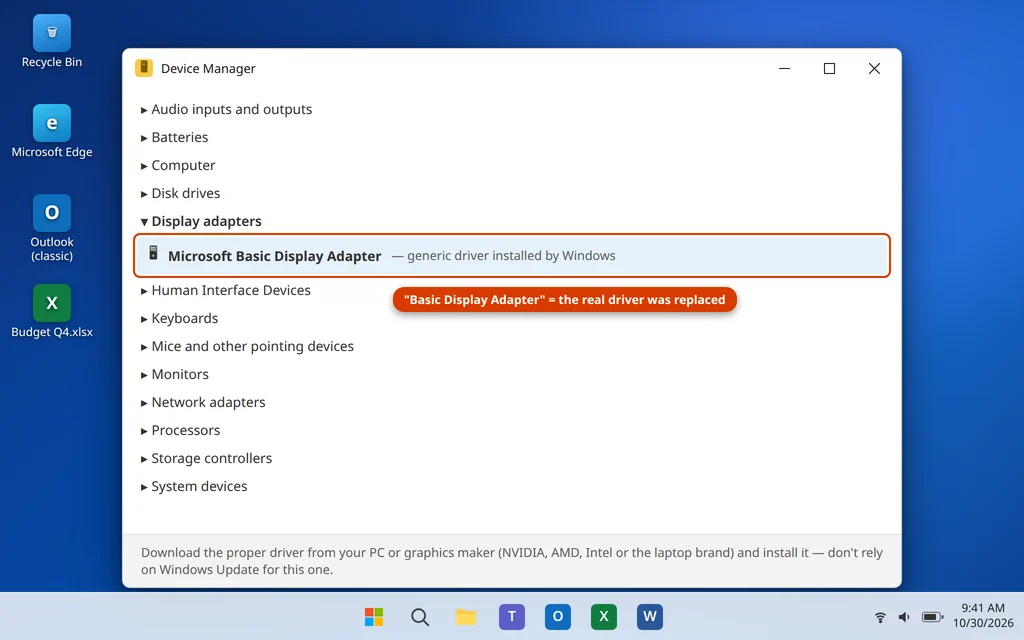
If the screen looks slightly wrong as well as slow — flicker, stretched picture, animations stuttering — the update probably replaced your graphics driver with a generic one.
- Right-click Start and open Device Manager.
- Expand Display adapters. If it says Microsoft Basic Display Adapter, you’ve found the problem: Windows is running your screen without proper acceleration.
- Go to the manufacturer’s website — NVIDIA, AMD or Intel for the graphics card, or your laptop maker’s support page (Dell, HP, Lenovo and so on) — download the latest Windows 11 driver for your exact model, and install it.
- While you’re there, grab the chipset driver too if one is newer than yours, then restart.
- Also check Settings > Windows Update > Advanced options > Optional updates > Driver updates — Windows sometimes holds a proper driver there.
Manufacturer drivers matter here: Windows Update’s own driver is often the generic one that caused the problem.
Fix 7: Check the Update Didn’t Reset Your Power Plan
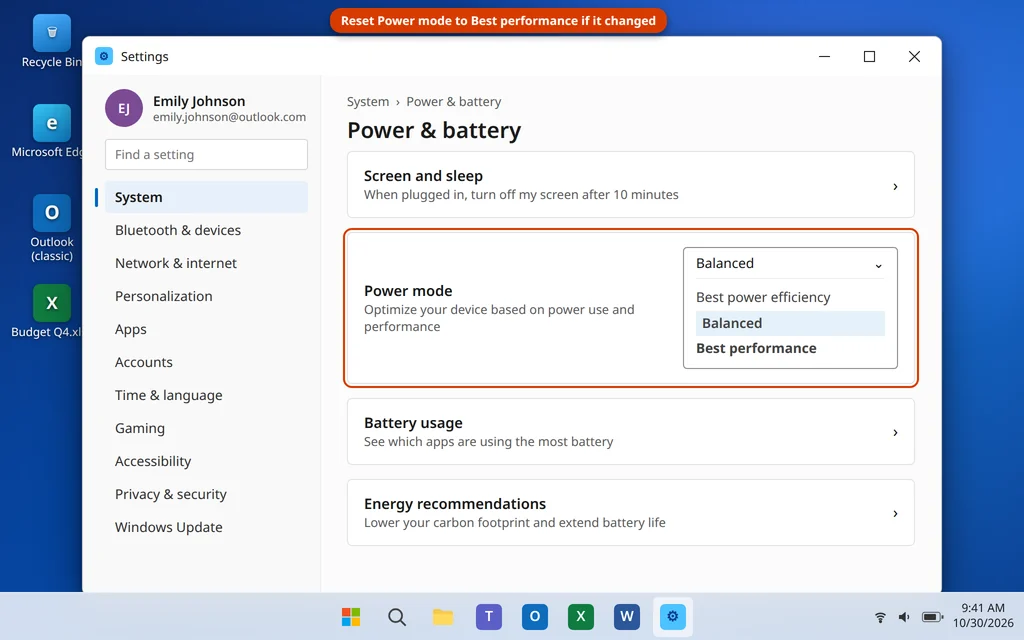
Updates — especially feature updates — can quietly return power settings to their defaults, and a PC capped by a power-saving mode feels slow everywhere.
- Laptops and most newer PCs: open Settings > System > Power & battery and check Power mode. If it sits on Best power efficiency, set it to Balanced — or Best performance while plugged in.
- Desktops and classic plans: open Control Panel > Hardware and Sound > Power Options and confirm your plan. If it was reset to Balanced and you previously used High performance, select High performance again (click Show additional plans if it’s hidden).
- Test the PC again — a reset power plan is a small change with a surprisingly big effect on older hardware.
Fix 8: Repair Windows Files With DISM and SFC
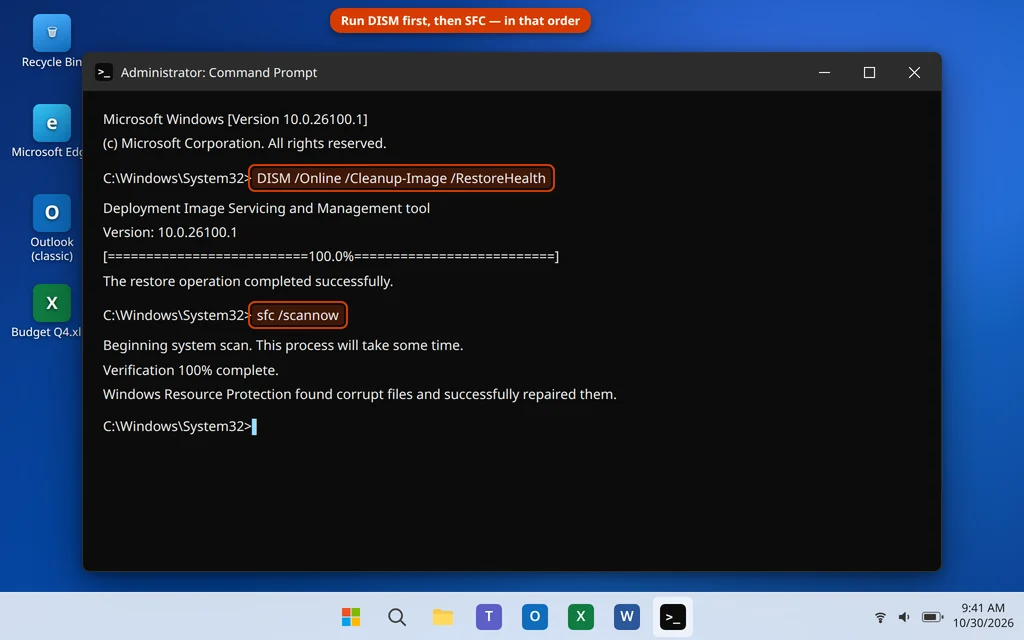
If the update itself installed imperfectly, a few system files may be damaged — and damaged files make Windows work harder for everything. Two built-in repair tools fix this, and the order matters: DISM repairs the component store first, then SFC uses that store to repair your running files.
- Search
cmd, right-click Command Prompt, and choose Run as administrator. Click Yes if asked. - Type this command exactly and press Enter, then wait for it to reach 100% (stay online — it may download clean components):
DISM /Online /Cleanup-Image /RestoreHealth - When it completes, run the System File Checker:
sfc /scannow - If SFC reports it “found corrupt files and successfully repaired them,” restart the PC and test the speed again.
Fix 9: Uninstall the Bad Update (Last Resort)
If the slowdown started with one specific update, nothing else has helped, and the follow-up patch (Fix 3) hasn’t fixed it, remove that update. Your files and apps are not touched. Microsoft’s guide to uninstalling a Windows update walks through the same steps.
- Open Settings > Windows Update > Update history and note the most recent quality update — the one installed on the day the slowness started (its KB number is in the name).
- Scroll down and click Uninstall updates.
- Find that update in the list, click Uninstall, and confirm. Restart when asked.
- Test the PC. If it’s fast again, you’ve confirmed the update was the cause.
The honest caveats:
- Many updates are security fixes. Uninstalling one leaves your PC without those protections until the corrected version arrives — treat this as a temporary measure, not a permanent opt-out.
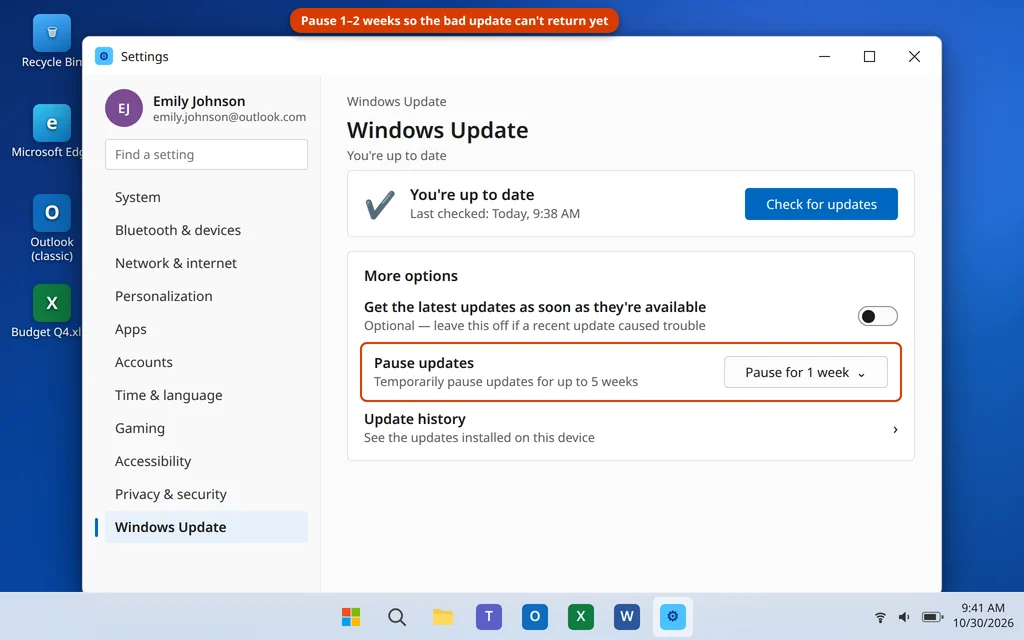
- Windows will offer the same update again. To stop it reinstalling immediately, open Settings > Windows Update and use Pause updates > Pause for 1 week (you can extend up to 5 weeks). By the time the pause ends, Microsoft has usually replaced the faulty update with a fixed one.
- A few updates (servicing stack updates) can’t be uninstalled — if there’s no Uninstall button, your options are waiting for the follow-up patch or, for a feature update within 10 days of installing it, Settings > System > Recovery > Go back.
Frequently Asked Questions
Why is my PC slow after a Windows 11 update?
Because the update hasn’t really finished. Windows spends hours afterwards servicing components (Windows Modules Installer Worker / TiWorker.exe), rebuilding the search index and optimizing .NET components, all of which compete with you for CPU and disk. Less often, the update re-enabled startup apps, swapped in a generic graphics driver, reset your power plan — or is simply buggy, in which case the follow-up patch or uninstalling it (Fixes 3 and 9) is the answer.
How long should a PC stay slow after an update?
Background finishing work typically runs for a few hours of the PC being switched on, and almost always settles within a day. Give it up to 48 hours with two proper restarts. Still slow after that — with Task Manager no longer showing installer or indexing activity — and it’s time to work through Fixes 3 to 9 rather than wait longer.
My laptop is slow after a Windows 11 feature update (like 24H2). Do the same fixes apply?
Yes — laptops get exactly the same post-update workload, plus two extras: the power mode can reset to Best power efficiency (Fix 7), and the background work only runs while the laptop is awake, so a laptop that’s always asleep takes days to settle. Plug it in, leave it on for an evening, restart twice, then use the same fix order.
Windows 11 update slowed my computer — can I remove the update?
Yes, if it’s a quality (monthly) update: Settings > Windows Update > Update history > Uninstall updates, choose the update from the day the slowness started, and uninstall it (Fix 9). Your files stay untouched. Pause updates for a week or two afterwards so it doesn’t reinstall before Microsoft ships the corrected version. Feature updates work differently — within 10 days you can roll back via Settings > System > Recovery > Go back.
Why is Windows 11 slow at startup after an update?
Two reasons stack up: the background finishing work runs hardest right after sign-in, and feature updates re-enable startup apps you had disabled. Check Task Manager > Startup apps (Fix 4) and disable what you don’t need at sign-in — and judge the start speed after the PC has been on for 15 minutes, not in the first busy minute.
Is it safe to delete Windows Update Cleanup files?
Yes. Windows Update Cleanup and Delivery Optimization Files in Settings > System > Storage > Temporary files are leftovers Windows no longer needs once an update is installed and working. The one exception to think about is Previous Windows installation(s): deleting it frees a lot of space, but also removes your option to go back to the previous version of Windows — only delete it once you’re sure the update is staying.
Still slow days after the update? Tell us which process sits at the top of Task Manager on our Contact page or at servicedesk@howtofixerroronline.com, available 24 hours. And if the update that slowed your PC also failed to install with an error code, see Windows Update error 0x80070643.