

Word Not Responding or Keeps Crashing? 8 Fixes
The title bar adds the words “(Not Responding),” the page fades white, and your stomach drops — because the document on screen holds an hour of unsaved work. If you are staring at Word not responding in the middle of real writing, the freeze is only half the problem. The other half is getting your document back.
This guide handles both halves in the right order: first how Word’s own recovery tools hand your unsaved work back, then eight fixes — from the two-minute Safe Mode test to the Office repair options — so the freeze stops coming back. If Microsoft Word keeps crashing on Windows 11 instead (opening fine, then dying mid-document), the same fixes apply; a crash and a freeze are usually the same causes wearing different clothes.
This guide is for the desktop version of Microsoft Word on Windows 11 (Microsoft 365 and Office 2021/2024). If Word will not start at all on this PC, our guide to Microsoft Word not opening covers that case — this article picks up where opening works but staying open does not.
Quick Answer: First, do not rush to close Word. If it is genuinely stuck, close it and reopen: the Document Recovery pane normally offers your unsaved document back, and AutoRecover keeps a copy every 10 minutes. For the freeze itself, start Word in Safe Mode with
winword /safe— if it runs fine there, disable your COM add-ins. Next, rename the Normal.dotm template so Word rebuilds it, test with Microsoft Print to PDF set as your default printer, then update Office and run a Quick Repair.

Table of Contents
First: How to Recover Your Work When Word Is Not Responding
When Word not responding how to save your document is the question, here is the honest answer first: there is no save button that works on a frozen Word. If the window is not answering clicks, Ctrl + S does nothing. What you actually have is three safety nets, and knowing them changes the decision from panic to patience.
Wait — but only on evidence. “Not Responding” sometimes means Word is busy, not broken: accepting all tracked changes in a long document, updating a huge table of contents, or printing a graphics-heavy file can legitimately take a minute or two. Watch for signs of life — the page count changing in the status bar, a flickering drive light. If anything is moving, give Word a full two minutes. If the screen is static and faded, it is stuck, and waiting longer rarely helps.
Let Document Recovery do its job. When Word restarts after a crash or a forced close, it normally opens a Document Recovery pane on the left listing the files it rescued, marked [Recovered]. Click the drop-down arrow next to the newest version, choose Save As, and save it under a new name before doing anything else. The pane appears on the first relaunch after the crash — close Word again without saving the recovered copy and it is gone.

Check the AutoRecover safety net. Word silently saves a temporary copy of every open document every 10 minutes by default — that copy is what Document Recovery shows you. You can see where these copies live, and make them more frequent, at File > Options > Save: the AutoRecover file location field shows the folder, and Save AutoRecover information every sets the interval. Lowering it to 5 minutes halves what you can lose next time. One caution: AutoRecover is a crash net, not a backup — it does not protect a document you closed and chose “Don’t Save” on.
What is actually at risk? Everything up to the last AutoRecover point is usually recoverable; the last few minutes of typing are not. The fixes below are worth finishing so you stop paying even that price.
Why Does Word Keep Not Responding or Crashing?
Word freezes or dies when one of the things it leans on stops answering. The usual suspects, in roughly the order they occur:
- A faulty COM add-in. Add-ins load with Word and hook into typing, saving and printing. One broken or outdated add-in — PDF makers, grammar tools, reference managers — is the most common cause of repeated freezes and crashes.
- A corrupt Normal.dotm template. The template behind every blank document also stores your default settings. When it is damaged, Word can freeze or crash doing ordinary things.
- One damaged document. If Word only dies on a single file, the file itself is usually corrupt — broken tracked changes, a damaged table, a bad embedded object. Everything else opens fine.
- The default printer driver. Word talks to your default printer constantly, to lay out pages and show Print Preview — which is why “word not responding when printing” is so common. A corrupt driver freezes that conversation.
- Outdated or damaged Office files. Microsoft ships freeze and crash fixes in Office updates regularly, and an interrupted update can damage the program files themselves.
Fix 1: Wait It Out Properly — Then Force Close if You Must
If the evidence from the recovery section says Word is stuck — screen faded, nothing moving, two minutes gone — closing it is the right move, and Task Manager does it cleanly.
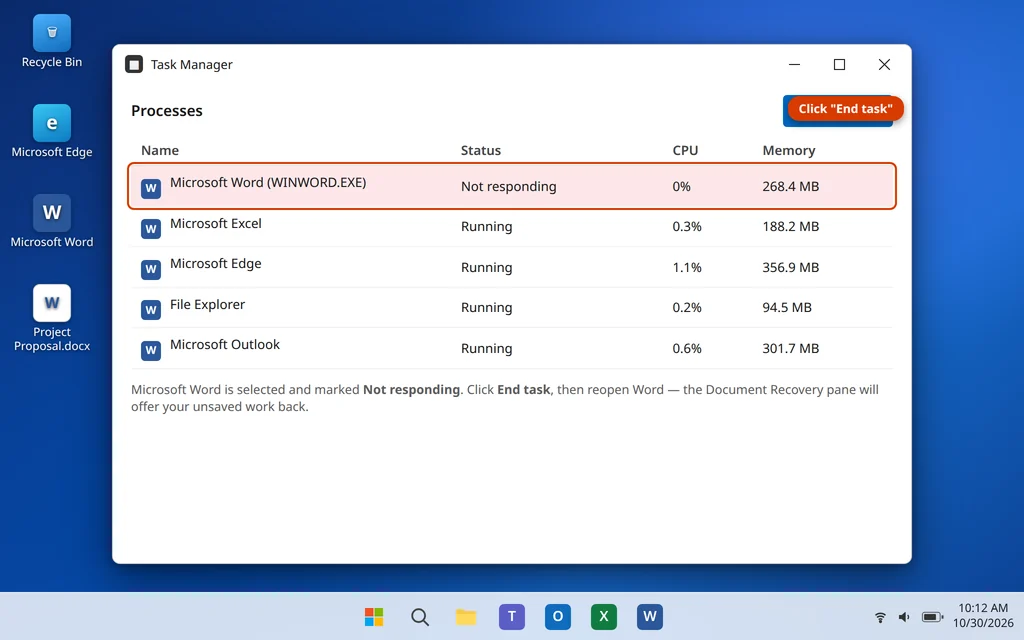
- Press Ctrl + Shift + Esc to open Task Manager. If it opens small, click More details.
- In the Processes tab, find Microsoft Word, marked Not responding. (In the Background processes section it appears as WINWORD.EXE — the same thing.)
- Select it and click End task.
- Reopen Word and watch the left side of the window: the Document Recovery pane should appear with your recovered file. Save the [Recovered] version with Save As before opening anything else.
If it freezes again doing the same task, that pattern is a clue: note what you were doing (printing, saving, accepting changes) and jump to the fix that matches. Otherwise continue in order.
Fix 2: Start Word in Safe Mode and See How It Behaves
This is the single most useful test in the guide. Safe Mode starts Word with no add-ins, no customizations and a clean default template — so it splits the problem in half. If Word is stable in Safe Mode, the program itself is fine and something it normally loads is guilty.
- Close Word completely (use Fix 1 if it is frozen).
- Press Windows key + R to open the Run box.
- Type
winword /safeand press Enter. - Word opens with (Safe Mode) in the title bar. Open your document and repeat whatever made it freeze — type, save, print.

If Word runs fine in Safe Mode, go straight to Fix 3 — an add-in is almost certainly the cause. If Word freezes in Safe Mode too, add-ins are cleared of suspicion; skip ahead to Fix 4 (the template) and Fix 5 (the printer). Safe Mode is a test, not a working mode — do not just keep working in it, because the freeze will return in normal mode.
Fix 3: Disable COM Add-Ins
With Safe Mode pointing at add-ins, this fix confirms it — and finds the exact one.
- Open Word (Safe Mode is fine for this) and click File > Options > Add-ins.
- At the bottom of the window, set Manage to COM Add-ins and click Go.
- Uncheck every add-in in the list and click OK.
- Close Word and reopen it normally. Work as usual for a while.

If the freezing stops, turn the add-ins back on one at a time, restarting Word after each, until the freeze returns. That last add-in is the culprit: leave it unchecked, or update it from its maker’s website or uninstall it. PDF tools and reference managers are worth testing first. If Word still freezes with every add-in off, continue to Fix 4.
Fix 4: Rename the Normal.dotm Template
Normal.dotm quietly stores your default font, styles, and any macros or toolbar changes you have saved. When it corrupts, Word misbehaves in ways that look random — freezing when typing, crashing when saving. The fix is painless because Word builds a fresh copy automatically, and renaming (not deleting) keeps the old one as a backup.
- Close Word completely, and check Task Manager (Fix 1) to be sure no WINWORD.EXE is still running — the rename will not work while Word has the file open.
- Press Windows key + R, type
%appdata%\Microsoft\Templatesand press Enter. The Templates folder opens. - Find Normal.dotm, right-click it, choose Rename, and change its name to Normal.old.
- Open Word. It creates a brand-new Normal.dotm and starts with clean defaults.
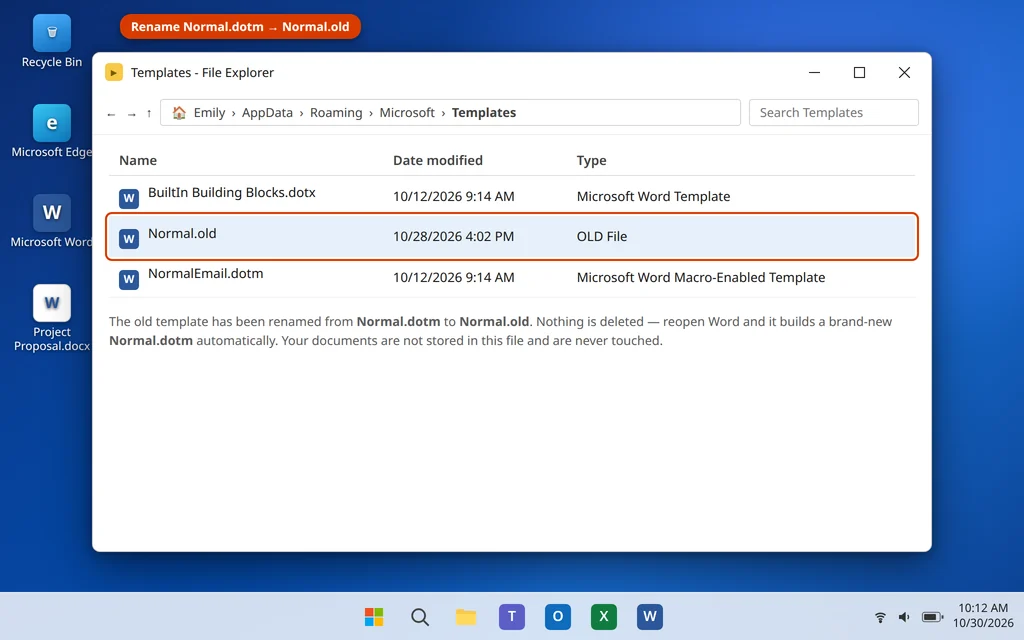
Your documents are never touched — they do not live in the template. Custom styles or macros stored in Normal.dotm will not be in the fresh one, which is exactly why we renamed instead of deleting: Normal.old is still there if you need it. The folder also lives at C:\Users\[YourName]\AppData\Roaming\Microsoft\Templates — AppData is hidden, which is why the %appdata% shortcut is the reliable route.
Fix 5: Change Your Default Printer to Microsoft Print to PDF
This fix sounds unrelated, which is why it gets skipped — and why it keeps solving the problem. Word checks your default printer every time it lays out a page, opens Print Preview, or prints, because it needs the printer’s measurements. If that driver is corrupt or half-updated, Word freezes waiting for an answer that never comes. Freezes when printing, when opening Print Preview, or a few seconds after a document opens point here first.
- Open Settings > Bluetooth & devices > Printers & scanners.
- Scroll down and turn off “Let Windows manage my default printer”.
- In the printer list, click Microsoft Print to PDF, then click Set as default.
- Open Word and use it normally — including a print preview and a test print to PDF.
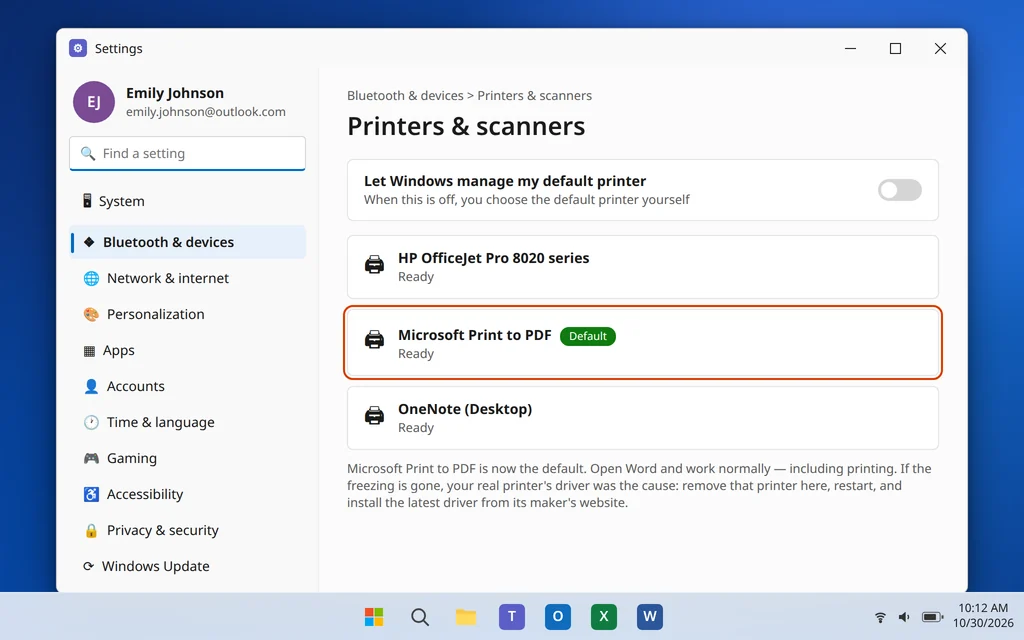
If Word behaves with the PDF printer in charge, your real printer’s driver is the problem. Back in Printers & scanners, click your printer, choose Remove, restart the PC, then download and install the latest driver from the printer maker’s website and add the printer again. If Word freezes exactly as before with the PDF printer as default, the driver is cleared — move on to Fix 6.
Fix 6: Update Office
Crash and freeze bugs are precisely what Office updates fix. An installation that keeps postponing updates keeps every bug Microsoft has already solved.
- Open Word (Safe Mode is fine) or any Office app that opens normally.
- Click File > Account.
- Click Update Options, then Update Now.
- Let the update download and install, close the app, and reopen Word normally.
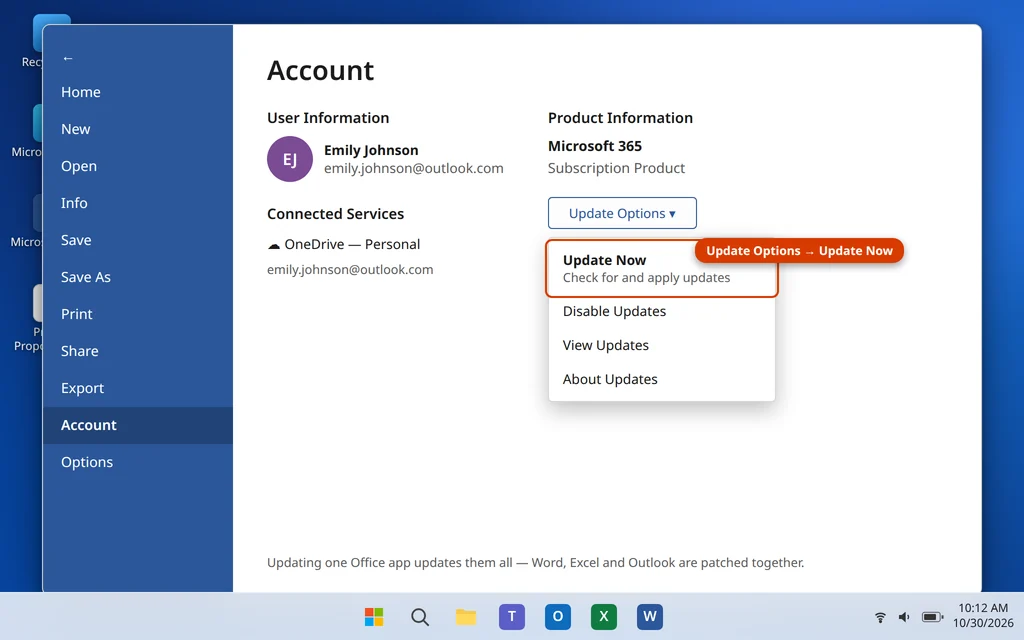
While you are there, also run Settings > Windows Update > Check for updates. Printer and graphics driver updates arrive through Windows Update, and both drivers appear elsewhere in this guide — a pending driver update can be the whole story.
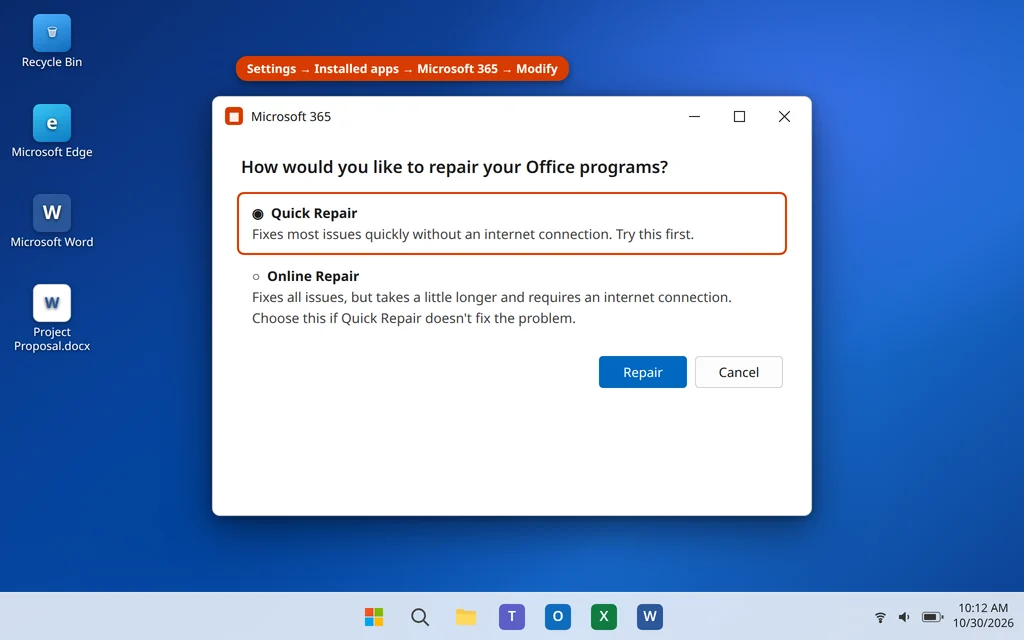
Fix 7: Repair Office — Quick Repair, Then Online Repair
If Word’s own program files are damaged, no template rename or add-in change will save you — the program itself needs rebuilding. The built-in repair does that without touching your documents, your template or your settings.
- Close all Office apps.
- Right-click the Start button and select Installed apps.
- Find Microsoft 365 (or your version of Microsoft Office), click the three dots next to it, and choose Modify.
- Choose Quick Repair and click Repair. It runs offline and takes a few minutes.
- Open Word and test thoroughly. If the freezes continue, repeat the steps and choose Online Repair — it re-downloads the Office program files, so it takes longer and needs an internet connection, but it repairs deeper damage. You will need to sign in to Office again afterwards.
Fix 8: If Only One Document Crashes Word, Rescue the Document Itself
When every document works except one, stop fixing Word — the file is the problem. Documents usually corrupt in their structure: tracked changes stacked over months of edits, a damaged table, a broken final section. The classic recovery works because of a quirk of the .docx format: much of the corruption risk lives in the last paragraph mark, which carries the final section’s formatting. Copying everything except that mark leaves a surprising amount of damage behind.
- Open a new blank document.
- Open the damaged document. If it crashes Word on opening, open it in Safe Mode (Fix 2) for this rescue.
- In the damaged document, click at the very start, then press Ctrl + Shift + End to select from the top to the end of the document.
- Hold Shift and press the Left Arrow key once. This deselects the final paragraph mark — the step that matters.
- Press Ctrl + C, switch to the new document, and press Ctrl + V.
- Save the new document under a fresh name, and work in it from now on.
What does not come across: headers, footers and section formatting live in that last section mark, so check page setup, headers and footers in the rescued copy and rebuild anything missing. If the damaged file will not open anywhere, use File > Open, select the file, click the small arrow next to the Open button and choose Open and Repair — Word’s built-in attempt at fixing the file’s structure as it loads.

If Word freezes on every document even after all eight fixes — and Excel is not responding on the same PC either — an Office-wide failure after a full repair points at Windows itself: run the system health checks in our PC performance guide before considering a reinstall.
How to Stop Word Freezing Again
- Shorten the AutoRecover interval. File > Options > Save, set it to 5 minutes — the cheapest insurance in this guide.
- Save versions of long documents. A weekly copy (“Proposal v3”) means a corrupt file never costs more than a week — and accept or reject old tracked changes periodically, because months of unaccepted revisions make a document freeze-prone.
- Keep add-ins lean. Every add-in loads with Word. Remove the ones you no longer use.
- Let updates finish. Most freeze bugs are already fixed in an Office or Windows update you have been postponing.
- Back up your good Normal.dotm. Once Word works the way you like, copy the fresh template somewhere safe — restoring it takes ten seconds if it corrupts again.
Frequently Asked Questions
Will I lose my work if Word is not responding?
Usually not all of it. Word saves an AutoRecover copy every 10 minutes by default, and when Word restarts after a crash or forced close, the Document Recovery pane offers that copy back. You may lose the last few minutes of typing — but not the document. Save the [Recovered] version with Save As the moment Word reopens, because the pane only appears on the first relaunch.
Microsoft Word not responding — how do I save my document?
If the window still responds to clicks, press Ctrl + S immediately, then File > Save As a copy under a new name. If the window is truly frozen, there is no working save command — that is exactly what AutoRecover is for. Close Word via Task Manager, reopen it, and recover the document from the Document Recovery pane as described in the recovery section above.
Why does Word keep freezing when I try to print?
Because Word talks to your default printer driver to lay out every page and build Print Preview — and a corrupt or half-updated driver makes it wait forever. Microsoft Word keeps crashing when trying to print is the same problem at full speed. Fix 5 tests it in two minutes by making Microsoft Print to PDF the default; if the freezes stop, reinstall your real printer’s driver.
Word opens in Safe Mode but freezes normally. What does that mean?
Something Word normally loads is broken — most often a COM add-in, sometimes the Normal.dotm template. Safe Mode skips both, which is why it runs cleanly. Disable all add-ins (Fix 3) and re-enable them one at a time to find the culprit; if add-ins are all innocent, rename Normal.dotm (Fix 4).
How long should I wait when Word says “Not Responding”?
Watch for signs of life — a moving page count, a changing status bar, a flickering drive light. Busy is worth two full minutes, especially when accepting all changes in a long document or printing something heavy. A faded, static window after two minutes is stuck, not slow, and waiting longer rarely brings it back.
Does renaming Normal.dotm delete my documents or settings?
No. Your documents are separate files and are never touched. The fresh template starts with default settings, so custom styles or macros stored in the old template will not carry over — but you renamed it to Normal.old instead of deleting it, so the original is still on your PC as a backup.
Word crashes on one document only. Is my Word broken?
Almost certainly not — the document is. Corruption in one file (often around tracked changes, tables, or the final section formatting) crashes Word while every other file opens fine. Fix 8 walks through the rescue: copy everything except the last paragraph mark into a fresh document, or use Open and Repair from the File > Open menu.
Still stuck with Word freezing or crashing? Tell us when it happens — typing, saving, printing, or one specific document — on our Contact page — servicedesk@howtofixerroronline.com, available 24 hours — and see our other Microsoft Office guides for Excel, PowerPoint and OneDrive help.