
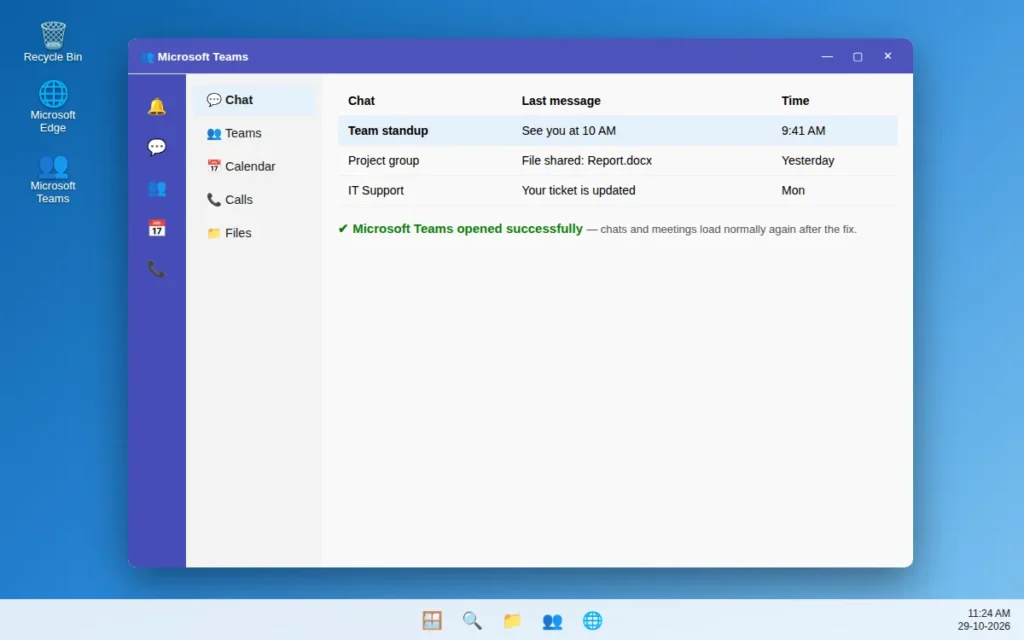
Microsoft Teams Not Opening on Windows 11? 9 Fixes
You click Microsoft Teams and nothing happens. Or the purple splash screen appears, spins for a few seconds, and quietly closes. Or Teams opens to a blank white window and never reaches your chats and meetings — usually five minutes before a meeting starts.
The good news: this is almost never a serious problem. A stuck background process, a corrupt cache folder, or a half-finished update is usually stopping the app at startup, and each takes only a few minutes to fix.
One thing to know first: Windows 11 has two versions of Teams. The new Teams stores its data in a completely different place from classic Teams, so several fixes have different steps for each. Follow the one for your app — the new Teams is the default on Windows 11 today.
Work through the fixes in order. The first two solve this problem for most people.
Quick Answer: End Teams completely in Task Manager, then clear the Teams cache — new Teams: delete the contents of
%localappdata%\Packages\MSTeams_8wekyb3d8bbwe\LocalCache; classic Teams: delete the contents of%appdata%\Microsoft\Teams. Restart your PC. If Teams still will not open, use Settings > Apps > Installed apps > Microsoft Teams > Advanced options > Repair, then Reset. Still stuck? Test Teams on the web at teams.microsoft.com — if it works there, reinstall the desktop app.
Why Is Microsoft Teams Not Opening on Windows 11?
Teams usually fails to open for one of these reasons:
- Teams is already running in the background. A crashed or frozen Teams process can block a new window from opening.
- A corrupt cache. Teams stores a large local cache so chats load quickly. When those files are damaged — often after an update or forced shutdown — the app can freeze or close during startup.
- A half-finished update. Teams updates itself in the background very often, and an interrupted update is a common trigger for “Teams stopped opening after yesterday”.
- A sign-in problem. Expired or conflicting cached sign-in data can leave the new Teams stuck on its loading screen.
- Antivirus or VPN interference. Security software and VPN clients sometimes block Teams from reaching Microsoft’s servers at startup.
- Damaged Windows system files. Less common, but corrupt system components can stop Teams launching at all.
- A Microsoft service outage. Occasionally the problem is not your PC at all. Fix 6 shows you how to check in under a minute.
Quick tip: If a meeting is about to start, join from teams.microsoft.com in your browser while you work through these fixes.
Fix 1: End Teams Completely in Task Manager
Teams keeps running in the background after you close its window, so a frozen copy is often still running even when you cannot see it. End every Teams process first.
- Press Ctrl + Shift + Esc to open Task Manager.
- In the Processes tab, look for Microsoft Teams (shown as
ms-teams.exeunder Details). - Select it and click End task. If you see more than one Teams entry, end each one.
- Wait 10 seconds, then open Teams again from the Start menu.
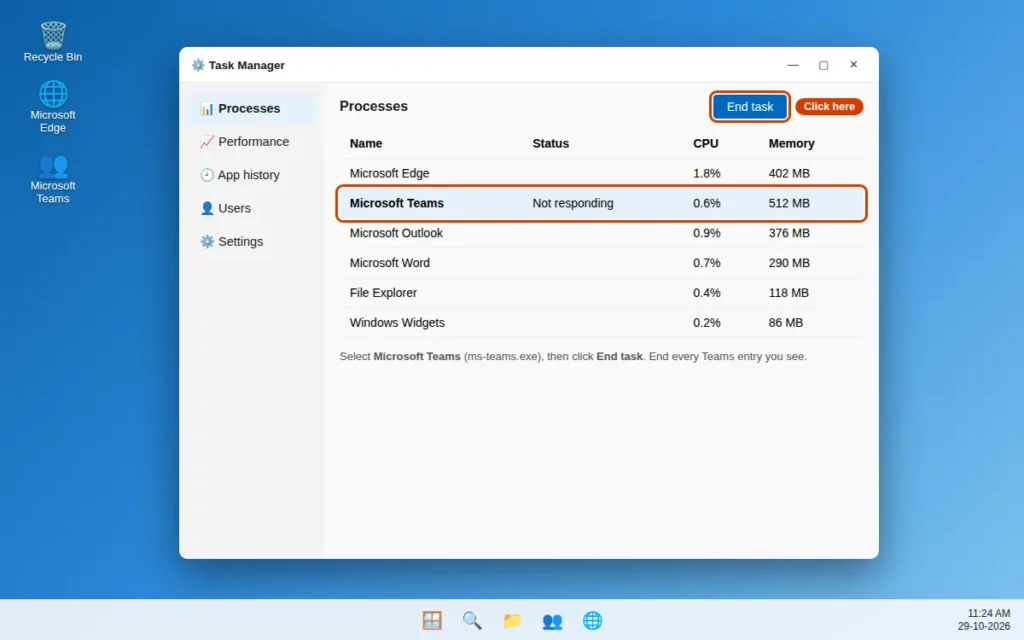
If Teams opens now, you are done — the app itself was fine, it was just stuck. If it still does not open, the cache is the next suspect.
Fix 2: Clear the Teams Cache
This is the single most effective fix for Teams not opening, opening to a blank screen, or getting stuck on its loading screen. Clearing the cache does not delete your chats, files or meetings — those live in your Microsoft account. Teams rebuilds the cache next time it starts, so the first launch after this fix can take a little longer.
Make sure Teams is fully closed first (use Fix 1), then follow the steps for your version.
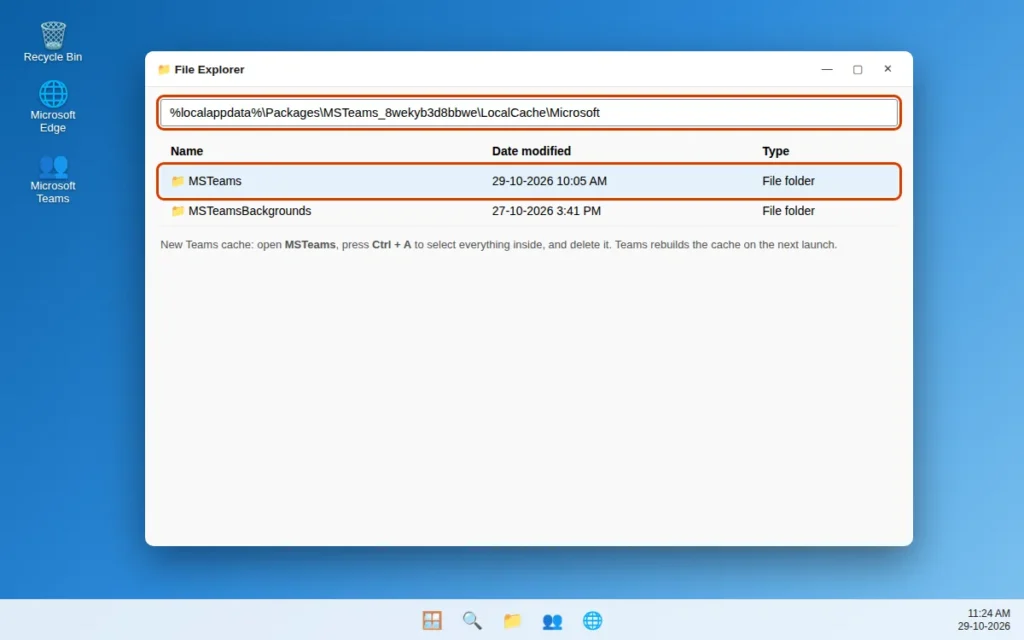
For the new Teams:
- Press Windows key + R to open the Run box.
- Type
%localappdata%\Packages\MSTeams_8wekyb3d8bbwe\LocalCacheand press Enter. - Open the Microsoft folder, then the MSTeams folder inside it.
- Select everything with Ctrl + A and delete it.
- Open Teams and sign in if asked.
For classic Teams:
- Press Windows key + R, type
%appdata%\Microsoft\Teamsand press Enter. - Select all the folders and files inside — you will see folders with names like Cache, Code Cache, GPUCache and databases — and delete them.
- Open classic Teams again and sign in if asked.
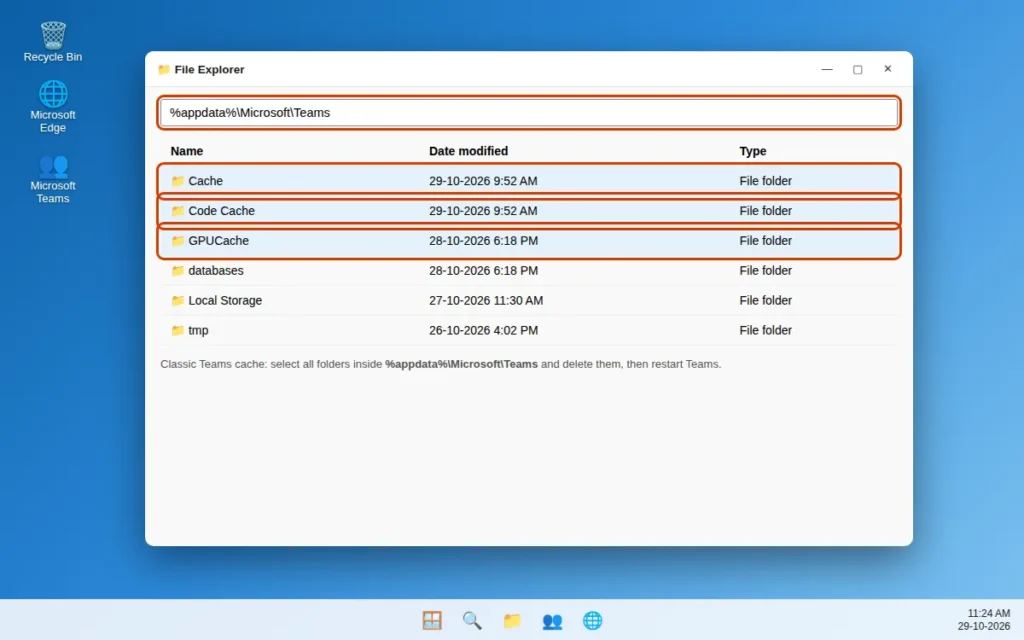
Deleting just the Cache folder often works on its own, but the full clear is more reliable when Teams will not open at all.
Fix 3: Restart Your PC
Do not skip this — especially if you only ever sleep your laptop. Windows 11’s Fast Startup means a normal shutdown does not always reset background services and stuck processes. A proper Restart does.
- Save your work in other apps.
- Click Start > Power > Restart (choose Restart, not Shut down).
- After Windows loads, give it a minute, then open Teams.
If the problem keeps coming back after every sleep, that points back to the cache (Fix 2) or an update problem (Fix 4), rather than a one-off freeze.
Fix 4: Update Teams and Windows
This problem is frequently an update that went wrong — or one that is waiting and conflicting with the running version. Since Teams itself will not open, use Windows and the Microsoft Store to bring everything current.
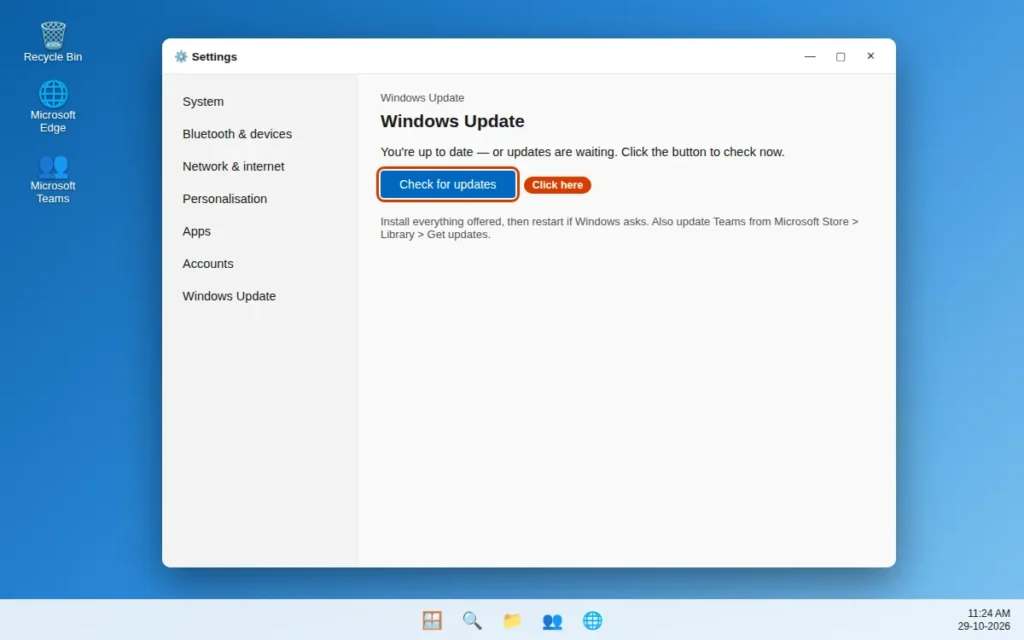
- Open Settings > Windows Update and click Check for updates. Install everything offered, then restart if Windows asks.
- Open the Microsoft Store, click Library, and click Get updates / Update all. The new Teams is updated through the Store on many PCs.
- If you use classic Teams bundled with Microsoft 365, open another Office app such as Word and go to File > Account > Update Options > Update Now — Office updates update classic Teams components too.
- Try opening Teams again.
Fix 5 (New Teams): Repair or Reset Teams in Settings
The new Teams is a Windows app package, so Windows has built-in Repair and Reset tools for it — the right fix when the installation or local app data, not just the cache, is damaged.
- Open Settings with Windows key + I.
- Go to Apps > Installed apps.
- Find Microsoft Teams, click the three dots next to it, and choose Advanced options.
- Scroll to the Reset section and click Repair first. Try opening Teams.
- If it still does not open, come back to the same screen and click Reset, confirm, and then open Teams and sign in again.
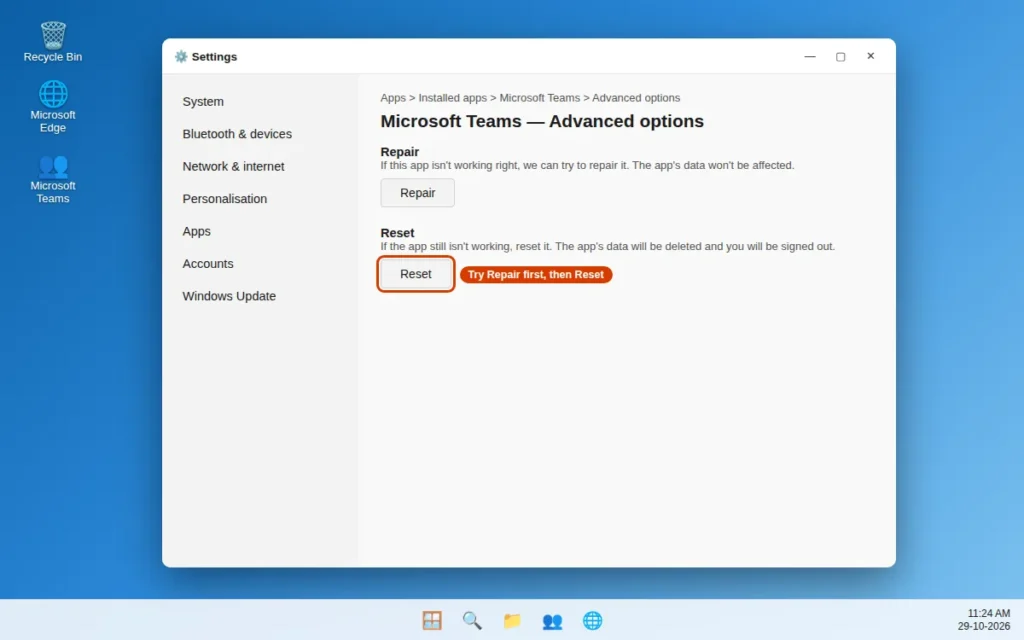
Repair fixes the app while keeping its data. Reset removes the app’s local data and signs you out — which also clears sign-in problems. Neither removes your chats or files from your account.
Classic Teams does not show these Repair/Reset options in every Windows build. If you cannot find them, skip to Fix 9 — a reinstall does the same job more thoroughly.
Fix 6: Check Whether Teams Works on the Web (and Whether the Service Is Down)
Before changing anything else, spend one minute finding out whether the problem is your PC or Microsoft.
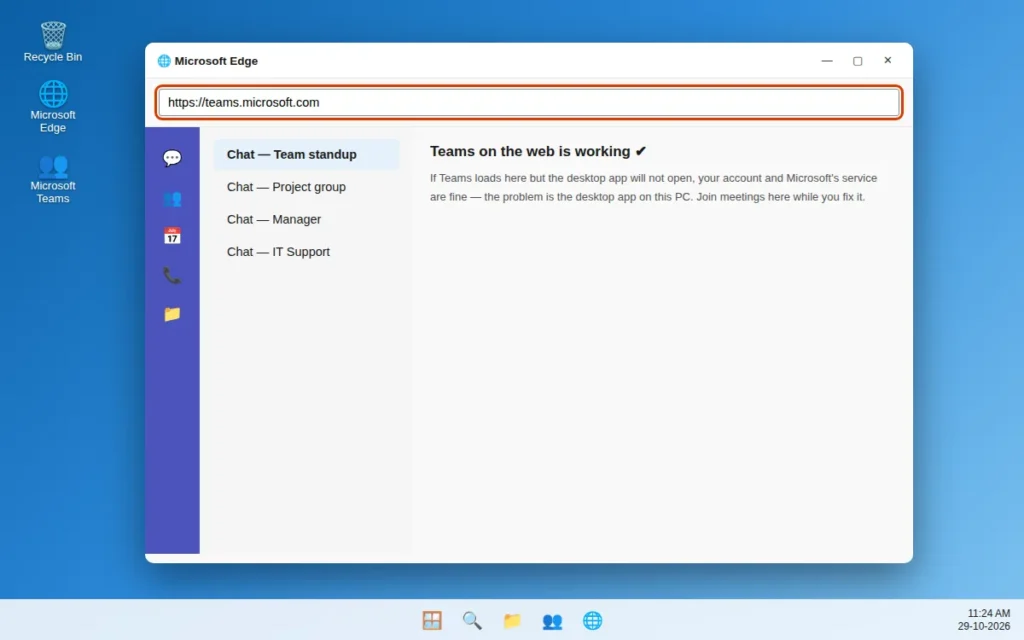
- Open your browser and go to teams.microsoft.com.
- Sign in with the same account you use in the desktop app.
- If Teams loads, try opening a chat and, if you can, a test call or meeting.
How to read the result:
- Web Teams works, desktop Teams does not: your account and Microsoft’s service are fine — the problem is the desktop app on this PC. Continue with Fix 7 to Fix 9.
- Web Teams also fails: it may be a Teams outage, or an account/internet problem. If a Microsoft service incident is in progress, simply wait — no local fix can beat an outage.
Either way, the web version keeps you working, including joining meetings from the browser.
Fix 7: Temporarily Disable Your VPN and Check Your Antivirus
VPN clients and third-party antivirus tools are a quiet but common cause of Teams failing to open or getting stuck while signing in. This fix is a test, not a permanent change.
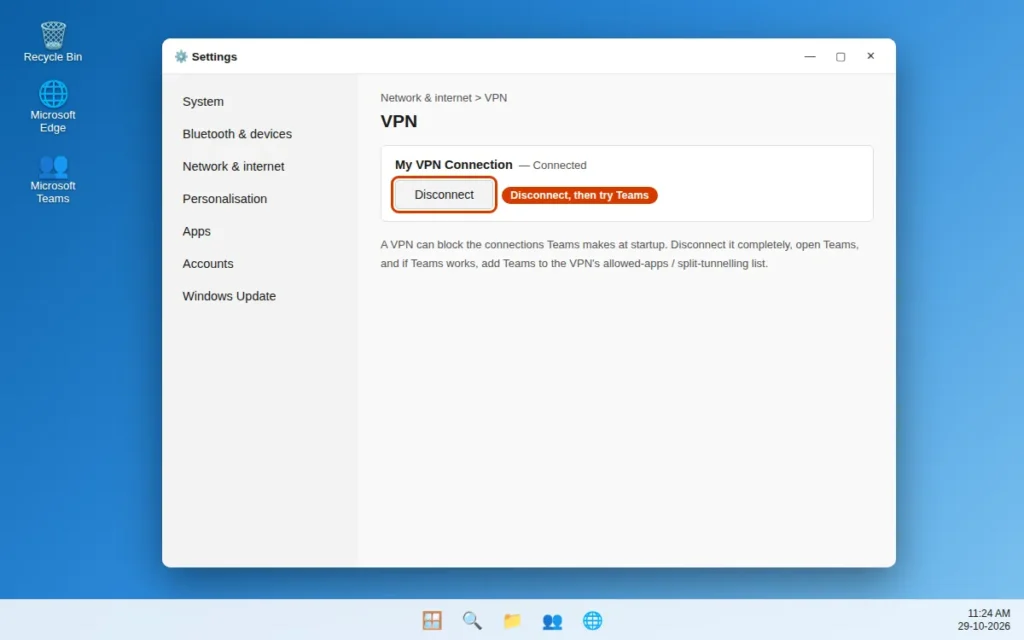
- Disconnect your VPN completely (exit the VPN app, not just pause it), then try opening Teams.
- If you use a third-party antivirus, temporarily disable its real-time protection for a few minutes, then try Teams again. Turn protection back on immediately after the test.
- If Teams opens with the VPN off, add Teams to the VPN’s split-tunnelling or allowed-apps list. If it opens with antivirus paused, add Teams to your antivirus exclusions — do not leave your PC unprotected.
Windows Security (the built-in protection) rarely conflicts with Teams, so if that is all you use, this fix is unlikely to be your answer — move on to Fix 8.
Fix 8: Run the System File Checker
If Windows system files that Teams depends on are damaged, several apps can start misbehaving at once. The built-in System File Checker (SFC) scans for and repairs corrupt system files.
- Type
cmdin Windows search, right-click Command Prompt, and choose Run as administrator. - Type
sfc /scannowand press Enter. - Wait for the scan to reach 100%. This can take 10-20 minutes — do not close the window early.
- Restart your PC and try Teams again.
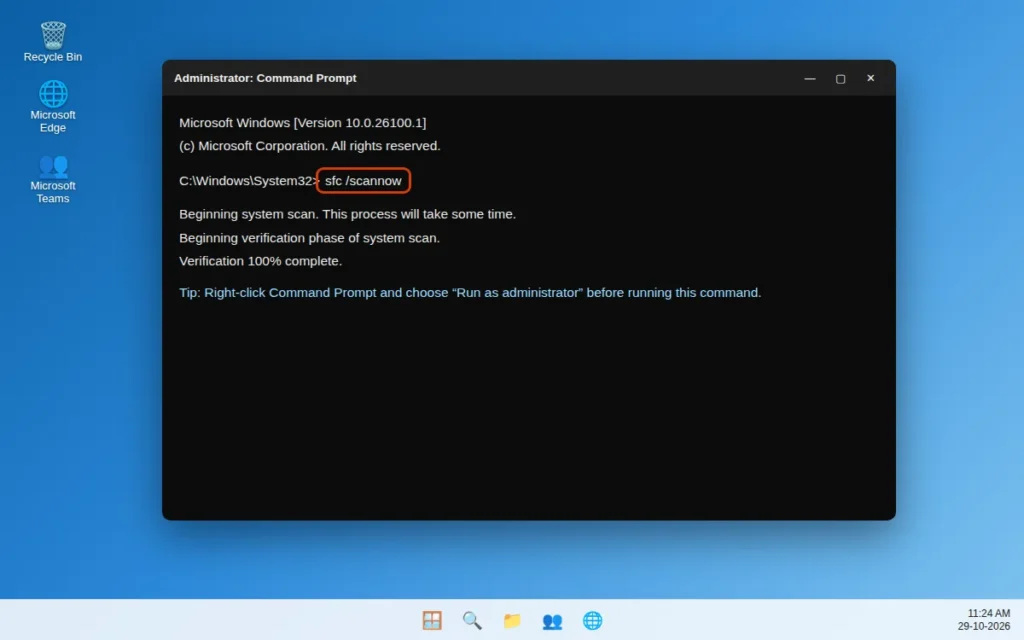
If SFC found corrupt files but could not fix some of them, run DISM /Online /Cleanup-Image /RestoreHealth in the same window, then run sfc /scannow once more — DISM repairs the Windows image SFC uses as its source.
Fix 9: Reinstall Teams (or Switch Between New and Classic Teams)
If nothing above worked, a clean reinstall removes every damaged file and broken update in one go. Your chats and files are stored in your account, not in the app, so reinstalling is safe.
Reinstall the new Teams:
- First clear the cache one last time (Fix 2) and end all Teams processes (Fix 1).
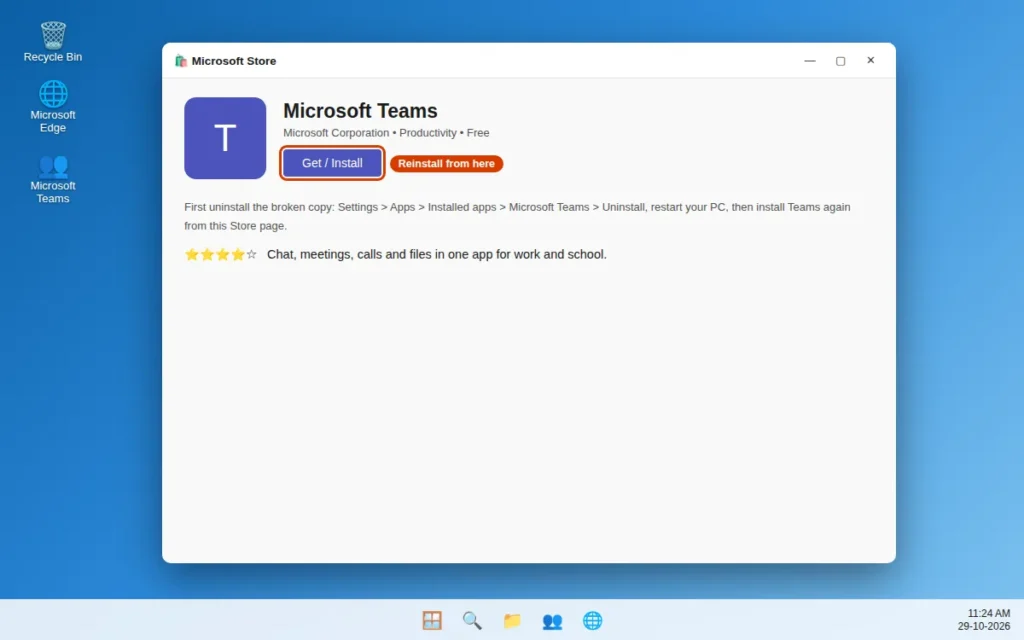
- Go to Settings > Apps > Installed apps > Microsoft Teams, click the three dots and choose Uninstall.
- Restart your PC — this step matters, it clears locked leftover files.
- Reinstall Teams: open the Microsoft Store, search for Microsoft Teams, and click Get / Install — or download the installer from Microsoft’s Teams download page.
- Open Teams and sign in.
Or switch versions as a test: Classic Teams (where your organisation still provides it) uses a separate installation and cache, so it often works when the new app does not — and the reverse is also true. Treat classic as a temporary fallback only, since Microsoft is retiring it in favour of the new Teams.
After reinstalling, give Teams a few minutes on first launch — it rebuilds its cache and re-syncs your chats.
How to Stop Teams From Breaking Again
- Quit Teams properly once in a while. Right-click the Teams icon in the system tray and choose Quit, instead of leaving it running for weeks.
- Let updates finish. Avoid force-shutting your PC while Teams or Windows is updating.
- Clear the cache every few months if you are in Teams all day (Fix 2) — heavy users build up a very large cache.
- Keep free space on your system drive. Teams needs room to unpack updates and rebuild its cache.
- Restart your PC weekly rather than relying only on sleep.
Frequently Asked Questions
Why won’t Microsoft Teams open on Windows 11?
The most common reasons are a stuck Teams process running in the background, a corrupt Teams cache, a half-finished update, or cached sign-in data that no longer works. Start with Task Manager (Fix 1) and clearing the cache (Fix 2) — together they fix most cases.
How do I clear the Teams cache on Windows 11?
Close Teams completely first. For the new Teams, open %localappdata%\Packages\MSTeams_8wekyb3d8bbwe\LocalCache from the Run box (Windows key + R) and delete its contents. For classic Teams, delete the contents of %appdata%\Microsoft\Teams. Then restart Teams and sign in if asked.
Will clearing the cache or reinstalling Teams delete my chats and files?
No. Chats, channels, meetings and files are stored in your Microsoft account in the cloud, not in the cache or the app. You will simply sign in again and everything will sync back.
Teams opens to a blank white screen. What should I do?
A blank window at startup is the classic symptom of a corrupt cache. End all Teams processes in Task Manager, clear the cache for your version (Fix 2), and restart your PC. If it returns, run Repair, then Reset, in Settings > Apps > Microsoft Teams > Advanced options (Fix 5).
What is the difference between Repair and Reset for Teams?
Repair fixes the new Teams installation while keeping its local data and your sign-in. Reset removes the app’s local data and signs you out, clearing damaged sign-in information. Try Repair first. Neither deletes your account data.
Teams works in the browser but not in the desktop app. Why?
That means your account, internet connection and Microsoft’s service are all working, and the fault is in the desktop app on your PC. Clear its cache, run Repair/Reset, and reinstall it if needed (Fix 9). Use the web version at teams.microsoft.com meanwhile.
Why does Teams stop opening after an update?
If an update is interrupted — by a shutdown, crash or full disk — the app can be left with a mix of old and new files and a cache that no longer matches. Updating Windows fully (Fix 4), clearing the cache (Fix 2) and reinstalling if needed (Fix 9) replaces the mixed files with one clean version.
Still stuck? Tell us the exact message or screen you are seeing on our Contact page — servicedesk@howtofixerroronline.com, available 24 hours — and check our other Teams guides in the Teams Errors category, and our Windows Errors guides if other apps on your PC are failing to open too.