
Outlook Contacts Not Syncing or Missing? 8 Fixes
You open Outlook to find a phone number, and the contact is not there. This is the outlook contacts missing problem — the whole address book can look empty. Or it is outlook contacts not syncing: a contact saved on your phone never shows on your PC.
Do not panic. Your contacts are usually not gone. They are often in a different folder, under a different account, or waiting for one device to sync. Work through the fixes in order — the first checks take a minute and delete nothing.
Quick Answer: Open People in Outlook and search for one contact you know. Then check the same account at outlook.com under People. Contacts there? Your account is fine and one app is not syncing. Missing there too? Check the Deleted folder in People, make sure the right account is added, and use Fix 5 for phones.
Why Are My Outlook Contacts Missing or Not Syncing?
The usual reasons, in plain words:
- You are looking at the wrong list. Outlook holds separate contacts for each account. An empty list may be the wrong account’s list.
- The contact was saved to a different account. New contacts may save to the account set as default, not the one you are viewing.
- One device has stopped syncing. “Syncing” means copying changes between your phone, PC and the account online. If one device stops, the lists no longer match.
- A contact was deleted. Deleting a contact on one device deletes it on every device signed in to that account.
- The copy on your PC is damaged. If that copy breaks, contacts can look missing even when the online copy is complete.
One test tells you a lot: are the contacts at outlook.com? That is Fix 2.
Fix 1: Look in the Right Place — People and Search
Start inside Outlook — the most common cause is viewing the wrong list.
In Classic Outlook:
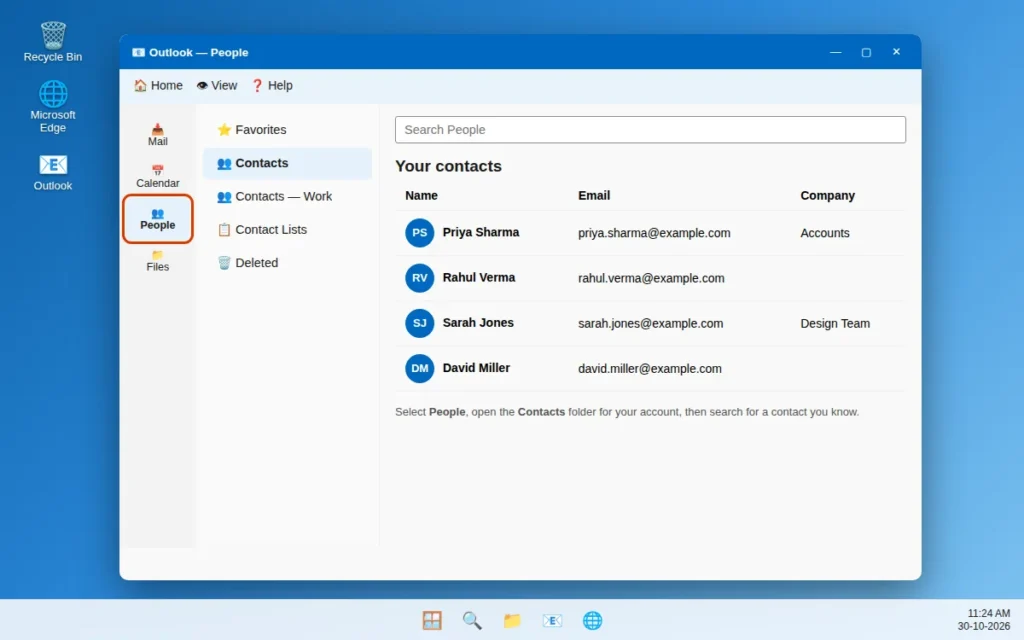
- Select People in the navigation bar at the bottom left or on the left side, or press Ctrl + 3.
- On the left, open the Contacts folder under your account. If there is more than one, check each one.
- Click in the Search People box and type the name of one contact you know should be there.
In the New Outlook app:
- Select People in the left navigation bar. If you do not see it, select More apps, then People.
- Select your account, then Your contacts, and search for a known contact by name.
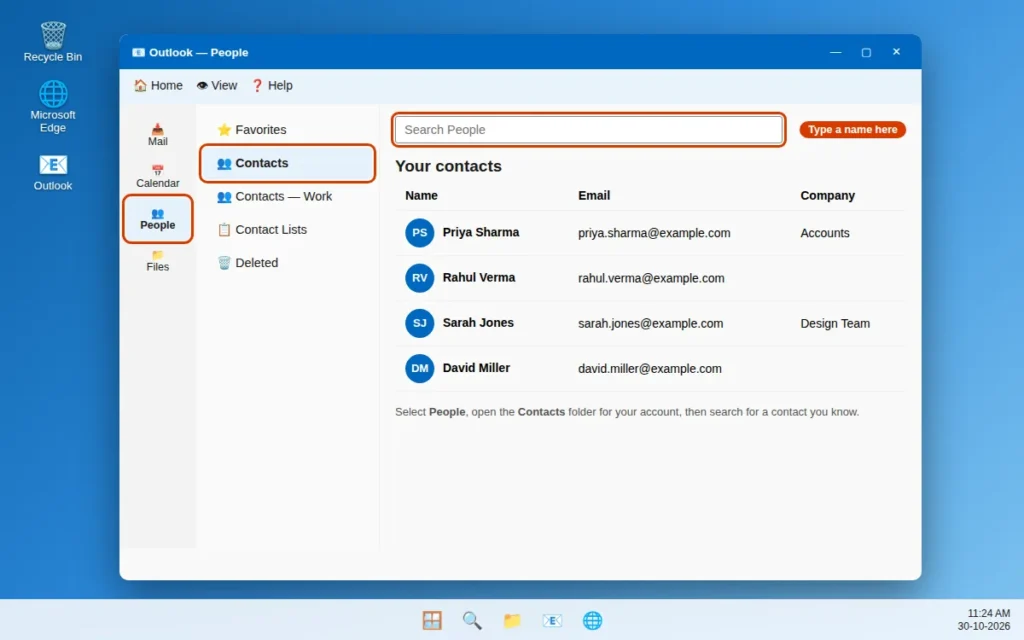
Found it? Nothing was lost — you were viewing a different folder.
Fix 2: Outlook Contacts Not Syncing? Check the Web First
This check shows if the problem is your account, or one app.
- In your browser, go to outlook.com and sign in with the same account.
- Select the People icon on the left and search for a missing contact.
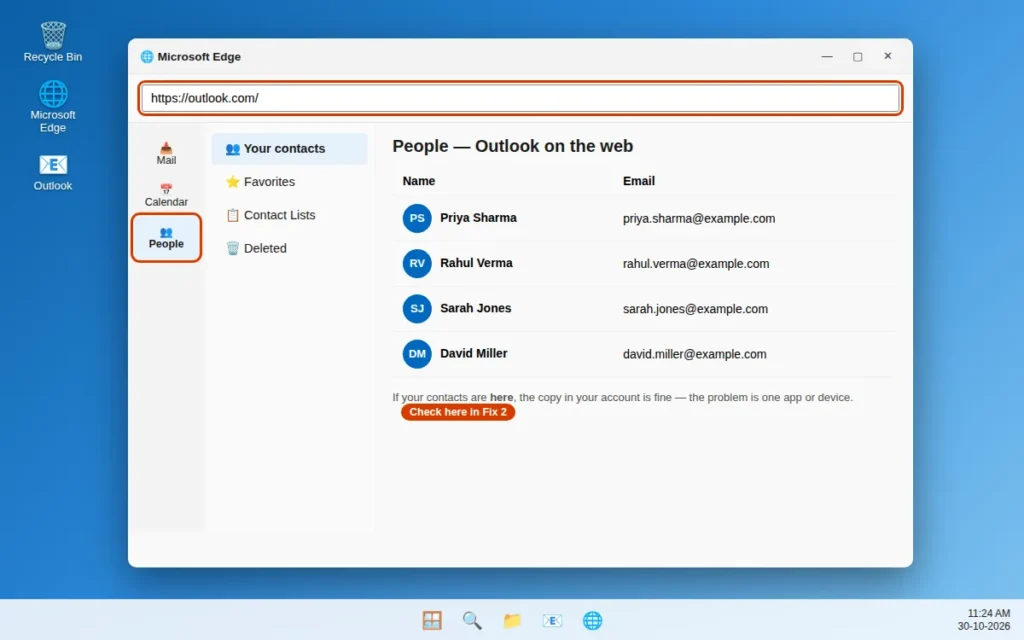
- On the web, but not in the app: your account is fine. Go to Fixes 3, 5 and 6.
- Missing on the web too: the problem is in the account itself. Read Fixes 3 and 4 with care.
Work or school account? Use outlook.office.com and open People there.
Fix 3: Make Sure the Right Account Is Added
Each account keeps its own contacts, so confirm the right one is added and selected.
In Classic Outlook:
- Go to File > Account Settings > Account Settings.
- On the Email tab, check your account is listed. If not, select New and add it.
- Check which account is default. If needed, select your main account and click Set as Default.
- Go to People and open the Contacts folder under that account.
In the New Outlook app: select the Settings gear icon (or View > View settings), then Accounts > Email accounts, and check the account is listed. Then view its contacts in People.
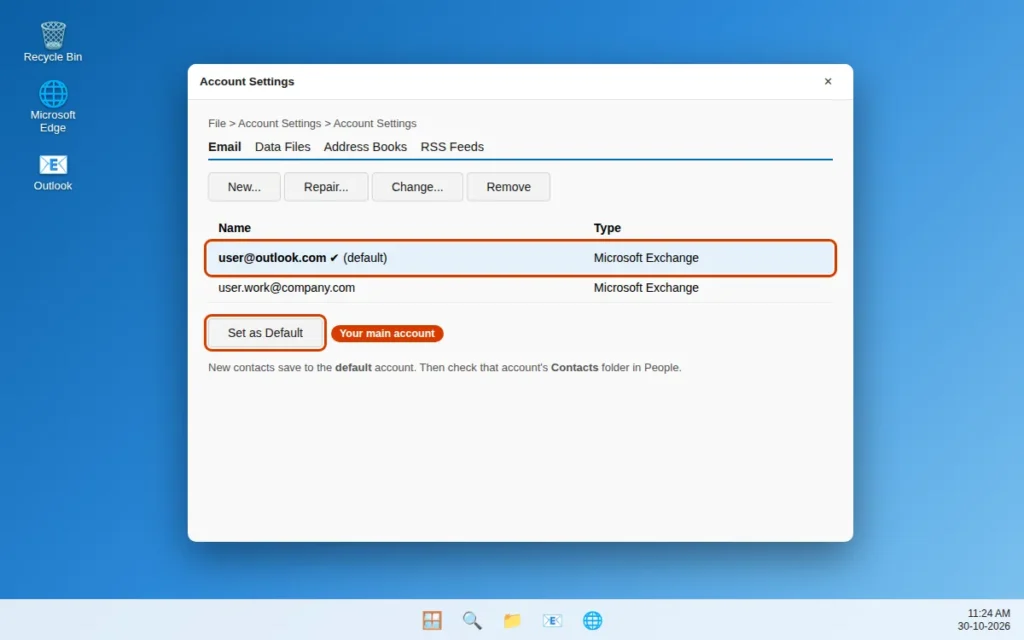
If your contacts appear under a second account, there is no sync fault — they were saved to that account by mistake.
Fix 4: Recover Contacts From Deleted Items
A deleted contact goes to Deleted Items, just like a deleted email.
In Classic Outlook:
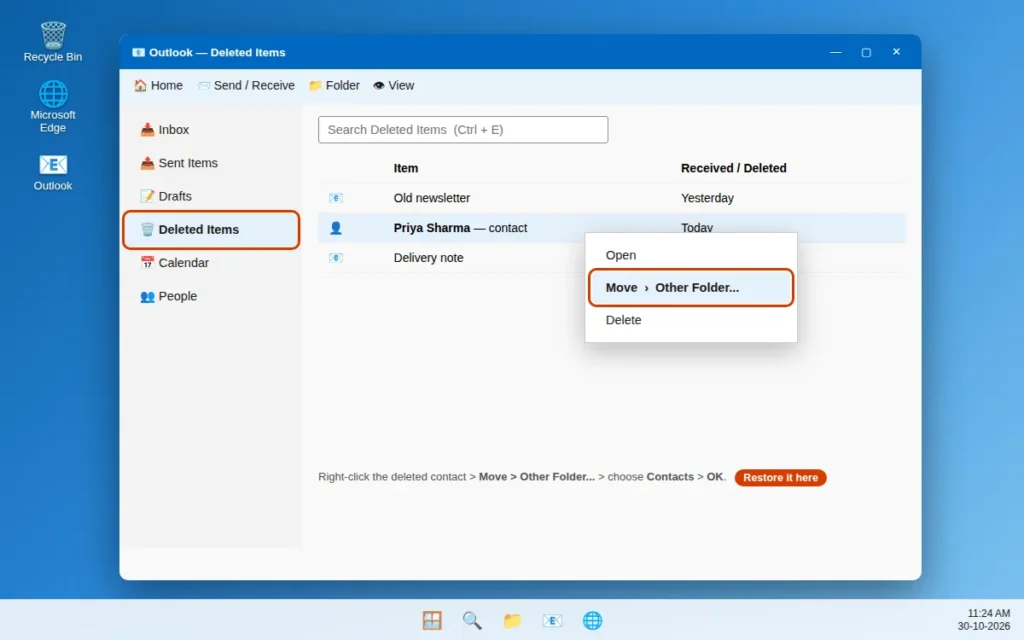
- Go to your email folder list and click Deleted Items.
- Use the Search Deleted Items box (or press Ctrl + E) to find the contact.
- Right-click the contact and click Move > Other Folder.
- Click Contacts, then click OK.
Not there? With a Microsoft 365, Exchange or Outlook.com account, select Deleted Items, then on the Home tab click Recover Deleted Items From Server. Select the contact, click Restore Selected Items, then OK, and move it from Deleted Items to Contacts. This button is not offered for every account type.
On the web: at outlook.com, select People, then Deleted on the left. Right-click the contact and select Restore. If it is not there, select Recover deleted at the top of the list, select the contact and select Restore. You can also check Mail > Deleted Items and right-click the item to Restore it.
Fix 5: Outlook Contacts Not Syncing on Your Phone? Check the Sync Setting
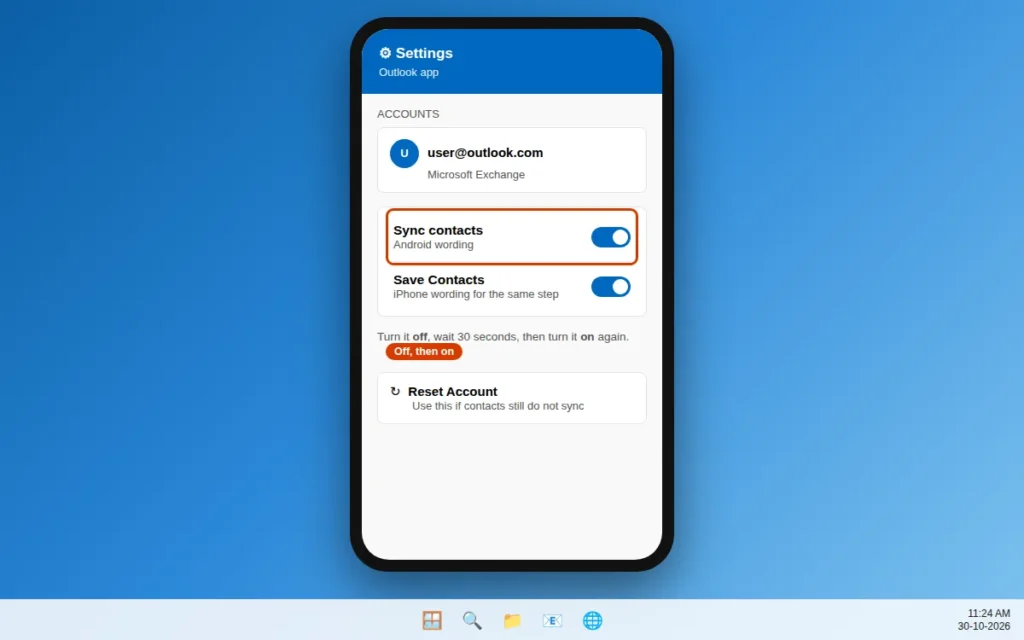
Contacts in the Outlook phone app sync with your account on their own. An optional step also copies them into your phone’s own Contacts app. Its name differs by phone:
- On iPhone: the setting is called Save Contacts.
- On Android: the setting is called Sync contacts.
To check it:
- Open the Outlook app. Tap your profile picture or menu icon, then the Settings gear icon.
- Tap the account that holds your contacts.
- Turn Save Contacts (iPhone) or Sync contacts (Android) off, wait 30 seconds, and turn it on again. Allow contact access if the phone asks.
- On iPhone, also open the phone’s Settings app, tap Outlook, and make sure Contacts is on.
- Still not syncing? On the same account screen in the Outlook app, tap Reset Account. This refreshes the account link.
Important: an account added as IMAP or POP can only sync email, not contacts. Add such an account again using its normal sign-in, not as IMAP or POP (Fix 8).
Fix 6: Rebuild the Copy of Your Contacts on This PC
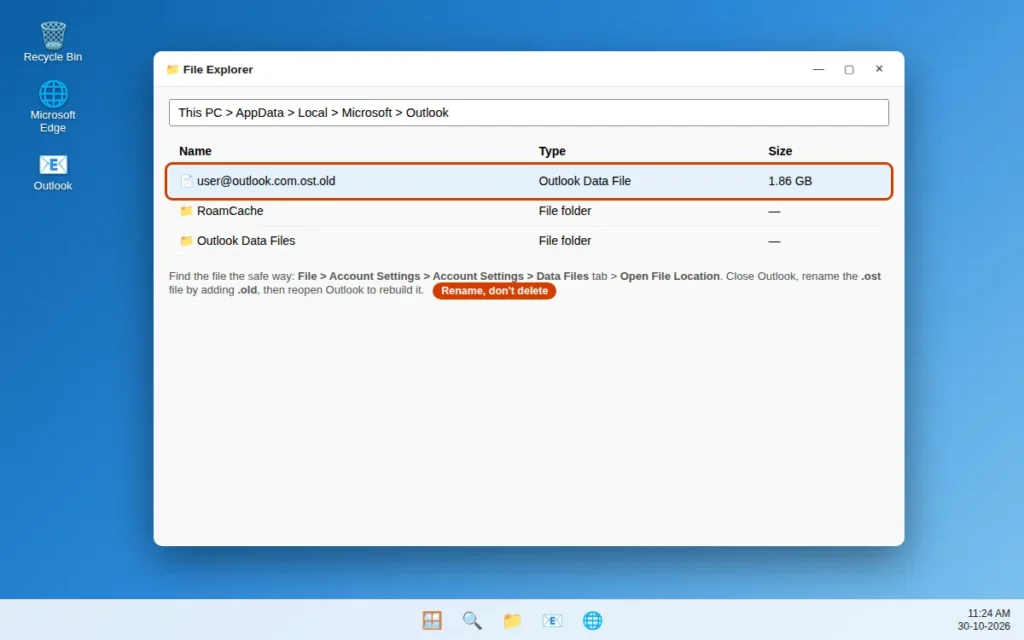
If contacts are right on the web but wrong in Classic Outlook, the copy on your PC may be damaged. It lives in a file ending in .ost — Outlook’s local copy of what is online. You can safely make Outlook build a fresh one.
For Classic Outlook:
- In Outlook, go to File > Account Settings > Account Settings.
- Select the Data Files tab, select your.ost file, and click Open File Location.
- Close Outlook fully.
- Right-click the.ost file, choose Rename, and add
.oldto the end of its name. Renaming keeps a backup — do not delete it yet. - Open Outlook again. It makes a new.ost file and downloads a fresh copy. A big mailbox takes time.
For the New Outlook app: open Windows Settings > Apps > Installed apps, find Outlook (new), click the three dots and choose Advanced options. Click Repair first. If that fails, click Reset and sign in again. Repair keeps the app’s data; Reset deletes it on this device.
If Outlook will not open at all, use our guide to fixing Outlook not opening on Windows 11 first.
Fix 7: Save a Backup Copy, or Import Contacts From a File
A CSV file is a simple text file holding contacts in rows and columns. It ends in.csv and opens in Excel. Exporting gives you a backup; importing brings contacts in from a file or old account.
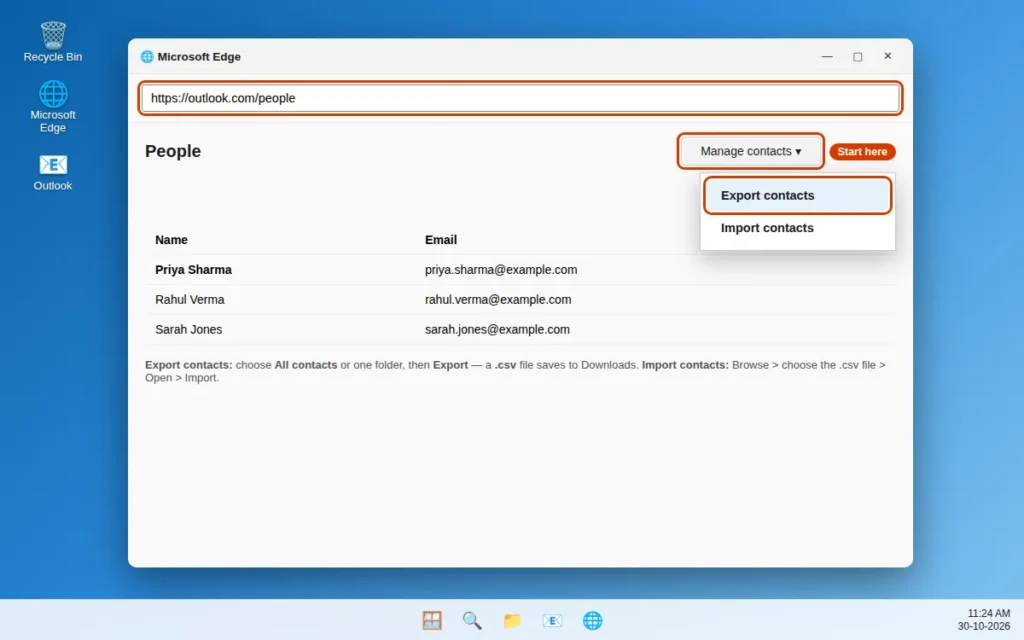
Export a backup (the web and New Outlook use the same buttons):
- Open People, select Manage contacts > Export contacts.
- Choose All contacts, or one folder, then select Export. The file saves to your Downloads folder.
Import into the New Outlook app or the web: open People, select Manage contacts > Import contacts, select Browse, choose your.csv file, select Open, then Import.
Import into Classic Outlook:
- Go to File > Open & Export > Import/Export — this opens a wizard, just a set of guided screens.
- Choose Import from another program or file, click Next, then choose Comma Separated Values and click Next.
- Click Browse, pick your file, and under Options choose what to do if a contact is already there. Click Next.
- Select the Contacts folder, click Next, then Finish.
Fix 8: Remove the Account and Add It Again
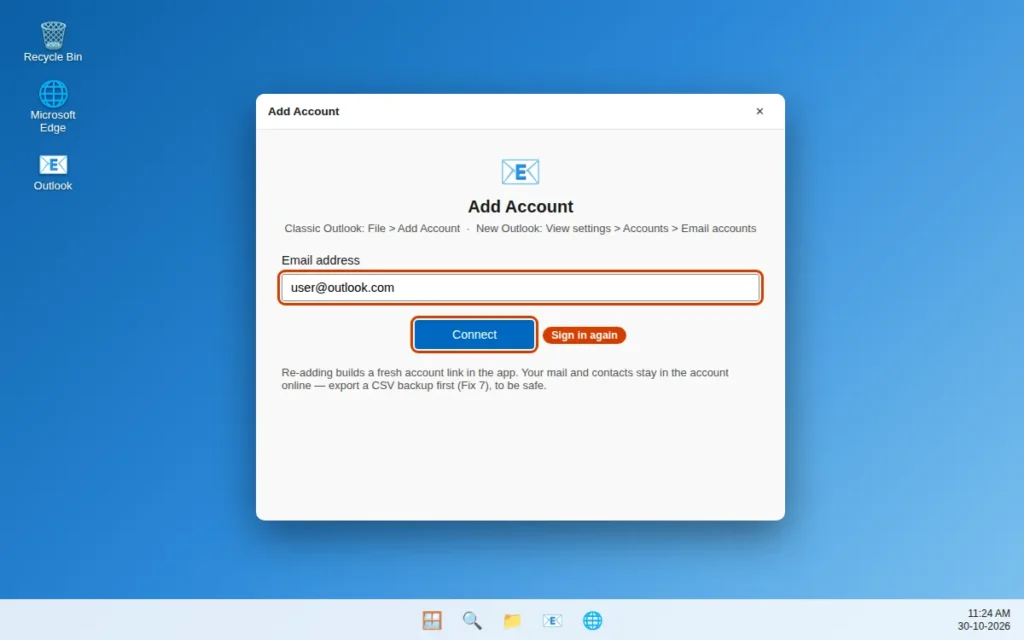
If nothing above worked, the account link inside the app may be broken. Removing the account from the app and adding it again builds it from new. This does not delete your email account or the contacts stored online. Still, save the CSV backup in Fix 7 first.
Classic Outlook: go to File > Account Settings > Account Settings, select the account and click Remove. Restart Outlook, go to File > Add Account, and sign in. Wait for syncing to finish, then check People.
New Outlook app: select View > View settings, then Accounts > Email accounts. Next to the account select Manage, and under Account details select Remove. Add it again from the same page.
On your phone: in the Outlook app open Settings, tap the account, tap Delete Account, then Delete From This Device. Then add it again.
How to Stop Outlook Contacts Going Missing Again
- Keep contacts in one account. Save every new contact there, on every device. Most cases of outlook contacts missing are just contacts split across accounts.
- Save a CSV backup now and then. Use Manage contacts > Export contacts in People and keep the file.
- Act fast after a deletion. Check the Deleted folder in People and Deleted Items before they are emptied.
- Give sync time. After adding an account or turning sync on, stay on Wi-Fi a few minutes before judging the list.
Frequently Asked Questions
Why are my Outlook contacts missing after an update?
An update can make the app show a different account’s folder, or leave the PC copy needing a rebuild. Check each Contacts folder (Fix 1), then do the web check (Fix 2). The contacts are usually still in the account.
Why do contacts show on my phone but not on my PC?
Your account is fine — the PC app is viewing the wrong folder or not syncing. Check Fixes 1 and 3, then rebuild the.ost copy (Fix 6) if needed.
Why are new contacts I add not syncing to my other devices?
That device may not have synced yet, or the contact was saved to a different account, or only to the phone itself. Check the save account, and the phone setting in Fix 5 — Save Contacts on iPhone, Sync contacts on Android.
Can I get back a contact that was deleted for good?
First check the Deleted folder in People on the web, including Recover deleted, and Deleted Items in the app. If it is in none of those and you have no CSV backup, there is no built-in way to bring it back — create it again from an old email or message.
Will renaming the.ost file delete my contacts?
No, not for Microsoft 365, Outlook.com, Exchange or IMAP accounts. The.ost file is only the copy on this PC, and Outlook downloads a fresh one, contacts included. Renaming keeps the old file as a backup until the new copy is complete.
What is the difference between People and Contacts in Outlook?
They are the same address book. Newer Outlook versions and the web call it People; the folder itself is called Contacts.
How do I move contacts from one account to another?
Export from the first account with Manage contacts > Export contacts in People. Import into the other account with Manage contacts > Import contacts, or the Classic wizard in Fix 7.
Still stuck? Tell us what the web check in Fix 2 showed — contacts there, or missing there too — on our Contact page or at servicedesk@howtofixerroronline.com, available 24 hours. That tells us if the problem is one device, or the account.