
PC Slow on Windows 11? 12 Ways to Speed It Up
Your PC takes ages to start, apps open slowly, and the pointer freezes. If you have been searching for a fix for a PC slow Windows 11 problem, you are in the right place — it is a very common Windows 11 complaint, and it usually has a simple cause.
A slow PC is rarely broken. Usually, too many programs are running, the disk is nearly full, updates are waiting, or an old drive cannot keep up. All can be improved with tools Windows already has. Work through the 12 ways in order, and stop when your PC feels fast again.
Quick Answer: Restart first. Then open Task Manager (Ctrl + Shift + Esc) and end any app using lots of CPU, Memory or Disk. Disable startup apps, uninstall apps you never use, and free up space in Settings > System > Storage. Install all Windows Updates, set Power mode to Best performance, run a Full scan in Windows Security, and repair Windows files with
sfc /scannowand DISM. Still slow with an old HDD? An SSD makes the biggest difference.
Why Is Your PC Slow on Windows 11?
Windows 11 asks more of your PC than Windows 10 did. The usual reasons it falls behind:
- Too many startup apps — programs that open by themselves at sign-in, delaying the moment the PC is usable.
- One app using everything — a stuck app can hog the processor (CPU), memory (RAM) or disk, leaving nothing for the rest.
- A nearly full disk. Windows needs free C: drive space — when it runs out, windows 11 slow performance is almost guaranteed.
- An old HDD hard drive — a spinning disk, far slower than the newer SSD type, and the top reason older PCs feel slow.
- Updates waiting or half-finished, keeping the PC busy.
- Malware — harmful software running without permission, quietly stealing speed.
- Not enough RAM. RAM is your PC’s short-term memory; when it fills, Windows uses the far slower disk instead.
Way 1: Restart Your PC
This sounds too simple, but it is the most skipped fix. Many people only use Sleep, so the PC runs for weeks without a real restart. A restart clears memory, stops stuck tasks, and finishes waiting updates.
- Click Start > Power > Restart, sign in, wait a full minute, then test the speed.
Use Restart, not Shut down: Shut down can save part of the system state for a quicker start (Fast Startup), so it does not clear problems the same way.
Way 2: Check Task Manager and End the Apps Using the Most Power
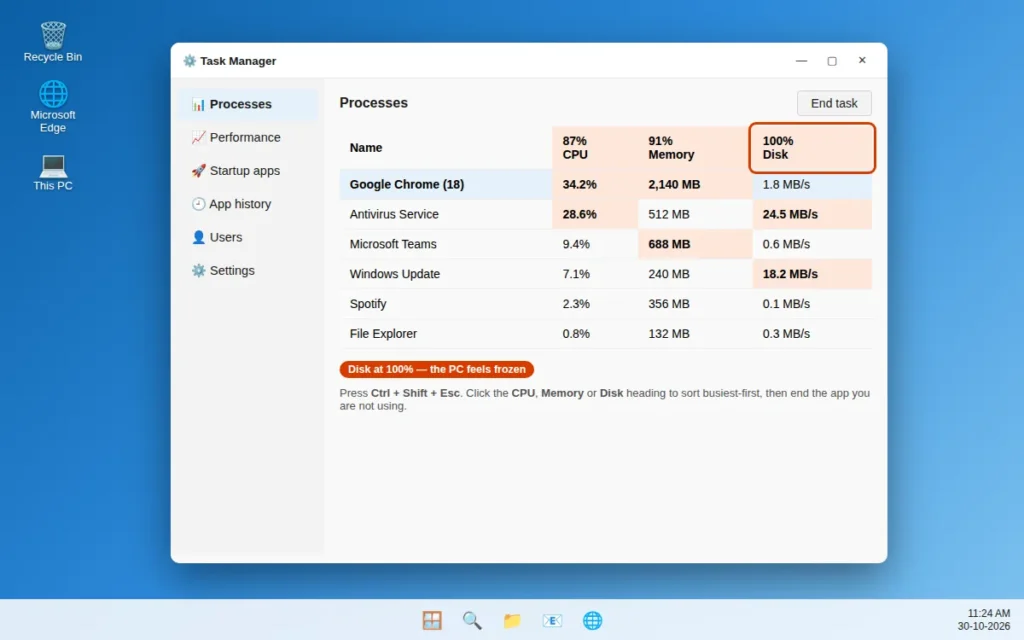
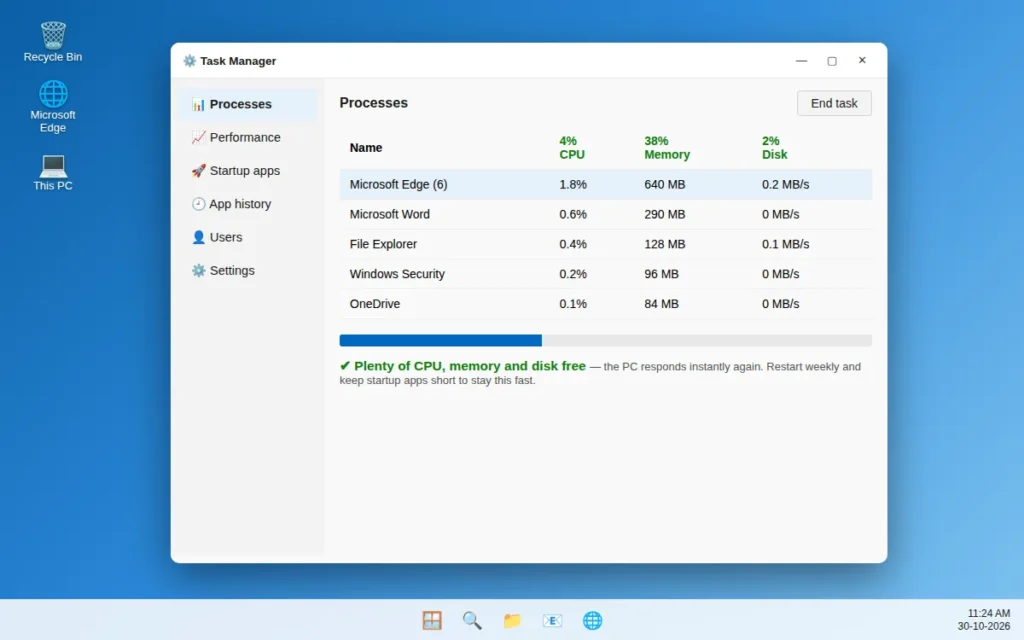
Task Manager shows everything running on your PC and how much power each app uses — the best place to find what is slowing you down.
- Press Ctrl + Shift + Esc (click More details if it opens small).
- On the Processes tab, check the CPU, Memory and Disk columns — high numbers and orange/red boxes show the problem.
- Click a column heading, such as CPU, to sort busiest-first.
- If an app you recognise sits at a very high number and you are not using it, select it and click End task.
Only end apps you recognise, such as a browser or a game — never “Windows Explorer”, “System” or “Desktop Window Manager”, which Windows needs. A PC this busy can stop apps opening at all; if Outlook is one, see Outlook not opening on Windows 11.
Way 3: Disable Startup Apps on Windows 11
Every startup app adds seconds to start time, and many run all day. Disabling ones you do not need right away is one of the safest speed-ups there is — apps are not deleted, and still open normally when clicked.
In Task Manager:
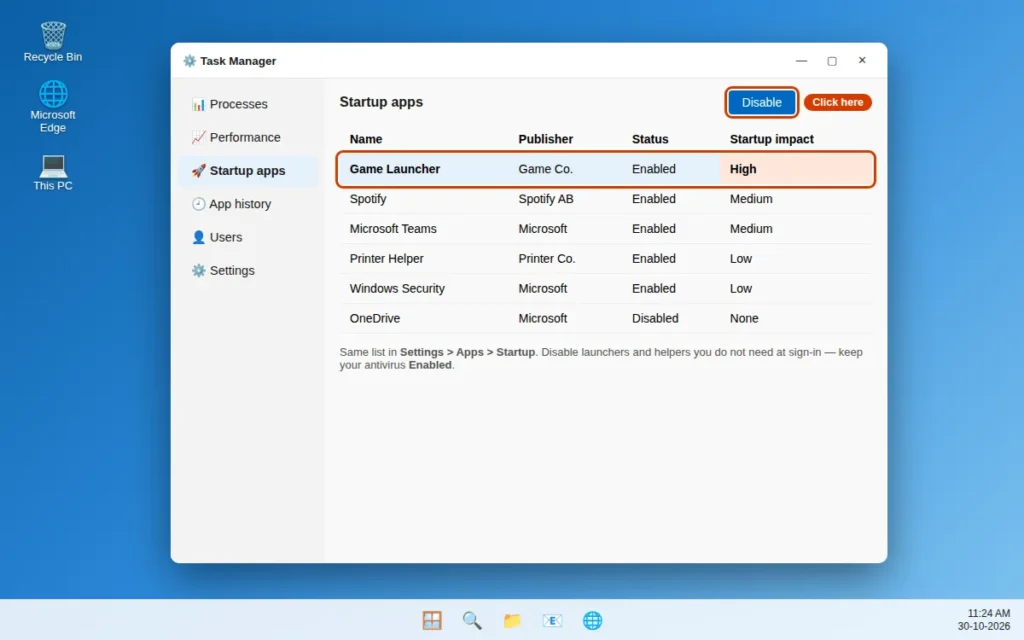
- Press Ctrl + Shift + Esc to open Task Manager.
- Click Startup apps on the left side (in the older layout, the Startup tab at the top).
- Check Status and Startup impact — Enabled apps with High impact slow your start most.
- Select an app you do not need at sign-in and click Disable at the top (or right-click > Disable).
In Settings: open Settings > Apps > Startup and switch Off anything you do not need at sign-in — game launchers, music apps and printer helpers are good candidates. Keep your antivirus enabled.
Way 4: Uninstall Bloatware and Apps You Never Use
Bloatware means pre-installed apps and free trials you never asked for. Unused apps take up space, and some run background tasks even when never launched.
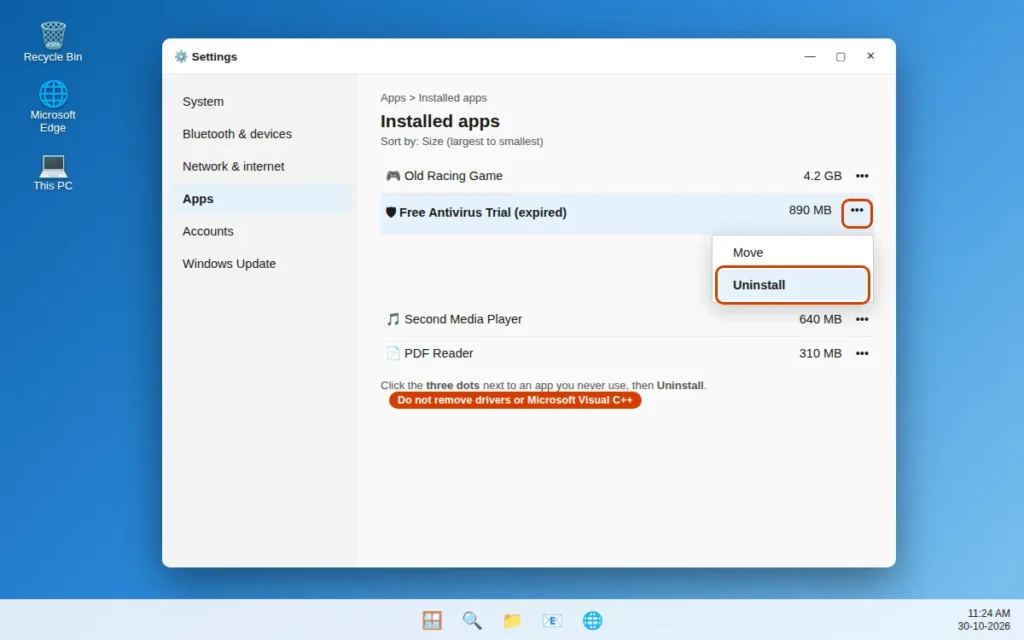
- Open Settings > Apps > Installed apps.
- Scroll the list (sort by Size for the biggest first).
- For an app you never use — an old game, a trial, a second media player — click the three dots next to it, choose Uninstall, and follow the steps. Repeat for the next app.
Do not uninstall anything named “Microsoft Visual C++”, a driver, or your antivirus — other programs may need those. Not sure what an app is? Leave it.
Way 5: Free Up Disk Space
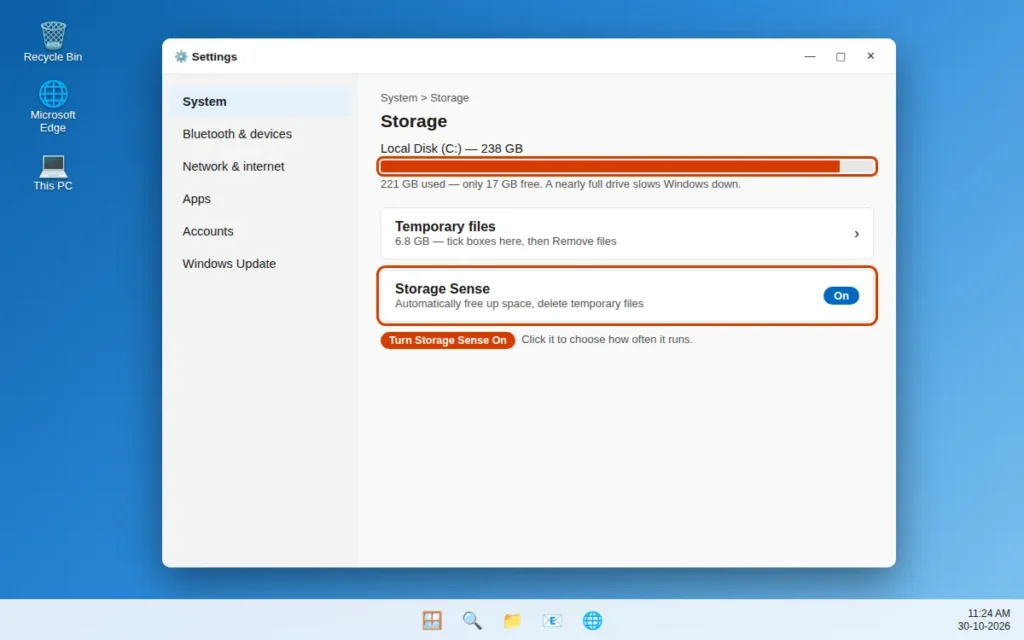
Windows slows down when the C: drive is nearly full — it needs room for temporary working files. Keep at least 15–20% free, using these three built-in tools:
Turn on Storage Sense (automatic cleanup):
- Open Settings > System > Storage and turn on Storage Sense, which automatically deletes temporary files — short-term files Windows and apps create, then forget about.
- Click Storage Sense to choose how often it runs, e.g. every week.
Delete temporary files now:
- In Settings > System > Storage, click Temporary files.
- Tick Temporary files and Recycle Bin. Leave Downloads unticked unless you need nothing in that folder.
- Click Remove files.
Classic Disk Cleanup: search “Disk Cleanup” and open it. Choose drive (C:), click OK, tick the file types, click Clean up system files for more options, then OK > Delete Files.
Way 6: Check for 100% Disk Usage and Check Drive Health
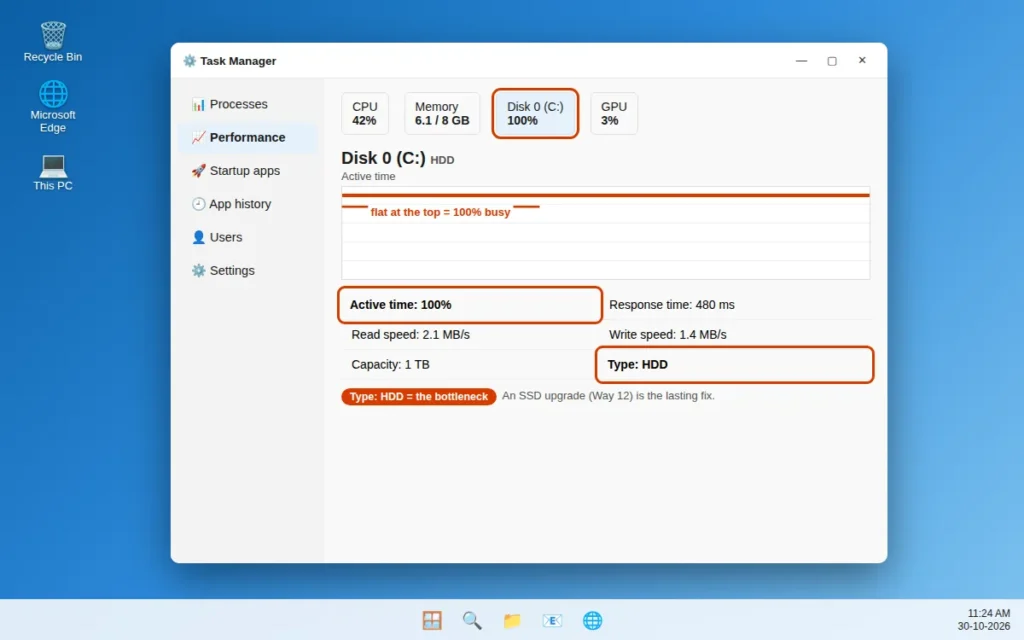
If Task Manager constantly shows Disk 100%, your drive is working flat out and everything else must wait — very common with an HDD.
- Open Task Manager and click Performance on the left.
- Click Disk and look at Active time — at 100% with low speed numbers, the drive is the bottleneck.
- Check Type here. HDD alone explains most of the slowness — Way 12 is your real fix.
- For drive status, open “Defragment and Optimize Drives” from search — each drive should show OK under Current status.
- For a deeper health view on many SSDs, open Settings > System > Storage > Advanced storage settings > Disks & volumes, select the drive, and click Properties.
If the status is not OK, or the PC makes clicking noises, back up your files at once — the drive may be failing, and no setting fixes that.
Way 7: Install Windows Updates and Update Drivers
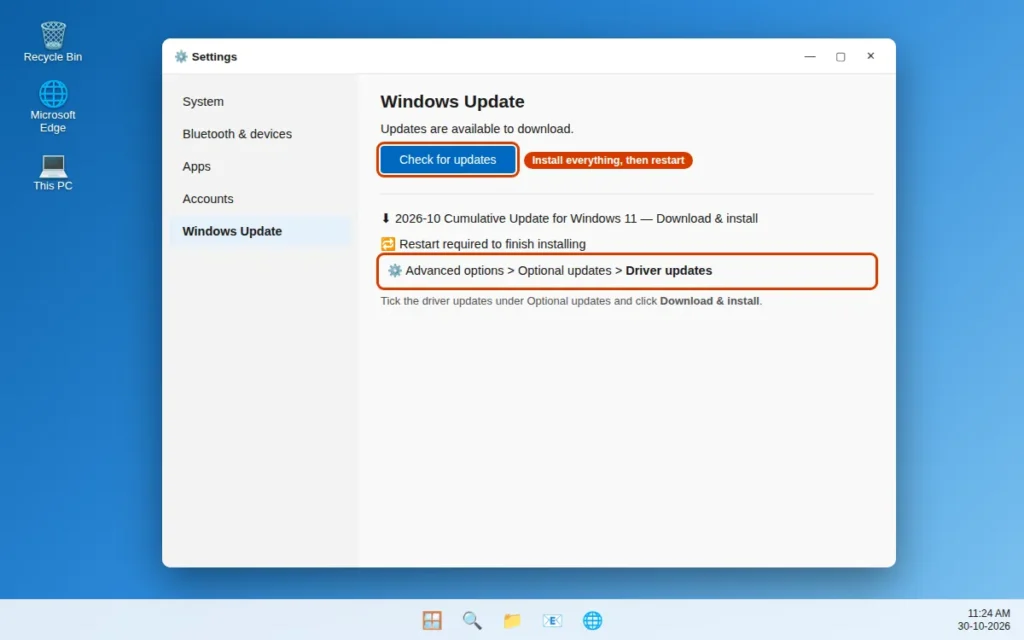
Updates include performance and bug fixes, not just features — and a half-finished update can keep your PC busy for days. Drivers let Windows talk to hardware such as your graphics card and drive; old ones slow things down too.
- Open Settings > Windows Update and click Check for updates.
- Download & install everything offered, then Restart when asked.
- After restarting, check again — some updates appear only after earlier ones finish.
- For drivers, open Advanced options > Optional updates > Driver updates.
- Tick the listed driver updates and click Download & install.
Way 8: Change the Power Plan to Best Performance
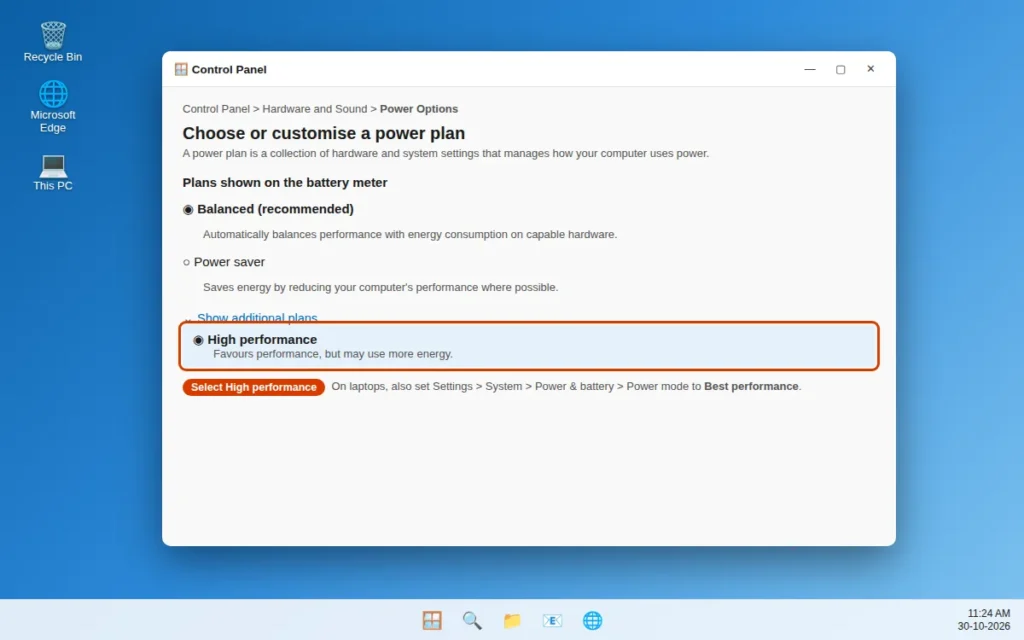
Your power plan controls how hard your PC may work — battery-saving settings slow the processor on purpose.
On laptops and most newer PCs: open Settings > System > Power & battery and set Power mode to Best performance.
Using the classic Control Panel plans (mainly desktops):
- Type “Control Panel” in Windows search and open it.
- Go to Hardware and Sound > Power Options.
- Click Show additional plans if needed, then select High performance (the usual default is Balanced (recommended)).
These settings use more electricity and run fans more, so a laptop battery drains sooner. Switch back to Balanced anytime.
Way 9: Adjust Visual Effects for Best Performance
Windows 11’s animations, shadows and see-through effects look pretty but cost real speed on a slower PC. Turning them down makes windows feel snappier.
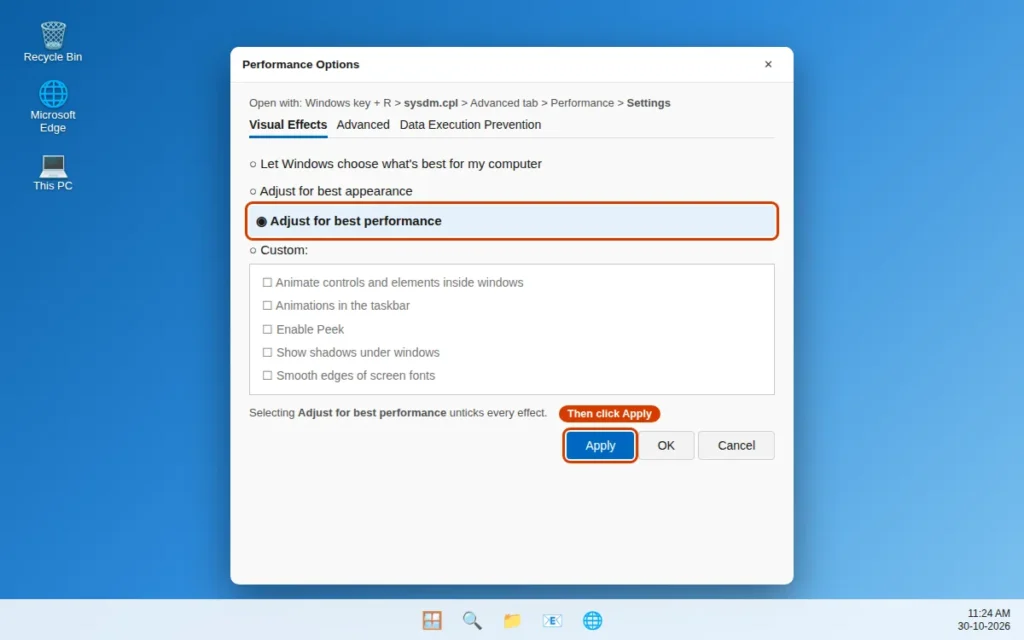
- Press Windows key + R, type
sysdm.cpl, and press Enter to open System Properties. - On the Advanced tab, under Performance, click Settings to open Performance Options.
- On the Visual Effects tab, select Adjust for best performance.
- Click Apply, then OK.
This turns off every effect, and text may look plainer. If that bothers you, choose Custom and tick only Smooth edges of screen fonts — text stays readable while heavy effects stay off.
Way 10: Run a Full Malware Scan With Windows Security
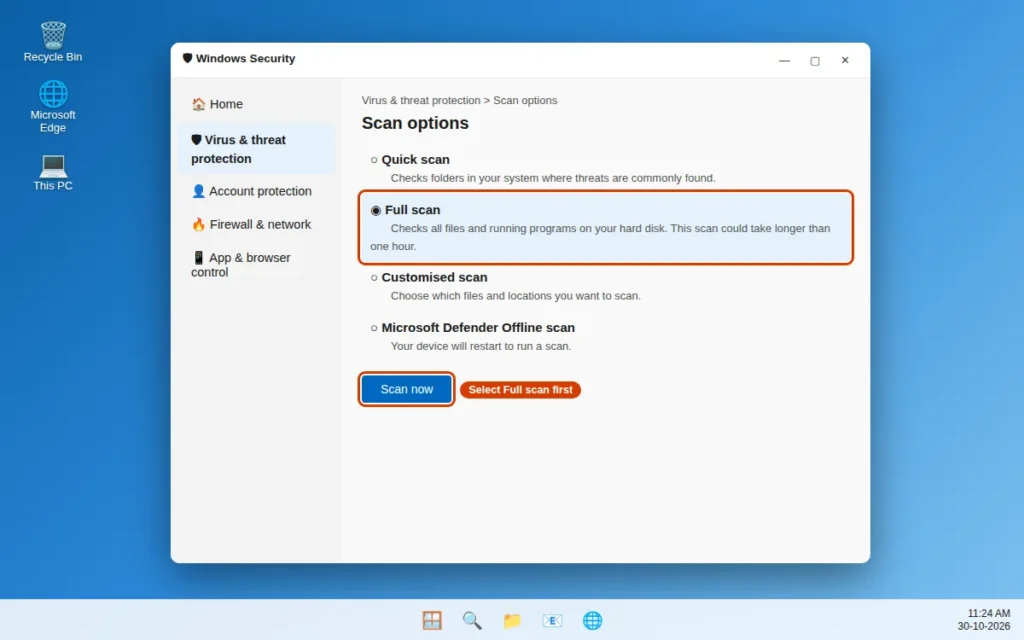
Malware often hides in the background, using your processor and internet for someone else. Windows 11’s built-in antivirus, Microsoft Defender, sits inside Windows Security. A Full scan checks every file, not just the quick spots.
- Search “Windows Security” and open the app.
- Click Virus & threat protection.
- Under Current threats, click Scan options.
- Select Full scan, then click Scan now.
- Let it finish — a Full scan can take an hour or more on a large drive.
If threats are found, remove or quarantine them as shown, restart, and re-check speed.
Way 11: Repair Windows Files With SFC and DISM
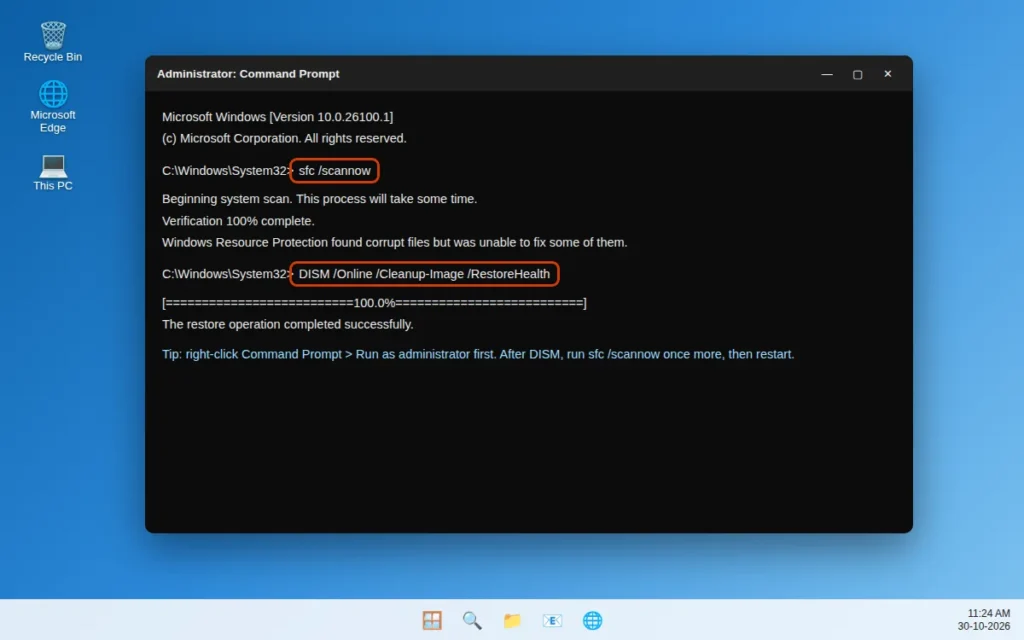
Damaged Windows system files can slow the whole PC. Two built-in repair tools can fix them — you only type two lines, exactly as written.
- Search
cmd, right-click Command Prompt, and choose Run as administrator. Click Yes if asked. - Type
sfc /scannow(the System File Checker) and press Enter. Wait for 100% — it can take 10–20 minutes. - If it found corrupt files it could not fix, type this second command and press Enter:
DISM /Online /Cleanup-Image /RestoreHealth
- DISM repairs the backup store SFC uses. Wait for it to finish (stay online), then run
sfc /scannowonce more. - Restart your PC.
Way 12: Upgrade RAM or Switch From HDD to SSD — and the Last Resort
On an older PC, software fixes only do so much. Two hardware upgrades make it feel new again — both cheaper than a new computer.
- Switch from HDD to SSD — the single biggest speed upgrade there is: Windows starts in seconds, and apps open almost instantly. If Way 6 showed drive type HDD, save up for this.
- Add more RAM. Check yours in Task Manager > Performance > Memory. With only 4 GB and a nearly full graph, 8 GB or 16 GB stops Windows leaning on the slow disk.
That page shows your drive type too — what a local shop needs if you would rather have them fit the parts. Ask the price first, and back up your files.
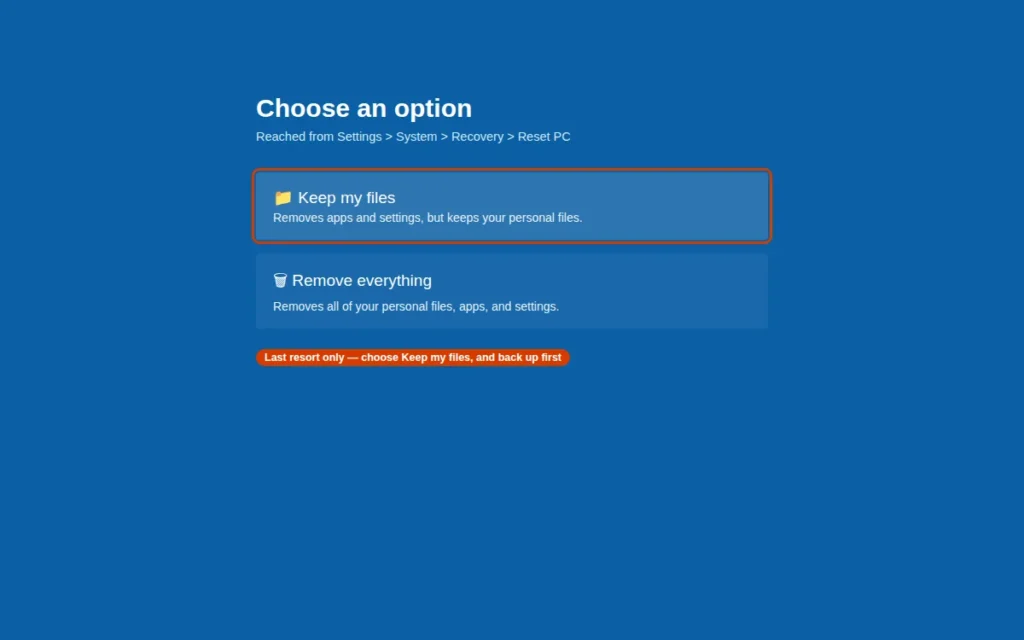
Last resort — Reset the PC: if nothing helped, open Settings > System > Recovery, click Reset PC, and choose Keep my files on the “Choose an option” screen. Windows is reinstalled and apps removed, but personal files are kept. Back up first — you will reinstall your apps afterwards.
How to Prevent Windows 11 Slow Performance
Small habits keep it fast:
- Restart once a week to clear background tasks.
- Keep startup short. After installing an app, check Settings > Apps > Startup and switch off what does not need to start with Windows.
- Leave C: drive breathing room. Let Storage Sense run; delete or move large files (videos are the usual space-eaters).
- Install updates when offered, and restart to finish them.
- Glance at Task Manager monthly. If one app is always top of the CPU or Memory list, update or replace it.
Frequently Asked Questions
Why is my PC so slow on Windows 11 all of a sudden?
A PC slow Windows 11 problem usually has a trigger. Usually there is a trigger: an update installing in the background, a new app added to startup, the disk filling up, or malware. Open Task Manager (Way 2) — the column near 100% shows where to start. A restart plus finishing pending updates fixes most same-day cases.
How do I check what is slowing down my PC?
Press Ctrl + Shift + Esc and open the Processes tab. Click the CPU, Memory or Disk heading to sort — the top app uses the most power. The Performance tab shows more, including whether your drive is HDD or SSD.
Is it safe to disable startup apps?
Yes. Disabling does not delete the app — it just waits until you open it yourself. Re-enable anytime in Task Manager > Startup apps or Settings > Apps > Startup. Leave only your antivirus enabled.
How much free space should I keep on my C: drive?
Keep at least 15–20% free — on a 256 GB drive, roughly 40–50 GB. Windows uses free space for temporary files, updates and memory overflow.
Why does my PC show 100% disk usage?
The drive is asked to do more than it can handle, so requests queue up and the PC feels frozen. Common causes: an old HDD, background updates or scans, and too little RAM forcing Windows onto the disk. Way 6 confirms it; the Way 12 SSD upgrade is the lasting fix.
Will an SSD or more RAM really make a difference?
Yes — the biggest difference in this guide for an older PC. An SSD is several times faster than a spinning HDD at Windows’ everyday jobs, and extra RAM stops the PC using the disk as overflow. With an HDD and 4 GB RAM, do the SSD first.
Do these ways also work on Windows 10?
Most do. Restarting, Task Manager, startup apps, uninstalling, updates, power plans, visual effects, security scans, SFC and DISM all exist on Windows 10 with similar steps. A few names differ — Windows 10 calls Installed apps “Apps & features”.
Still slow? Tell us which Task Manager column is at 100% on our Contact page or at servicedesk@howtofixerroronline.com, available 24 hours.