
Outlook Error 0x80070005-0x000004dc-0x00000524: No Permission to Send on Behalf — Fixes
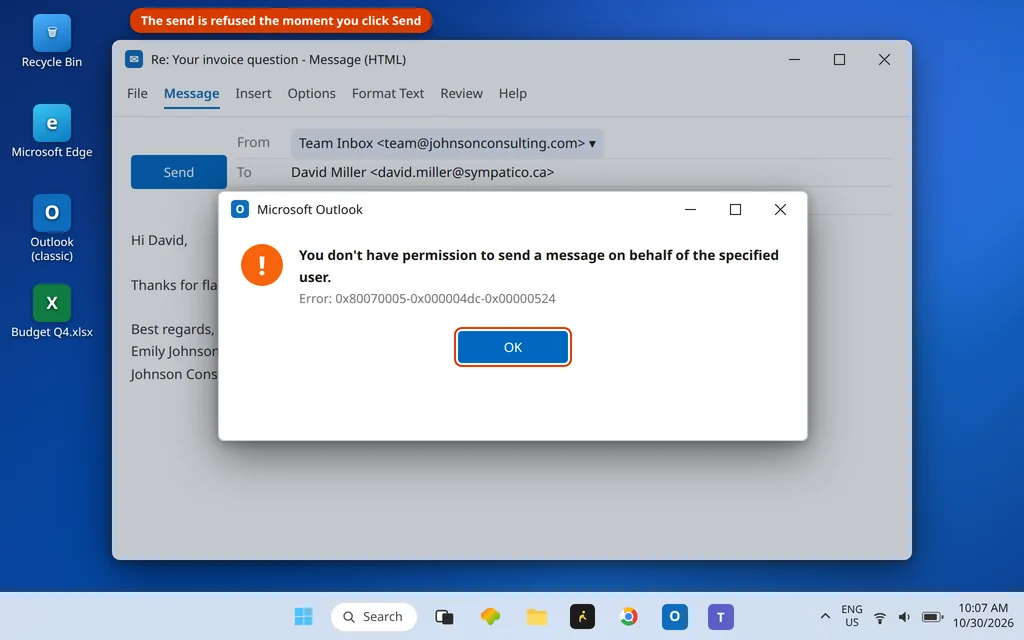
You click Send on a message written from your team’s shared mailbox — and Outlook refuses on the spot: “You don’t have permission to send a message on behalf of the specified user.” Under the text sits the triple code 0x80070005-0x000004dc-0x00000524.
That long compound code looks alarming, but it is actually Outlook being unusually helpful: each part names a layer of the failure, and the first part — 0x80070005, access denied — names the real issue. A permission is missing somewhere: either the right to send as that shared mailbox, or Windows permission to the folders Outlook itself needs. This guide walks through both, in the order they actually occur. It is for Classic Outlook (Microsoft 365, Outlook 2021/2019) on Windows 11 and 10.
Quick Answer: Outlook error 0x80070005-0x000004dc-0x00000524 appears when you send from a shared or delegate mailbox without the Send As / Send on Behalf permission — only the mailbox owner or your admin can grant it (section 1). If it appears on your own mailbox, grant your Windows account Full Control of the Outlook data-file folder (section 2), then check account settings and repair the profile (section 3).
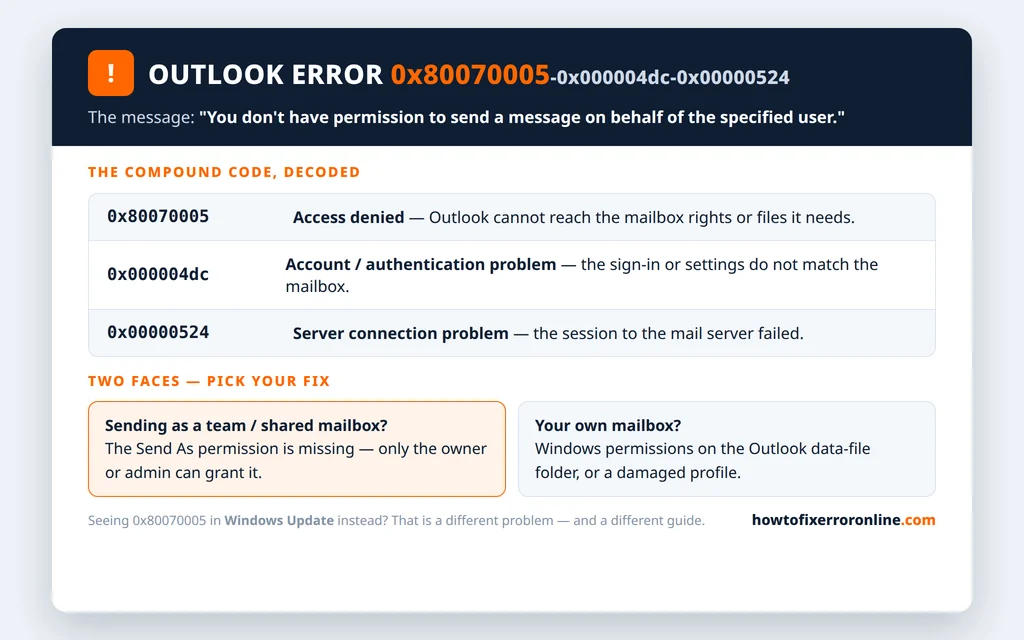
Table of Contents
What Does Outlook Error 0x80070005 Mean in Outlook?
In Outlook, this code family is about denied access — Outlook was refused something it needed at the moment of sending. The compound form that appears on the send-on-behalf error breaks down like this:
| Code part | Means |
|---|---|
| 0x80070005 | Access denied — a permission (mailbox rights, or Windows file/folder rights) is missing |
| 0x000004dc | An account, SMTP-settings or authentication problem |
| 0x00000524 | A server connection problem |
The dialog itself looks like this, appearing the instant Send is clicked:
Two situations produce it. The shared-mailbox case (by far the most common): you are sending as a mailbox you can read but were never given sending rights to. The own-mailbox case: your Windows account has lost permission to Outlook’s data-file folder — typically after a Windows upgrade, a profile move, or an over-zealous “permissions cleanup.” The sections below take them in that order.
Note the boundary: 0x80070005 on its own, in Windows Update, is a different problem with a different fix set — see the note near the end of this guide.
Sending From a Shared or Delegate Mailbox? Fix the Send As Permission
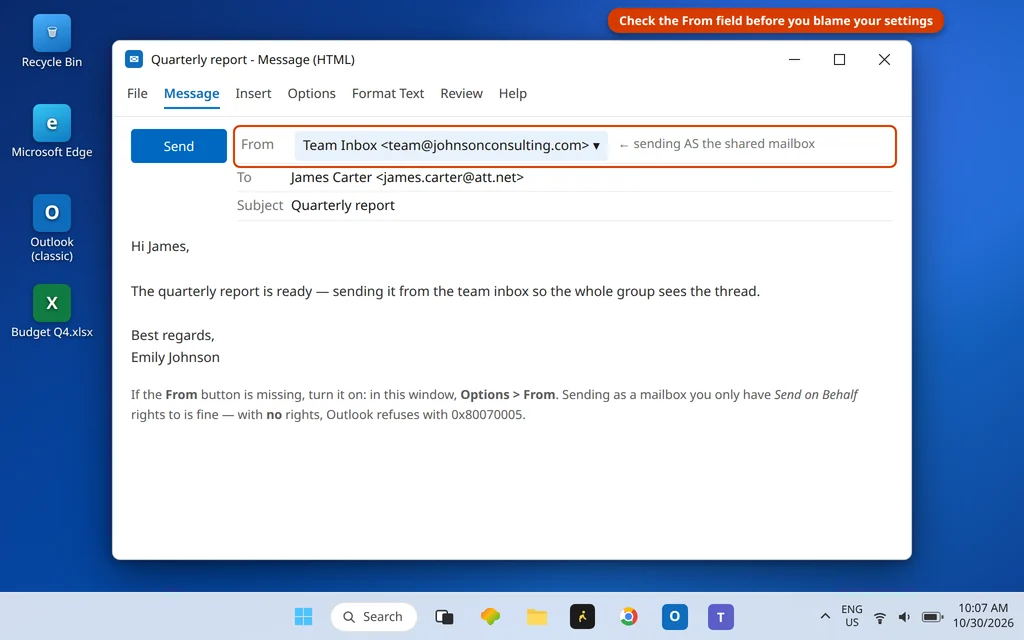
Start by confirming which mailbox the message is actually from — it is possible to pick the shared mailbox in the From field without noticing, especially replying to mail that arrived in it.
- Open the refused message from Drafts (Outlook usually leaves it there) or start a new one.
- Look at the From field. If it is missing, click Options > From in the compose window to show it.
- If From shows the shared/team mailbox, that is the trigger: your account needs sending rights on it.
There are two different rights, and either one clears this error:
- Send on Behalf — the recipient sees “Your Name on behalf of Team Inbox.” The mailbox owner can grant this themselves in Classic Outlook: File > Account Settings > Delegate Access, add the person, and set Inbox permission.
- Send As — the recipient sees only the mailbox’s name, as if the mailbox sent it. This can only be granted by an admin, in the Microsoft 365 admin center or Exchange admin center (mailbox > Delegation / Manage delegates > Send As), or by the Exchange admin for on-premises servers.
If you do not have either right yet, the fix is a request, not a setting: ask the mailbox owner (for Send on Behalf) or your IT admin (for Send As) to grant it. No change on your PC can substitute — that is by design, since the permission is what stops anyone sending as the finance mailbox.
Already granted, still refused? Permission changes are not instant: they replicate across Microsoft’s servers (allow a reasonable wait, and restart Outlook), and the shared mailbox may need to be freshly added in your
profile. Remove it via File > Account Settings > Account Settings (select the shared mailbox entry, Remove), restart Outlook, and add it again — a stale entry keeps using stale rights. If your team is setting this arrangement up for the first time, our guide to setting up business email in Outlook covers how shared accounts are added.
Error on Your Own Mailbox? Fix the Folder Permissions
If the From field shows your own address and sending is still refused with 0x80070005, the “access denied” is local: Windows is not letting your account fully use the folder where Outlook keeps its data files.
- Close Outlook.
- Open File Explorer and go to your Outlook data folder — by default Documents\Outlook Files for .pst files, and C:\Users<your name>\AppData\Local\Microsoft\Outlook for .ost files (AppData is hidden; type the path in the address bar).
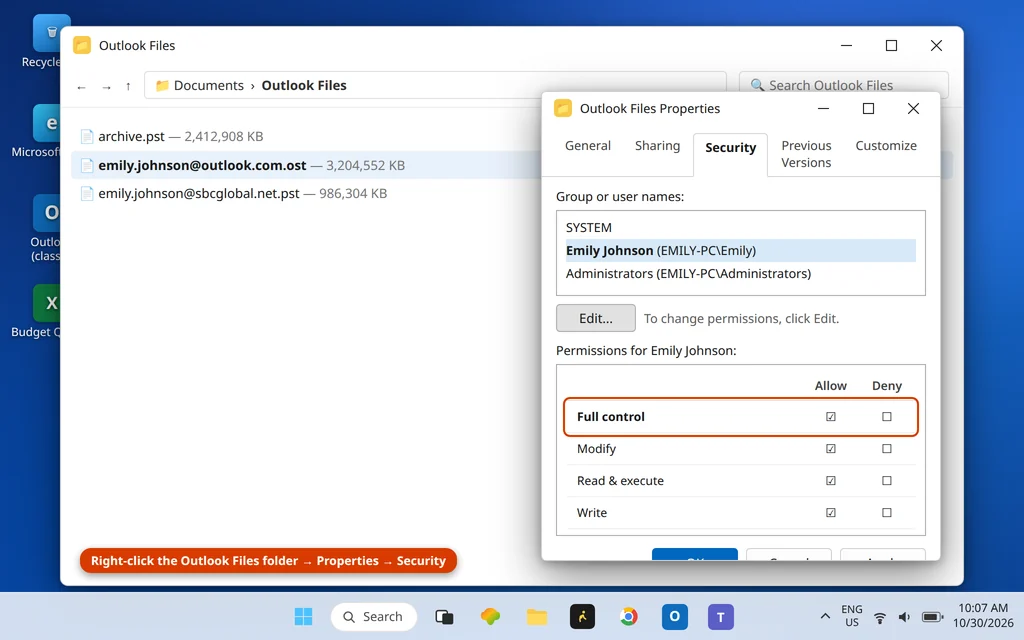
- Right-click the folder > Properties > Security tab.
- Select your Windows account in the top list. In the permissions below, Full Control must be ticked under Allow. If it is not, click Edit, select your account, tick Full Control > Apply > OK.
- Restart the PC — permission changes on folders Outlook holds open are safest after a clean restart — then open Outlook and send a test message.
While you are checking permissions, the same denial can come from running Outlook itself with mismatched rights: if you have ever set Outlook to “Run as administrator” (Properties > Compatibility on the shortcut), untick it — Outlook running elevated while the rest of your session is not creates exactly this kind of access friction.
Check the Account Settings and Repair Office
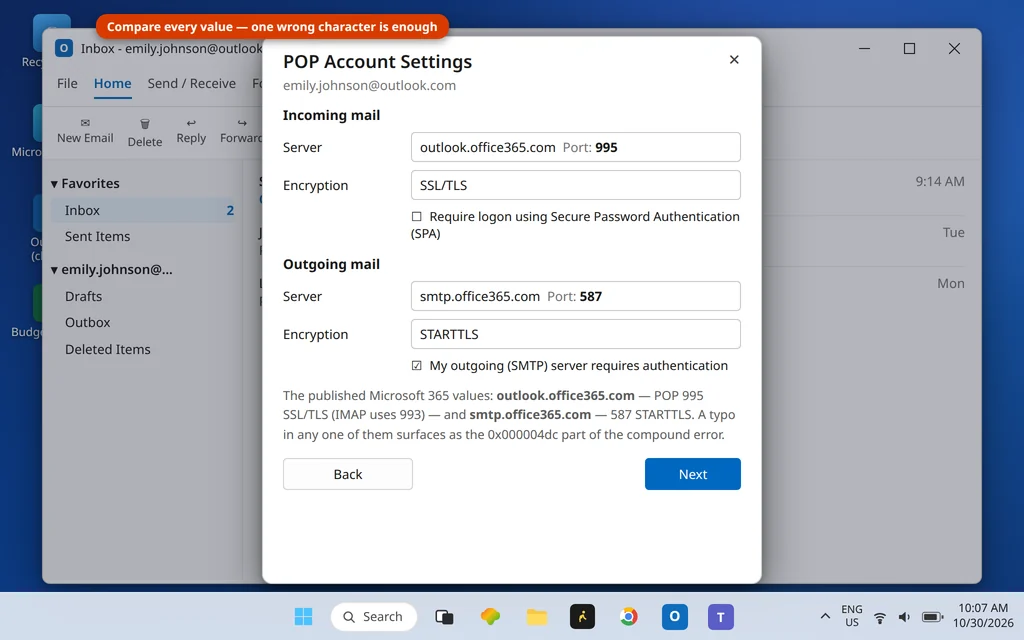
The middle part of the compound code — 0x000004dc — points at account and authentication settings, so verify them against your provider’s published values before assuming deeper damage. For a Microsoft 365 account, the published values are:
- Incoming: outlook.office365.com — POP 995 SSL/TLS, or IMAP 993 SSL/TLS
- Outgoing: smtp.office365.com — 587 STARTTLS, with authentication on
- Go to File > Account Settings > Server Settings and compare every field — server name, port, encryption — character by character. One wrong digit after a migration is all it takes.
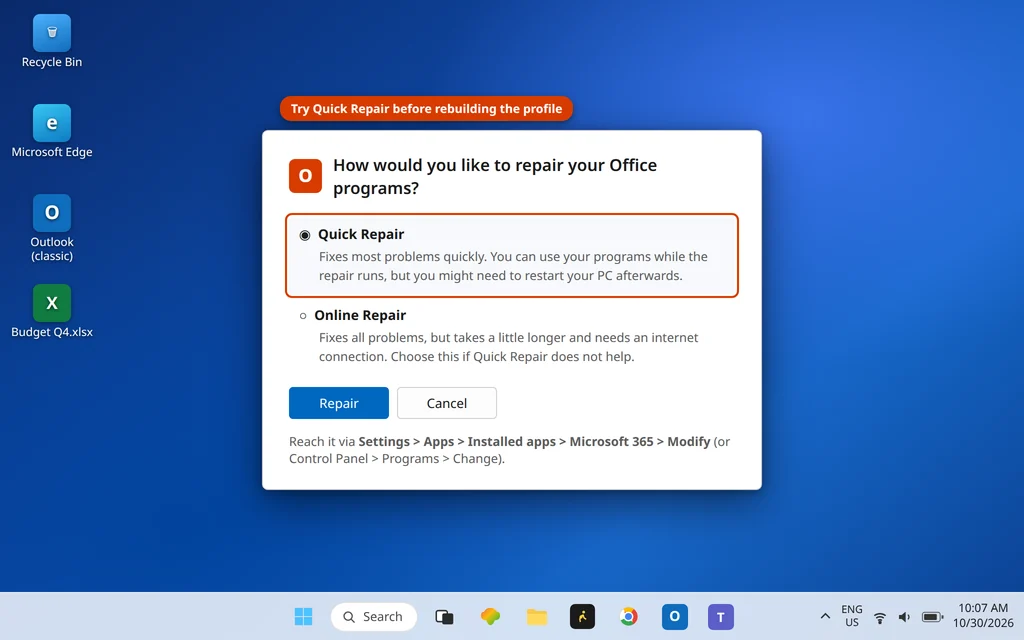
- If the settings are correct, run a Quick Repair of Office: Settings > Apps > Installed apps > Microsoft 365 > Modify (or Control Panel > Programs > Microsoft 365 > Change), choose Quick Repair > Repair. Try Online Repair only if Quick Repair changes nothing — it takes longer and re-downloads components.
- Still failing on your own mailbox? Build a clean profile: Control Panel > Mail (Microsoft Outlook) > Show Profiles > Add, add your account fresh, and set the new profile under Always use this profile. Profile rebuilds clear the profile-side permission and settings corruption that produces this code in Dell and Microsoft community cases; the old profile remains untouched as a fallback.
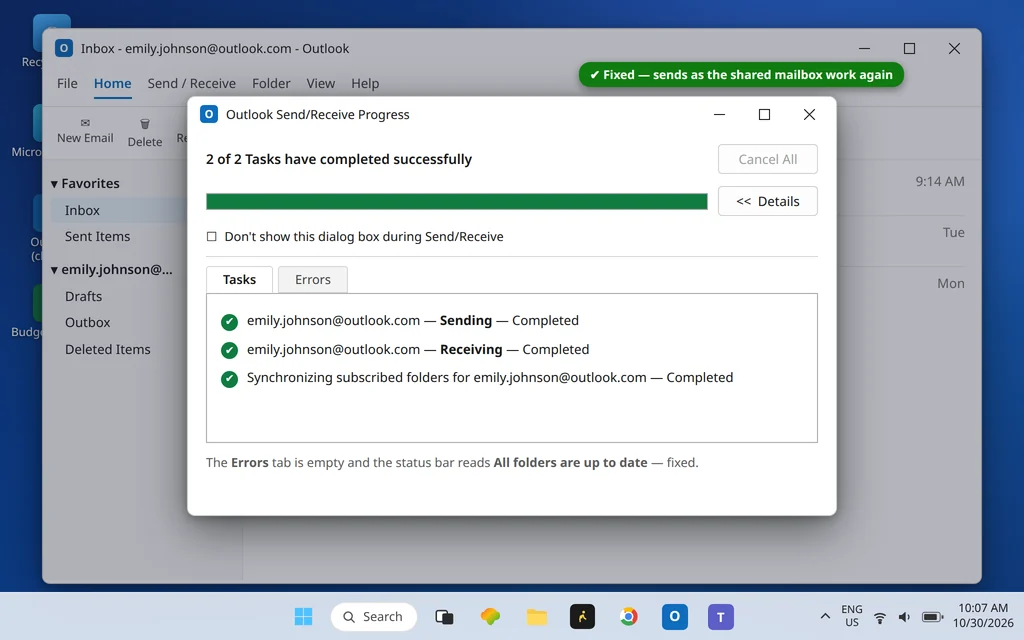
When the permission is in place and the settings are right, the same message that was refused sends normally, and Send/Receive completes clean:
Getting 0x80070005 in Windows Update Instead?
Same five hex digits, different world: if your 0x80070005 appears in Windows Update, the Microsoft Store or activation — not in Outlook — this guide’s fixes will not help. Use our dedicated Windows Update error 0x80070005 guide instead. The two errors share only the “access denied” root meaning.
Using the New Outlook?
Shared mailboxes work in the new Outlook for Windows too, and the sending rights are server-side — Send As and Send on Behalf are granted in exactly the same admin/owner steps above, and the same missing permission blocks sending there. The folder-permission and Office-repair fixes are Classic-Outlook-only, since the new app does not use local data-file folders the same way.
How to Stop Error 0x80070005 Coming Back
- When a shared mailbox is created, grant Send As/Send on Behalf at the same time and tell the team it may take a while to take effect — most cases of this error are simply a grant that never happened.
- After a Windows upgrade or PC migration, send a test message from every mailbox you use before you need it urgently; permission drift shows up immediately.
- Leave Outlook’s folder permissions alone in cleanup and “optimizer” tools — the data folder needs your account’s Full Control, permanently.
Frequently Asked Questions
What is Outlook error 0x80070005-0x000004dc-0x00000524?
It is the compound form of Outlook’s access-denied send error, shown when a message is refused with “You don’t have permission to send a message on behalf of the specified user.” The parts decode as: 0x80070005 = access denied, 0x000004dc = account/authentication problem, 0x00000524 = server connection problem. In practice, the first part is the one to act on — a permission is missing.
Why does Outlook say I don’t have permission to send on behalf of a user?
Because the message’s From field names a shared or delegate mailbox, and your account has neither Send As nor Send on Behalf rights on it. Reading a shared mailbox and sending as it are separate permissions; being able to open the mailbox does not include sending. The owner can grant Send on Behalf in Outlook’s Delegate Access; Send As requires an admin in the Microsoft 365 or Exchange admin center.
How do I fix Outlook error 0x80070005?
Two paths, by situation. Sending as a shared mailbox: get Send As or Send on Behalf granted, allow time for it to take effect, restart Outlook, and re-add the shared mailbox if it still refuses. Sending from your own mailbox: give your Windows account Full Control of the Outlook data-file folder (Properties > Security), verify the account settings against your provider’s published values, run a Quick Repair of Office, and rebuild the profile if needed.
Is Outlook 0x80070005 the same as the Windows Update error 0x80070005?
No. They share the code’s root meaning — access denied — but they belong to different systems and have different causes and fixes. The Outlook version is about mailbox sending rights and local folder permissions; the Windows Update version is about system folders and update services. If your code appeared in Windows Update, use the Windows Update guide linked above.
Who can grant Send As permission for a shared mailbox?
Only an administrator, in the Microsoft 365 admin center or Exchange admin center (or Exchange Management tools for on-premises servers). A mailbox owner can grant the related Send on Behalf right themselves from Classic Outlook’s Delegate Access — recipients then see your name “on behalf of” the mailbox — but full Send As, where the mail appears to come from the mailbox itself, is admin-only.
The permission was granted but I still get the error — why?
Three usual reasons: the grant has not finished replicating yet (wait, then restart Outlook); your profile holds a stale copy of the shared mailbox (remove and re-add it in Account Settings); or the message you are sending is an old draft composed before the grant — compose a fresh message rather than re-sending the refused draft.
Still refused when you send? Tell us whether the From field shows your own mailbox or a shared one — that one detail decides the fix — via our Contact page: servicedesk@howtofixerroronline.com, available 24 hours. This code and its neighbours are indexed on the Error Codes hub.