
How to Set Up a Business Email in Outlook (Custom Domain, Microsoft 365)
An email address like emily@johnsonconsulting.com makes a small business look established in a way a free Gmail or Hotmail address never will. The mailbox itself usually lives on Microsoft 365 — Outlook is simply the app you read it in. This guide shows you how to set up business email in Outlook step by step: what you need first, the automatic setup that works for most people, the manual route with exact server settings, and what to do when setup refuses to cooperate.
Quick Answer: You need two things first: your own domain name and a Microsoft 365 subscription that includes email. Then, in Classic Outlook, go to File > Add Account, type your business email address, click Connect, and sign in with your password. Outlook finds every server setting by itself (this is called Autodiscover). If the automatic setup fails, click Advanced options, check “Let me set up my account manually”, and use the settings table in this guide.
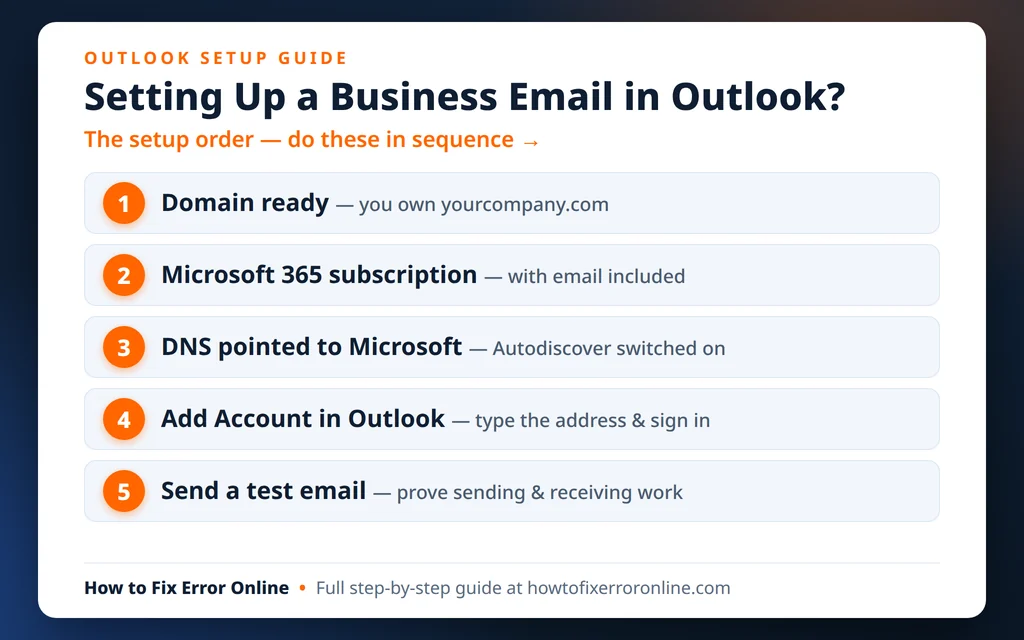
Table of Contents
What Is a Business Email, Exactly?
A business email address uses your own domain — the part after the @ sign is your company, not a free provider. So instead of johnsonconsulting@gmail.com, your address is emily@johnsonconsulting.com, sales@johnsonconsulting.com, and so on.
Two separate pieces make it work:
- The mailbox service stores your mail and sends and receives it. For most small businesses that is Microsoft 365 (its mail system is called Exchange Online). Some instead use email hosting bundled with their website hosting — the manual setup below covers that too.
- Outlook is just the program that connects to that mailbox. Setting up a business email address in Outlook means telling Outlook where the mailbox lives and signing in — Outlook never creates the mailbox itself.
What You Need Before You Start
Setup goes smoothly when these four things are already in place:
- Your own domain name. For example,
johnsonconsulting.com(the domain used in all the screenshots in this guide — a made-up example business). If you do not own a domain yet, you can buy one during Microsoft 365 signup or from any registrar. - A Microsoft 365 subscription that includes email. Plans such as Microsoft 365 Business Basic or Business Standard include Exchange mailboxes on your domain. One detail worth knowing: Business Basic includes email and web apps, but not the desktop Outlook app itself — for that you need a plan with the apps (such as Business Standard), or an Outlook you already have.
- The mailbox created. The email address must exist before Outlook can connect to it. An admin creates it in the Microsoft 365 admin center (Users > Active users > Add a user). If that’s you, do it now.
- Your domain connected to Microsoft 365. During domain setup you add a few DNS records at your registrar — an ownership check, an MX record that points your mail at Microsoft, and a CNAME record named autodiscover. That last record makes the automatic setup below work. Many registrars let the Microsoft setup wizard add the records for you; if you skipped this step, do it now, because Outlook cannot find your mailbox without it.
How to Set Up Business Email on Outlook (Microsoft 365)
This is the route almost everyone should take. You never type a server name or port number — Outlook looks everything up from your email address alone.
Step 1: Open the Add Account box
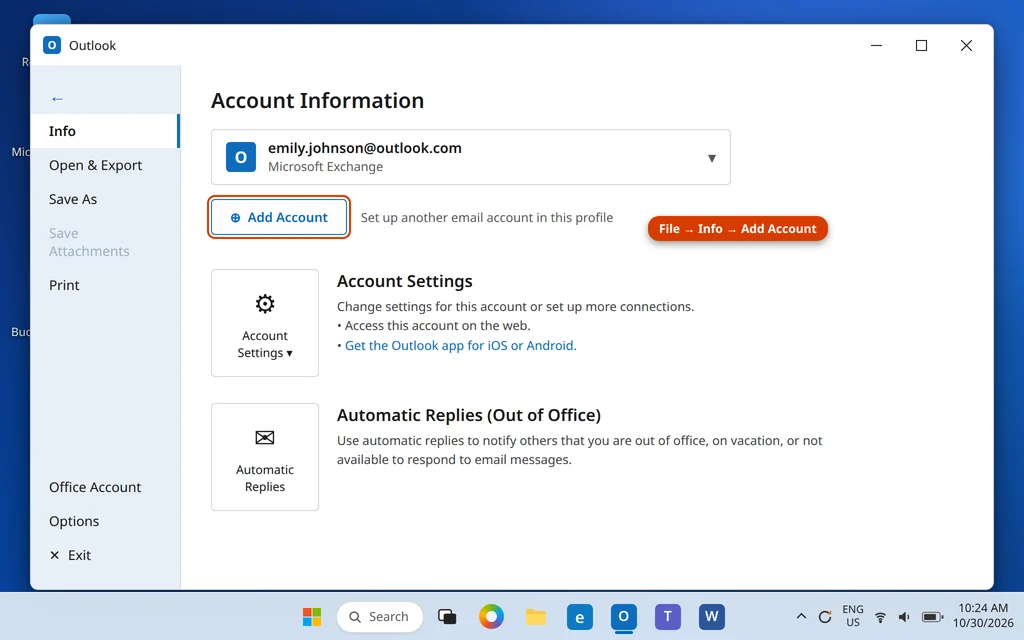
Open Classic Outlook and click File in the top-left corner. On the Info page, click Add Account. If this is a brand-new Outlook with no account at all, the Add Account box opens by itself the first time you start it.
Step 2: Type your business email address
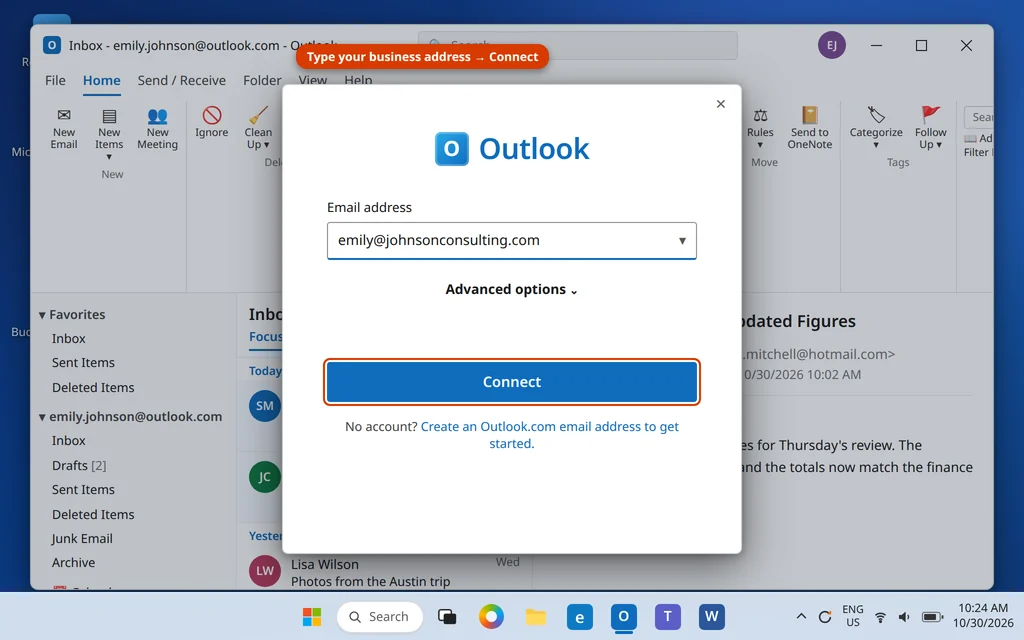
In the Add Account box, type your full business email address — for example emily@johnsonconsulting.com — and click Connect.
Step 3: Sign in with your mailbox password
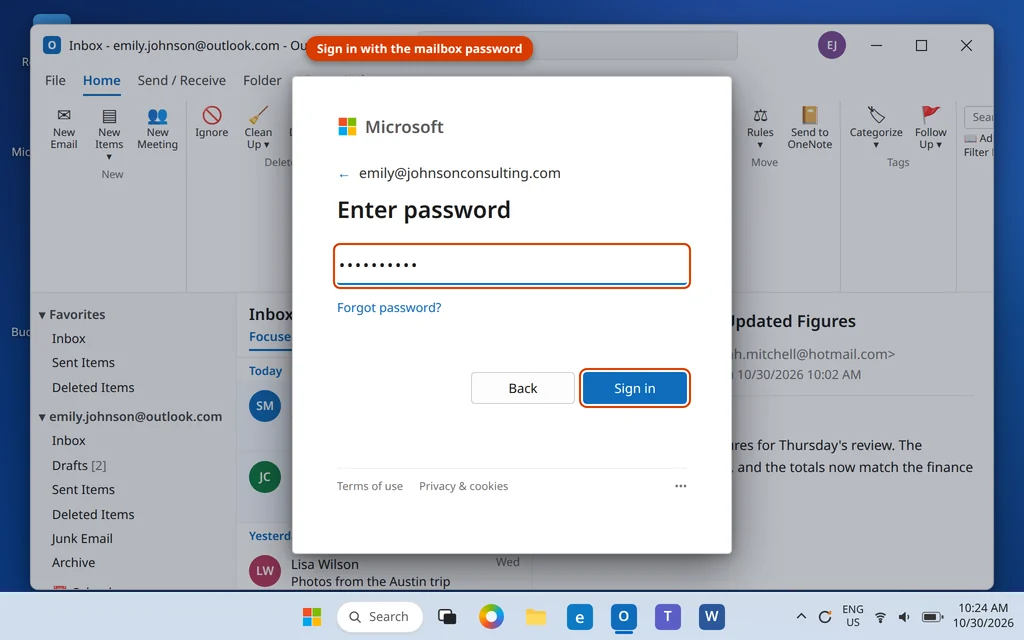
A Microsoft sign-in window appears with your address already filled in. Type the password for that mailbox (the one set when the user was created in the admin center — not your personal Microsoft account password, unless they happen to be the same), click Sign in, and approve the sign-in on your phone if your organization uses multi-factor authentication.
Step 4: Finish and let the mailbox fill in
Outlook confirms with “Account successfully added”. Click Done. Your folders appear in the left pane right away, and existing mail downloads in the background — on a large mailbox this first sync can take a while, and the status bar shows the progress. You can start sending mail immediately; no need to wait for the download.
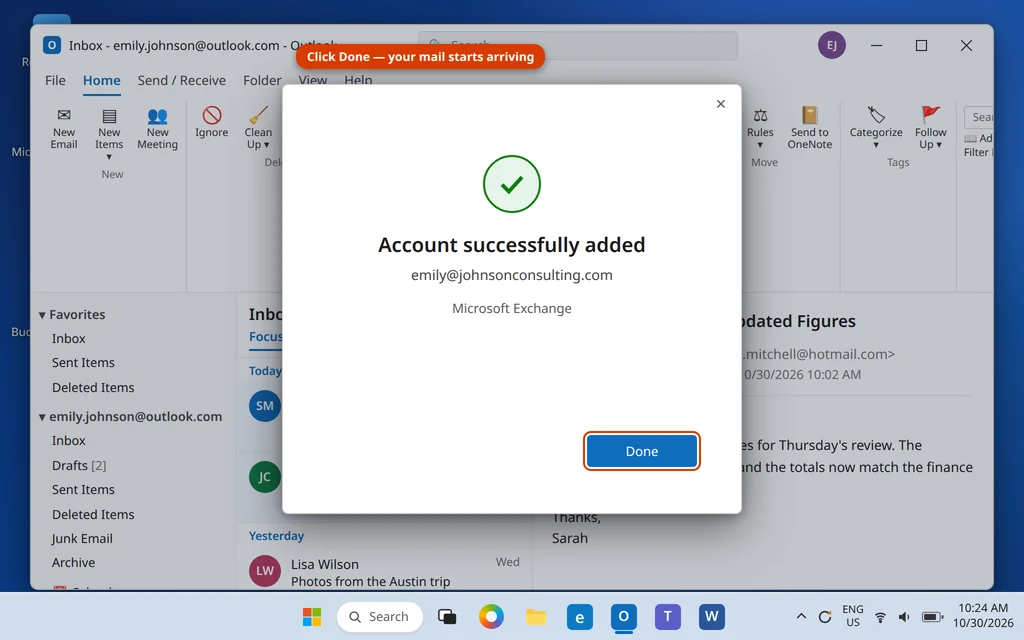
Why no server settings? When you clicked Connect, Outlook used that autodiscover DNS record from the preparation step to look up where johnsonconsulting.com mailboxes live, signed you in, and configured itself. The automatic route also stays correct if Microsoft moves your mailbox between servers later — one more reason to always try it first.
The Manual Route: Advanced Options and Server Settings
Use manual setup when the automatic route fails — usually because the domain’s DNS records are not finished yet — or when your business email is not on Microsoft 365 at all, for example when it is hosted by your website host.
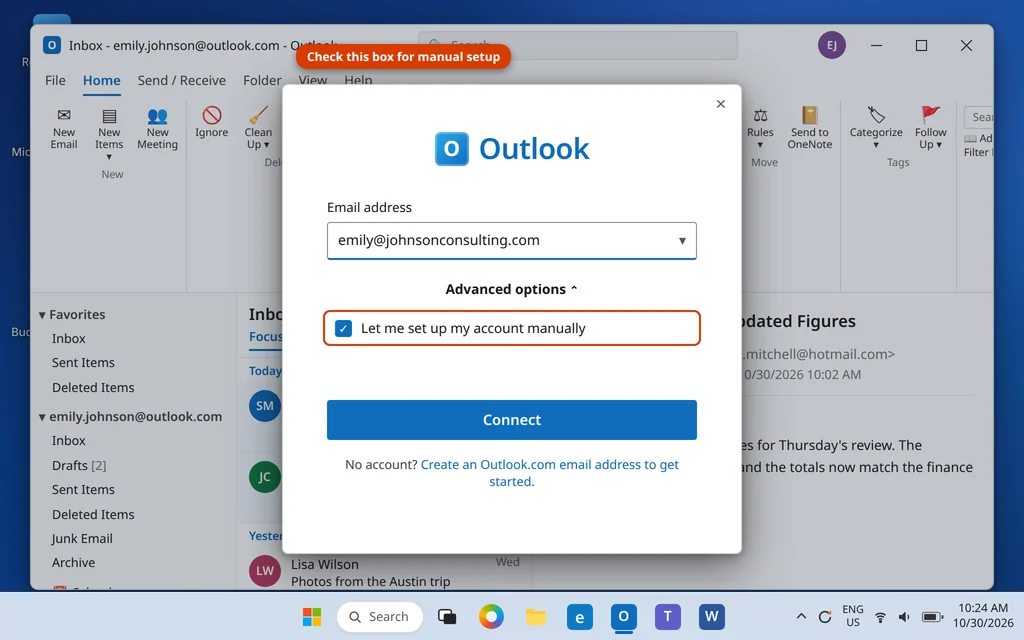
- In the Add Account box, click Advanced options, check “Let me set up my account manually”, and click Connect.
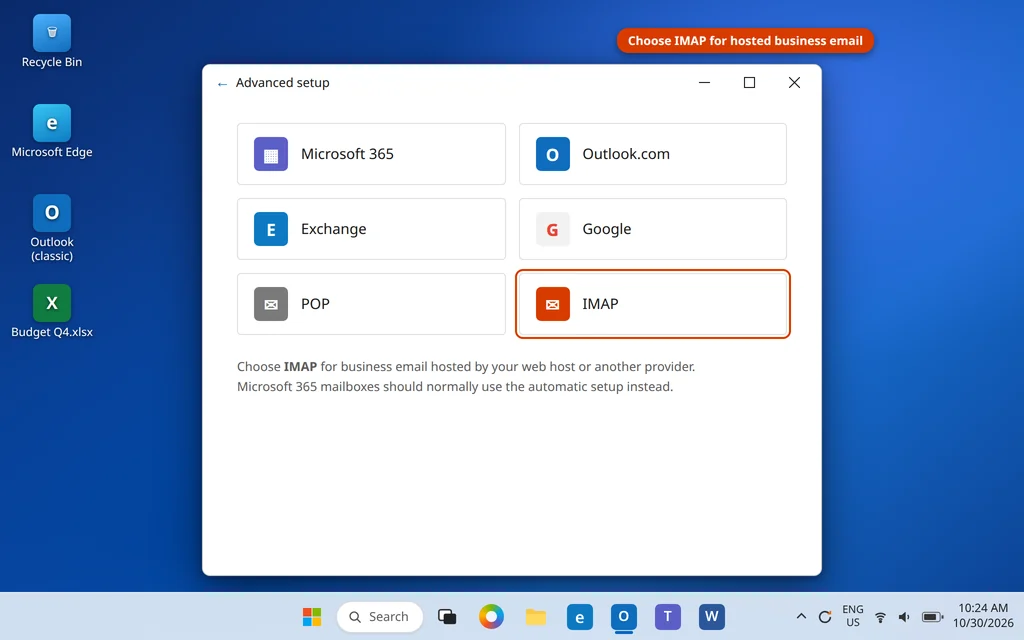
- On the Advanced setup screen, choose the account type. Pick IMAP for hosted business email (it is the right choice for almost every non-Microsoft mailbox). Microsoft 365 mailboxes should still use the automatic route above whenever possible.
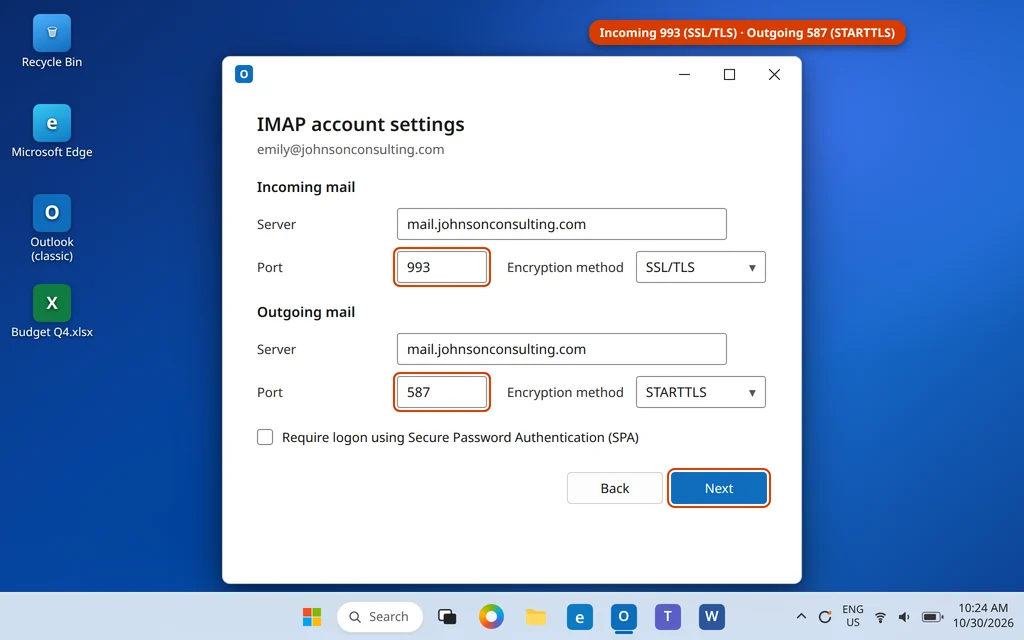
- Type the server settings for your provider, click Next, enter the mailbox password, and click Connect (or Done).
The settings table
| Setting | Microsoft 365 / Exchange | IMAP — typical business hosting |
|---|---|---|
| Incoming server | outlook.office365.com | mail.yourdomain.com (confirm with your host) |
| Incoming port | 993 | 993 |
| Incoming encryption | SSL/TLS | SSL/TLS |
| Outgoing (SMTP) server | smtp.office365.com | mail.yourdomain.com |
| Outgoing port | 587 | 587 |
| Outgoing encryption | STARTTLS | STARTTLS |
A few notes on the table:
- For a Microsoft 365 mailbox added the normal (automatic) way, you will never see these fields — the left column is what you would enter on a phone or in another app.
- Some hosts use port 465 with SSL/TLS for outgoing mail instead of 587 with STARTTLS. Both are valid; use whichever your host lists. Port 25 is the old unencrypted standard and is blocked by many networks — avoid it.
- If your host gave you different server names, use theirs exactly — the pattern in the table is typical, not universal.
POP or IMAP — Which Should You Choose?
The Advanced setup screen also offers POP, and it is worth knowing why you should almost never pick it for your main business mailbox:
- IMAP (and Exchange, which Microsoft 365 uses) keeps the mailbox on the server and syncs it everywhere. Read a message on your phone, and it shows as read on your PC. Delete it in Outlook, and it is gone from webmail too.
- POP downloads mail to one computer. Depending on the settings, it may then remove the mail from the server, so it never appears on your phone or in webmail. Its one narrow use: pulling a copy of an old mailbox down to a single PC as an archive.
Rule of thumb: business email you use every day = Microsoft 365 (Exchange) or IMAP. POP’s incoming port, if you ever do need it, is 995 with SSL/TLS.
Adding the Business Account in the New Outlook
The new Outlook app sets up a Microsoft 365 business account the same automatic way:
- Open the new Outlook and click the Settings gear at the top.
- Go to Accounts and click Add account (menu names vary slightly between versions).
- Type your business email address, click Continue, and sign in with the mailbox password, approving MFA if asked.
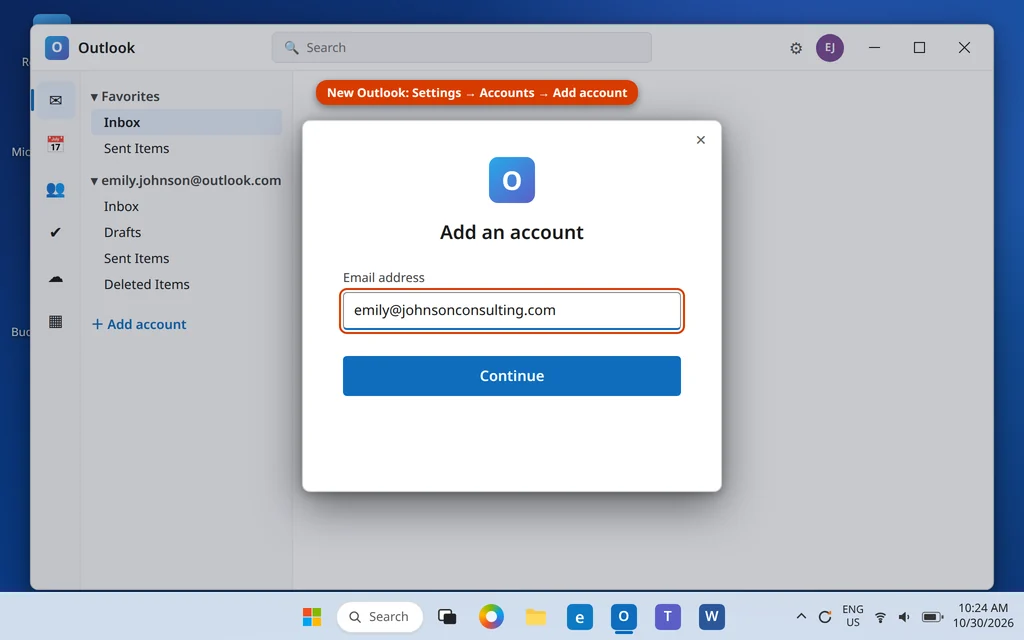
The new Outlook also uses Autodiscover for Microsoft 365 accounts, so no server settings are needed. For a hosted IMAP mailbox, choose the IMAP option when offered and use the same table above.
Finish the Job: Test It, Set the Default, Add a Signature
Adding the account is only half of setting it up properly. Three quick finishing steps:
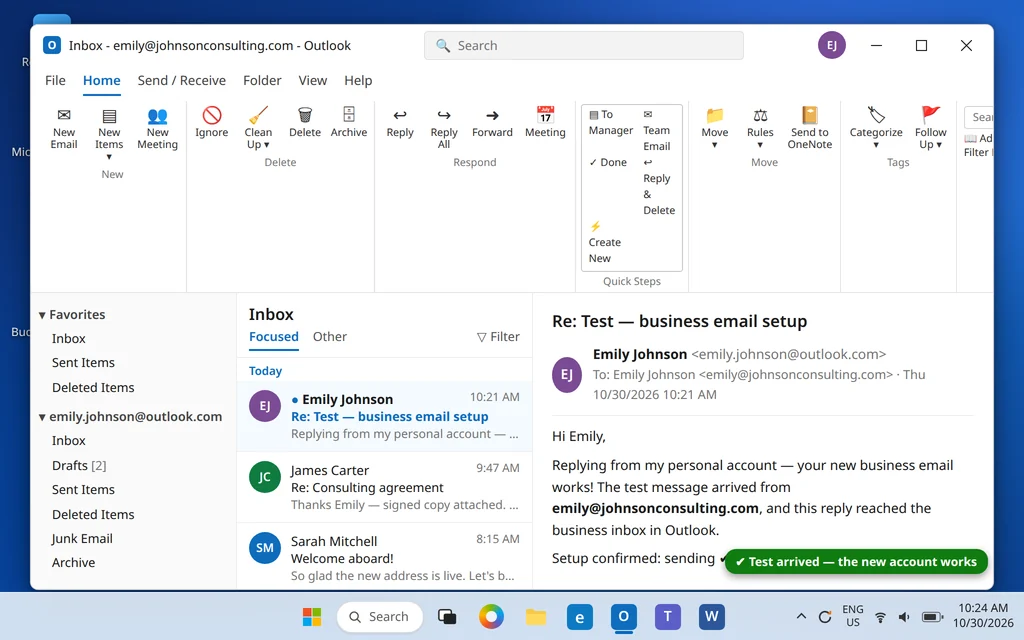
- Send a test email. Click New Email, address it to a personal address you also control (your Hotmail or Gmail, for example), give it the subject “Test”, and send it. Reply to it from that other account and confirm the reply arrives in Outlook — and check Sent Items shows it sent from the business address.
- Make it the default account. If you also have a personal account in Outlook, go to File > Account Settings > Account Settings, select the business account, and click Set as Default. New messages will then start from your business address automatically, so you never accidentally email a client from your personal account.
- Add a signature. Go to File > Options > Mail > Signatures, create your business signature (name, title, company, phone), and under Choose default signature, attach it to the business account specifically — keeping it on work mail and off personal mail.
When Setup Goes Wrong
- “We couldn’t find the account” or setup fails right after Connect. This is the Autodiscover problem: the domain’s DNS records are missing or unfinished. Complete the domain setup in the Microsoft 365 admin center (Settings > Domains shows exactly which records are wrong), allow some time for DNS changes to spread — often under an hour, occasionally longer — and then try Add Account again.
- Your password is rejected, or Outlook asks for it again and again. First, prove the password works by signing in at outlook.office.com in a browser. If it works there, complete the multi-factor approval in Outlook instead of retyping the password. And if a manual IMAP setup of a Microsoft 365 mailbox refuses your normal password, that is your organization’s security doing its job — delete that attempt and use the automatic setup, which signs in the modern way.
- The account is added but you cannot send. In a manual setup, the outgoing settings are almost always the culprit: the SMTP port should be 587 with STARTTLS, and the outgoing server must use the same sign-in as incoming (in the account’s settings, “My outgoing server (SMTP) requires authentication” should be on). A wrong SMTP setup is also a common cause of mail landing in the Outbox or bouncing later — our guide to email bouncing back explains the error messages you might see.
- Only the last few months of mail appear. The Keep mail offline for slider (File > Account Settings > Account Settings > Change) is set to a short window. Drag it to All and give Outlook time to download the rest.
Frequently Asked Questions
How do I add a work email to Outlook?
The short version: File > Add Account, type the work email address, click Connect, and sign in. That works for Microsoft 365 work accounts and most company accounts, because Outlook finds the settings automatically. You only need the manual route and server table in this guide if the automatic setup fails or your mail is hosted somewhere else.
How do I create a work email in Outlook?
You do not create the mailbox inside Outlook — Outlook is only the app. The address is created first in the Microsoft 365 admin center (Users > Active users > Add a user) by whoever administers your Microsoft 365, or in your hosting control panel if your mail is hosted with your website. Once the address exists, you add it to Outlook with the steps above.
Can I set up a business email in Outlook for free?
Not the address itself. A business email needs a domain you own and a mail service to host it, and both cost money — Microsoft 365 email plans start at a few dollars per user per month. What is free is adding the account to Outlook: if the mailbox already exists and Outlook is already on your PC, the setup in this guide costs nothing. Microsoft no longer offers free custom-domain email, so be wary of any site promising it.
What are the server settings for Microsoft 365 email in Outlook?
Incoming server outlook.office365.com, port 993 with SSL/TLS; outgoing server smtp.office365.com, port 587 with STARTTLS. In practice you should not need them in Outlook at all — the automatic Add Account setup uses Autodiscover and fills everything in. The settings matter when you add the account to a phone or a different app.
Can I add the same business email to Outlook on my phone?
Yes. Install the Outlook app on iPhone or Android, go to Settings > Add Account, and enter the same address and password. It uses the same automatic discovery, and because the mailbox is on the server, your phone, PC and webmail all stay in sync.
How do I set up a work email signature in Outlook?
Go to File > Options > Mail > Signatures, click New, and type your signature. Under Choose default signature, pick your business account in the email account dropdown and select the signature for new messages and for replies. Assigning it per account stops your work signature appearing on personal mail.
My business email is hosted by my web host, not Microsoft 365. Does this guide still work?
Yes — use the manual route. Choose IMAP on the Advanced setup screen and enter the server names your host gives you (commonly mail. plus your domain, ports 993 and 587). The preparation and troubleshooting sections still apply; only the provider differs.
Still having trouble adding your business account? Tell us where setup stops — the exact message Outlook shows helps a lot — on our Contact page — servicedesk@howtofixerroronline.com, available 24 hours. If Outlook itself will not open to even start setup, work through our Outlook not opening on Windows 11 guide first, then come back to this one.
Pingback: How to Add Gmail to Outlook: Complete IMAP Setup Guide (2026)
Pingback: GoDaddy Microsoft 365 Email Setup: Sign Up and Add It to Outlook (2026)
Pingback: How to Add Yahoo Mail to Outlook (App Password Setup) (2026)
Pingback: How to Migrate Gmail to Microsoft 365: Personal & Business Guide (2026)
Pingback: Outlook Error 0x80070005 (Send on Behalf) — Fixes (2026)
Pingback: Microsoft 365 Business Standard Setup for Business Domain Email (2026 Guide)