
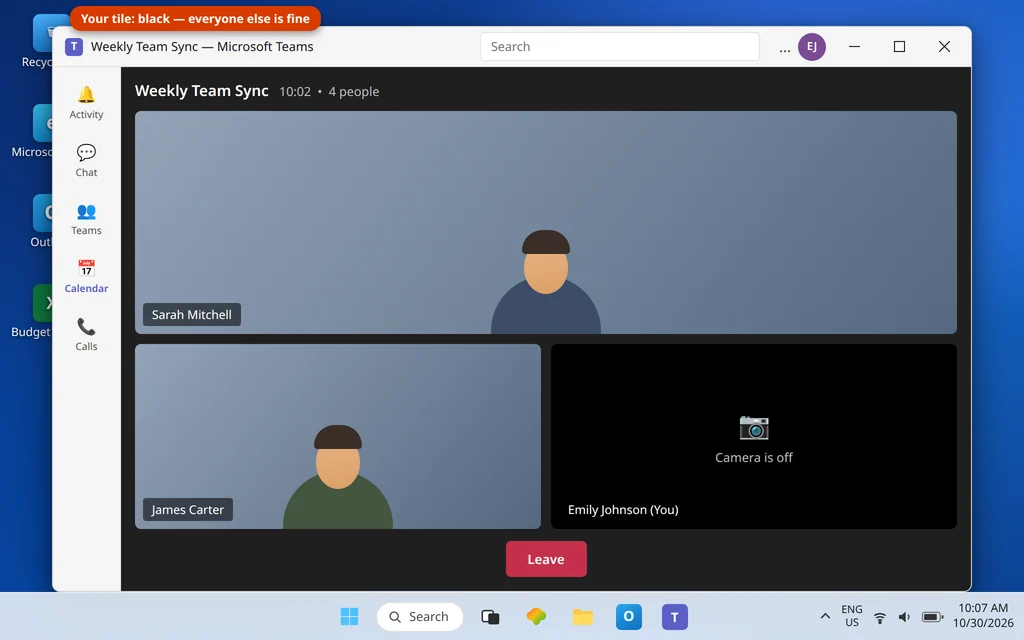
Microsoft Teams Camera Not Working — Black Screen or Not Detected
Microsoft Teams camera not working is the problem this guide fixes, starting with the camera selected in Teams. You join the meeting, turn your camera on, and get one of three unwelcome sights: a completely black box where your video should be, a crossed-out camera icon, or a message that no camera was detected at all. Everyone else can see each other. You are a black rectangle with your name on it.
This guide is the camera-only deep dive. If your microphone is also misbehaving, or you want the combined overview first, start with our parent guide to Teams Camera or Microphone Not Working — everything below stays strictly on the camera: picking the right one, unblocking it in Windows, freeing it from the app that grabbed it first, and proving whether the camera itself still works. If Teams will not even open on your PC, fix that first with Microsoft Teams Not Opening on Windows 11.
Quick Answer: First, in Teams go to Settings and more (…) → Settings → Devices, pick the correct camera from the Camera dropdown and check the preview — if it stays black, switch to another camera and back. Next, open Windows Settings → Privacy & security → Camera and turn on Camera access, Let apps access your camera and Let desktop apps access your camera. Then fully close any other app that might hold the camera (Zoom, a browser meeting tab, the Camera app). Still black? Slide open any lens cover or privacy shutter, test the camera in the Windows Camera app to separate hardware from Teams, and update the camera driver in Device Manager → Cameras.
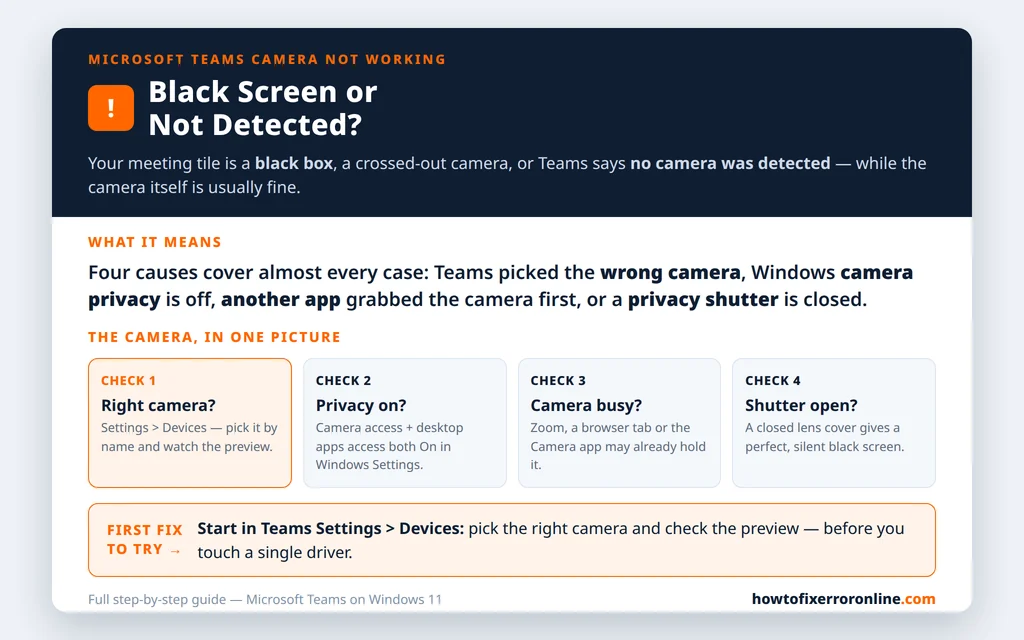
Table of Contents
Fix 1 — Pick the right camera in Teams Settings → Devices (and check the preview)
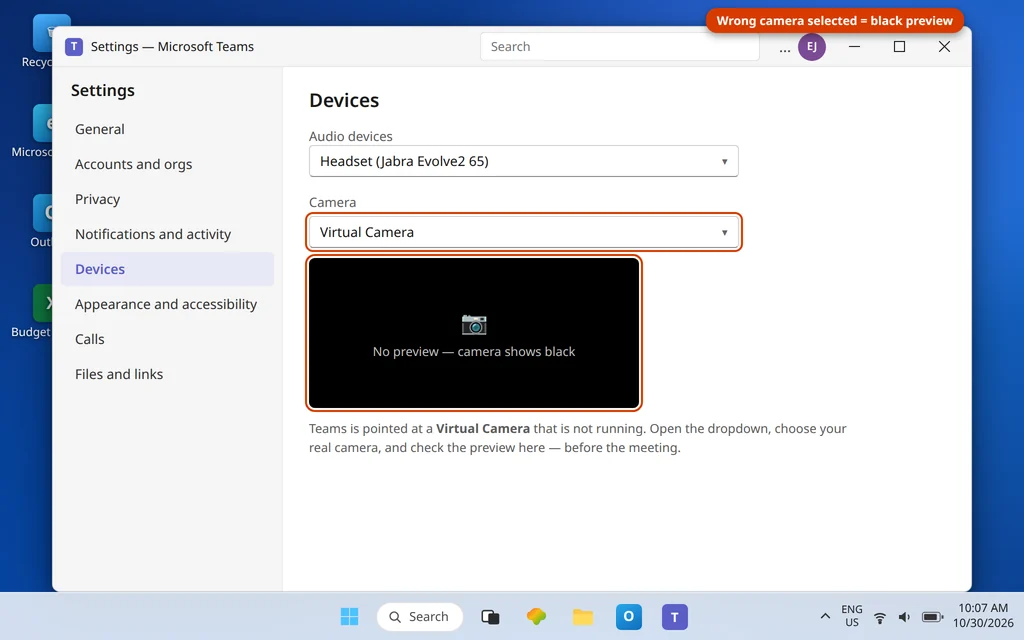
Most laptops offer Teams more than one “camera”: the built-in webcam, an external USB webcam, sometimes a virtual camera left behind by another app. Teams can only show one, and it does not always guess the one you are sitting in front of.
- In Teams, select Settings and more (…) next to your profile picture, then Settings.
- Select Devices.
- Under Camera, open the dropdown and choose the camera you actually want — by name, for example your built-in camera or your USB webcam.
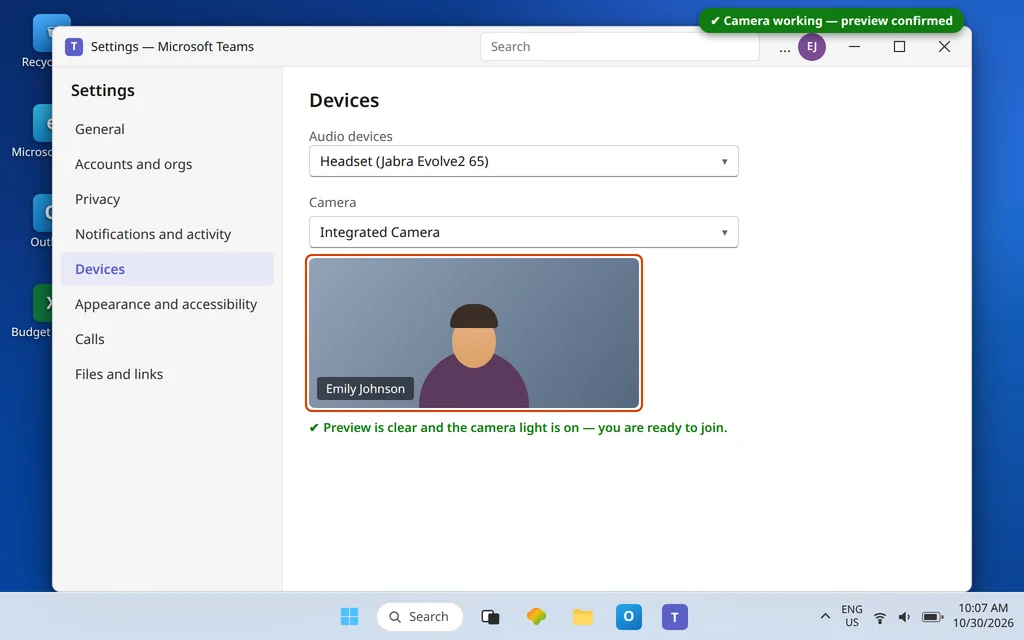
- Look at the preview under the dropdown. You should see yourself within a second or two.
- If the preview stays black, choose a different camera, wait two seconds, then choose the right one again. Switching away and back forces Teams to grab the camera fresh, and Microsoft’s own support answers recommend exactly this refresh.
Do this check in Settings rather than inside a live meeting — you get the same preview without an audience. If the dropdown shows no camera at all, skip to Fix 5 and Fix 6: Windows or the driver is not handing Teams a camera to pick.
Fix 2 — Turn on camera access in Windows Settings → Privacy & security → Camera
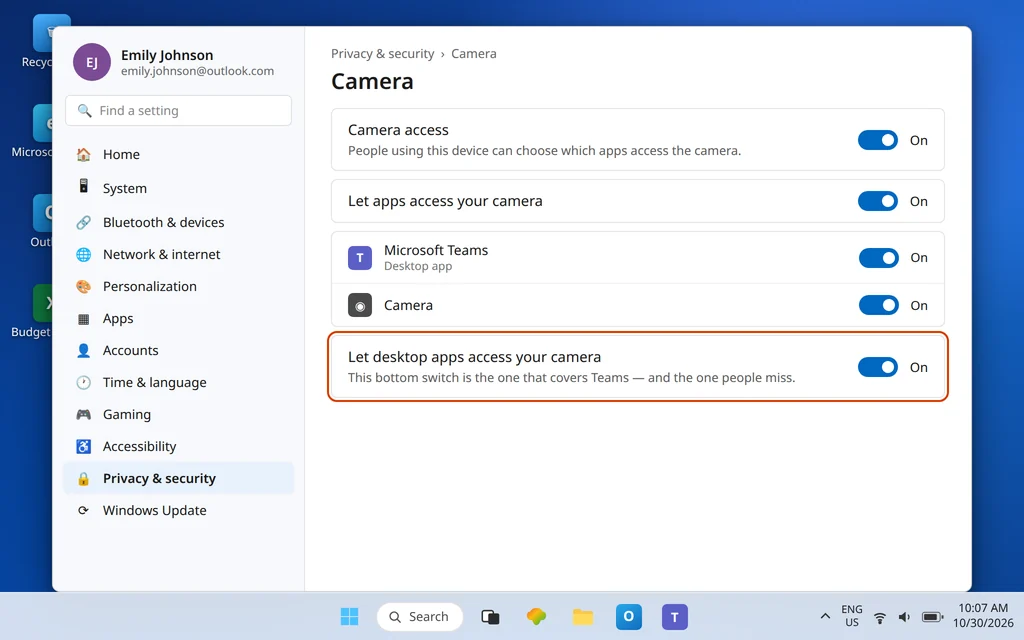
Windows 11 can block the camera for every app at once, or just for desktop apps — and Teams is a desktop app. When that block is on, Teams behaves exactly as if no camera exists.
- Open Settings → Privacy & security → Camera.
- Turn on Camera access at the top.
- Turn on Let apps access your camera.
- Scroll down and turn on Let desktop apps access your camera — this bottom switch is the one that covers Teams, and it is the one people miss.
- If Microsoft Teams appears in the app list on this page, make sure its switch is on too.
- Fully quit Teams (right-click its icon near the clock and choose Quit), then reopen it and check the preview in Settings → Devices again.
Microsoft Support gives the same three switches for this exact problem. If all three were already on, move on — the camera is allowed, so something is holding it or hiding it. See Microsoft’s official guide, My camera isn’t working in Microsoft Teams.
Fix 3 — Close the other app that is holding your camera
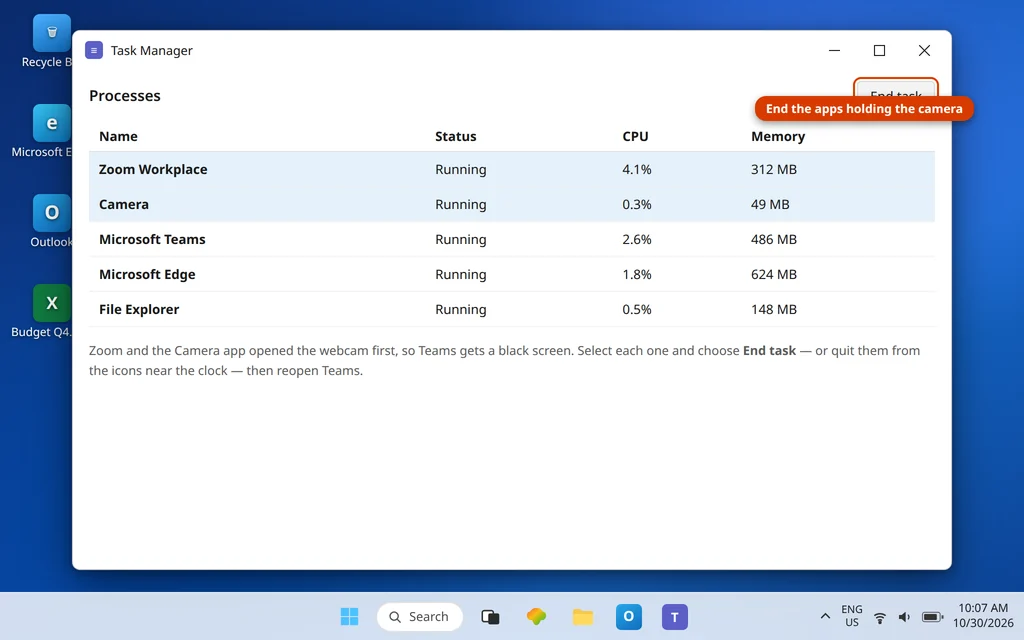
A webcam can normally serve only one app at a time. If Zoom, a Google Meet or Teams tab in your browser, OBS, or the Windows Camera app opened the camera first, Teams gets whatever is left — which is a black screen.
- Close Zoom, Skype and any similar apps completely — not just their windows. Check near the clock: many of them keep running after you close the window, so right-click their icons and choose Quit or Exit where offered.
- Close browser tabs that are using the camera (a meeting tab, a recording site, a camera test site).
- Close the Windows Camera app if it is open.
- If you are not sure what is holding it, open Task Manager (Ctrl + Shift + Esc), look for video or meeting apps in the list, select one and choose End task.
- Reopen Teams and check the preview again.
A full PC restart also releases every camera lock at once, which is why “restart and it worked” is so common with this problem — you were not imagining it.
Fix 4 — Black screen specials: lens cover, privacy shutter and antivirus webcam protection
If Teams can detect the camera, the preview window exists, and the picture is simply black, suspect something physical or protective before you suspect software:
- Lens cover / privacy shutter. Many laptops have a small sliding shutter over the lens, a privacy key (often on the F-keys), or a stick-on cover from a previous owner. Microsoft Support calls this out directly: if your video is black on a laptop, check whether the camera privacy slider is closed. Slide it open and watch the preview.
- The camera light tells a story. If the little light next to the lens is on, something is using the camera — go back to Fix 3. If it never lights at all, the camera is not even starting — go to Fix 5 and Fix 6.
- Antivirus webcam protection. Some security suites block camera access per app and ask — or silently refuse — the first time an app asks. Open your antivirus app, look for a webcam or privacy protection section, and make sure Microsoft Teams is allowed. Test by reopening Teams after changing it; do not leave protection disabled, just allow Teams in it.
Fix 5 — Test in the Windows Camera app to separate hardware from Teams
This one test splits the problem cleanly in half, and it takes twenty seconds:
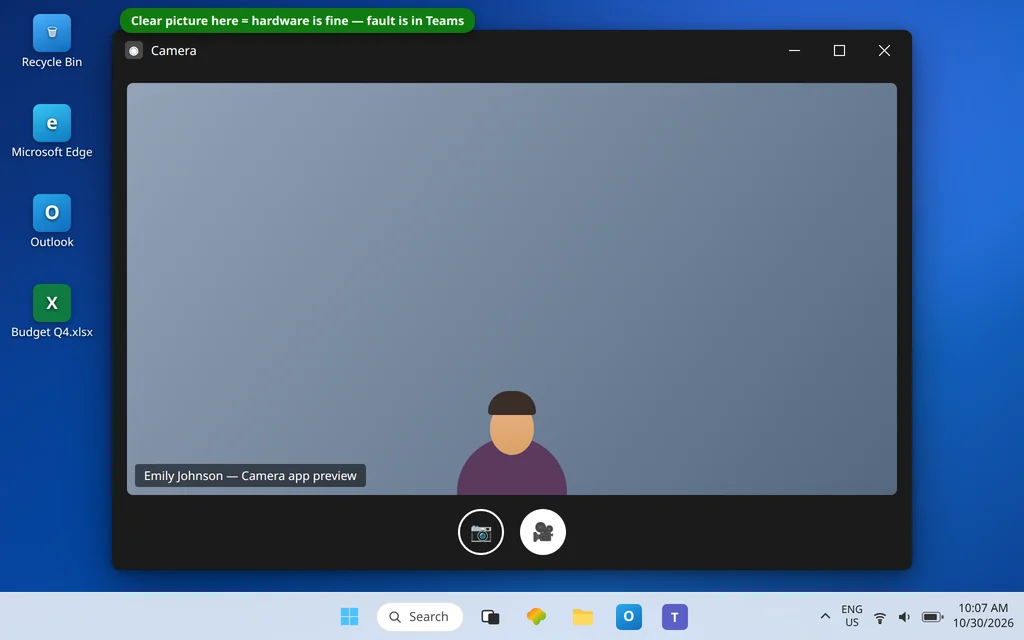
- Open the Windows Start menu, type Camera, and open the Camera app.
- If you see yourself clearly, your camera hardware and driver work. The fault lives in Teams or its permissions — re-check Fix 1 and Fix 2, then try Fix 7’s browser test.
- If the Camera app is also black, shows an error, or says no camera is attached, the problem is below Teams: the shutter (Fix 4), the driver (Fix 6), or the camera itself.
Knowing which half you are in stops you reinstalling Teams for a driver problem — or replacing a webcam for a settings problem.
Fix 6 — Update or reinstall the camera driver in Device Manager
When Windows itself cannot see the camera properly, no app setting will save you. Drivers are the usual reason a camera vanishes after a Windows update.
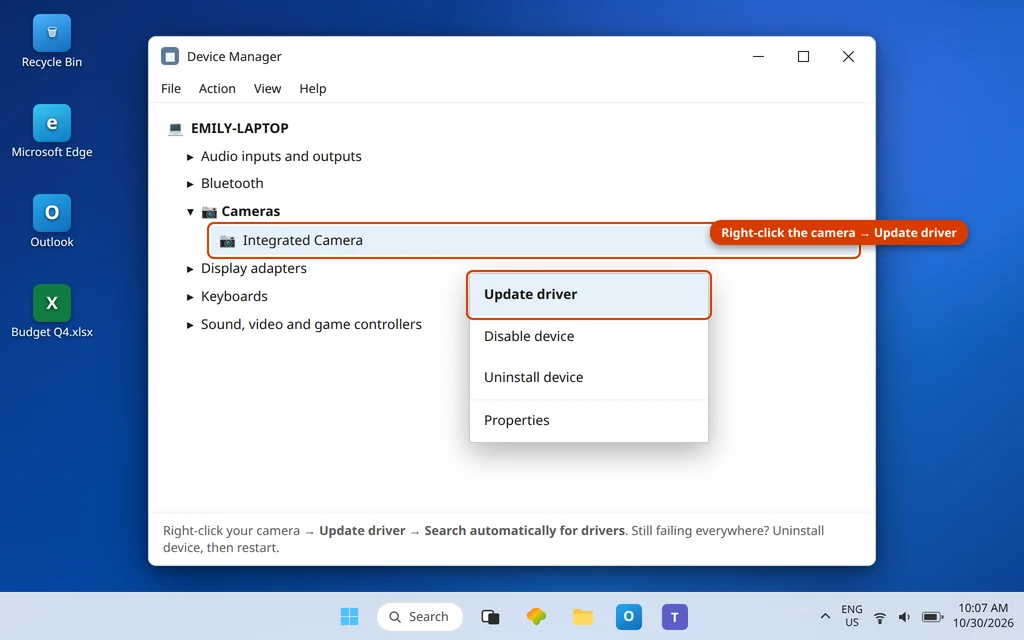
- Right-click the Start button and choose Device Manager.
- Expand Cameras (on some PCs the camera sits under Imaging devices).
- Right-click your camera and choose Update driver → Search automatically for drivers. Let Windows finish, then restart the PC.
- If it says the best driver is already installed but the camera still fails everywhere, right-click the camera again and choose Uninstall device. Then choose Action → Scan for hardware changes (or simply restart) so Windows installs it fresh.
- If your camera does not appear in Device Manager at all, that points to hardware, a disabled camera in the laptop’s own settings, or a disconnected internal cable — the honest end of this fix is the laptop or webcam maker’s support, not more Teams steps.
Fix 7 — External USB webcam: connect it directly, and check the browser permission if you use Teams on the web
Two shorter checks that close out most remaining cases:
External webcam rules. Unplug the webcam for about ten seconds and plug it back in — Microsoft Support and Microsoft Q&A both use this reset. Plug it directly into the laptop, not through a USB hub, dock or adapter, and try a different USB port. Hubs are a classic cause of “detected sometimes, black the rest of the time.” Then reselect it in Settings → Devices (Fix 1).
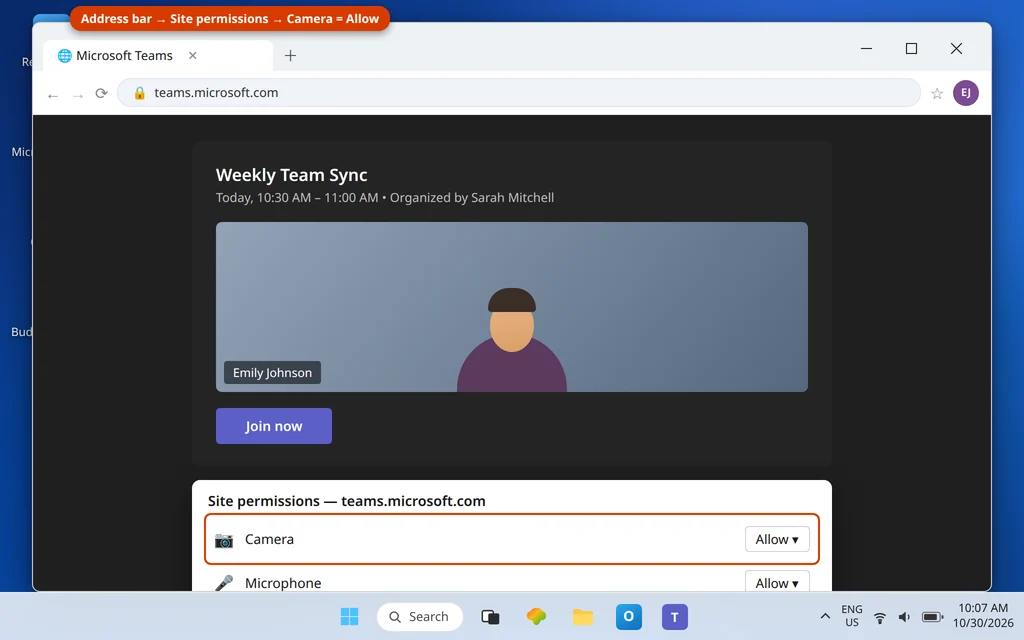
Teams on the web. If you join from a browser at teams.microsoft.com, the browser has its own camera gate: click the lock / tune icon in the address bar, open the site permissions, and set Camera to Allow, then reload the page. A browser set to Block shows the same black tile as a broken camera. While you are there, the web version is also a useful test: if the camera works in the browser but not in the desktop app, your hardware is fine and the desktop app’s local state is the problem — the cache clear and Repair/Reset steps in our combined Teams Camera or Microphone Not Working guide cover that reset path. And if the meeting itself will not open at all, see Can’t Join a Teams Meeting.
Microsoft Teams Camera Not Working — Confirm It Worked
Open Settings → Devices in Teams and look at the camera preview: you should see yourself, clearly, with the camera light on. Join your next meeting a minute early, turn the camera on, and confirm your tile shows video — then turn it off and on once more. A camera that survives an off/on toggle and a Teams restart is fixed, not lucky.
How to stop it happening again
- One meeting app at a time. Quit Zoom and browser meeting tabs before you open Teams; the “camera in use” black screen mostly comes from yesterday’s app still running near the clock.
- Plug USB webcams straight into the laptop. Docks and hubs cause more intermittent camera faults than faulty webcams do.
- After any big Windows update, do a twenty-second camera check in the Camera app before your first meeting. Updates are when privacy switches and drivers quietly change.
- Know your shutter. If your laptop has a privacy slider, check it first every time the picture is black — it is the fastest fix in this whole guide.
Frequently asked questions
Why is my Teams camera showing a black screen?
The common causes, in order: Teams has the wrong camera selected, another app is already using the camera, a lens cover or privacy shutter is closed, or an antivirus webcam-protection feature is blocking Teams. Work through Fixes 1, 3 and 4 — they cover the great majority of black screens. If the Windows Camera app is also black, the cause sits below Teams (driver or hardware, Fixes 5–6).
Why does Teams say no camera is detected?
“No camera detected” means Windows did not hand Teams a working camera. Check the three switches in Settings → Privacy & security → Camera (Fix 2), confirm the camera exists in Device Manager → Cameras (Fix 6), and for a USB webcam, connect it directly to the laptop and try another port (Fix 7). If the camera is missing from Device Manager entirely, the problem is the camera or its connection, not Teams.
How do I test whether my camera itself is broken?
Open the Windows Camera app. A clear picture there proves the hardware and driver work, so the fault is inside Teams (selection, permissions, or the app holding it). A black or error screen in the Camera app too points to the shutter, the driver, or the camera itself. Fix 5 walks through what each result means.
Can another app really block my camera in Teams?
Yes. Most webcams serve one app at a time. Zoom, a browser meeting tab, OBS or the Camera app can hold the camera so Teams receives a black feed — even if that other app is only running quietly near the clock. Fully quit those apps (Fix 3) or restart the PC, which releases every hold at once.
My camera works in the browser but not in the Teams app. What does that mean?
Your camera, driver and account are all fine — the desktop app’s own state is the problem. Reselect the camera in Settings → Devices, confirm the Windows privacy switches, and if it persists, clear the Teams cache or use Repair in Settings → Apps → Microsoft Teams → Advanced options. Our combined camera and microphone guide walks through those reset steps.
Does Teams need a different fix if I use a USB webcam?
Mostly the same fixes, plus two physical ones: unplug it for ten seconds and plug it back in, and connect it directly to the laptop instead of through a hub or dock, trying a second USB port if the first is unreliable. Then pick it by name in Settings → Devices and check the preview.
Camera back — or still a black box? Contact us at servicedesk@howtofixerroronline.com or through our Contact page and tell us what the Windows Camera app shows and which camera name appears in Teams Settings → Devices. We will never ask for your password.