
Microsoft Teams Breakout Rooms Not Working
You planned the workshop around breakout rooms. The meeting starts, you reach for the control bar — and there is no Rooms button. Or the rooms exist, but half your participants refuse to move into them. Breakout rooms fail in predictable ways, and nearly all of them come down to four gates Microsoft sets: your role, your app, your meeting type, and your organization’s policy.
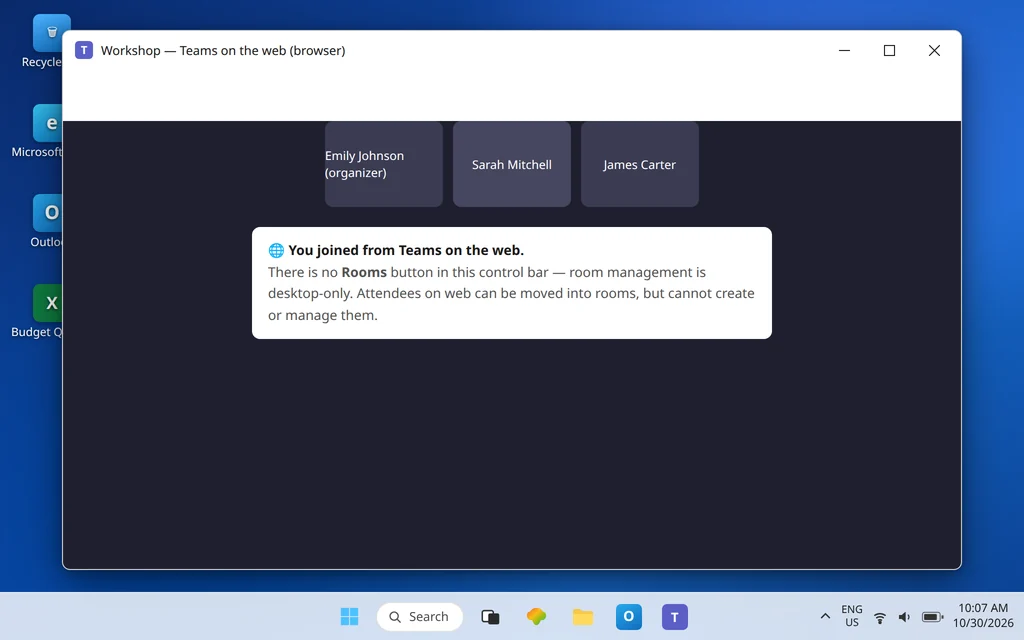
The headline gate surprises people most: creating and managing breakout rooms requires the Teams desktop app on Windows or Mac. Join the same meeting from Teams on the web, your phone, or a tablet and the Rooms control simply is not offered to you — even if you organized the meeting. Work through the gates in order; each fix below removes one.
Quick Answer: To see Breakout rooms (Rooms) in the meeting controls you must be the meeting organizer — or a presenter the organizer has appointed as a breakout room manager — and you must join from Teams for desktop on Windows or macOS. Attendees on web, mobile, and desktop can all be moved into rooms; they just cannot create or manage them. Rooms are capped at 50 per meeting, pre-assignment is unavailable for meetings with more than 1,000 invitees, and people on Teams (free) accounts cannot be assigned to a room at all. If every gate checks out and the button is still missing, an admin policy may have breakout rooms disabled.
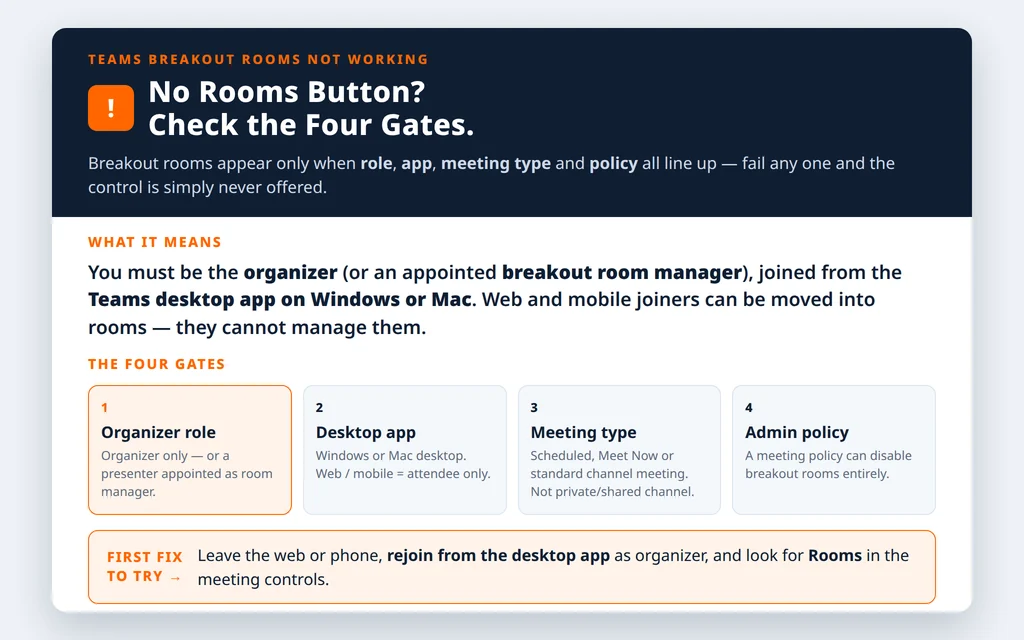
Table of Contents
Fix 1 — Rejoin from the Teams desktop app on Windows or Mac
This is the single most common fix, because organizers routinely run meetings from wherever is convenient — a browser tab, a phone in a corridor — and breakout room management is one of the features that does not follow them there. Microsoft’s troubleshooting guide is exact: to see Breakout rooms you need to join from a supported Teams client for Windows (including VDI) or macOS, and Linux, web, iOS, iPadOS, and Android clients are enabled for breakout room attendees — participants on them can be moved to rooms but cannot manage rooms.
So: leave the meeting on the web or mobile client, open the desktop app on a Windows PC or a Mac, rejoin the same meeting, and look at the meeting controls again — Rooms should now be present (in some layouts it sits under More actions > Rooms). Nothing about the meeting changes; you are simply arriving through the door that has the controls. If you are a participant rather than the organizer, none of this applies to you: your job is only to accept the move when your room opens, which works from desktop, web, and mobile alike.
Fix 2 — Confirm you are the organizer, or an appointed breakout room manager
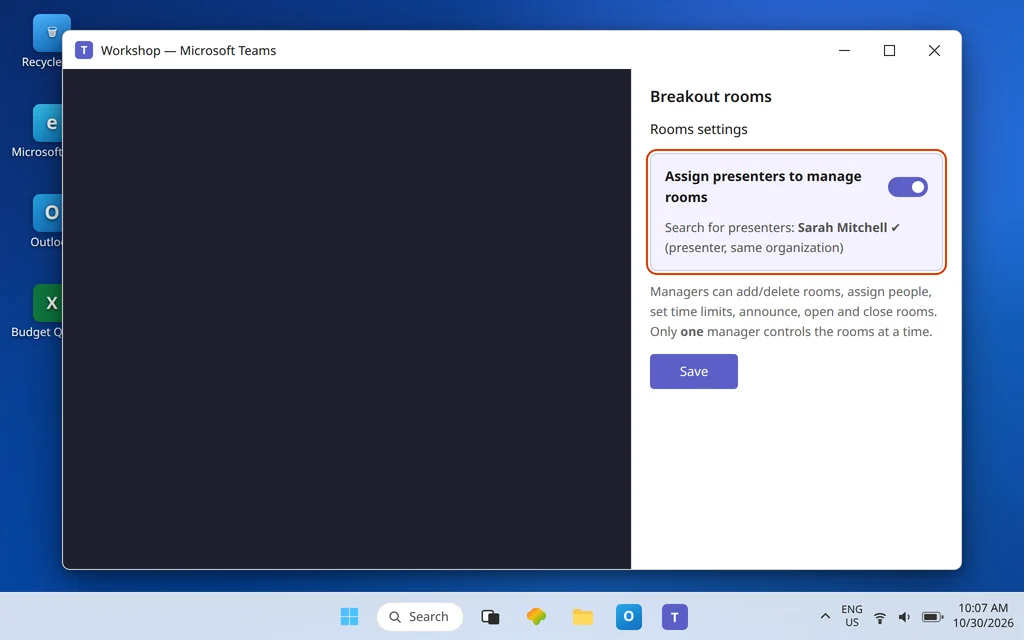
Breakout rooms are not a presenter perk; they are an organizer function with one delegation route. Microsoft’s rule: to create breakout rooms you must be the meeting organizer, or a presenter in the organizer’s organization who has been appointed a breakout rooms manager. A co-organizer or presenter who has not been appointed a room manager does not get the Rooms control — “I was made a presenter” and “I can run the rooms” are different states.
If you need help running a large session, the organizer appoints managers like this:
- Before the meeting: Calendar > open the meeting > View event > More options > Breakout rooms > Rooms settings.
- Turn on Assign presenters to manage rooms, search for the presenters, and Save. (The person must already be invited and a presenter.)
- During the meeting, the same toggle lives under Rooms > Rooms settings.
Two limits matter once managers exist: managers can add and delete rooms, assign and reassign people, set time limits, send announcements, and open and close rooms — but only one breakout manager can take control of the rooms at a time, via Rooms > Manage rooms. And if you are attending a meeting someone else organized and the rooms are failing, the honest move is to hand this article to the organizer: participants cannot fix room management from the attendee side. If the meeting link itself will not get you into the session at all, that is the separate problem in Can’t Join a Microsoft Teams Meeting.
Fix 3 — Check the meeting type: rooms need the right kind of meeting
Microsoft’s troubleshooting guide lists the meeting types in which you can see Breakout rooms as organizer: a scheduled private meeting, a Meet Now meeting, a scheduled channel meeting, or a channel Meet Now meeting. Step outside that list and the button legitimately never appears. The classic trap is organizing the meeting inside a private or shared channel — those meetings do not offer breakout rooms, so a workshop scheduled there has to be re-created as a regular scheduled meeting (or in a standard channel) before rooms become possible.
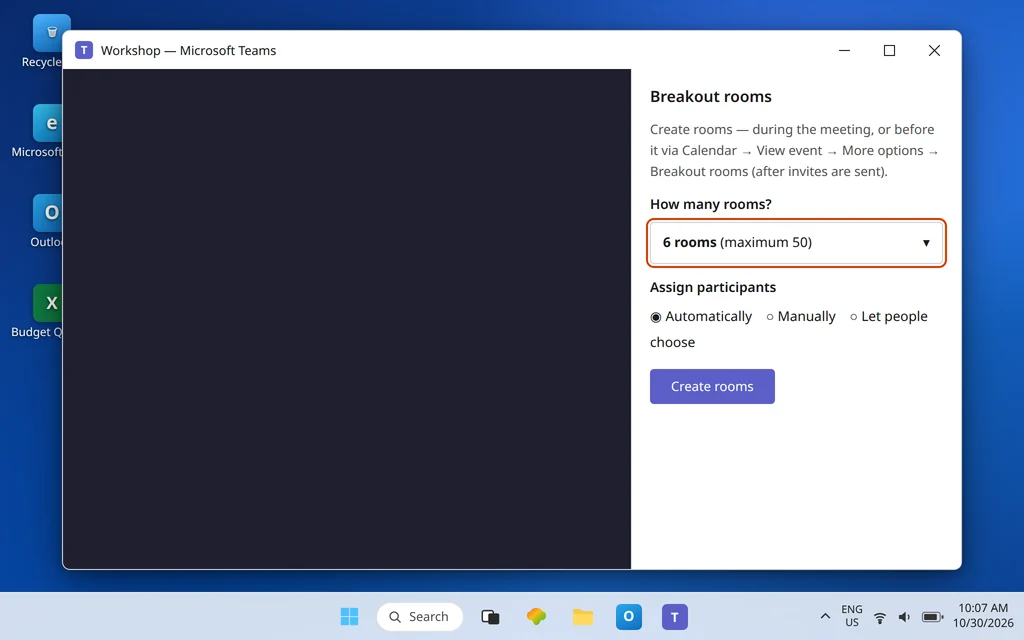
Timing matters too. To set rooms up before the meeting, you must first schedule the meeting and send the invites — the Breakout rooms option on the event only appears after invites have been sent. Organizers hunting for the option on an unsent draft are not missing a feature; the feature is waiting on the invites. Before the meeting: Calendar > meeting > View event > More options > Breakout rooms > Create rooms, choose up to 50 rooms, Assign participants, pick automatic or manual assignment, and save. During the meeting, the same flow starts from Rooms in the meeting controls.
Fix 4 — People who will not move: the assignment rules
Rooms created, button present — and specific participants still cannot be placed. Microsoft’s troubleshooting guide names exactly who cannot be moved to a breakout room:
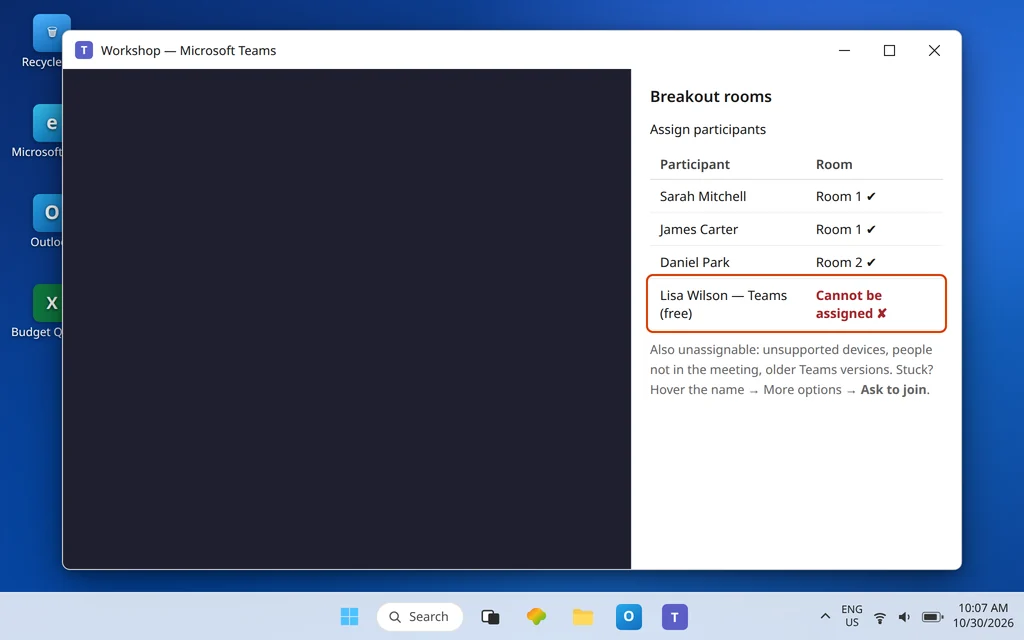
- People signed in with a Microsoft Teams (free) account — they cannot be added or assigned to a room; the main meeting has to serve as their space.
- People who joined from unsupported devices (for example, CVI room systems), people not currently in the meeting, and people on older versions of Teams.
- Pre-assigned people who then join from an unsupported client — a pre-assignment does not drag a web or phone joiner in if their client cannot be moved in that state; have them rejoin from a fuller client.
For someone who was assigned but did not land in the room, use the organizer’s recovery move: open Breakout rooms in the meeting controls, hover over the participant’s name until More options appears, and choose Ask to join — the participant is prompted to join the room. Reassigning the person (move them out and back, or to a different room and back) clears most stuck assignments. Remember also that automatic assignment is not available for rooms added later in the meeting: anyone arriving late, or placed into a room you add mid-session with Add room, must be assigned manually. And plan big sessions honestly: pre-assigning participants is not possible when the meeting has more than 1,000 invitees, and only invited people (in approved organizations) are available for pre-assignment at all.
Fix 5 — Still no button? An admin policy can disable breakout rooms
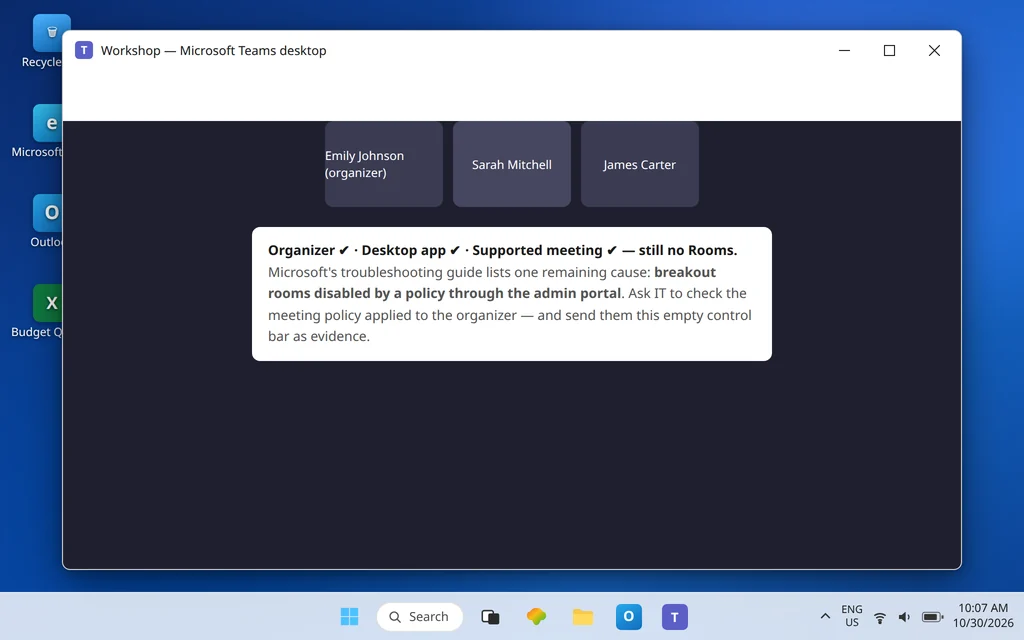
If you are the organizer, on the Windows or Mac desktop app, in a supported meeting type, and Rooms is still absent, the remaining documented gate is policy: Microsoft’s troubleshooting guide lists “Breakout rooms are disabled by a policy through your admin portal” as a reason you will not see the control. The exact toggle name is not something Microsoft’s end-user documentation publishes, so this article will not invent one for you — the productive move is a precise request to IT: “Breakout rooms do not appear for the organizer in the Teams desktop app; please check whether our meeting policies disable breakout rooms.” Include a screenshot of your meeting controls and the meeting type; that evidence separates a policy answer from a training answer in one round trip.
While you wait on IT, finish the local checks that mimic a policy block: update Teams fully (Settings > About / check for updates), quit and relaunch the desktop app rather than the web app, and start a fresh test meeting that you organize yourself to confirm the button is missing there too — a button missing in your own fresh meeting, on desktop, is exactly the evidence IT needs. If Teams keeps dropping the meeting while you test, work through Microsoft Teams Meeting Keeps Disconnecting first, because rooms cannot be managed from a meeting you cannot stay in.
Fix 6 — Rooms open but nobody lands in them? Check the room settings
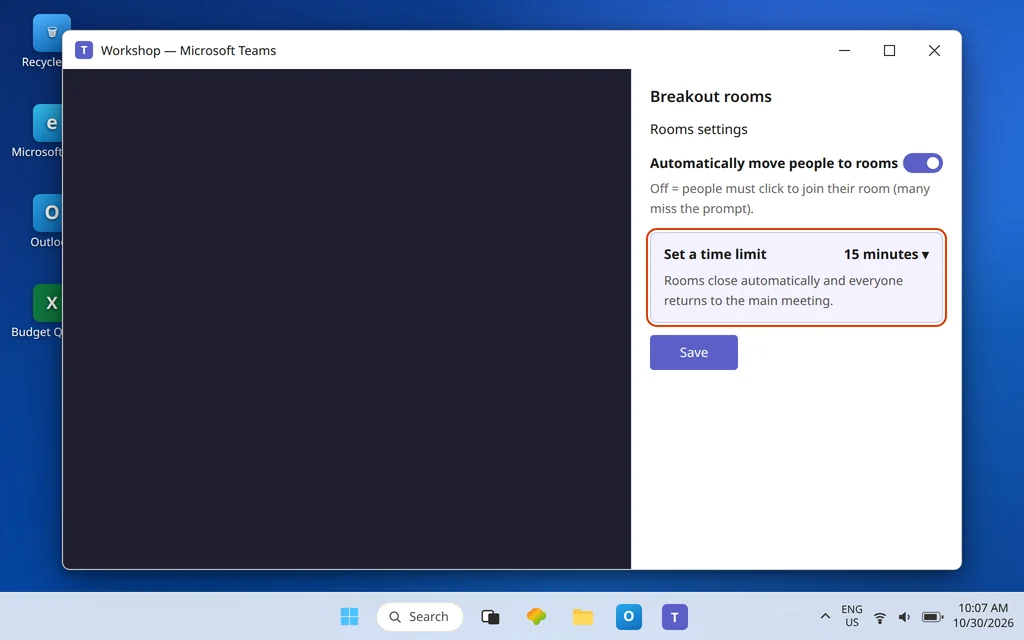
A subtler failure: the rooms exist, you open them, and participants stay sitting in the main meeting. Open Rooms > Rooms settings and review the movement behavior: if Automatically move people to rooms is turned off, participants are not carried into their rooms automatically — they get the choice to join, and many simply miss or dismiss the prompt. Turn it on for a managed workshop where everyone should move together, and use Make an announcement from the Rooms panel to tell stragglers what to click. Set a time limit in the same settings if you want rooms to close and return everyone to the main meeting automatically — without one, rooms stay open until you close them. Organizers can only manage pre-created rooms from the panel while the main meeting is not yet running; once the meeting starts, room management happens inside the live meeting — joining late as organizer and hunting through the calendar event is another small trap to avoid.
Confirm it worked
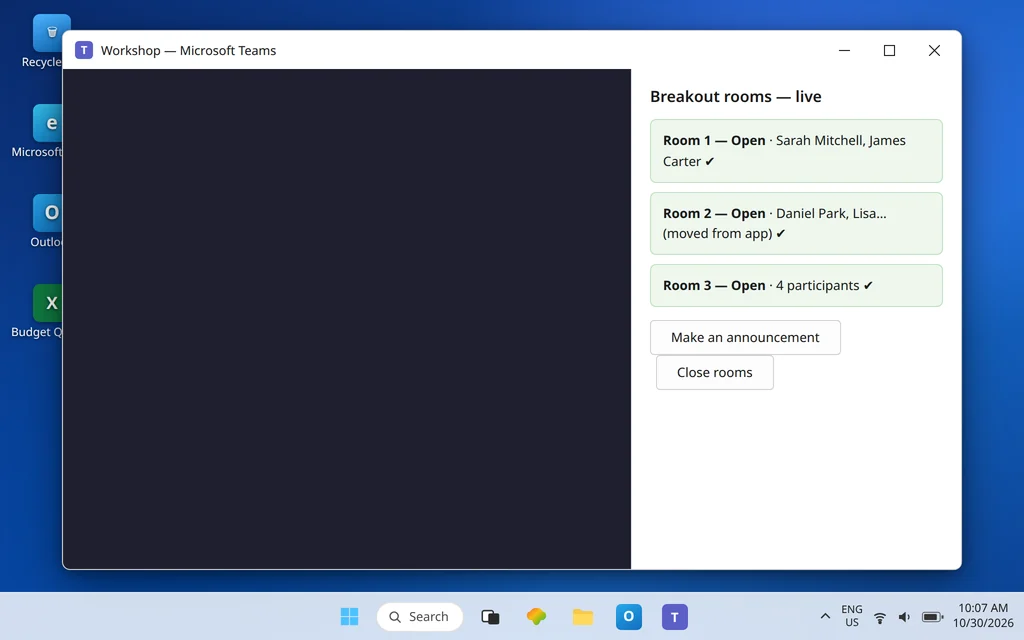
Run a two-minute rehearsal before the real session: in a test meeting you organized, joined from the desktop app, create two rooms, assign a colleague (ask Sarah Mitchell or James Carter to be your test participant), open the rooms, and confirm they are moved in, can chat and share inside the room, and return to the main meeting when you close it. Send an announcement, appoint your co-facilitator as a room manager and have them take control once, and — if your real audience includes web and mobile joiners — have the test participant join from a phone to prove attendees on those clients get moved even though they cannot manage rooms.
Frequently asked questions
Why don’t I see Breakout rooms in my Teams meeting?
Three gates decide it: role, app, and meeting type. You must be the meeting organizer (or a presenter appointed as a breakout room manager), you must join from the Teams desktop app on Windows or macOS, and the meeting must be a supported type — a scheduled private meeting, Meet Now, a scheduled channel meeting, or channel Meet Now. Fail any one and the button is not shown. A fourth possibility is an admin policy disabling breakout rooms.
Can I create breakout rooms in Teams on the web or on my phone?
No. Creating and managing rooms is desktop-only (Windows or Mac). Web, iOS, iPadOS, Android, and Linux clients are attendee clients for breakout rooms: participants joining from them can be moved into rooms and work there, but they cannot create rooms, assign people, or manage the session. Organizers should plan to run the meeting from the desktop app.
How many breakout rooms can a Teams meeting have?
Up to 50 rooms per meeting. Meetings using pre-created breakout rooms can invite up to 1,000 people, and pre-assigning participants is not possible if the meeting has more than 1,000 invitees. Rooms added later during a meeting cannot use automatic assignment — late additions are placed manually.
Why can’t I assign someone to a breakout room?
Microsoft lists the unassignable cases: the person is signed in with a Microsoft Teams (free) account, joined from an unsupported device, is not currently in the meeting, or is running an older Teams version. For pre-assignment, the person must also be an invited participant. If someone was assigned but did not move, hover over their name in the Breakout rooms panel and choose Ask to join, or reassign them.
Can a co-organizer or presenter run breakout rooms?
Not automatically. Only the organizer can run rooms by default. A presenter in the organizer’s organization can be appointed a breakout room manager (Rooms settings > Assign presenters to manage rooms), after which they can create, assign, open, close, and announce — but only one manager can control the rooms at a time. Pre-creating rooms and pre-assigning people before the meeting remain organizer tasks.
Can an admin turn breakout rooms off?
Yes — Microsoft’s troubleshooting guide lists breakout rooms being disabled by a policy through the admin portal as a reason the control does not appear. If you are the organizer on the desktop app in a supported meeting and the button is missing, ask your IT team to check the meeting policy applied to you, and show them the empty meeting controls as evidence.
Breakout rooms still refusing to appear or accept your participants? Contact us at servicedesk@howtofixerroronline.com or through our Contact page and tell us whether you are the organizer, which client you joined from (desktop, web, or mobile), the meeting type, and exactly who cannot be assigned. We will never ask for your password.