
Microsoft Teams Meeting Chat Missing or Disabled
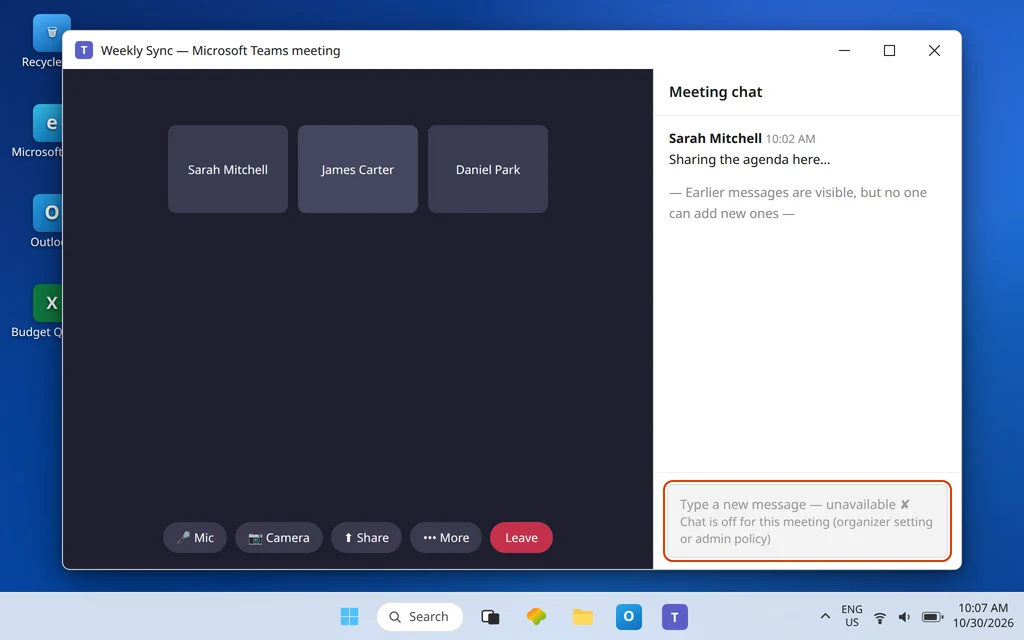
The meeting is running, someone says “dropping that link in the chat,” and you realize: there is no chat. No Chat button in the controls, or a chat pane whose typing box is greyed out and refuses every keystroke. Meanwhile, half the room is chatting happily — which tells you this is not a broken app. It is a setting, and this guide finds which one.
Meeting chat in Teams is controlled at three layers: the organizer’s per-meeting option, your organization’s admin meeting policy, and who you are in that meeting (invited, guest, anonymous, forwarded). Work through them in that order and you will land on the layer that owns your symptom. Microsoft’s own support advice starts here too: if you don’t see chat in your Teams meeting, the cause is an organizer setting or an IT admin policy — not something reinstalling Teams will change.
Quick Answer: If you are the organizer, open the meeting’s Meeting options and set Allow meeting chat to Enabled (not Disabled, and not In-meeting only if people need to chat before or after). If chat is missing in every meeting someone organizes, an admin has likely set the Meeting chat policy to Off in the Teams admin center — organizers cannot override that. Guests and anonymous joiners can be blocked while signed-in invitees chat, and a channel meeting’s chat is not in the Chat list at all: it lives as a thread in the channel’s Posts.
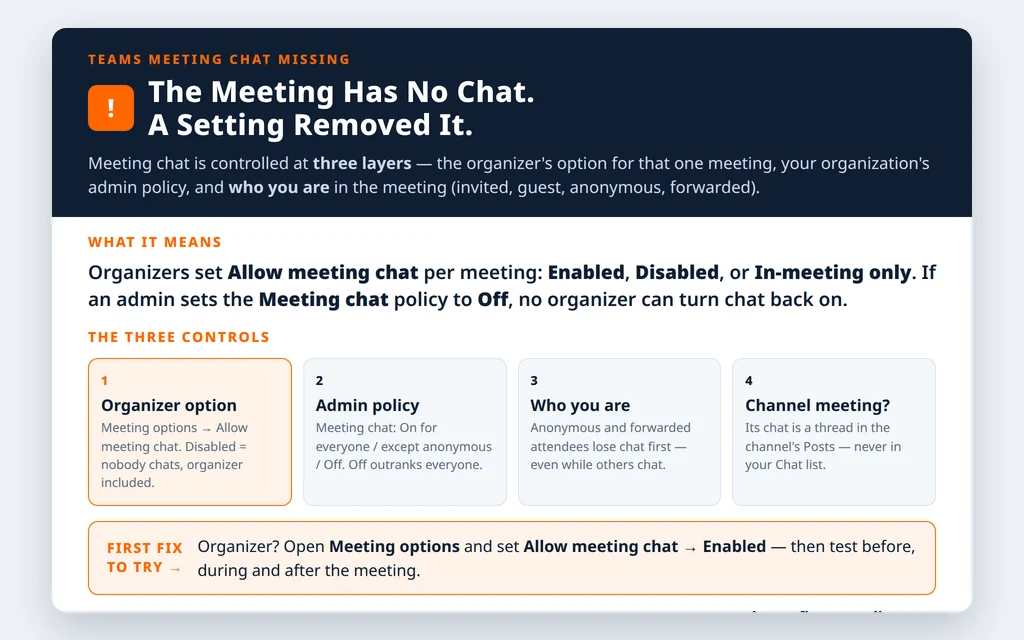
Table of Contents
Fix 1 — Organizer? Set Allow meeting chat in Meeting options
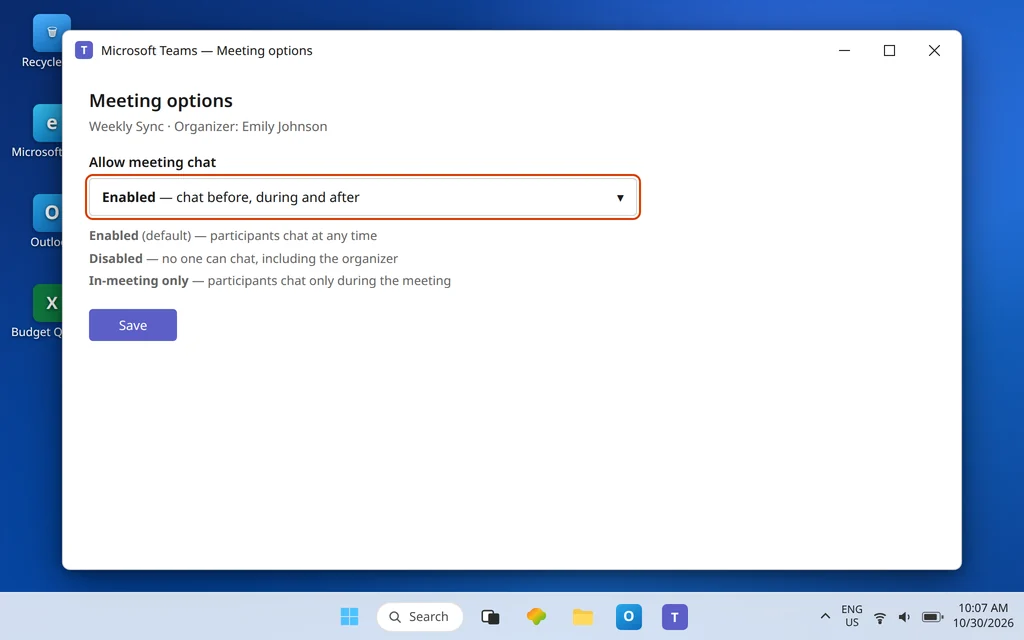
Every scheduled meeting carries its own chat switch, owned by the organizer (a co-organizer can change meeting options too). Its three values explain most one-meeting incidents:
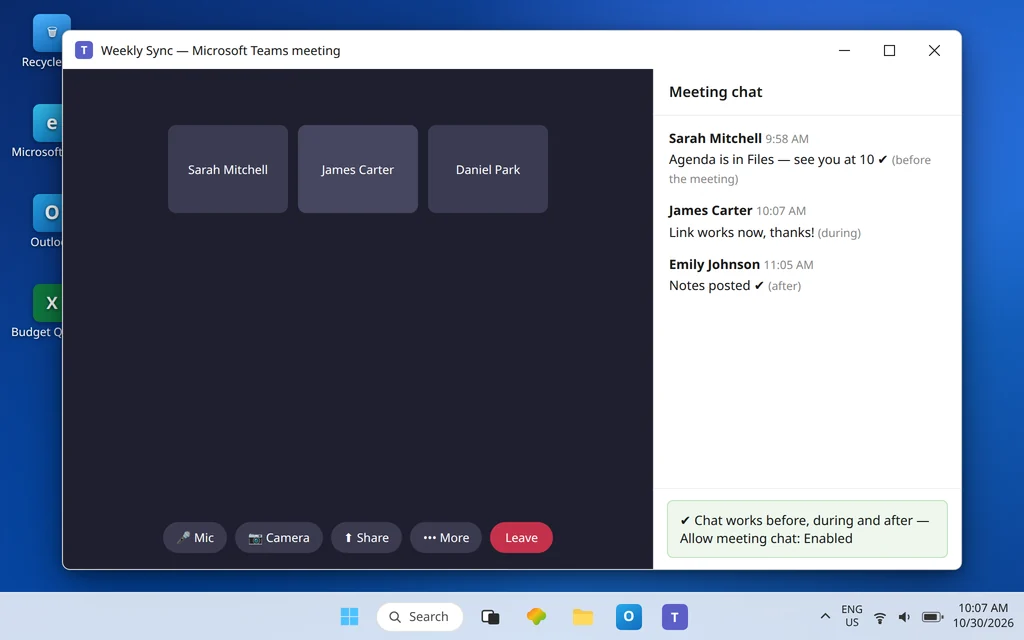
- Enabled (the default): participants can chat before, during, and after the meeting.
- Disabled: no one can chat at any time — including the organizer. The chat is effectively read-only, which is why an organizer who set this weeks ago for a sensitive meeting can later swear “chat is broken” in their own meeting.
- In-meeting only: participants can chat only while the meeting is running; the organizer can chat before, during, and after. This is the setting behind “chat worked during the call but the box is dead now that it ended” — nothing is broken; the window has closed by design.
To change it: open the meeting in Teams Calendar (or, in a live meeting, More actions > Meeting options), find Allow meeting chat, set it to Enabled, and save. If the control itself looks available but changing it has no effect on the actual meeting, do not keep toggling — the admin policy in Fix 3 outranks it, which Microsoft states explicitly: the policy determines the chat experience regardless of what Meeting options shows or what the organizer selects.
Fix 2 — Chat works for others but not for you? Check what kind of participant you are
When the room splits — most people chatting, a few locked out — the difference is almost always identity, not settings on your PC:
- Anonymous joiners (joined from a link without signing in) are the first to lose chat. The admin policy can be set to On for everyone but anonymous users, in which case anonymous participants cannot read or send any messages while signed-in participants chat normally. The fix is yours to apply: sign in with your work account and rejoin.
- Guests and external participants follow the organizer-side and admin-side external chat rules, and people who are external and were never invited cannot be added directly to the meeting chat at all — adding them starts a new group chat instead.
- Forwarded invitations carry a quiet penalty: attendees who were forwarded the meeting cannot access the chat after the meeting ends. The same applies to people who were nudged into the meeting, and to anyone who was removed from the chat or left it. If your chat vanished after a meeting you attended through a forwarded invite, ask the organizer to add you to the original invitation.
- Timing: with In-meeting only (Fix 1), arriving before the start or returning after the end looks exactly like “chat disabled” — because for you, at that moment, it is.
Fix 3 — Missing in every meeting? The admin Meeting chat policy outranks everyone
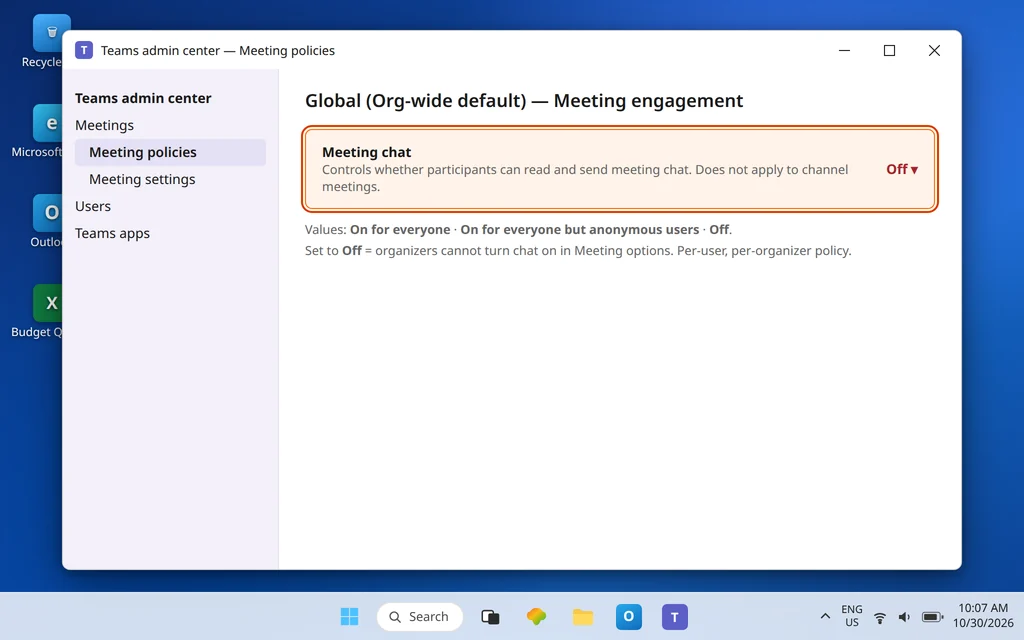
If one organizer’s meetings never have chat — for any participant, in any client — the cause sits in the Teams admin center. The policy is called Meeting chat (meeting policies; PowerShell parameter -MeetingChatEnabledType), and it is a per-user, per-organizer policy: it governs meetings organized by the people it is assigned to. Its admin-center values are:
- On for everyone — chat allowed; the organizer’s Allow meeting chat option then shapes each meeting.
- On for everyone but anonymous users — everyone except anonymous joiners can read and send messages.
- Off — meeting chat is turned off for all participants, and organizers cannot turn it back on with their meeting option.
That last point is the one to carry into a conversation with IT: if the policy is Off, no organizer setting, reinstall, or new meeting link will restore chat. Ask the admin to check Teams admin center > Meetings > Meeting policies, the policy assigned to the organizer, and the Meeting chat value. Name the policy and the setting in your request — “chat is missing in meetings organized by Sarah Mitchell, and the organizer’s Allow meeting chat is already Enabled” gets a policy check; “Teams chat is broken” gets a reinstall suggestion. One scope note from Microsoft: this admin Meeting chat setting does not apply to channel meetings — which leads directly to Fix 4.
Fix 4 — Channel meeting? Your chat is a thread in the channel, not a Chat entry
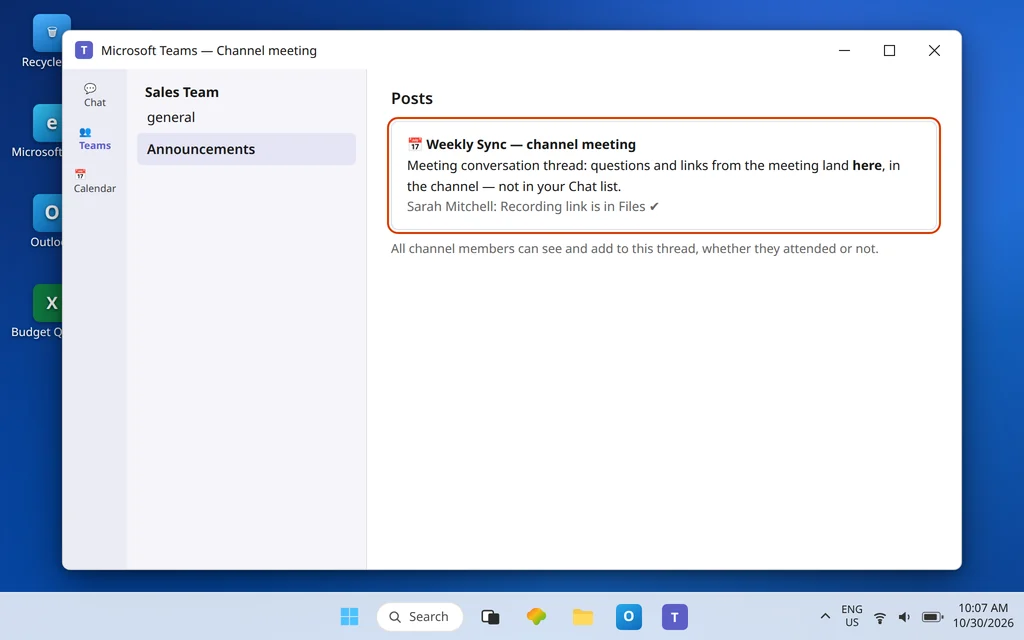
Channel meetings break people’s mental model, because their “meeting chat” never appears in the Chat list. Microsoft’s design: in channel meetings, all channel members can see and add to the chat conversation whether they attend the meeting or not, and the conversation appears as a thread in the channel’s Posts (Conversations) feed. So if you are hunting for this meeting’s chat under the Chat icon, stop — open the team, open the channel, and find the meeting thread in Posts.
The reverse symptom also lives here: someone invited to a channel meeting who is not a member of the channel will not be able to use the chat at all. That is not a policy fault; channel-meeting chat belongs to the channel’s members. The organizer’s choices are to add the person to the channel (if they should have ongoing access) or to run the meeting as a regular scheduled meeting instead, where invited participants get a normal meeting chat. And because the admin Meeting chat policy does not apply to channel meetings, asking IT to change it will not move either of these cases.
Fix 5 — The Chat button itself is missing from the meeting window
A narrower symptom: everyone agrees chat exists, but your meeting controls show no Chat button at all. Work the local list before blaming policy:
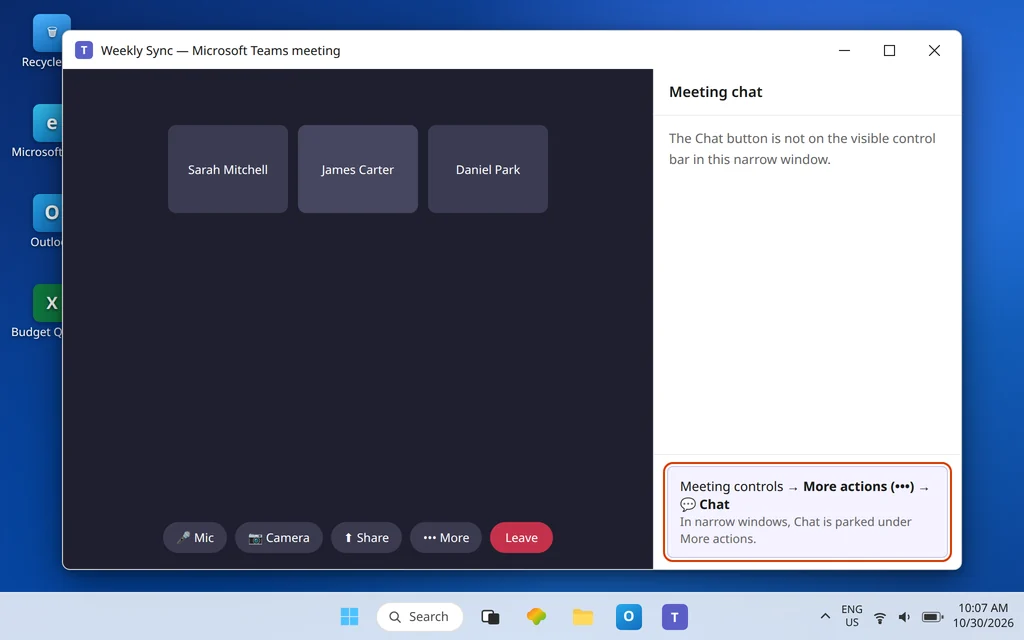
- In a narrow meeting window, controls collapse — check More actions (…) in the meeting controls; Chat can be parked there. Microsoft’s own steps list Chat under the controls or under More actions.
- Pop the meeting out or widen the window and look again; a red dot on Chat signals new messages even when the pane is closed.
- Leave and rejoin the meeting once — a control bar that loaded badly is a known shape of this complaint, and rejoining rebuilds it.
- Try the same meeting in Teams on the web. If Chat appears there, the desktop client is at fault: update Teams, then fully quit (tray icon > Quit) and relaunch. If the meeting itself will not let you in at all, that is the separate problem covered by Can’t Join a Microsoft Teams Meeting.
Keep this fix in its lane: it addresses a hidden button in one meeting on one device. A disabled compose box in every meeting points back to Fixes 1–3, and ordinary chat messages failing to send outside meetings are a different symptom entirely — see Microsoft Teams Not Sending Messages.
Fix 6 — Before and after the meeting: where the chat actually lives
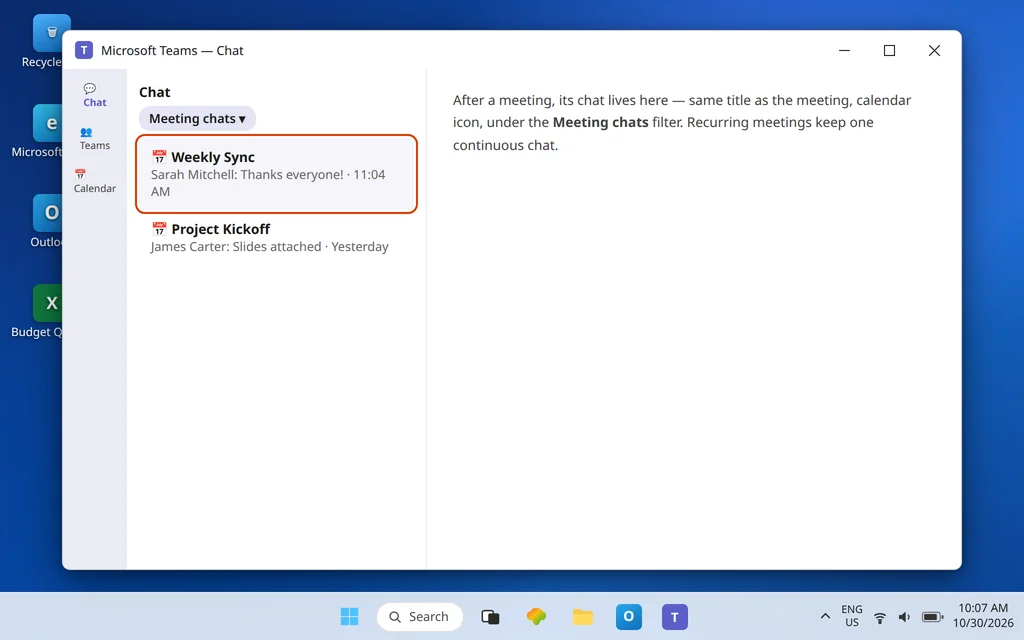
Two timing confusions round out most remaining reports. First, invited participants can chat before a meeting starts: open Calendar, right-click the meeting, and choose Chat with participants — if that conversation is view-only, the organizer’s option is In-meeting only or Disabled (Fix 1). Second, after a meeting, its chat lives in your Chat list (use the Meeting chats filter), titled like the meeting and marked with a calendar icon — recurring meetings keep one continuous chat across occurrences. If you cannot find or open it afterward, run the identity checks in Fix 2: forwarded, nudged, external, and anonymous attendees are exactly the groups Microsoft lists as losing post-meeting chat access.
Confirm it worked
As organizer, set Allow meeting chat to Enabled, then have a participant send a test message before the meeting, during it, and after it ends — all three should land. If only anonymous joiners were affected, have one of them sign in and rejoin and confirm they can now read and post. For a policy fix, test with a newly created meeting from the same organizer, since you are verifying the organizer’s policy, not one old meeting’s options. For a channel meeting, confirm the thread in the channel’s Posts is where replies are landing and that channel members — attendees or not — can add to it.
Frequently asked questions
Why is there no chat in my Teams meeting?
Chat is governed by three layers: the organizer’s Allow meeting chat option for that meeting, your organization’s admin Meeting chat policy, and your participant type — invited, guest, anonymous, or forwarded. A Disabled organizer option or an Off admin policy removes chat for everyone; anonymous and forwarded attendees can lose it while others keep it. Start with the organizer’s Meeting options, then check identity, then ask IT about the policy.
How do I turn meeting chat back on as the organizer?
Open the meeting and go to Meeting options, then set Allow meeting chat to Enabled. Enabled allows chat before, during, and after the meeting; In-meeting only restricts participants to the live meeting; Disabled blocks everyone including you. If changing it has no effect, your admin’s Meeting chat policy is set to Off, and only an admin can change that — organizers cannot override it.
Why can guests or anonymous users not chat when everyone else can?
Because both the admin policy and external-access rules can treat them differently. An admin policy of On for everyone but anonymous users means anonymous joiners cannot read or send any messages at all, while signed-in participants chat normally. External users who were never invited cannot be added directly to a meeting chat either. Signing in with a proper account and being on the original invitation fixes most of these cases.
Where is the chat for a channel meeting?
In the channel. Channel meeting conversations appear as threads in the channel’s Posts feed, and every channel member can see and add to them whether or not they attended. They do not appear as a normal entry in your Chat list. People invited to the meeting who are not channel members cannot use that chat — that restriction is by design.
My chat worked during the meeting but is disabled now. Why?
The organizer’s Allow meeting chat option is almost certainly set to In-meeting only: participants may chat only while the meeting is running, while the organizer retains chat access before and after. Ask the organizer to switch it to Enabled if the conversation needs to continue. The exception is a forwarded invitation — forwarded attendees lose post-meeting chat access regardless of the option.
Is this the same as Teams messages not sending?
No. This article covers the meeting chat being missing or disabled by an option, a policy, or your participant type. If you can open chats and type but messages fail to send in normal chats and channels, that is a sending failure with different causes — use Microsoft Teams Not Sending Messages instead.
Chat still missing from a meeting that should have it? Contact us at servicedesk@howtofixerroronline.com or through our Contact page and tell us whether you are the organizer, what Allow meeting chat is set to, whether the problem affects one meeting or all of one organizer’s meetings, and whether you joined signed-in, as a guest, or anonymously. We will never ask for your password.