
Microsoft Teams Out of Office Status Not Updating
You set your out of office before your break. Either it never appeared — colleagues messaged you all week with no idea you were away — or the opposite happened: you came back, turned it off, and Teams still shows you as out of office days later. Both failures have the same root: Teams out of office is not a Teams-only setting. It is one shared setting with Outlook’s automatic replies, plus a second trigger hiding in your calendar, and updating only the copy you can see leaves the other one in charge.
Two neighbors own different status faults, in one line each: if Teams shows you Away while you are actively working, that is Microsoft Teams Showing Away (Article 115), and if a status you set by hand keeps resetting itself, that is Article 140. This article owns only the out-of-office status and its sync with Outlook.
Quick Answer: Teams and Outlook share one out of office setting: schedule it in Teams via your profile picture > Set status message > Schedule out of office (turn on Turn on automatic replies, write the required message, set the time period) and Outlook automatic replies turn on with the same dates and message — and edits in Outlook are reflected back in Teams. If the status will not update, check for the second trigger: an Outlook calendar event set to Show as Out of Office, which drives the Teams status on its own. To clear a stuck status, turn automatic replies off and Save in the OOO screen, confirm they are off in Outlook too, and delete or reclassify any out-of-office calendar event covering today.
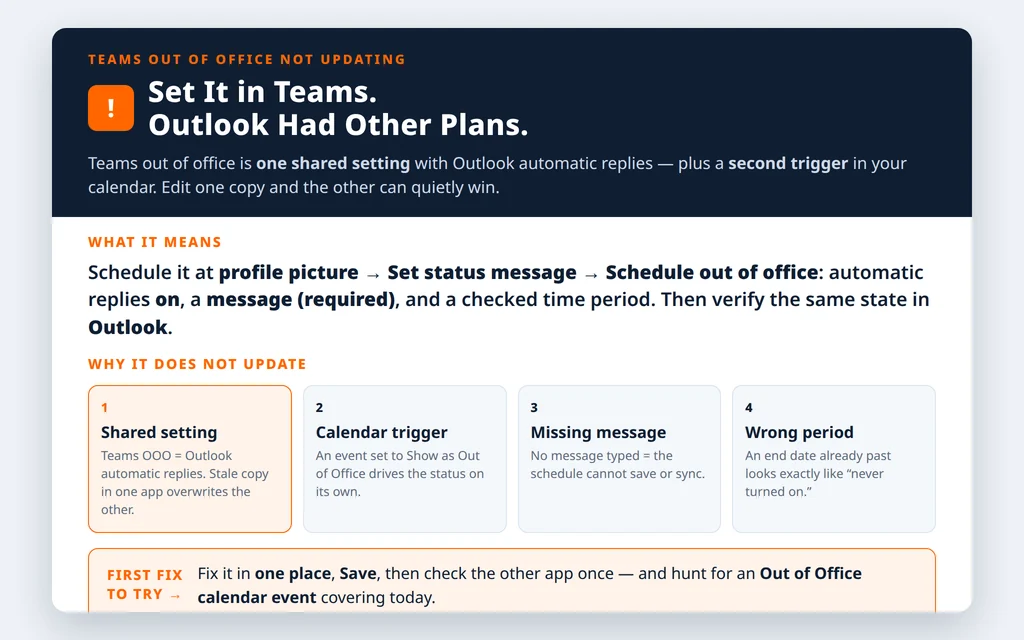
Table of Contents
How out of office in Teams actually works (the two triggers)
Everything below follows from Microsoft’s design, so it is worth stating plainly:
- Trigger 1 — automatic replies. Scheduling out of office in Teams turns on automatic replies in Outlook with the same time range and message, and updating your out of office details in Outlook is reflected in Teams. It is one setting edited from two apps — which is why an edit can appear to “not save”: the other app’s copy, or a scheduled period you forgot there, is what Teams is actually showing.
- Trigger 2 — your calendar. Microsoft Learn’s presence documentation says the app-configured Out of Office state is used when an automatic reply is set or your calendar has an event set to show as “Out of Office.” A calendar event alone — no automatic replies anywhere — is enough to put the out-of-office indicator on your Teams presence for the length of that event.
- A dual state is normal. Learn also documents Available, Out of Office: if automatic replies cover a period and you are actively using Teams during it, your presence shows as available alongside the out-of-office indicator. Colleagues seeing you “green but out of office” during your scheduled break are seeing the design, not a sync failure.
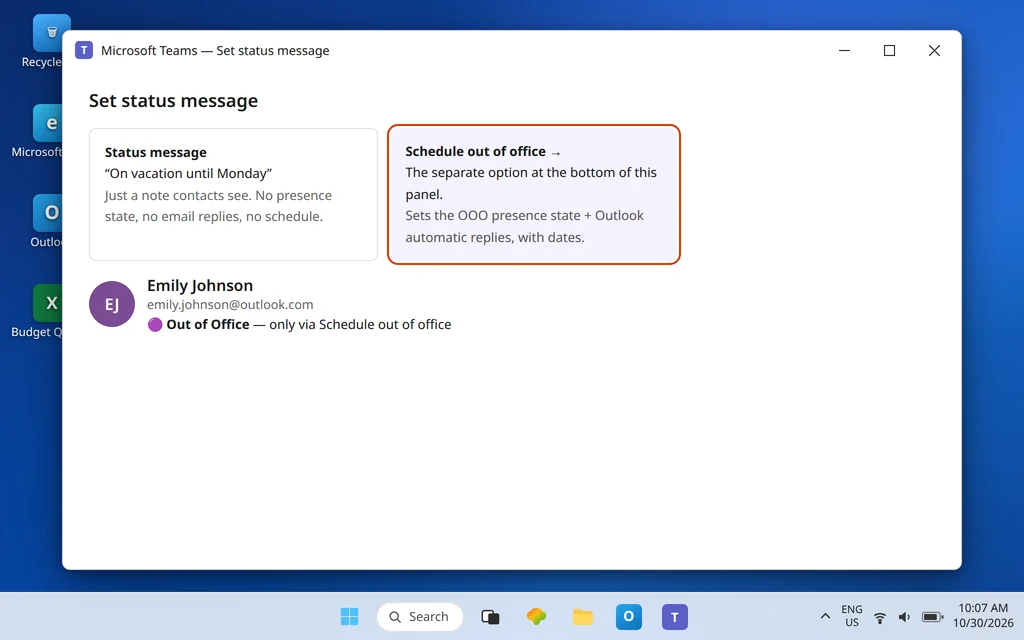
And one distinction prevents the most common false setup: a status message is not an out-of-office status. Typing “On vacation until Monday” into Set status message gives contacts a note; it does not turn on automatic replies, does not set the out-of-office presence state, and does not sync a schedule to Outlook. The OOO flow is the separate Schedule out of office option at the bottom of that same panel — which is exactly where Fix 1 starts.
Fix 1 — Set it (or fix it) the documented way in Teams, with every field checked
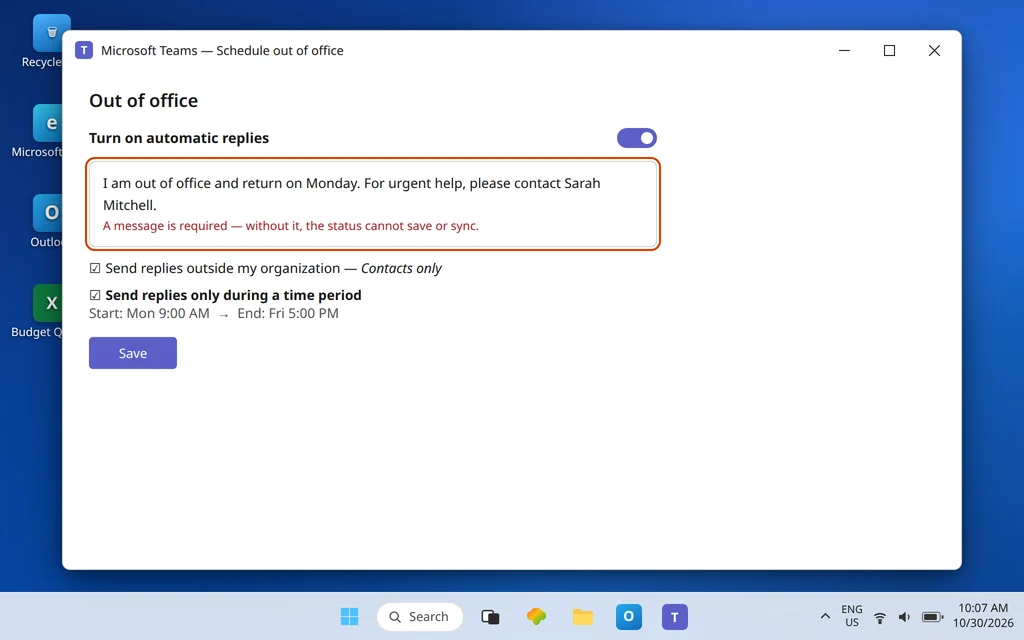
If your OOO never appeared, rebuild it once, slowly, checking the fields people most often miss:
- Select your profile picture at the top of Teams and choose Set status message.
- Select Schedule out of office at the bottom of the options. (The alternative route is Settings and more > Settings > General, the Out of Office section near the bottom, then Schedule — both open the same screen.)
- Turn on the toggle next to Turn on automatic replies.
- Type an out of office message. This is not decoration: Microsoft states a message is required to set the status and sync it with your Outlook calendar. An empty message box is a silent no-save for the whole schedule.
- If external senders should get a reply, select Send replies outside my organization and choose contacts or all external senders.
- Select Send replies only during a time period and set the start and end dates and times — then sanity-check them: right dates, right year, and an end time that is genuinely in the future if the status should be on now. A period that ended yesterday explains a status that “never turned on.”
- Save.
Fix 2 — Check Outlook: the other editor of the same setting
Now verify from the second app, because whatever Outlook shows is what the shared setting currently is:
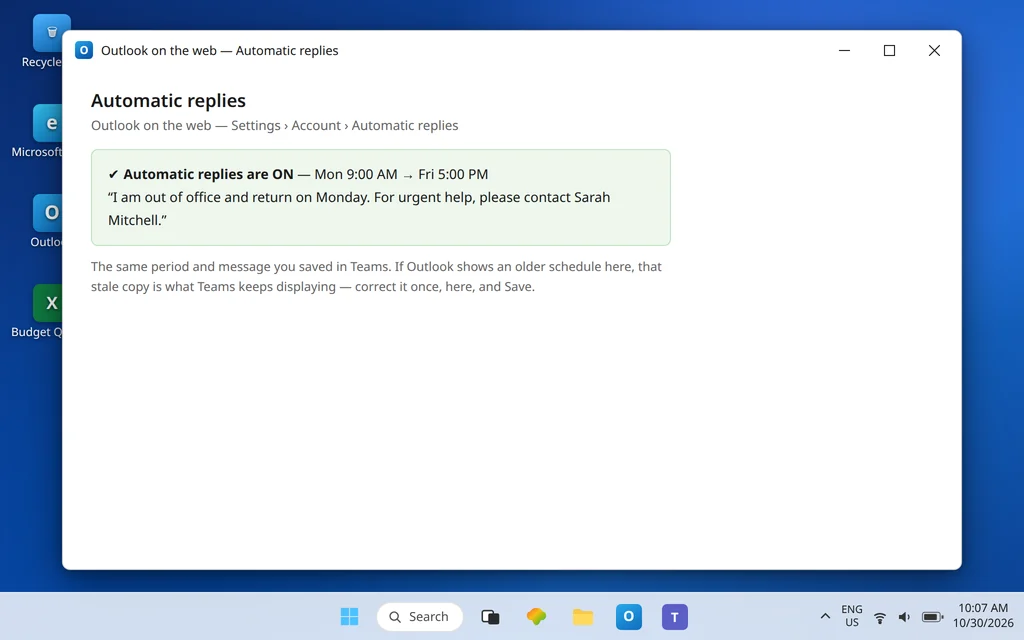
- In Outlook on the web, open Settings > Account > Automatic replies (in classic Outlook desktop: File > Automatic Replies).
- Confirm the state matches what you just saved in Teams: on or off, the same time period, the same message. After a correct save in Teams, you should see automatic replies turned on in Outlook with the time range and message you set in Teams.
- If Outlook shows something different — an older message, an older period, or replies still on after you turned them off in Teams — you have found your “not updating” cause: the two views were out of step, and the stale side kept winning. Correct it here, once, save, and then leave both apps alone while it settles (Fix 4 covers timing).
From now on, treat it as one setting with two doors: edit in one place, verify in the other, and never maintain slightly different schedules in both. Every divergence is a future “Teams ignored my change” report.
Fix 3 — Hunt the calendar event: the second trigger
Your automatic replies are correct — off, even — yet Teams still badges you out of office. That signature points at Trigger 2:
- Open your Outlook or Teams calendar for the days the status wrongly shows.
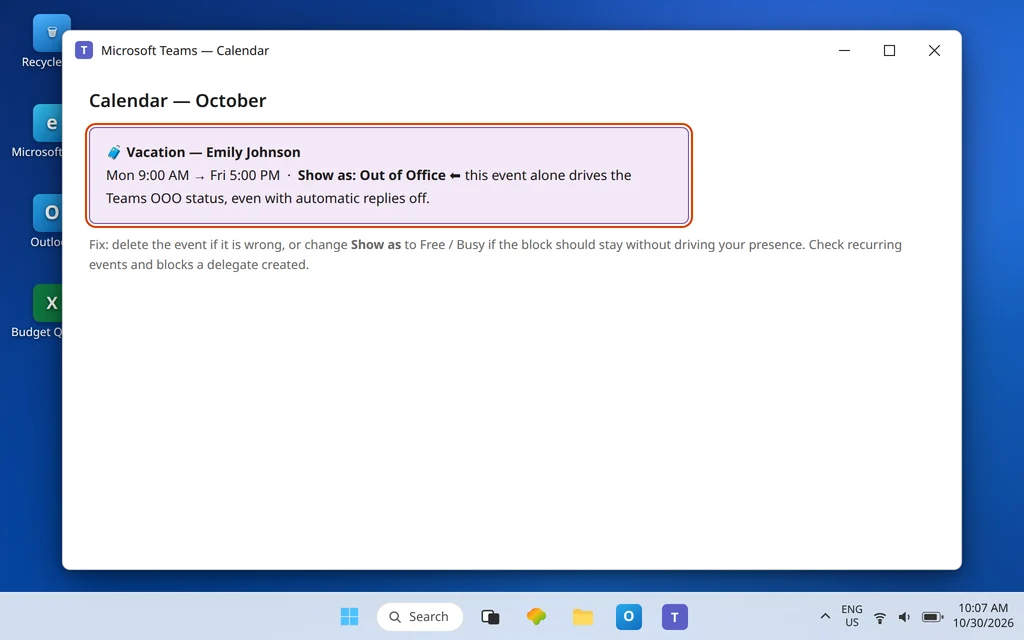
- Look for an event spanning that time whose availability is set to Show as: Out of Office — a “Vacation,” “PTO,” or “Office closed” block is the usual suspect, including recurring ones and events a delegate or a shared-calendar workflow created for you.
- Open the event and either delete it (if it is simply wrong) or change Show as to Free or Busy (if the block should stay on your calendar without driving your presence).
Remember the asymmetry this creates: the calendar event drives the status but does not send email replies, while automatic replies drive both the status and the replies. Mismatches between “my status says out of office” and “nobody got a reply” (or the reverse) almost always resolve to one trigger being set and the other not.
Fix 4 — Changed it and nothing moved? Respect the sync, then restart once
Edits to this shared setting are not a live typing mirror; presence itself is near real time for most people, but the one hard figure Microsoft publishes is for on-premises mailboxes, where presence delays of up to one hour maximum are expected. The practical routine after any OOO change:
- Make the change in one place (Fix 1 or Fix 2), save, and stop editing — repeated toggling in both apps is how divergent copies are born.
- Check the other app once to confirm it received the change, rather than re-saving there.
- Fully quit Teams (tray icon > Quit) and relaunch it, so your own client is not displaying a cached presence panel. Ask a colleague what they see on your profile — their view is the ground truth, not your own status picker.
- If your mailbox is hosted on-premises and the change is under an hour old, wait before escalating; if it is well past that, hand IT the specifics: which app you edited, the exact period set, and what Outlook automatic replies currently shows.
Fix 5 — Turn out of office fully off (both places, in order)
For the “stuck on after my break” case, do the complete off sequence — partial versions of this are why the status survives:
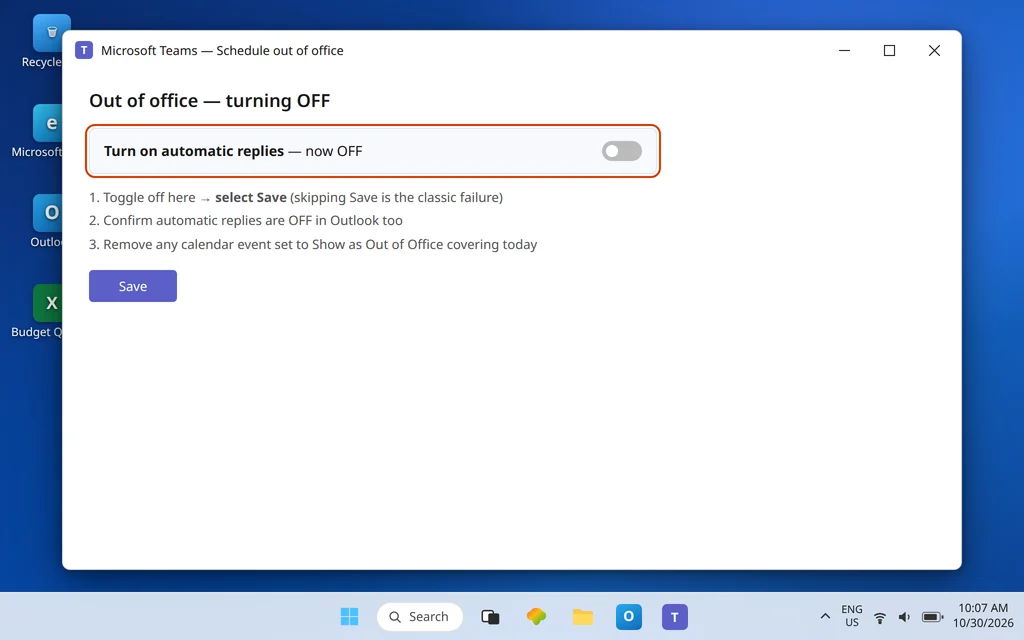
- In Teams: profile picture > Set status message > Schedule out of office, turn the Turn on automatic replies toggle off, and select Save. (Skipping Save is the classic failure here.)
- In Outlook: open Automatic replies and confirm they are off there too — because the setting is shared, seeing them off in Outlook is your proof the shared setting really changed.
- In your calendar: delete or reclassify any event set to Show as Out of Office that covers today (Fix 3) — with replies off, this event alone can keep the indicator alive.
- Clear or replace the leftover status message if your vacation text is still showing as a plain message: profile picture > Set status message, remove the text, Done. That step is cosmetic — it removes the note, not the status — but it stops colleagues reading last week’s message as today’s truth.
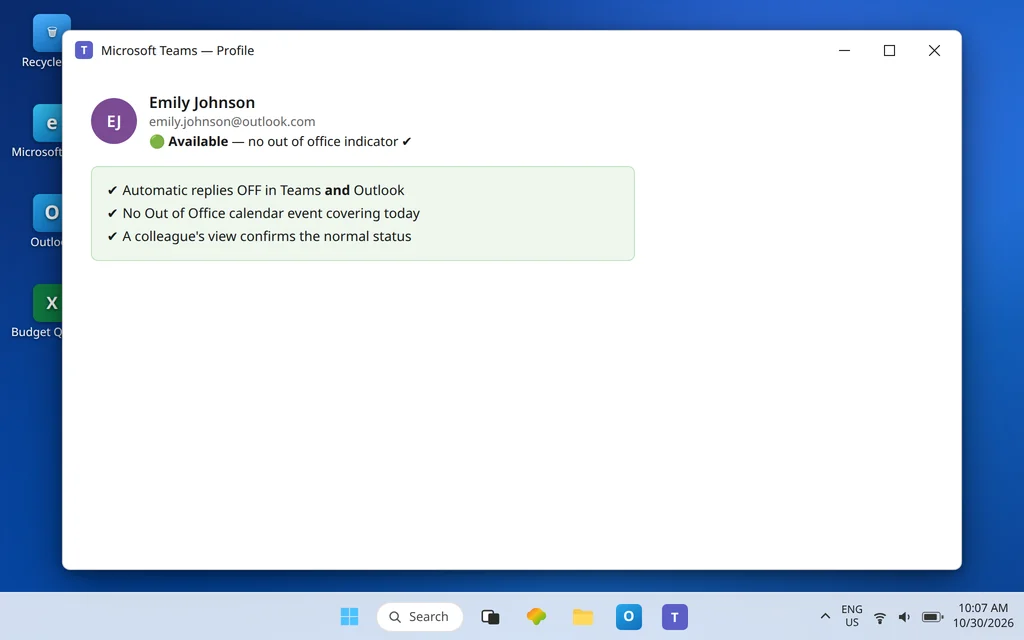
Then verify with a colleague’s view (Fix 4, step 3).
If your situation is instead that a status you picked manually — Busy, Do not disturb — will not stay put, you have left this article’s territory: that is Microsoft Teams Unable to Change Status (Article 140).
Confirm it worked
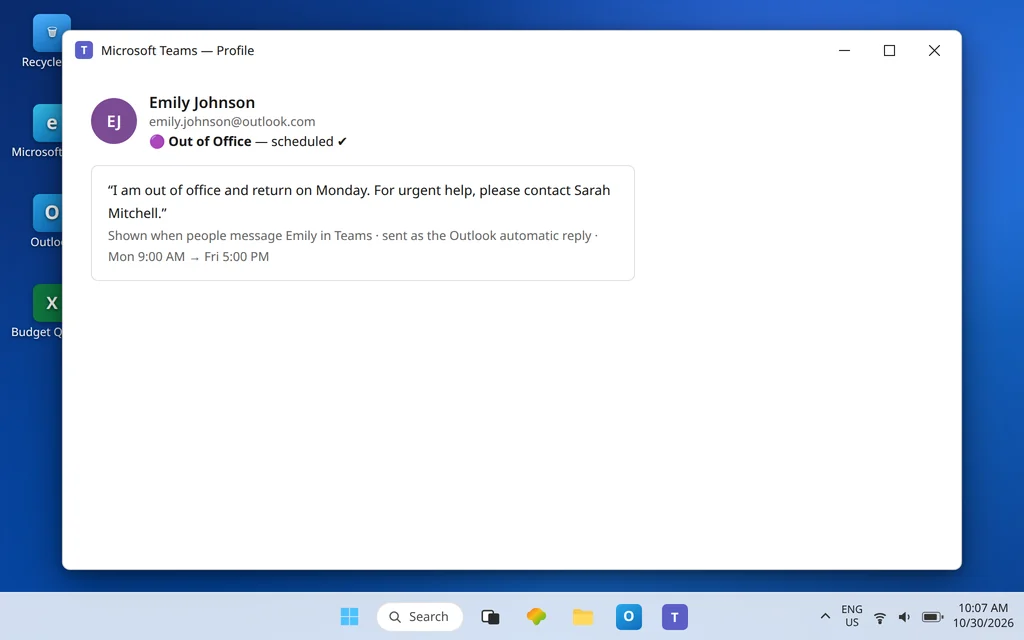
Have a colleague open your profile card and start a chat with you. For a status that should be on: they see the out-of-office indicator and your message when they message you, and an email to you draws the automatic reply with the same text and period. For a status that should be off: your presence shows your normal activity-based status with no out-of-office indicator, Outlook automatic replies shows off, no calendar event covering today is set to show as out of office, and an email to you gets no automatic reply. Test both directions once — on and off — because this setting fails in both directions for the same underlying reason.
Frequently asked questions
Why is my Teams out of office status not updating?
Because Teams and Outlook edit one shared setting, and a second trigger — a calendar event — can drive the status independently. The usual causes are: the OOO screen was saved without the required message, the scheduled time period is wrong or already past, Outlook holds a different (stale) automatic-replies schedule that keeps winning, or a calendar event set to Show as Out of Office is producing the indicator on its own. Fix the setting in one place, verify it in the other, and check the calendar.
How do I schedule out of office in Teams?
Select your profile picture, choose Set status message, then Schedule out of office at the bottom. Turn on Turn on automatic replies, type your message (required), optionally allow replies outside your organization, select Send replies only during a time period and set start and end times, then Save. The same screen is under Settings > General > Out of Office > Schedule.
Do Teams and Outlook out of office settings sync?
Yes — in both directions. Scheduling out of office in Teams turns on Outlook automatic replies with the same time range and message, and updating your out of office details in Outlook is reflected in Teams. That shared nature is also the risk: keeping different schedules in the two apps guarantees the stale one will eventually be the one Teams displays.
How do I turn out of office completely off in Teams and Outlook?
In Teams, open the out of office screen (profile picture > Set status message > Schedule out of office), turn Turn on automatic replies off, and select Save. Then confirm automatic replies are off in Outlook as well, and delete or change any calendar event set to Show as Out of Office that covers today — that event can hold the status up by itself even with replies off.
What is the difference between a status message and the out of office status?
A status message is just a note contacts see — it sets no presence state, sends no email replies, and carries no synced schedule. The out of office status is a presence state driven by automatic replies (or an out-of-office calendar event); it displays the indicator, shows your message to people who contact you in Teams, and sends the automatic reply in Outlook. Typing “on vacation” as a status message does none of the out-of-office jobs.
Why does Teams show me as available and out of office at the same time?
That dual state is documented behavior: Available, Out of Office appears when automatic replies are set for the period and you are actively using Teams during it. Teams is reporting both facts — you are at a keyboard right now, and your automatic replies are on. It is not a sync error, and it clears when the scheduled period ends.
Out of office still stuck, missing, or out of step with Outlook? Contact us at servicedesk@howtofixerroronline.com or through our Contact page and tell us what the Teams OOO screen shows, what Outlook automatic replies shows, and whether a calendar event set to Out of Office covers the dates in question. We will never ask for your password.