
Microsoft Teams Cannot Upload Files in Chat — Upload Failed
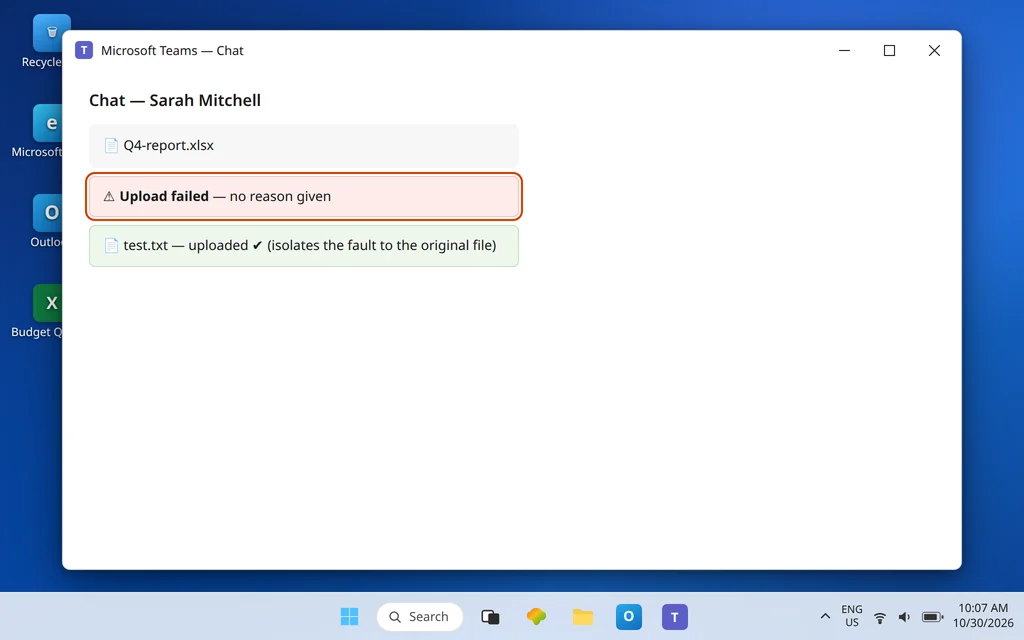
You drag a file into the chat, watch it think about it, and get the least helpful message in software: Upload failed. No reason, no code — just a file that will not go. Sarah Mitchell is waiting for the document, the meeting starts in five minutes, and Teams has decided to be mysterious.
First, know which failure you actually have, because three similar problems have their own guides. If Teams shows an explicit “blocked by policy” message, that is a different, deliberate block — see Microsoft Teams File Upload Blocked by Policy. If files upload fine but will not open afterward, see Microsoft Teams Files Not Opening; if they will not download, see Microsoft Teams Files Not Downloading. This article is for the generic upload failure itself. The key fact that unlocks most of it: a file you send in a chat is stored in your own OneDrive, in a folder called Microsoft Teams Chat Files — and a file shared in a channel is stored in that team’s SharePoint site. So a “Teams” upload failure is very often a OneDrive or SharePoint problem wearing a Teams costume.
Quick Answer: Test with a small, simple file first (a tiny text file with a plain name). If that works, your original file is the problem — check its name for characters like
" * : < > ? / \ |, make sure it is closed in its app, and confirm it is under the 250 GB limit. If even the test file fails, check your OneDrive storage — chat uploads land in your OneDrive, and a full (or not-yet-provisioned) OneDrive fails every upload. Then try uploading through the Files tab or OneDrive on the web to separate an app problem from an account problem.
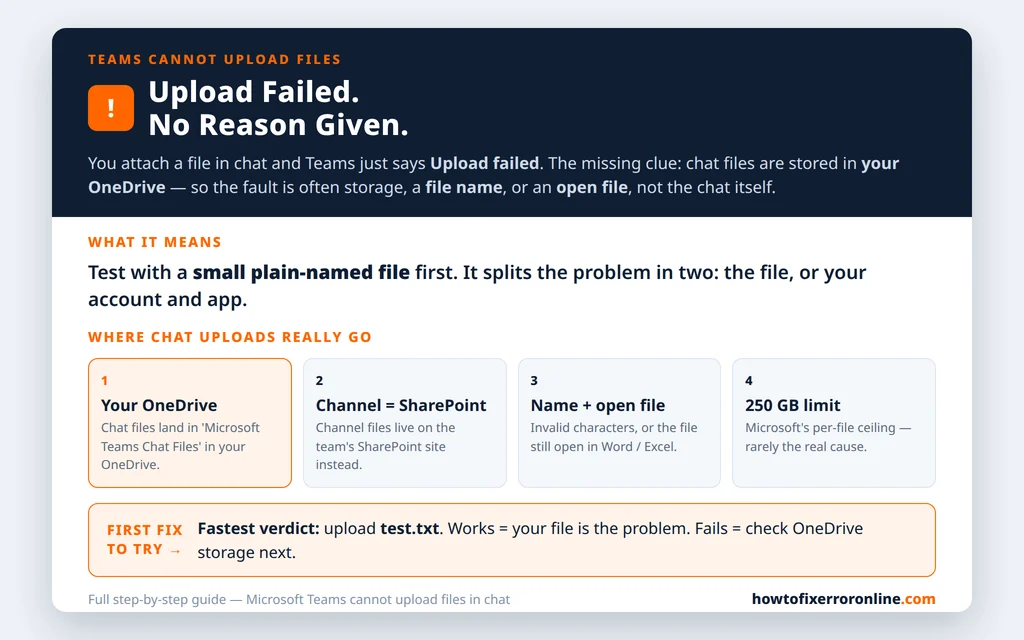
Table of Contents
Fix 1 — Isolate the file: try a small test file
Before changing any setting, learn whether the failure follows the file or follows you:
- Create a tiny text file on your desktop, name it
test.txt, type a word in it, and save it. - Drag it into the same chat.
If test.txt uploads, Teams, your account, and your connection are all working — the original file is the suspect, and Fixes 3 and 4 are your route. If even the test file fails, skip ahead to Fix 2 (storage) and Fix 6 (app vs account). This two-minute test prevents the classic mistake of reinstalling Teams to fix one badly named spreadsheet.
Fix 2 — Check your OneDrive storage (chat files live there)
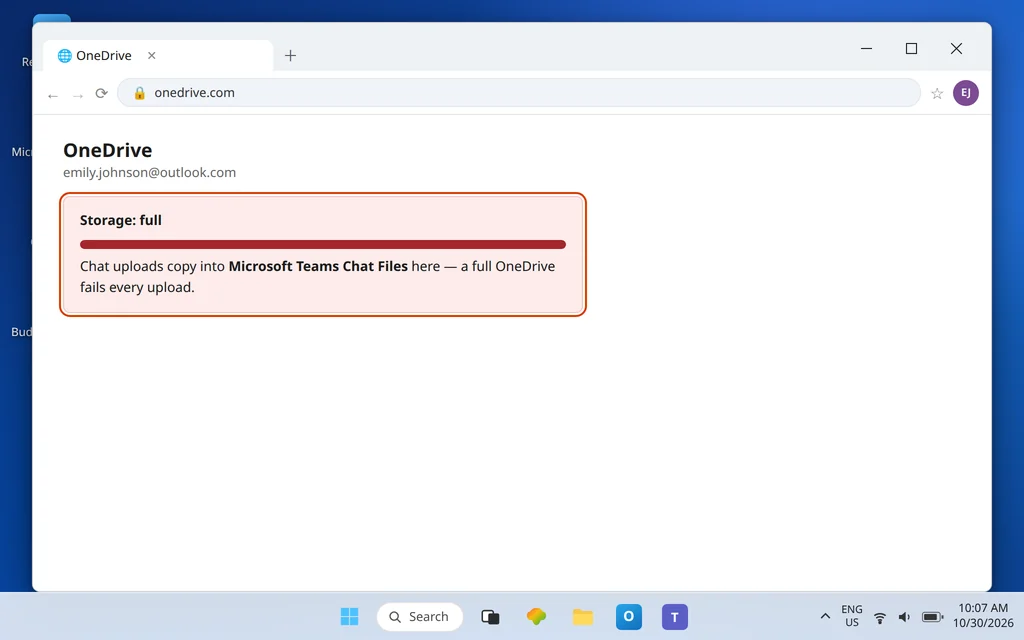
Every file you attach in a one-to-one or group chat is copied into your OneDrive, into the Microsoft Teams Chat Files folder, and shared from there. Two account states therefore break chat uploads completely:
- Your OneDrive is full. There is nowhere for the copy to go, so Teams reports a generic failure.
- Your OneDrive is not provisioned yet (common on a brand-new account that has never opened OneDrive) — the destination does not exist until it is set up.
Check both:
- Open onedrive.com (or OneDrive in your Microsoft 365 app launcher) and sign in as Emily Johnson — as you.
- Look at the storage meter. If you are at or near your limit, delete or move large files (check the Recycle bin there too — deleted files can still count until it is emptied) and try the upload again.
- If OneDrive opens for the very first time and walks you through setup, finish the setup, wait a few minutes, and retry — you may just have provisioned the missing destination.
For channel uploads, the equivalent check is the team’s SharePoint site storage, which your IT team may need to review with you. And if OneDrive on your PC is generally unhealthy, fix that layer too with OneDrive Not Syncing — Teams uploads lean on the same account.
Fix 3 — Rename the file: remove special characters
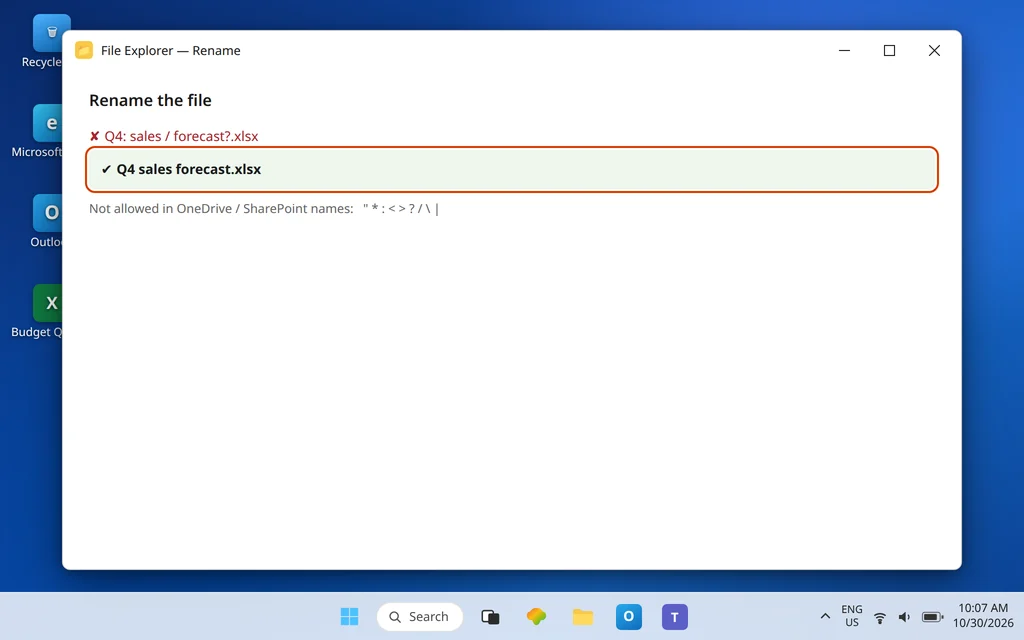
SharePoint and OneDrive — the storage underneath Teams — refuse certain characters in file and folder names. A name that Windows happily allows can be rejected by the service, and Teams reports the rejection as a plain upload failure. Rename the file to something plain and try again:
- Not allowed:
" * : < > ? / \ |— and be cautious with# % & { } ~as well, which some organizations do not support in names. - Also shorten very long names and avoid trailing spaces or periods.
- A name like
Q4 report (final) v2.pdfis fine; a name likeQ4: sales / forecast?.xlsxis two failures waiting to happen.
Fix 4 — Close the file in its app, and check the size honestly
A file that is open in Word, Excel, or another app — especially one that is mid-save or locked — can fail to upload because Teams cannot get a clean copy of it. Save and close the file completely, then attach it again. If a colleague has the same file open from a shared location, that can hold the lock too; send your own saved copy instead.
On size: the Microsoft Learn limit for a single file uploaded to Teams, SharePoint, or OneDrive is 250 GB, so ordinary documents are nowhere near it — do not let “too large” become a lazy explanation for a 4 MB spreadsheet. Size is a realistic suspect only for huge video or disk-image files, and even then your organization may set lower practical limits, and your remaining OneDrive space (Fix 2) matters more than the file’s size on its own.
Fix 5 — Change the method: drag-and-drop, or the Files tab
Sometimes the attach path itself is stuck while the storage is fine. Vary the route:
- Drag and drop the file straight onto the chat window instead of using the Attach (paperclip / +) button — or the reverse, if drag-and-drop is what failed.
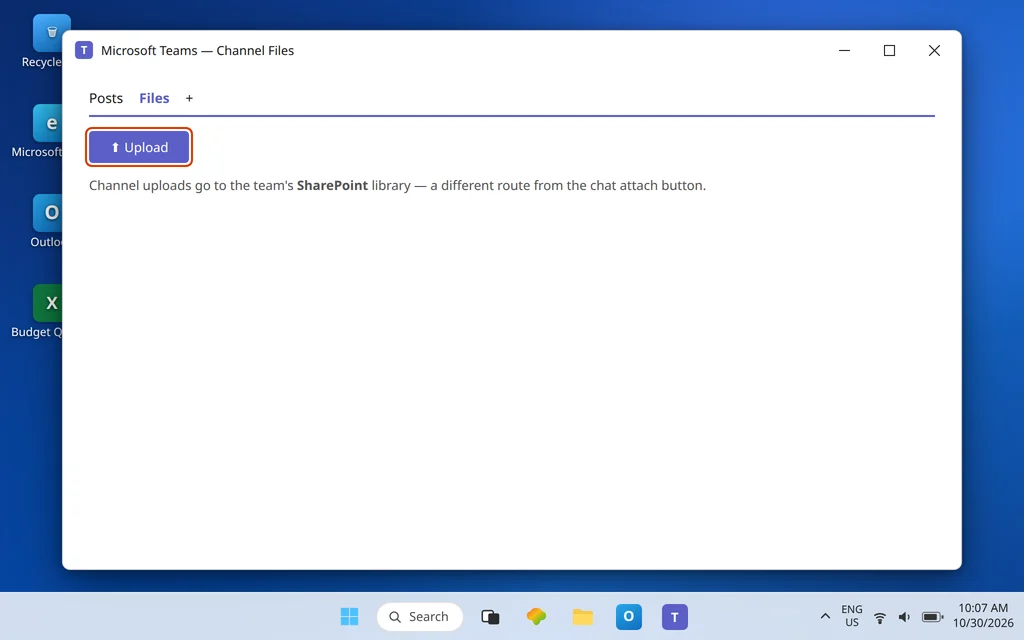
- For a channel, go to the channel’s Files tab and use Upload there; the file lands in the team’s SharePoint library and appears in the channel.
- Restart Teams once between methods, so you are not testing against a wedged upload queue — a previously failed upload sitting in the chat can confuse later attempts, so delete the failed attachment entry first.
Fix 6 — Upload through OneDrive web to isolate app vs account
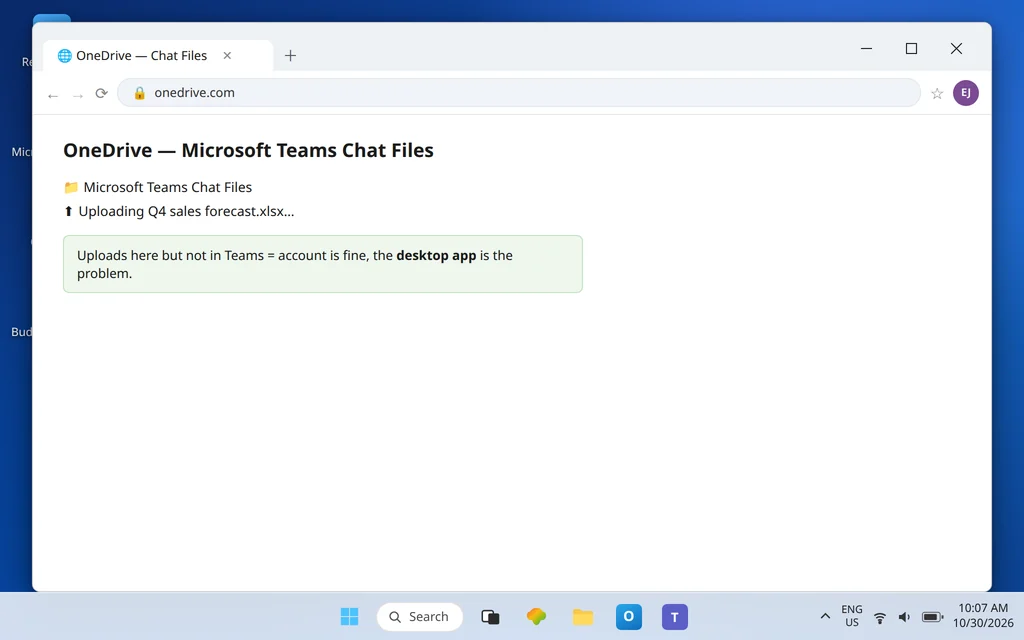
This is the decisive experiment. If a file uploads happily to OneDrive on the web but fails in the Teams desktop app, your account and storage are innocent and the app is guilty. If it fails on the web too, the problem is at the account/storage/service layer and no amount of app reinstalling will touch it:
- Go to onedrive.com, open the Microsoft Teams Chat Files folder, and upload the same file there.
- Back in the Teams chat, you can then share it from OneDrive using Attach > OneDrive — the chat gets the file, and you have a workaround for today even before the root cause is fixed.
Fix 7 — Try Teams on the web
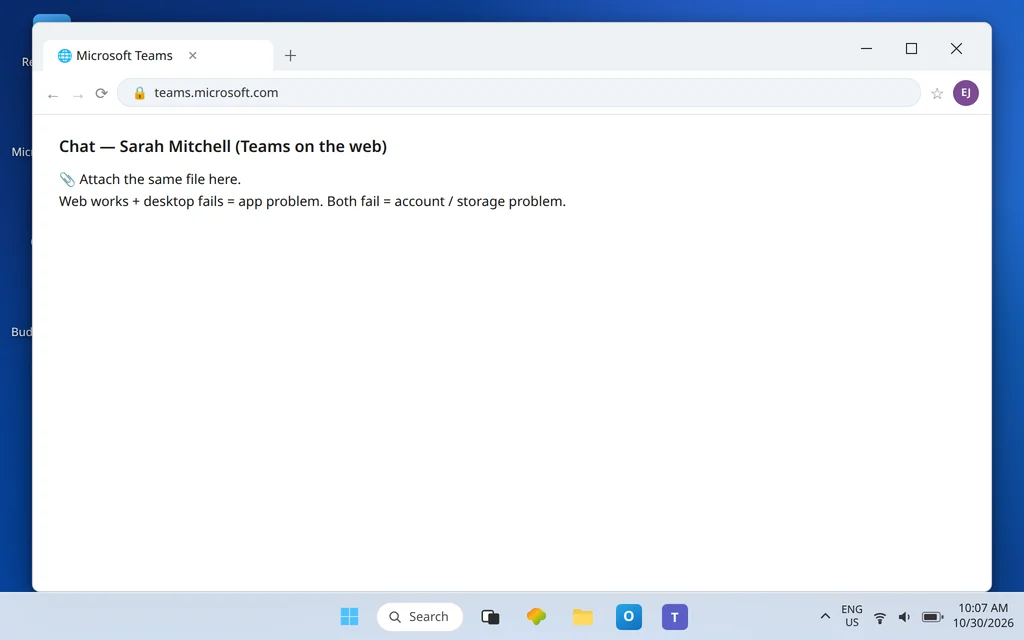
Open teams.microsoft.com in Chrome or Edge, sign in, and attach the file in the same chat. Web success plus desktop failure is the classic signature of a desktop-app problem (which Fix 9 addresses). Web failure plus OneDrive-web failure (Fix 6) points firmly at the account, storage, or a service issue — in which case check with your IT team whether there is a known Microsoft 365 incident before spending more of your own time.
Fix 8 — Sign out of Teams and back in
A stale sign-in token can leave the app looking signed in while its permission to write to OneDrive quietly fails. Click your profile picture, choose Sign out, wait for Teams to close fully, relaunch it, and sign back in as yourself. Then repeat the test.txt upload from Fix 1 — it is still the quickest verdict you have.
Fix 9 — Clear the Teams cache (for the upload pipeline)
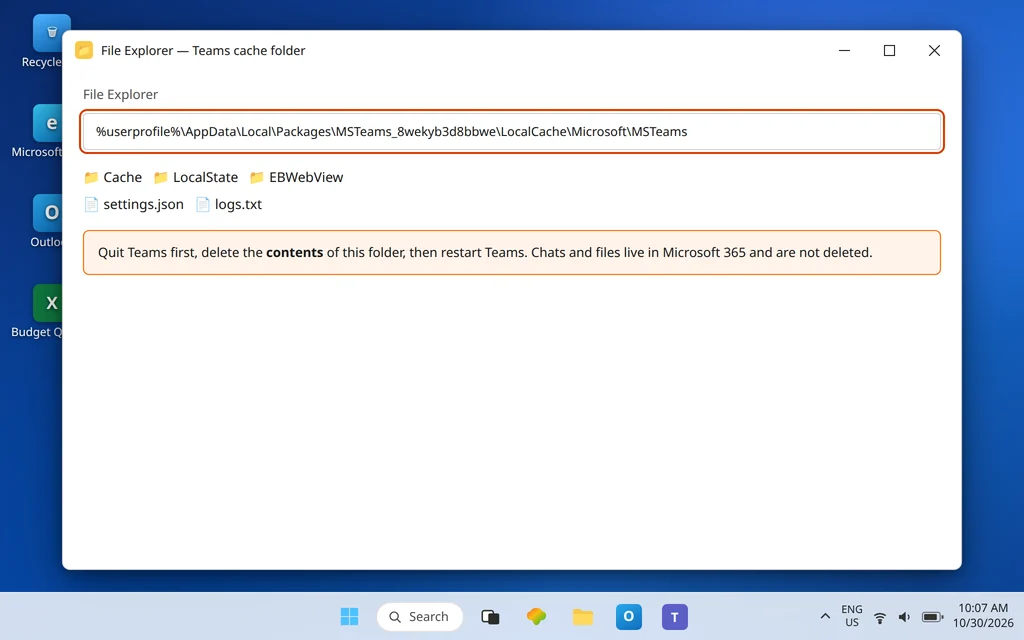
If every app-side test says the desktop app is at fault, a cache reset is a reasonable step for this problem — it rebuilds the local data the upload pipeline works from. It does not delete your chats or files, which live in Microsoft 365.
- Right-click the Teams icon in the system tray and choose Quit.
- Press Windows + R, paste
%userprofile%\AppData\Local\Packages\MSTeams_8wekyb3d8bbwe\LocalCache\Microsoft\MSTeamsand press Enter. - Delete the contents of the folder.
- Restart Teams, sign in if asked, and retry the test file.
If uploads still fail after a clean cache, a sign-out, and a working web version, reinstalling Teams from Microsoft’s site is the remaining app-side step — but do Fix 6 first, because an account-side fault will survive a reinstall untouched.
Confirm it worked
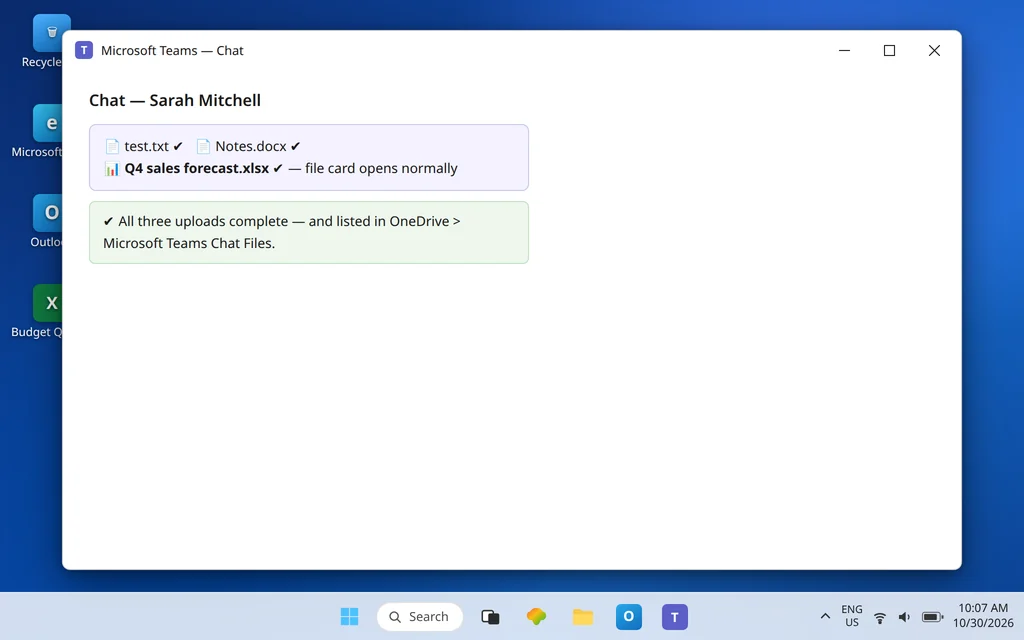
Upload three things to the chat, in this order: the test.txt from Fix 1, a normal working document (a Word file like the ones James Carter sends you), and finally the original file that failed. All three should complete, show a proper file card in the chat, and open when clicked. Then check the Microsoft Teams Chat Files folder in your OneDrive: the chat files should be listed there, confirming the storage path underneath is healthy — not just the app’s surface.
How to stop it happening again
- Keep headroom in OneDrive. Chat files accumulate in Microsoft Teams Chat Files; a storage warning ignored today is an upload failure next month.
- Name files plainly from the start. Letters, numbers, spaces, hyphens — a boring file name is an uploadable file name.
- Close before you send. Build the habit of saving and closing a document before attaching it; most “mystery” failures on the second attempt come from this alone.
Frequently asked questions
Why does Teams say “Upload failed” in chat?
Because the copy of your file could not be written to its destination — and for chat, that destination is your own OneDrive. The common reasons are your OneDrive being full or not set up yet, characters in the file name that SharePoint and OneDrive do not allow, the file being open and locked in its app, or a desktop-app fault. The test-file check in Fix 1 tells you which side to work on.
Where are files from a Teams chat actually stored?
In the sender’s OneDrive, in a folder called Microsoft Teams Chat Files. The people in the chat get access to that copy. Files shared in a channel are different: they are stored in the team’s SharePoint site. That is why a full personal OneDrive breaks chat uploads but not channel uploads, and vice versa.
What is the maximum file size for a Teams upload?
Microsoft Learn documents a 250 GB limit for each individual file uploaded to the Microsoft Teams Files tab, SharePoint document libraries, and OneDrive folders. In practice, almost no failed everyday upload is about that limit — storage space remaining, file names, and open files fail far more uploads than raw size does.
Which characters are not allowed in a file name?
For OneDrive and SharePoint, the invalid characters include " * : < > ? / \ |, and names cannot rely on characters like # % & { } ~ in every organization. Renaming Q4: forecast?.xlsx to Q4 forecast.xlsx is a genuine fix, not superstition — the service rejects the first name outright.
How do I tell if it is the Teams app or my account?
Upload the same file in two other places: OneDrive on the web and Teams on the web (Fixes 6 and 7). If the web routes work, your account and storage are fine and the desktop app is the problem — sign out/in and clear the cache. If the web routes fail too, the account, its storage, or the service is at fault, and reinstalling the app will not help.
Is this the same as “blocked by policy”?
No. A generic “Upload failed” means the upload was attempted and failed. A “blocked by policy” message means your organization deliberately prohibits that upload, which has different fixes and often needs your IT team — that case is covered in its own guide, linked at the top of this article.
Upload still refusing to go through? Contact us at servicedesk@howtofixerroronline.com or through our Contact page and tell us whether the small test file worked, what your OneDrive storage shows, and whether the upload works on OneDrive web or Teams web. We will never ask for your password.