
Microsoft Teams Files Not Opening — Word, Excel and PDF Fixes
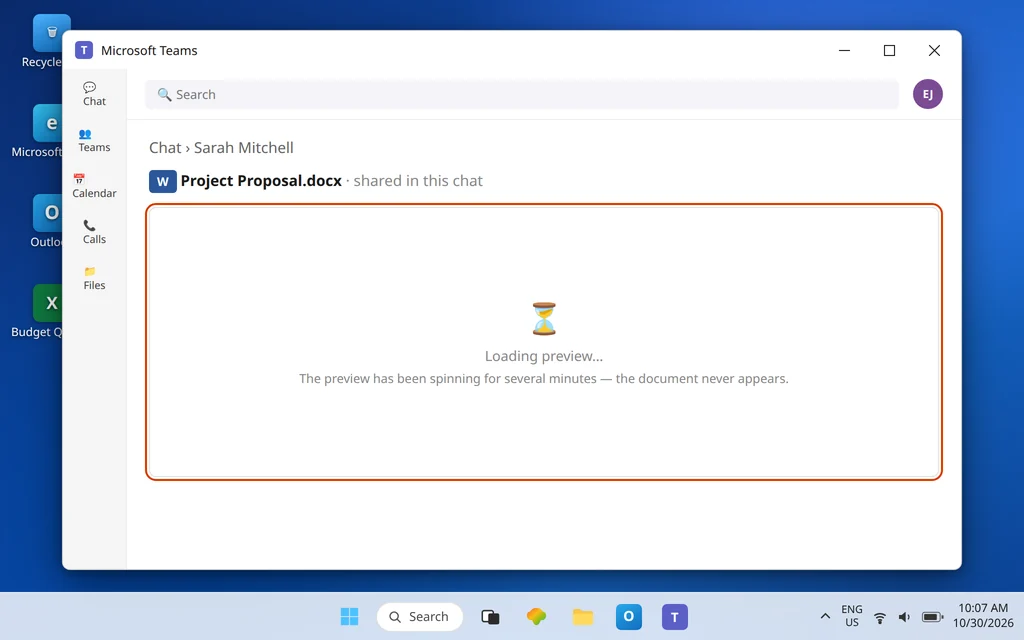
Someone shares a file in a chat or channel. You click it — and you get a blank preview, a spinner that never stops, an error, or simply nothing at all. The file is right there, and Microsoft Teams will not open it.
This guide is about opening files that are already in Teams: Word documents, Excel workbooks, PowerPoint decks, and PDFs that fail to open, preview, or hand off to the desktop apps. It is not about sending files — if a file will not go up into a chat in the first place, that is an upload problem with different causes, and it gets its own guide. Here, everything is about the trip from “file in Teams” to “file open on your screen.”
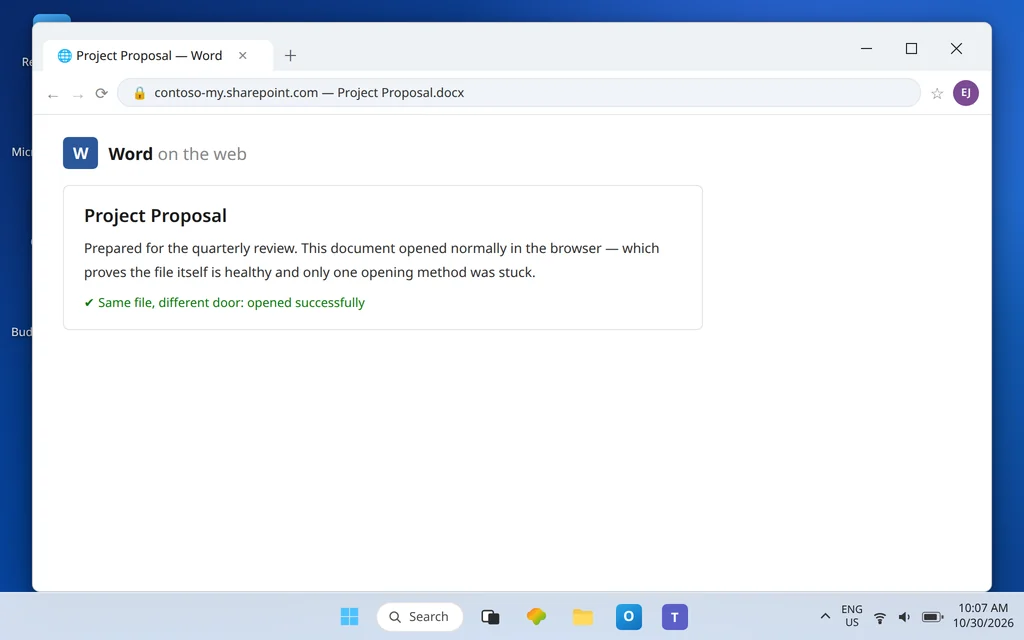
One idea unlocks most of this problem: a Teams file can be opened three different ways — inside Teams, in the browser, or in the desktop app — and those are three separate doors into the same file. When one door is stuck, walk through another first, work with the file, and fix the stuck door afterward.
Quick Answer: Right-click (or select … next to) the file and choose Open in > Browser — or Desktop app. If the file opens there, the file itself is fine and only one opening method is broken. To change the default for every file, go to Teams Settings > Files and links and set Always open Word, PowerPoint, and Excel files in to the method that works. If every method says you do not have access, the problem is permission, not your PC — ask the person who shared the file to check its sharing.
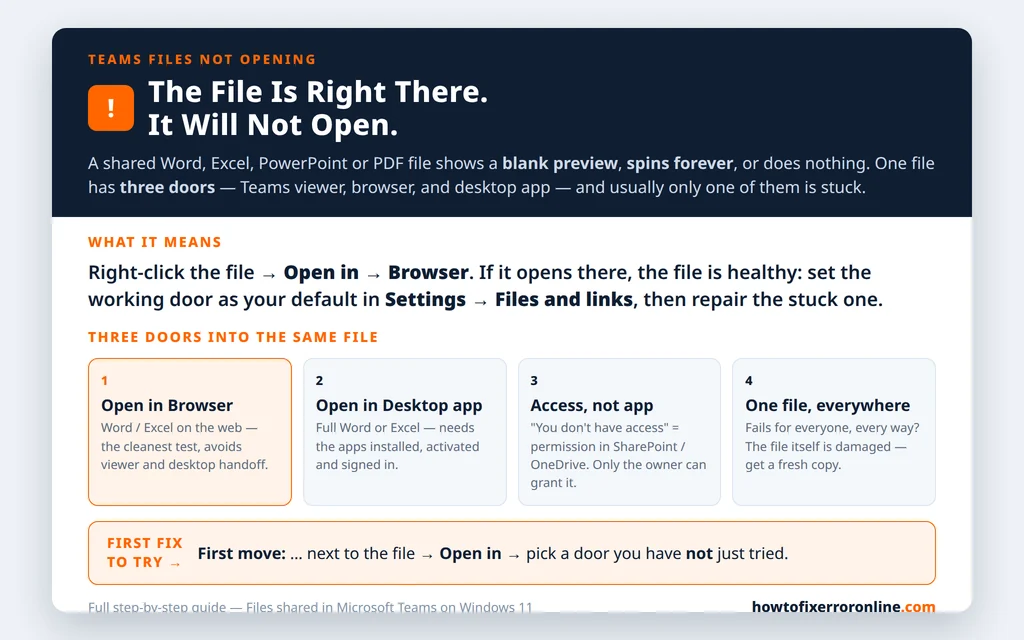
Table of Contents
Fix 1 — Open the same file a different way (do this first)
Before changing any setting, prove whether the file or the doorway is at fault:
- Find the file in the chat, channel, or Files tab.
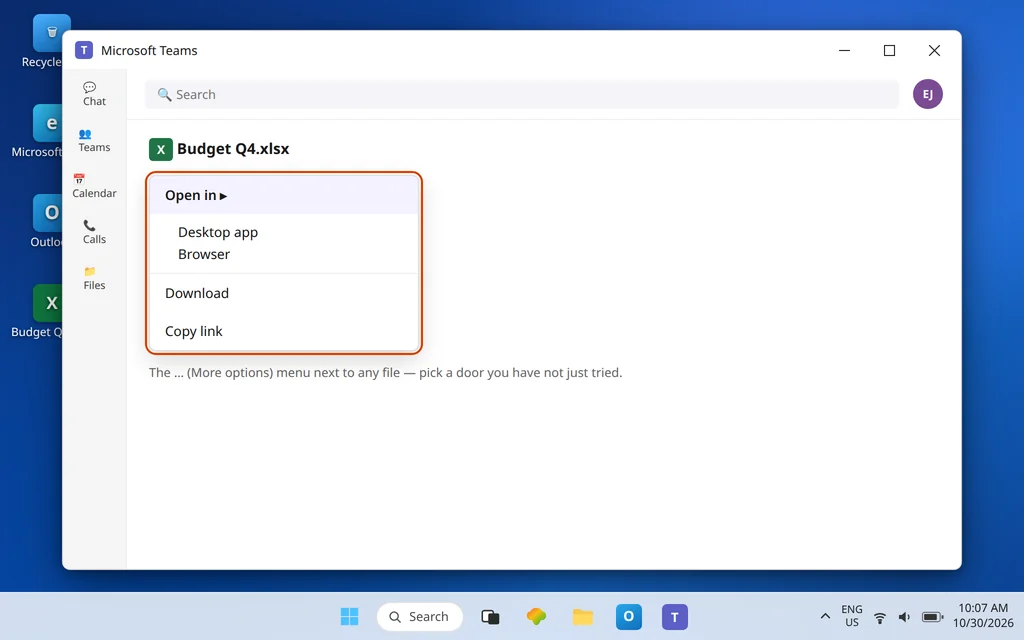
- Select the … (More options) next to the file name, choose Open in, and pick a method you have not just tried: Desktop app or Open in browser. The built-in Teams viewer is the third method — plain clicking.
- Read the result:
- It opens in the browser or desktop app: the file is healthy. Your problem is one opening method — Fix 2 sets your default to the method that works, and Fixes 6–7 repair the broken one.
- Every method fails with an access message: go straight to Fix 4 — that is permission.
- Every method fails for this one file, but other files open: go to Fix 5 — that points at the file itself.
For PDFs, the same logic applies: if the preview stays blank, use Open in > Browser if offered, or Download a copy and open it in your usual PDF reader. A downloaded copy that opens perfectly proves the PDF is fine and only the Teams preview is stuck.
Fix 2 — Set your file open preference in Teams Settings
Teams has a real setting for this, and if it points at a method that is broken on your PC, every file will seem broken. Microsoft documents it as File open preference:
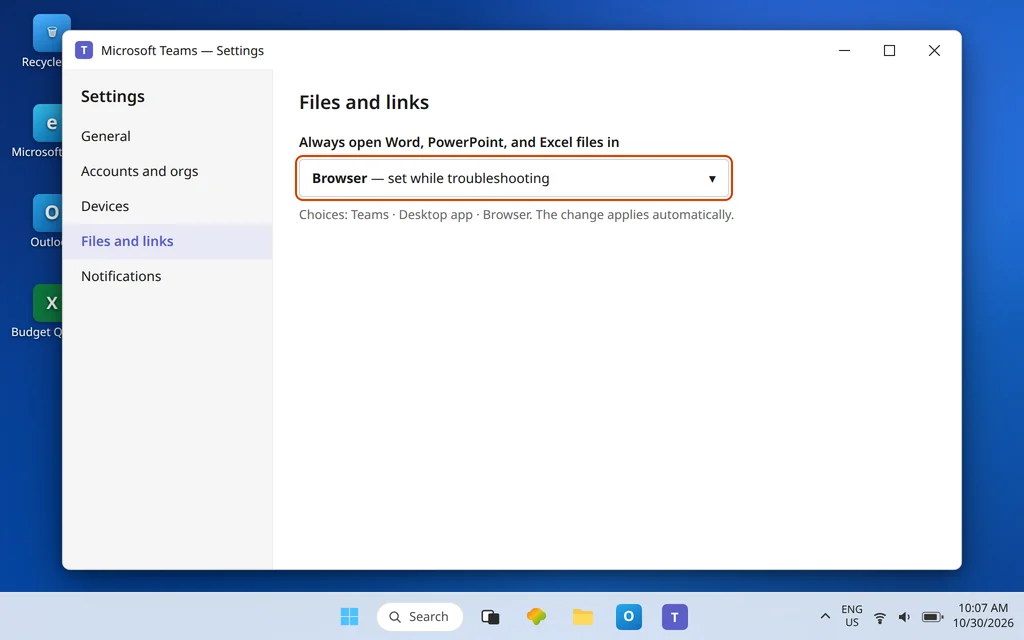
- In Teams, select Settings and more (…) next to your profile picture, then Settings.
- Select Files and links.
- Under Always open Word, PowerPoint, and Excel files in, choose Teams, Desktop app, or Browser.
- The change applies automatically — click a file and test it.
Practical advice while troubleshooting: set it to Browser first. The browser method avoids both the Teams viewer and the desktop-app handoff, so it is the cleanest test. Once things work, set your long-term preference: Desktop app if you live in Word and Excel all day, Teams if you prefer quick in-app edits. Note that Desktop app requires the Microsoft 365 desktop apps to be installed, activated, and signed in — a file cannot hand off to a Word that is not there.
Fix 3 — Try Teams on the web (separates app from account)
Open teams.microsoft.com in your browser, sign in as Emily Johnson would with her own account — your account, in your case — find the same file, and open it.
- It opens on the web: your account, the file, and its permissions are all fine. The desktop app is the fault — continue to Fixes 6 and 7.
- It fails on the web in exactly the same way: stop repairing the app. The cause sits with the file or its permissions (Fixes 4 and 5).
This two-minute test is the same one Microsoft Q&A points to for preview problems, because it cleanly isolates the desktop app from everything else. While you are on the web version, you can simply keep working — open the file there and finish your task before doing any repair work below.
Fix 4 — If it says you do not have access, believe it
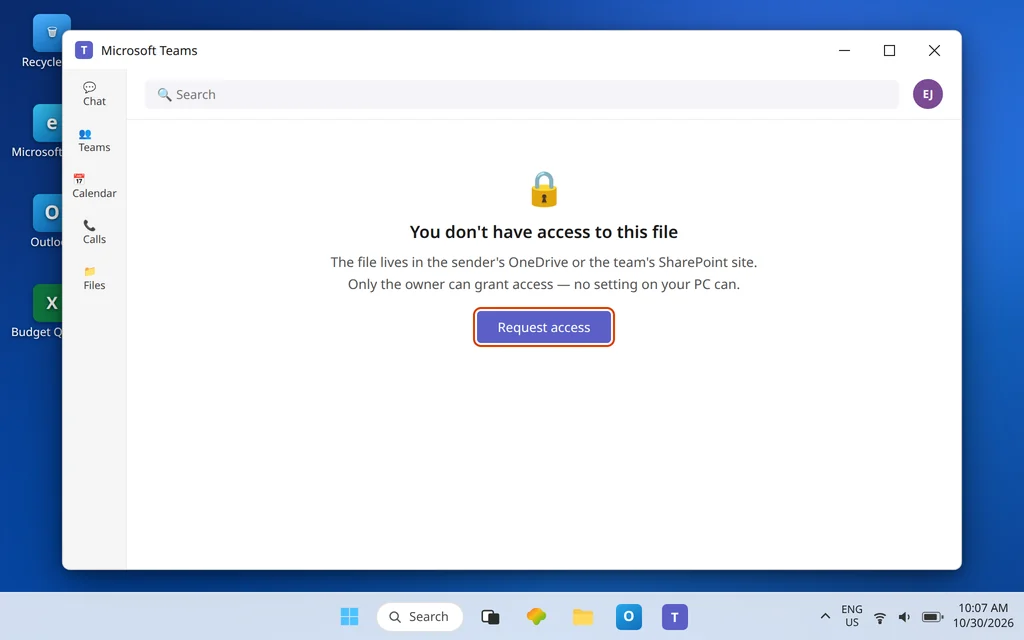
Teams files are not stored inside Teams itself. A file shared in a channel lives in that team’s SharePoint site; a file shared in a chat lives in the sender’s OneDrive and is shared with the chat members. That storage detail explains the most confusing version of this problem: you can see the file name in the conversation and still have no right to open its contents.
- Read the error carefully. If it offers Request access, use it — the request goes to the file’s owner, and there is no setting on your PC that substitutes for their approval.
- If you were added to the chat or channel recently, ask the sender to share the file with you directly as well; membership changes and sharing changes do not always land at the same moment.
- If the sender insists they already shared it, check which account you are signed in with. Being signed in with a personal account instead of your work one (or the reverse) produces exactly this symptom — the file was shared with the other you.
Do not reinstall anything for an access error. Reinstalling cannot grant a permission.
Fix 5 — One file fails everywhere? Test the file itself
If one specific file fails in Teams, in the browser, and in the desktop app — for you and for the person who sent it — the file itself is the problem: a damaged upload, a workbook with content Word or Excel rejects, or a file that was still syncing when it was shared.
- Ask the sender the simplest question: “Can you open it from Teams right now?” Their answer splits the problem in half.
- If they cannot either, ask them to open their original copy, use Save As to create a fresh file, and share the new copy. Test the new copy before deleting anything.
- If the sender can open it and you cannot, by any method, return to Fix 4 — for you, that is an access or account problem, whatever the error wording suggests.
Fix 6 — Clear the Teams cache when only the desktop viewer is stuck
If the web test in Fix 3 passed and only the built-in Teams preview fails — blank previews, endless spinners, yesterday’s version of the document — the desktop app’s local data is the prime suspect:
- Right-click the Teams icon in the notification area and choose Quit.
- Press Windows key + R, paste
%userprofile%\AppData\Local\Packages\MSTeams_8wekyb3d8bbwe\LocalCache\Microsoft\MSTeams, and press Enter. - Delete everything inside the folder, then reopen Teams. The first launch takes longer while the cache rebuilds; your chats and files are stored in your account and are not deleted.
If previews still fail afterward, use Settings > Apps > Installed apps > Microsoft Teams > … > Advanced options > Reset, then test again. One honest note: older advice for classic Teams mentioned a hardware-acceleration checkbox in Teams settings — the new Teams does not have that setting, so do not go hunting for it.
Fix 7 — Repair the desktop-app handoff
Different symptom, different fix: the file preview works, Open in Desktop app is the part that does nothing, or Word/Excel opens and immediately complains.
- First confirm the obvious: open Word (or Excel) on its own from the Start menu. If the app itself will not start or is not signed in, Teams cannot hand a file to it. Sign in inside Word with the same account you use in Teams.
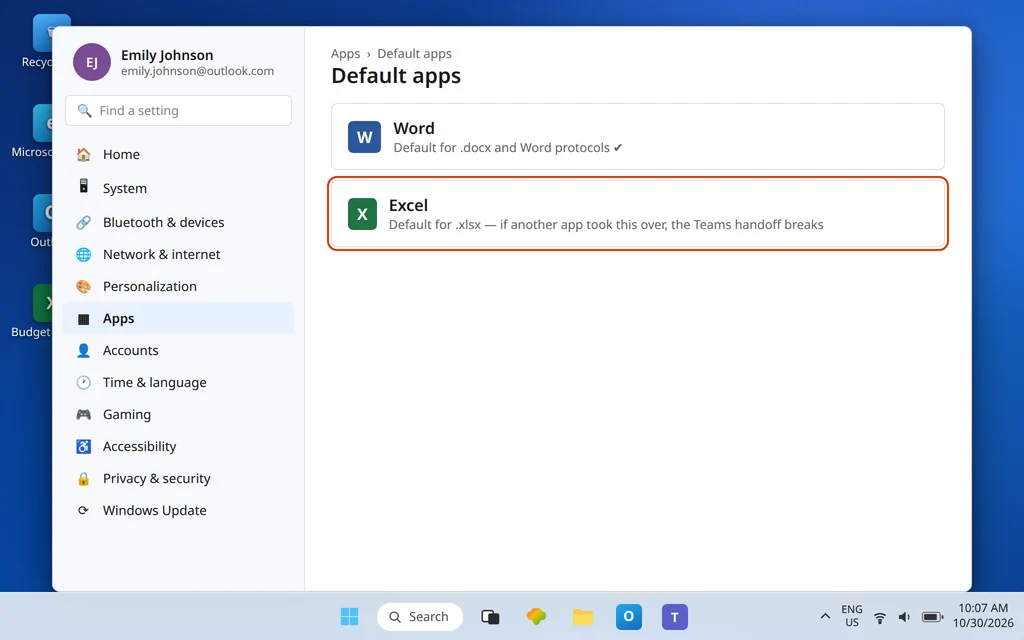
- Check Windows defaults: Settings > Apps > Default apps — find Word and Excel and confirm they are set as the defaults for their file types and protocols. A file type stolen by another program breaks the handoff.
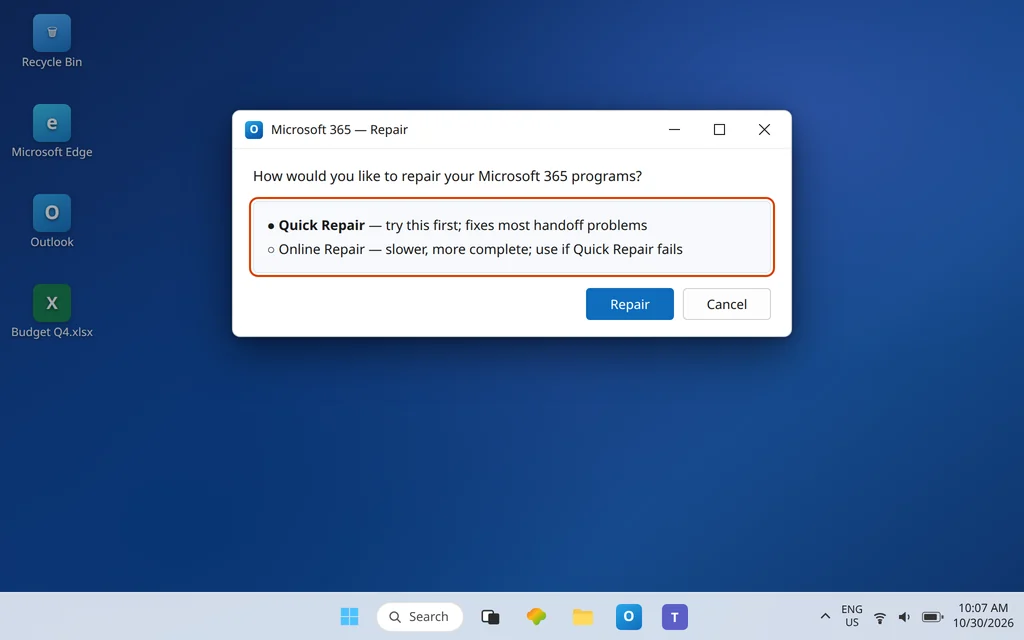
- If Word and Excel open but mishandle cloud files, repair Office: Settings > Apps > Installed apps > Microsoft 365 > … > Modify, choose Quick Repair, and test again when it finishes. Keep Online Repair as the heavier second option — it takes longer.
- Retest from Teams using Open in > Desktop app on the same file.
And if Teams itself seems unable to reach anything at all — files, chats, everything — that is a connection problem, not a file problem: start with Microsoft Teams Stuck on Connecting.
Fix 8 — Download a copy as your safety net
When a deadline matters more than the diagnosis, download the file (… > Download), open the copy from your Downloads folder in Word, Excel, or your PDF reader, and get the work done. Be clear about what this is: a workaround, not a fix — edits to a downloaded copy do not flow back into the shared file, so tell the sender what you changed, or fix the real problem with the earlier steps and edit the shared version. It is still far better than being locked out of your own work while you troubleshoot. If instead you cannot find the file in the first place, that is search, not opening — see Microsoft Teams Search Not Working.
Confirm it worked
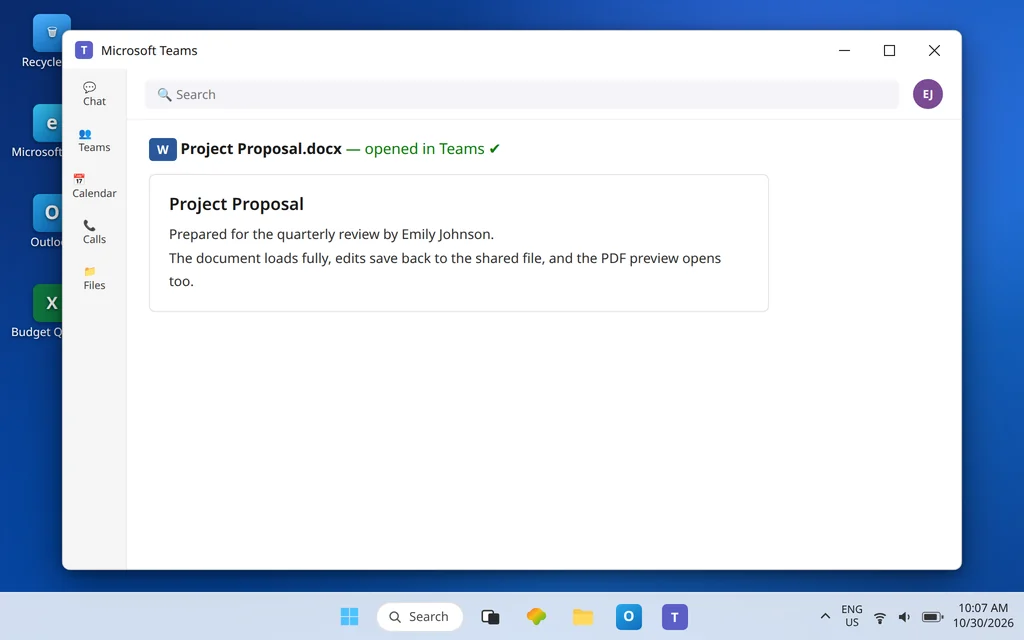
Open three test cases: a Word or Excel file inside Teams, the same kind of file with Open in > Desktop app, and a PDF preview. All three should load without a blank screen or endless spinner. Then reopen the file an hour later — or after restarting Teams — and confirm it still opens and shows the current version, not a stale copy. That second check is what separates a real fix from a lucky moment.
How to stop it happening again
- Pick one default and keep it. Set the Files and links preference to the method that suits you, instead of fighting a different doorway every time.
- Share from the file, not around it. Sharing directly from Teams or OneDrive keeps permissions attached to the file, which prevents most access surprises for the people receiving it.
- Keep Teams and Office updated together. The viewer lives in Teams and the handoff lands in Office; letting one fall far behind the other is how odd opening failures start.
Frequently asked questions
Why won’t a file open in Microsoft Teams?
Usually because one of three doors is stuck: the built-in Teams viewer, the browser version, or the desktop-app handoff — or because your account does not actually have permission for that file. The fastest way to tell is Fix 1: open the same file a different way. If another method works, the file was never the problem.
How do I open a Teams file in the Word or Excel desktop app instead?
Select the … next to the file, choose Open in, then Desktop app. To make that permanent for Word, Excel, and PowerPoint files, go to Teams Settings > Files and links and set the file open preference to Desktop app. The desktop apps must be installed, activated, and signed in with the same account.
How do I change where Teams opens Word, Excel and PowerPoint files?
In Teams, select Settings and more (…) > Settings > Files and links. Under Always open Word, PowerPoint, and Excel files in, choose Teams, Desktop app, or Browser. Your choice applies automatically, and you can still override it for a single file with Open in.
Why does a PDF preview stay blank in Teams?
The PDF itself is usually fine — the Teams preview is the weak link, especially with large or unusual PDFs. Prove it by choosing Open in > Browser if offered, or downloading a copy and opening it in your normal PDF reader. If the copy opens, keep using the browser or reader for that file, and use Fix 6 if every preview is blank.
What do I do if Teams says I don’t have access to a file?
Use Request access if the message offers it, and tell the person who shared the file. Files in channels live in SharePoint and files in chats live in the sender’s OneDrive, so only the owner (or an admin) can grant you the right to open one. Also double-check you are signed in with the account the file was actually shared with — a personal account cannot open what was shared with your work account.
If a file opens for everyone else but not for me, where is the fault?
On your side of the fence: your account’s permission for that file, your Teams app, or your Office install — in that order. Test on Teams on the web (Fix 3). If the web version opens it, repair the desktop side (Fixes 6–7). If even the web version refuses you, it is permission, and only the file’s owner can change that.
File still refusing to open? Contact us at servicedesk@howtofixerroronline.com or through our Contact page and tell us which file type it is, what happens in the browser method, and the exact wording of any access message. We will never ask for your password.
Pingback: Teams Search Not Working? Can't Find Chats or Files — Fixes