
Microsoft Teams Error 0xCAA70004 — Sign-In Something Went Wrong
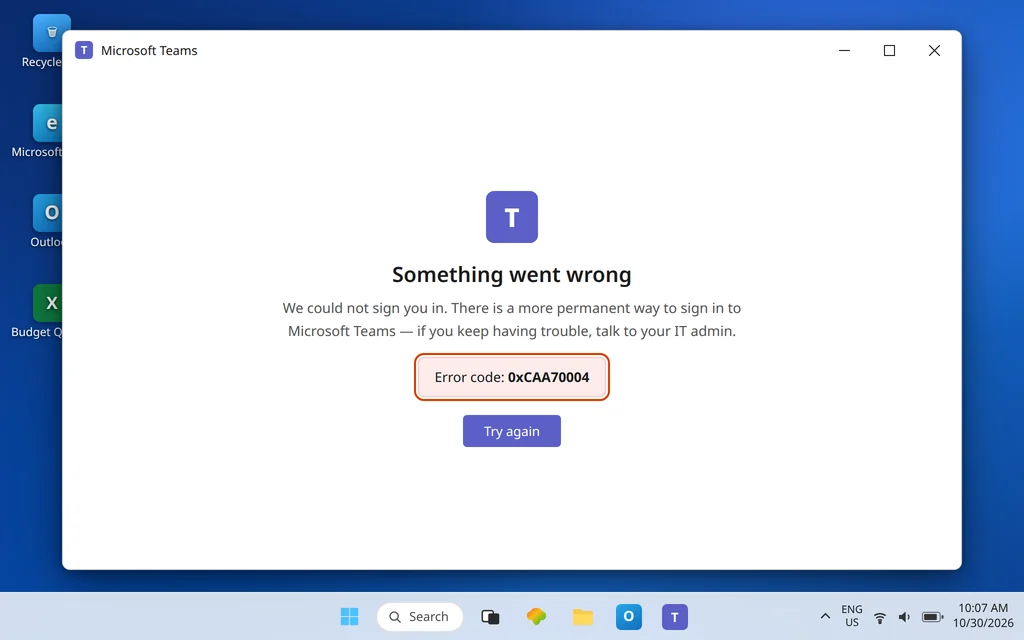
You launch Teams, it thinks for a moment, and instead of your chats you get “Something went wrong” and a code: 0xCAA70004. Sometimes it appears right after you changed your password. Sometimes it arrives on a PC where Teams worked yesterday and nothing obvious changed. Either way, the app will not sign you in, and restarting it just brings the same screen back.
This is the error-code-specific guide. If Teams will not sign you in at all and shows no code, start with the general guide, Microsoft Teams Sign-In Problems. If Teams lets you in but keeps asking you to sign in again and again, that loop is Microsoft Teams Keeps Asking to Sign In. Stay here when the code 0xCAA70004 itself is on the screen. Honest framing first: Microsoft does not publish a single-sentence definition of this code. What Microsoft Q&A answers and the wider troubleshooting record agree on is that it is a sign-in / authentication failure — Teams tried to authenticate you, something in that chain (saved credentials, local cache, account connection, network or clock) disagreed, and sign-in stopped. The fixes below clear that chain link by link, in the order most likely to end the error.
Quick Answer: Fully quit Teams (tray icon > Quit) and relaunch it. If the code returns, set your Windows clock to automatic in Settings > Time & language > Date & time and click Sync now. Next, clear the Teams cache at
%userprofile%\AppData\Local\Packages\MSTeams_8wekyb3d8bbwe\LocalCache\Microsoft\MSTeams, then remove saved Teams/work credentials in Credential Manager, and disconnect and reconnect your account under Settings > Accounts > Access work or school. Repair or Reset the app only if those fail.
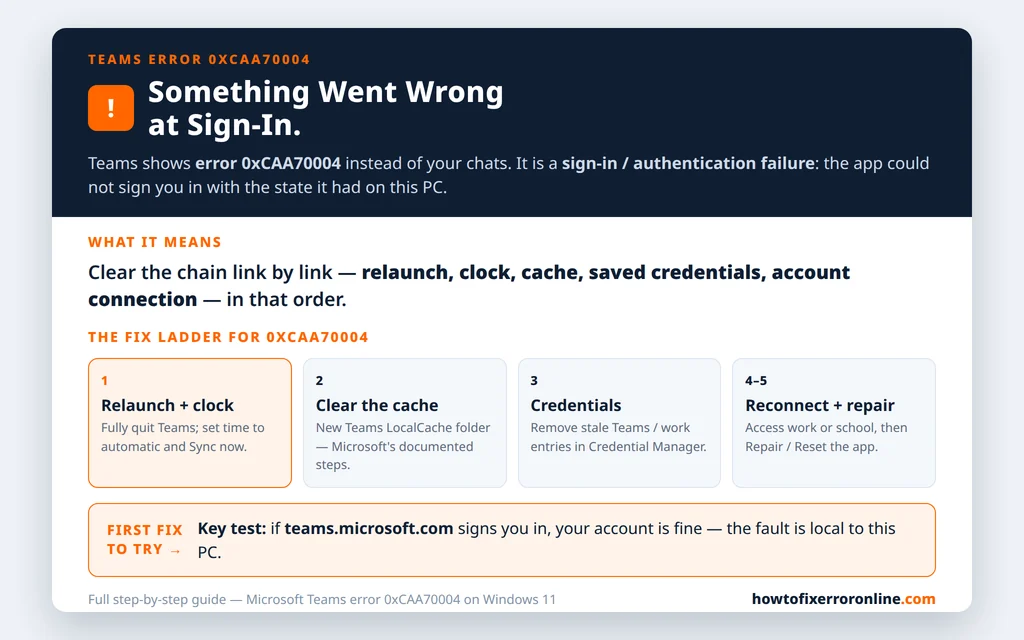
Table of Contents
What error 0xCAA70004 actually tells you
The wording around the code varies — “Something went wrong,” “We’re sorry, we’ve run into an issue,” or a note that there is a more permanent way to sign in and to talk to your IT admin. Treat those sentences as packaging, not diagnosis. The code is the diagnosis, and it points at authentication: the desktop app could not complete sign-in with the credentials and state it had. Reported triggers include a recent password change (the app still holds the old secret), corrupted local sign-in cache, saved Windows credentials that conflict with your current ones, a PC clock that has drifted enough to upset time-sensitive sign-in tokens, and network or proxy interference. Notice what is not on that list: your chats and files. They live in Microsoft 365, not in the app, so nothing in this guide can delete them.
Fix 1 — Fully quit Teams and relaunch it
A normal close minimizes Teams to the tray, where the broken sign-in state stays alive. Quit it properly first:
- Right-click the Teams icon in the system tray (use the ^ arrow if it is hidden) and choose Quit.
- Wait a few seconds, then launch Teams again from the Start menu.
- Sign in if prompted, with your current password.
If the error followed a password change, this is also where you should confirm you can sign in at teams.microsoft.com in your browser with the new password. Web sign-in working while the app fails is useful evidence: your account is fine, and the fault is local to this PC — which is what the rest of this guide fixes.
Fix 2 — Set the Windows date and time to automatic
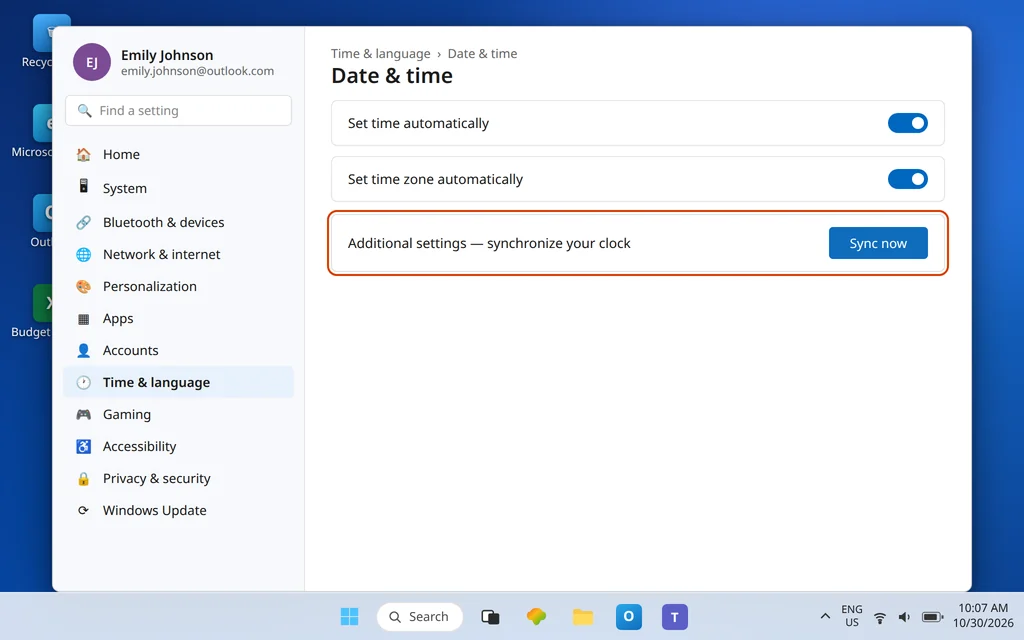
Sign-in tokens are time-sensitive. A clock that is even a few minutes out can make a valid sign-in look invalid, and Microsoft Q&A’s answer for this code includes checking system time for exactly that reason.
- Open Settings > Time & language > Date & time.
- Turn on Set time automatically and Set time zone automatically.
- Click Sync now and confirm the sync succeeds.
- Relaunch Teams and try signing in again.
Fix 3 — Clear the Teams cache
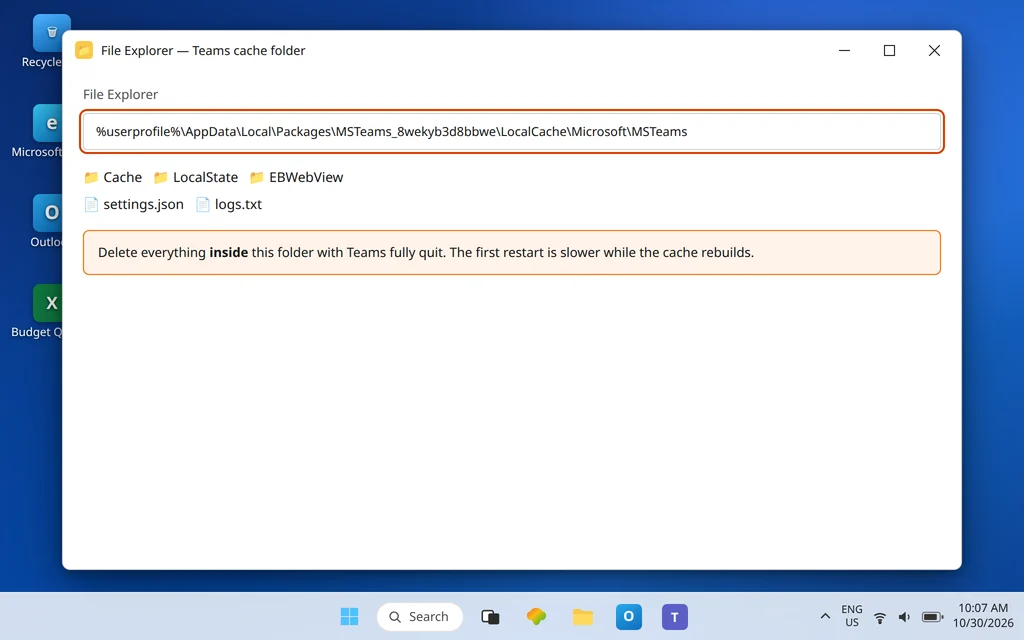
The new Teams keeps its local sign-in and session data in a cache folder, and a corrupted entry there can replay the same failed sign-in forever. Clearing it is Microsoft Learn’s documented procedure for the new app:
- Fully quit Teams (Fix 1).
- Press Windows + R, paste this path, and press Enter:
%userprofile%\AppData\Local\Packages\MSTeams_8wekyb3d8bbwe\LocalCache\Microsoft\MSTeams - Delete all files and folders inside that folder (the folder itself can stay).
- Restart Teams and sign in. The first start is slower than usual while the cache rebuilds — that is expected.
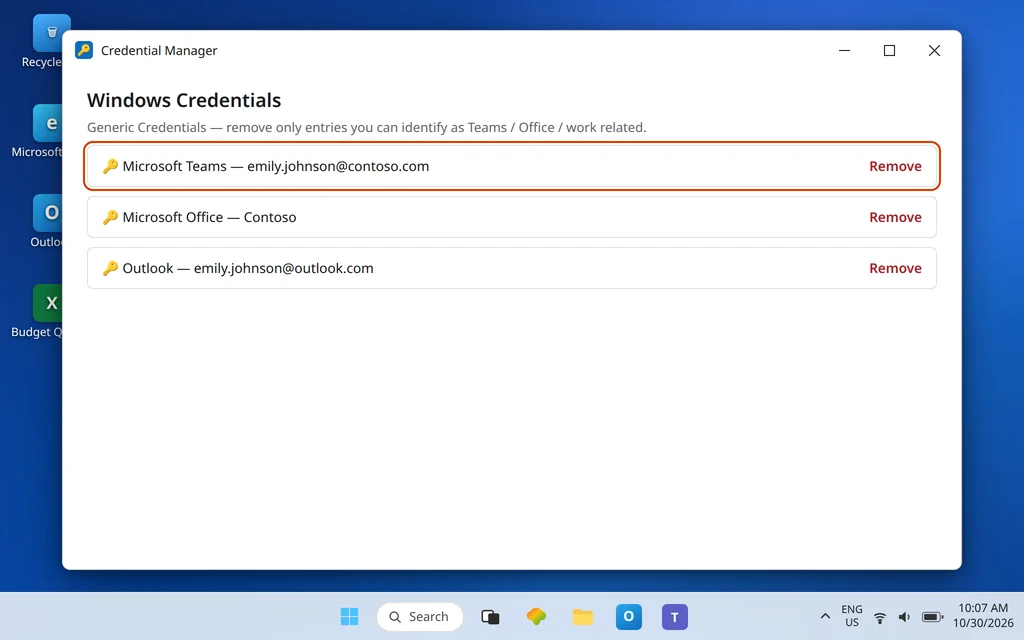
Fix 4 — Remove saved Teams and work credentials in Credential Manager
Windows saves credentials for apps and services, and an old saved entry can keep offering yesterday’s password long after you changed it. The Microsoft Q&A answer for this code includes Credential Manager cleanup for this reason.
- Search Windows for Credential Manager and open it.
- Open Windows Credentials.
- Under Generic Credentials, find entries that clearly belong to Teams, Microsoft Office, or your work/school account (names mentioning Teams, Office, or your organization), expand each, and choose Remove.
- Restart the PC, launch Teams, and sign in fresh — you will be asked for your password, which is the point.
Remove only entries you can identify as Microsoft/Teams/work related. Do not clear the whole vault; other apps keep their own saved logins there.
Fix 5 — Disconnect and reconnect your work or school account
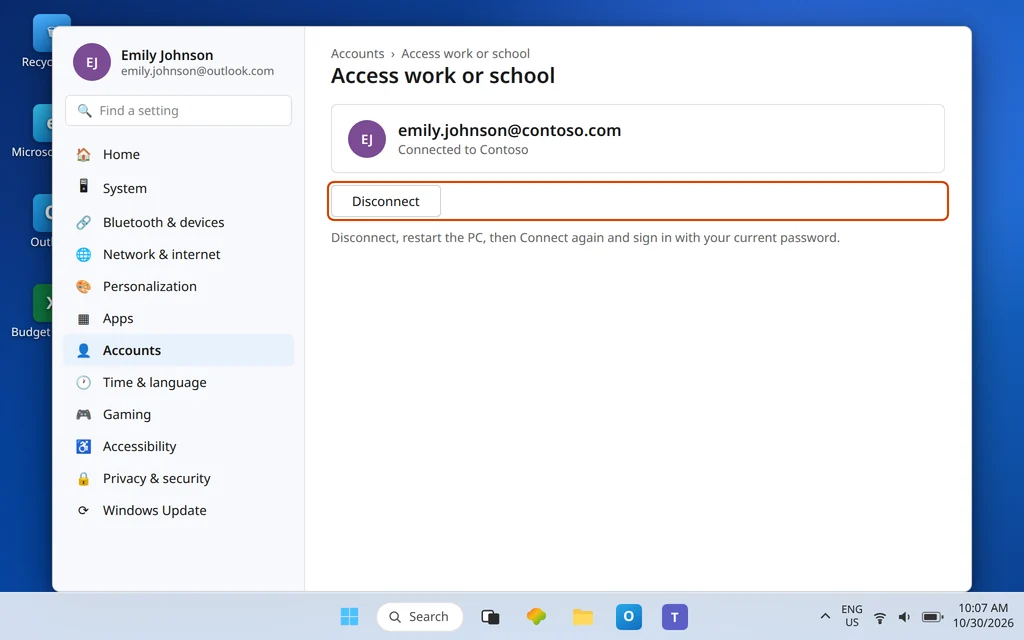
Your PC’s connection to your work or school account is what single sign-on leans on. If that connection is stale, every Microsoft 365 app can struggle — and this code has been reported alongside Outlook failing to connect at the same time, which is a strong hint the account connection, not Teams alone, is the problem.
- Open Settings > Accounts > Access work or school.
- Select your work or school account (for example, emily.johnson@contoso.com) and choose Disconnect. Confirm.
- Restart the PC.
- Return to Settings > Accounts > Access work or school, choose Connect, and sign in with your current credentials.
- Launch Teams and sign in.
Save anything important in other Microsoft apps first — disconnecting affects sign-in state across them, though it deletes no data.
Fix 6 — Check TLS and proxy — only if your setup uses them
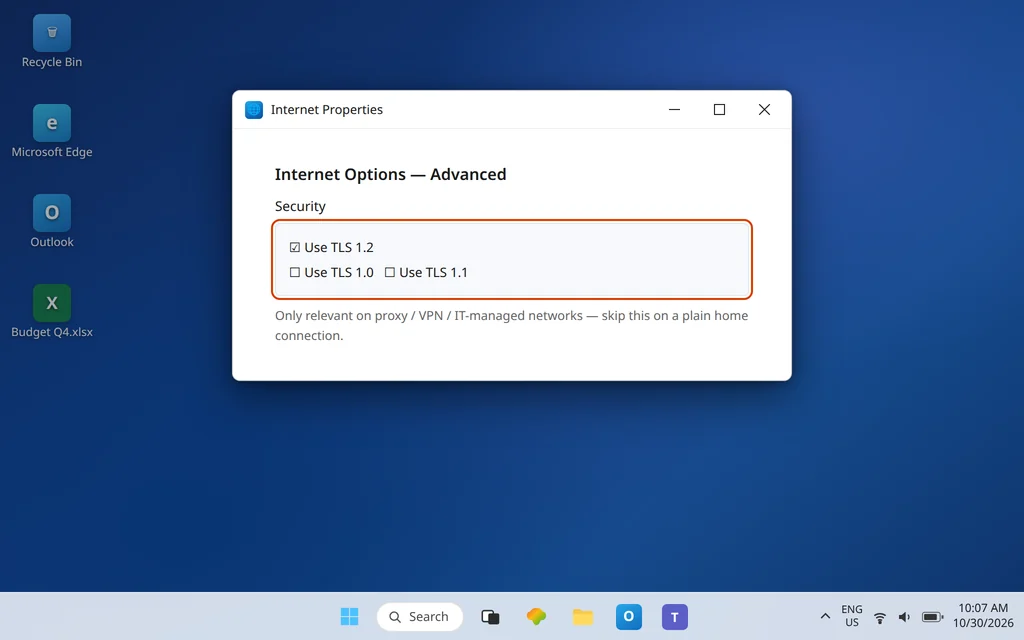
Some guides for this code send everyone into Internet Options to enable TLS. Be more precise than that: TLS settings and proxies matter when your network actually uses a proxy or your IT team manages these settings — the Microsoft Q&A answer frames this as a network/proxy check, not a universal step. So:
- If you connect through a company VPN or proxy, test once with it disconnected (on a network your IT team approves of), or ask IT whether Teams traffic is being intercepted.
- If your IT team directs you to Internet Options, open Internet Options > Advanced, and in the Security section confirm Use TLS 1.2 is checked, as they instruct.
- At home on a plain connection, skip this fix — changing TLS settings at random fixes nothing and can break other things.
If Teams also hangs at Connecting rather than showing this code, the network angle deserves more weight — see Microsoft Teams Stuck on Connecting.
Fix 7 — Repair, then Reset, the Teams app
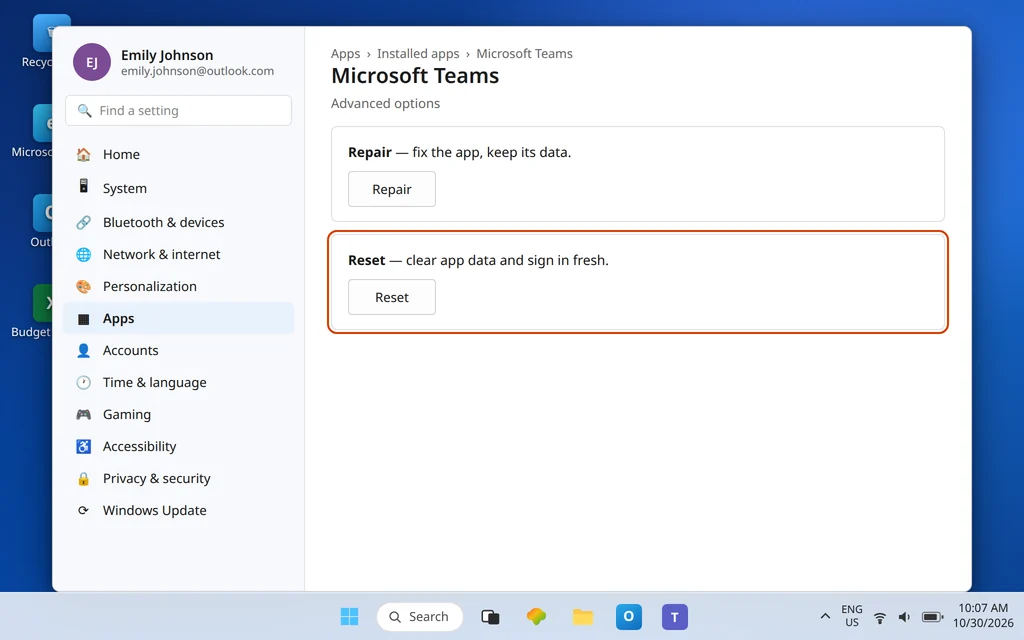
Windows can repair the new Teams installation, and reset it to a clean state, from one place:
- Open Settings > Apps > Installed apps and find Microsoft Teams.
- Click the … beside it and choose Advanced options.
- Try Repair first — it fixes the app without wiping its data. Test Teams.
- If the code persists, return and choose Reset. Microsoft’s own cache guidance lists Reset as a cache-clearing method; it deletes app data, so you will sign in fresh and re-apply any personal settings afterward.
Fix 8 — Reinstall Teams as the last resort
If the account works on the web, the clock is right, the cache is clean, credentials are fresh, the account connection is rebuilt, and Repair/Reset changed nothing, remove the app and install it cleanly:
- Settings > Apps > Installed apps > Microsoft Teams > … > Uninstall.
- Restart the PC.
- Download Teams from Microsoft’s official Teams download page and install it, then sign in.
Still blocked after all of that — especially if Outlook and other Microsoft 365 apps fail to sign in on the same PC — the remaining suspects are organizational: conditional access, a disabled account, or a device policy. That is your IT team’s territory, and arriving with this fix list already done (plus the exact code and the fact that the web version works) gets you past the first line of questions immediately. If Teams also sits on its loading screen instead of erroring, Microsoft Teams Stuck on Loading Screen covers that variant.
Confirm it worked
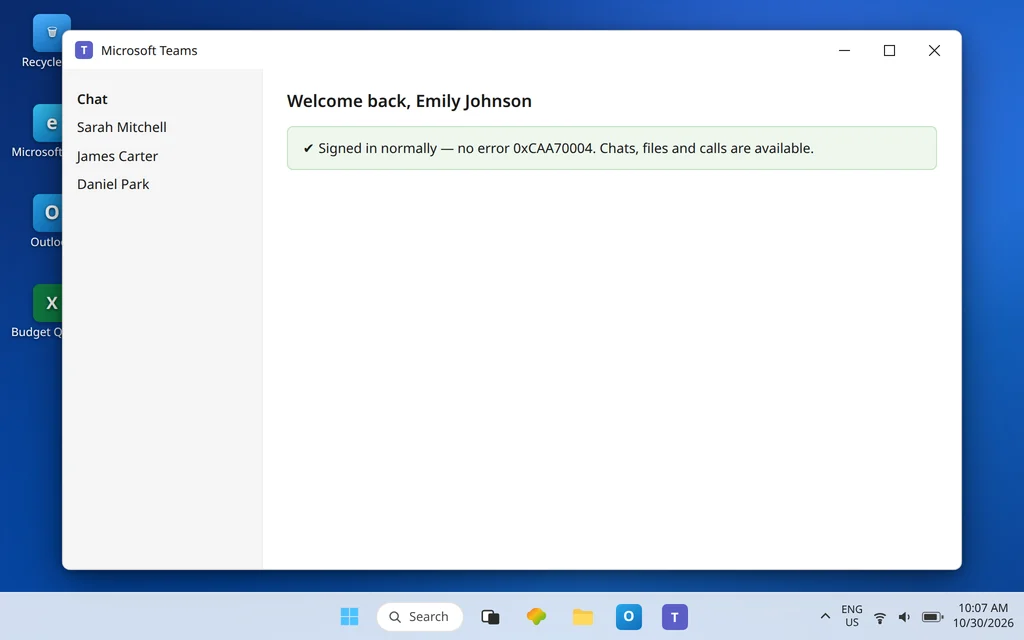
Launch Teams three times in a row: a normal open, an open after a full quit, and an open after restarting the PC. It should land on your chats each time with no code and no extra sign-in prompt beyond the fresh one you completed during the fixes. Send a message to Daniel Park, open a file, and join a test call — sign-in is only truly fixed when the app stays signed in while doing real work, not just when it opens.
How to stop it happening again
- After every password change, fully quit Teams and sign in fresh once, rather than letting the app discover the change mid-session.
- Leave the clock on automatic. Manual time is the silent cause that returns months later.
- Do the small fixes in order when any sign-in code appears — relaunch, clock, cache — before touching credentials or reinstalling; most recurrences end at one of those three.
Frequently asked questions
What does Teams error 0xCAA70004 mean?
It is a sign-in/authentication error: Teams could not complete signing you in with the state it had — typically a stale or conflicting saved credential, a corrupted local cache, a disconnected work account state, or a wrong system clock — and showed “Something went wrong” with the code. Microsoft does not publish a one-line definition; the fix ladder in this guide follows the steps given in Microsoft Q&A’s answer for this exact code.
Why did 0xCAA70004 appear after I changed my password?
Because the app and Windows may still be holding the old one. Teams’ cache and the entries in Credential Manager do not always update cleanly at a password change, so sign-in keeps presenting a secret the server now rejects. Fixes 3 and 4 — cache clear and credential cleanup — exist precisely for this pattern.
Will clearing the Teams cache delete my chats or files?
No. Chats, files, and teams live in Microsoft 365 and return when you sign back in. Clearing the cache removes only local temporary data on this PC; Microsoft’s guidance notes the next start is slower while that data rebuilds.
Teams on the web works but the app shows 0xCAA70004. Why?
That split proves your account and password are good, and the fault is local: the app’s cache, the PC’s saved credentials, its account connection, or its clock. That is good news — every fix in this guide is local, and none of them needs your IT team until the very end of the ladder.
Should I enable TLS to fix 0xCAA70004?
Only if it is relevant to your setup — a proxy, VPN, or IT-managed network — or your IT team asks you to. TLS appears in some guides for this code and in the network/proxy check on Microsoft Q&A, but it is not a universal home-user fix, and changing it blindly is not recommended (Fix 6).
How is this different from Teams just not signing in?
General sign-in problems can have account-wide causes (licensing, outages, blocked accounts). This article is narrower: the code 0xCAA70004 is displayed, which points the troubleshooting at this PC’s authentication state. If no code appears, use the general sign-in guide linked in the introduction instead.
Error 0xCAA70004 still on screen? Contact us at servicedesk@howtofixerroronline.com or through our Contact page and tell us the full wording with the code, whether Teams on the web signs in, and which fixes above you have already tried. We will never ask for your password.