
Microsoft Teams Sign-In Problems — Can’t Sign In at All
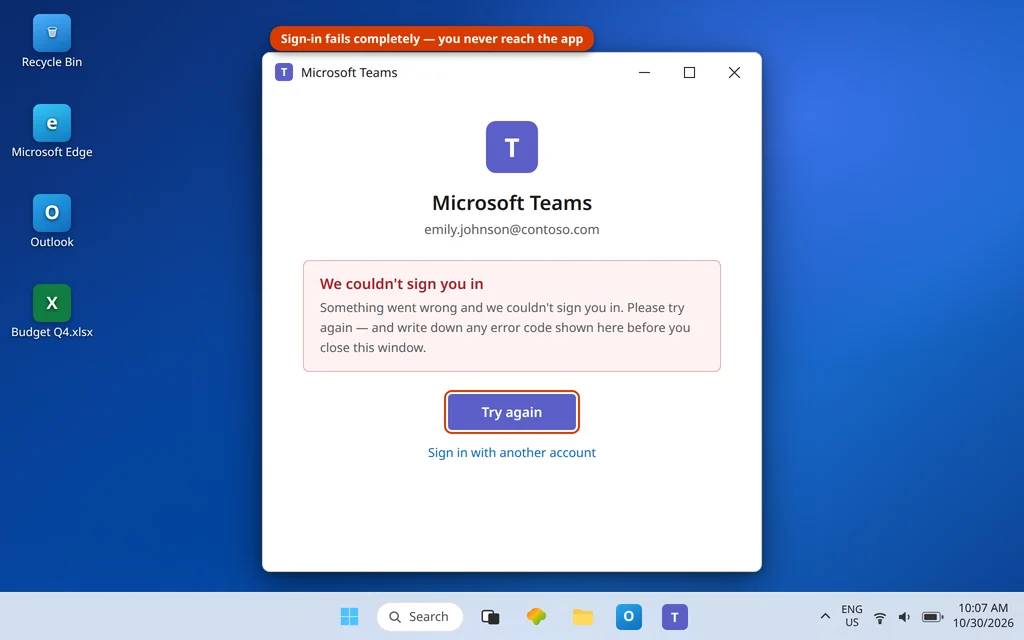
There is a particular kind of stuck that Teams does very well: you type the correct email and password, wait — and instead of your chats, you get “We couldn’t sign you in”, an error screen, or a sign-in window that closes and leaves you exactly where you started. Not signed in. Not close to signed in. Just out.
This guide covers sign-in that fails completely — you cannot get into the app at all. It is a different problem from Teams letting you in and then asking again later: if Teams works but keeps prompting you to sign in over and over, that repeated-prompt loop has its own causes and its own guide — Microsoft Teams Keeps Asking to Sign In. Here, we get you from the error screen to an open app, starting with the two-minute test that tells you whether the fault is your account or just this PC. If Teams does not open at all — no sign-in screen ever appears — start instead with Microsoft Teams Not Opening on Windows 11.
Quick Answer: First, prove the account: sign in at teams.microsoft.com in your browser. If the web version works, your account and password are fine and the fault is on this PC. Make sure you are signing in with the right account type — the new Teams separates work or school accounts from personal accounts, and each rejects the other. Then remove the stale pieces: disconnect and reconnect the account in Settings → Accounts → Access work or school, delete old Teams entries in Credential Manager, set Date & time to automatic and choose Sync now, and clear the Teams cache. If sign-in fails on the web too, or your organisation has disabled the account or the Teams app, only your IT admin can fix that part.
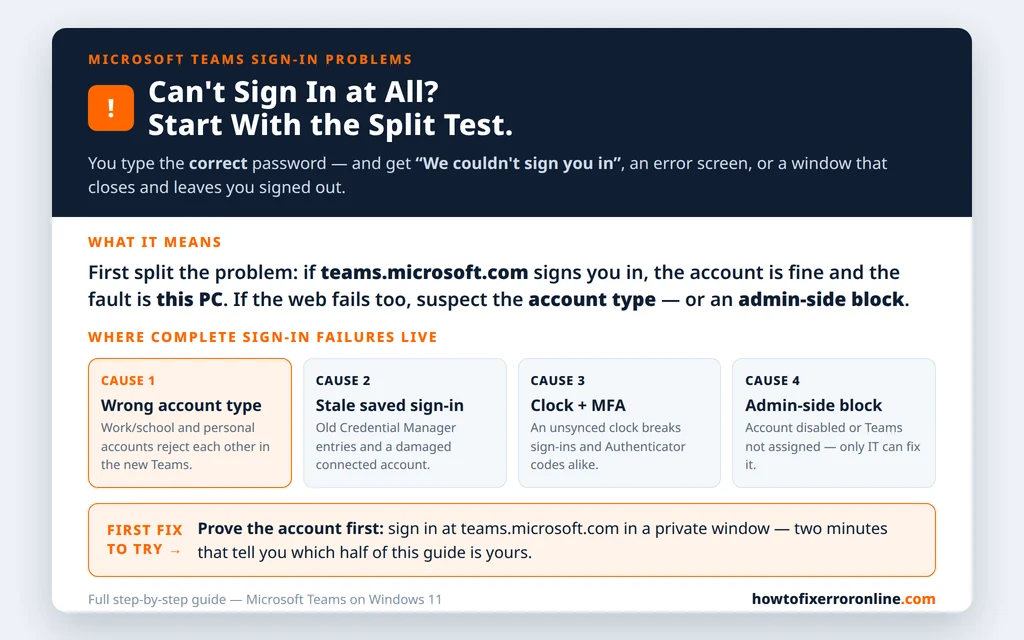
Table of Contents
Fix 1 — Prove the account at teams.microsoft.com before touching the app
Do not start by reinstalling anything. Start by splitting the problem:
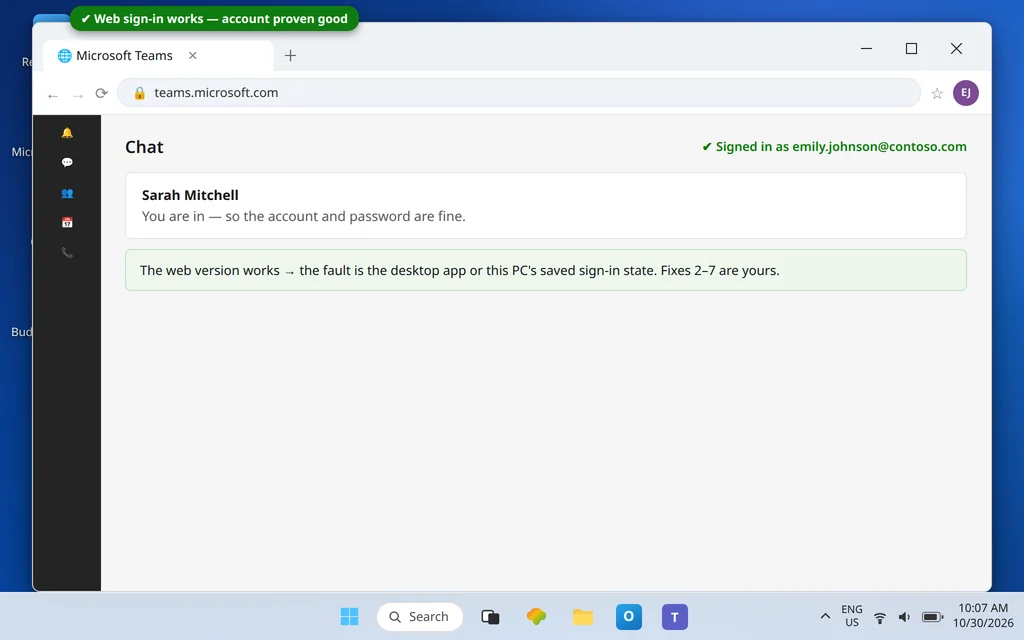
- Open your browser and go to teams.microsoft.com.
- Sign in with the exact email and password that fail in the app. Use a private / InPrivate window if the browser keeps signing you in as someone else.
- Read the result:
- Web sign-in works: your account, password and Microsoft’s service are all fine. The problem lives in the desktop app or this PC’s saved sign-in state — Fixes 2–7 are yours.
- Web sign-in fails the same way: the problem follows the account, not the app. Check you are using the right account (Fix 2) — and if you are, the honest suspects are the account itself and your organisation’s settings (Fix 8).
This one test prevents the classic wasted afternoon: reinstalling an app three times for what turned out to be a disabled account.
Fix 2 — Use the right account type: work or school vs personal
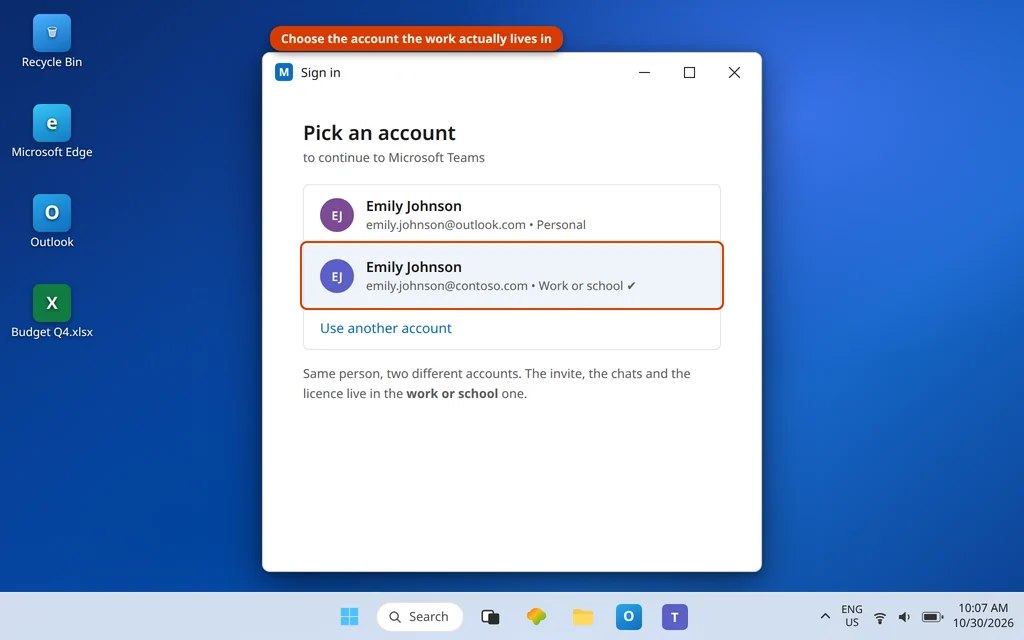
The new Teams treats account types strictly. A work or school account (the one your company or school issued, such as emily.johnson@contoso.com) and a personal Microsoft account (your own Outlook.com or Hotmail account) live in separate worlds, and signing in with the wrong type fails completely — often with a vague error that never mentions accounts at all.
- Ask the simple question first: who gave you this account? If your employer or school did, it is work or school. If you created it yourself, it is personal.
- On the sign-in screen, check the address you are typing letter by letter — an old personal address saved by Windows is a very common reason the “right” password keeps failing.
- If Teams offers an account picker, choose the correct account rather than the pre-selected one. If the picker only offers the wrong account, choose Use another account and type the right address in full.
- If you previously signed in with the wrong account and Teams keeps dragging you back to it, sign out completely, quit Teams from the icon near the clock, reopen it, and sign in fresh with the correct address.
Fix 3 — Remove the stale account from Windows: Access work or school
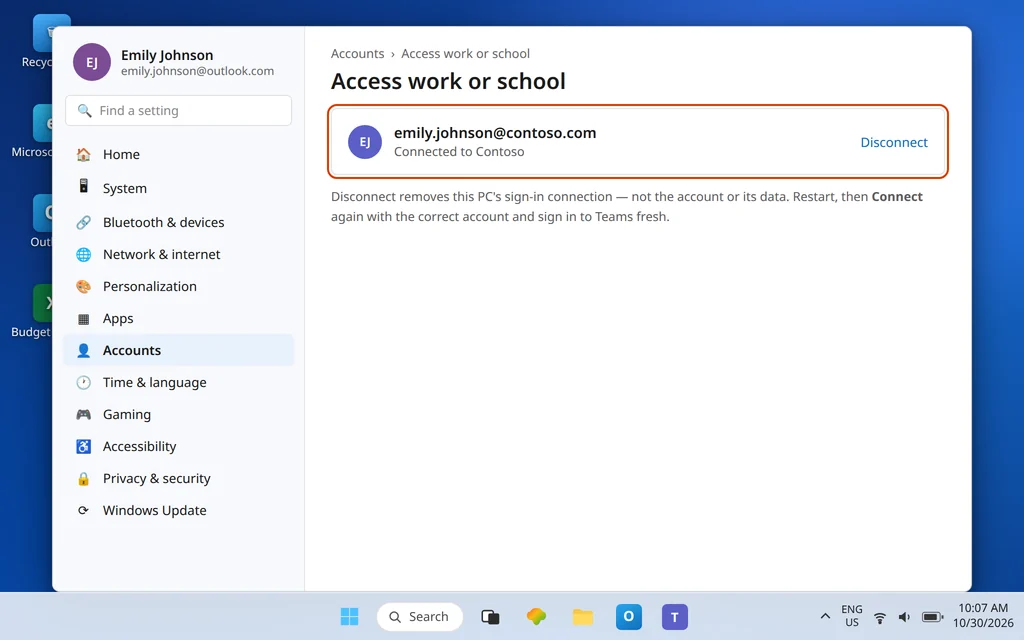
Windows remembers connected work accounts separately from Teams, and a damaged connection there can poison every sign-in the app attempts.
- Open Settings → Accounts → Access work or school.
- Select your work or school account and choose Disconnect. (This disconnects the sign-in connection on this PC; it does not delete the account or your data.)
- Restart the PC.
- Return to the same page and choose Connect, then sign in with the correct account.
- Open Teams and sign in again.
Do not disconnect an account your IT department manages without expecting a sign-in prompt afterwards — you will need the password and possibly an Authenticator approval to reconnect, which is normal.
Fix 4 — Delete stale Teams entries in Credential Manager
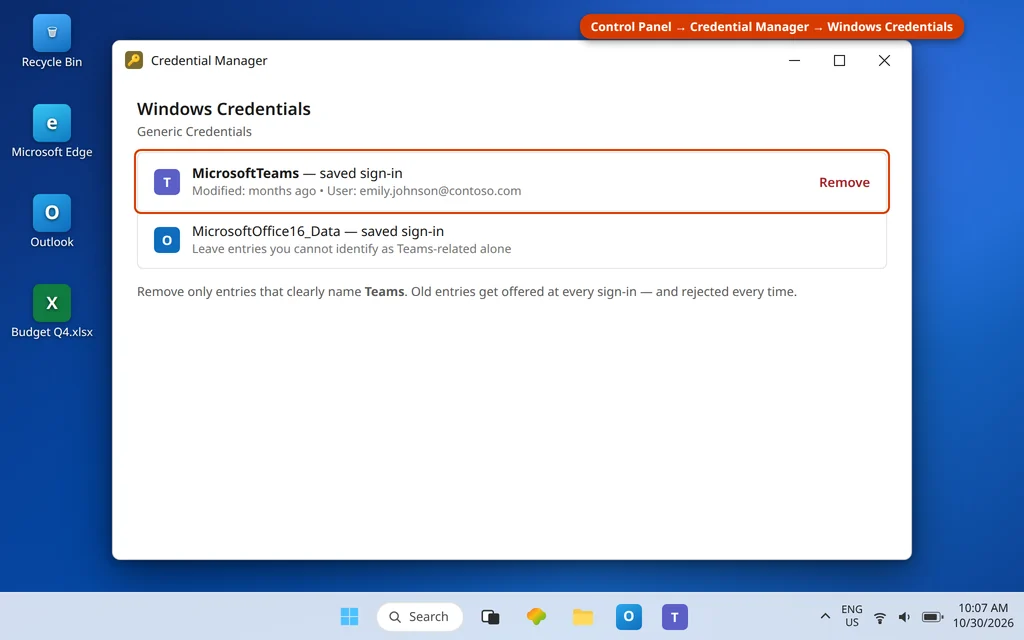
Windows also stores saved sign-in material in Credential Manager. Old entries — from a password change, a previous job’s account, an expired session — can be offered up at every sign-in and rejected every time.
- Open the Start menu, type Credential Manager, and open it.
- Choose Windows Credentials.
- Look through the list for entries that clearly name Teams, Microsoft Teams or msteams, and expand each one and choose Remove.
- Restart Teams and sign in fresh, typing the password rather than accepting any saved prompt.
Only remove entries you can identify as Teams-related. Leave entries you do not recognise alone — other apps keep their saved sign-ins in the same list.
Fix 5 — The Authenticator dead ends: prompt never arrives, codes always wrong
Multi-factor authentication fails in two recognisable ways, and they have different fixes:
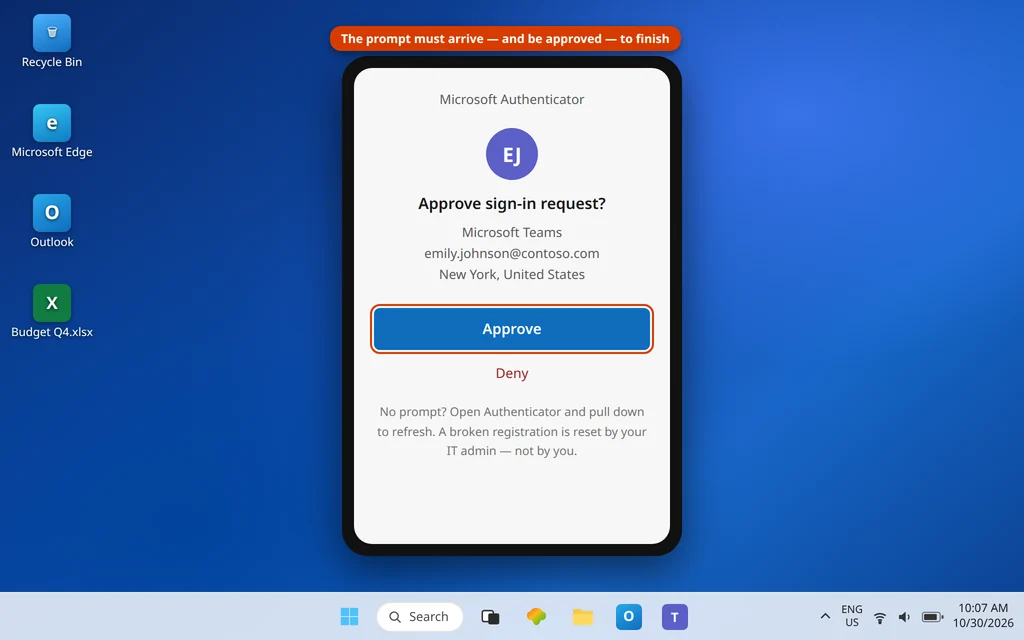
The approval prompt never arrives on your phone. Check the phone is online (turn Wi-Fi off and on, or try mobile data), open the Microsoft Authenticator app manually and pull down to refresh — pending approvals often appear when you do. Check the phone is not in Do Not Disturb or a Focus mode that is hiding the prompt. If the account in Authenticator shows your old organisation or an old phone number, the registration itself is stale.
Codes are always “incorrect”. Time-based codes depend on both clocks agreeing. Sync the PC clock (Fix 6) and check the phone’s date and time are set automatically too.
The honest limit: if your MFA registration is broken — new phone, deleted Authenticator, changed number — an end user cannot reset it alone. Microsoft Q&A answers say the same thing every time: your IT admin resets your MFA settings so you can register again by scanning a fresh QR code. Ask for exactly that; it is a standard, quick admin task.
Fix 6 — Sync the date and time
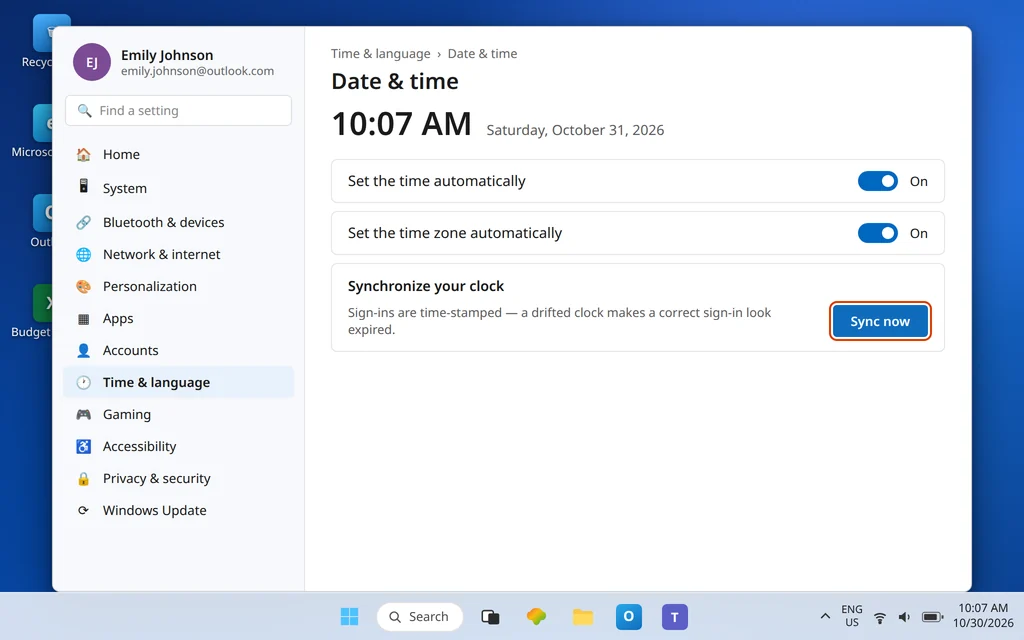
Sign-ins are time-stamped, and a PC clock that has drifted — after a flat battery, a dual-boot, or a manual change — can make a correct sign-in look expired on arrival.
- Open Settings → Time & language → Date & time.
- Turn on Set the time automatically and Set the time zone automatically.
- Under additional settings, choose Sync now.
- Quit Teams fully and sign in again.
It sounds too small to matter; Microsoft Q&A sign-in answers lead with it because it regularly is the whole problem.
Fix 7 — Sign out everywhere, clear the cache, and sign in clean
If the web test passed but this PC still refuses, give the app a genuinely clean start:
- If any device or browser is signed in with the wrong account, sign out of it there first.
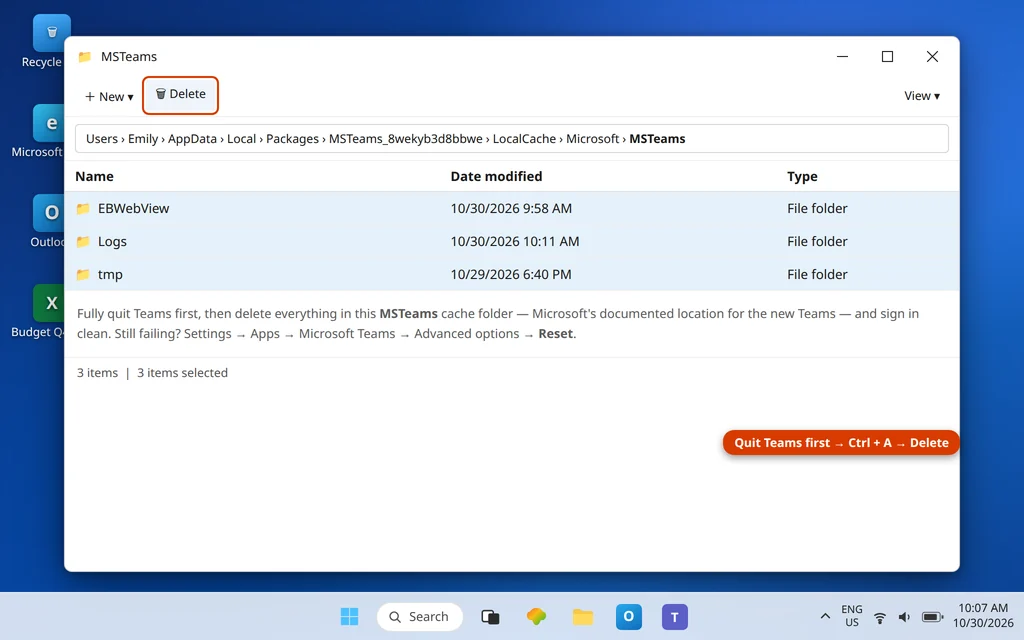
- Fully quit Teams on this PC (right-click the icon near the clock → Quit).
- Press Windows + R, paste
%userprofile%\AppData\Local\Packages\MSTeams_8wekyb3d8bbwe\LocalCache\Microsoft\MSTeams, press Enter, and delete everything in the folder. This is Microsoft’s documented cache location for the new Teams. - If sign-in still fails after the cache, use the stronger reset: Settings → Apps → Installed apps → Microsoft Teams → Advanced options → Reset. Microsoft’s cache guide lists Reset as its first method for the new Teams; it deletes the app’s local data and signs you out everywhere in the app.
- Reopen Teams and sign in with the correct account, typing everything fresh.
If a message-joining problem is what you actually hit once you are in, that is a different guide: Can’t Join a Teams Meeting.
Fix 8 — The admin-side blocks: what only your IT admin can fix
Some complete sign-in failures are not on your PC at all. Microsoft’s own answers are blunt about these:
- The Teams app is disabled for your organisation. One documented error family (the message names the Teams application as “disabled”) means an admin turned Teams off in the organisation’s directory. No local fix exists.
- Your account is disabled, or Teams is not assigned to you. If your licence does not include Teams, or the service is switched off for your account, sign-in fails on every device — including the web test in Fix 1.
- Your MFA needs a reset (Fix 5).
What you can do is hand IT a useful report instead of “Teams doesn’t work”: tell them the exact error wording (and any code shown on the sign-in screen — write it down before closing it), that the web version fails too, the account address you used, and the time it happened. Microsoft’s sign-in troubleshooting for admins starts from the error code, so capturing it genuinely speeds up your fix.
Confirm it worked
Teams opens straight to your chats and channels, your correct name and organisation show under your profile picture, and closing and reopening Teams keeps you signed in. Join a meeting or open a channel to confirm it is fully live, not just past the sign-in screen.
How to stop it happening again
- Keep one account story per app. Sign the desktop app in with the account you actually work in; use the browser for the other account when you need both.
- After a password change, update everywhere the same day — Teams, Windows’ connected account, and saved credentials — before stale entries start failing for you.
- Leave date and time on automatic. A drifting clock quietly breaks sign-ins and Authenticator codes.
- When you change phones, move Authenticator first. Re-register MFA on the new phone while the old one still works; it is the difference between a two-minute job and an admin ticket.
Frequently asked questions
Why does Teams say “We couldn’t sign you in”?
It is Teams’ generic complete-failure message: the sign-in was attempted and rejected or could not finish. The usual reasons are a wrong account type (work/school vs personal), stale saved credentials or a damaged connected account on the PC, an unsynced clock breaking the sign-in or the MFA code, or an admin-side block. Fix 1’s web test tells you which side of the line you are on.
My password works at teams.microsoft.com but not in the app. Why?
Because the account is healthy and the app’s local state is not. Windows is probably handing Teams a stale saved credential or a damaged connected-account session. Work through Fix 3 (disconnect and reconnect in Access work or school), Fix 4 (Credential Manager) and Fix 7 (cache clear or Reset) — in that order.
What is the difference between this and Teams repeatedly asking me to sign in?
Scope. This article is for sign-in that never succeeds — you cannot get in at all. The loop is the opposite: sign-in succeeds, then Teams asks again later because it cannot stay signed in. That problem has different causes (saved tokens being discarded) and its own guide: Microsoft Teams Keeps Asking to Sign In, linked at the top of this article.
I picked the wrong account and Teams keeps signing me back into it. How do I escape?
Sign out inside Teams, then fully quit the app from the icon near the clock so no session lingers. Reopen Teams, choose Use another account on the picker, and type the correct address in full. If Windows itself keeps offering the wrong work account, disconnect it in Settings → Accounts → Access work or school (Fix 3) and reconnect with the right one.
The Authenticator approval never arrives. What can I do myself?
Check the phone is online, open Authenticator manually and refresh, and make sure a Focus or Do Not Disturb mode is not hiding the prompt. If you changed phones or the registered methods are out of date, that part is admin-only: ask IT to reset your MFA so you can register again — Microsoft’s own answers confirm end users cannot reset it themselves.
Can my IT admin really block my Teams sign-in?
Yes — and it is more common than most users realise. If the Teams application is disabled for the organisation, your account is disabled, or your licence does not include Teams, sign-in fails everywhere including the web. Fixes on your PC cannot change it. Give IT the exact error text and any code shown, whether the web version failed too, and the time — that is what their troubleshooting starts from.
Still locked out? Contact us at servicedesk@howtofixerroronline.com or through our Contact page and tell us the exact error wording on the sign-in screen and whether teams.microsoft.com lets you in. We will never ask for your password.