
Microsoft Teams Notifications Delayed — Alerts Arrive Late
The message was sent at 10:02. Your banner for it appeared at 10:17 — along with six others, all at once, like a delivery truck dumping the whole street’s mail in one stop. Microsoft Teams notifications that arrive late, in batches, or only when you open the app are a different problem from notifications that never arrive at all.
That distinction matters, so be clear which one you have. If you get no alerts whatsoever — no banners, no sounds, nothing in the Activity feed — that is the separate problem covered in Microsoft Teams Notifications Not Working. This guide is only for the delay pattern: everything eventually shows up, just too late to be useful. Delayed alerts are almost never a broken Teams — they are Teams being politely held back by something: a Focus session, a power setting, a metered connection, a clock that has drifted, or the simple fact that Teams was not running. Work through the fixes in order and test with a colleague after each one.
Quick Answer: First, turn off anything that holds notifications back: Windows Do Not Disturb (Settings > System > Notifications) and any running Clock Focus session, plus the Do not disturb status inside Teams itself. Next, turn off Battery saver in Settings > System > Power & battery, make sure Teams is actually running (not fully closed), and sync your clock in Settings > Time & language > Date & time > Sync now. Alerts held by Focus or Do Not Disturb are released in a batch when the session ends — that batch is the symptom.
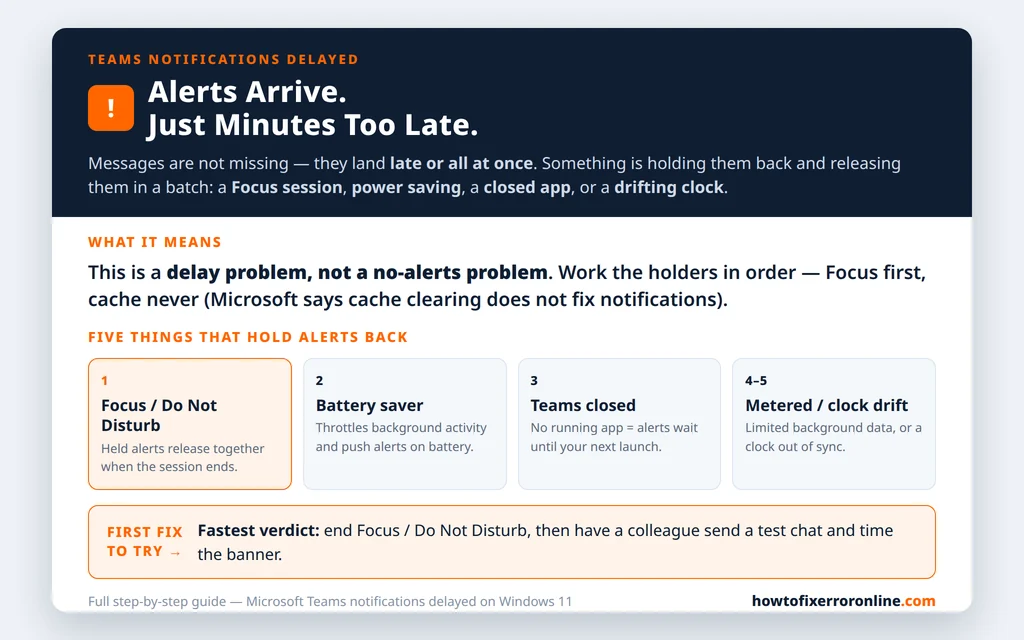
Table of Contents
Fix 1 — End Do Not Disturb and Focus in Windows
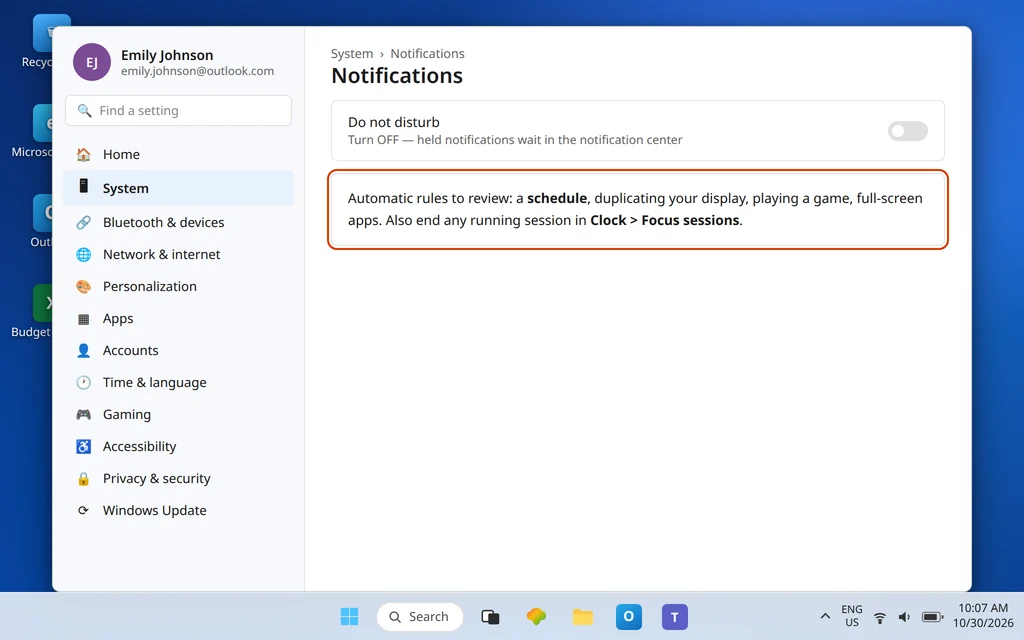
Windows can hold notifications back on a schedule without asking you each time. While Do Not Disturb is on, banners are suppressed and notifications wait in the notification center; when it switches off, they surface together — which feels exactly like “Teams is delayed.”
- Open Settings > System > Notifications.
- Turn Do not disturb off.
- Expand Turn on do not disturb automatically and review the rules underneath: a time schedule, duplicating your display, playing a game, or using an app full screen can each switch it on silently. Remove or adjust any rule you did not intend.
- Open the Clock app and check Focus sessions. If a session is running, end it — a Focus session holds notifications for its duration and releases them at the end, in a pile.
Send yourself a test: ask Sarah Mitchell or a colleague to send you a chat message and watch whether the banner appears within seconds.
Fix 2 — Clear the Do not disturb status inside Teams
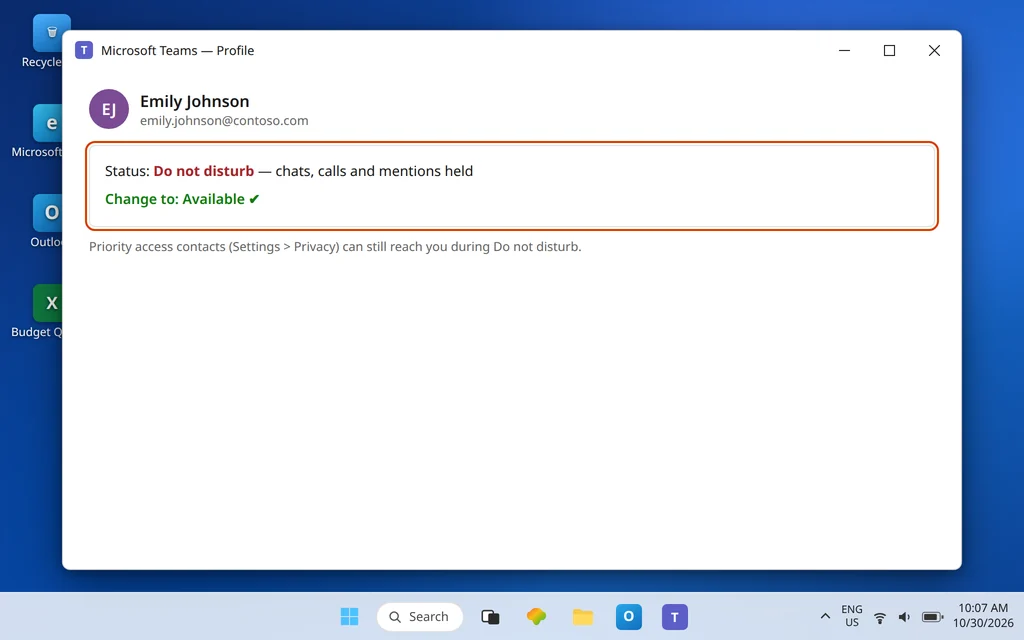
Teams has its own version of the same idea. If your Teams status is set to Do not disturb, Teams holds chat, call, and @mention notifications (contacts you have given priority access are the exception). The messages are not lost — they wait, and they arrive when your status changes.
- Click your profile picture at the top of Teams.
- Click your current status and set it back to Available.
- If you use Do not disturb deliberately during deep work, check Settings > Privacy > Manage priority access so the people who genuinely need to reach you — your manager, your team lead — can still break through, instead of turning the whole thing off and on all day.
A status that keeps flipping back to Do not disturb on its own is often a calendar effect: Teams sets it during meetings and focus time booked in your calendar. That is expected behavior, but it does explain delays that line up suspiciously well with your meeting schedule. If your presence in general seems stuck or wrong, see Microsoft Teams Showing Away for the presence side of the story.
Fix 3 — Turn off Battery saver and check your power mode
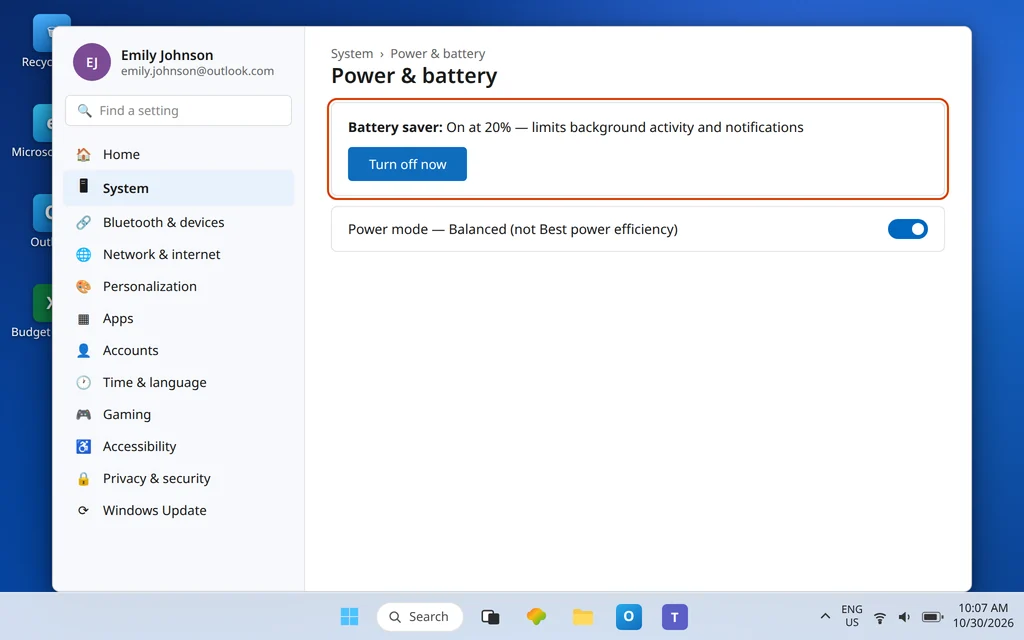
Windows Battery saver exists to stretch a laptop battery, and one of the ways it does that is by limiting background activity and push notifications. An app that is being throttled in the background delivers its alerts when it next gets a turn — late, and several at a time.
- Open Settings > System > Power & battery.
- Under Battery saver, choose Turn off now (or set it to only come on at a much lower battery level).
- Under Power mode, if it is set to Best power efficiency, try Balanced for a day and compare notification timing.
Plug the laptop in for the test if you can: on AC power, these limits largely fall away, so if alerts become instant while plugged in and sluggish on battery, you have found your cause and can decide which trade-off you prefer.
Fix 4 — Keep Teams running (and set it to start with Windows)
Teams can only alert you in real time while it is running. Closing the Teams window with the X normally minimizes it to the system tray, where it keeps working — but if Teams has been fully quit, or its “run in the background” behavior has been turned off, the next alert waits until you next launch the app. That produces the classic pattern: open Teams, and twelve notifications arrive at once.
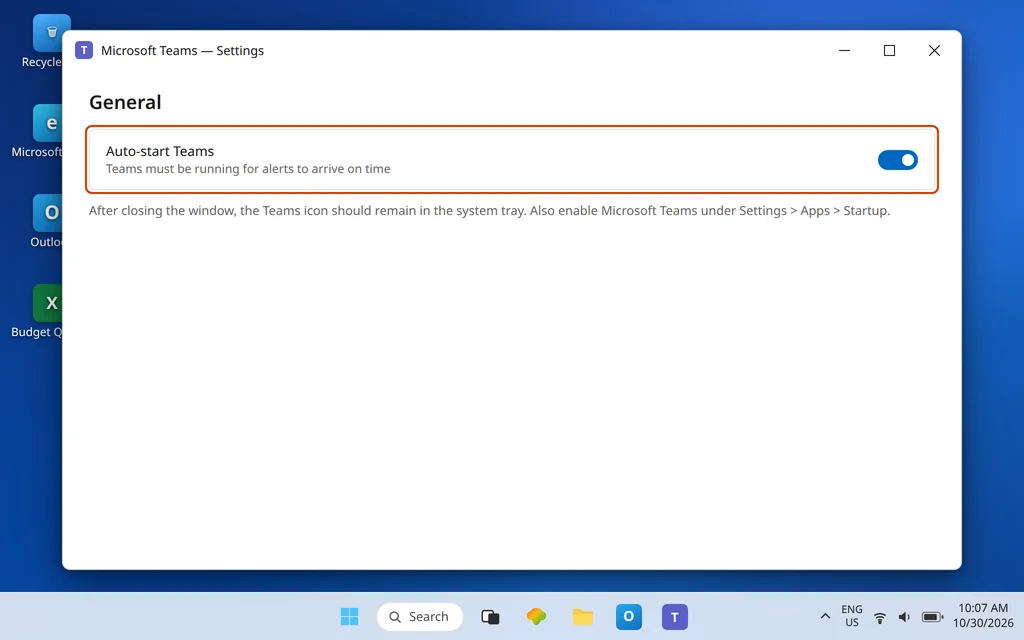
- Open Teams, click the … next to your profile picture, then Settings > General.
- Make sure Auto-start Teams is on, so Teams launches with Windows.
- After closing the window, check the system tray (the ^ arrow near the clock): the Teams icon should still be there. If it is not, Teams was quit — relaunch it and leave it running.
- In Settings > Apps > Startup, confirm Microsoft Teams is enabled.
If messages themselves — not just the alerts — only catch up when you open the app, that is the sync side of the same coin; see Microsoft Teams Messages Not Syncing after you have worked through this guide.
Fix 5 — Check for a metered connection
Windows treats a metered connection (a network you have marked as paid or limited) as a reason to cut background data — and background data is what timely notifications travel on.
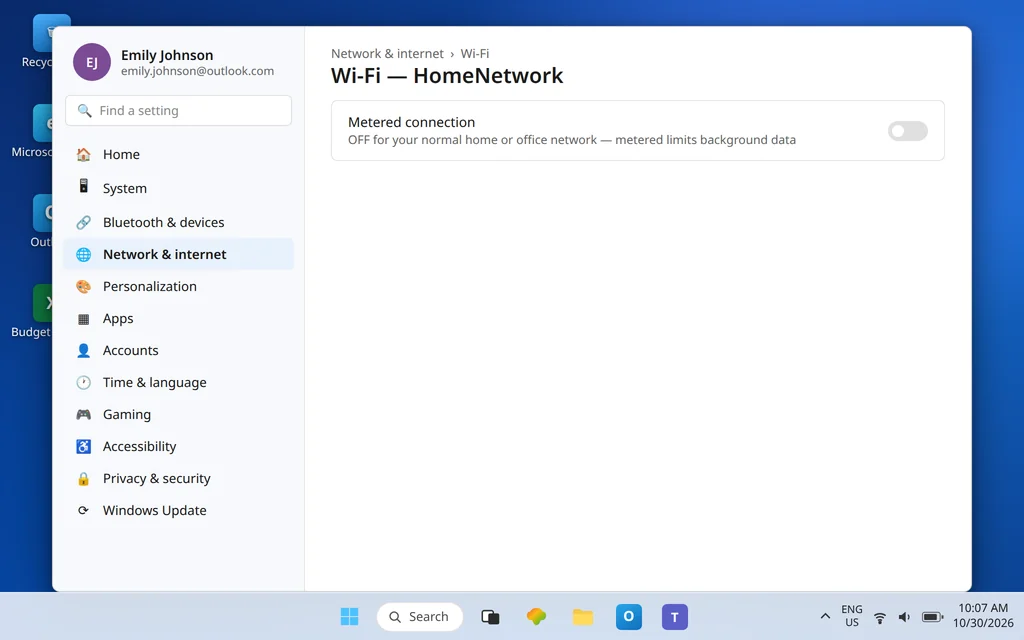
- Open Settings > Network & internet > Wi-Fi (or Ethernet).
- Select the network you are connected to.
- If Metered connection is on and this is your normal home or office network, turn it off.
Leave it on for a phone hotspot you pay for by the gigabyte — but expect Teams on that connection to behave like it is on a budget, because it is.
Fix 6 — Sync the Windows clock
Notification timing, message ordering, and sign-in tokens all depend on your PC’s clock agreeing with Microsoft’s servers. A clock that has drifted — after a flat CMOS battery, a long sleep, or a manual change — can make timestamps and delivery look wrong in ways that feel like delay.
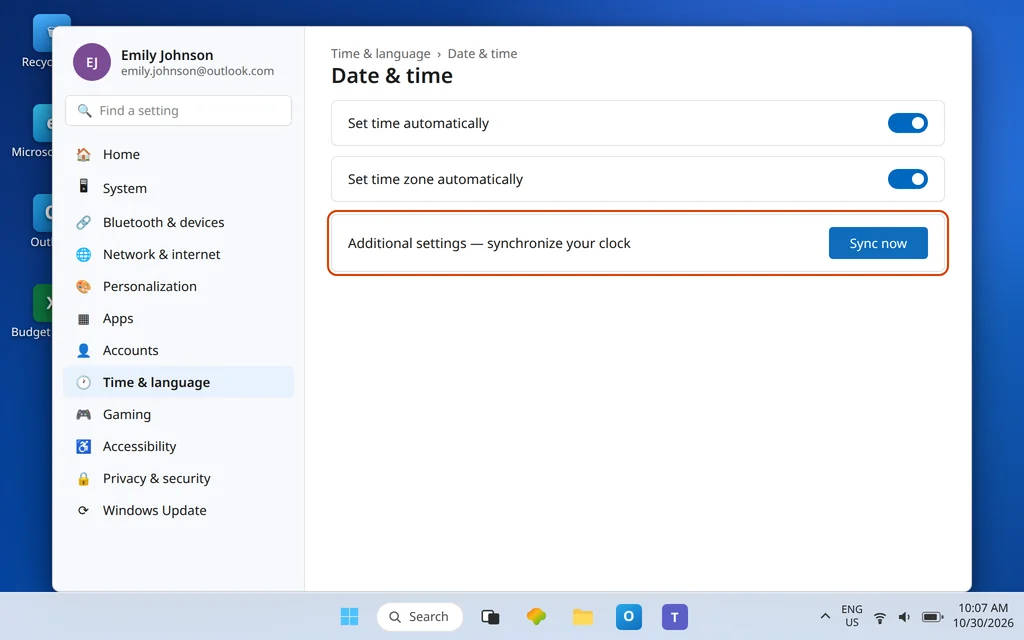
- Open Settings > Time & language > Date & time.
- Turn on Set time automatically and Set time zone automatically.
- Under Additional settings, click Sync now and wait for the confirmation that the time synchronized.
This takes ten seconds and rules out a whole category of weirdness — do it even if the clock looks right, because a drift of a few minutes is not visible at a glance.
Fix 7 — Review the notification toggles themselves
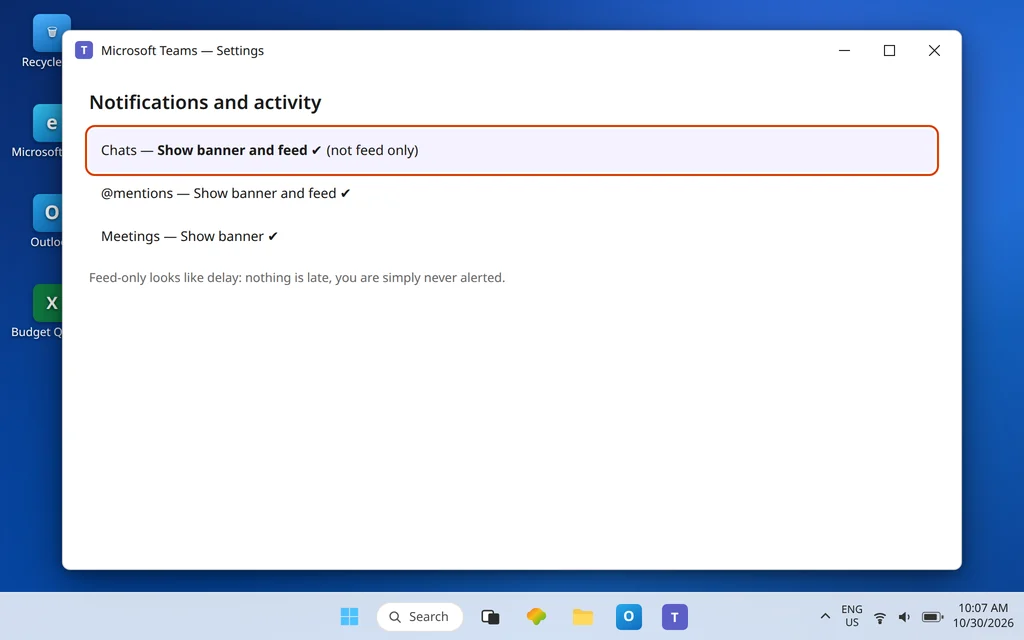
A delay can also be a settings illusion: if chats are set to show only in the Activity feed, nothing is actually late — you are simply never being alerted, so you discover everything in a batch when you next look. Check both layers:
- In Teams: Settings > Notifications and activity. Set Chats and @mentions to show banners for the alerts you need in real time, rather than feed-only.
- In Windows: Settings > System > Notifications, find Microsoft Teams in the app list and confirm notifications and banners are on for it.
While you are in the Windows list, this is also where a priority setting helps if you keep Do Not Disturb on by choice: you can allow specific apps through it. Teams on that list means Focus hours no longer hold your work alerts hostage.
Fix 8 — Update Teams and Windows
Delivery bugs do get fixed, and a stale client is a legitimate suspect when delays start suddenly. In Teams, click the … next to your profile picture and choose Check for updates if your version offers it, then restart Teams. For Windows, open Settings > Windows Update, install what is offered, and restart the PC — a pending update sitting half-applied can leave notification services in a strange state until the restart completes.
One honest boundary: if everyone in your organization is seeing the same delay at the same time, the hold-up is likely on Microsoft’s side or your network’s, and no setting on your PC will fix it. Send your test messages, note the times, and give that evidence to your IT team rather than reinstalling anything.
A short note about your phone
If the delay is on your phone rather than your PC, the usual cause is the phone protecting its battery: Android battery optimization and “sleeping apps” lists can hold Teams alerts until you unlock the phone, and data-saver modes can do the same. The remedies are the phone equivalents of Fix 3 — exempt Teams from battery optimization, allow it background data, and make sure Teams notifications are allowed in the phone’s settings. The exact menus vary by phone maker, so we cover the principle here rather than one brand’s screens.
Confirm it worked
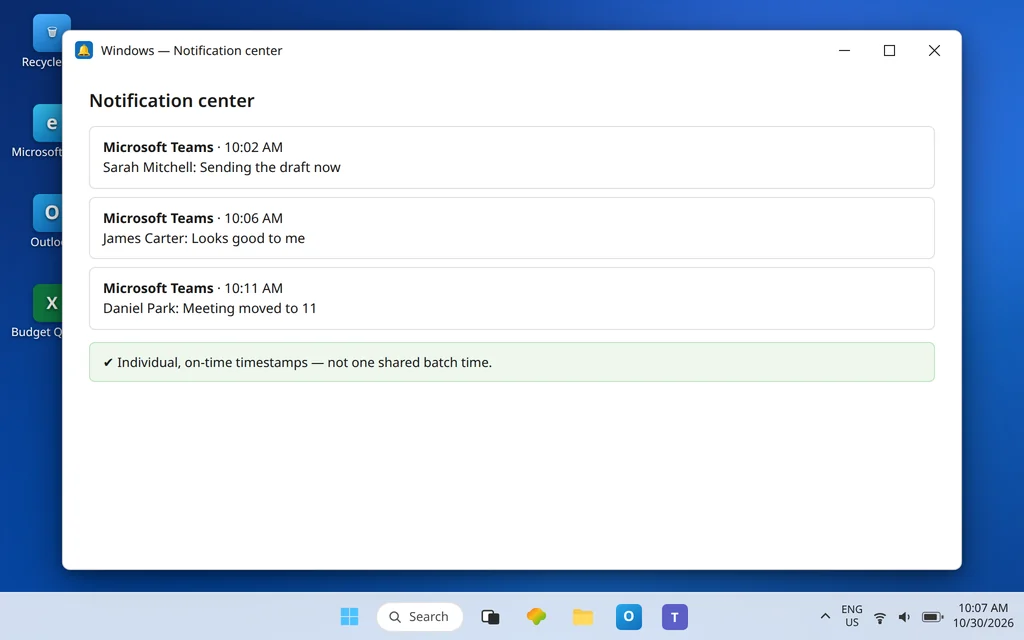
Have a colleague — Emily Johnson’s test messages work fine for this — send you three chat messages a few minutes apart while you do nothing: do not open Teams, do not touch the PC. Each one should produce a banner within seconds of being sent, and the notification center should show matching, spread-out times rather than one shared timestamp. Repeat the test once on battery power if Fix 3 was your fix, and once during the hours a schedule used to apply if Fix 1 was yours.
How to stop it happening again
- Know your schedules. A Do Not Disturb schedule or a daily Focus session you set up once and forgot is the most common repeat offender. Review the automatic rules in Fix 1 monthly.
- Leave Teams running. Auto-start on, tray icon present — timely alerts need a running app.
- Treat power settings as notification settings. Battery saver and aggressive power modes will always trade alert speed for battery life; choose that trade-off deliberately, not by accident.
Frequently asked questions
Why are my Teams notifications delayed?
Because something between Microsoft’s servers and your screen is holding them: Windows Do Not Disturb or a Focus session (alerts wait, then release together), Battery saver throttling background activity, Teams not running, a metered connection limiting background data, or a drifting PC clock. Fixes 1–6 cover each of these in order of likelihood.
Why do Teams notifications arrive all at once?
That batch pattern is the fingerprint of a hold-and-release setting — Do Not Disturb, a Clock Focus session, or Teams’ own Do not disturb status. The alerts were never lost; they were queued and delivered together when the hold lifted. Check Fix 1 and Fix 2 first whenever you see several notifications share the same arrival time.
Does Do Not Disturb delay Teams notifications?
Yes, in effect. Windows Do Not Disturb sends notifications to the notification center instead of showing banners, and Teams’ own Do not disturb status holds chat, call, and mention alerts (priority-access contacts excepted). In both cases the alerts surface when the mode ends — which is why they feel delayed rather than missing.
Why do I only get Teams notifications when I open the app?
Because Teams was not running in the background. If the app is fully quit — rather than minimized to the system tray — nothing is listening for new messages, so everything arrives in a rush at the next launch. Enable Auto-start Teams in Settings > General and confirm Teams is listed as enabled under Settings > Apps > Startup (Fix 4).
Can battery saver really delay notifications?
Yes. Battery saver is designed to limit background activity and push notifications to save power, and Teams is not exempt. If your alerts are prompt while plugged in and late on battery, Battery saver or the Best power efficiency mode is the likely cause — Fix 3 shows where to change it.
Should I clear the Teams cache to fix delayed notifications?
No — and this guide deliberately leaves it out. Microsoft’s own cache guidance says clearing the cache does not fix notification or unread-count problems. Delayed alerts come from hold-and-throttle settings (Focus, power, connection, clock), so work those instead of deleting local data that only slows the app’s next start.
Alerts still arriving in a pile? Contact us at servicedesk@howtofixerroronline.com or through our Contact page and tell us how late the alerts are, whether they share one arrival time, and whether the delay happens on battery, on Wi-Fi, or both. We will never ask for your password.