
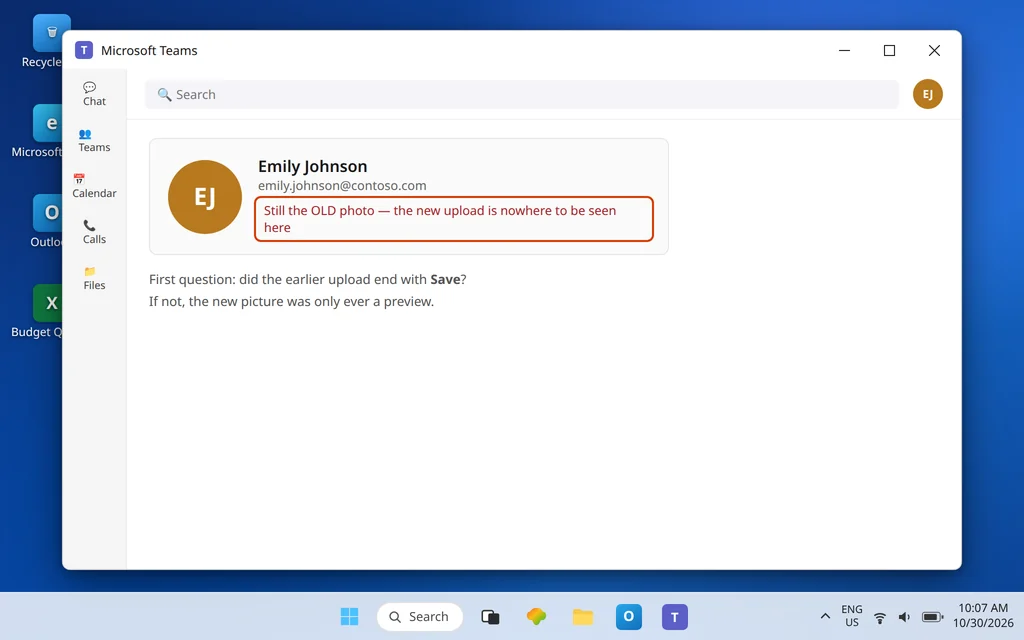
Microsoft Teams Profile Picture Not Updating — Still Shows the Old Photo
You did everything right. You uploaded a new profile picture in Microsoft Teams, it looked fine in the preview — and the old photo is still there. Or stranger: you can see the new photo, but everyone in the meeting is still looking at the old one.
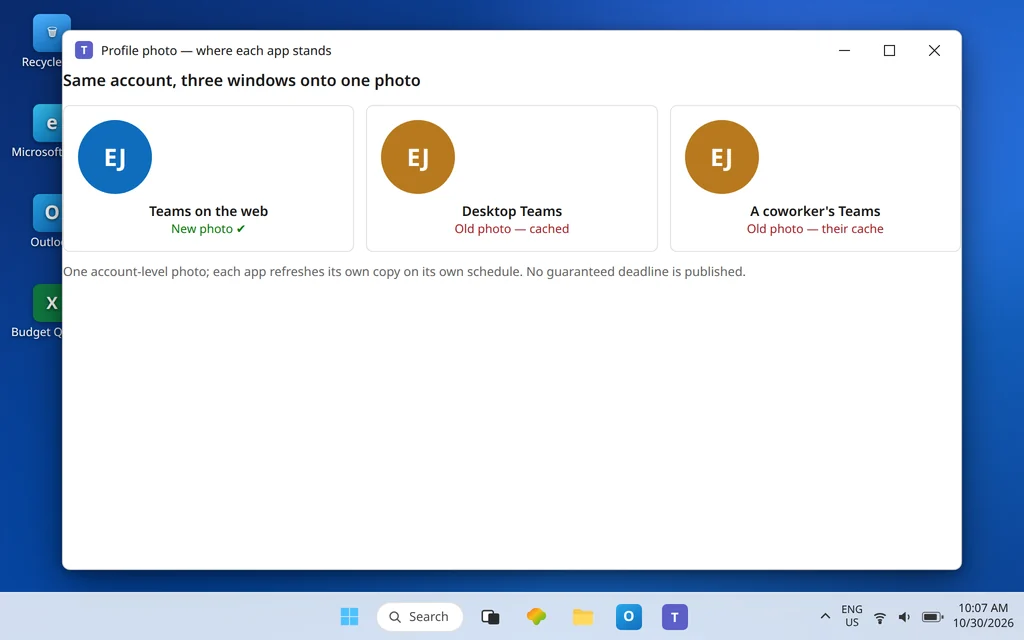
This problem confuses people because a Teams profile picture is not really a “Teams” picture. It is your Microsoft account photo, shared across Microsoft 365 — the same photo that appears in Outlook and other Microsoft apps. Teams is just one of several places that display it, and each place keeps its own cached copy. Almost every version of “my picture will not update” is one of these: the upload was never actually saved, you changed the photo on a different account than the one you are looking at, one app (or one coworker’s app) is still showing a cached copy, the change is still making its way between services — or, on a work account, your organization manages the photo for you.
Quick Answer: First, re-do the upload the fully-saved way: click your profile picture at the top of Teams, click the picture again in the account panel that opens, choose Upload, pick the new photo — and click Save. Skipping Save is the most common cause of all. Then check what the service itself holds: open teams.microsoft.com in a browser. If the web version shows the new photo, your upload worked and the old photo is just a cached copy in an app — sign out of that app and back in. If the web version also shows the old photo on a work or school account, your organization may manage profile photos centrally, and your admin is the fix.
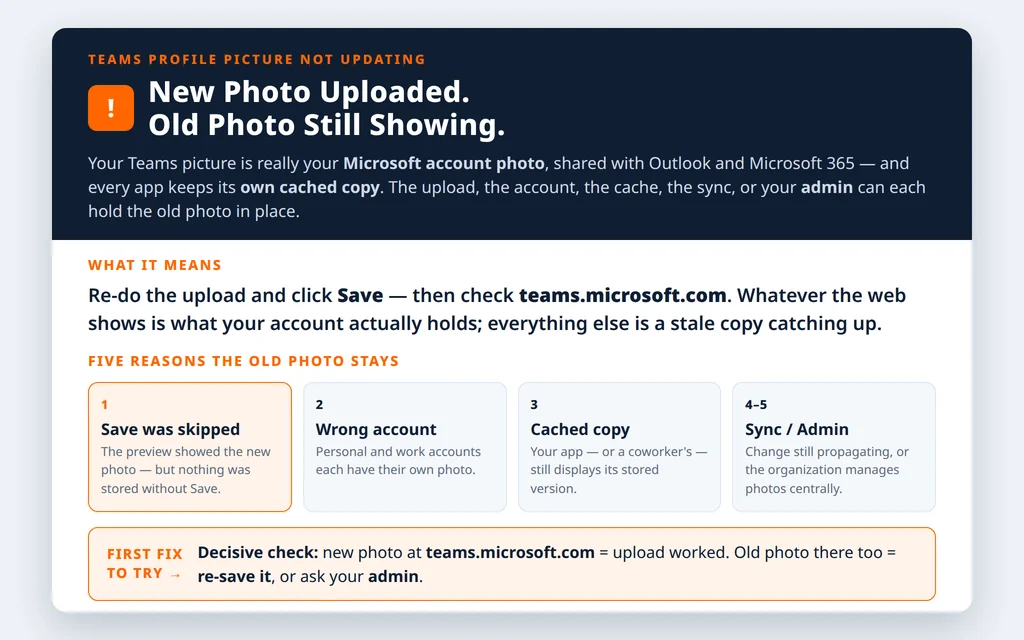
Table of Contents
Fix 1 — Upload it again, and this time watch for Save
The Teams photo flow has a step that is easy to click past — and if you miss it, the new picture was only ever a preview:
- In Teams, select your profile picture at the top of the window.
- When the account panel opens, select your profile picture again.
- Select Upload, choose the new photo from your computer, and position it as prompted.
- Select Save to apply the change.
Those are Microsoft’s own steps for changing the photo, and step 4 is the one that matters here. If you closed the panel after choosing the file — very easy to do, because the preview already shows the new picture — nothing was stored, and Teams correctly kept showing the old photo. Redo it slowly, click Save, wait for the panel to close normally, and then check the result with Fix 2 before assuming anything else is wrong.
Fix 2 — Check the photo where it actually lives: Teams on the web
Your account photo lives with your Microsoft account, not inside one app. That gives you a clean test that separates “the upload failed” from “this app is showing a stale copy”:
- Open teams.microsoft.com in a browser, sign in with the same account, and look at your profile picture there.
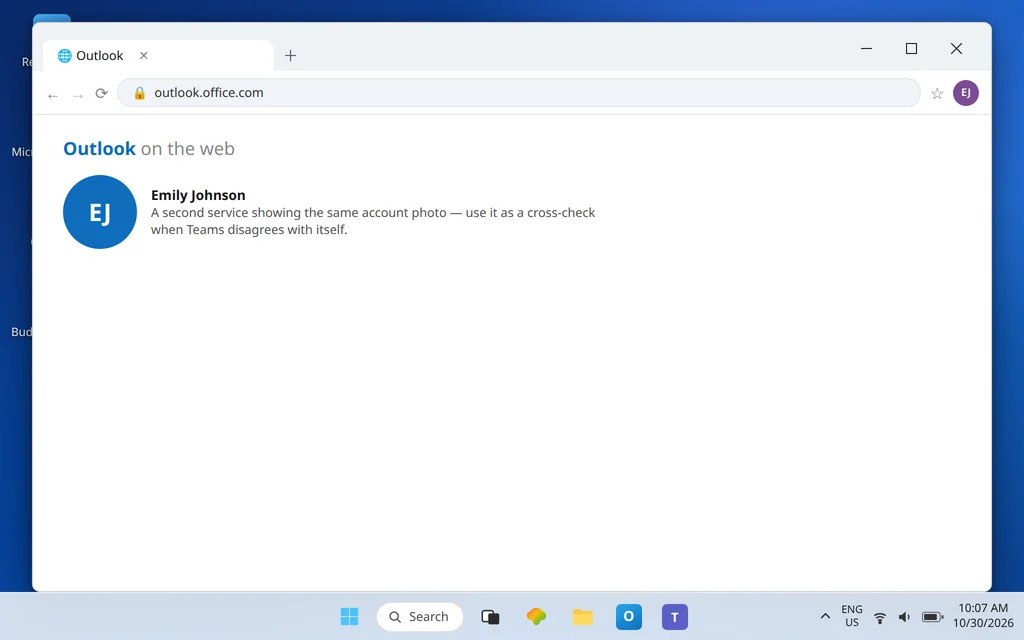
- Better still, also open Outlook on the web or your Microsoft 365 profile page and look at the photo in a second service.
- Read the result:
- New photo on the web, old photo in the desktop app: the upload succeeded. The desktop app is holding a cached copy — Fix 4.
- Old photo everywhere, including the web: the change was never stored at account level. Redo Fix 1, then consider Fixes 3 and 6.
Do the same style of check in reverse when it is coworkers who see the old photo: if the web version shows your new picture, your side is done — their apps are the ones caching, which is Fix 5.
Fix 3 — Make sure you changed the photo on the right account
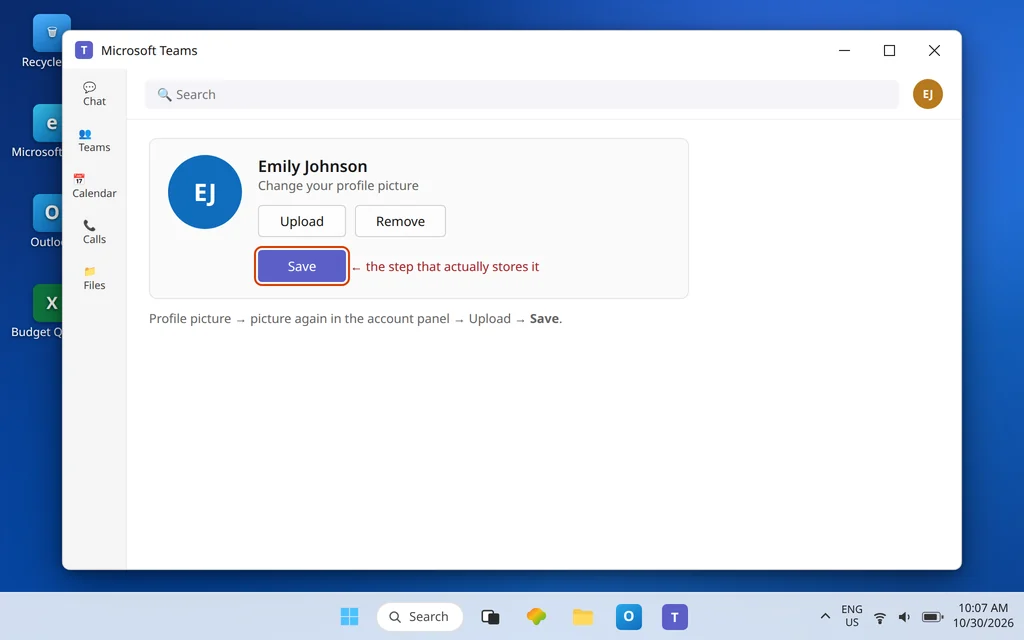
Many people have two Microsoft identities — a personal account and a work or school account (in our examples, Emily Johnson’s work account is emily.johnson@contoso.com) — and each has its own profile photo. Changing the photo while signed in to the personal account does nothing at all to the work photo your colleagues see, and the reverse is just as true.
- In Teams, click your profile picture and read the name and email address in the account panel. Is that the account your coworkers know you by?
- If you use Teams for personal use as well, check that app or account too — a photo updated there can create the convincing illusion that “I already changed it.”
- For a personal Microsoft account, the same account-level logic applies: changing the photo on your Microsoft account profile updates the same underlying picture your personal Teams uses, so change it in one place, deliberately, on the right account.
If signing in and out of accounts turns into a repeated prompt loop on this PC, that separate problem is covered in Microsoft Teams Keeps Asking to Sign In — fix the photo first, then the loop.
Fix 4 — Sign out and back in to clear your stale copy
If Fix 2 proved the service holds your new photo but your desktop app still shows the old one, refresh what the app holds:
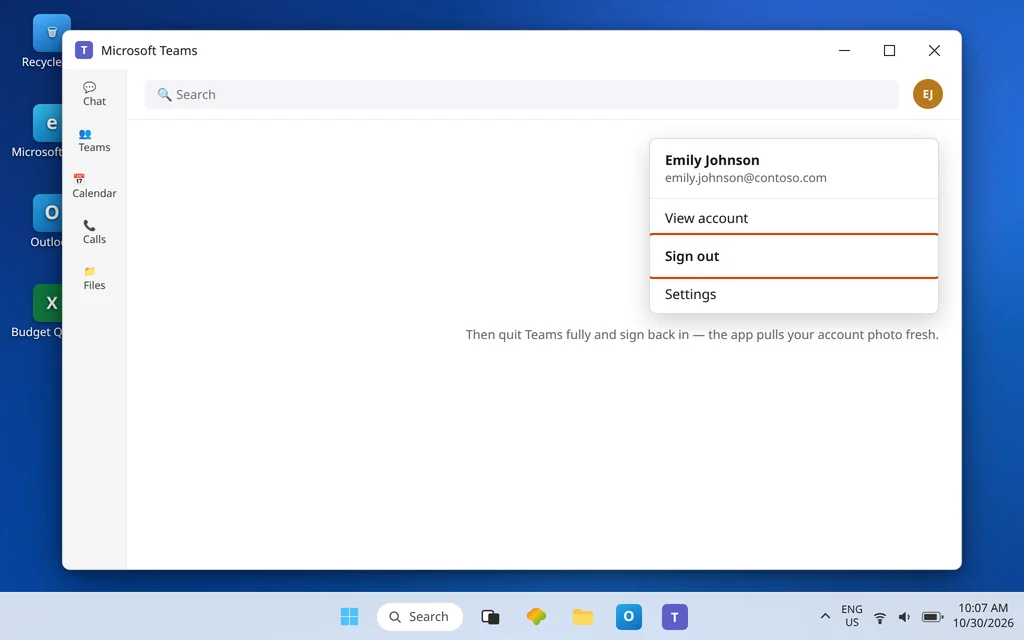
- Click your profile picture and choose Sign out.
- Quit Teams completely from the notification area icon (right-click > Quit) — signing out alone can leave the app running.
- Reopen Teams and sign back in. Check your photo in the profile panel, in a chat you have posted in, and on your meeting tile if you join a call.
Signing back in makes the app pull your account details fresh rather than redrawing its stored copies. Avoid judging the result in the first few seconds — give the app a moment to finish signing in and loading before you declare the old photo still stuck. If signing in itself now fails completely on this account, stop and use Microsoft Teams Sign-In Problems — an app you cannot sign in to cannot refresh anything.
Fix 5 — When coworkers see the old photo but you see the new one
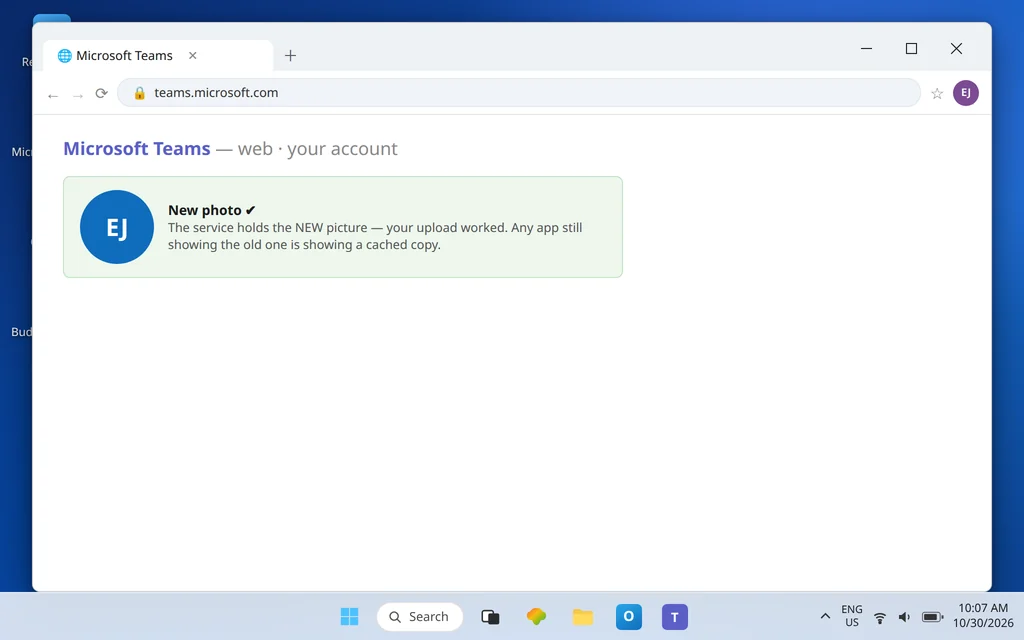
This is the most reported version of the problem, and the least broken: your photo did update. What is lagging is everyone else’s copy of it. Each person’s Teams keeps a local cache of the profile photos it displays, and those caches refresh on their own schedules, not on yours.
What you can sensibly do:
- Confirm your side once with Fix 2 — new photo visible on Teams on the web means the account-level change is real and stored.
- Give it time. Be cautious about exact promises here: Microsoft does not publish a guaranteed deadline for a photo change to appear in every app and every coworker’s client, so treat any specific hour count you read online with suspicion. In practice, changes often appear within hours, but a change still propagating is not, by itself, proof that anything is broken.
- Ask one coworker to sign out and back in (Fix 4’s steps, on their PC) if they need the new photo urgently — that refreshes their copy. You cannot force-refresh everyone else’s apps from your side, and repeatedly re-uploading your photo does not speed them up.
If days pass, the web still shows your new photo, and a coworker who has fully restarted Teams still sees the old one, hand it to your IT admin with those facts — you have already ruled out the upload, the account, and simple caching.
Fix 6 — Work or school account with no working Upload? It may be managed for you
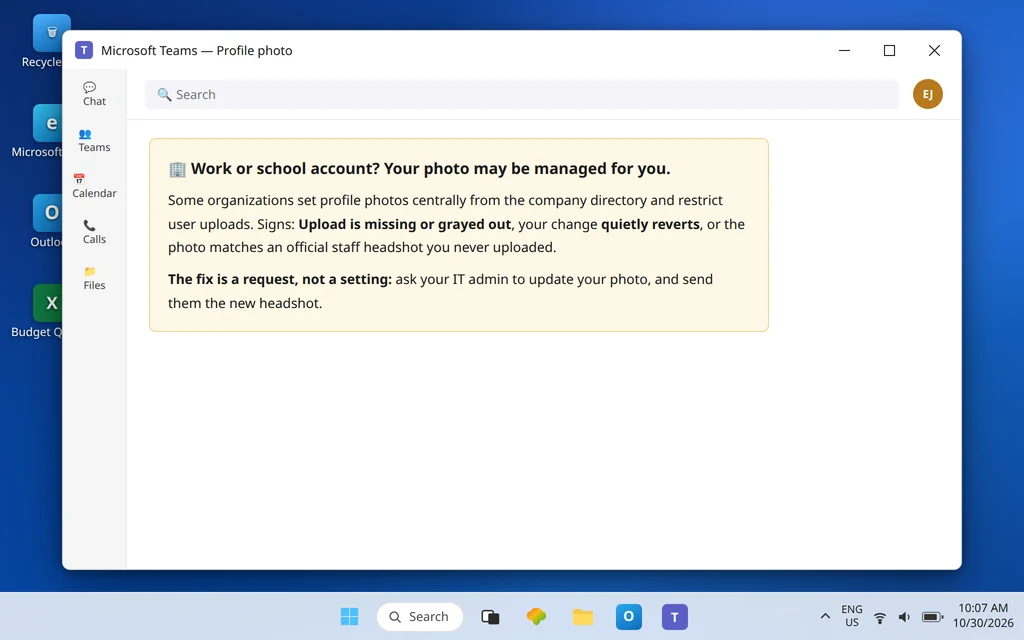
On work and school accounts, the photo may not be yours to change. Organizations can set employee photos centrally — for example from the company directory — and can restrict or disable user photo uploads. For accounts with an Exchange Online mailbox, the photo in Exchange is the source that other Microsoft 365 services synchronize from, which is another way of saying: a photo your admin set can overwrite or outrank the one you try to set yourself.
Signs this is your situation:
- The Upload option is missing, grayed out, or your change quietly reverts to the company photo later.
- Your photo in Teams exactly matches an official staff-directory headshot you never uploaded.
- Colleagues report the same behavior — nobody in the organization can change their picture.
The fix is a request, not a setting: ask your IT admin or HR to update your photo in the directory, and send them the new headshot in whatever format they ask for. Keep re-uploading out of your routine — on a managed account it cannot win, and it wastes the time you would spend on the one route that works.
Fix 7 — Reset the desktop app if your copy is still stale
Last step, for the narrow case where the web shows the new photo, your account is right, and your desktop app still insists on the old picture after a full sign-out and restart:
- Open Settings > Apps > Installed apps, find Microsoft Teams, and select … > Advanced options.
- Select Reset, reopen Teams, and sign in again.
A reset deletes the app’s local data on this PC, including its cached copies of profile photos and your personalization settings — which is precisely why it works for a stuck local copy, and also why it belongs last instead of first. Do not use it to chase the coworkers-see-the-old-photo version of the problem: resetting your app does nothing at all to theirs.
Confirm it worked
Check your photo in three places: the profile panel in desktop Teams, Teams on the web, and a message you send in a chat (the avatar beside your own new message is the copy other people in that chat will converge on). Then ask one coworker what they see. You seeing the new photo everywhere you look, plus one coworker confirming it, is a genuine fix. If only your own views changed, you are in Fix 5 territory — propagation, not failure.
How to stop it happening again
- Always finish with Save, then verify on the web. Thirty seconds at teams.microsoft.com after an upload tells you whether the change truly landed at account level.
- Change the photo in one place only. Because the photo is shared across Microsoft 365, uploading different photos in Teams, Outlook, and your account page in the same afternoon just creates a sync tangle — pick one, save it, and let it propagate.
- Know which kind of account you have. Personal account: the photo is yours to change, in Teams or on your Microsoft account profile. Work or school account: if your organization manages photos, go to the admin first next time instead of troubleshooting a lock that is working as intended.
Frequently asked questions
Why is my Teams profile picture not updating?
Work through the five causes in order: the upload was not saved (no Save click in Fix 1), the photo was changed on a different account (Fix 3), the app you are looking at is showing a cached copy (Fixes 2 and 4), the change is still propagating to other apps and people (Fix 5), or your organization manages the photo centrally (Fix 6). One of those five explains nearly every case — and the web check in Fix 2 tells you which half of the list you are on.
How do I change my profile picture in Teams correctly?
Select your profile picture at the top of Teams, select the picture again in the account panel, choose Upload and pick the new photo, then select Save. The second click on the picture and the final Save are the two steps people miss — the preview can show the new photo before anything has actually been stored.
How long does a new Teams profile picture take to show everywhere?
There is no guaranteed time, and you should be wary of any source that promises you an exact one — Microsoft does not publish a fixed deadline for a photo to reach every app and every other person’s client. You will usually see your own new photo first; other services and other people’s apps follow as their caches refresh, which can take hours and occasionally longer. Judge the upload by Teams on the web (Fix 2), not by the slowest app you can find.
Why do my coworkers still see my old photo when I see the new one?
Because their Teams apps are displaying their own cached copies of your photo, and those refresh on their schedule. If Teams on the web shows your new photo, your change is stored correctly and there is nothing further to upload. A coworker who needs it now can sign out of Teams and back in to refresh their copy; everyone else’s will update on its own.
My work account will not let me change my photo. Why?
Most likely because your organization manages profile photos centrally — setting them from the company directory and restricting changes by users. On accounts with Exchange Online, the Exchange photo is the source other Microsoft 365 services sync from, so an admin-set photo can outrank yours. The route that works is asking your IT admin to update your photo and supplying them a new headshot.
Does changing my photo in Outlook or my Microsoft account change it in Teams?
Yes — it is the same account-level photo. Teams, Outlook, and your Microsoft 365 profile are different windows onto one picture, not separate pictures. That is also why they can temporarily disagree: change it in one place, save it properly, and then check on the web to watch the stored version rather than re-uploading it in every app.
New photo still not showing? Contact us at servicedesk@howtofixerroronline.com or through our Contact page and tell us which photo Teams on the web shows, whether it is a personal or work account, and whether coworkers see the old or new photo. We will never ask for your password.