
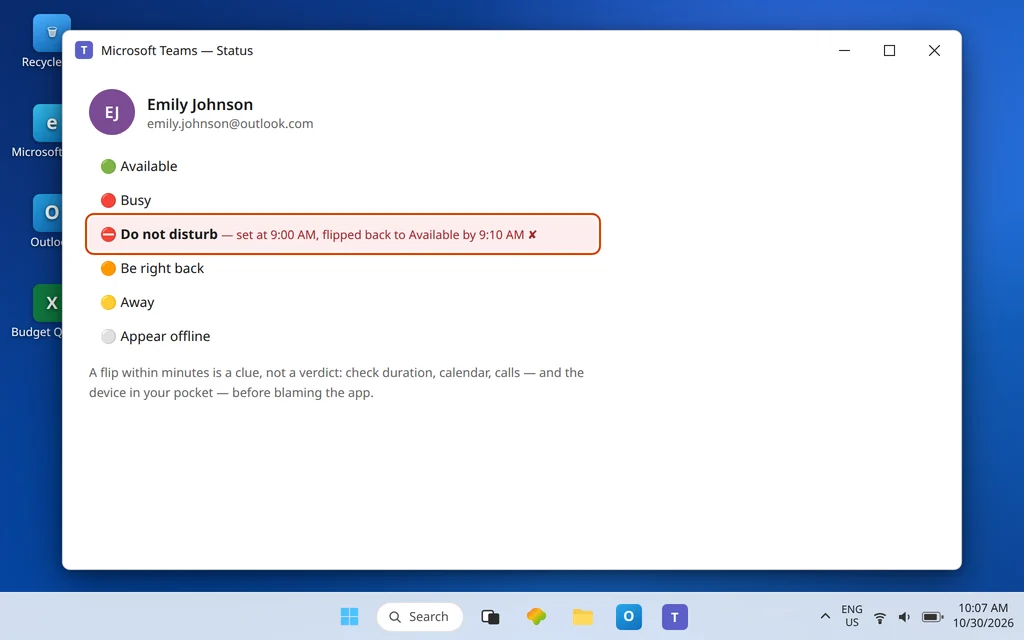
Microsoft Teams Unable to Change Status — Status Keeps Resetting
You set yourself to Do not disturb for an hour of focus. Ten minutes later you are Available, and the interruptions resume. Or you set Busy, glance up after lunch, and find Away — or the reverse: you try to set yourself back to Available and Teams quietly refuses to keep it. A manual status in Teams feels like it should be an order. In reality it is a suggestion fed into a precedence system, and this guide explains that system so you can predict — and control — what your status does.
Two neighbors own different status faults, in one line each: if Teams flips you to Away while you are actively working on the automatic inactivity rule, that is Microsoft Teams Showing Away (Article 115), and if your out-of-office status will not update, that is Microsoft Teams Out of Office Status Not Updating (Article 139). This article owns only one thing: a status you chose by hand that will not stay chosen.
Quick Answer: Manual statuses in Teams expire and get outranked by design. If you set no duration, Busy and Do not disturb last 1 day, most other manual statuses last 7 days, and Appear offline lasts indefinitely — then Teams recalculates from your activity, calendar, and app state. You also cannot pick a status more available than the one Teams has calculated (in a meeting or on a call, the app state wins over an Available pick). To make a status stick: set it with an explicit Duration (profile picture > current status > Duration > Reset status after), keep your calendar and second devices from contradicting it, and use Reset status to hand control back to automatic presence when you are done.
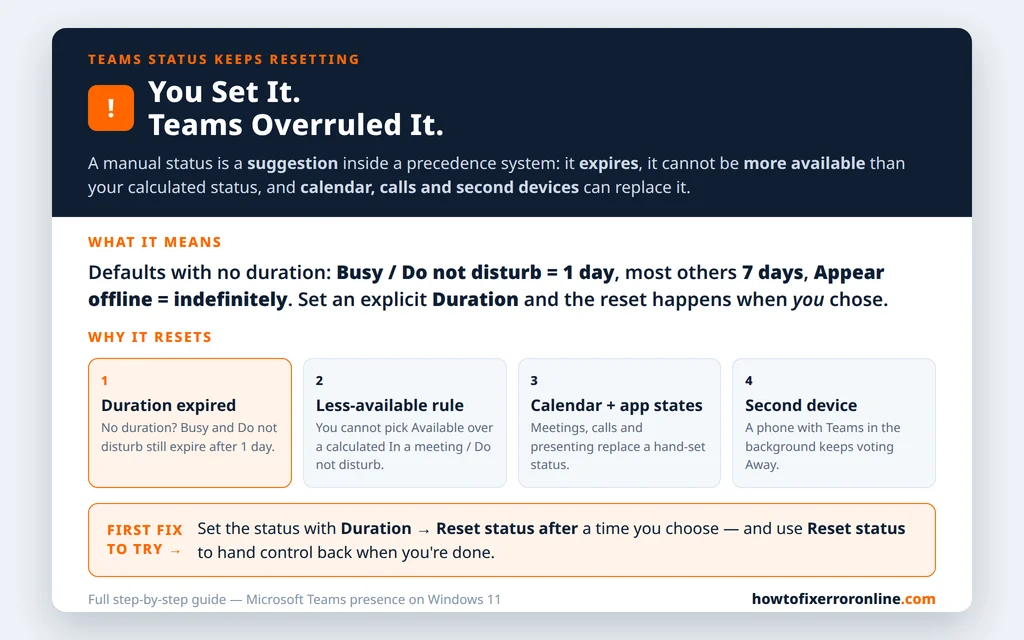
Table of Contents
How presence precedence actually works (read this first)
Microsoft Learn describes your status as a calculation from three automatic inputs — your activity (Available or Away), the Teams app state (In a call, Presenting, and similar), and your Outlook calendar (In a meeting; Out of Office when automatic replies or an out-of-office calendar event say so). Your manual choice is layered over that calculation under strict rules:
- The less-available rule. Outside a call or meeting, you can select any status that is less available than the automatically calculated status — and only those. Microsoft’s example: if your calculated status is Do not disturb, you could choose Away, but not Available. This is why the picker sometimes seems to “refuse” a change or immediately falls back: you were asking presence to claim you are more available than your calendar and app state say you are. Inside a call or meeting, you can select any status — and it lasts for the duration of that call or meeting.
- A documented pecking order. From most to least available: Available, Busy, In a meeting, In a call, Do not disturb, Be right back, Away, Offline. When signals conflict, the less-available applicable state is what colleagues see — so a calendar meeting will drag a hand-set Available down to In a meeting every time.
- Every manual status has a lifetime (Fix 1). “Keeps resetting” is, most of the time, simply “expired exactly when Microsoft said it would.”
Hold those three rules and most resetting stories explain themselves. The fixes below are ordered by how often each cause is the real one.
Fix 1 — Set an explicit duration, and know the defaults you have been living under
If you pick a status and walk away, Teams applies a default lifetime when you do not choose one: Appear offline stays indefinitely, Busy and Do not disturb last 1 day, and any other status lasts 7 days. When the lifetime ends, Teams resets your status based on your activity, calendar, and computer state. A Do not disturb set on Monday morning is supposed to be gone by Tuesday — the “reset” that frustrates people most is this documented expiry firing on schedule.
Take control of the clock instead:
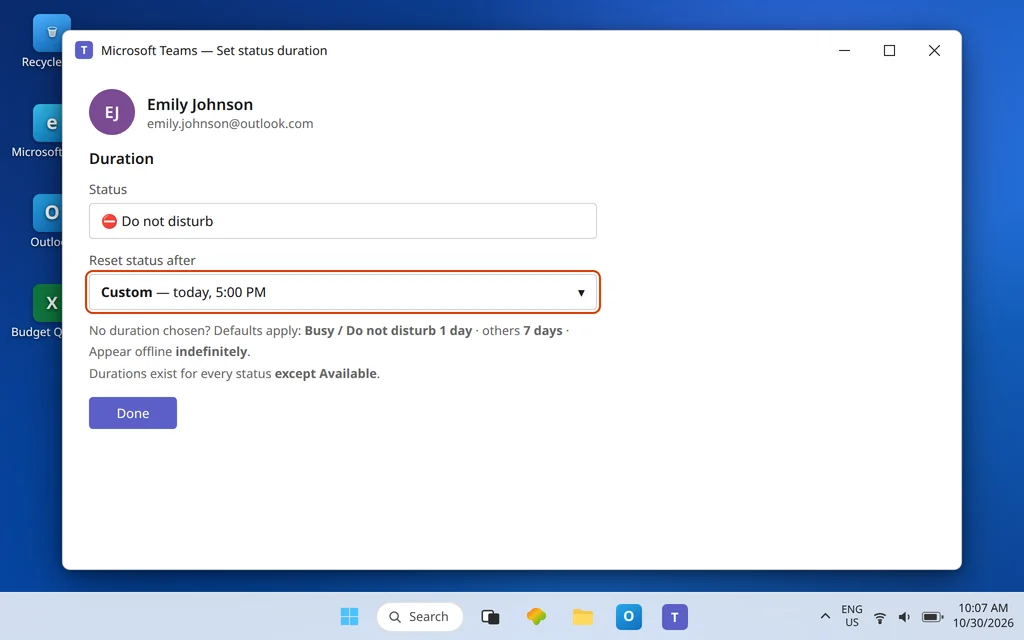
- Click your profile picture, then your current status, then Duration.
- Under Status, choose the status you want to hold.
- Under Reset status after, choose a preset period — or Custom and enter the exact date and time the status should end.
- Select Done.
Two honest limits: durations can be set for any status except Available — there is no “stay Available for 8 hours” setting, and guides claiming one are inventing it — and no duration makes a status immortal; it only moves the expiry to a moment you chose. To end a timed status early, pick a new status or use Reset status (Fix 5).
Fix 2 — Check your calendar: the override you scheduled yourself
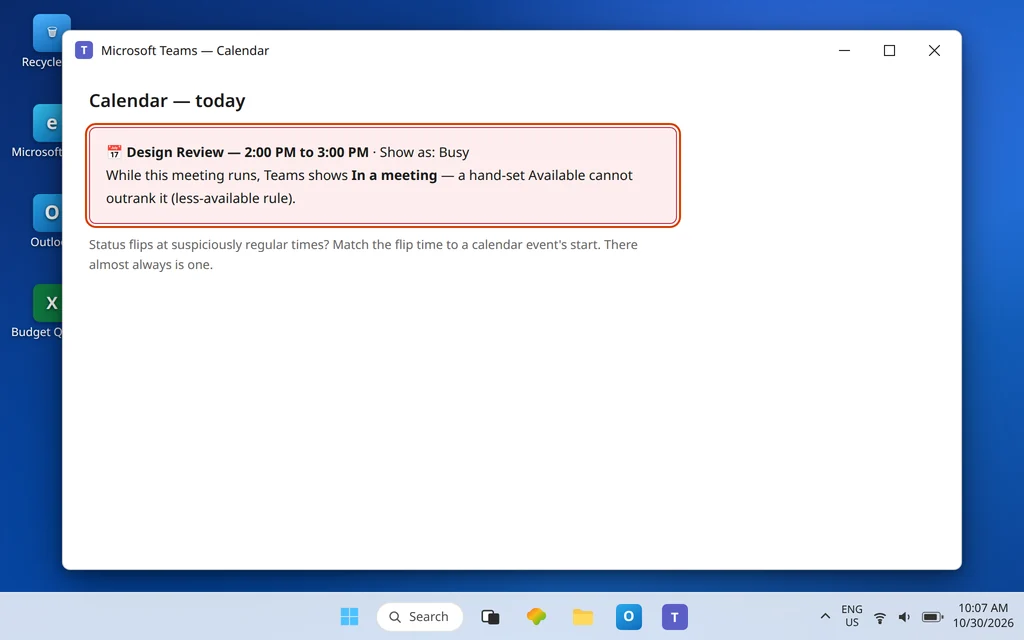
The most common same-day reset: you set Busy or Available by hand, a meeting starts, and Teams shows In a meeting; the meeting ends, and instead of returning to your manual pick you land on the freshly calculated status. That is the calendar input doing its documented job — calendar states are app-configured, and they reflect what is true now, outranking a preference set earlier. A calendar block set to show as Out of Office goes further and pins the out-of-office indicator for its whole length; that specific fight belongs to the automatic-replies sync covered in Article 139, so fix it there rather than by re-picking statuses here.
Practical approach: stop fighting the calendar and start using it. If you need an uninterrupted hour, put a focus block on your calendar and set Do not disturb with a matching duration (Fix 1) — belt and suspenders, both expiring together. If statuses flip at suspiciously regular times, scan the day’s calendar for the event whose start matches the flip; there almost always is one.
Fix 3 — Calls, presenting, and Focus: app states end when the activity ends
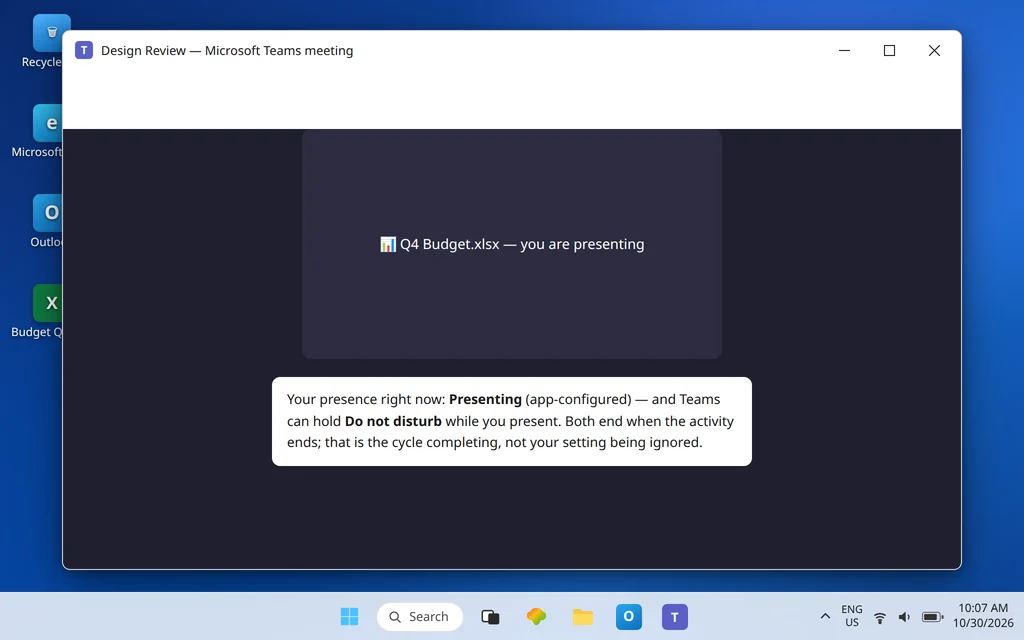
App-configured states behave like temporary overrides because they are: while you are In a call or Presenting, those states describe you; the moment the call ends or you stop sharing, presence recalculates. Microsoft’s rule for manual picks made during a call or meeting — you may choose any status, and it lasts during the call or meeting — has the same edge: join a call while holding a hand-set status, and the call’s own logic governs what shows until you leave. Presenting adds a twist many people misread as a reset: Teams can move you to Do not disturb while you present, by design, and restoring your previous state afterward is the system completing that cycle, not ignoring you. Judge your status in ordinary working moments — not mid-call, not mid-presentation — before concluding that manual choices are broken.
Fix 4 — Sign out of the second device that keeps voting against you
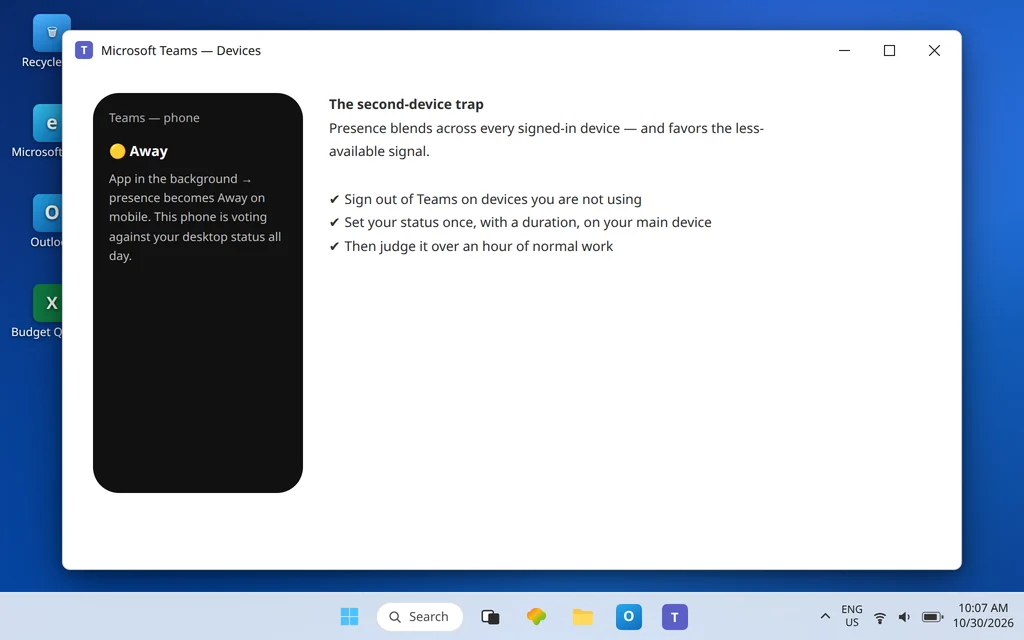
Presence blends across every device where you are signed in, and one documented behavior makes phones frequent saboteurs: on mobile, your presence becomes Away whenever the Teams app is in the background. A phone in your pocket, a tablet on a shelf, or your own laptop left signed in at home can keep re-declaring you Away or stale while your desktop pick says otherwise — and because the blend favors the less-available signal, the idle device often wins.
- List every place you are signed in to Teams: work PC, laptop, phone, tablet, a browser tab left open somewhere.
- Sign out of Teams on anything you are not actively using, especially devices that sit locked or asleep.
- Set your status once, on the device in front of you, with a duration (Fix 1), and observe it for an hour of normal work.
If sign-in prompts are part of the picture on any of those devices — a device stuck half-signed-in can report garbage presence — clear that up with Microsoft Teams Keeps Asking to Sign In on the affected machine.
Fix 5 — Use Reset status to clear a stuck manual state
Sometimes the problem is not a reset but a stale manual state: an old timed status, a leftover Appear offline, a pick made on another device that your current client keeps honoring. Clear the slate deliberately:
- Click your profile picture, then your current status.
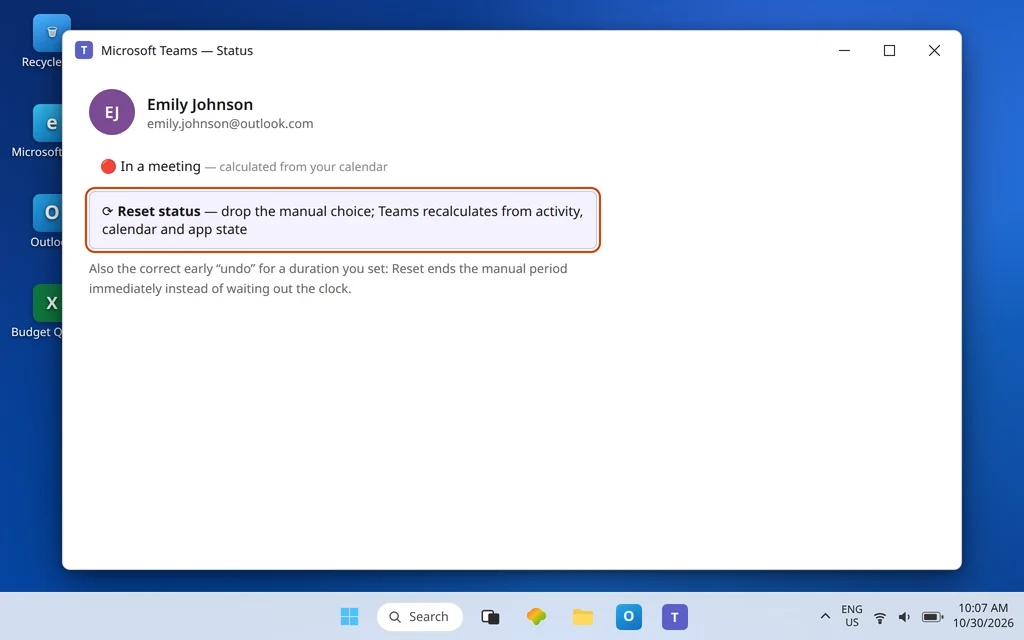
- Choose Reset status. Teams drops the manual choice and recalculates your presence from activity, calendar, and app state.
- Wait a moment and watch the result: it should show the honest calculated status (Available at your desk, In a meeting during one). If the reset itself seems ignored — you reset and the same manual status clings on — that is no longer precedence; treat it as a client fault and move to Fix 6.
Reset status is also the correct “undo” for a duration you set earlier: it ends the manual period immediately rather than waiting out the clock.
Fix 6 — Last resorts: update, sign out, and clear the cache on this PC
Only if a manual status is ignored immediately — you pick Do not disturb, watch it flip back within seconds, with no meeting running, no call, no second device, and no duration in play — suspect the client itself:
- Update Teams (Settings > About / check for updates) and let it restart.
- Fully quit and relaunch: tray icon > right-click > Quit, then reopen.
- Sign out and back in from your profile menu, so presence registration is rebuilt against your account.
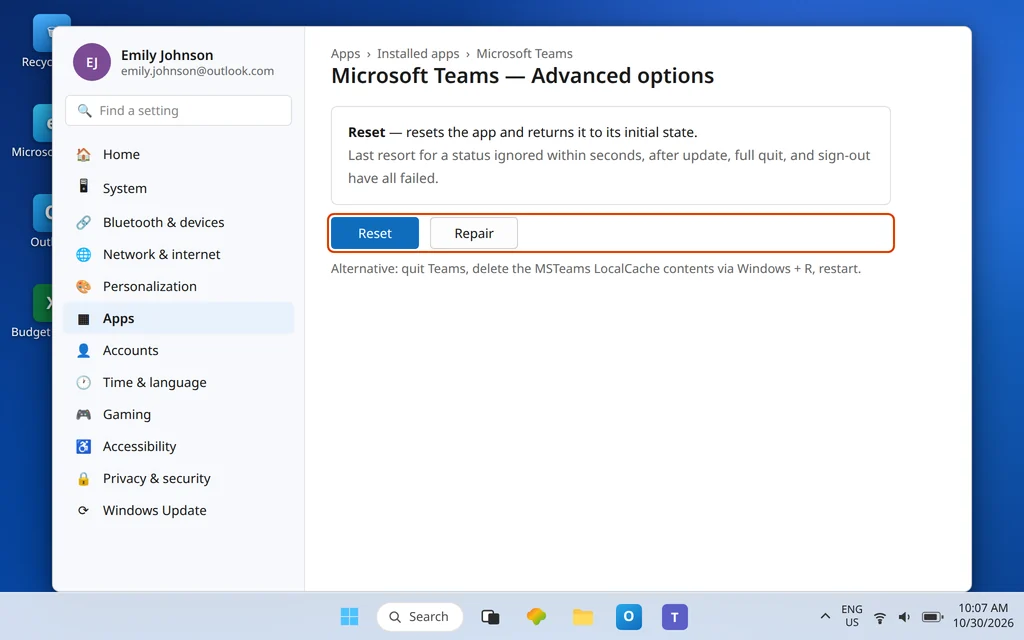
- Reset the app cache: Settings > Apps > Installed apps > Microsoft Teams > … > Advanced options > Reset — or quit Teams, open %userprofile%\AppData\Local\Packages\MSTeams_8wekyb3d8bbwe\LocalCache\Microsoft\MSTeams via Windows + R, delete its contents, and restart Teams. The first launch rebuilds the cache and takes a little longer.
One expectation to set before escalating to IT: presence is near real time for most people, but Microsoft documents delays of up to one hour maximum for mailboxes hosted on-premises — a change that lands minutes later on such a system is slow, not broken. And a short legacy note for completeness: in organizations still running Skype for Business coexistence modes other than Teams Only or Islands, Microsoft documents that presence is published from the Skype for Business client rather than Teams — if your IT team mentions coexistence mode, that is an admin-side explanation for Teams ignoring manual statuses entirely, and only they can change it. For a Teams-only organization it does not apply.
Confirm it worked
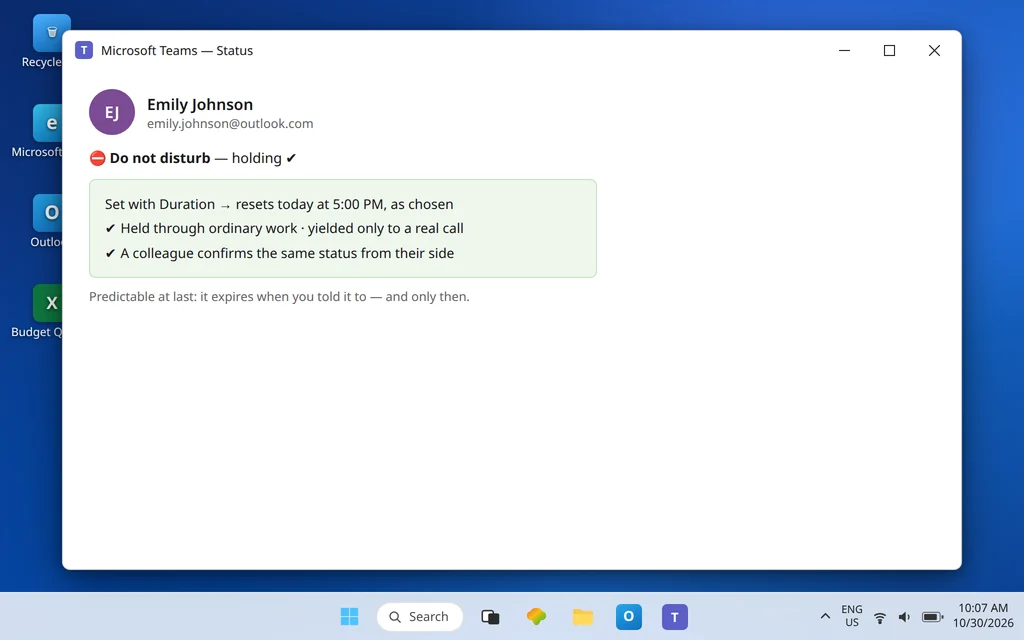
Set Do not disturb with a Custom duration ending two hours from now. Work normally: your status should hold through ordinary activity, show In a call or Presenting only while those are genuinely happening, and still be Do not disturb when they end. Ask a colleague — James Carter makes a good witness — to confirm what they see at the start, mid-way, and just after the custom expiry, when the status should reset to your calculated presence on schedule. A status that now expires only when you told it to, and yields only to real meetings and calls, is the system working as documented — and predictable at last.
Frequently asked questions
Why does my Teams status keep resetting?
Usually because it is supposed to. A manual status set without a duration expires — 1 day for Busy and Do not disturb, 7 days for most others — and a status set with a duration resets when that period ends. On top of expiry, calendar events (In a meeting), app states (In a call, Presenting), and an idle second device can all replace a manual pick, because presence always recalculates from activity, calendar, and app state.
How long does a manually set Teams status last?
If you do not set a duration: Appear offline lasts indefinitely, Busy and Do not disturb last 1 day, and any other manual status lasts 7 days. If you set a duration (profile picture > current status > Duration), the status lasts until your chosen Reset status after time — including a custom date and time — and then Teams recalculates your presence automatically.
Why can’t I set myself to Available in Teams?
Because of the less-available rule: outside a call or meeting you can only choose a status that is less available than the one Teams has calculated for you. If your calendar says you are in a meeting, or the app has you in Do not disturb, an Available pick is more available than your calculated state and will not hold. Inside a call or meeting you can pick any status, but it lasts only for that call or meeting. Durations also cannot be set for Available at all.
What does Reset status do in Teams?
It removes your manual choice — including any duration you set — and returns your presence to automatic calculation from your activity, your Outlook calendar, and the Teams app state. It is the clean way to undo a timed status early, and the first step when a stale manual status (an old Appear offline, for example) seems stuck.
Why does my status change when I use Teams on my phone or another PC?
Presence is blended across all your signed-in devices, and on mobile your status becomes Away whenever the Teams app is in the background. An idle phone, tablet, or second PC can therefore override the status you set at your desk. Signing out of Teams on devices you are not using, then setting your status once — with a duration — on your main device stops the tug-of-war.
My status flips back within seconds, with no meeting or call. Is that normal?
No — instant flips outside any meeting, call, presentation, or duration expiry are not precedence behavior. Update Teams, fully quit and relaunch it, sign out and back in, and reset the app cache (Fix 6). Remember the one evidenced delay: on-premises mailboxes can lag up to an hour. If instant flips survive the cache reset, report it to IT with the exact status, the time, and what your calendar showed at that moment.
Status still refusing to stay where you put it? Contact us at servicedesk@howtofixerroronline.com or through our Contact page and tell us which status you set, whether you set a duration, what it flips to and how fast, what your calendar showed at the time, and which other devices you are signed in on. We will never ask for your password.