
How to Block a Sender in Outlook.com (and Block a Whole Domain)
One sender will not take the hint. You have unsubscribed twice, deleted the messages a dozen times, and the mail keeps coming — daily deals you never asked for, a newsletter you never signed up for, or someone you simply no longer want to hear from. Deleting is a daily chore; blocking ends it in one step.
Blocking in Outlook.com is built for exactly this. It takes seconds from the message itself, you can also manage a full blocked list in Settings, and when a sender keeps reappearing under fresh addresses at the same company, you can block their entire domain instead. The sender is never told — their mail just quietly stops reaching your Inbox. And one note that saves confusion: Hotmail and Live.com addresses are Outlook.com accounts, so every step below applies to them identically.
In this guide, you will learn how to block a sender in outlook.com from the message itself, in Settings, or by blocking a whole domain.
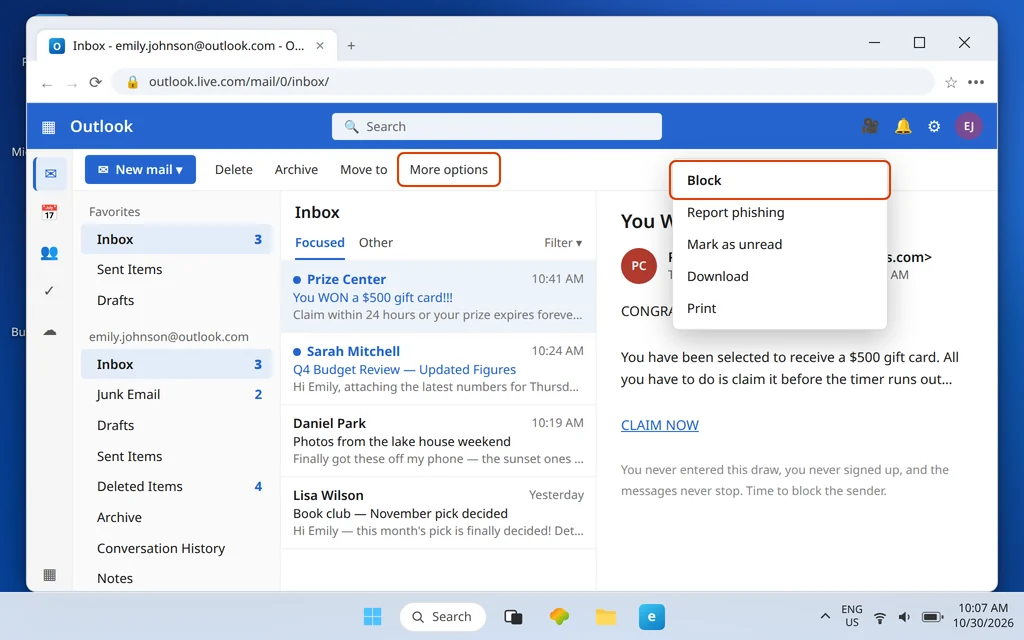
Quick Answer: Open the message in Outlook.com, click ⋯ More options → Block, then confirm with OK. That message is deleted and future mail from that sender goes straight to Junk Email — the sender is not notified. To manage the list, or block a whole domain, go to Settings (gear) > Mail > Junk email > Blocked senders and domains. Blocking works only for Microsoft accounts, not for Gmail, Yahoo or iCloud accounts connected to Outlook.
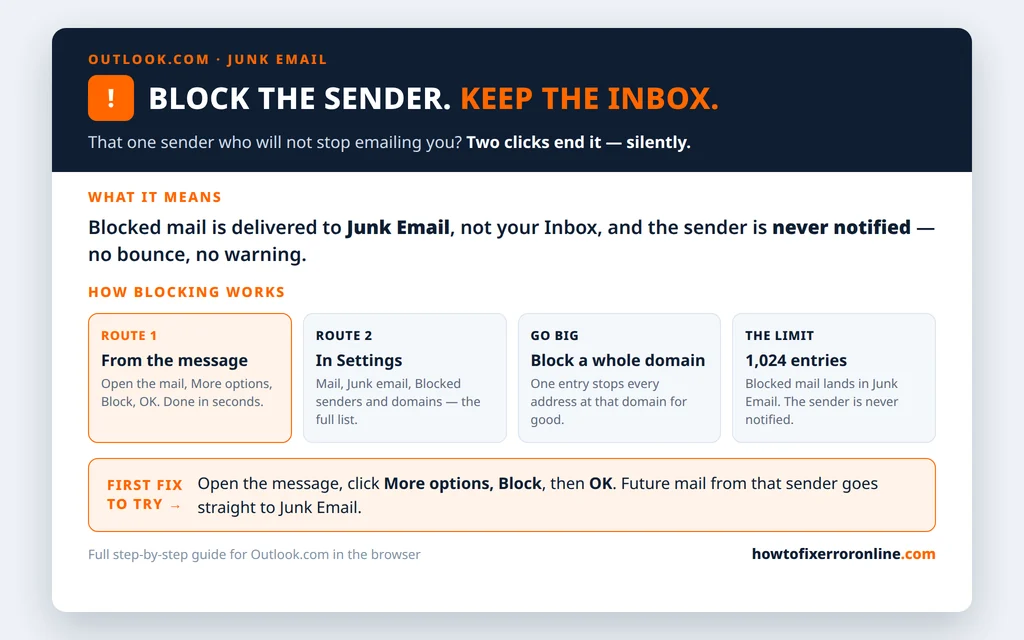
Table of Contents
How to Block a Sender in Outlook.com From the Message Itself
This is the fastest route — two clicks, right where the problem is sitting.
- Select or open the message from the sender you want to block.
- Click ⋯ More options in the command bar above the message.
- Choose Block from the menu.
- A confirmation appears naming the sender. Click OK.
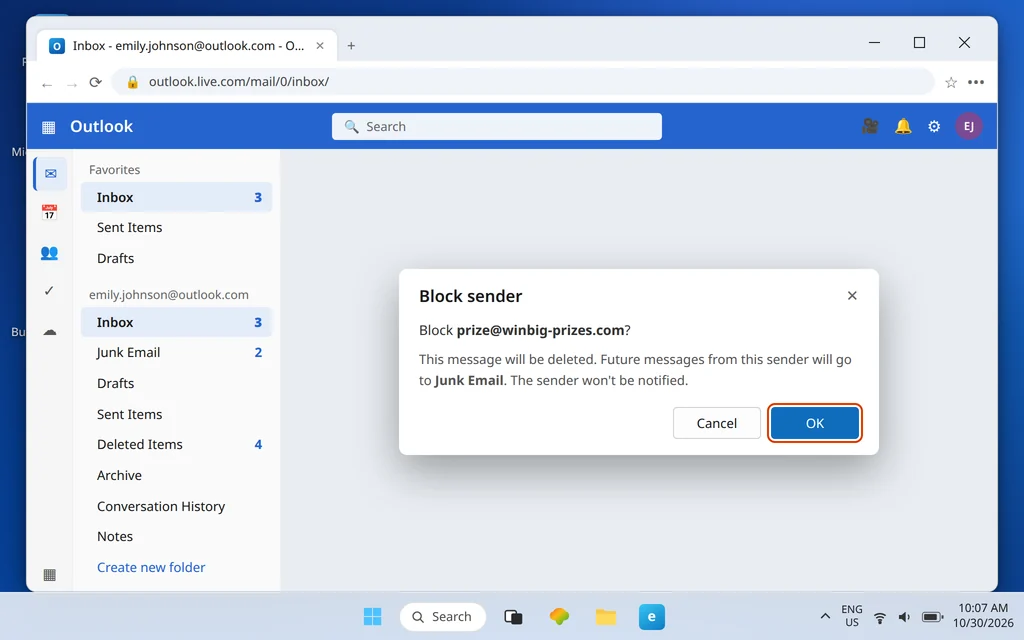
That is the whole job. The message you were looking at is deleted, and from now on anything from that address is delivered to Junk Email instead of your Inbox. Nothing is sent back to the sender — no bounce, no notice — so from their side the mail simply disappears into the same silence as an ignored inbox. If you are dealing with a person rather than a company, that quiet is usually the point.
Microsoft also documents the same steps in its support article on blocking senders in Outlook.
Add Addresses in Settings: Blocked Senders and Domains
The message route is fastest for one sender at a time. Settings is where the full list lives — the place to add several addresses at once, review who you have blocked, or fix a mistake.
- Click the Settings (gear) icon at the top of Outlook.com.
- Go to Mail > Junk email.
- Scroll to Blocked senders and domains and click + Add.
- Type the full email address, press Enter, then click Save.
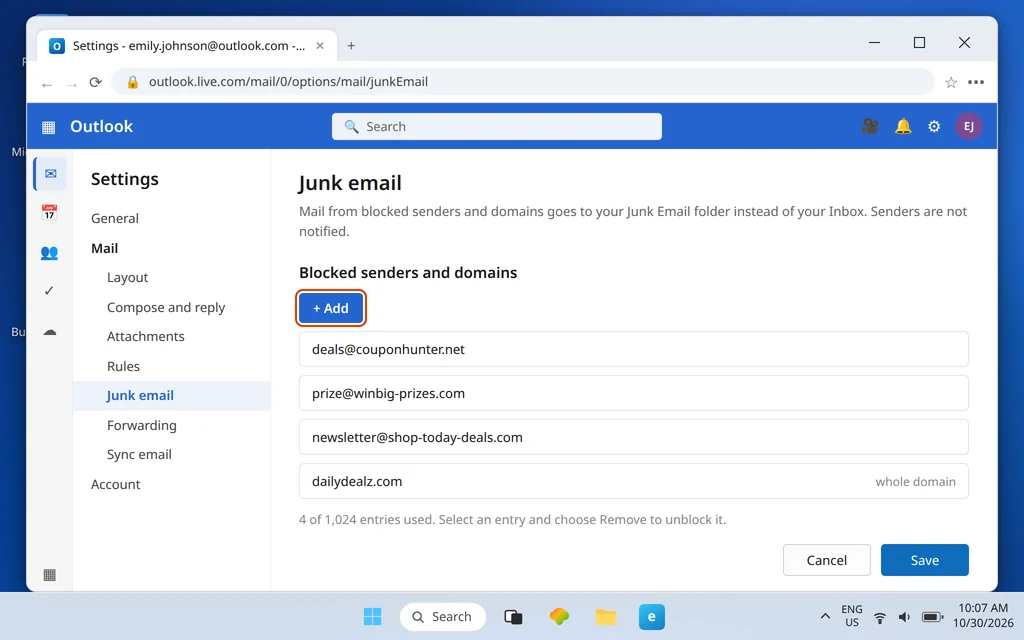
This is also the answer to “where is the blocked senders list in Outlook” — there is no list inside the Inbox view; it lives on this one Settings page, and every address you block from a message lands here too. The list caps at 1,024 entries, which is far more than most people ever need; if you are anywhere near it, blocking whole domains (next section) is the better tool, because one domain entry can cover hundreds of addresses.
Block an Entire Domain in Outlook.com
Some senders rotate addresses: deals@ on Monday, offers@ on Tuesday, a new “account team” address on Wednesday — all from the same domain. Blocking each address is whack-a-mole. Block the domain once instead.
- Go to Settings (gear) > Mail > Junk email > Blocked senders and domains.
- Click + Add.
- Type just the domain — for example
couponhunter.net, with no name and no @ in front of it. - Press Enter, then click Save.
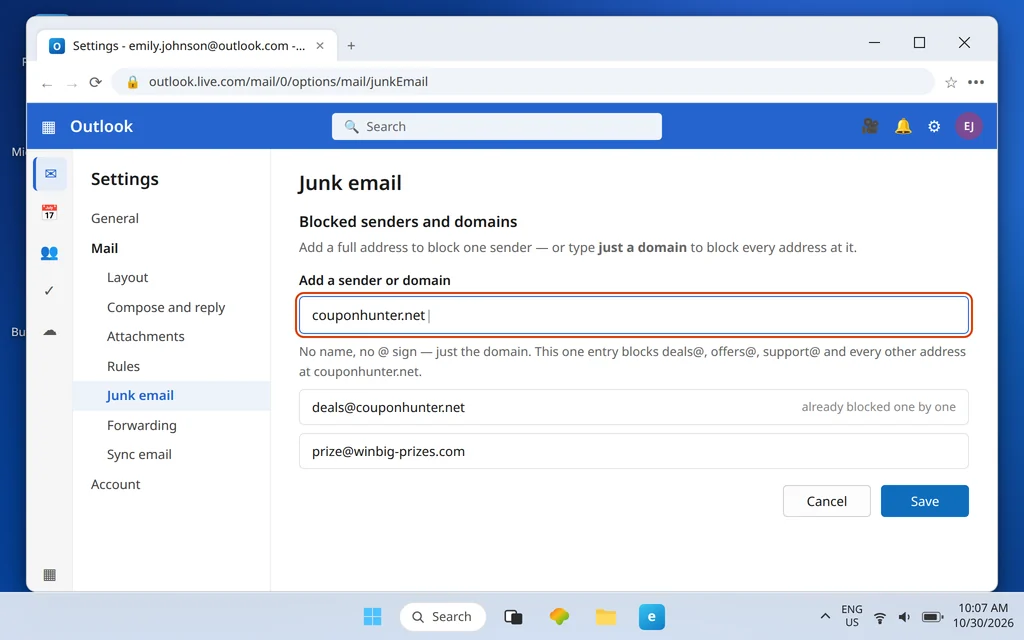
Every address at that domain is now blocked. Use this with care: a domain entry blocks everyone at that domain, so never block a domain like gmail.com, your bank’s domain, or your employer’s domain — you would cut off every legitimate sender there too. Domain blocking is for sender domains that exist only to send you mail you never wanted.
How to Unblock Someone in Outlook.com
Blocked the wrong person, or a sender you actually need is suddenly silent? Unblocking happens on the same Settings page and takes effect immediately.
- Go to Settings (gear) > Mail > Junk email > Blocked senders and domains.
- Find the entry and select it.
- Click Remove (the trash icon beside the list).
- Click Save.
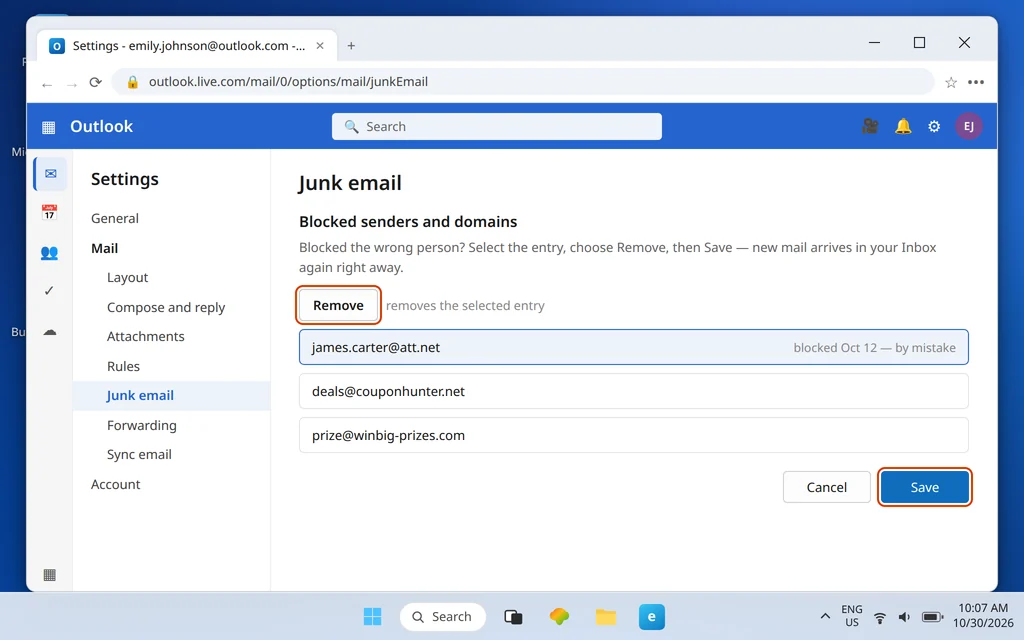
New mail from that sender starts arriving in your Inbox again right away. Mail that was delivered to Junk Email while they were blocked stays there until you move it — check Junk for anything you missed, because Junk Email is emptied automatically after 30 days.
Why Blocking Isn’t Working
Blocking is simple, which means the few ways it fails are predictable. Work through these before assuming the feature is broken:
- The message is sitting in Junk Email. The Block option may not appear inside the Junk folder. Move the message to your Inbox first, then open it and use ⋯ More options → Block from there.
- It is a connected third-party account. Blocking works only for Microsoft accounts. If the mailbox you are reading is a Gmail, Yahoo or iCloud account connected to Outlook, sender blocking does not apply to it — block the sender in that service’s own webmail instead.
- The sender changed addresses. Blocking covers the exact address (or domain) you entered. A new address from the same outfit is a new block — or the moment to block the whole domain.
- Your list is full. The blocked list caps at 1,024 entries. Remove old entries, or replace clusters of addresses with a single domain entry.
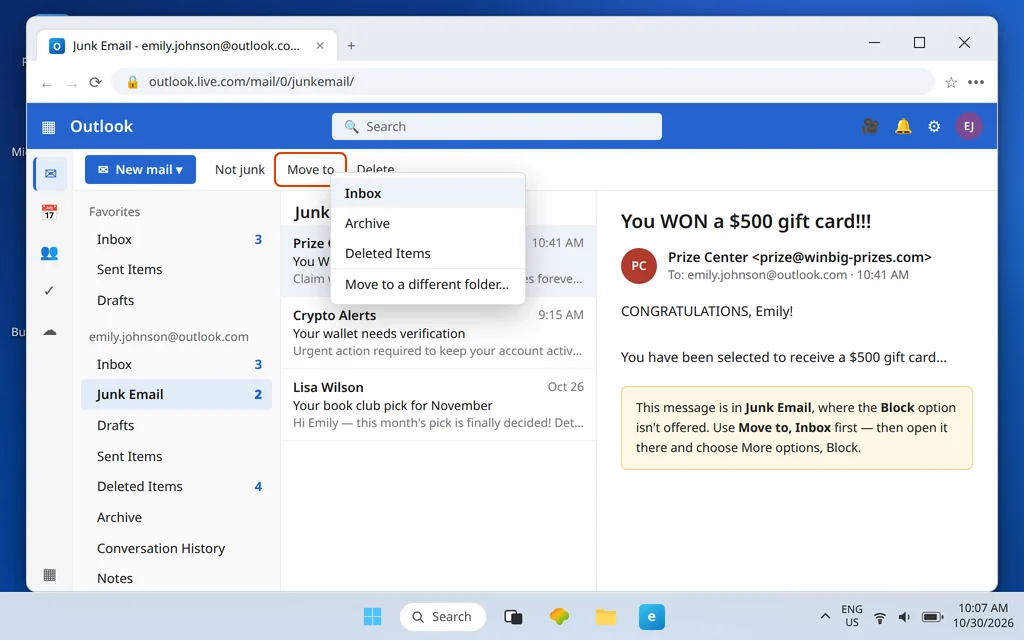
The reverse problem matters too: if mail from people you want keeps landing in Junk, blocking is not involved — the filter is being over-eager. Our Outlook emails going to Junk guide covers the safe-senders fix for that side of the problem.
Block vs Report Phishing: Which One to Use?
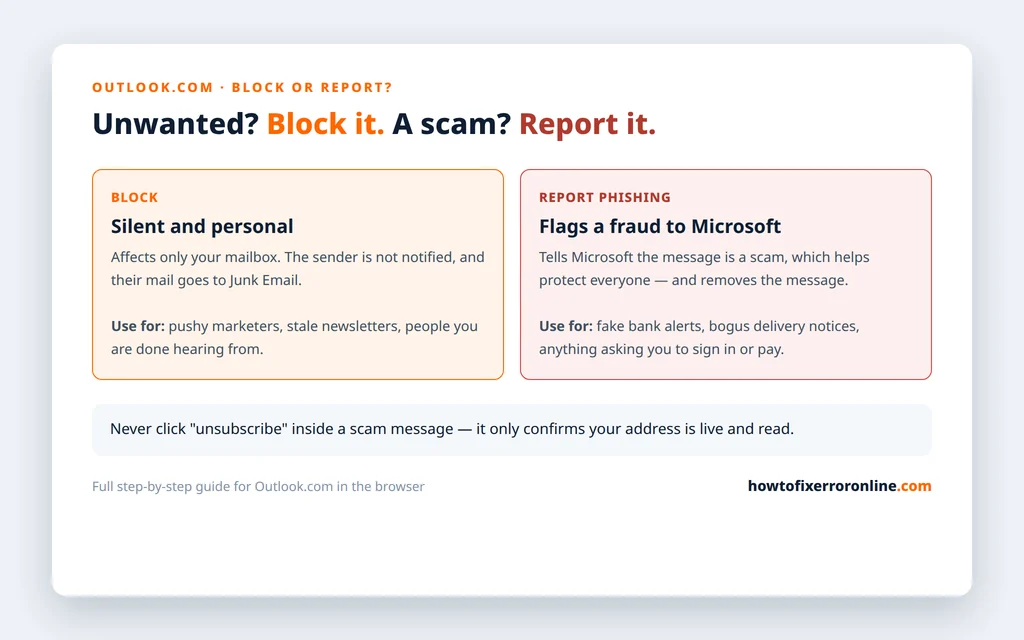
Blocking and reporting look similar in the menu but do different jobs:
- Block is personal and silent. It affects only your mailbox, the sender is not notified, and the mail goes to Junk Email. Use it for legitimate-but-unwanted senders: pushy marketers, stale newsletters, people you are done with.
- Report phishing is for fraud. It flags the message to Microsoft as a scam impersonating a bank, a delivery company, Microsoft itself, or another brand, which helps protect everyone — and it also removes the message. Never click links in such a message to “unsubscribe”; that only confirms your address is live.
There is also a middle option worth knowing: a rule that deletes mail automatically. If a sender’s mail should never even reach Junk — or you want it filed rather than junked — our Outlook.com rules guide shows how to build a delete-or-file rule for it. Blocking is simpler; a rule is more flexible.
How to Stop Unwanted Senders Coming Back
Blocking one address solves one sender. These habits stop the problem refilling:
- Block the domain, not the address, whenever a sender rotates addresses — one entry ends the whole sequence.
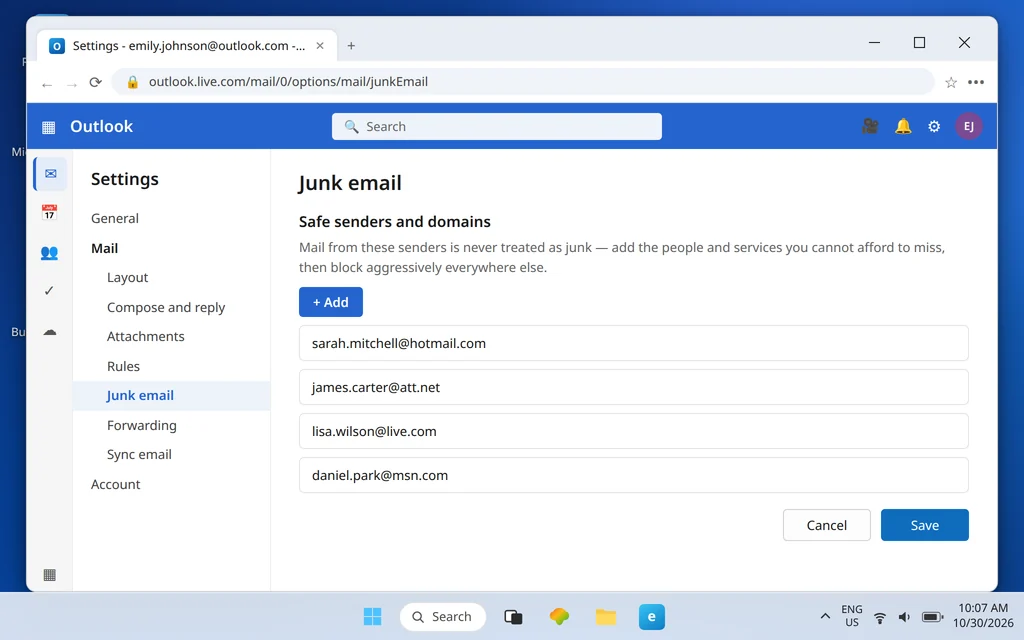
- Protect the senders you need. Add family, your bank, your employer and key services to Safe senders and domains on the same Settings > Mail > Junk email page. Their mail is then safe from over-eager filtering while you block aggressively around them.
- Do not engage with junk. No replies, no “unsubscribe” clicks on mail you never signed up for — both tell the sender the address is active and read.
- Review the blocked list once in a while. Removing senders that have gone quiet keeps you far from the 1,024-entry cap and keeps the list meaningful.
Frequently Asked Questions
How do you block a sender in Outlook.com?
Open or select the message, click ⋯ More options → Block, then click OK to confirm. The message is deleted and future mail from that sender goes to Junk Email. You can also add the address manually under Settings > Mail > Junk email > Blocked senders and domains.
Where is the blocked senders list in Outlook?
In Settings (gear) > Mail > Junk email, under Blocked senders and domains. That page is the full list: every sender you blocked from a message appears there, and it is where you add addresses, block domains, and remove entries to unblock someone.
Does the sender know I blocked them in Outlook.com?
No. The sender is not notified, and they do not get a bounce message. Their mail is simply delivered to your Junk Email folder instead of your Inbox, which looks identical to being ignored.
Where does blocked mail go in Outlook.com?
To Junk Email — not to Deleted Items, and it is not rejected at the server. That means you can still find a blocked message in Junk if you need it, but remember Junk Email is emptied automatically after 30 days.
Can I block a sender for a Gmail or Yahoo account connected to Outlook?
No. Blocking works only for Microsoft accounts (Outlook.com, Hotmail, Live.com). It does not apply to Gmail, Yahoo or iCloud accounts connected to Outlook — for those mailboxes, block the sender in that provider’s own webmail settings.
How many senders can I block in Outlook.com?
The blocked senders and domains list caps at 1,024 entries. If you approach the limit, block whole domains instead of individual addresses — one domain entry covers every address at that domain.
Still getting mail from a sender you blocked? Tell us which route you used (from the message or in Settings) and whether the mailbox is a Microsoft account or a connected Gmail/Yahoo account — that detail usually decides it — via our Contact page: servicedesk@howtofixerroronline.com, available 24 hours.
Pingback: Outlook.com Rules — Automatically Move Emails to a Folder (2026)