
Outlook.com Can’t Send Emails but Can Receive? The Account-Side Fixes
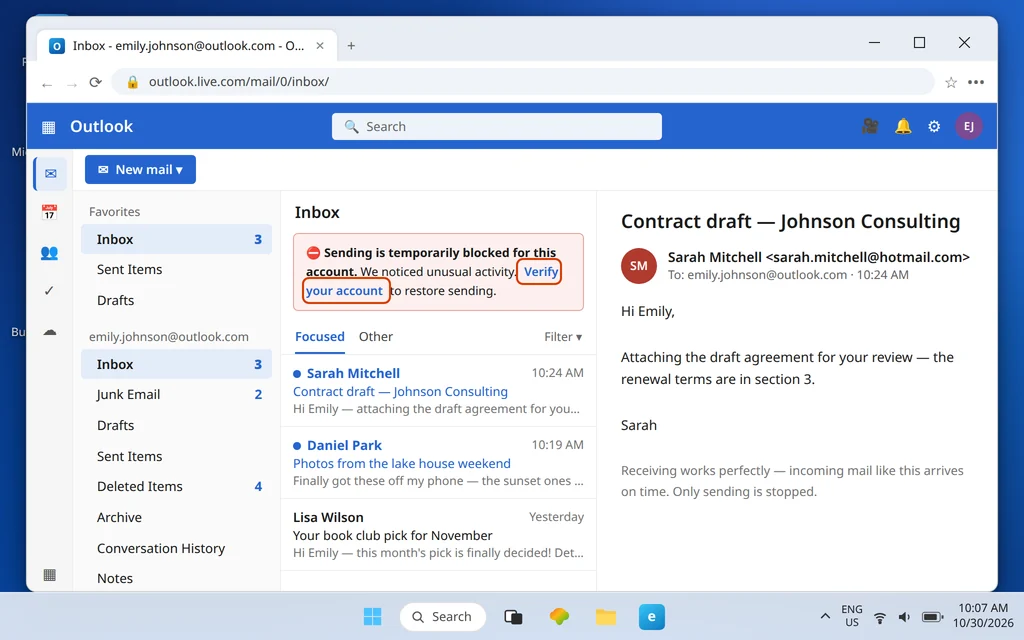
Your Outlook.com inbox is filling up normally — new mail arrives on time — but nothing you send goes anywhere. Messages refuse to send, sit unsent, or come straight back at you. Your first instinct is probably to look for the outgoing server settings to retype them. Stop there: this problem is in Outlook.com in your browser, and webmail has no SMTP settings at all. There is no server name, port, or password box to fix, because in webmail Microsoft runs the sending side for you. Outlook.com can’t send emails while it still receives mail normally — and that split points to an account-side block, limit or full storage.
What webmail does have is account-side controls, and they are what stops sending: a temporary sending block, a daily limit, or full storage. This guide clears them in the order they actually occur. If your sending problem is in the Outlook app instead, that is a different fault with its own fixes — our Outlook not sending emails but can receive guide covers the app, SMTP settings and all. Here, we stay in the browser.
Quick Answer: On Outlook.com, sending stops for account-side reasons. First, read the exact prompt: a “sending blocked” or verification banner means Microsoft paused sending after unusual activity — complete the identity verification at account.microsoft.com and wait; verified accounts often see blocks and limits lift within 24 hours. Next, check daily sending limits (new and unverified accounts are capped low) and Settings > Account > Storage — a full mailbox or full cloud storage stops sending. Then run the plain-text test: one short email to yourself, no links, no attachment, no signature.
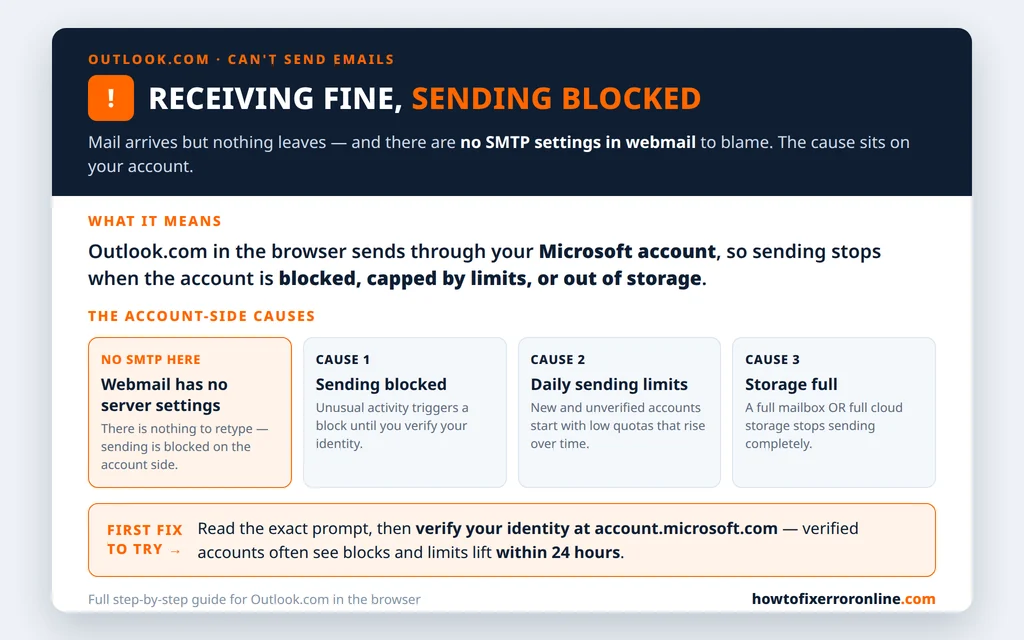
Table of Contents
Blocked From Sending? Verify Your Account
The most common webmail sending failure announces itself honestly: a banner or prompt saying sending is blocked, that you have exceeded a limit, or that you need to verify your account. Microsoft applies these blocks when it sees unusual activity on an account — a burst of sending, a sign-in from an unexpected place, mail that pattern-matches spam. Sometimes the “unusual activity” was genuinely you, on a trip, sending more than usual. The block does not care; the exit is the same.
- Read the exact prompt before clicking anything — it tells you whether this is a block, a limit, or a verification request.
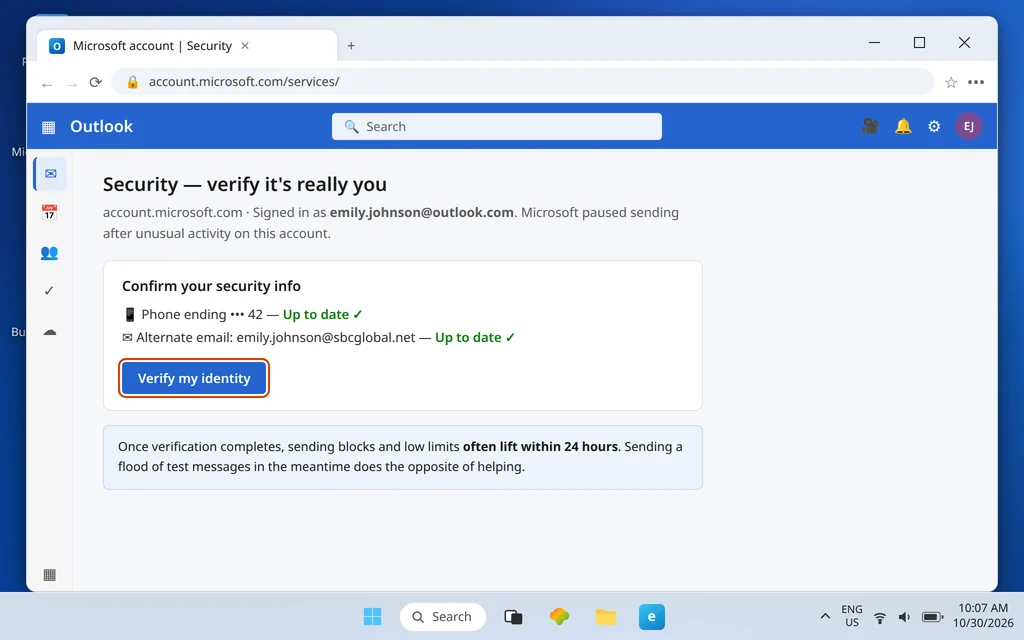
- Go to account.microsoft.com and make sure your security info is up to date: a phone number and an alternate email address you can actually receive codes on.
- Complete the identity verification Microsoft asks for — typically a code sent to that phone or alternate address.
- Then wait. Do not keep hammering Send: repeated attempts against a block look like more unusual activity. For verified accounts, blocks and low limits commonly lift within 24 hours.
If the block appeared right after your account was compromised — or you suspect it was — secure the account first and then clear the block: our Outlook.com account hacked recovery guide covers the recovery and lockdown sequence in the right order.
Outlook.com can’t send emails: daily sending limits
Even with no block, every Outlook.com account has a daily sending limit, and it is deliberately not one fixed number you can look up: the cap rises as the account establishes credibility.
- New accounts start with low quotas. A brand-new account that suddenly sends like a newsletter will hit “exceeded the daily limit” quickly.
- Unverified accounts are capped lower than verified ones — another reason the verification in the previous section pays off twice.
- Established, verified accounts in good standing send at the standard, much higher quota, and rarely notice the limit exists.
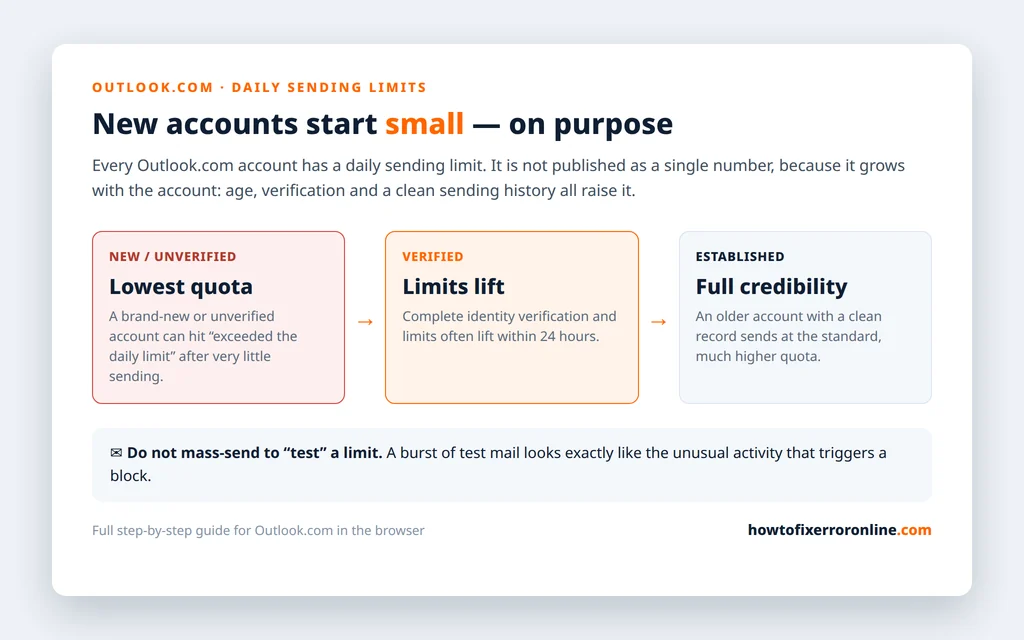
The practical rules follow from that: verify the account, let a new account warm up with normal sending instead of a day-one blast, and never mass-send a pile of “test” messages to see whether a limit has lifted — the test itself reads as the unusual activity that triggers blocks.
Mailbox or Cloud Storage Full
The silent cause. When your storage is full, sending stops — and Outlook.com has two storage meters, either of which can do it:
- Your mailbox storage (15 GB on free accounts), and
- Your Microsoft cloud storage (5 GB on free accounts), which OneDrive files and Outlook.com attachments share.
Check both at Settings > Account > Storage. The trap is the second bar: your mailbox can show room to spare while the cloud bar sits full of OneDrive files and saved attachments — and sending is just as stopped. Our Outlook.com mailbox full guide walks through freeing both, in the fastest order.
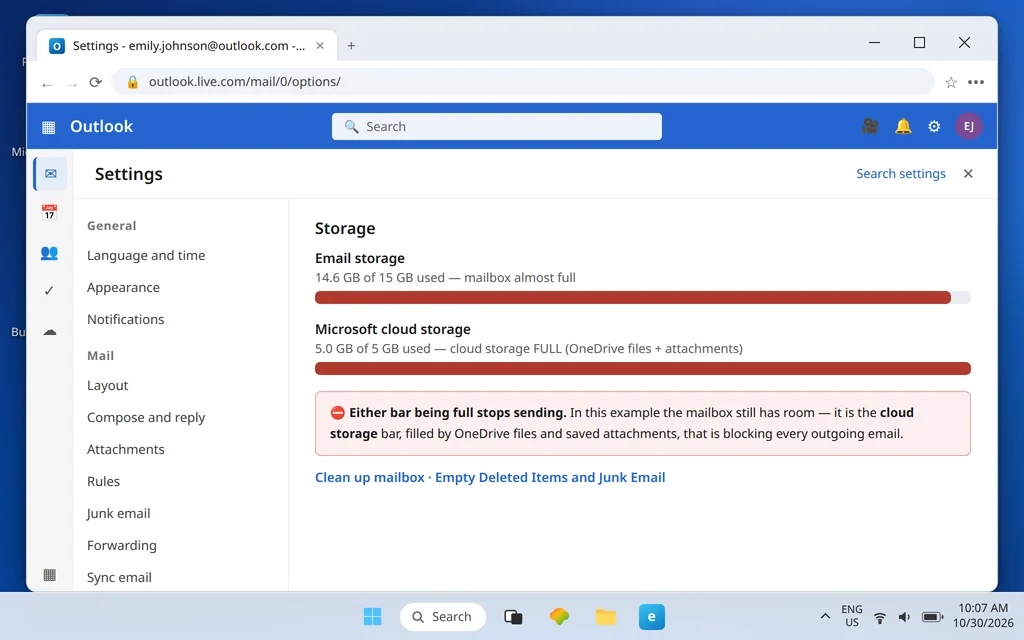
Freeing space is quick to do and the sending block it causes usually clears once the account is back under quota — but if you have only just emptied things, give it a little time before concluding the fix failed, and use the plain-text test below to check rather than resending your stuck backlog.
The Plain-Text Test
One two-minute experiment separates “my account cannot send” from “this message cannot send” — and the fixes for those are completely different.
- Compose a new email addressed to yourself.
- Keep it to one short line of plain text. No links, no attachment, and no signature — signatures carry links and images, which is exactly what you are ruling out.
- Send it.
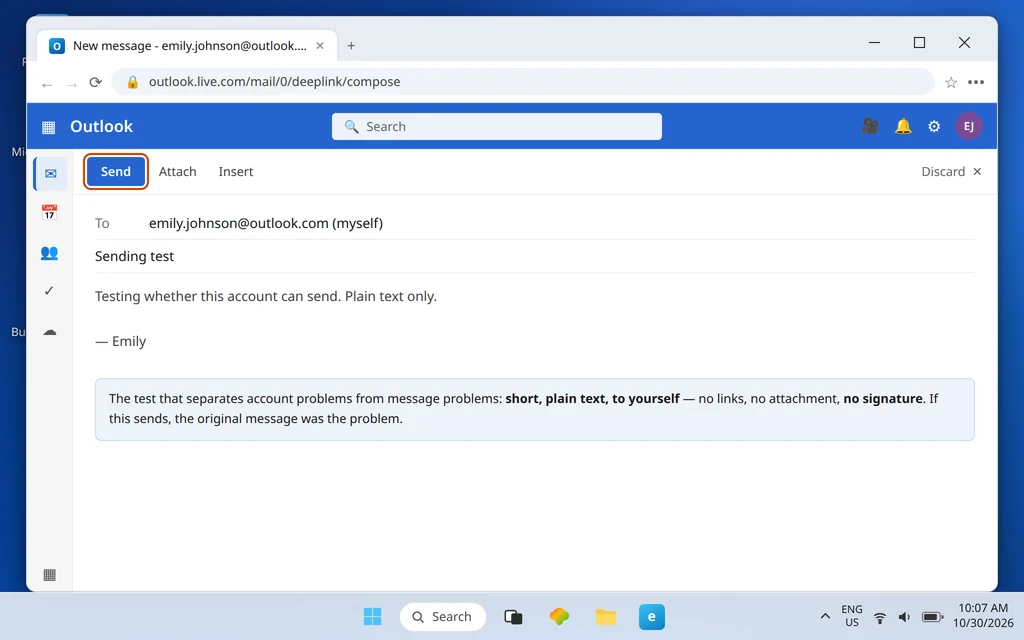
- The test sends: your account is fine. The original message was the problem — too big, too link-heavy, or a signature tripping a filter. Rebuild it in pieces and watch which addition breaks it.
- The test does not send: the account itself is blocked, limited, or storage-stopped. Go back up this guide — the cause is in the first three sections, not in anything you typed.
Attachment Too Big, or the Message Itself Flagged
The message-level blocks sit between the two test outcomes, so check them whenever one specific message fails while others succeed:
- Attachment over 25 MB. That is Outlook.com’s hard per-message limit. Remove the file, upload it to OneDrive, and send it as a OneDrive link instead.
- Content flagged. A message dense with links, URL shorteners, or an image-only body can be treated as spam by the filters and refused. The plain-text test exposes this: rewrite the message in ordinary text, put links in plainly, and send again.
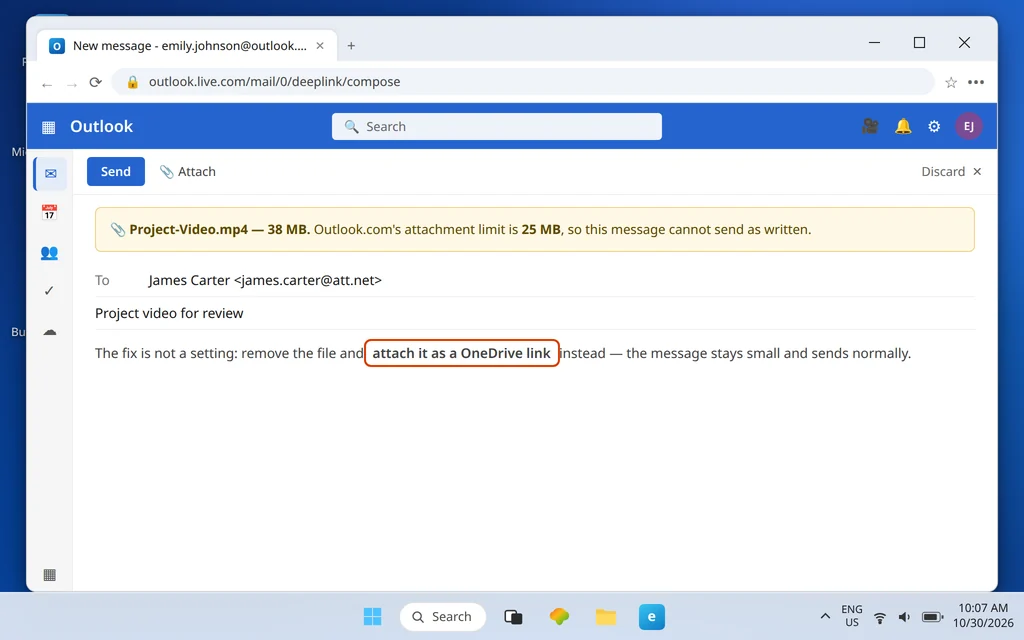
Neither of these is a settings problem, which is why hunting through settings never fixes them: the message itself has to change.
Reading a Non-Delivery Receipt
When a sent message bounces back, the non-delivery receipt (NDR) that arrives is not junk to delete — it is the diagnosis, written out. Open it and find the reason line before doing anything else:
- Invalid or unknown address: you typed it wrong, or the address no longer exists. Nothing at your end is broken.
- Recipient’s mailbox full: their side, not yours. Wait, or reach them another way.
- Spam-flagged or blocked: the receiving network is refusing your mail specifically. That is a reputation problem, not a settings problem.
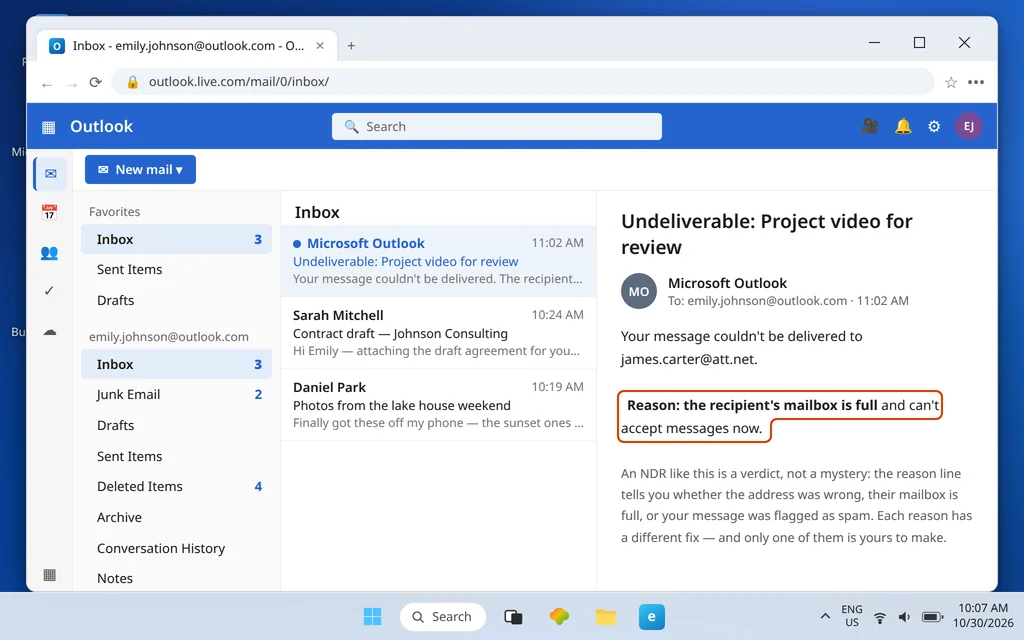
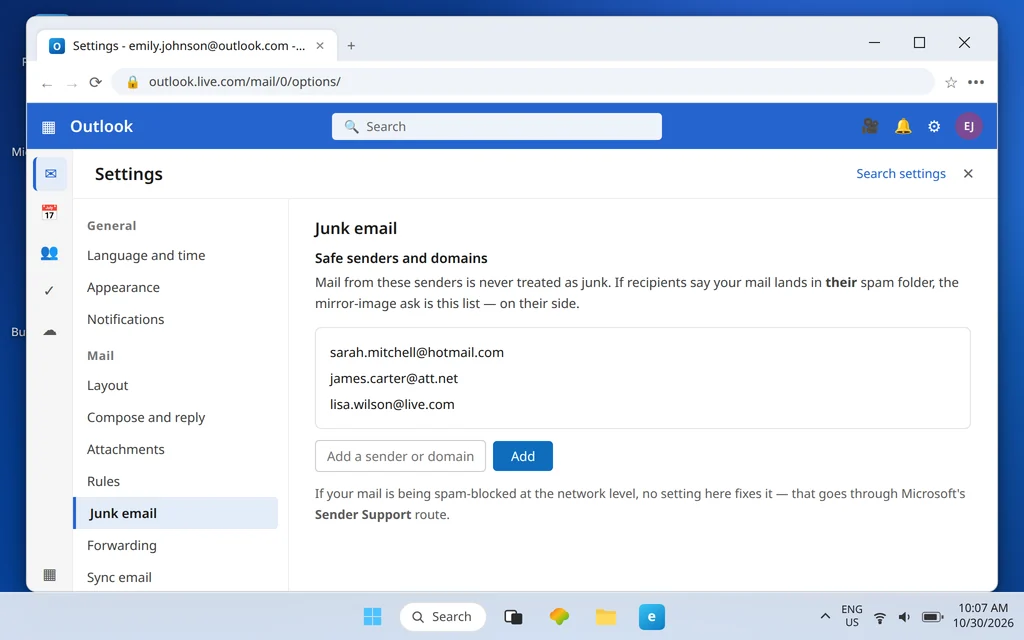
For spam-blocked mail, the route is Microsoft’s Sender Support process for senders whose mail is being blocked — and, in parallel, ask the recipients to add you to their Safe Senders list (in Outlook.com: Settings > Mail > Junk email), which whitelists you for their mailbox specifically. Our general email bouncing back guide decodes the common bounce codes and messages in full — worth reading alongside the NDR in front of you.
Finally, one cheap sanity check before you declare the account cursed: try sending from a private window or a second browser. Nine times out of ten the account is the cause — but the tenth time, a stale session in your everyday browser is, and this test costs thirty seconds. If your problem is the mirror image of this one — you can send but nothing arrives — the webmail checklist for it is our Outlook.com not receiving emails guide.
How to Stop Sending Blocks Coming Back
- Verify the account and keep security info current. A verified account with a reachable phone number gets higher limits and much faster unblocks.
- Warm up new accounts gently. Normal, human sending for the first days builds the credibility that raises your quota on its own.
- Send big files as OneDrive links by default. It keeps you far from the 25 MB wall and from the spam filters that watch chunky attachments.
- Watch both storage bars. A mailbox that creeps toward full will stop your sending at the worst possible moment; a quarterly cleanup prevents it.
Frequently Asked Questions
Why can Outlook.com receive emails but not send them?
Because receiving and sending are controlled separately, and the sending side is account-guarded. On webmail there are no SMTP settings to break — sending stops when Microsoft blocks the account after unusual activity, when you hit your daily sending limit, or when your mailbox or cloud storage is full.
How long does an Outlook.com sending block last?
It varies, but once you complete the identity verification at account.microsoft.com, verified accounts often see blocks and limits lift within 24 hours. Repeated send attempts during the block can extend it, so verify, then wait.
What are Outlook.com’s daily sending limits?
Microsoft does not publish one fixed number, because the limit grows with the account: new and unverified accounts are capped low, and the quota rises as the account ages, is verified, and builds a clean sending history. Hitting the limit is a sign to verify and slow down, not to retry harder.
Can full storage really stop me sending?
Yes — either meter can. A full mailbox stops sending, and so does full cloud storage, which OneDrive files and Outlook.com attachments share. Check both bars at Settings > Account > Storage; the cloud bar is the one people miss.
Does this work for Hotmail accounts?
Yes. Hotmail and Live.com addresses are Outlook.com accounts behind the older names — same webmail, same blocks, limits and fixes.
Sending still blocked after verification and a day’s wait? Tell us the exact wording of the prompt or banner you see — that wording decides which block you are under — via our Contact page: servicedesk@howtofixerroronline.com, available 24 hours.