

Outlook.com Rules: Automatically Move Emails to a Folder
Receipts mixed with newsletters, shipping notices buried under meeting invites, family emails lost between store promotions — an inbox that receives everything in one pile makes you the filing system. Outlook.com rules hand that job to the mailbox itself: tell it once what to do with a kind of mail, and every new message that matches is filed, marked, pinned or deleted the moment it arrives. This guide shows how outlook.com rules automatically move emails to folder, so new mail files itself the moment it arrives.
Rules in Outlook.com run on the server, which is what makes them genuinely useful: they work while your browser is closed, on every device, because the sorting happens before the mail ever reaches your screen. This guide builds the classic version — automatically move emails to a folder — then covers the quicker Sweep tool, the five rules most people actually need, and what to do when a rule does not fire. One scope note: web rules run only on Microsoft-hosted mailboxes, so they do not apply to Gmail or Yahoo accounts connected to Outlook. Hotmail and Live.com addresses are Outlook.com accounts, and the steps are identical for them.
Quick Answer: Create your folders first, then go to Settings (gear) > Mail > Rules > Add new rule: name the rule, add a condition (such as From a sender), add the action Move to and pick the folder, then click Save. The rule runs on the server against new mail as it arrives — it does not move mail already in your Inbox, so clear the backlog with Sweep or a manual move. For a quick sender rule, right-click any message and choose Rules > Create rule.
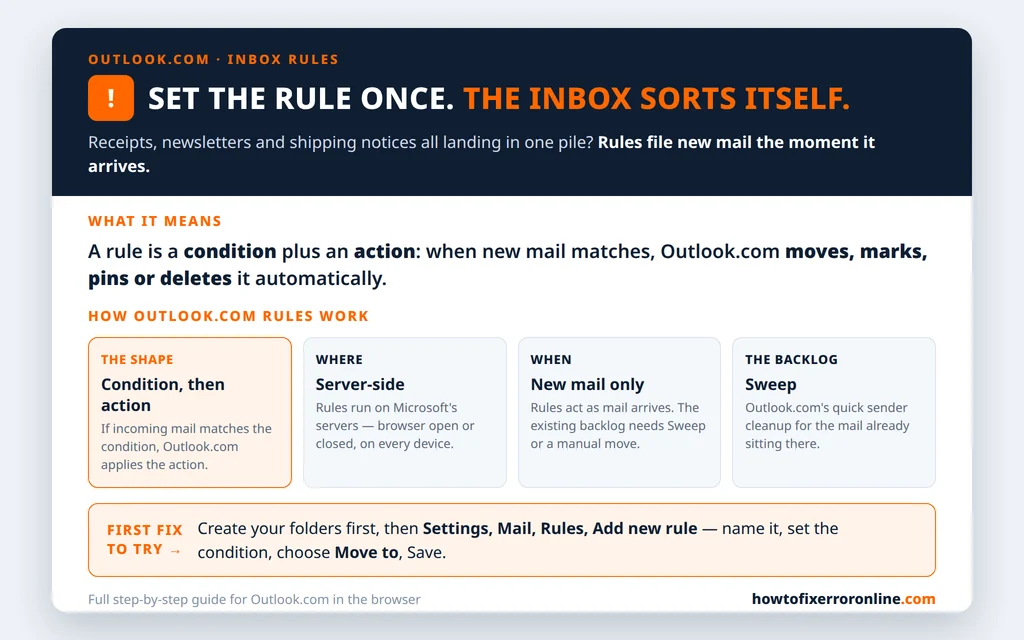
Table of Contents
Rules vs Sweep: Which One Should You Use?
Outlook.com has two organizing tools, and picking the right one saves frustration:
- Rules are the full tool: any condition (sender, subject words, attachments, and more) paired with any action (move, copy, delete, mark as read, pin, forward). They are built in Settings > Mail > Rules and run continuously on new mail.
- Sweep is the simplified sender tool: pick a message, and Outlook.com offers to keep only the latest mail from that sender, always keep their mail, or delete their mail older than a set number of days — going forward, and against the backlog already sitting there. Sweep is the better choice for one-off sender cleanups; rules are better for anything with conditions.
If the sender is not worth filing at all — you never want their mail — skip rules entirely and block them: our guide to how to block a sender in Outlook.com covers both the message route and blocking a whole domain.
Step 1: Create Your Folders First
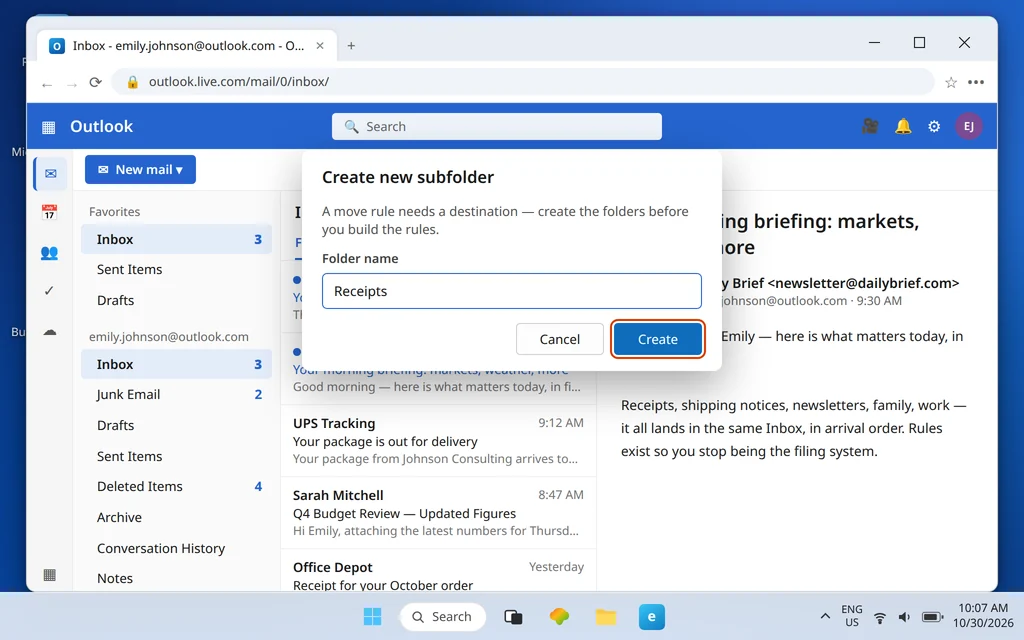
A move rule needs somewhere to move mail to, and the rule form is a smoother place to be when the folders already exist.
- In the left folder pane, right-click Folders (or your Inbox) and choose Create new subfolder.
- Name it for the mail it will hold — Receipts, Newsletters, Family, Shipping, Work Projects — and press Enter.
- Repeat for each kind of mail you plan to sort. Five or six well-named folders beat twenty vague ones.
Step 2: How outlook.com rules automatically move emails to folder
This is the main flow, and every rule you ever build follows the same shape: name, condition, action, save.
- Click the Settings (gear) icon, then go to Mail > Rules.
- Click Add new rule.
- Name it clearly — “Receipts to folder” beats “Rule 4” in three months’ time.
- Add a condition: From a specific sender, To an address, Subject includes certain words, message body includes, has attachment, and more. You can combine conditions.
- Add an action: Move to your folder. (The same list offers Copy to, Delete, Mark as read, Pin the message, Forward to, and others.)
- Click Save.

From the moment you save, the rule watches incoming mail. Send yourself a test message that matches the condition — from another account if the condition is a sender — and confirm it lands in the folder. Testing one rule at a time, as you build it, is what keeps a set of rules understandable later. Microsoft’s guide to managing email messages by using rules in Outlook walks through the same condition-and-action setup.
Create a Rule From an Email
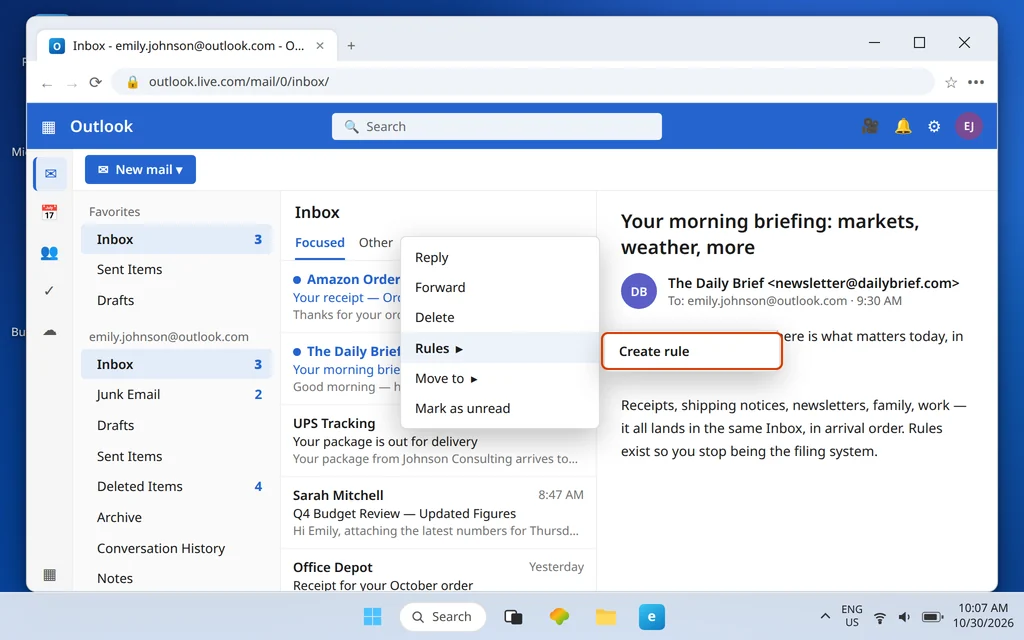
When the example is already in front of you, start from the message instead of from Settings:
- Right-click the message in the list.
- Choose Rules > Create rule.
- Outlook.com pre-fills the sender as the condition. Pick Move to, choose the folder, and confirm.
It is the fastest way to file a recurring sender — a store, a school list, a team newsletter — and because the condition comes from a real message, there is no address to mistype. Use the full Settings flow when you need subject-word conditions, multiple conditions, or actions beyond moving.
Use Sweep for Sender Cleanups
Rules act on new mail as it arrives — they never reach back into the pile already in your Inbox. Sweep does, which makes it the cleanup partner to every new rule:
- Select a message from the sender.
- Click Sweep in the command bar.
- Choose what fits: keep only the latest message and move the rest to Deleted Items, always keep mail from this sender, or delete messages older than a set number of days — applied to the existing mail and kept running for future mail.
Build the rule first, then Sweep the same sender, and the folder system is complete in both directions: the backlog is filed or cleared, and new mail sorts itself from now on.

5 Rules Worth Having
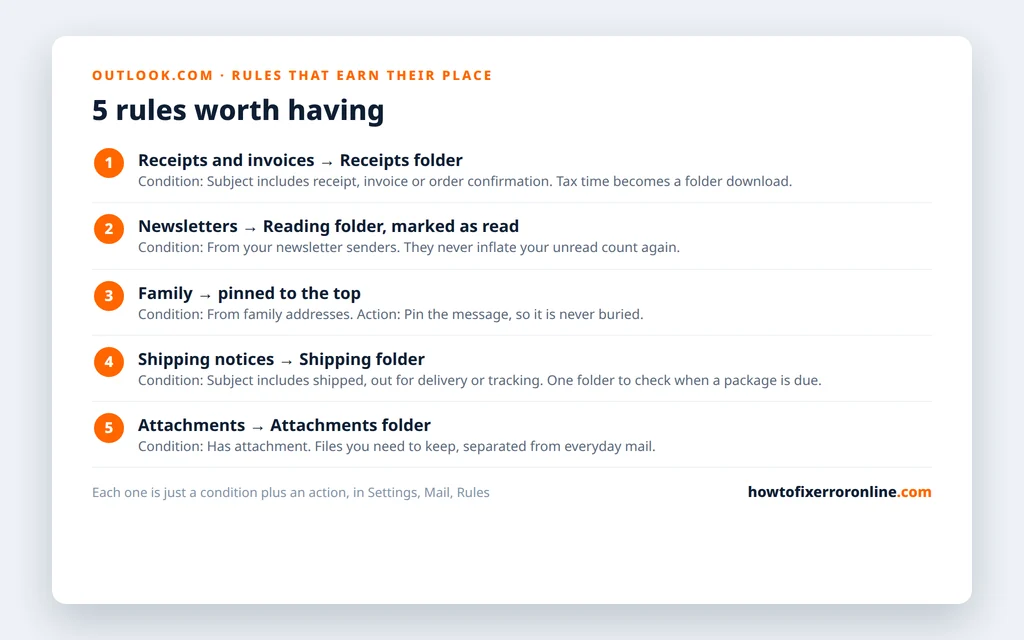
Concrete examples beat abstract possibilities. These five cover most inboxes, and each is just a condition plus a Move to action built in Settings > Mail > Rules > Add new rule:
- Receipts and invoices → Receipts folder. Condition: Subject includes “receipt”, “invoice” or “order confirmation”. Tax time becomes a folder download instead of a search project.
- Newsletters → Reading folder, marked as read. Condition: From your newsletter senders. Action: Move to and Mark as read, so they never inflate your unread count.
- Family → pinned, never buried. Condition: From your family members’ addresses. Action: Pin the message, so it sits at the top of the Inbox until you deal with it.
- Shipping notices → Shipping folder. Condition: Subject includes “shipped”, “out for delivery” or “tracking”. Check one folder when a package is due.
- Mail with big attachments → Attachments folder. Condition: Has attachment. Action: Move to, so files you need to keep are separated from everyday mail.
Manage Your Rules: Order Matters
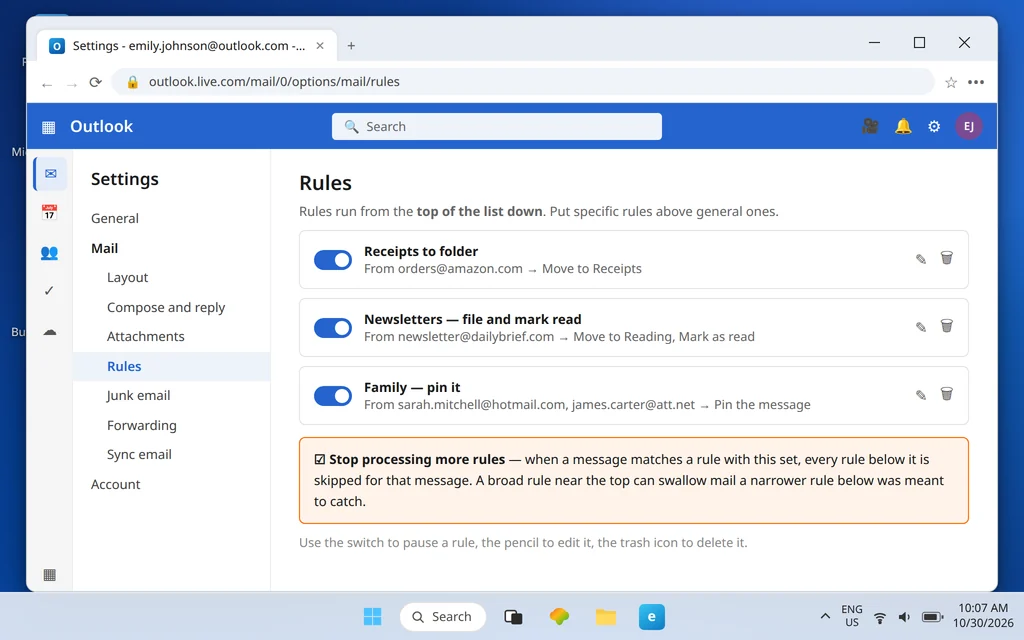
Rules are evaluated from the top of the list down, and that order decides real outcomes. Every rule has an option to stop processing more rules: when a message matches a rule with that option set, no rule below it is applied. A broad rule near the top (“everything from this domain goes to Newsletters”) can therefore swallow mail a narrower rule below it (“invoices go to Receipts”) was meant to catch.
Manage the list at Settings > Mail > Rules: use the switch to turn a rule off without deleting it, the pencil to edit it, and the trash icon to delete it. Put specific rules above general ones, and reach for “stop processing more rules” only when you truly want a match to end the chain.
One warning that belongs in every rules guide: if you find a rule you did not create — especially one that forwards or deletes incoming mail — that is not untidiness, it is a classic sign of a compromised account. Delete it and work through our Outlook.com account hacked recovery guide before doing anything else.
Rules Act on New Mail Only: Sort What Is Already There
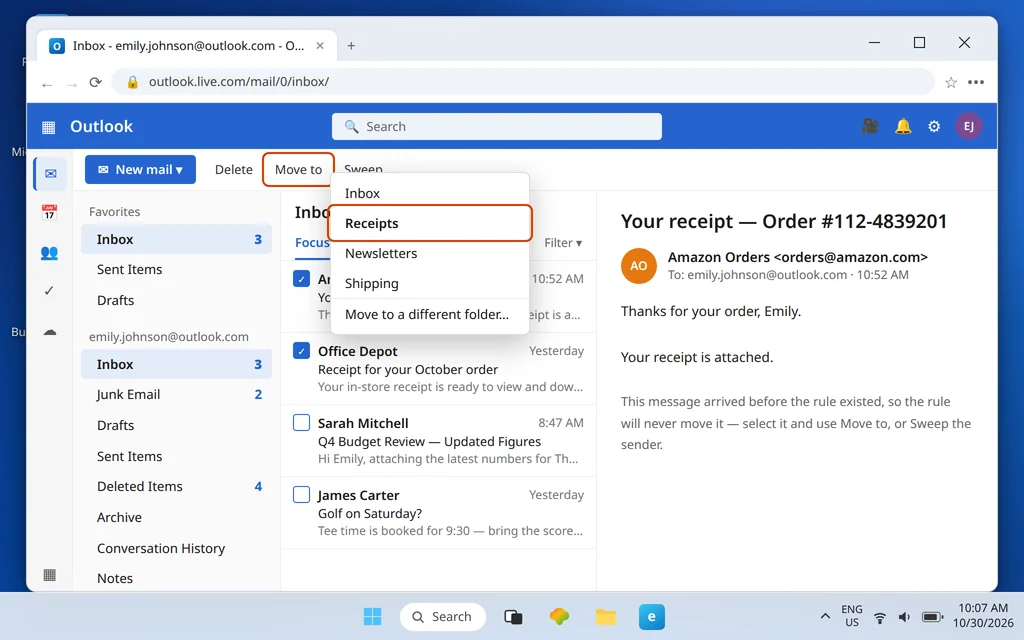
The most common disappointment with a new rule is an Inbox that looks unchanged — because the rule is working exactly as designed, on new mail only. For the existing backlog you have three options: Sweep the sender (above) for bulk cleanup, select messages in the list and use Move to by hand for one-offs, or simply leave history where it is and let the system be tidy from today forward. Any of the three is fine; expecting the rule to do it retroactively is the only wrong move.
Rules Not Working? Check These
- The mailbox is a connected account. Web rules run only on Microsoft-hosted mailboxes. Rules set here do not apply to Gmail or Yahoo accounts connected to Outlook.
- A rule above it fired first. Check the order, and whether an earlier rule has “stop processing more rules” set.
- The condition is narrower than the mail. A rule for one exact address misses the same sender writing from a second address; a subject-word condition misses subjects that phrase it differently.
- You are testing with old mail. Rules never act on mail that arrived before the rule existed — test with a fresh message.
- The rule is switched off. Every rule has a toggle in Settings > Mail > Rules; an edited rule can also lose its action if the folder it pointed to was deleted.
If mail is going missing more broadly — expected messages never arriving at all — check the causes in our Outlook.com not receiving emails guide, and if the problem flips direction, Outlook.com can’t send emails covers the sending side.
How to Stop Your Inbox Filling Up Again
Rules are a system, and systems drift. Four habits keep this one working: keep folder names obvious, because a rule is only as good as the folder it points to; add a rule the moment a recurring sender appears, not during a quarterly cleanup; delete rules for senders and projects that have ended, so the list stays short enough to understand at a glance; and review the list top to bottom a few times a year, checking order and “stop processing” settings while the setup is still fresh in your mind. Five minutes of that beats an afternoon of digging through an unsorted inbox.
Frequently Asked Questions
How do I automatically move emails to a folder in Outlook.com?
Create the folder, then go to Settings > Mail > Rules > Add new rule: name the rule, set a condition such as From the sender, choose the action Move to and your folder, and click Save. New matching mail is filed on the server as it arrives. For a quicker version, right-click a message and choose Rules > Create rule.
Do Outlook.com rules work when my browser is closed?
Yes. Web rules are server-side: Microsoft runs them on your mailbox as mail arrives, whether or not you have Outlook.com open, and the result is the same on your phone, your PC and the web.
Do rules apply to emails already in my Inbox?
No. Rules act on new mail as it arrives only. To sort what is already there, use Sweep for a sender’s backlog or select the messages and use Move to yourself.
Do Outlook.com rules work for Gmail or Yahoo accounts connected to Outlook?
No. Web rules run only on Microsoft-hosted mailboxes — Outlook.com, Hotmail and Live.com accounts. They do not apply to Gmail, Yahoo or other third-party accounts connected to Outlook; those services run their own filter systems server-side.
What does “stop processing more rules” mean?
Rules run in list order. If a message matches a rule that has stop processing more rules switched on, Outlook.com applies that rule and skips every rule below it for that message. Keep specific rules above general ones so the right rule gets its turn.
What is the difference between a rule and Sweep in Outlook.com?
A rule is the full tool — any condition, any action, running continuously on new mail. Sweep is a simplified sender cleanup: keep the latest, keep everything, or delete older mail from one sender, and it works on the messages already in your Inbox as well as future ones.
Stuck on a rule that will not fire? Tell us the condition and action you set and whether the mailbox is a Microsoft account or a connected one — that narrows it down fast — via our Contact page: servicedesk@howtofixerroronline.com, available 24 hours.
Pingback: Outlook.com Account Hacked? Recovery Form, Lockdown & Cleanup (2026)
Pingback: Outlook.com Automatic Replies: Set Up Out of Office in Minutes (2026)
Pingback: Outlook.com Email Alias — Create, Send From & Make Primary (2026)
Pingback: Outlook.com Not Receiving Emails but Can Send? Check These First (2026)