
Outlook.com Not Receiving Emails but Can Send? The Webmail Checklist
Sending works. You can fire off an email right now and it leaves without complaint. But incoming mail has stopped — or arrives so patchily that people have started asking whether you got their message, when you plainly did not. This guide is specifically about Outlook.com in the browser: the webmail problem, with webmail causes. There are no sync settings to repair here and no data file to rebuild, because webmail has neither. What it has is storage limits, tabs, rules, forwarding, and sender lists — and the fault is hiding in one of them.
Work this checklist in order. Step 1 comes first for a hard reason explained in its section, not by habit. If your problem is in the Outlook app instead, use our Outlook not receiving emails but can send guide — the app twin of this checklist, with the app-side causes. And for the broad, all-versions picture, our main Outlook not receiving emails guide covers the wider ground; this page owns the browser case in depth.
Quick Answer: In Outlook.com, check Settings > Account > Storage first — if your mailbox or cloud storage is full, incoming mail is bounced back to senders, and bounced mail is gone for good. Then look where mail hides: the Other tab of Focused Inbox, Junk Email, and the inbox Filter set back to All. Next check Settings > Mail > Rules and Settings > Mail > Forwarding for anything moving mail out of your inbox, and Settings > Mail > Junk email to make sure the sender is not on your Blocked list. Finish with the two-mailbox test: a plain-text email sent from a different mailbox.
Table of Contents
Step 1: Check Your Storage (Bounced Mail Is Gone for Good)
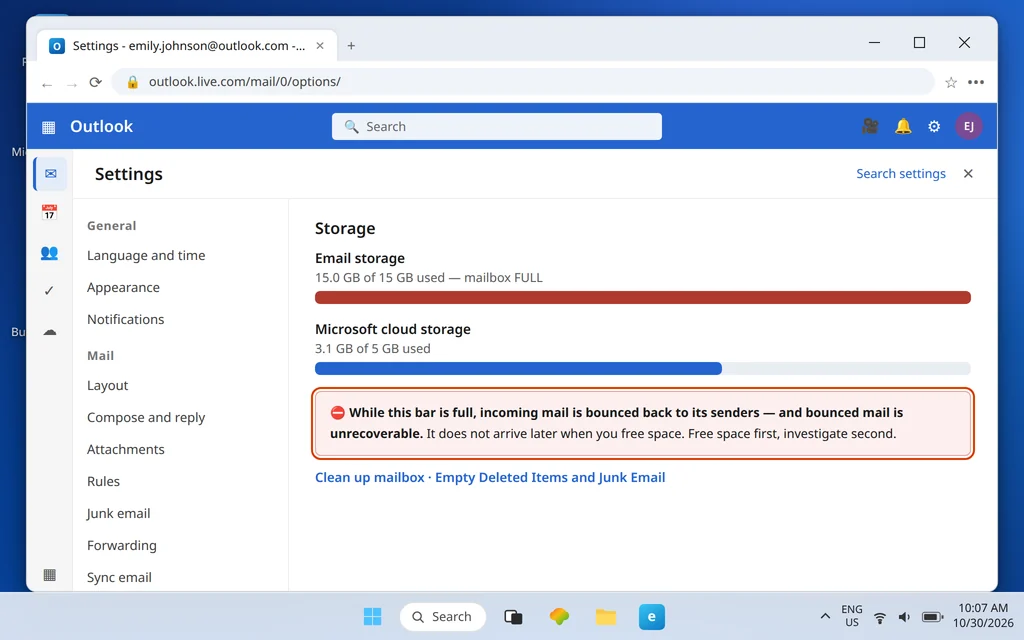
This step is first because it is the only one where delay costs you mail permanently. When your storage is full, Outlook.com does not hold incoming messages and deliver them later — it bounces them back to their senders. And mail that was bounced while you were full is unrecoverable: freeing space today does not bring back a single message that was turned away yesterday. Stopping the bouncing is therefore more urgent than finding any individual missing email.
- Open Settings > Account > Storage.
- Read both bars. Your mailbox storage (15 GB on free accounts) is one limit; your Microsoft cloud storage (5 GB on free accounts) — shared by OneDrive files and Outlook.com attachments — is a second, separate one. Either bar full is enough to bounce your mail.
- If either is full, free space now: empty Deleted Items and Junk Email (both count until emptied), delete the largest messages (Inbox > Filter > Sort by > Size), and clear files from OneDrive if the cloud bar is the problem.
Our Outlook.com mailbox full guide covers the two-limit system and the cleanup order in full. Once space is freed, new mail flows again — just remember that anything sent to you during the full period needs to be resent by its sender; it will never arrive on its own.
Step 2: The Other Tab, Junk Email, and the Inbox Filter
With storage safe, the next possibility is that your mail is arriving perfectly well — into places you are not looking.
- The Other tab. Focused Inbox splits your mail into Focused and Other, and its judgment is imperfect. Click Other and scan: newsletters and receipts live there by design, but so, regularly, does the exact message you have been waiting for.
- Junk Email. Open the Junk Email folder and look for the missing mail there — the junk filter files first and explains never.
- The inbox Filter. At the top of the message list, the Filter can be left set to something narrow (Unread, for example) from an earlier session, silently hiding mail that is sitting in the folder. Set it back to All.
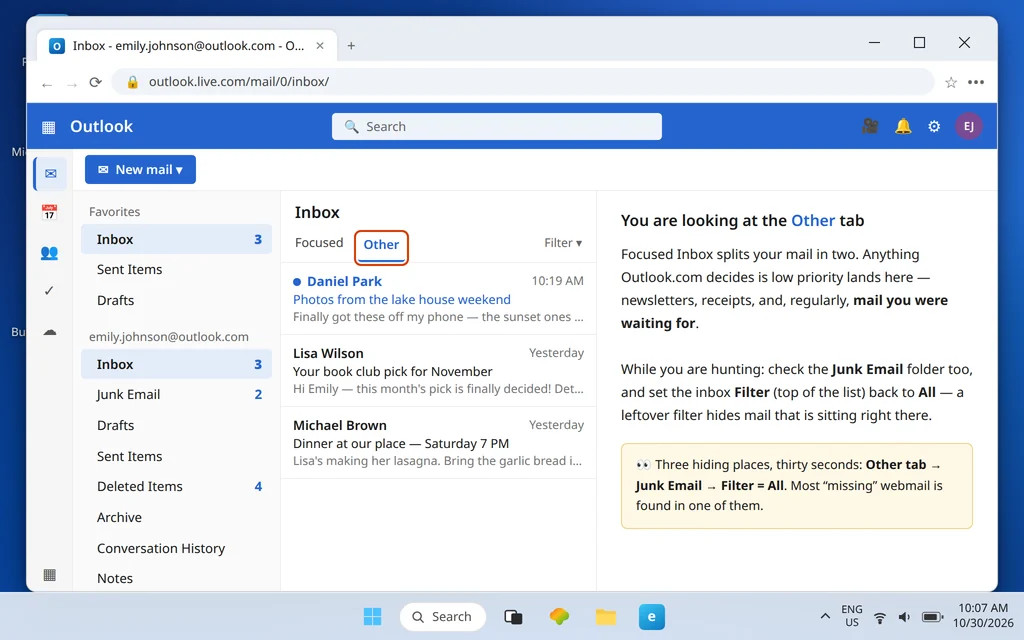
Thirty seconds across three hiding places resolves a surprising share of “not receiving” reports — mail that was never missing, just filed. If the mail is genuinely nowhere in the mailbox, the next two steps look for things actively moving it.
Step 3: Rules That Move or Delete Mail
Rules in Outlook.com run on the server, on every new message as it arrives — including rules you do not remember creating, and rules somebody else created for you.
- Open Settings > Mail > Rules.
- Read every rule’s condition and action. You are hunting for actions that move, forward, or delete incoming mail — “delete anything with an attachment,” “move everything from X to a folder you never open,” and similar.
- Delete or disable anything you do not recognize or no longer want. Rule order matters and a “stop processing more rules” action can swallow mail before your other rules see it, so be thorough rather than selective.
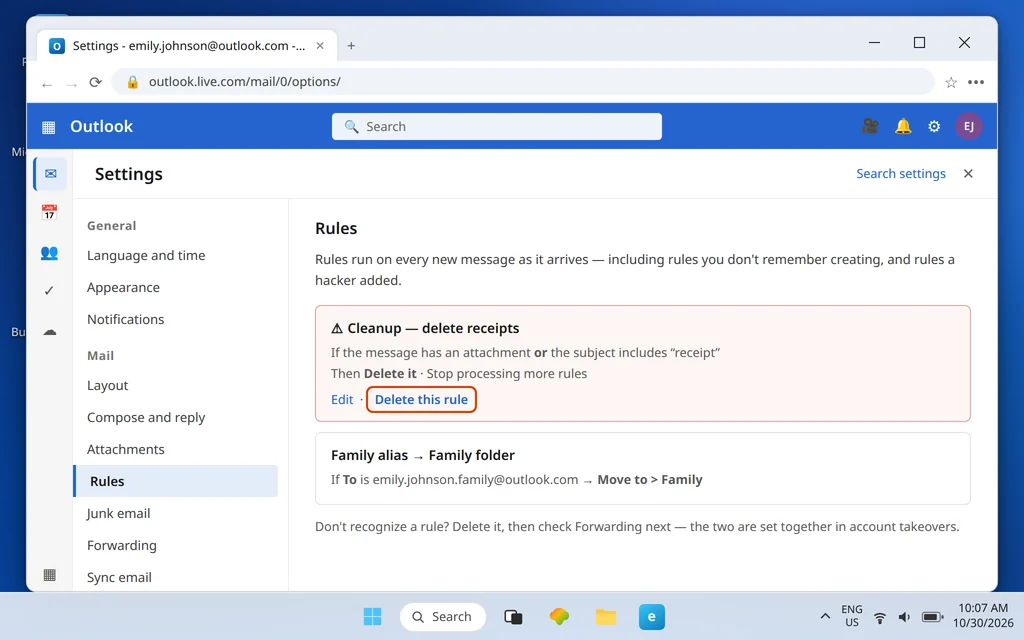
Rules you built yourself on purpose are covered in our Outlook.com rules guide. An unrecognized rule is a different matter: together with unexpected forwarding (next step), it is the classic fingerprint of a compromised account. If you find one, finish this checklist, then work through our Outlook.com account hacked recovery guide to lock the account down properly.
Step 4: Forwarding Switched On?
Forwarding is the other silent exit. If it is on and set to not keep a copy, every incoming message leaves your mailbox for another address the moment it arrives — sending still works, your folders still look normal, and your inbox simply never fills.
- Open Settings > Mail > Forwarding.
- If Enable forwarding is on and the address shown is not one you set up deliberately, turn forwarding off and save.
- If you do forward on purpose, make sure “Keep a copy of forwarded messages” is ticked — with it ticked, forwarded mail also stays in this mailbox where you can see it.
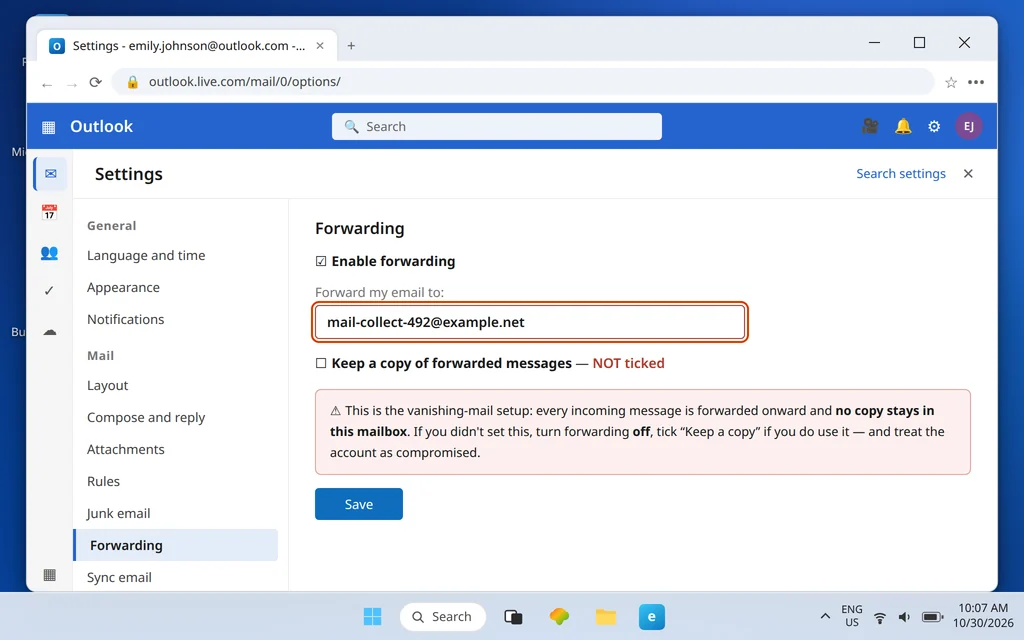
Forwarding you did not set is, like a rogue rule, a compromise warning sign rather than a glitch: treat it that way, change your password, and review the account using the hacked-account guide linked above.
Step 5: Blocked and Safe Senders
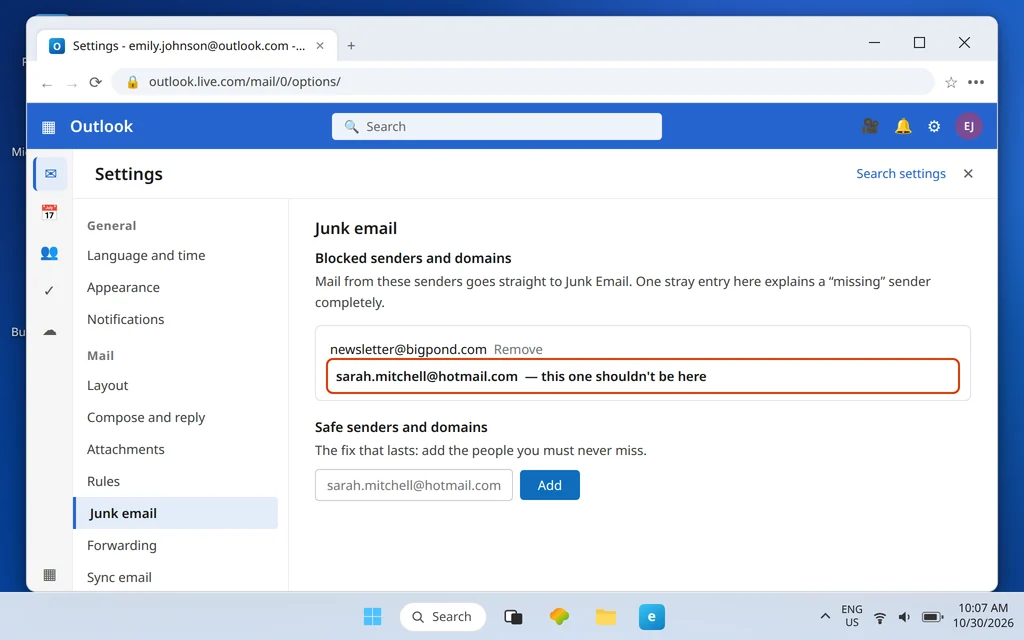
One entry in the wrong list explains one missing sender completely.
- Open Settings > Mail > Junk email.
- Under Blocked senders and domains, check whether the person (or their whole domain) you are missing mail from is listed. Remove any entry that should not be there.
- Under Safe senders and domains, add the people whose mail you must never miss — their mail then bypasses the junk filter entirely.
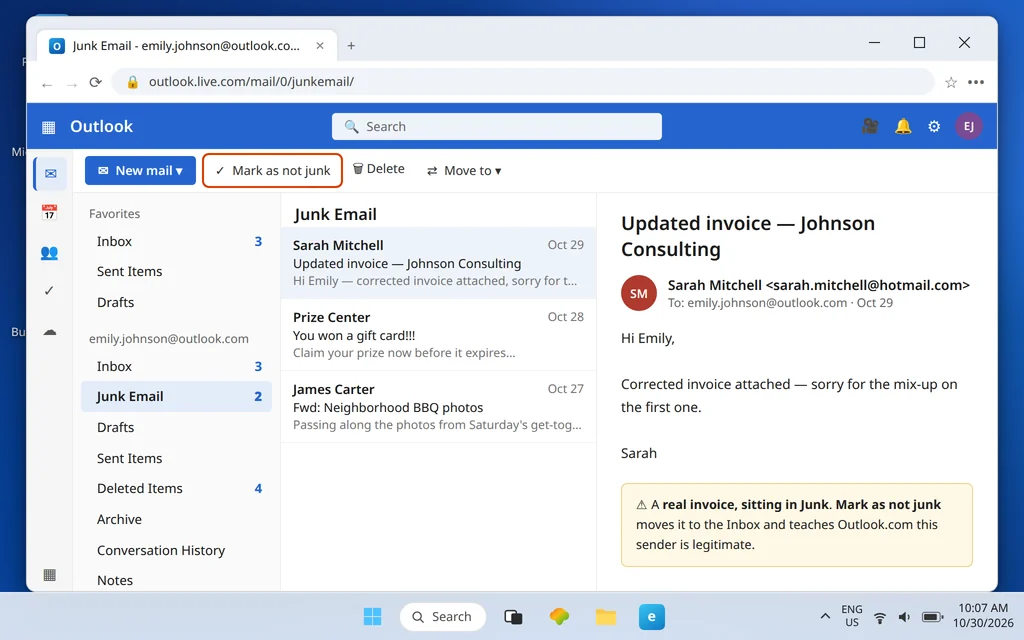
- And for a message you find sitting in Junk Email that should not be there: select it and use Mark as not junk. It moves back to the Inbox and teaches the filter that this sender is legitimate.
Step 6: The Two-Mailbox Test
By now storage, hiding places, rules, forwarding, and sender lists are all cleared. The test that tells you what remains takes one helper: a second mailbox — a friend, a family member, or another account of yours at a different provider.
- From that other mailbox, send a short plain-text email to your Outlook.com address.
- Watch your Inbox (and Other tab and Junk, once, for completeness).
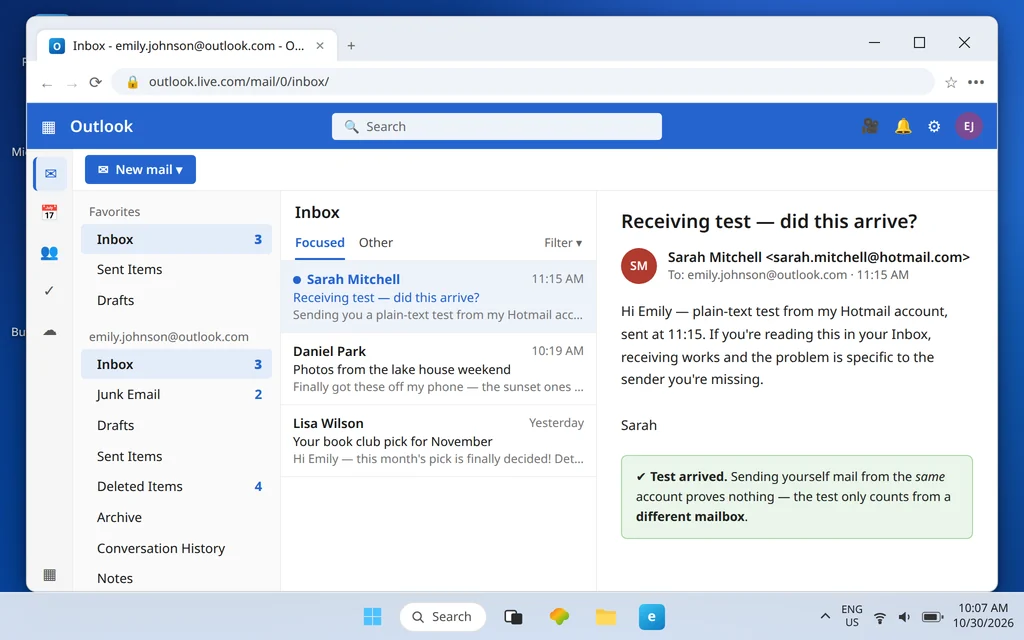
- The test arrives: receiving works. The problem is specific to the sender you are missing — which points at their side, covered next. (Sending a test from your Outlook.com account to itself proves nothing, which is why the test has to come from a different mailbox.)
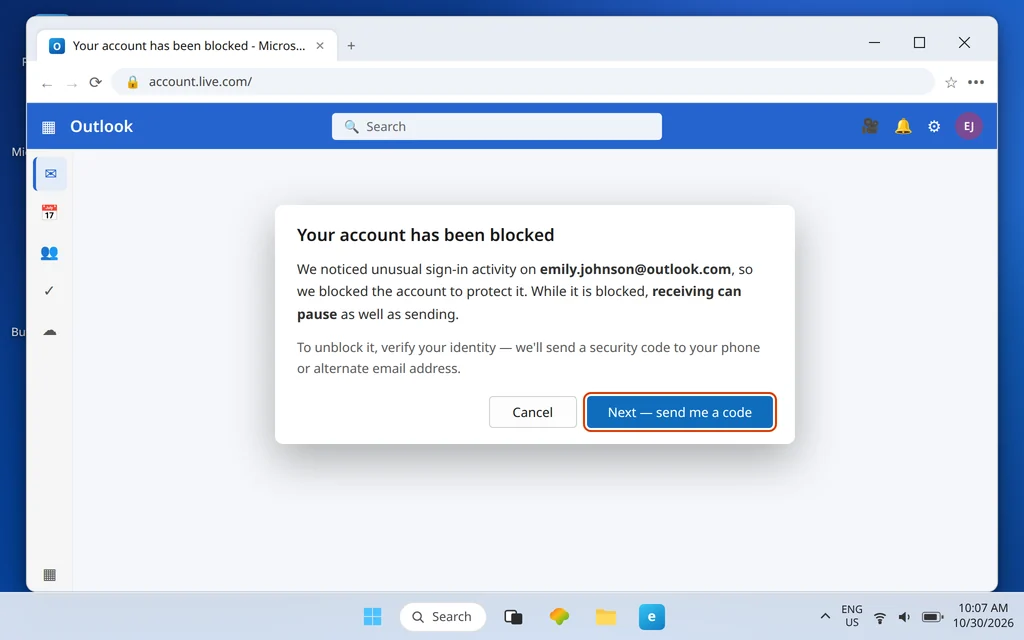
- The test does not arrive: something account-level is still wrong. One remaining cause fits: an account blocked for unusual sign-in activity can pause receiving as well as sending. Complete the unblock flow — the same flow covered in our can’t sign in to Outlook.com guide — and retest.
One Sender Only? It’s Probably Their Side
If exactly one sender’s mail never reaches you while everyone else’s does — and they are not on your Blocked list and your two-mailbox test passed — the failure is almost certainly at their end or in between: their server, their spam reputation, or their provider blocking the route. What you can usefully do is specific: ask them whether they received a bounce message (that bounce is the diagnosis, on their side), and point them to Microsoft’s Sender Support route, which exists for senders whose mail to Outlook.com is being blocked. Receiving-side settings cannot fix a sending-side block, and knowing that saves days of changing settings that were never wrong.
If the direction of your problem is reversed — you receive fine but cannot send from webmail — work the mirror checklist in our Outlook.com can’t send emails guide instead.
How to Stop Missing Emails in the First Place
- Keep storage headroom. Check both storage bars once in a while; a mailbox that fills silently bounces mail you will never know you missed.
- Put must-not-miss senders on Safe Senders. Banks, schools, employers, family — two minutes in Settings > Mail > Junk email, and the filter can never file them away.
- Audit Rules and Forwarding monthly. Sixty seconds in Settings > Mail catches both your own stale rules and anything that should not be there at all.
- Glance at the Other tab daily. If Focused Inbox keeps misfiling mail you care about, that glance is cheaper than the “did you get my email?” phone call.
Frequently Asked Questions
Why is Outlook.com not receiving emails but can send?
Because the two directions fail independently, and on webmail the receiving causes are account-side: full storage bouncing mail back to senders, Focused Inbox’s Other tab and the junk filter filing mail away, rules or forwarding moving it out of the inbox, or the sender sitting on your Blocked list. There are no sync settings in webmail to blame — work the checklist in order.
Can I recover emails that bounced while my mailbox was full?
No. Mail bounced while your mailbox or cloud storage was full was refused at the door and is unrecoverable — it does not arrive later when you free space. The senders have to resend it, which is why checking storage is Step 1 and worth doing the moment receiving trouble starts.
Does this work for Hotmail — my Hotmail is not receiving emails?
Yes. Hotmail and Live.com addresses are Outlook.com accounts behind the older names. Sign in at Outlook.com and every step of this checklist — storage, Other tab, rules, forwarding, blocked senders — applies exactly as written.
A specific person’s emails never arrive. What now?
Check they are not on your Blocked senders list (Step 5) and not being filed in Junk or Other (Step 2), then run the two-mailbox test (Step 6). If the test arrives and their mail still does not, the problem is on their side or their provider’s — ask them for the bounce message they received, and point them to Microsoft’s Sender Support route.
How is this different from the Outlook app not receiving?
The causes live in different places. The app can fail on sync settings, profiles, and its local data file; webmail cannot — it fails on the account-side items in this checklist. If your mail problem is in the app, use the app twin of this guide, linked in the introduction.
Worked the whole checklist and mail still is not arriving? Tell us where the two-mailbox test failed — or whether it arrived — plus anything odd you found in Rules or Forwarding, via our Contact page: servicedesk@howtofixerroronline.com, available 24 hours. Those details pinpoint the remaining cause quickly.