
Outlook.com Email Aliases: Create One, Send From It, Make It Primary
You want a second email address — one for shopping and sign-ups, one for family, or a cleaner address than the one you picked years ago — but you do not want a second inbox, a second password, or a second account to babysit. That is exactly what an Outlook.com email alias is: an extra address attached to the Microsoft account you already have, writing to the same mailbox.
This guide covers the whole alias life cycle in order: what an alias is (and is not), how to add one, how to send from it, how to make it your primary address — which is also how you effectively change your Outlook email address — and the one warning you must read before you ever remove one. One note that saves confusion: Hotmail and Live.com addresses are Outlook.com accounts, so everything below applies to them identically.
Quick Answer: In Outlook.com, go to Settings > Mail > Sync email and, under Email aliases, click Manage or choose a primary alias. On the Microsoft account page, choose Add email to create a new @outlook.com address or add an existing one. To send from an alias, open a new message, choose Options > Show From, and pick the alias in the From dropdown. To make it your default, use Make primary on the aliases page. You can have up to 10 aliases, and aliases share your mailbox’s storage — they add no extra space.
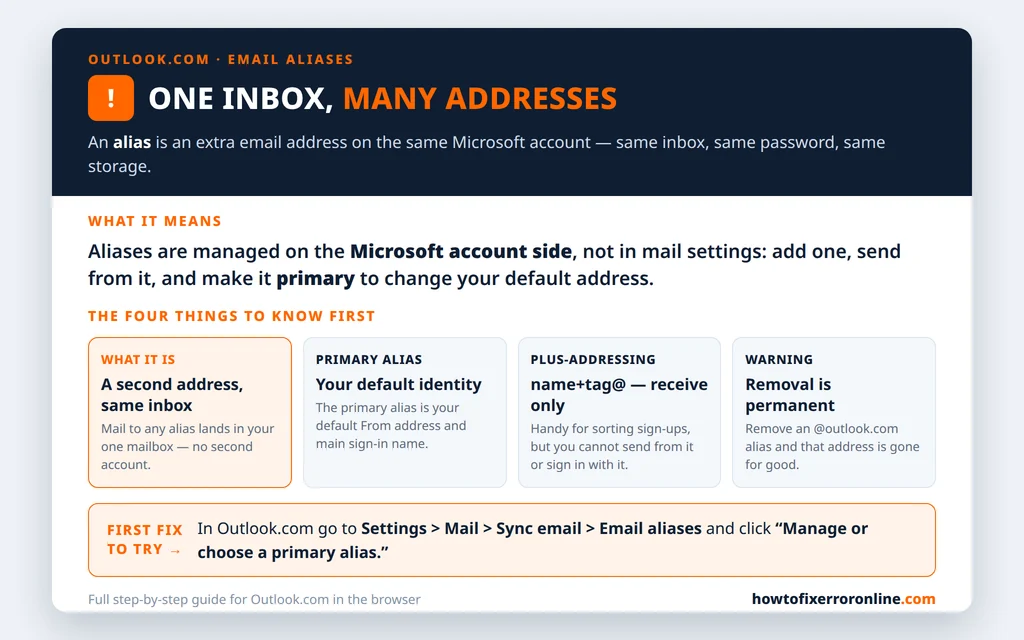
Table of Contents
What an Alias Is (and Is Not)
An alias is a second email address on the same Microsoft account. Mail sent to any of your aliases lands in the one inbox you already use. Your aliases share your contacts, your settings, your password, and — this matters later — your storage. Signing in with any alias signs you into the same account.
An alias is not a separate account. It has no inbox of its own, no password of its own, and no extra storage of its own. If you need a genuinely separate mailbox — for a business, say, with its own storage and its own sign-in — an alias is the wrong tool and a separate account is the right one.
There is also a lighter cousin worth knowing about: plus-addressing. If your address is emily.johnson@outlook.com, then emily.johnson+shopping@outlook.com also delivers to your inbox, with no setup at all. It is handy for spotting which site sold your address. But plus-addressing is receive-only: you cannot send from a plus address and you cannot sign in with one. For anything you need to send from, you need a real alias — so let us create one.
Step 1: Add an Alias
Aliases live on the Microsoft account side, not in Outlook.com’s mail settings — the settings page simply hands you over to the right place.
- Sign in at Outlook.com and open Settings (the gear icon).
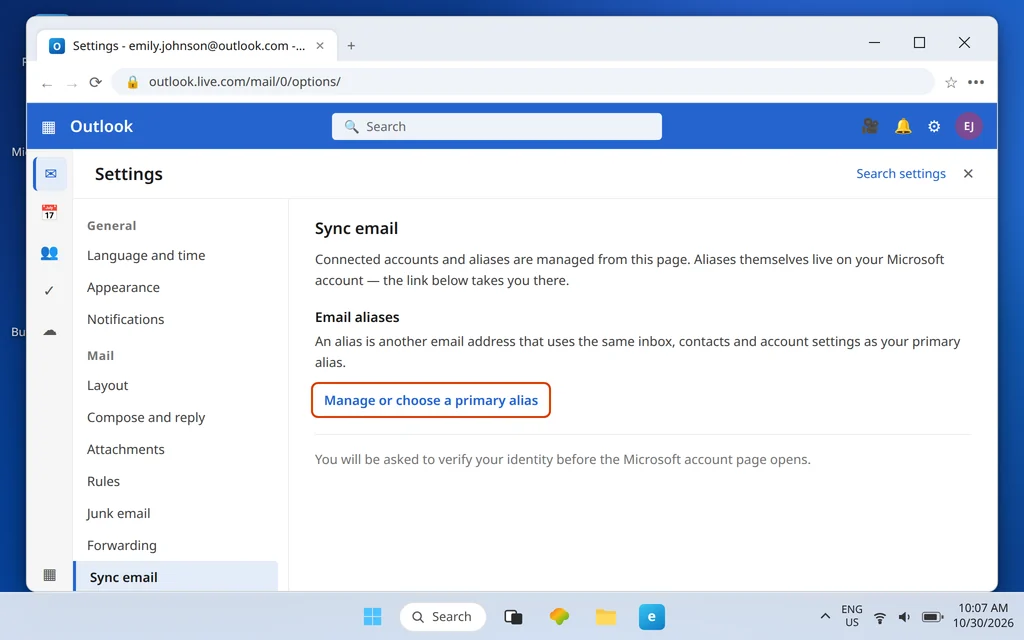
- Go to Mail > Sync email. Under Email aliases, click Manage or choose a primary alias.
- Verify your identity if Microsoft asks — the link opens your Microsoft account’s “Manage how you sign in to Microsoft” page.
- Click Add email.
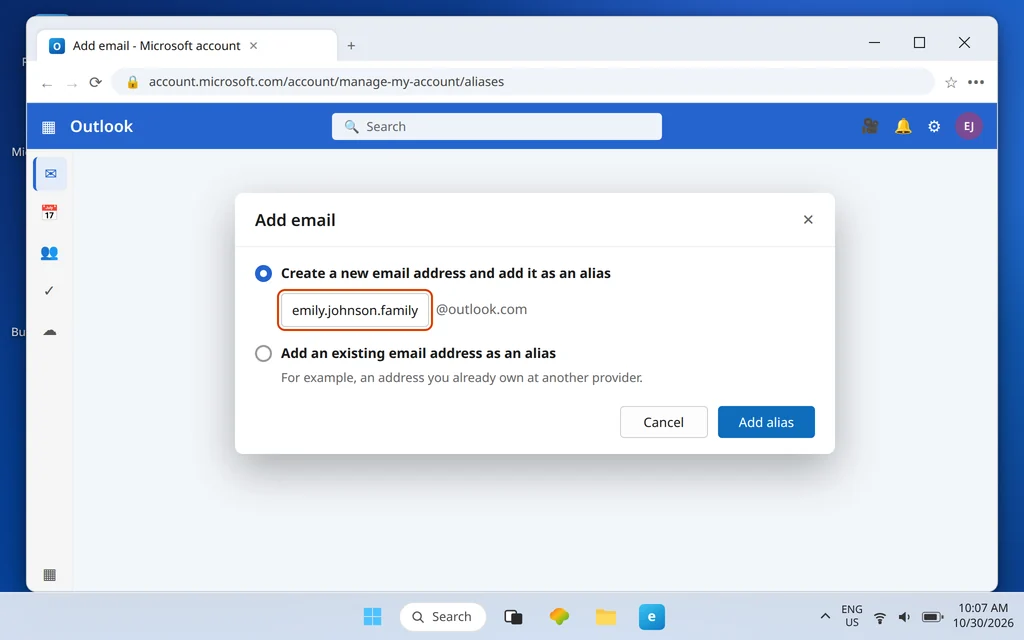
- Choose Create a new email address and add it as an alias and type the new @outlook.com address you want — or choose Add an existing email address as an alias and enter an address you already own.
- Click Add alias.
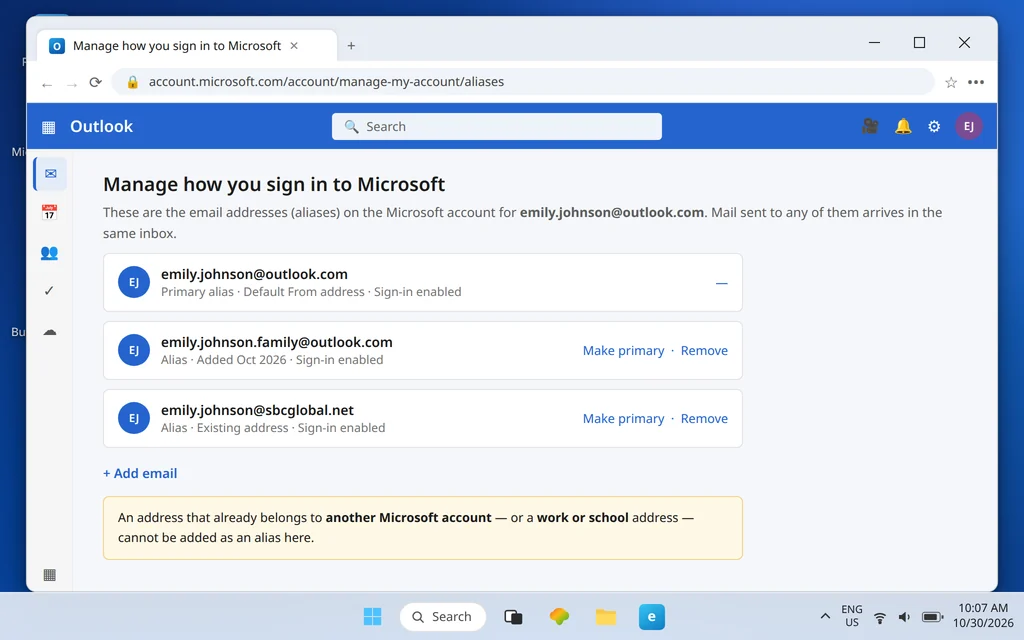
Two limits apply at this step. An address that is already tied to another Microsoft account cannot be added — Microsoft will refuse it, because one address cannot belong to two accounts. And a work or school address cannot be added as an alias either. If you hit either refusal, the fix is a fresh @outlook.com address created on the spot, which is why that option is listed first.
That is the whole creation step. From this moment, mail sent to the new alias arrives in your inbox alongside everything else — there is nothing to configure on the receiving side at all.
Step 2: Send From an Alias
Receiving is automatic; sending takes one extra click the first time, because Outlook.com hides the From field by default.
- Start a new message in Outlook.com.
- Click Options in the compose toolbar, then Show From. The From line appears at the top of the message.
- Click the From dropdown and pick your alias — or choose Other email address… and type the alias if it is not listed.
- Write and send as normal. The recipient sees the alias as the sender, and replies to it land back in your inbox.
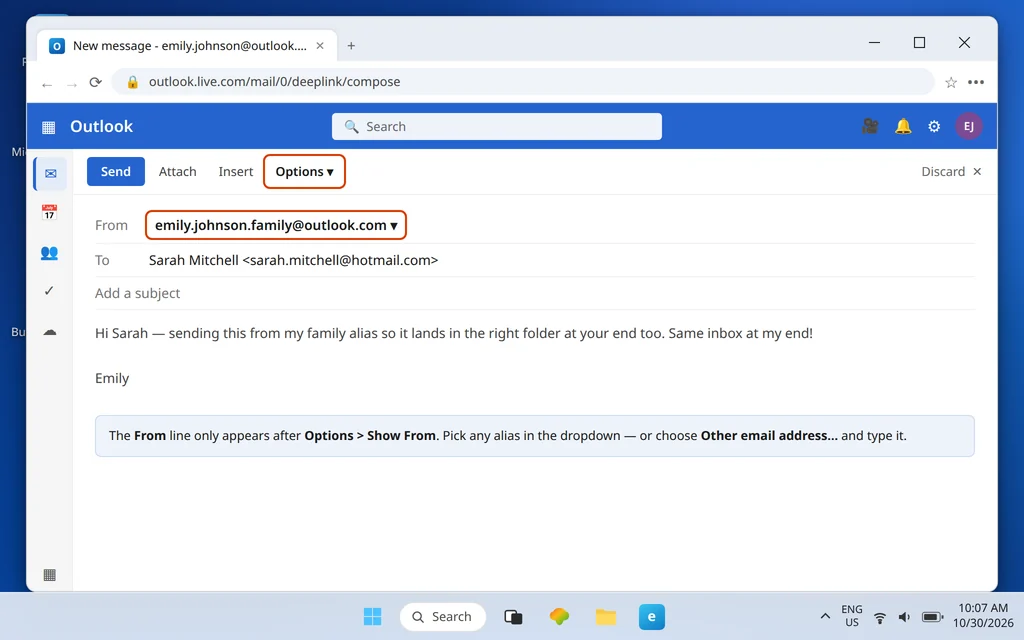
Use this whenever the alias is the identity you want for a conversation: family mail from the family alias, sign-ups and orders answered from the shopping alias. The person at the other end never sees your primary address unless you choose it in that dropdown.
Step 3: Make an Alias Your Primary (and Default From)
The primary alias is special: it is your main sign-in identity and the default From address on every new message. Promoting an alias is a two-click change:
- Return to the aliases page: Settings > Mail > Sync email > Manage or choose a primary alias.
- Find the alias and click Make primary next to it.
- Confirm. The alias is now your primary; your previous primary stays on the account as an ordinary alias, and you keep receiving its mail.
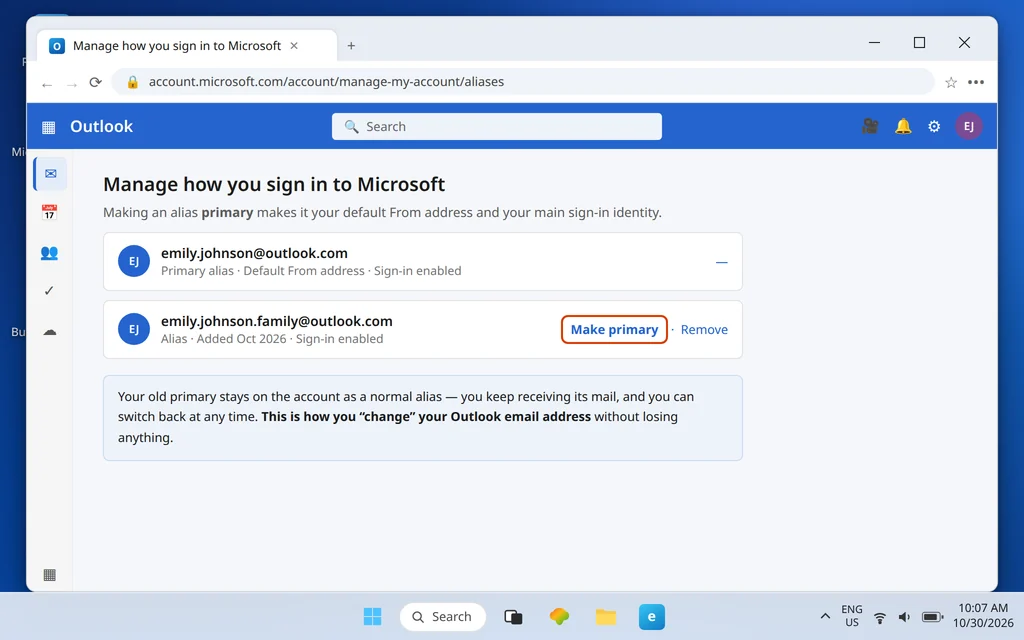
Nothing is deleted and nothing moves — same inbox, same mail, same password. You can switch the primary back at any time the same way, which makes this a safe experiment rather than a leap.
How to “Change” Your Outlook Email Address Using an Alias
This is the job most people actually came here to do, so it deserves its own short section. You cannot rename an Outlook.com address in place — there is no edit button for the address itself. The alias route achieves the same result properly:
- Create the new address as an alias (Step 1).
- Make it primary (Step 3). It is now the address you sign in with and send from by default.
- Tell your contacts, and update the address at the services that matter — bank first, then the rest.
- Keep the old address on the account as an alias. Mail sent to it still reaches you, so nothing sent to the old address is ever lost.
Done this way, a “change of address” costs you nothing: no lost mail, no new account, no migration. The trap is step 4 done backwards — removing the old address instead of keeping it — which brings us to the warning section below. Read it before you remove anything.
Sort Alias Mail With a Rule
Because every alias delivers to one inbox, a busy alias can flood the folders you actually read. The fix is a rule that files alias mail as it arrives:
- Create the destination folder first (right-click Folders > Create new subfolder).
- Go to Settings > Mail > Rules > Add new rule.
- Set the condition To is your alias, and the action Move to that folder. Save.
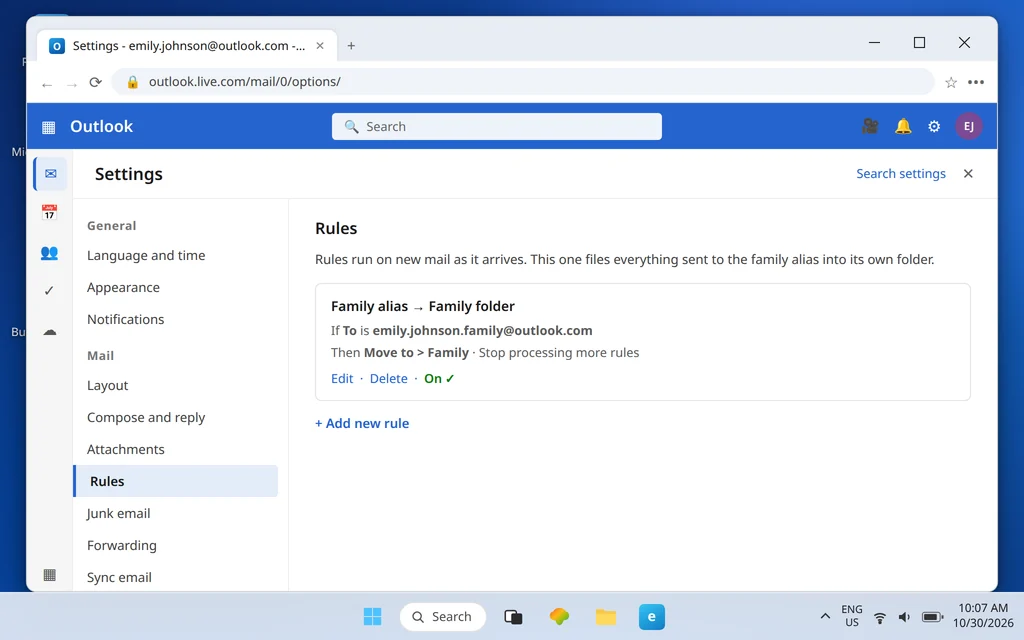
Our dedicated guide to Outlook.com rules that move emails to a folder walks through rule conditions, Sweep, and the rules worth having — it is the natural next step once an alias is live.
Limits and Gotchas
Aliases are generous, but they are not unlimited, and three of the limits catch people out:
- Maximum 10 aliases on one Microsoft account at a time.
- Add at most 2 per week, and at most 10 new aliases per year. The yearly cap counts creations, so pick names you intend to keep rather than experimenting weekly.
- Aliases share the primary mailbox’s storage — there is no extra space. Ten aliases writing to a nearly full 15 GB mailbox fill the same 15 GB. If storage is your problem, an alias cannot help; our Outlook.com mailbox full guide covers the two storage limits and how to free space.
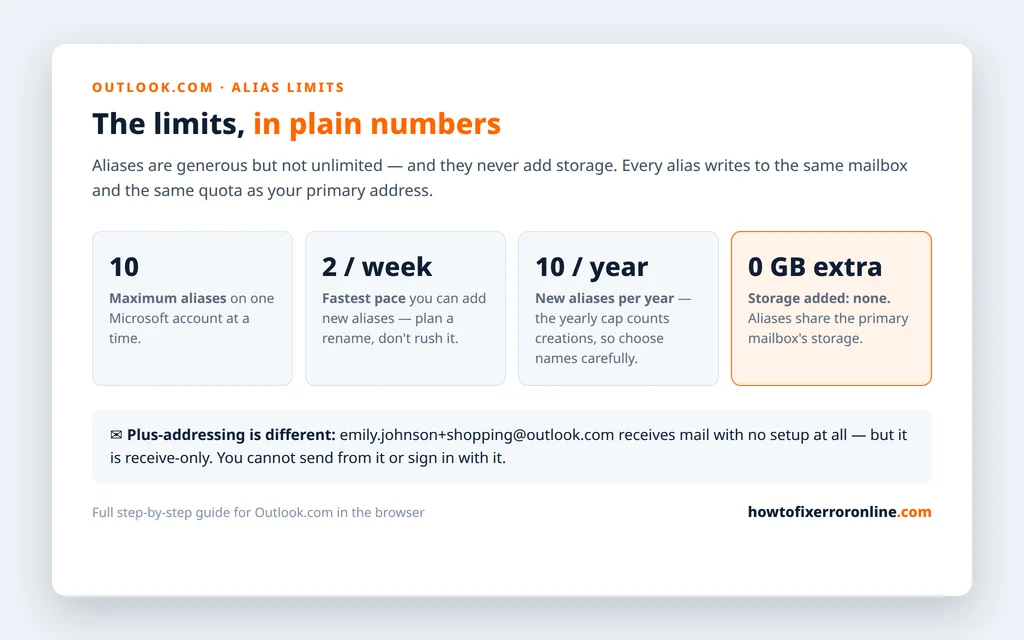
Add the two refusals from Step 1 — no address tied to another Microsoft account, no work or school addresses — and you have the complete rulebook. Everything else about aliases is genuinely as simple as it looks.
Remove an Alias (Read This First)
Removing an alias is done on the same aliases page: find the address, click Remove, confirm. It takes seconds. Undoing it is the problem.
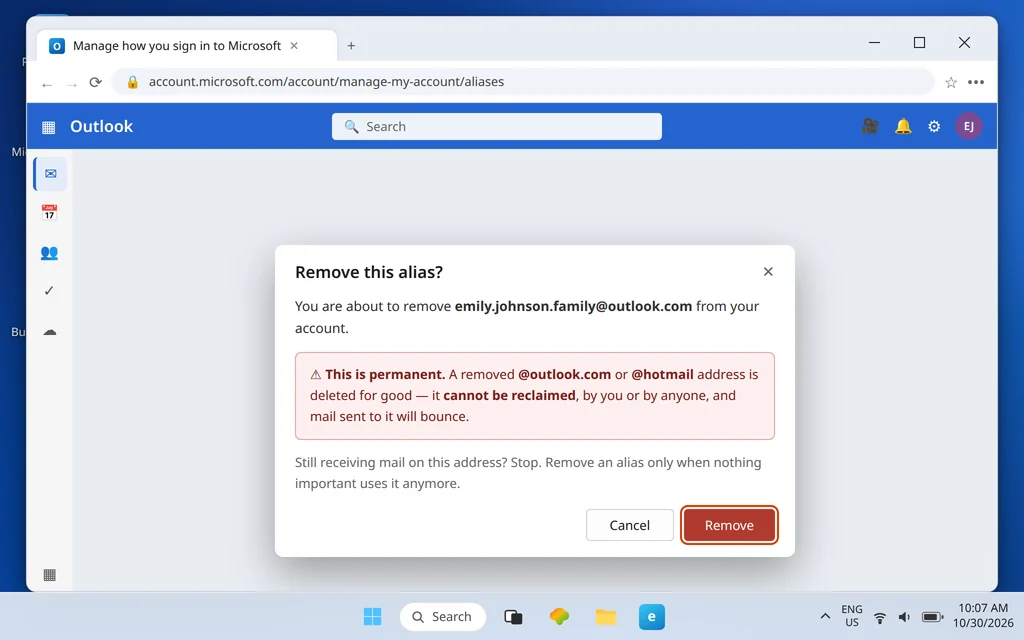
Warning: removing an @outlook.com or @hotmail alias deletes that address permanently. It cannot be reclaimed — not by you, not by Microsoft support, not later, not ever. The address stops existing, mail sent to it bounces, and no one can register it again. This is deliberate on Microsoft’s part, and there is no cooling-off period.
So remove an alias only when all three are true: nothing important still uses that address, no one you care about still writes to it, and you are certain you will never want it back. If any of the three is doubtful, leave the alias in place — an unused alias costs you nothing, while a removed one can cost you the address forever.
How to Stop Alias Mail From Taking Over Your Inbox
- One alias per job. An alias for shopping, one for family, one for work-adjacent sign-ups — separate jobs are what make rules and sorting actually work.
- Rule each alias to its folder on day one. The rule in the section above takes two minutes at creation time and saves you sorting by hand forever.
- Keep your primary for people, not websites. Sign-ups and one-off purchases belong on an alias you can retire; your primary should be the address real humans use.
- Retire, don’t remove. When an alias starts attracting spam, stop using it and let it sit — remember that removing an @outlook.com alias is permanent, while ignoring one is free.
Frequently Asked Questions
Can I change my Outlook email address?
Not in place — there is no rename button. The supported way is the alias route in this guide: create the new address as an alias, make it primary, and keep the old address as an alias so its mail still reaches you. From the outside, the result is identical to a rename.
How many aliases can I have on Outlook.com?
Up to 10 aliases at a time, with creation paced at 2 per week and 10 new aliases per year. Aliases share your mailbox, so all of them together still write to the one storage quota.
Does an alias get its own inbox and password?
No. An alias is an address, not an account: one inbox, one password, one set of contacts and settings, shared by the primary address and every alias. That sharing is the point — it is what makes aliases effortless compared with a second account.
Can I send from a plus address like name+tag@outlook.com?
No. Plus-addressing is receive-only — mail to name+tag@ arrives in your inbox, but you cannot send from that form and cannot sign in with it. If you need to send from an address, create it as a real alias instead.
What happens if I remove an @outlook.com alias?
The address is deleted permanently and cannot be reclaimed. Mail sent to it will bounce, and neither you nor anyone else can ever use it again. Only remove an alias when you are completely sure nothing and nobody still depends on it.
Not sure whether an alias or a second account fits your situation? Tell us what you are trying to separate — work from personal, family from sign-ups — via our Contact page: servicedesk@howtofixerroronline.com, available 24 hours. If your underlying problem is a mailbox that keeps filling up rather than too few addresses, our Outlook.com mailbox full guide is the right place to start instead.