
Setting Up Microsoft 365 Business Standard for Business Domain Email: The Complete Admin Guide
Buying Microsoft 365 Business Standard is the easy part. The part that trips businesses up is the setup order: add the domain in the wrong sequence, skip a DNS record, or turn on DKIM before its records exist, and your brand-new mailboxes either never receive mail or quietly land in everyone’s spam folder. This guide walks the whole admin setup in the order Microsoft intends — buy the plan, add and verify your domain, create users, publish the email DNS records (MX, SPF, DKIM, DMARC), and connect Outlook — using a sample business, Johnson Consulting (johnsonconsulting.com), so you can follow along screen by screen. In short, this is a complete microsoft 365 business standard setup guide for a business domain email.
One important fork before you start: this guide covers buying Microsoft 365 directly from Microsoft. If you bought your Microsoft 365 email through GoDaddy, the admin screens and DNS steps are different — follow our GoDaddy Microsoft 365 email setup guide instead, and use this guide only for the concepts.
Quick Answer: Sign in to the Microsoft 365 admin center, go to Settings → Domains → Add domain, and verify ownership with the TXT record Microsoft gives you (it looks like
MS=ms12345678). Create your users and assign Business Standard licenses, then publish the DNS records at your registrar: MX pointing to<your-token>.mail.protection.outlook.com, SPF as the single TXT recordv=spf1 include:spf.protection.outlook.com -all, an Autodiscover CNAME toautodiscover.outlook.com, the two DKIM CNAMEs from the Microsoft Defender portal (then switch signing ON in the portal), and a DMARC TXT record at_dmarcstarting withp=none. Outlook then connects by itself through Autodiscover — no server names to type.
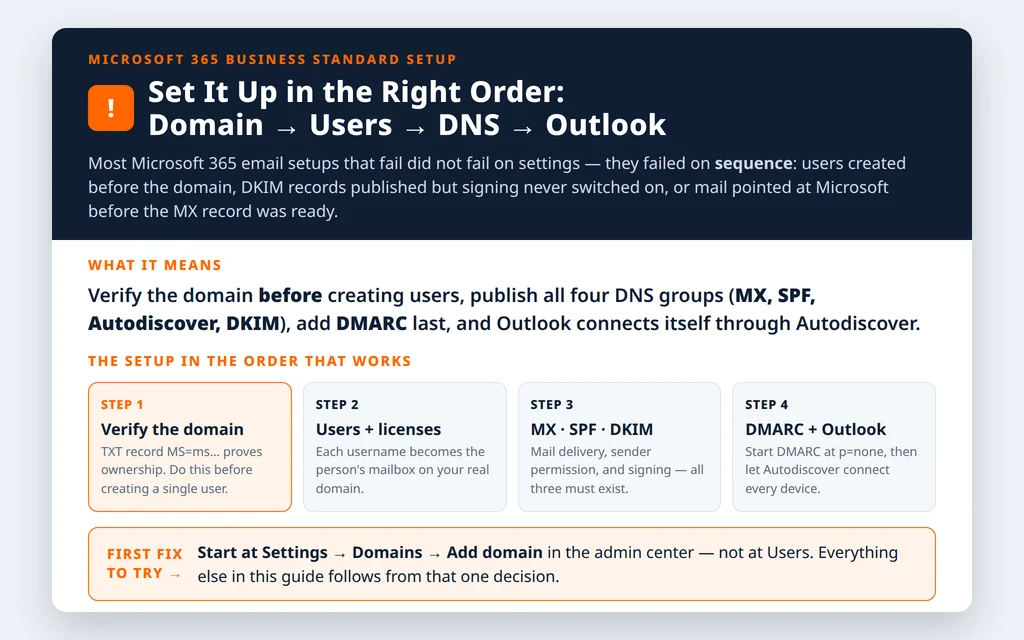
Table of Contents
What you need before your Microsoft 365 Business Standard setup
Have these ready and the whole setup takes under an hour, most of it waiting for DNS:
- Admin access to your domain’s DNS (wherever the domain is registered — GoDaddy, Cloudflare, Namecheap and so on). Almost every step happens there.
- The Global Admin login for the new tenant (the account that bought the plan).
- Your user list — names and the email addresses you want each person to have.
- Patience for DNS propagation. Records usually go live in minutes, but Microsoft allows up to 72 hours for verification in the worst case. Do the TXT verification first and the rest while you wait.
A naming tip that saves pain later: decide each person’s primary address format (for example firstname@ or firstname.lastname@) before creating users, and keep it consistent. Changing primary addresses afterwards is possible, but it is fiddly.
Step 1 — Buy the plan and sign in to the admin center
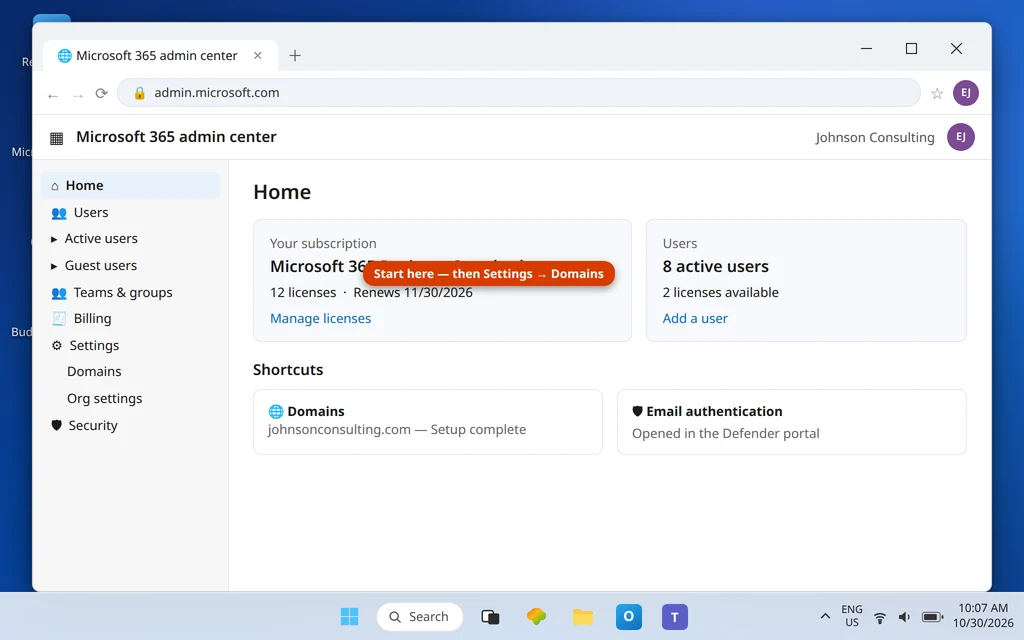
Buy Business Standard from Microsoft’s website (microsoft.com), choosing monthly or annual billing, and note the temporary .onmicrosoft.com address created during signup — you will see it again in the DKIM step. Then sign in at admin.microsoft.com. The home page shows your subscription, your user count and shortcuts to the sections this guide uses: Users, Settings → Domains and the link through to the Microsoft Defender portal for email authentication.
Do everything in this order. In particular, add the domain before you create users — users created on the temporary .onmicrosoft.com domain have to be re-addressed later, while users created after the domain is verified get the correct address from the start.
Step 2 — Add your domain and verify ownership
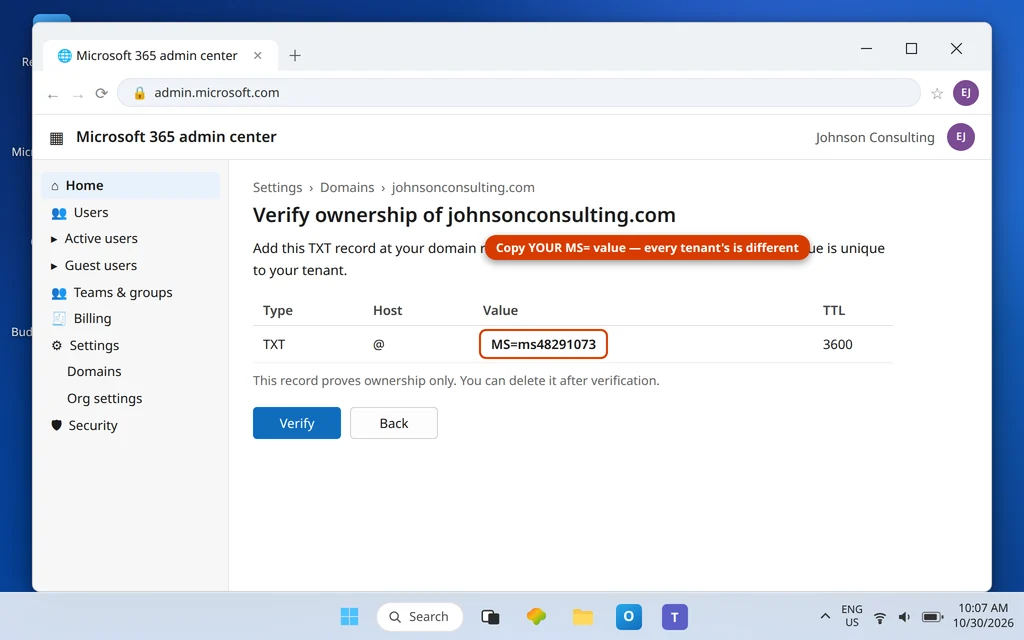
Go to Settings → Domains → Add domain, type your domain (in our example, johnsonconsulting.com) and choose Use a TXT record to verify ownership. Microsoft generates a tenant-unique value that looks like:
Type:  TXT
Host:  @
Value: MS=ms48291073
TTL:   3600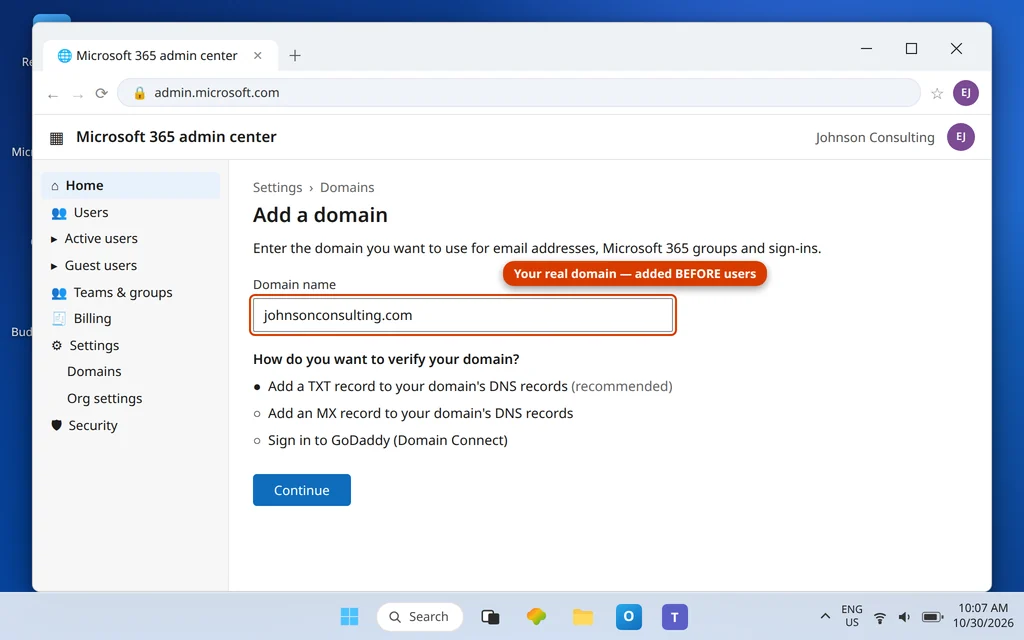
Add that record exactly as shown at your registrar — the MS= value is unique to your tenant, so never copy one from a tutorial (including this one; ours is an illustration). If your registrar is GoDaddy, Cloudflare or another Domain Connect partner, Microsoft can offer to sign in and add the record for you. Either way, go back to the wizard and click Verify.
Verification normally completes in a few minutes. The TXT record can be deleted once the domain is verified — it proves ownership, it does not carry mail. Microsoft’s official guide to connecting a domain explains the same steps.
Step 3 — Create users and assign licenses
Go to Users → Active users → Add a user. For each person, enter the name, choose your verified domain after the @ in the username, and tick Microsoft 365 Business Standard under licenses. The username you choose is the primary email address, so emily@johnsonconsulting.com becomes Emily’s mailbox, OneDrive and Teams identity in one step.
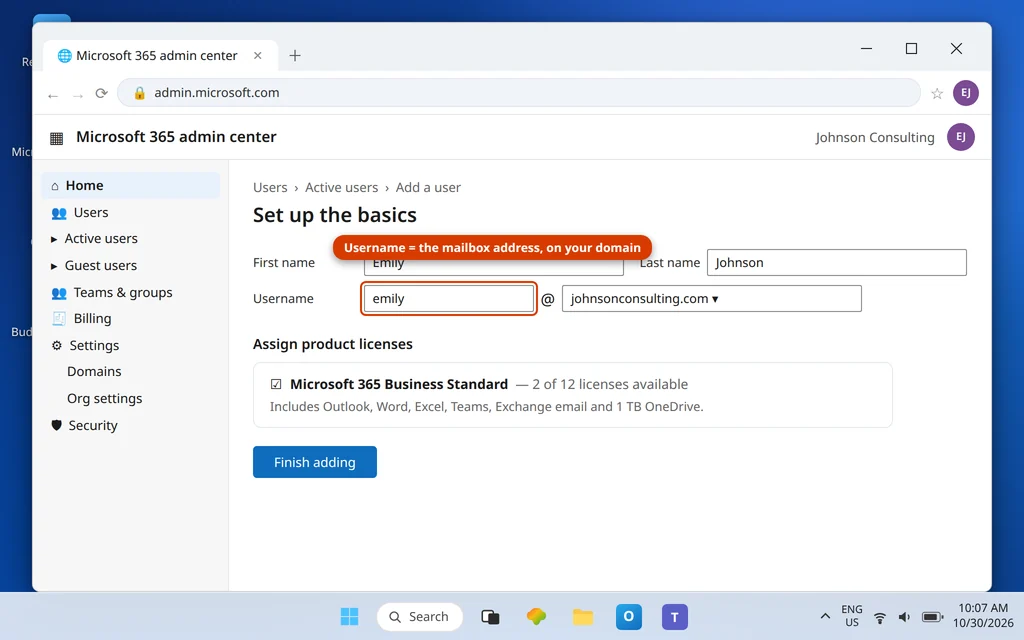
Create everyone now, while you are here — including a dedicated admin account if you want day-to-day mailboxes kept separate from tenant administration. Set temporary passwords and let users change them at first sign-in.
Step 4 — Publish the email DNS records
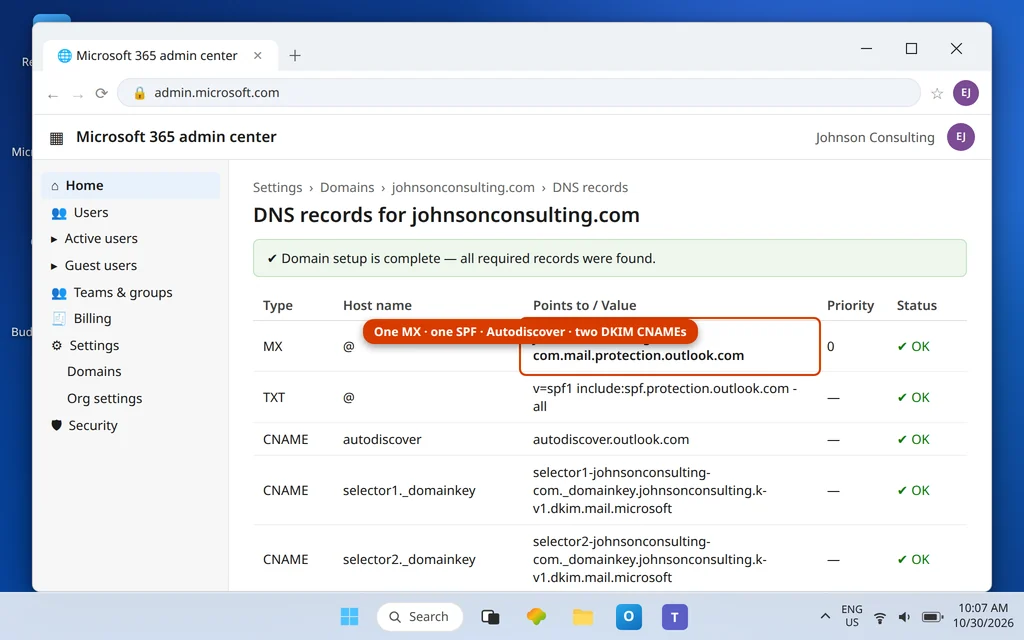
Back in Settings → Domains, select your domain and Microsoft lists the records your registrar needs. There are four groups, and mail will not flow correctly until all four exist.
MX — where incoming mail is delivered
Type:     MX
Host:     @
Value:    johnsonconsulting-com.mail.protection.outlook.com
Priority: 0 or 1 (the lowest number at your registrar)
TTL:      3600
The value is built from a token unique to your domain (your dots become dashes), so copy it from your own Domains page rather than typing it from any guide. Delete any old MX records left over from a previous email provider — mail goes to the lowest-priority record, and stale records are the classic reason new Microsoft 365 mailboxes “never receive anything.”
SPF — which servers may send as your domain
Type:  TXT
Host:  @
Value: v=spf1 include:spf.protection.outlook.com -all
This exact string is the same for every Microsoft 365 tenant. Two rules that matter: a domain may have only one SPF record (merge senders into it, never add a second), and if you later add another sending service, add its include: to this record rather than creating a new one.
Autodiscover — how Outlook finds the mailbox
Type:  CNAME
Host:  autodiscover
Value: autodiscover.outlook.com
This small record is why Outlook connects with just an email address and password in Step 7. Skip it and every device becomes a manual-setup battle.
Step 5 — Turn on DKIM signing (two places, both required)
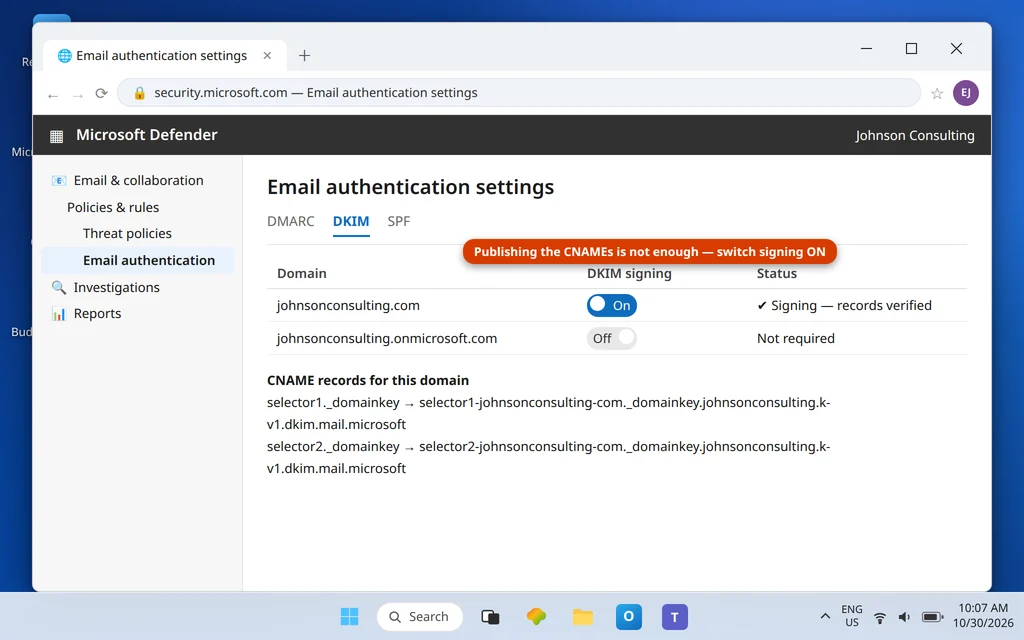
DKIM cryptographically signs your outgoing mail, and it is a two-sided setup: records at your registrar and a switch in Microsoft’s portal. Publishing the records alone does not start signing.
- Open the Microsoft Defender portal (security.microsoft.com) → Email & collaboration → Policies & rules → Threat policies → Email authentication settings → DKIM tab.
- Select your domain and move the signing toggle. If the CNAME records do not exist yet, the portal shows a CnameMissing error — and that same prompt displays the exact two records to publish.
- Add both CNAMEs at your registrar:
selector1._domainkey  →  (target shown in the Defender portal)
selector2._domainkey  →  (target shown in the Defender portal)
The targets are tenant-specific. Since May 2025, new domains get targets in a format like selector1-johnsonconsulting-com._domainkey.johnsonconsulting.<partition>-v1.dkim.mail.microsoft, while older tenants show the legacy form ending in .onmicrosoft.com. Both are normal — copy yours from the portal, character for character.
- Wait a few minutes, then return to the portal and toggle signing on. This final click is the step most often forgotten.
Step 6 — Add DMARC (after SPF and DKIM exist)
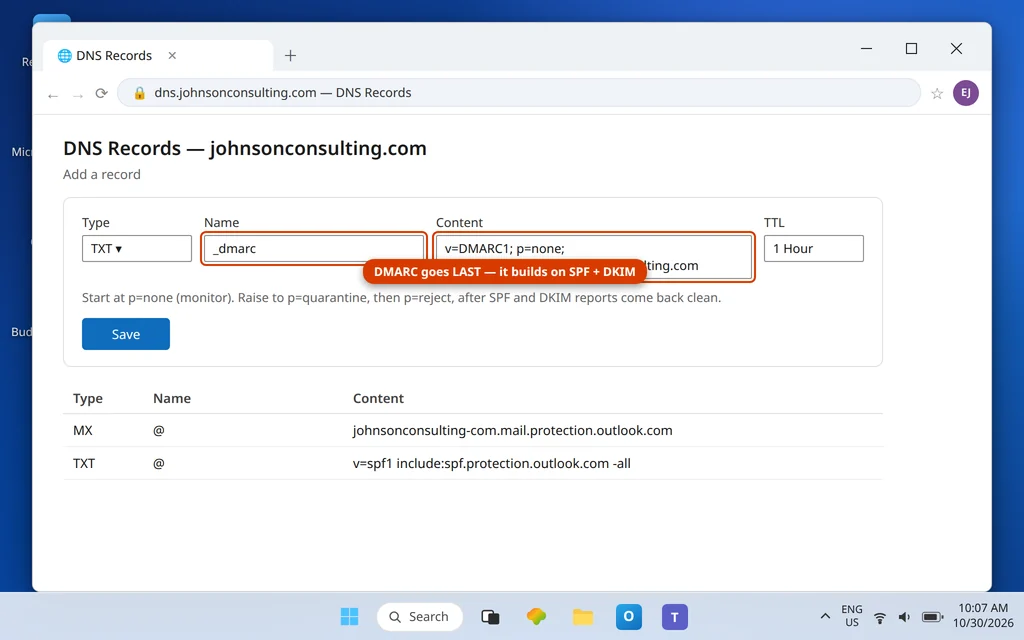
DMARC tells receivers what to do with mail that fails SPF and DKIM, and it builds on both — so it comes last, and only after the other two are live. Microsoft 365 has no portal page for it; you add one TXT record at your registrar:
Type:  TXT
Host:  _dmarc
Value: v=DMARC1; p=none; rua=mailto:dmarc@johnsonconsulting.com
Start with p=none (monitor only) for a week or two while you watch the reports at the rua address. Then step up to p=quarantine, and finally p=reject once you are confident every legitimate sender is aligned. Publishing p=reject on day one, before you know DKIM is signing, is the fastest way to reject your own mail.
Step 7 — Connect Outlook
With Autodiscover published, connecting Outlook is deliberately boring — and it should be. Open Outlook, go to File → Add Account, type the user’s address (emily@johnsonconsulting.com), click Connect, and enter the password. Autodiscover finds the tenant, the mailbox and the correct settings on its own; the account appears in the folder pane within a minute or two and the status bar shows it connected. Our full walkthrough of this part, including new-user first-run screens, is in Set Up Business Email in Outlook: A Complete Walkthrough.
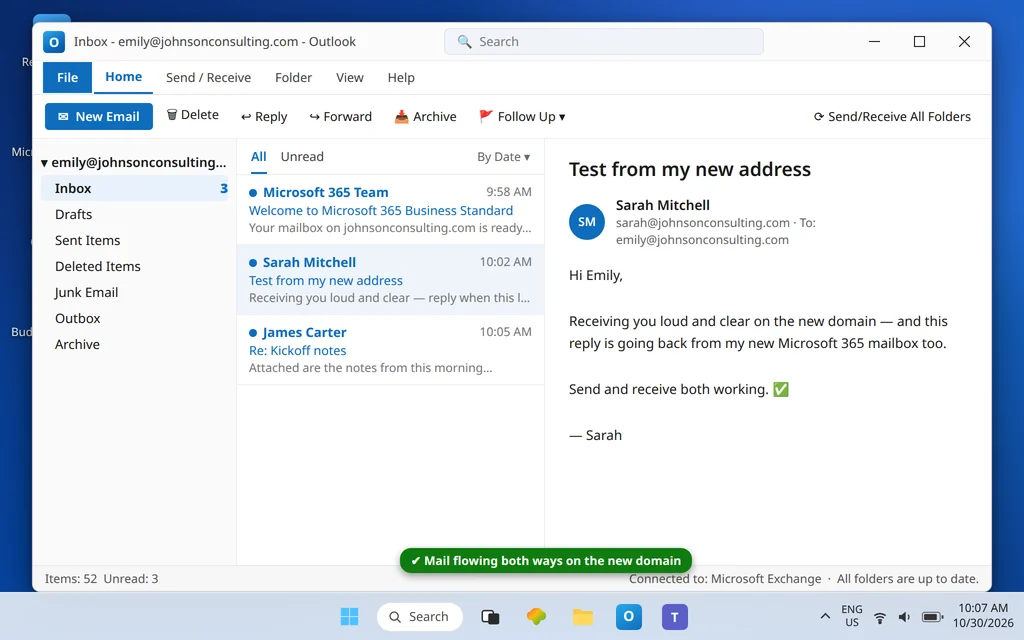
Send a test message to an outside address (a personal Gmail or Hotmail account) and reply to it. Outbound success plus inbound reply, with no spam-folder detour, means the whole chain — MX, SPF, DKIM and DMARC — is doing its job.
If mail is not flowing: the three usual causes
- Receiving fails but sending works: the MX record still points at the old provider, or the registrar never saved it. Check the Domains page — Microsoft flags missing records with a red “fix” prompt and tells you exactly which one.
- Mail lands in spam everywhere: DKIM records published but signing never switched on in the Defender portal, or SPF has two records (invalid). Check for duplicate
v=spf1TXT records first. - Outlook keeps asking for settings: the Autodiscover CNAME is missing or points somewhere stale. Outlook cannot guess your tenant without it.
If you set everything up and Outlook on one computer still misbehaves with a specific error code, the fix is usually in our Error Codes hub, which collects every code-specific guide we have published.
Coming from another provider instead?
This guide set up a fresh tenant on a domain that was not receiving mail elsewhere. If your domain already has working mailboxes somewhere else, the cut-over is a migration, and the order of operations changes:
- Moving mailboxes from Gmail or Google Workspace to Microsoft 365 — see Migrate Gmail to Microsoft 365 Without Losing Email.
- Moving away from Outlook/Microsoft 365 to Google — see the reverse path in Article 84’s counterpart, Migrate Outlook to Google Workspace.
- Bought the plan from GoDaddy — use the GoDaddy Microsoft 365 setup guide linked at the top.
Keeping the setup healthy
- Re-check the Domains page quarterly. Microsoft flags DNS drift there before users notice it.
- Keep one SPF record, always. Every new tool that “sends as you” (invoicing, helpdesk, marketing) must be merged into the existing record, not added beside it.
- Finish the DMARC climb. Moving from
p=nonetop=rejectover a month is the single best anti-spoofing step a small business can take. - Watch license counts when staff join or leave; unassigned Business Standard licenses still bill.
Frequently asked questions
How long does the full Microsoft 365 Business Standard setup take?
About 30–60 minutes of clicking, plus DNS propagation time. Domain verification usually completes within minutes of adding the TXT record, though Microsoft allows up to 72 hours in the worst case. MX changes can take a few hours to reach every sender, so schedule the work outside your busiest mail period if the domain already receives mail elsewhere.
Can I verify my domain with something other than a TXT record?
Yes. Microsoft also offers an MX-record verification method, and Domain Connect registrars such as GoDaddy and Cloudflare can verify automatically after you sign in. The TXT method is the safest default because it does not touch mail delivery — the verification MX method can briefly interfere with an existing mail service.
Do I really need DKIM and DMARC for a small business?
Yes — both are now effectively required. Gmail and Yahoo reject or spam-folder bulk and even routine business mail from domains whose authentication is incomplete, and Microsoft’s own receivers check the same signals. SPF alone is not enough; DKIM signing (switched on in the Defender portal, not just published as CNAMEs) is the half most setups miss.
What is my MX record supposed to be?
A single MX record pointing to a host in the form <token>.mail.protection.outlook.com — for example johnsonconsulting-com.mail.protection.outlook.com, where the token is your domain with dots replaced by dashes. Some tenants show a slightly different token, so always copy the value from your own Settings → Domains page rather than constructing it yourself.
I bought Microsoft 365 through GoDaddy. Is this guide still right for me?
Only partly. Your mailboxes, SPF and DKIM concepts are the same, but GoDaddy runs its own onboarding, its own admin screens and its own DNS automation, and mixing the two flows causes most GoDaddy setup failures we see. Use our dedicated GoDaddy Microsoft 365 email setup guide for the click-by-click path.
Can users keep using Outlook with their old personal accounts too?
Yes. Outlook happily holds the new Microsoft 365 work account alongside personal Outlook.com, Gmail or other mailboxes in one profile, and the work account’s mail, calendar and contacts stay separate. Add the work account with File → Add Account and Autodiscover does the rest.
Why does Outlook find my mailbox automatically?
Because of the Autodiscover CNAME you published in Step 4. Outlook asks DNS where autodiscover.yourdomain points, is sent to autodiscover.outlook.com, and Microsoft’s service returns the correct mailbox settings. No Autodiscover record means no automatic setup — that record is small but load-bearing.
Questions about your own setup — a record that will not verify, mail flowing one way only, DKIM stuck on CnameMissing? Contact us at servicedesk@howtofixerroronline.com or through our Contact page and tell us which step you reached and the exact message on screen. Screenshots of the Domains page status (with your password never included) help us pinpoint it in one reply.