
Outlook.com Mailbox Full? The Two Storage Limits, Explained and Fixed
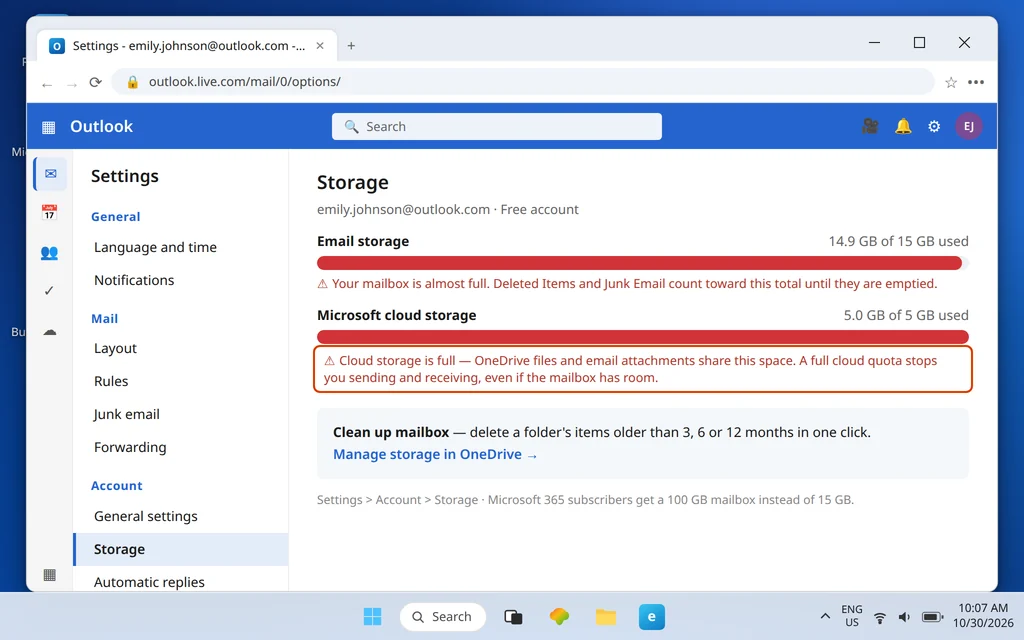
Your Outlook.com mailbox says it is full — sending has stopped, incoming mail is bouncing, and the warning makes no sense, because you are fairly sure you do not have fifteen gigabytes of email. You may be right, and the mailbox may still be full. That contradiction is the whole story of this error, and why so many people clean up diligently and fix nothing: Outlook.com enforces two separate storage limits, most advice addresses only one, and cleaning the wrong one changes nothing.
This guide explains both limits first — briefly, because the explanation is the fix’s foundation — then walks the cleanup in the order that frees the most space for the least effort. One note before starting: Hotmail and Live.com addresses are Outlook.com accounts, so everything here applies to them identically.
Quick Answer: Outlook.com has two limits, and either one stops mail: 15 GB of email storage for the mailbox itself on free accounts, and 5 GB of Microsoft cloud storage shared by OneDrive files and Outlook.com attachments — a full cloud quota blocks sending and receiving even if the mailbox has room. Diagnose at Settings > Account > Storage and fix the bar that is actually full: empty Deleted Items and Junk (both count until emptied), use Clean up mailbox by age, sort by size to remove giant attachments, and on the cloud side delete OneDrive files and empty the OneDrive recycle bin. Allow 24–48 hours after freeing space for mail to fully restore. Microsoft 365 subscribers get a 100 GB mailbox.
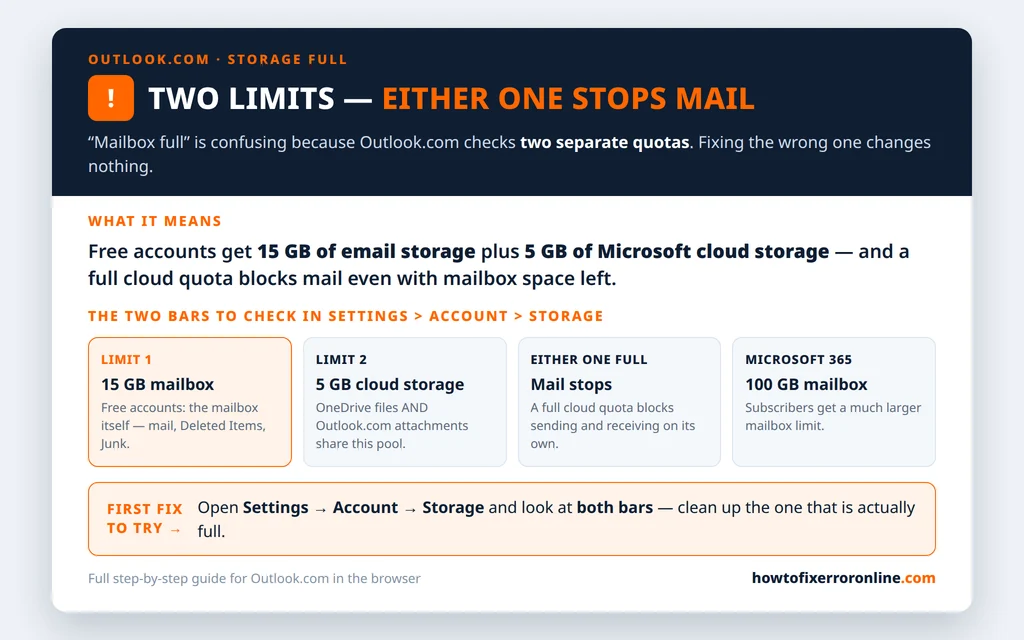
Table of Contents
The Two Limits Nobody Explains (15 GB + 5 GB)
Here is the explainer in full, because every step after this section depends on it:
- Limit 1 — email storage: 15 GB. On a free account, this is the quota for the mailbox itself: your folders, your messages, and — critically — your Deleted Items and Junk Email, which count toward the total until you empty them. Deleting a thousand messages into Deleted Items frees exactly nothing until that folder is emptied too.
- Limit 2 — Microsoft cloud storage: 5 GB. This is a separate pool, shared by OneDrive files and the attachments in your Outlook.com mail. When this quota is full, you cannot send or receive email even if your mailbox has gigabytes of room — the attachment side of the service has nowhere to put anything.
That second limit is the one behind the baffled forum posts (“Microsoft Outlook free space allocation in GB — blocked”): a user sees they are nowhere near 15 GB of mail, gets blocked anyway, and concludes the number is a lie. It is not a lie; it is the other number. A few large OneDrive files — a video, a photo backup zip — can quietly consume the entire 5 GB while the mailbox sits nearly empty.
Two more facts belong in this section. Microsoft 365 subscribers get a 100 GB mailbox, which is why subscribers and free users have such different experiences of this error. And after you free space under whichever limit was full, allow 24–48 hours for sending and receiving to fully restore — storage states do not always flip the instant you clean up.
Step 1: See Which Storage Is Full
Never clean blind. Thirty seconds of diagnosis tells you which limit to attack:
- In Outlook.com, click the gear icon for Settings.
- Go to Account > Storage.
- Read both bars: the email storage bar (out of 15 GB on a free account) and the Microsoft cloud storage bar (out of 5 GB).
- Fix the one that is full. If both are full, fix the email side first with Steps 2–4, then the cloud side in the OneDrive step.
Everything after this step is labeled by which bar it helps: Steps 2–4 and the save-to-PC step reduce email storage; the OneDrive step reduces cloud storage. Skipping this diagnosis and doing a random cleanup is how people delete cherished photos to fix a mailbox problem, or empty folders for an hour to fix a OneDrive problem.
Step 2: Empty Deleted Items and Junk
The fastest space in the entire cleanup is sitting in two folders you do not care about — you just have not actually deleted it yet, because both folders count toward your storage until they are emptied.
- Right-click Deleted Items in the folder pane and choose Empty folder (or open the folder and use Empty folder in the command bar). Confirm.
- Do the same for Junk Email — after a quick glance through it for any real message that was filtered there by mistake.
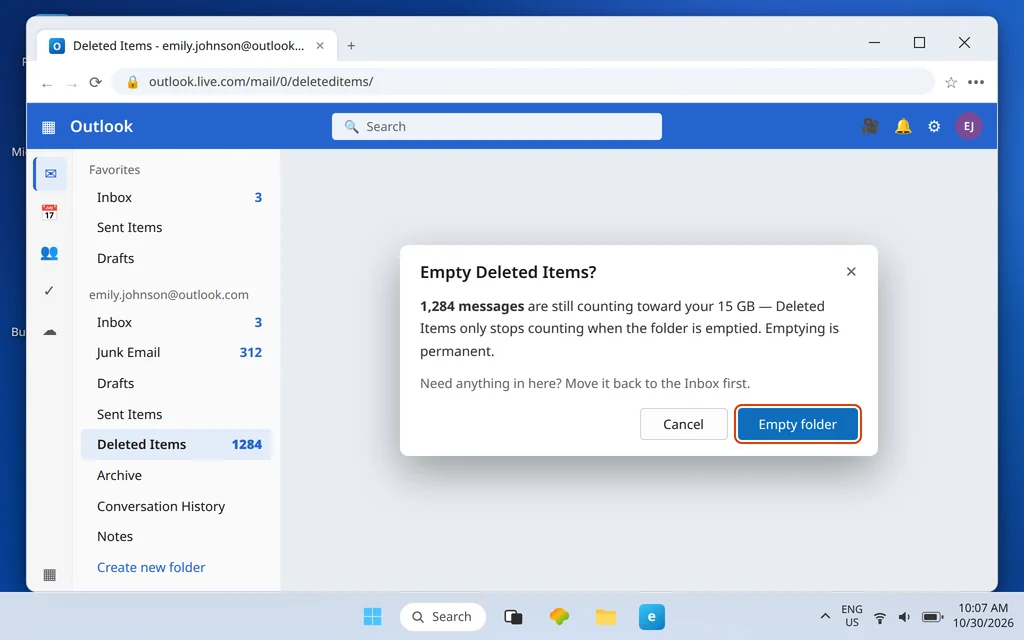
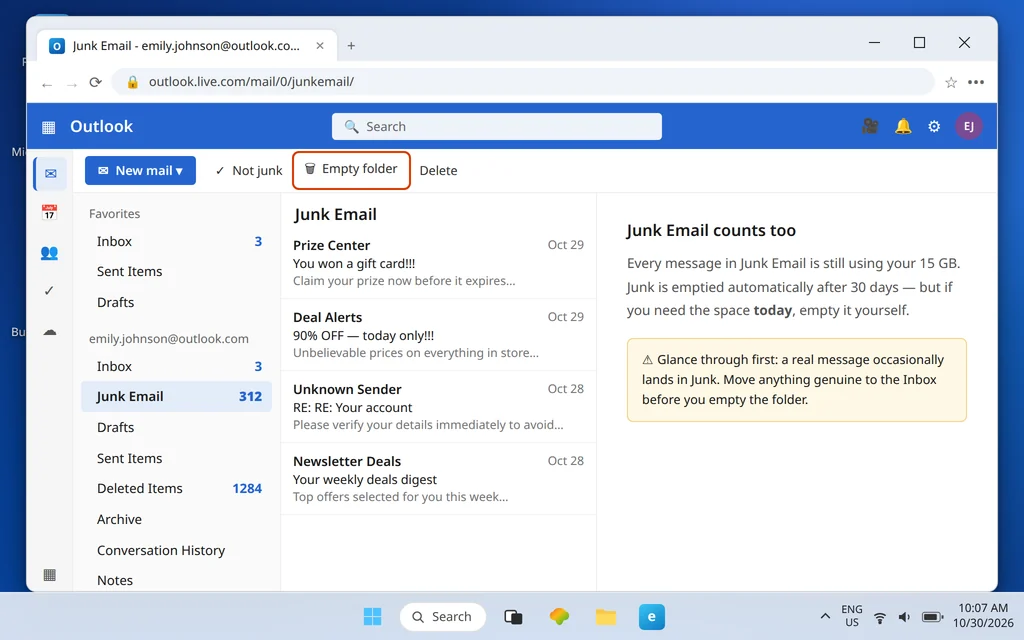
For many accounts this step alone ends the emergency: years of deleted mail were never actually gone, just relocated. If your Storage bars barely moved, though, your weight is in live folders — continue.
Step 3: Clean Up Mailbox by Age
The Storage page carries Outlook.com’s bulk tool, built for exactly this job:
- Back at Settings > Account > Storage, find Clean up mailbox.
- Choose a folder and an age: delete that folder’s items older than 3, 6, or 12 months in one click.
- Start conservative — 12 months on a bulky folder — check the bar, then go further only if you need to.

Read this warning before you click, because it is absolute: the clean-up is permanent. There is no undo, and age-deleted mail does not pass through a leisurely recovery window the way a manual delete does. If a folder holds anything you would grieve — contracts, family threads, records — either skip that folder or do the save-to-PC step below for it first, then clean with a clear conscience.
Step 4: Sort by Size and Remove the Giants
Email weight is wildly uneven: a thousand plain-text messages weigh less than one video attachment. So hunt by size, not by date:
- Open your Inbox (then repeat in Sent Items — sent attachments count too).
- Click Filter and set Sort by > Size, largest first.
- Work down the list: save the attachments you need to your PC or files, then delete the messages carrying them.
- Empty Deleted Items again afterward — the giants only stop counting once they leave the mailbox entirely.
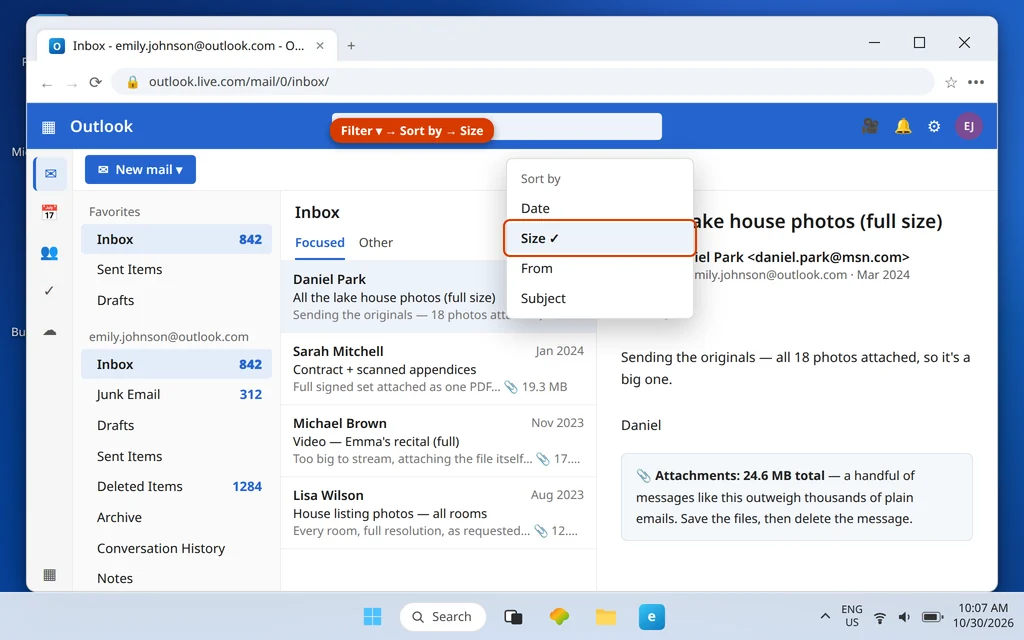
The usual giants are predictable: full-size photo sets from Daniel Park (daniel.park@msn.com), scanned contract bundles from Sarah Mitchell (sarah.mitchell@hotmail.com), phone videos from Michael Brown (michael.brown@bellsouth.net), listing photos from Lisa Wilson (lisa.wilson@live.com). A dozen messages like these routinely outweigh everything else in the account combined — which is why ten minutes here often beats an hour of deleting small mail.
OneDrive Full? Fix the Cloud Side
If Step 1 showed the cloud storage bar full and the mailbox bar comfortable, folders are the wrong battlefield entirely. Your space is in OneDrive — remembering that the same 5 GB pool also backs your email attachments, which is why its fullness breaks mail:
- Open OneDrive and sort your files by size; delete the giants you no longer need — old videos, duplicate backups, installers.
- Then, the step everyone misses: empty the OneDrive recycle bin. Deleted OneDrive files keep counting against your cloud storage from the recycle bin until it is emptied.
- Recheck Settings > Account > Storage in Outlook.com and confirm the cloud bar has actually dropped.
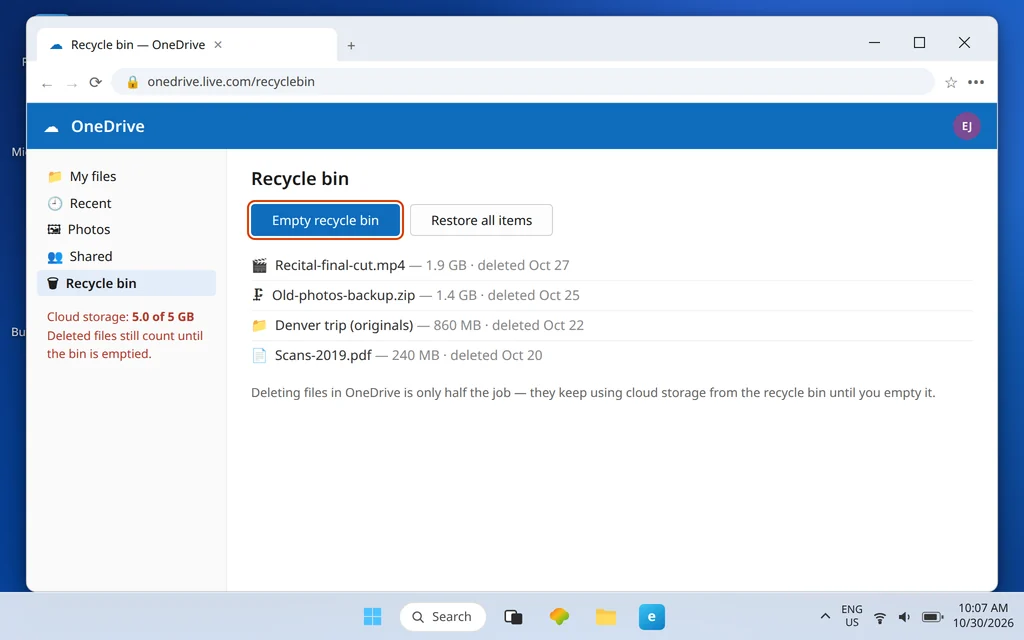
One related trap, stated plainly because it catches people mid-cleanup: saving attachments to OneDrive does not free cloud storage — it moves weight within the same pool, or even adds to it. If the cloud side is your problem, attachments you want to keep belong on your PC, not in OneDrive.
Save Old Mail to Your PC Before Deleting
For mail you cannot delete but cannot keep online either, there is a middle path — move the weight off Microsoft’s servers entirely:
- Download or export the old mail to your PC first. For a full archive with folders intact, the Outlook app’s export produces a backup file you can keep — our export and backup Outlook emails guide walks that process end to end.
- Open the copy and verify it works. A backup you have never checked is a hope, not a backup.
- Only then delete the originals from Outlook.com — by age, by size, or folder by folder — and empty Deleted Items to release the space.
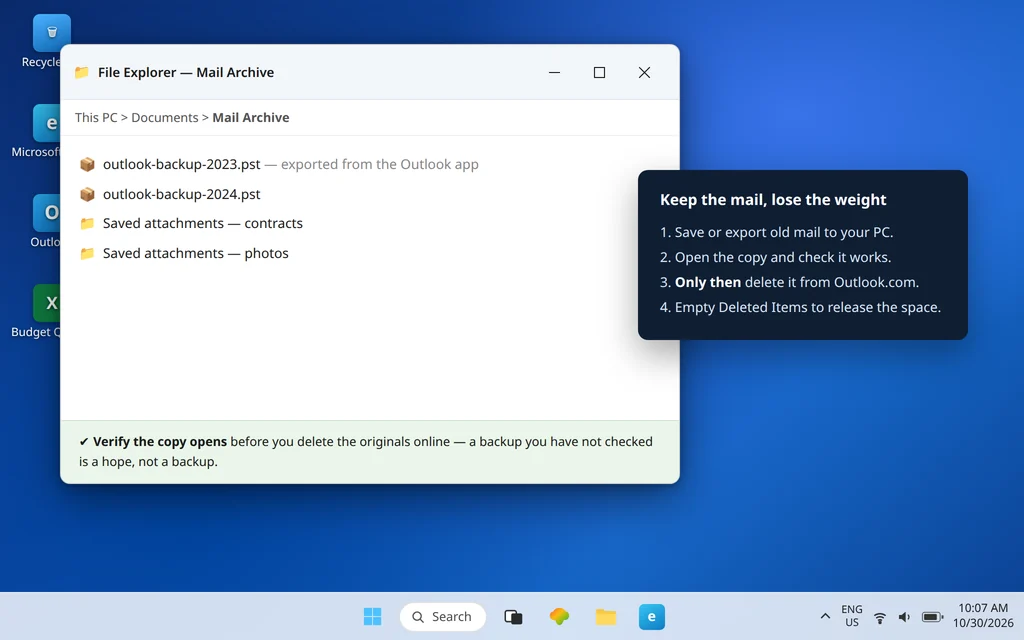
This is the right order for anything with records value: tax threads from James Carter (james.carter@att.net), contracts, family history. Cloud cleanup pressure is temporary; a verified local archive is forever.
Still Blocked After Cleanup? Allow 24–48 Hours
You cleaned the right bar, it now shows comfortable room — and mail still will not send or arrive. Before concluding the cleanup failed, check the clock: after freeing space, sending and receiving can take 24–48 hours to fully restore. That delay is documented behavior, not a sign you cleaned the wrong thing — provided, and this is the important proviso, the Storage page really does show room under both limits now.
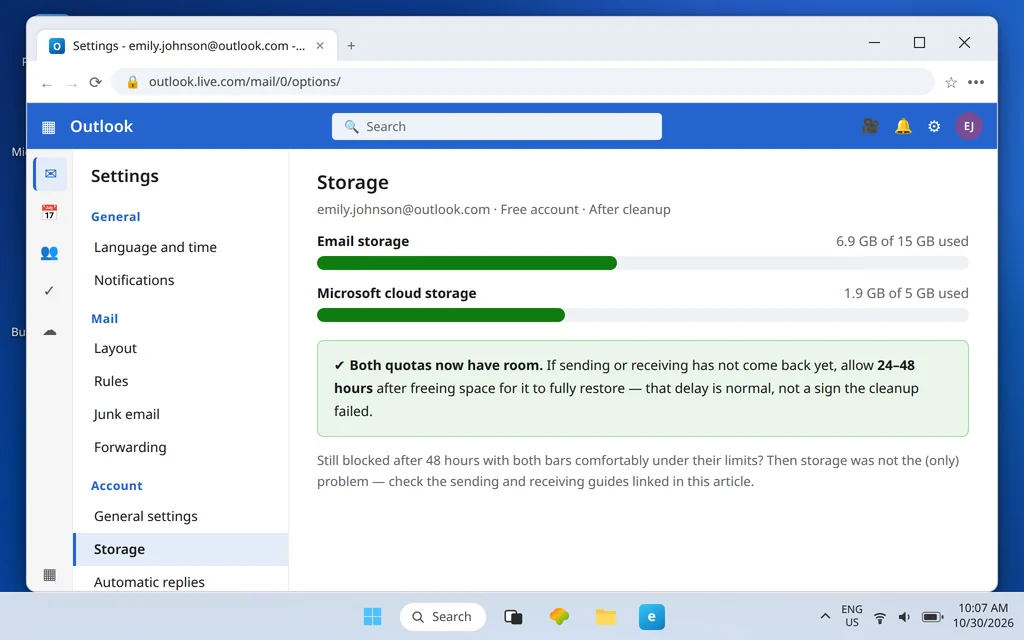
If 48 hours pass with both bars comfortably under their limits and mail is still blocked, storage was not the (only) cause. At that point the symptom guides take over: if you can receive but not send, work through our Outlook.com can’t send emails guide; if mail is not arriving, our Outlook.com not receiving emails guide covers the webmail-side causes — rules, forwarding, filters, and blocked senders. And the nuclear option, if your mailbox needs to be huge: a Microsoft 365 subscription raises the mailbox to 100 GB.
How to Stop Your Mailbox Filling Up Again
- Empty Deleted Items and Junk on a rhythm, not in a crisis — monthly is plenty, and it keeps the invisible weight from compounding.
- Save big attachments to your PC, then delete the message. The attachment is usually the part you need; the mail around it is not worth its megabytes.
- Watch both bars twice a year. Storage page, ten seconds, no surprises at the worst possible moment.
- Be suspicious of “save to OneDrive” as a cleanup move. Same pool. PC first, cloud second.
- Archive the old, don’t hoard it online. A yearly export to your PC keeps a decade of mail safe without it renting space in your 15 GB.
Frequently Asked Questions
Why does Outlook.com say my mailbox is full when I barely have any email?
Because of the second limit. Your email storage may be nearly empty while your 5 GB Microsoft cloud storage — shared by OneDrive files and email attachments — is completely full, and a full cloud quota blocks sending and receiving on its own. Check both bars at Settings > Account > Storage; the full one is your problem.
What is the Outlook.com storage limit on a free account?
Two limits: 15 GB of email storage for the mailbox itself, and 5 GB of Microsoft cloud storage shared between OneDrive and Outlook.com attachments. Either one filling up stops mail. Microsoft 365 subscribers get a 100 GB mailbox instead.
Do Deleted Items and Junk Email count toward Outlook.com storage?
Yes — both count in full until you empty the folders. Deleting messages into Deleted Items frees nothing by itself; right-click the folder and choose Empty folder. Junk Email is emptied automatically after 30 days, but emptying it yourself releases the space immediately.
I freed up space but I still can’t send or receive. How long does it take?
Allow 24–48 hours after freeing space for sending and receiving to fully restore. If both storage bars show room and mail is still blocked after 48 hours, storage was not the only cause — move on to the sending and receiving troubleshooting guides linked above.
Does moving attachments to OneDrive free up space?
No. OneDrive files and Outlook.com attachments draw on the same 5 GB cloud storage pool, so saving an attachment to OneDrive does not reduce what the pool holds. To free cloud storage, download files to your PC, delete the OneDrive copies, and empty the OneDrive recycle bin.
Cleaned up and still stuck after 48 hours? Tell us what both bars show on your Storage page — those two numbers pinpoint the problem — via our Contact page: servicedesk@howtofixerroronline.com, available 24 hours. If the bars are fine and the symptom is sending or receiving itself, start with our Outlook.com can’t send emails and Outlook.com not receiving emails guides instead.
Pingback: Outlook.com Attachments Not Downloading or Uploading? Fixes (2026)