
Microsoft Teams Messages Not Syncing Between Desktop and Mobile
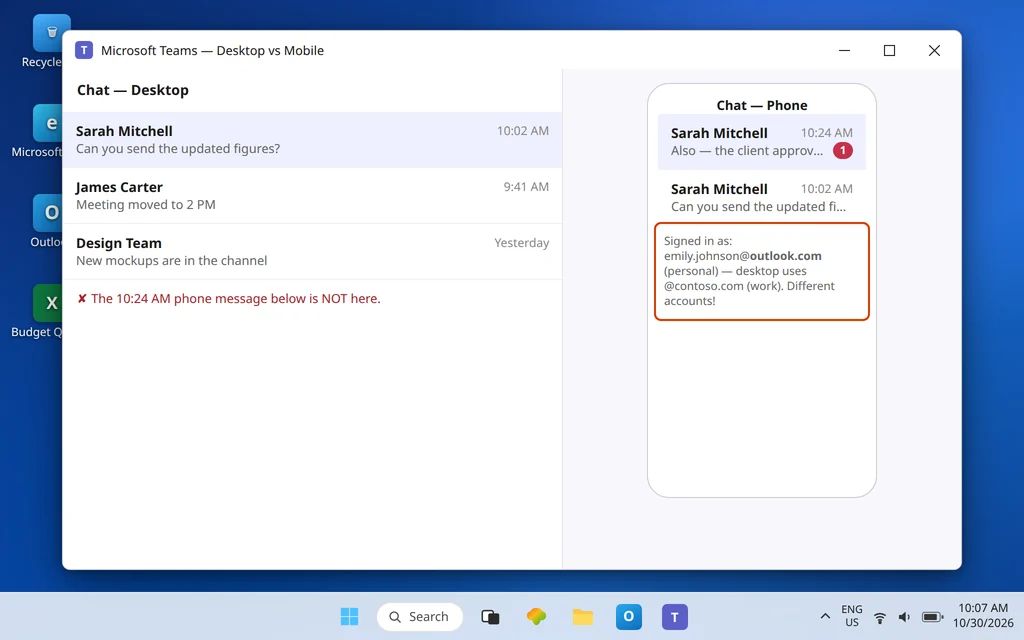
Your phone buzzes with a message. You turn to your PC to reply properly — and the message is not there. Or the reverse: a conversation you handled at your desk all morning shows up on your phone as unread, half-finished, or missing its newest replies. Your two devices are telling two different stories about the same chats.
This guide is about devices disagreeing: desktop and mobile showing different history, different read state, or different unread counts. It is not about a message that refuses to send at all — if your messages fail when you try to send them, that separate fault is covered in Microsoft Teams Not Sending Messages. Here, messages exist. They are just not in the same places on every device.
The key fact, confirmed in Microsoft’s own answers, calms the whole problem down: Teams keeps your data in sync through the cloud, automatically, as long as every device is signed in with the same account. There is no sync button to find — because sync is not a feature you run; it is the normal state. When devices disagree, one of them is signed in differently, stuck on a stale local copy, or being kept from refreshing. The fixes below find which.
Quick Answer: First, confirm your phone and PC are signed in with the exact same work or school account — different accounts are the number one cause of “missing” messages. Then fully quit and relaunch Teams on the stale device (tray icon > right-click > Quit on Windows; force-close on mobile) to force a refresh. Still disagreeing? Open teams.microsoft.com on the web: whatever the web shows is the true cloud copy, and whichever device differs from it is the one to fix — sign it out and back in, and update it.
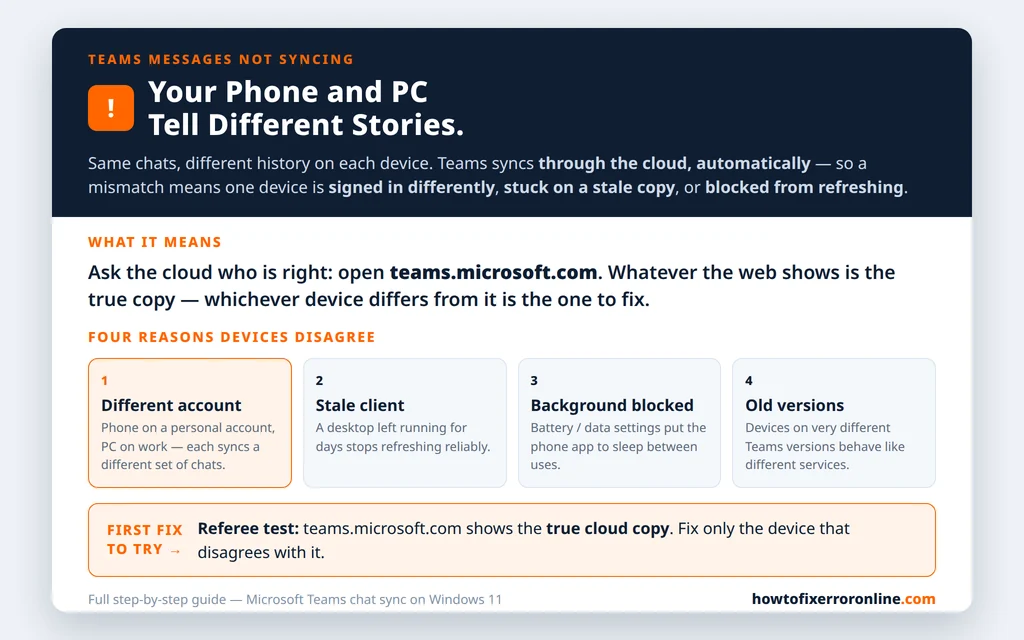
Table of Contents
Fix 1 — Confirm both devices use the exact same account
This sounds too basic to be the top fix. It is the top fix anyway, because Teams makes it easy to get wrong: many people have a work account and a personal Microsoft account, and the mobile app and desktop app can end up signed into different ones — each faithfully syncing a different set of chats.
- On the PC, click your profile picture in Teams and read the email address shown — for our sample user, Emily Johnson’s work address, emily.johnson@contoso.com.
- On the phone, open Teams, tap your profile picture, and read the address there.
- They must match character for character. If the phone shows a personal account (or an old employer’s), sign out on the phone and sign in with the same work account as the PC.
Also check the reverse trap: signed into the right account, but in the wrong app edition — work/school Teams and personal Teams are separate experiences. If one device is in personal Teams, its chat list will never match your work desktop, no matter how long you wait.
Fix 2 — Fully quit and relaunch the stale device
Microsoft’s Q&A guidance for chats that will not sync starts here for a reason: restarting Teams forces a refresh, and on Windows the latest messages typically appear as soon as it relaunches. The catch is that closing the window is not quitting.
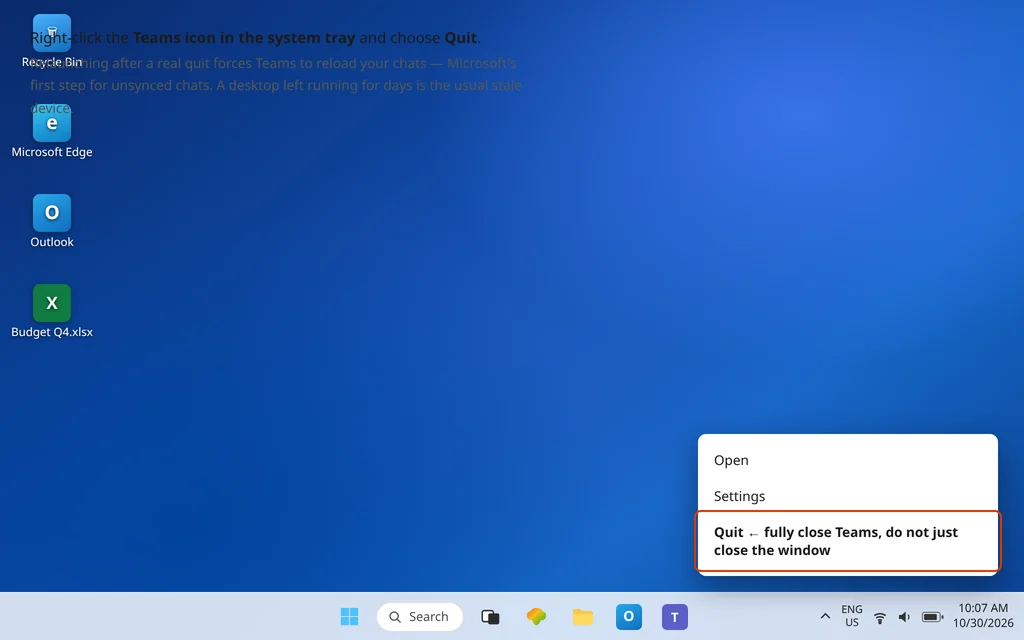
- On Windows: find the Teams icon in the system tray, right-click it, and choose Quit. Then relaunch Teams and give it a minute to reload your chats.
- On a phone: force-close the app (swipe it away from the app switcher), then reopen it and let the chat list load fully before judging — mobile Teams syncs when it is opened and used, so a half-loaded list mid-refresh can look like missing messages for a few seconds.
- Compare again with a known recent message: send yourself a test message from the healthy device and watch for it on the refreshed one.
A desktop app that has been running for days is a prime suspect. Microsoft’s answers note that a long-running desktop session may refresh less reliably than the mobile app, which syncs on open — if your PC is always the stale one and it is always left running, this fix is probably your whole story.
Fix 3 — Use Teams on the web as the referee
When two devices disagree, do not guess which one is wrong — ask the cloud directly:
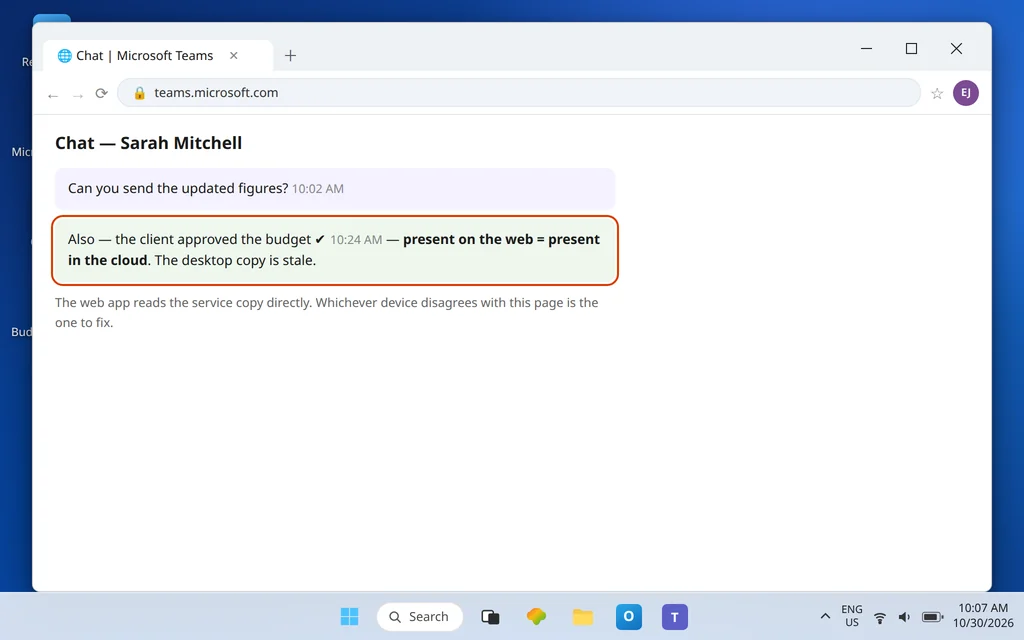
- Open teams.microsoft.com in your browser and sign in with the same account.
- Open the chat that disagrees. The web app reads the service copy of your messages, so what it shows is the truth both apps should match.
- Now the diagnosis is precise: the device that differs from the web is the broken one. If the web matches your phone, fix the PC. If the web matches your PC, fix the phone. If the web is missing the message too, the message was never in this account’s cloud copy — go back to Fix 1 and check accounts again, very carefully.
This one test prevents the classic wasted afternoon of reinstalling the healthy app while the stale one keeps lying to you.
Fix 4 — Check the connection on the stale device (yes, really)
Sync is a conversation with Microsoft’s servers, and a device that cannot hold that conversation will quietly fall behind while looking “connected enough” for other things:
- Open a browser on the stale device and load a couple of websites. If they struggle, fix the connection first — Microsoft’s sync guidance includes exactly this check.
- On the phone, confirm Teams is allowed to use the network on both Wi-Fi and mobile data, and that a data-saver or battery-saver mode is not suspending it.
- At work, a VPN or proxy that treats the phone and PC differently can also split their behavior — test the phone off the office Wi-Fi (on mobile data) and see whether its chat list suddenly catches up. If it does, hand that observation to IT; it describes a network rule, not an app fault.
Fix 5 — Let the phone app refresh in the background
A phone can be signed in correctly and connected fine, yet still lag hours behind — because the operating system is putting Teams to sleep between uses. Microsoft’s Q&A answers on cross-device sync call out the mobile permissions to check:
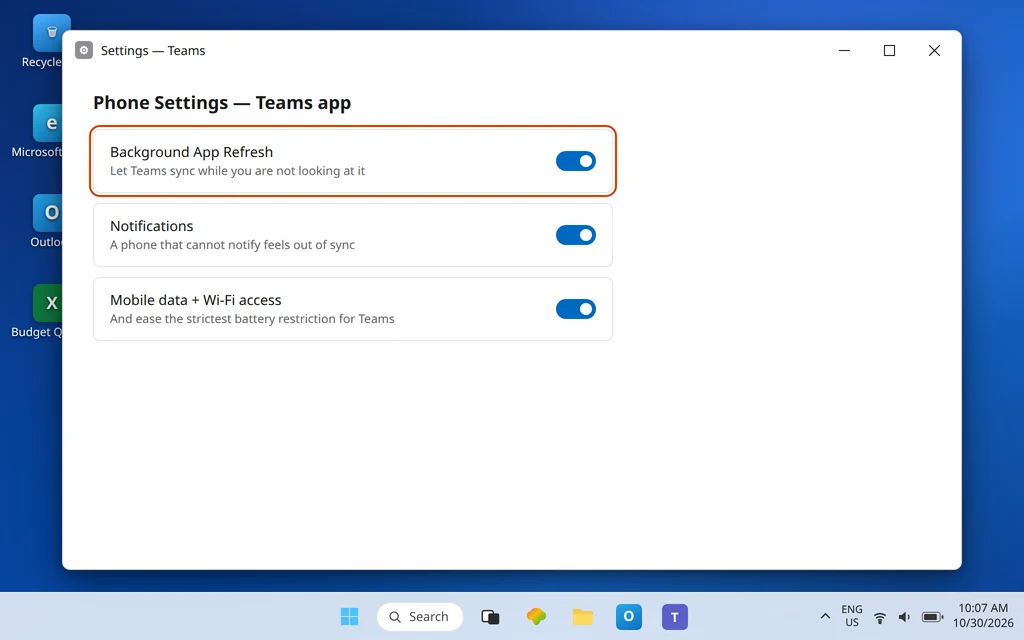
- Background app refresh / background data: Teams must be allowed to refresh when you are not looking at it. On iPhone, check Settings > Teams and allow Background App Refresh; on Android, open Settings > Apps > Teams and allow background data use, and ease any battery restriction set to the strictest level for Teams.
- Notifications permission: not strictly sync, but a phone that cannot notify will feel out of sync even when its chat list is current — allow notifications while you are in the same settings.
- Then open Teams on the phone, leave it on the chat list for a minute, and compare with the web referee from Fix 3.
Fix 6 — Sign out and back in on the stale device only
If the referee test named one bad device, give that device a clean session:
- In Teams on the stale device, click or tap your profile picture and choose Sign out.
- Wait for Teams to close completely — on Windows, confirm it is gone from the tray; on mobile, force-close it once more.
- Reopen Teams and sign in with the same email and password as the healthy device.
- Let the chat list rebuild fully, then compare against the web again.
Microsoft’s Q&A steps for unsynced chats end at this same sign-out/sign-in. Resist signing out everywhere at once unless one-device surgery fails — if it comes to that, sign out on all devices, then sign back in one at a time, checking sync after each, so a token conflict cannot re-form silently. If sign-in itself starts failing or looping on that device, separate that fault with Microsoft Teams Sign-In Problems or, for the endless-prompt pattern, Microsoft Teams Keeps Asking to Sign In.
Fix 7 — Update both apps
Sync bugs are version bugs more often than people expect, and two devices on very different Teams versions can behave like they belong to different services:
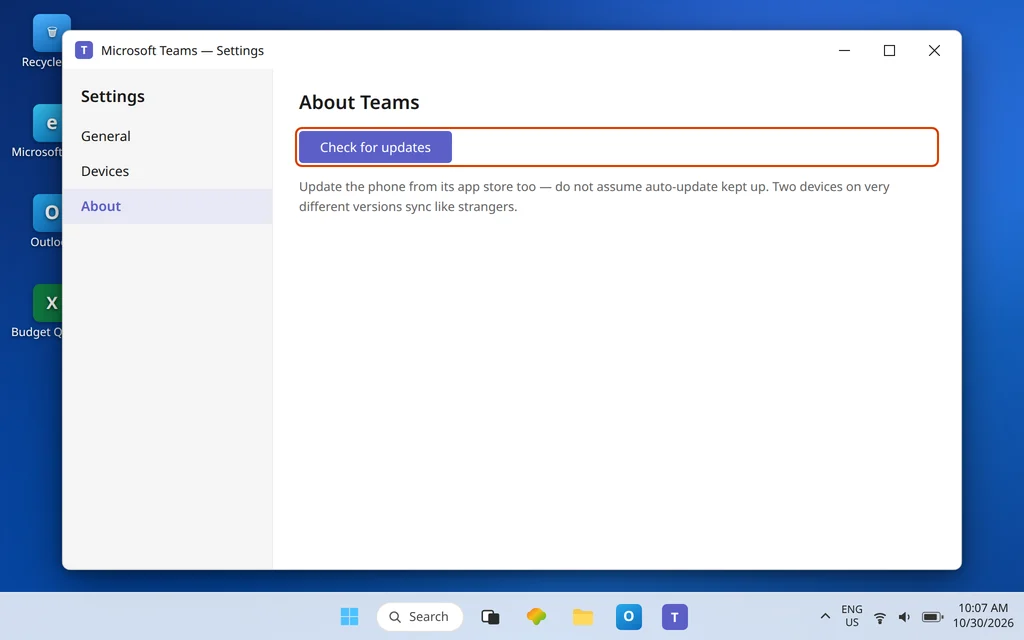
- On the PC, use Check for updates in Teams (Settings > About, or the … menu) and let it restart.
- On the phone, update Teams from the App Store or Google Play — do not assume auto-update kept up; work phones often defer it.
- Re-run the referee comparison. Version notes are dull reading, but “fixed chat synchronization” is a recurring line in them.
Fix 8 — Reset or clear the cache — as a last resort, with Microsoft’s caveat
Here is the honest version of the internet’s favorite advice. Microsoft Learn’s cache guide explicitly warns against clearing the Teams cache for chat problems — missing messages, history not loading, wrong unread counts — because it does not fix those issues and it deletes diagnostic logs support might need. That is why this fix is last, not first, in this guide.
Use it only when one device is persistently corrupt — crashing, showing ghost chats, disagreeing after every fix above — as a way to force a completely fresh local copy:
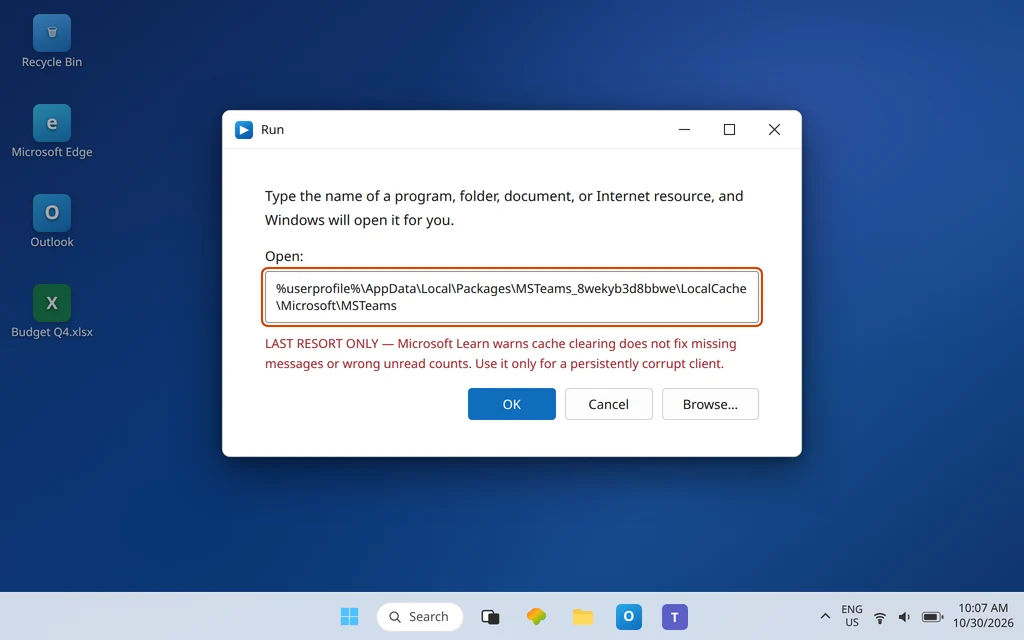
- Gentler: Settings > Apps > Installed apps > Microsoft Teams > … > Advanced options > Reset.
- Manual: fully quit Teams, press Windows + R, open
%userprofile%\AppData\Local\Packages\MSTeams_8wekyb3d8bbwe\LocalCache\Microsoft\MSTeams, delete the contents, and restart Teams. - On mobile: clear the app cache in the phone’s app settings, or reinstall the app.
Your messages themselves are stored in your account, not in the cache — they reload from the cloud. If a device still disagrees after a reset, the problem is almost certainly account or network, and the evidence from Fixes 1, 3, and 4 is what support will ask for. General app instability alongside the sync trouble is covered in Microsoft Teams Keeps Crashing or Freezing.
Confirm it worked
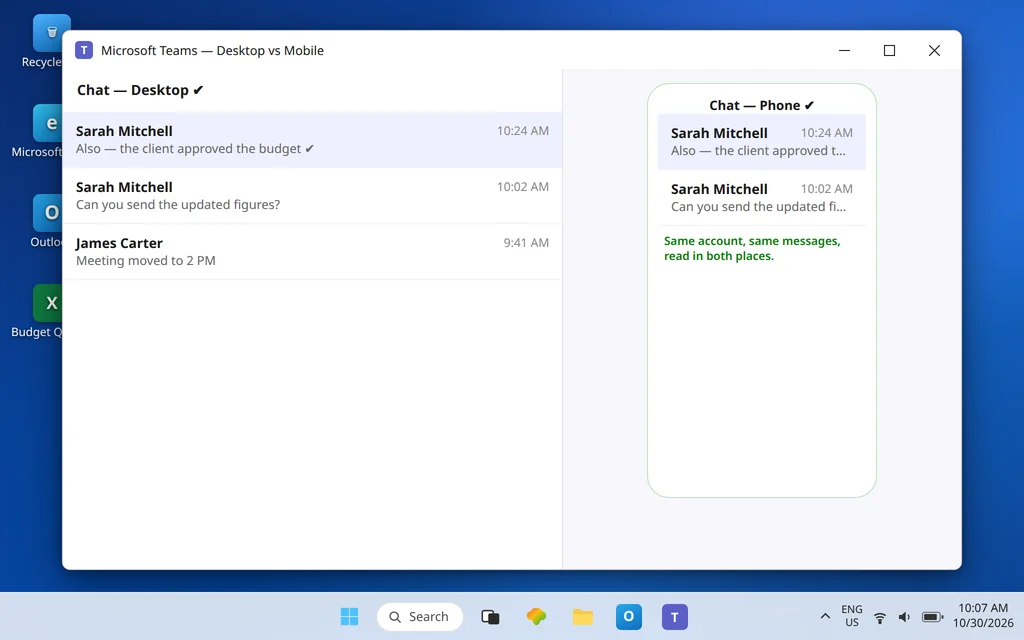
Send a message from your phone and watch it appear on the desktop within moments; reply from the desktop and confirm the phone shows it, marked read in both places. Then check the chat that started all this: both devices and the web should now tell the same story, including unread counts. Leave both apps running through a normal workday and compare once more in the evening — a sync fix that only survives an hour was a refresh, not a fix, and points back to the background and battery settings in Fix 5.
How to stop it happening again
- One account, everywhere. When you get a new phone or PC, sign in with the same work account first and check the address under your profile picture before assuming anything is broken.
- Restart Teams now and then. A desktop app that runs for weeks accumulates staleness; a weekly full quit-and-relaunch is cheap insurance.
- Keep both apps updated. Turn on auto-update for Teams on the phone, and accept desktop updates when offered instead of postponing them through every meeting.
Frequently asked questions
Why are my Teams messages different on my phone and PC?
Almost always one of three reasons: the devices are signed in with different accounts, one device is holding a stale local copy because its app has not refreshed (often a desktop left running for days), or the phone is prevented from refreshing in the background by battery or data settings. The web app at teams.microsoft.com shows you the true cloud copy, so you can identify which device is wrong before fixing anything.
Is there a sync button in Teams?
No — and that is by design. Microsoft confirms Teams syncs automatically through the cloud as long as you are signed in with the same account on each device; there is no manual sync control. The closest thing to “forcing” a sync is fully quitting and relaunching the app on the stale device, which makes it reload your chats from the service.
How do I force Teams to refresh its messages?
Quit Teams completely — on Windows, right-click the tray icon and choose Quit, because closing the window leaves it running — then relaunch it. On mobile, force-close the app and reopen it, then let the chat list finish loading. Microsoft’s own guidance for unsynced chats starts with this restart because it reliably forces the refresh a stale session skipped.
Does clearing the Teams cache fix message sync?
Usually not, and Microsoft says so directly: its cache guide warns that clearing the cache does not fix missing messages, history that will not load, or wrong unread counts, and that it removes diagnostic logs. That is why this guide puts the cache last — as a reset for a genuinely corrupt client — after account, refresh, referee, background, and sign-in fixes that address the actual causes.
Why does one device show unread messages I already read?
Read state is part of what syncs, so a stale device can keep yesterday’s unread badges alive after you have read everything elsewhere. Refresh that device (Fix 2) and compare it with the web: if the web also shows them unread, your reads happened on a device that had not synced up — reopen the chats on the healthy device once it is connected, and the state will settle. If only the one device insists, sign it out and back in (Fix 6).
My messages will not send at all. Is that this problem?
No — that is the sending fault, not the syncing fault, and it has its own causes and fixes. If a message fails when you send it (rather than sending fine but appearing inconsistently across devices), use Microsoft Teams Not Sending Messages instead.
Devices still telling different stories? Contact us at servicedesk@howtofixerroronline.com or through our Contact page and tell us which device disagrees with teams.microsoft.com on the web, what email address each device shows under your profile picture, and whether a full quit and relaunch changed anything. We will never ask for your password.