
Microsoft Teams Stuck on Connecting — Can’t Connect to the Server
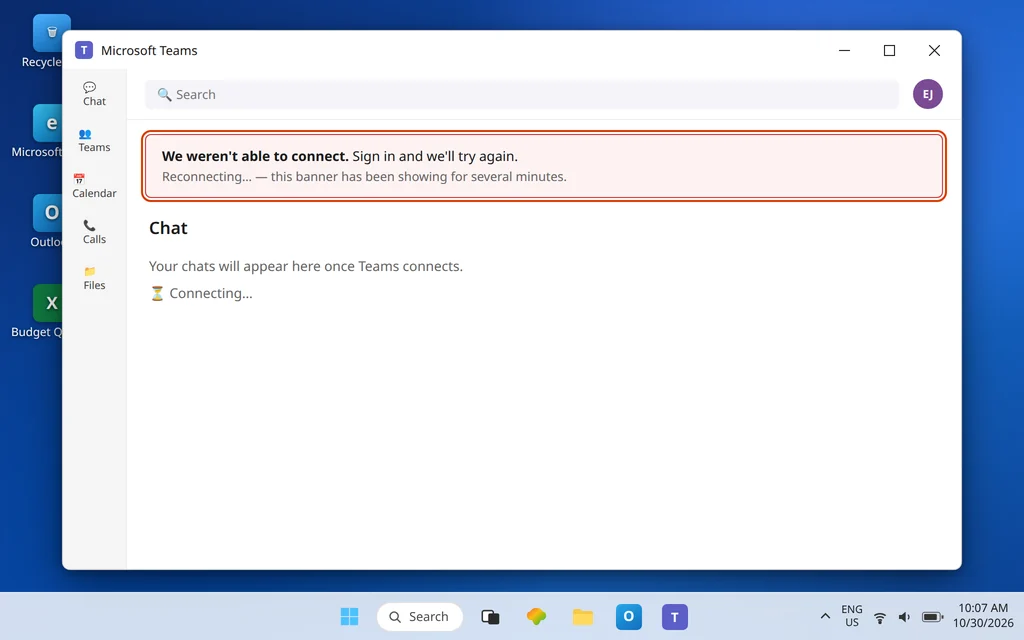
Teams opens. It may even show your name. Then it sits there: Connecting…, Reconnecting…, or the message “We weren’t able to connect. Sign in and we’ll try again.” The app has launched fine — it simply cannot reach the Teams service.
That makes this a different problem from two close neighbors, so rule them out in one line each: if Teams never gets past the splash screen at all, use Microsoft Teams Stuck on the Loading Screen; if you cannot sign in at all and never reach the app, use Microsoft Teams Sign-In Problems. This article owns everything in between: the connection layer between your PC and Microsoft’s servers — your internet, DNS, proxy and VPN, firewall ports, Windows clock, and the service itself.
Quick Answer: First prove the internet itself works: open a browser and load any website, then try Teams on the web at teams.microsoft.com. If the web version connects, your account and Microsoft’s service are fine and the fault is local. Next, turn your VPN off and back on (or off completely for the test), check Windows Settings > Network & internet > Proxy for a proxy you did not expect, and confirm the Windows clock is correct in Settings > Time & language > Date & time with Sync now. On a work network, Teams needs outbound TCP 80 and 443 and UDP 3478–3481 open — if those are blocked, no setting on your PC will fix it.
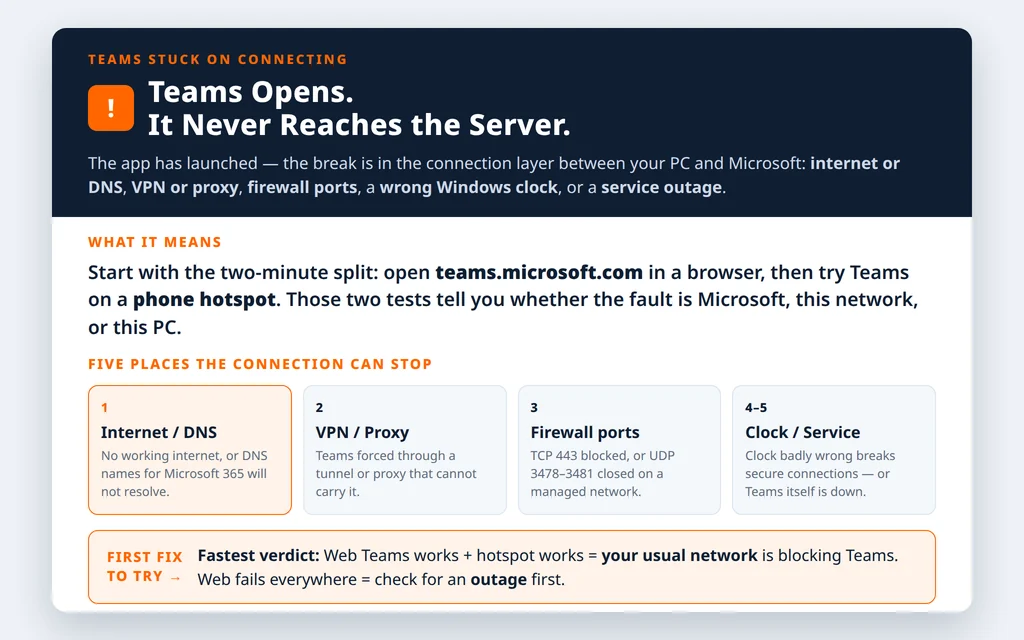
Table of Contents
Fix 1 — Prove the internet and the service separately (2 minutes)
Do not change any settings yet. Two quick tests tell you which half of the world is broken:
- Open a browser and visit any website you do not normally use. If nothing loads, this is an internet problem, not a Teams problem — restart your router, reconnect to Wi-Fi, or plug in a cable and stop here until normal browsing works.
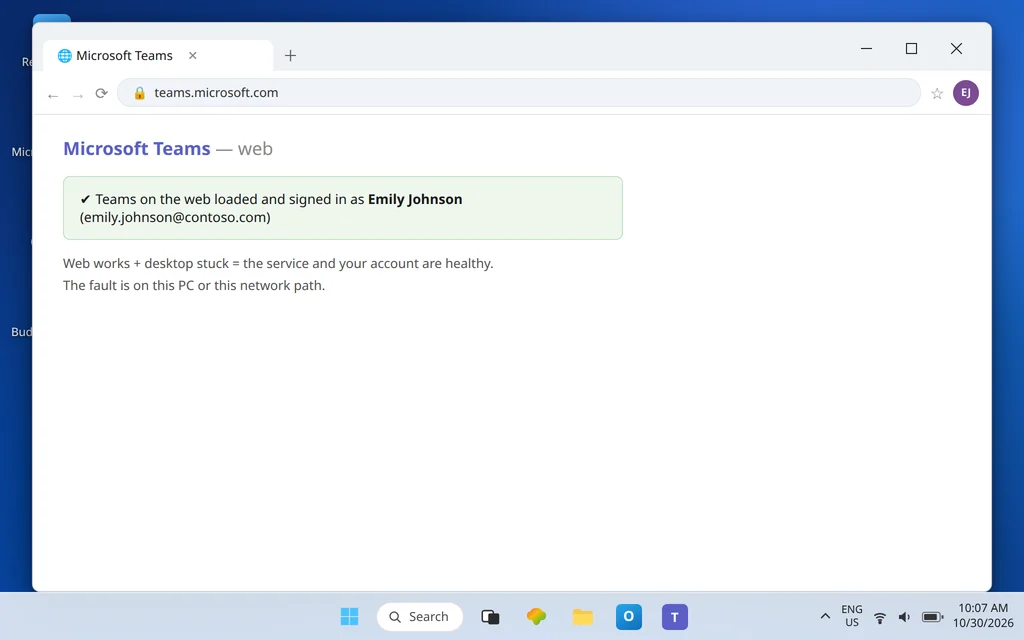
- In that same browser, go to teams.microsoft.com and sign in. Microsoft’s own reconnect guidance uses the web version as the comparison test.
- Read the result:
- Web Teams works, desktop Teams does not: the service and your account are healthy. The fault is on this PC or this network path — continue with Fixes 2–7.
- Neither works, but other websites do: suspect the network path to Microsoft specifically (Fixes 4–6), or a service incident (Fix 2).
- Nothing works anywhere: Fix your internet connection first.
Fix 2 — Check whether Microsoft Teams is down
Sometimes the server really is the problem, and every local fix is wasted effort. Before you dig into settings:
- If you have a Microsoft 365 admin account, open the Microsoft 365 admin center > Health > Service health and look for a Teams incident.
- If you do not, check Microsoft’s official Microsoft 365 status updates and ask one simple question of a coworker on a different network: “Is Teams connecting for you?” If a colleague at home is stuck too, it is very likely an outage.
- An outage has no PC-side fix. Wait, use Teams on your phone if it connects there, and check back rather than reinstalling a healthy app.
Fix 3 — Fully restart Teams and sign out once
A half-connected session can loop on “Reconnecting” forever. Give it a clean start:
- Right-click the Teams icon in the notification area by the clock and choose Quit — closing the window alone leaves Teams running in the background.
- Reopen Teams. If it still loops, click your profile picture and choose Sign out.
- Quit Teams once more from the notification area, reopen it, and sign back in with your normal email and password, completing any verification prompt.
Microsoft’s reconnect guidance lists sign-out-and-back-in as a core step. If signing back in itself fails completely — you never get into the app at all — that is a different article: Microsoft Teams Sign-In Problems.
Fix 4 — Test your VPN, and check the Windows proxy
VPNs and proxies sit directly in the path Teams uses, and Microsoft specifically calls out the VPN in its reconnect guidance. Teams media and signaling do not always survive being forced through a VPN tunnel, and Microsoft’s network guidance recommends that Microsoft 365 traffic bypass proxies — and, on managed networks, bypass the VPN too (split tunneling).
- If you use a VPN, disconnect it completely and try Teams. Then, if your organization requires the VPN, reconnect it before opening Teams — Microsoft notes you should connect to the network your organization requires first, and avoid switching networks while Teams is open.
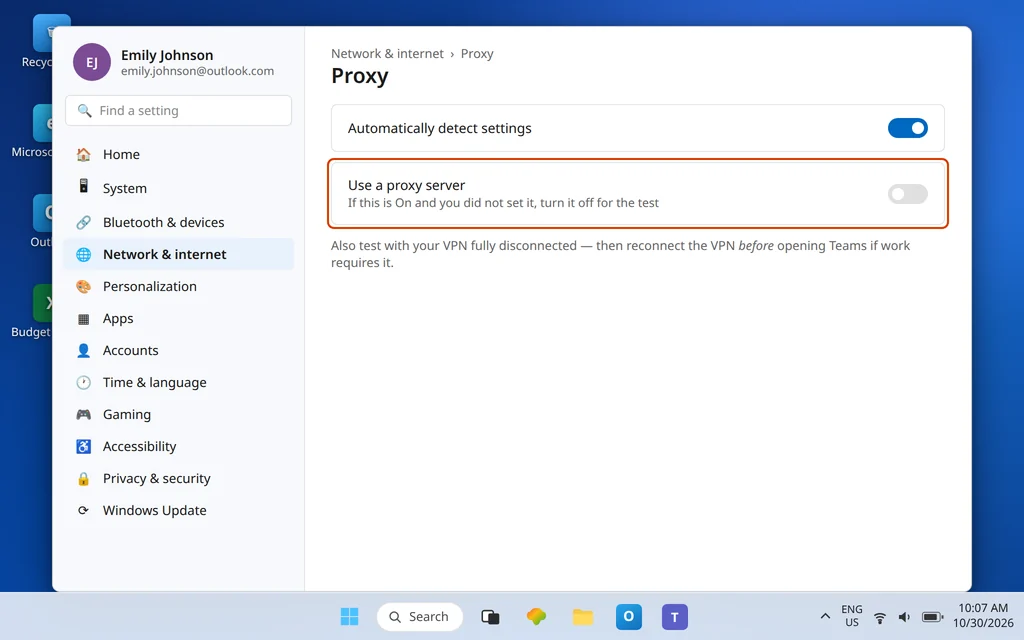
- Open Settings > Network & internet > Proxy. If Use a proxy server is on and you (or your IT team) did not put it there — for example after installing other software — turn it off for the test.
- Interpret the result: Teams connects with the VPN off but not on = the VPN route is the problem. That is a conversation for whoever runs the VPN: Teams traffic needs to reach Microsoft directly or through a VPN that carries it properly.
Fix 5 — Change the network entirely (the hotspot test)
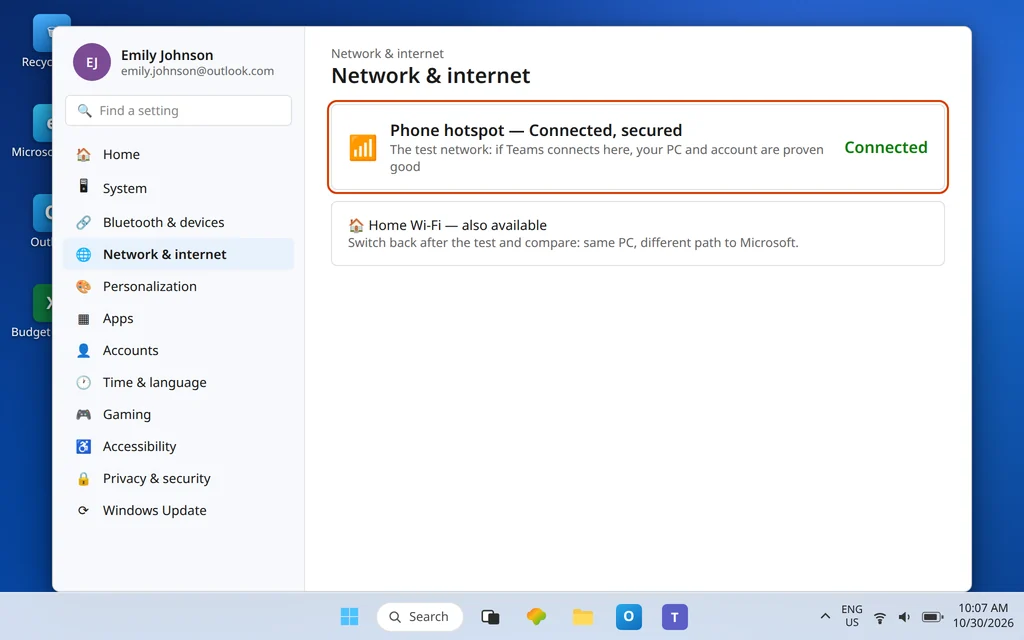
This is the most honest diagnostic in the guide. Connect your PC to your phone’s mobile hotspot for two minutes and open Teams:
- Teams connects on the hotspot: your PC, account, and Teams install are all proven good. The fault lives in your usual network — router, workplace firewall, or internet provider routing. Go to Fix 6 with confidence, and show your IT team this result; it saves everyone time.
- Teams still will not connect on the hotspot: the fault travels with the PC. Skip to Fixes 7 and 8 (clock, cache, reset).
Fix 6 — Firewall ports and DNS (work and managed networks)
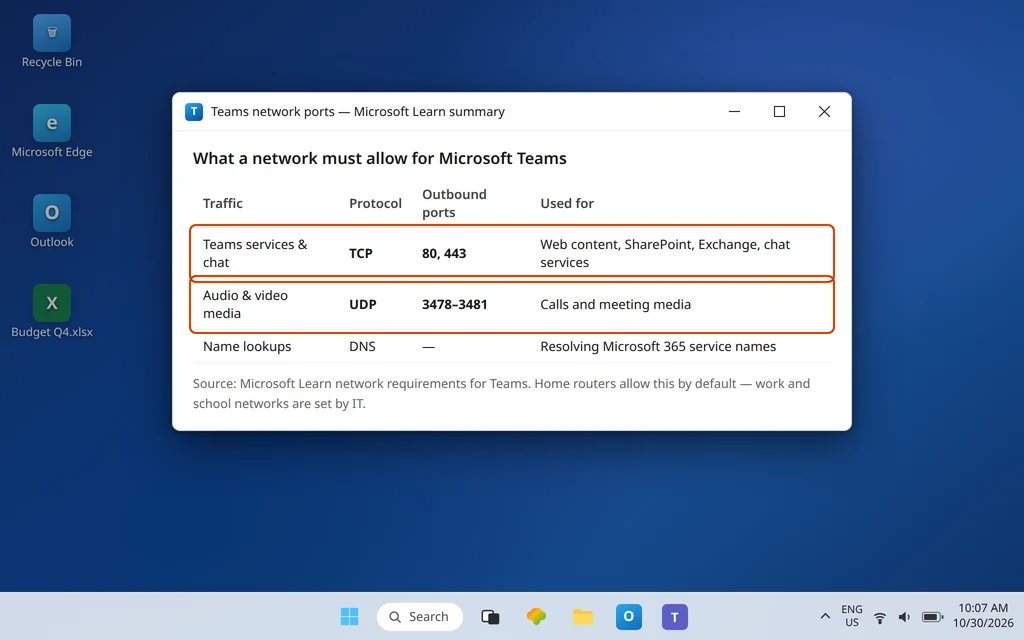
For Teams to function, Microsoft Learn states the network must allow outbound TCP ports 80 and 443 (used for web-based content, SharePoint, Exchange, and Teams chat services) and outbound UDP ports 3478 through 3481 (used for audio and video media). Every computer running Teams must also be able to resolve external DNS names, and the firewall must not prevent that access.
What this means in practice:
- At home: your router’s default settings normally allow all of this. If you or a family member added firewall rules, parental controls, or a “security” app that filters traffic, test with it paused. Restarting the router also clears a surprising number of stale states.
- At work, school, or on a guest network: you cannot change these settings yourself, and that is fine — your job is the evidence, not the firewall. Tell IT exactly this: “Teams connects on a phone hotspot but not on this network; please confirm outbound TCP 443 and UDP 3478–3481 to Microsoft 365 endpoints are allowed, and that DNS resolves external names.” That sentence gets routed to the right person immediately.
- DNS check you can do: if websites load by some apps but Teams and other Microsoft services fail together, the network’s DNS may be filtering or failing. The hotspot test in Fix 5 already proves this category; leave DNS server changes on a managed network to IT.
Fix 7 — Fix the Windows clock
Secure connections and sign-in tokens are time-sensitive. If your PC clock is badly wrong — after a flat battery, a time zone jump, or manual changes — Teams can fail to connect even on a perfect network, and the error rarely mentions time.
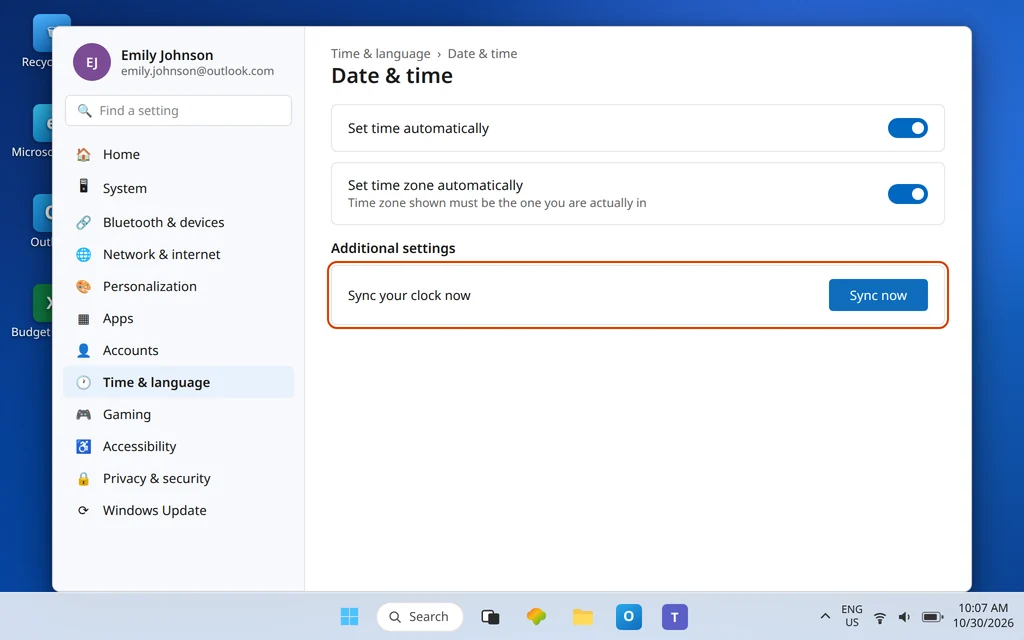
- Open Settings > Time & language > Date & time.
- Turn on Set time automatically and Set time zone automatically, and confirm the time zone shown is the one you are actually in.
- Under Additional settings, click Sync now and wait for it to complete.
- Quit Teams fully (notification area > Quit) and reopen it.
Fix 8 — Clear the Teams cache, then Reset if needed
If the hotspot test pointed at this PC and the clock is right, the local Teams data is the next suspect:
- Quit Teams from the notification area icon.
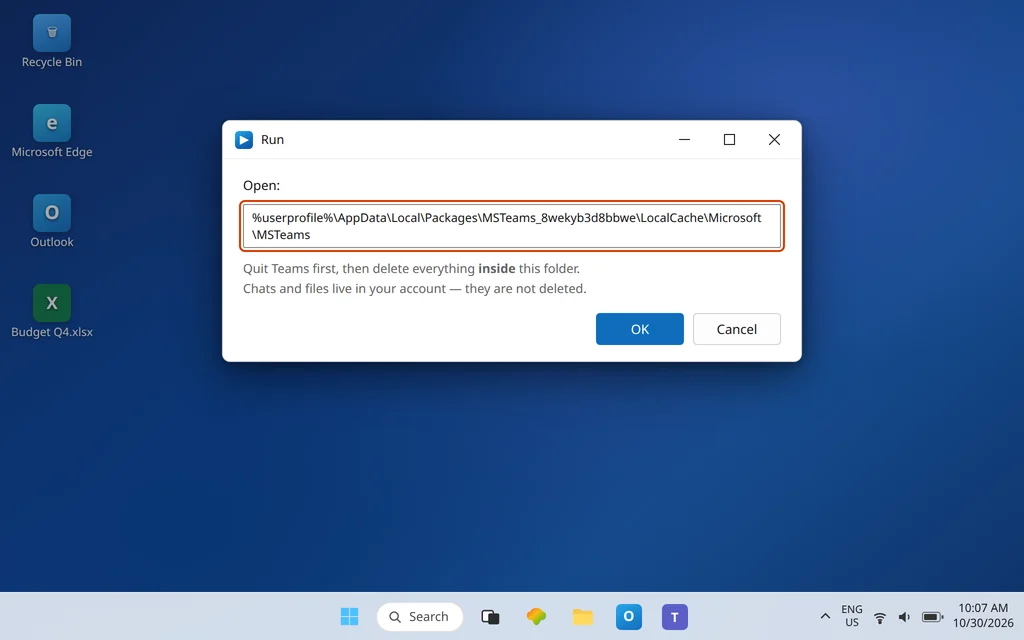
- Press Windows key + R, paste
%userprofile%\AppData\Local\Packages\MSTeams_8wekyb3d8bbwe\LocalCache\Microsoft\MSTeams, and press Enter. - Delete everything inside that folder. Your chats and files live in your account, not in this folder.
- Reopen Teams and let it sit for a minute — the first start after a cache clear is slower than usual while it rebuilds.
If that changes nothing, use Microsoft’s stronger option: Settings > Apps > Installed apps > Microsoft Teams > … > Advanced options > Reset. A reset deletes the app’s data on this PC, including personalization settings, so treat it as the last local step before reinstalling Teams from Microsoft’s website — and if Teams also fails on a second network and a second device, stop and treat it as an account or service issue for your IT admin instead. A related symptom worth knowing: if connection trouble arrives with messages failing too, see Microsoft Teams Not Sending Messages.
Confirm it worked
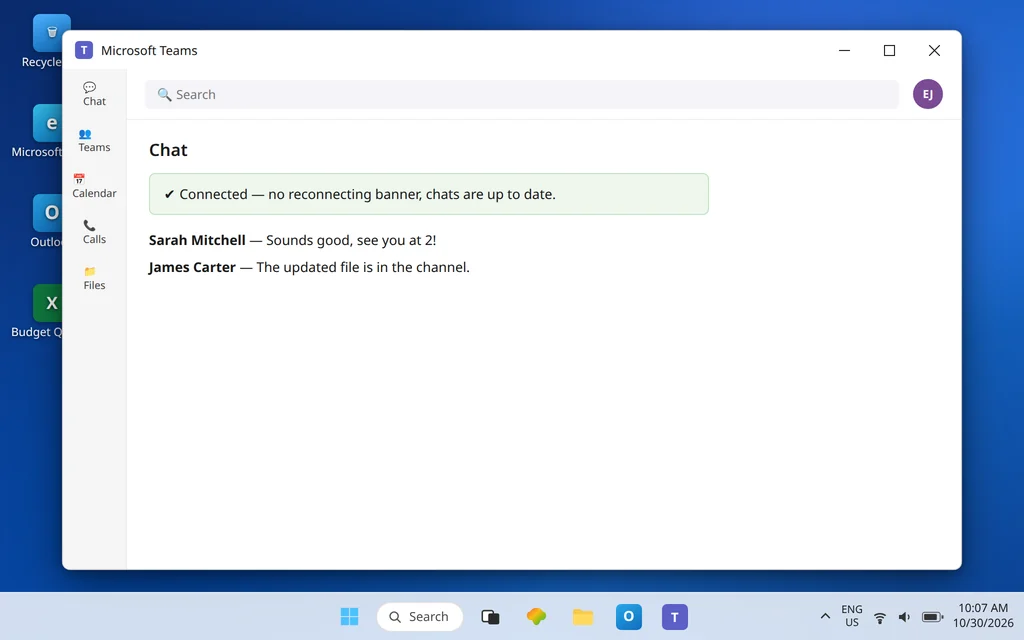
Teams should open straight into your chats without a Connecting or Reconnecting banner, and stay connected for several minutes. Send a message, open a channel you have not visited today (that forces fresh data from the server), and make a short call or join a meeting to prove the media path works too — a connection that loads chats but drops calls usually means the UDP ports in Fix 6 are still blocked somewhere.
How to stop it happening again
- Connect in the right order. On a managed laptop, join the required network or VPN first, then open Teams — and avoid hopping between networks while Teams is running.
- Leave the clock on automatic. Set time automatically plus the correct time zone removes a whole silent failure class.
- Remember your hotspot result. If this network fails again, you already know whether the fault is the network or the PC — start from that answer instead of from zero.
Frequently asked questions
Why is Microsoft Teams stuck on connecting?
Because something between the app and Microsoft’s servers is interrupting the path: a failing internet connection, a VPN or proxy forcing Teams down a route that does not work, a firewall blocking the ports Teams needs, a badly wrong Windows clock, stale local app data — or, occasionally, a Microsoft service incident. The browser test in Fix 1 separates “Microsoft/account” from “this PC/this network” in two minutes.
How do I check if Microsoft Teams is down?
Check Service health in the Microsoft 365 admin center if you have admin access, watch Microsoft’s official Microsoft 365 status updates, and ask a coworker on a different network whether Teams connects for them. If the web version at teams.microsoft.com fails for people on different networks at the same time, it is an outage — wait rather than reinstalling.
Does a VPN or proxy block Microsoft Teams?
It can. Microsoft’s reconnect guidance specifically tells VPN users to turn the VPN off and back on, and its network guidance recommends that Teams traffic bypass proxies and, where possible, go direct rather than through the VPN tunnel. The clean test is simple: disconnect the VPN and try Teams. If it connects immediately, the VPN route is your answer.
Which ports does Microsoft Teams need open?
Outbound TCP 80 and 443 and outbound UDP 3478 through 3481, per Microsoft Learn’s network documentation. TCP carries the web-based services and chat; the UDP range carries audio and video media. On a home router these are open by default; on a work or school network, your IT team controls them.
Why does Teams connect on my phone but not on my PC?
Because the phone is probably reaching Microsoft over mobile data — a completely different network path that bypasses your router, workplace firewall, proxy, and VPN. That result is useful evidence: your account works, so focus on the PC (Fixes 7–8) and the PC’s network (Fixes 4–6), not on your password.
Will clearing the Teams cache fix a connecting problem?
It fixes the cases where stale local data is the cause, which is why it sits late in this guide, after the network tests. Clearing the new Teams cache (Fix 8) deletes no chats or files — they are stored in your account — but it will not unblock a firewall port or fix an outage, so do the two-minute tests first and let them point you at the right fix.
Still stuck on Connecting? Contact us at servicedesk@howtofixerroronline.com or through our Contact page and tell us what happened on the web version, whether the hotspot test connected, and whether you use a VPN. We will never ask for your password.