
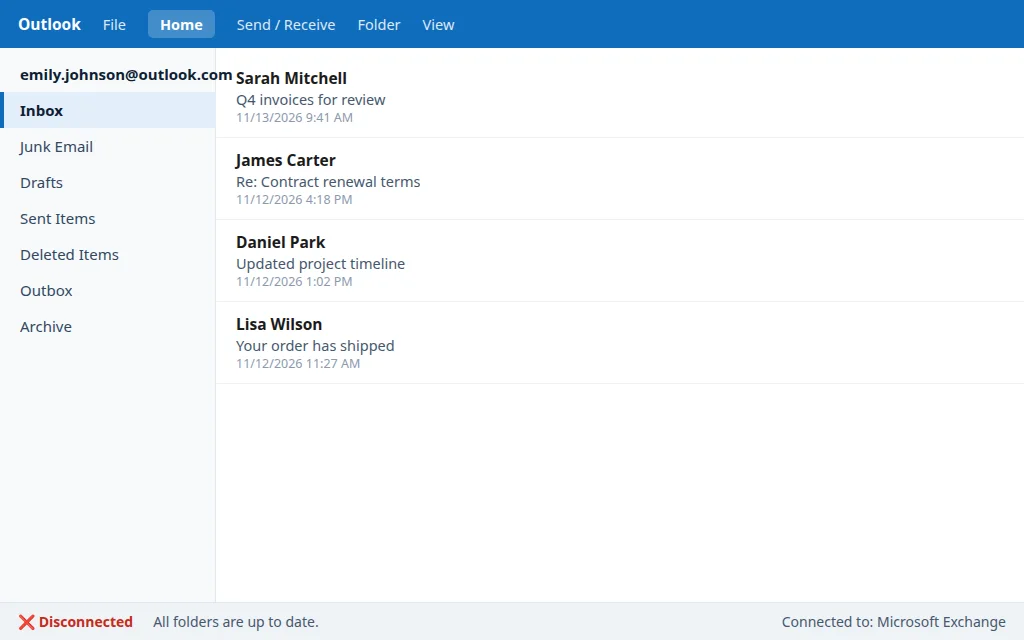
Outlook Still Not Working After the Outage? Reconnect and Catch Up
The outage is officially over. Microsoft’s status page is green, your coworkers are reading their mail again — and your Outlook is still sitting there saying Disconnected, Trying to connect, or showing an inbox that hasn’t changed since the failure started. It feels like your account was forgotten. In almost every case, it wasn’t: after a big outage, “back for everyone else, not for me yet” is exactly how Microsoft’s recovery works, and the few cases that are genuinely stuck on your side clear with a short, safe sequence — no reinstall, no new profile.
This guide is that sequence, in the order that wastes the least time. It was written after the Microsoft outage of November 12–13, 2026, but the steps apply after any Outlook outage.
Quick Answer: First confirm the incident is actually closed for your service (status page green — see step 1). Then: fully close and reopen Outlook (restart the PC if it still won’t connect), make sure Work Offline is off on the Send/Receive tab, click Send/Receive All Folders, and clear anything stuck in the Outbox. Leave the app open and connected for 15–30 minutes — recovered servers reconnect clients gradually, and mail queued during the outage arrives in waves. Do not reinstall Outlook or delete your profile for a post-outage reconnect problem.
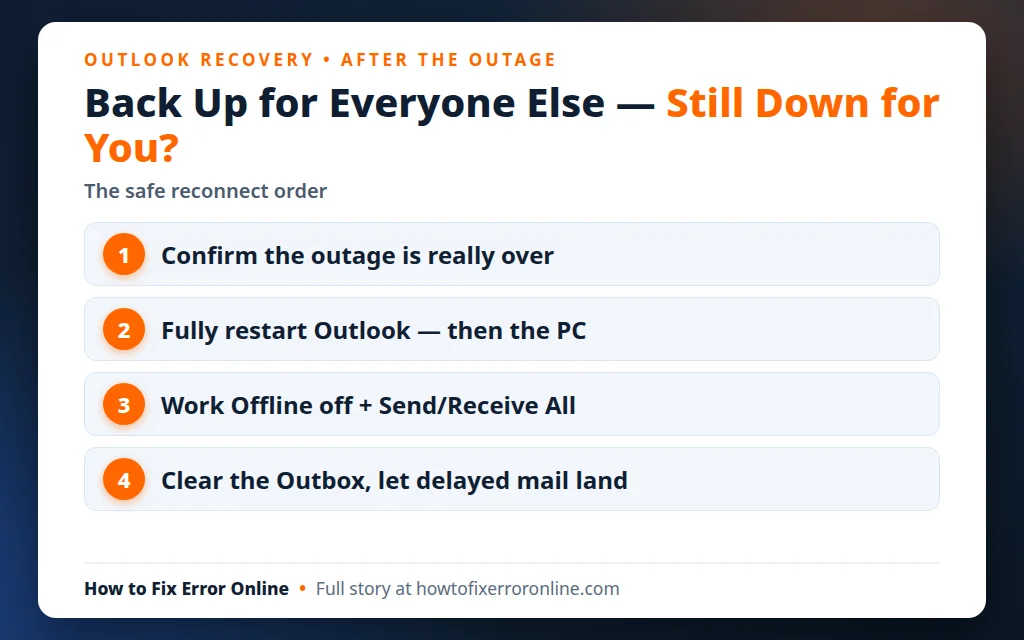
Table of Contents
Step 1 — Confirm the outage is really over (for your service)
Everything after this step assumes Microsoft’s side is healthy again. If the incident is still open, local fixes are pointless — and Microsoft’s wording during a recovery (“service restored” for the suite) can hide a still-degraded Exchange Online underneath.
Run the two-minute check in Is Outlook Down? How to Check in 2 Minutes: the status page at status.cloud.microsoft should show no active incident for Outlook/Exchange Online, and Downdetector reports should be back at their normal baseline. Personal Outlook.com and work/school Microsoft 365 recover on separate tracks, so confirm the one your account belongs to. If an incident is still listed, stop here and wait — then come back to step 2.
Fix 1 — Close Outlook completely and start it fresh
Outlook holds its server connections open for as long as it runs. An app that was open through the whole outage can cling to a dead connection for hours after the service is back, which is why this unglamorous step fixes most post-outage cases:
- Close Outlook with File > Exit (not just the X if Outlook is set to keep running in the tray).
- Wait about 10 seconds. If Outlook refuses to close, open Task Manager (Ctrl+Shift+Esc), end the Outlook process, and wait again.
- Reopen Outlook and watch the status bar at the bottom. Give it a full minute: Connected is what you want; Trying to connect that resolves within a minute or two is normal after an outage.
- Still stuck? Restart the PC, then open Outlook before anything else. A reboot clears the network and sign-in state that the outage left tangled, and it also restarts Outlook’s background helpers.
Fix 2 — Turn off Work Offline
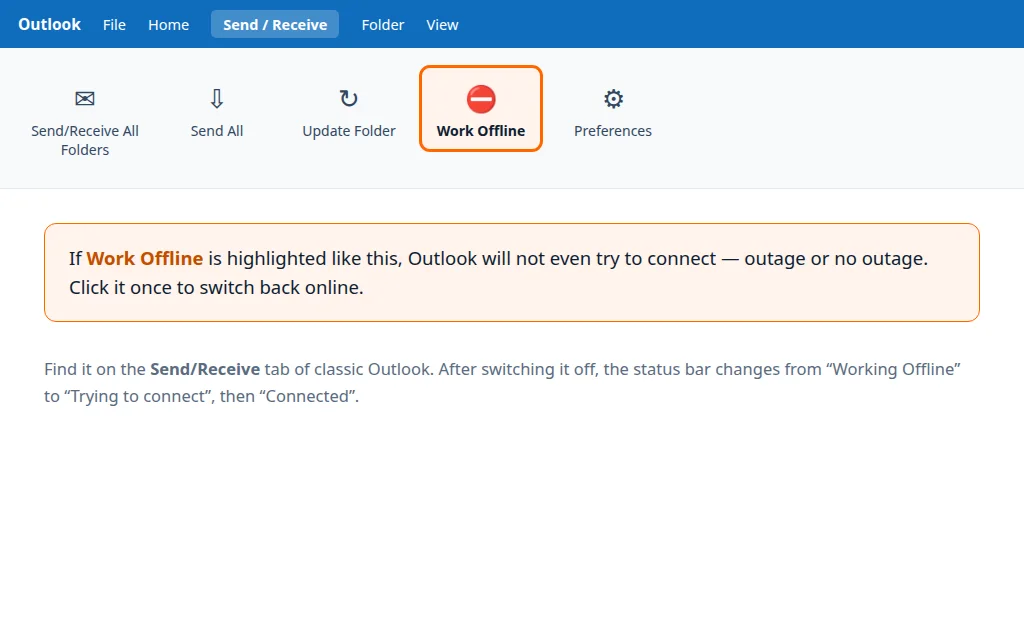
During connection failures, Outlook can end up in Work Offline mode — sometimes because someone clicked it while trying anything to get mail moving. In that mode Outlook will not even attempt to connect, outage or no outage:
- Go to the Send/Receive tab on the ribbon.
- Look at the Work Offline button on the right. If it is highlighted/shaded, Outlook is offline.
- Click it once to turn it off. The status bar should switch from Working Offline to Trying to connect, then Connected.
Fix 3 — Force a full Send/Receive and clear the Outbox
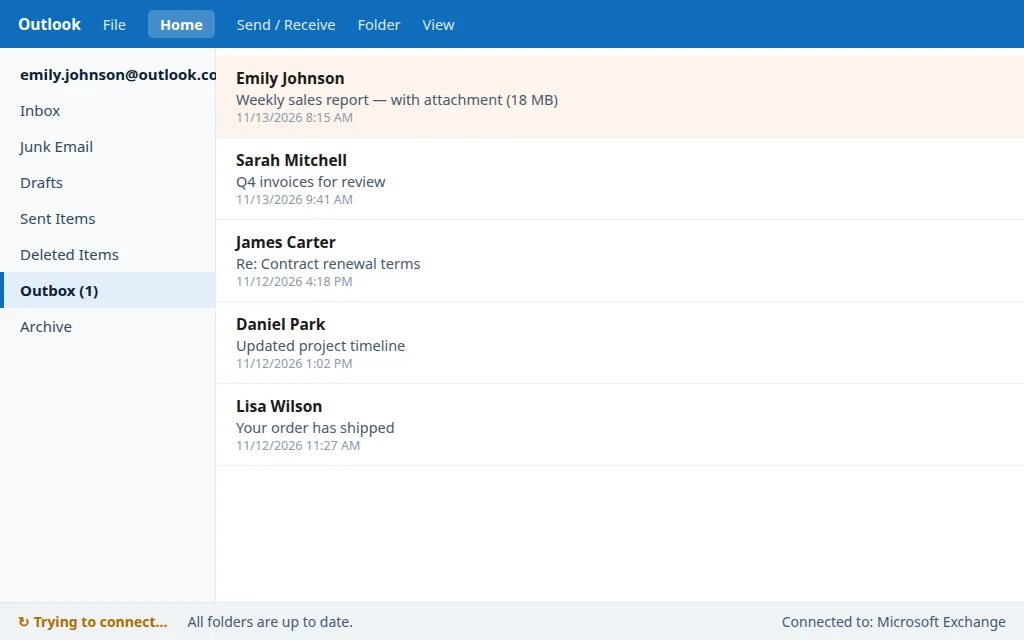
With a live connection, push a full sync and remove the classic post-outage blockage — a message stuck in the Outbox:
- Press F9 (or Send/Receive > Send/Receive All Folders).
- Open the Outbox folder. Anything still sitting there is blocking the queue behind it.
- If one message won’t leave, the usual cause is a large attachment. Open it, save the attachment somewhere smaller or share it as a link instead, then send again — or move the message to Drafts so the rest of the queue can flow, and deal with it separately. Our full guide to email stuck in the Outbox covers the stubborn cases.
- Watch the Inbox: after an outage, waiting mail often arrives in a burst once the first sync completes.
Fix 4 — On the web and the new Outlook: sign out and back in
Browser and new-Outlook sessions can hold a stale token from the outage period. If outlook on the web loads but shows an empty or frozen mailbox, or the new Outlook app won’t refresh:
- Sign out of the app or web page completely.
- Close the tab or app, reopen it, and sign back in. A fresh sign-in forces a new session against the recovered servers.
- On the web, a hard refresh (Ctrl+Shift+R) also clears the cached page that may be showing you the outage-era error.
Missing or delayed emails? Read this before you panic
Mail sent to you during an outage was queued on Microsoft’s servers, not lost — and Microsoft delivers that backlog gradually as capacity returns. After the November 2026 outage it said email queues were “significantly reduced and approaching normal levels” while warning that some delivery would still be delayed. In practice:
- Check the web version first. If a missing message is visible in Outlook on the web but not in your desktop app, it exists — your app just hasn’t synced it yet. Leave the app open and connected; local stores catch up in their own time.
- Expect out-of-order arrivals. Backlog mail lands in waves, sometimes hours after newer messages. Don’t judge by the top of the inbox — sort or search before concluding something is missing.
- Calendar can lag the same way. Meetings created or moved during the outage may take a while to appear everywhere; if they still disagree after the mail has settled, see Outlook Calendar Not Syncing.
- Only chase the sender after the incident is fully closed and a reasonable wait (hours, not minutes) has passed. Most “lost” outage mail turns out to have been delayed, not lost.
Still says “Disconnected”? Now it’s a local problem
If the status page is green, you’ve restarted cleanly, Work Offline is off, and Outlook still sits at Disconnected for more than half an hour while the web version works — the outage has ended and left a local fault behind. That scenario is exactly our Outlook Says “Disconnected”? 8 Fixes to Reconnect guide: work through its checks (connection mode, cached Exchange settings, profile repair) rather than repeating the steps here. And if mail specifically still won’t arrive once you’re reconnected, the causes in Outlook Not Receiving Emails are the next stop.
What not to do after an outage
- Don’t reinstall Outlook or delete your mail profile for a reconnect problem. A rebuilt profile must re-download your entire mailbox — over a network Microsoft is still stabilising.
- Don’t change your password hoping to “refresh” the account; it doesn’t affect server recovery and can lock you out of other devices mid-recovery.
- Don’t pay anyone. Outages bring out fake “Microsoft support” callers and pop-ups offering to restore your mailbox for a fee. Microsoft fixes outages on its servers and never charges users to reconnect.
Frequently asked questions
Is Outlook fixed yet?
For the November 12–13, 2026 outage, yes for the great majority of users — Microsoft’s status page showed services operational from Friday afternoon, November 13 (ET), and report volumes fell back to normal. Individual mailboxes can still reconnect at different times; check status.cloud.microsoft for the current word on any new incident.
Why is Outlook still not working for me when it’s back for everyone else?
Because Microsoft restores service in waves — by region and by server group — and deliberately re-admits traffic slowly so recovered servers stay up. Your mailbox’s servers may simply be later in the queue. If the incident is fully closed and you’re still down hours later, work through the fixes on this page; at that point the problem is most likely your app’s stale connection, not your account.
Will emails sent during the outage still arrive?
Almost always, yes. Mail is queued on Microsoft’s servers during an outage rather than bounced or deleted, and it delivers as queues clear — expect it late, in bursts and possibly out of order. Senders were likewise able to send; their messages sat in the same queues.
Should I reinstall Outlook after an outage?
No. Reinstalling cannot fix a server-side problem, and during recovery it makes things worse: a fresh install has to re-sync your whole mailbox against servers that are still stabilising. The restart, Work Offline and Send/Receive steps on this page solve the realistic post-outage problems.
How long does Outlook recovery take after Microsoft says it’s fixed?
Client reconnects are gradual by design — Microsoft has said users “may gradually regain access as their clients reconnect.” Most people are back within minutes to a few hours of the all-clear; delayed mail can keep arriving after that. If you’re still fully down a day after the incident closed, treat it as a local problem and use the Disconnected guide linked above.
If Outlook is connected again but something else broke along the way, our Outlook guides cover the common follow-on faults step by step. Still stuck? Email us at servicedesk@howtofixerroronline.com — we’re available 24 hours.