
How to Take a Screenshot on Windows 11: 7 Ways
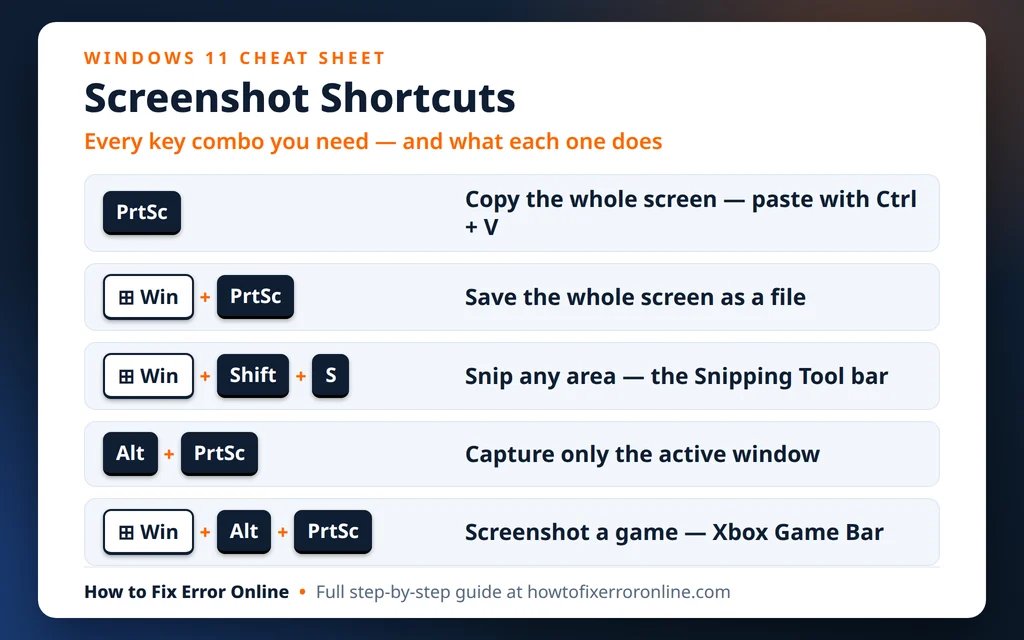
If you are wondering how to take a screenshot on Windows 11, you have more options than you might expect. Windows 11 can copy a screenshot to your clipboard, save it as a file automatically, capture just one window, or snip any small area of the screen — all with built-in tools, no extra software needed.
The catch is that each method does something slightly different. Some screenshots land on your clipboard and disappear if you copy something else; others are saved as PNG files in a folder. This guide walks through all 7 ways, shows the exact keys to press, and tells you exactly where each screenshot ends up — so you always pick the right method first time.
Quick Answer: The fastest way for most people is Windows key + Shift + S. It opens the Snipping Tool bar so you can drag over exactly the area you want. The screenshot is copied to your clipboard (paste it with Ctrl + V) and also saved automatically to Pictures > Screenshots. If you want zero clicking, press Windows key + PrtSc — the whole screen is saved as a file instantly.
Table of Contents
Before You Start: Where Do Windows 11 Screenshots Go?
This is the part that confuses almost everyone. Windows 11 has two places a screenshot can end up:
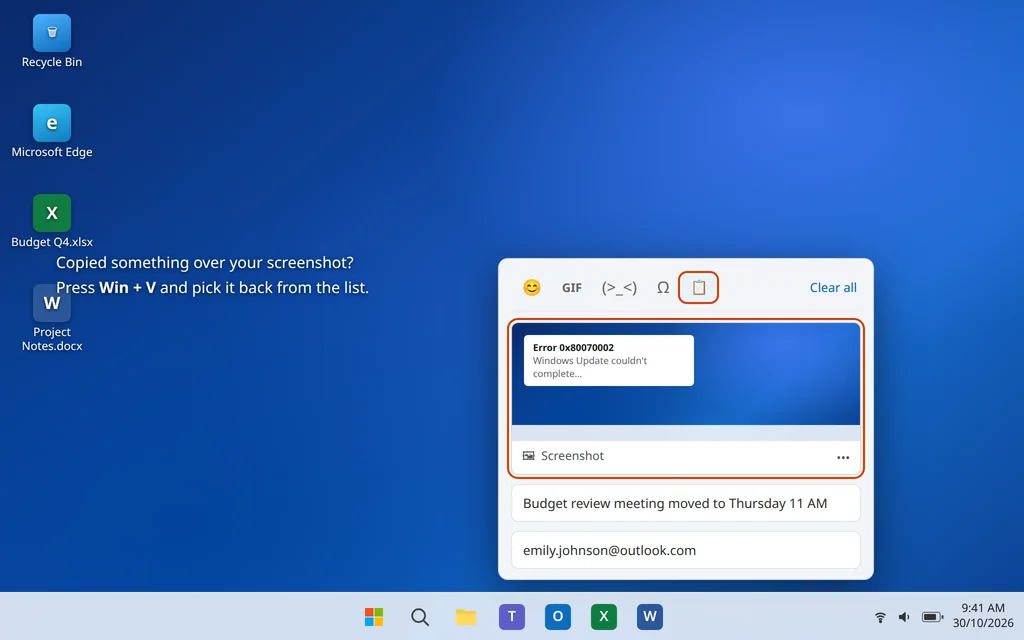
- The clipboard. Methods that copy (PrtSc, Alt + PrtSc, Win + Shift + S) hold the screenshot in memory until you paste it with Ctrl + V. Copy something else and it is replaced — though Windows key + V opens Clipboard history, where you can pick an older one back up.
- A file. Methods that save (Win + PrtSc, Win + Shift + S, Game Bar) write a PNG to your PC, ready to attach or upload. Most go to Pictures > Screenshots; Game Bar uses its own Captures folder.
Knowing the difference saves the classic “I pressed the key and nothing happened” moment — something did happen, just on the clipboard instead of in a folder.
Way 1: PrtSc — Copy the Whole Screen
The oldest method: one key copies your entire screen.
- Show whatever you want to capture on screen.
- Press the PrtSc key (some keyboards label it Print Screen, PrtScn or Prt Scr). On many laptops you must hold Fn at the same time: Fn + PrtSc. Nothing visibly happens — that is normal.
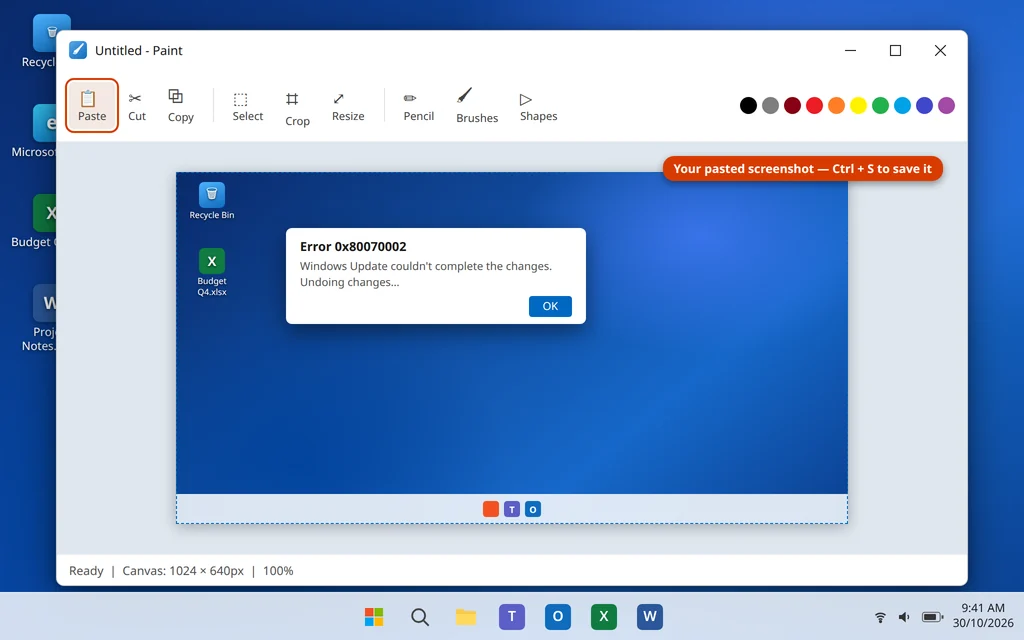
- Open the app where you want the screenshot — Paint, Word, PowerPoint, an email draft or a chat window.
- Press Ctrl + V to paste it.
- If you pasted into Paint or Word, save the document to keep the screenshot permanently.
Where it saves: Nowhere — it is on the clipboard only until you paste it. If you want the screenshot as a file without pasting, use Way 2 instead.
Way 2: Windows Key + PrtSc — Save the Whole Screen as a File
This is the method to use when you want a proper file with no pasting and no extra steps.
- Arrange your screen the way you want it captured.
- Press Windows key + PrtSc together (on laptops, Fn + Windows key + PrtSc).
- The screen dims for a split second — that flash confirms the screenshot was taken.
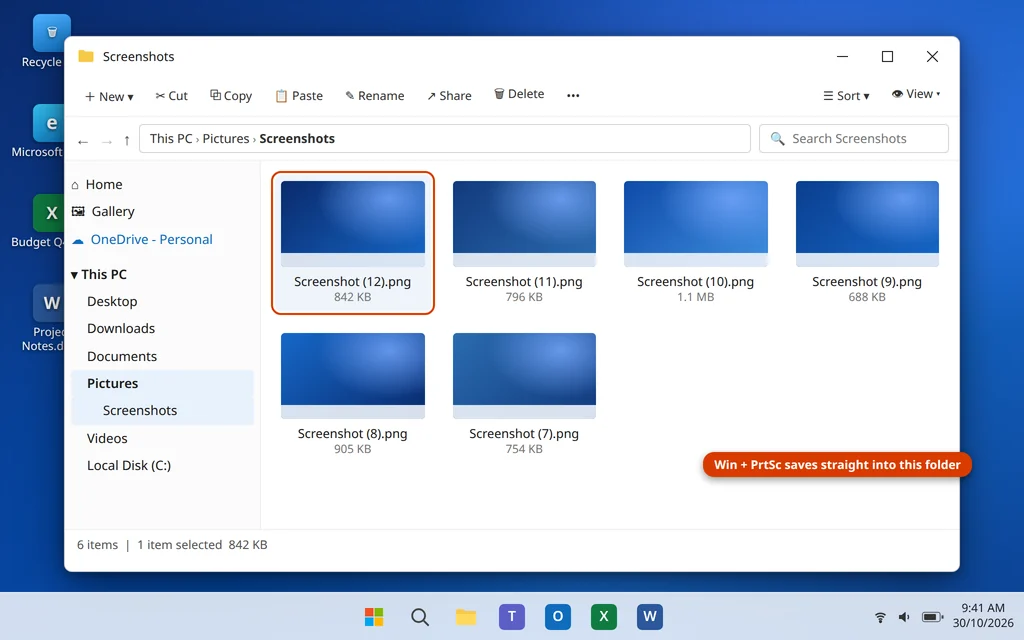
- Open File Explorer, go to Pictures > Screenshots, and your screenshot is there as a PNG named Screenshot (1).png, Screenshot (2).png, and so on.
Where it saves: C:\Users\YourName\Pictures\Screenshots — handy for attaching to an email or uploading to a website.
Way 3: Windows Key + Shift + S — Snip Exactly the Area You Want
This is the method most people end up using every day, because you capture only the part that matters instead of the whole screen.
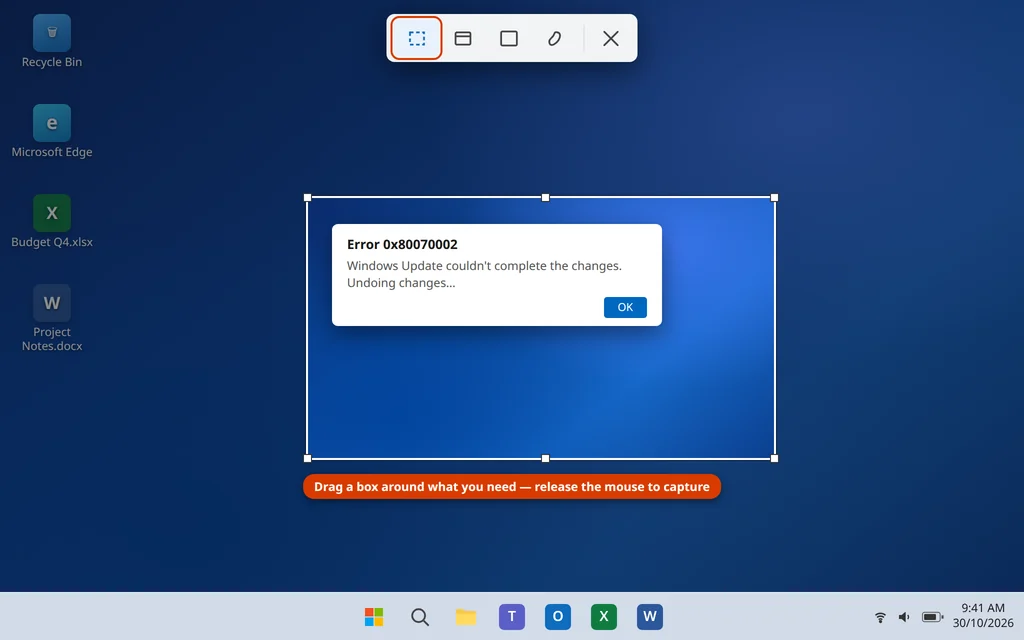
- Press Windows key + Shift + S. The screen dims and a small Snipping Tool bar appears at the top.
- Choose a snip type from the bar — the Rectangle mode is selected by default:
- Rectangle mode: drag a box around any area.
- Window mode: click one window to capture only that window.
- Full-screen mode: capture the whole screen in one click.
- Freeform mode: draw any shape with your mouse.
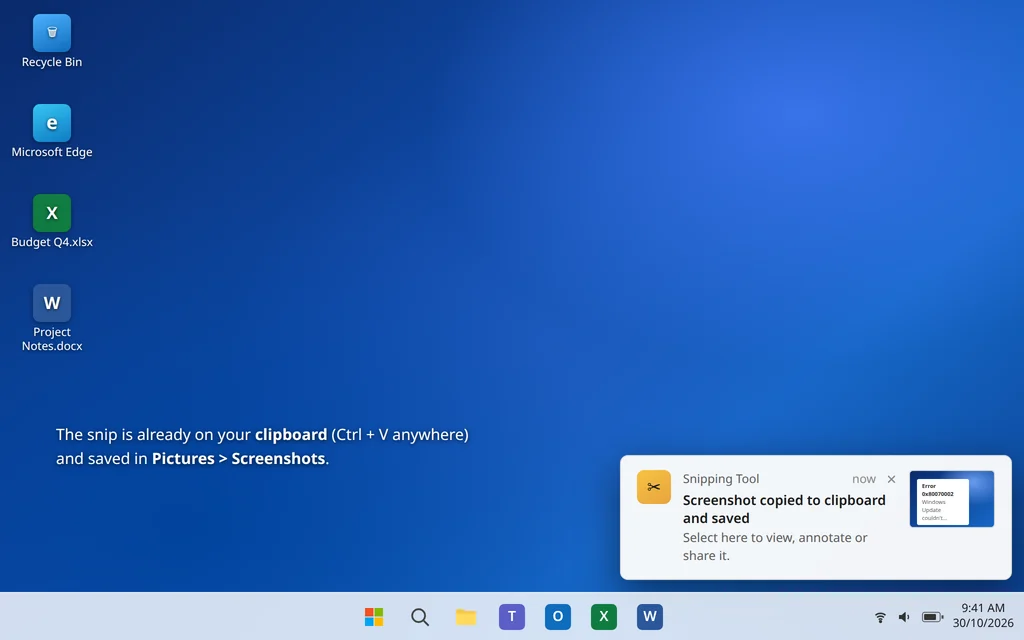
- Release the mouse. A small notification pops up briefly in the bottom-right corner.
- The snip is on your clipboard — press Ctrl + V to paste it anywhere. Click the notification to open the snip in the Snipping Tool editor, where you can draw on it, crop it or save it somewhere else.
Where it saves: Both places — copied to the clipboard AND saved automatically as a PNG in Pictures > Screenshots.
Way 4: Alt + PrtSc — Capture Only the Active Window
When your desktop is cluttered but you only need the one window you are working in, this shortcut skips the cropping step.
- Click the window you want to capture so it is the active (front) window.
- Press Alt + PrtSc (on laptops, Fn + Alt + PrtSc).
- Open Paint, Word or your email and press Ctrl + V to paste.
Where it saves: The clipboard only — just the active window, with no taskbar, no desktop and no other windows in the shot. Perfect for grabbing a single app window or an error message dialog.
Way 5: The Snipping Tool App — Full Editor and a Delay Timer
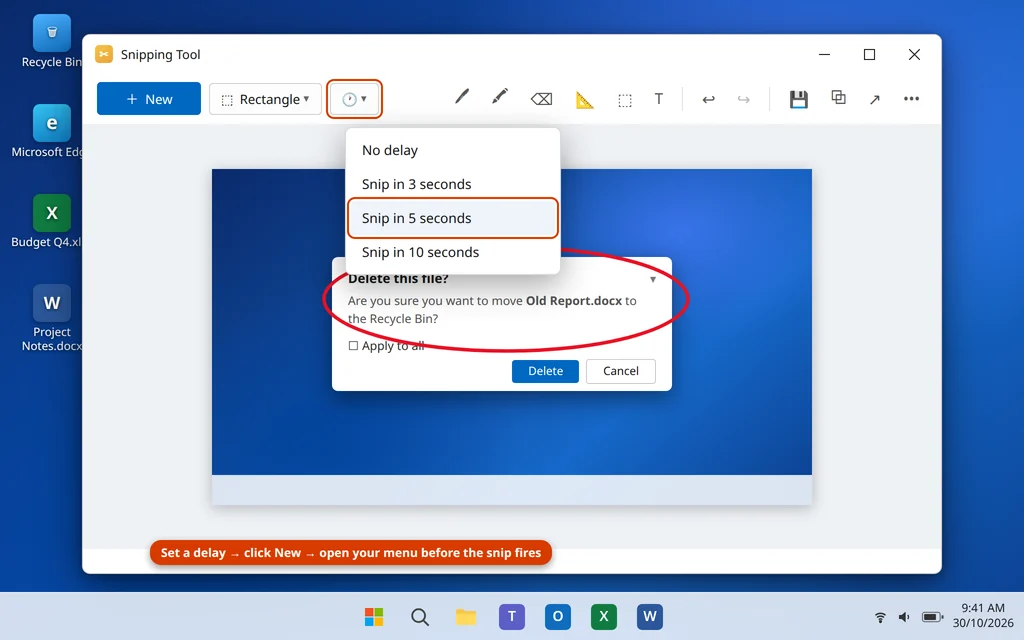
The Snipping Tool is also a full app, and opening it directly gives you two things the shortcut does not: a proper editor and a delay timer — the trick for capturing menus that vanish when you press keys.
- Click Start, type Snipping Tool, and open the app.
- Click the snip mode icon if you want something other than Rectangle mode.
- Optional: click the delay (clock) icon and choose Snip in 3 seconds, 5 seconds or 10 seconds.
- Click + New, then drag over the area (or open the menu during the countdown — it will still be there when the snip fires).
- The snip opens in the editor. Use the pen, highlighter, eraser, ruler and crop tools to mark it up if needed.
- Click the Save icon (or press Ctrl + S) and choose a folder and file name, or copy it with Ctrl + C.
Where it saves: Wherever you choose with Save. If you never save and just close the app, the snip is still on the clipboard from when you took it — but save it if it matters.
Way 6: Windows Key + G — Game Bar Capture for Games and Apps
The Xbox Game Bar has its own screenshot button, made for games — where full-screen modes sometimes block the normal shortcuts — but it works in most apps too.
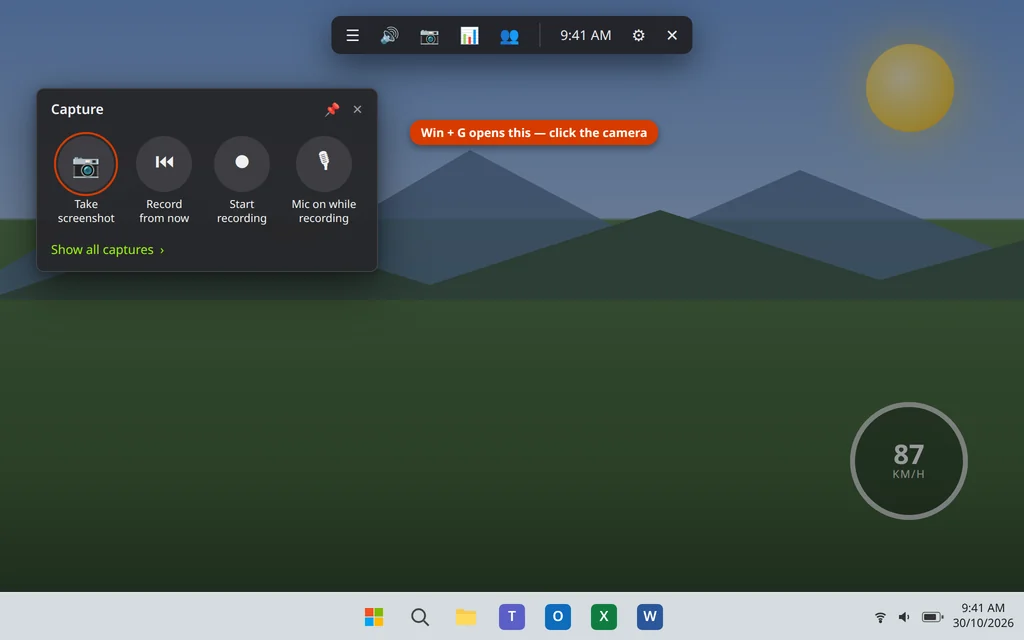
- Open your game (or app) and press Windows key + G to bring up the Game Bar overlay.
- In the Capture widget, click the camera icon (“Take screenshot”).
- A small “Screenshot saved” notification appears, and the overlay closes when you click back into the game or press Windows key + G again.
Where it saves: C:\Users\YourName\Videos\Captures, as a PNG named after the game or app and the time — for example, the game’s name followed by the date.
Its limits: Game Bar will not capture the desktop itself, File Explorer or Settings — it needs a game or app window open. If the Capture widget is missing, check Game Bar is turned on in Settings > Gaming > Game Bar.
Way 7: Windows Key + Alt + PrtSc — Game Bar Screenshot Without the Overlay
If you already know you want a Game Bar screenshot, this shortcut skips opening the overlay at all.
- Make sure your game or app window is active and in front.
- Press Windows key + Alt + PrtSc.
- A “Screenshot saved” notification confirms it worked.
Where it saves: The same Videos\Captures folder as Way 6. This shortcut only works if Game Bar is enabled (Settings > Gaming > Game Bar), and like Way 6, it will not capture the desktop or File Explorer.
How to Take a Screenshot on Windows 11 — Which Way Should You Use?
| Method | Shortcut | Captures | Saved where |
|---|---|---|---|
| PrtSc | PrtSc (Fn + PrtSc on laptops) | Whole screen | Clipboard only |
| Win + PrtSc | Windows key + PrtSc | Whole screen | Pictures > Screenshots (file) |
| Snipping Tool bar | Windows key + Shift + S | Area, window, full screen or freeform | Clipboard + Pictures > Screenshots |
| Alt + PrtSc | Alt + PrtSc | Active window only | Clipboard only |
| Snipping Tool app | Start > Snipping Tool > New | Area or window, with delay + editor | Where you choose (Save) |
| Game Bar overlay | Windows key + G, then camera icon | Game or app window | Videos > Captures (file) |
| Game Bar shortcut | Windows key + Alt + PrtSc | Game or app window | Videos > Captures (file) |
Short version: snip an area with Win + Shift + S, save the whole screen with Win + PrtSc, grab one window with Alt + PrtSc, and use Game Bar inside games.
Change What the PrtSc Key Does
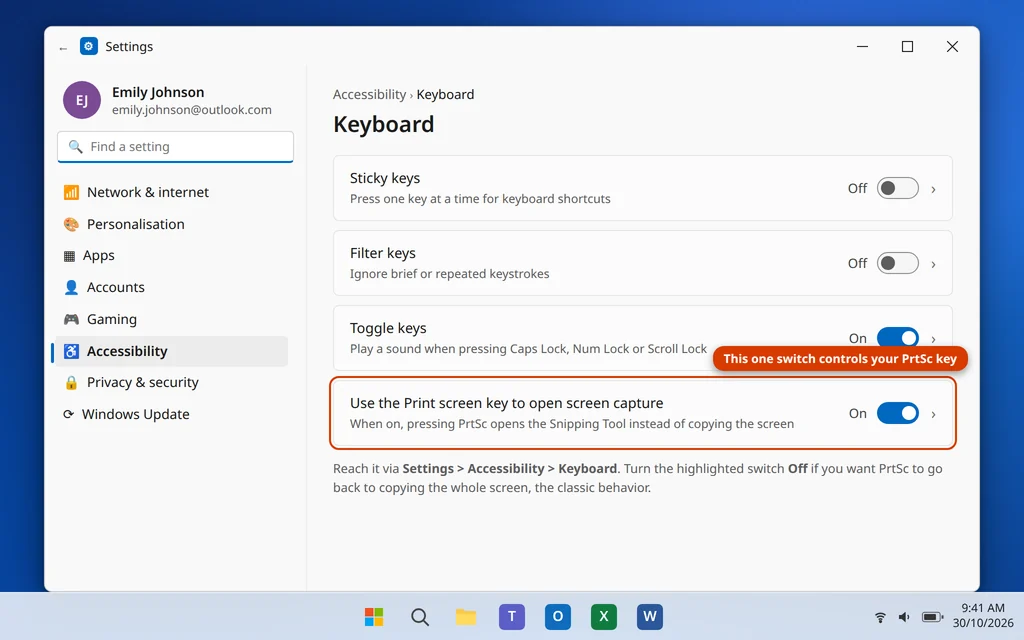
On many PCs — and on most laptops — pressing PrtSc alone opens the Snipping Tool instead of copying the screen. Microsoft has been switching this default over, but you can pick whichever behavior you prefer:
- Open Settings (Windows key + I).
- Go to Accessibility > Keyboard.
- Find “Use the Print screen key to open screen capture” and turn it On (PrtSc acts like Win + Shift + S and opens the snip bar) or Off (PrtSc copies the whole screen to the clipboard, the classic behavior).
- Restart any app that was open if the change does not apply straight away.
One related tip: if your keyboard has no PrtSc key at all (some compact keyboards do not), Win + Shift + S still works — it needs no special key.
PrtSc Not Working? Quick Checks
- Try Fn + PrtSc. On most laptops the Print Screen function shares a key, and the Fn key is required. Some laptops use Fn + the Windows key + Spacebar — check the tiny icons printed on your keys.
- Check for the dim flash. With Win + PrtSc, a brief dim means it worked; go straight to Pictures > Screenshots before assuming it failed.
- Test the clipboard. Press PrtSc, open Paint, and press Ctrl + V. If the screenshot appears, the key works — you were just looking in a folder it never uses.
- Restart the Snipping Tool. If Win + Shift + S does nothing, open Settings > Apps > Installed apps > Snipping Tool > Advanced options and click Repair. Also check the PrtSc toggle above is set the way you expect.
- Game Bar silent? Win + Alt + PrtSc does nothing unless Game Bar is enabled in Settings > Gaming > Game Bar, and it never captures the desktop — use Win + PrtSc there instead.
Frequently Asked Questions
Where are screenshots saved on Windows 11?
It depends on the method. Win + PrtSc and Win + Shift + S save PNG files in Pictures > Screenshots. Game Bar screenshots go to Videos > Captures. Plain PrtSc and Alt + PrtSc do not save a file at all — the screenshot sits on your clipboard until you paste it with Ctrl + V.
What is the fastest screenshot shortcut on Windows 11?
Windows key + Shift + S. One shortcut, drag over the area, done — and it both copies the snip and saves the file. If you specifically want the full screen as a file with zero interaction, Windows key + PrtSc is one step fewer.
How do I screenshot only one window?
Click the window first so it is active, then press Alt + PrtSc and paste with Ctrl + V. Or press Win + Shift + S, choose Window mode in the Snipping Tool bar, and click the window — that version is also saved as a file.
How do I take a screenshot if my keyboard has no PrtSc key?
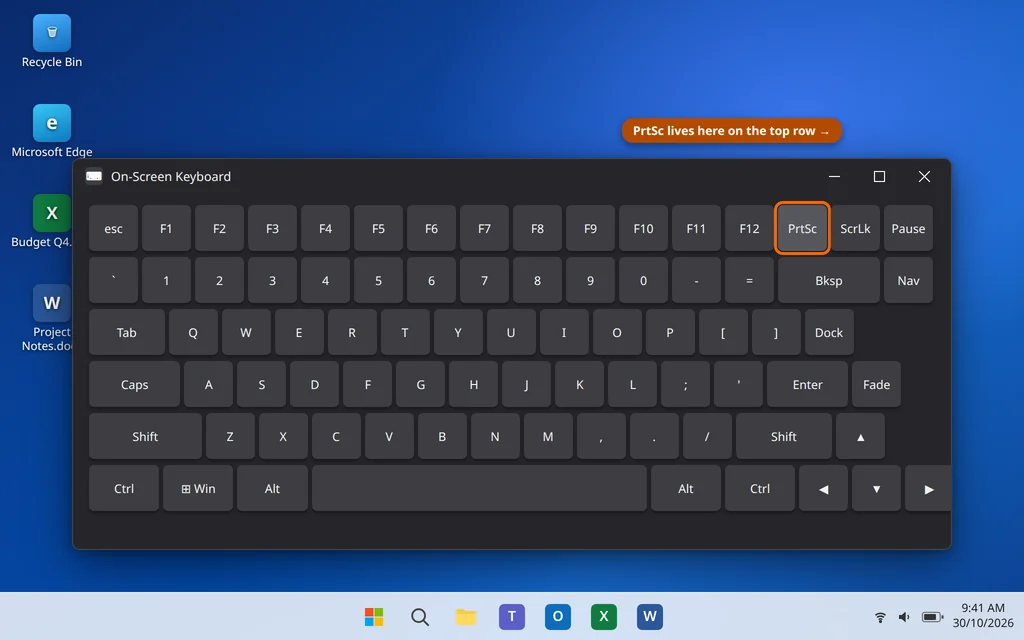
Use Windows key + Shift + S — it needs no special key. You can also open the Snipping Tool app from Start, or use the On-Screen Keyboard (Start > On-Screen Keyboard), which has a PrtSc key you can click. Some laptops also offer Fn + Windows key + Spacebar.
Why does pressing PrtSc open the Snipping Tool instead of copying the screen?
Because the setting “Use the Print screen key to open screen capture” is turned on. Change it in Settings > Accessibility > Keyboard — turn it off and PrtSc goes back to copying the whole screen to the clipboard.
Can I screenshot a menu that disappears when I click?
Yes — that is what the Snipping Tool’s delay is for. Open the Snipping Tool app, set the delay to 3, 5 or 10 seconds, click New, then open your menu. When the countdown ends, the snip is taken with the menu still open.
How do I take a screenshot in a game?
Press Windows key + Alt + PrtSc for an instant Game Bar screenshot, saved to Videos > Captures — or press Windows key + G and click the camera icon in the Capture widget. If nothing happens, make sure Game Bar is on in Settings > Gaming > Game Bar.
Want more Windows 11 shortcuts and hidden features? See our guide to 15 Windows 11 tips and tricks for clipboard history, Snap Layouts, voice typing and more. Still having screenshot trouble, or PrtSc not working at all? Tell us your laptop or keyboard model on our Contact page — servicedesk@howtofixerroronline.com, available 24 hours.