
Contacts Disappeared From iPhone? 8 Ways to Get Them Back
You open Contacts to call someone, and the list that used to hold hundreds of names is suddenly showing a handful — or nothing at all. It is one of the most panicky moments in phone life, because those names and numbers feel irreplaceable. If your contacts disappeared from iPhone, take a breath before anything else: in the great majority of cases, they are not deleted. They are hidden by a filter, switched off with an account, or sitting safely in iCloud waiting to sync back.
Contacts on an iPhone are rarely stored “in the phone” the way people imagine. They live in an account — iCloud, Gmail, Outlook or another email account — and the phone simply displays what those accounts send it. When an update or a setting change interrupts that display, the contacts vanish from view while the originals stay untouched on the server. That is why the ways below start with display and sync checks, not drastic restores.
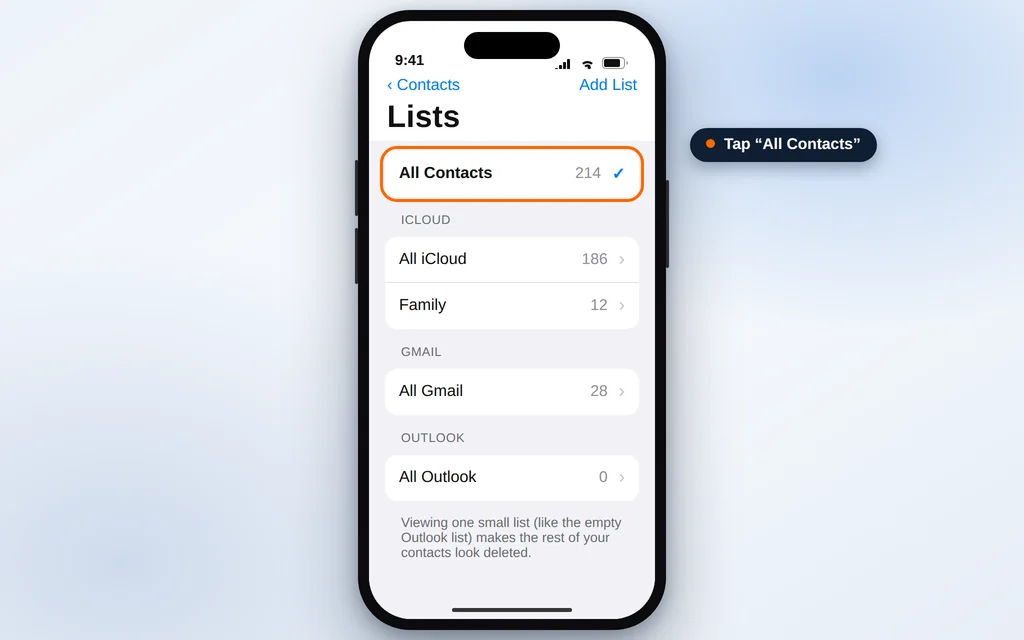
Quick Answer: First check Groups — open Contacts, tap Lists (top left) and choose All Contacts; a single hidden or selected group makes contacts look deleted when they are not. Next, go to Settings > your name > iCloud > See All and make sure Contacts is switched on, and check the Contacts toggle inside your Gmail/Outlook accounts too. Still missing? Restore an older contacts archive at iCloud.com > iCloud Settings > Data Recovery > Restore Contacts.
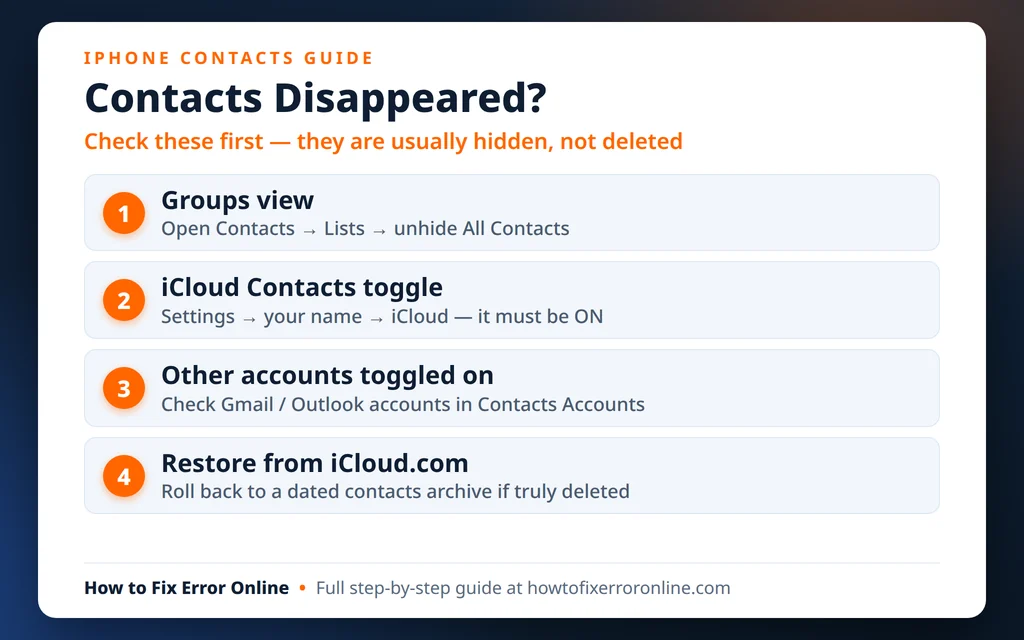
Table of Contents
Why Do Contacts Disappear From an iPhone?
Understanding where your contacts actually live makes the rest of this guide much less scary:
- A group or list is filtered. The Contacts app can show one list at a time. If you are viewing an empty list — a new Gmail list, for example — your iCloud contacts look gone even though they are all still there.
- The iCloud Contacts switch got turned off. iOS updates, signing out of iCloud, or a “helpful” cleanup can flip this switch. The contacts stay in iCloud but stop appearing on the phone.
- An email account stopped syncing contacts. Contacts saved to Gmail, Outlook or a work account only appear while that account is signed in with its Contacts toggle on. A changed password can silently break it.
- A sync glitch. Sometimes everything is switched on and the download from the server simply stalls halfway. Forcing a fresh sync (Way 4) clears it.
- Contacts really were deleted. This is the least common cause — and even then, iCloud keeps restorable archives of your contacts for a period of time, which is what Way 6 is for.
One important myth to clear up now: modern iPhones do not store contacts on the SIM card. iOS has never saved new contacts to a SIM — contacts live in accounts and sync over the internet. So if your contacts vanished, a SIM swap is almost certainly not the cause (Way 7 covers the one exception).
Way 1: Unhide Your Contact Groups and Lists
This is the single most common cause, and it takes ten seconds to check. The Contacts app may be showing you one small list instead of everything.
- Open the Contacts app (or open Phone and tap the Contacts tab).
- Tap Lists in the top-left corner. (On older iOS versions in the Phone app, this button is called Groups and shows checkmarks instead.)
- Tap All Contacts at the top.
- Go back and look at your list.
If your full list reappears, you were simply viewing one account’s list — nothing was ever deleted. On the older Groups screen, the same thing happens when a group gets unchecked: tap Show All Contacts to bring everything back.
Way 2: Search the Right Way Before You Panic
Before changing any settings, prove whether the contacts are truly missing or just not where you are looking.
- In the Contacts app, pull the list down to reveal the search field at the top and type the person’s name.
- Try both a first name and a surname — the contact may be saved under a different name order than you remember.
- Also search inside the account’s own home: if the contact was saved to Gmail, check contacts.google.com in a browser; if it was an Outlook contact, check outlook.com > People.
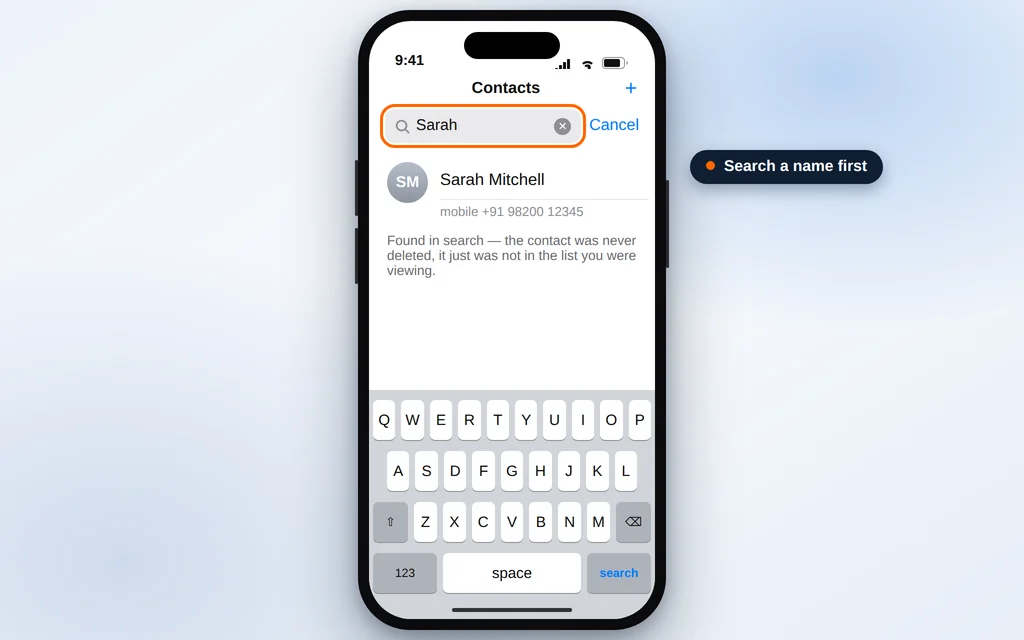
If the person shows up in search, your contacts exist — the problem is display or grouping, so Ways 1, 3 and 5 are your answer. If they do not appear anywhere, including on the account’s website, move through the rest of the guide in order.
Way 3: Make Sure iCloud Contacts Is Switched On
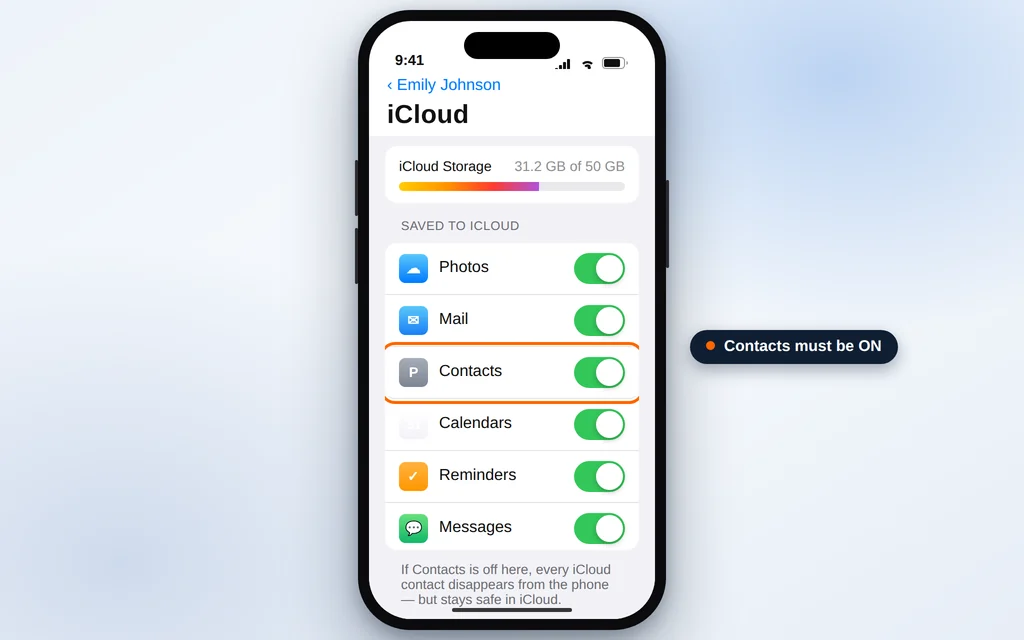
Most iPhone contacts live in iCloud. If the iCloud Contacts switch is off, every one of them disappears from the phone at once — while remaining perfectly safe in your iCloud account.
- Open Settings and tap your name at the very top.
- Tap iCloud.
- Tap See All (or Show All) next to “Apps Using iCloud”.
- Find Contacts in the list and make sure its switch is green (on).
- If it was off, turn it on. When asked what to do with the contacts already on your iPhone, tap Merge.
- Connect to Wi-Fi, wait a few minutes, and check the Contacts app.
While you are on this screen, also confirm you are signed in to the right Apple Account — if the phone was recently set up with a different Apple ID, it will faithfully sync that account’s (empty) contacts instead of yours.
Way 4: Turn iCloud Contacts Off and Back On to Force a Fresh Sync
If the switch is already on but the contacts still have not come back, the sync itself may be stuck. Restarting it makes the phone download a fresh copy of your iCloud contacts.
- Go to Settings > your name > iCloud > See All > Contacts.
- Turn Contacts off. You will be asked what to do with the previously synced iCloud contacts on this iPhone — tap Keep on My iPhone. (This keeps a local copy while the link is reset.)
- Restart your iPhone — hold the side button and a volume button, slide to power off, wait 30 seconds, and turn it back on.
- Return to the same screen and turn Contacts back on.
- If asked about existing local contacts, tap Merge.
- Stay on Wi-Fi and give it several minutes — a large address book downloads gradually, alphabetically, so check a few letters before deciding it failed.
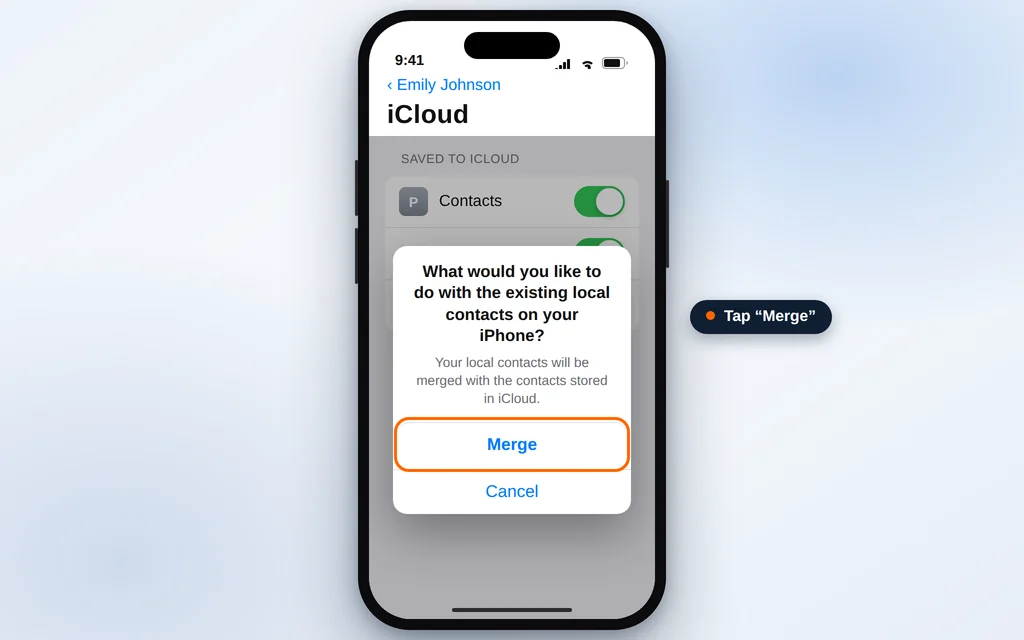
This off-and-on cycle fixes most “everything is switched on but nothing syncs” cases, because it rebuilds the sync from scratch instead of resuming a stalled one.
Way 5: Check Your Other Accounts — and Re-Add One If Needed
Not all contacts come from iCloud. If you have ever added Gmail, Outlook, Yahoo or a work/school account to your iPhone, some contacts live there — and they disappear the moment that account’s Contacts switch is off or its sign-in breaks. This is the same principle behind contacts going missing in Outlook, which our Outlook contacts not syncing or missing guide covers from the desktop side.
- Go to Settings > Apps > Contacts > Contacts Accounts (on older iOS: Settings > Contacts > Accounts).
- You will see every account that can hold contacts — iCloud, Gmail, Outlook and so on.
- Tap each account and check that its Contacts toggle is on.
- If an account shows a sign-in error or keeps asking for a password, that is your culprit: its contacts vanished because the account can no longer sync.
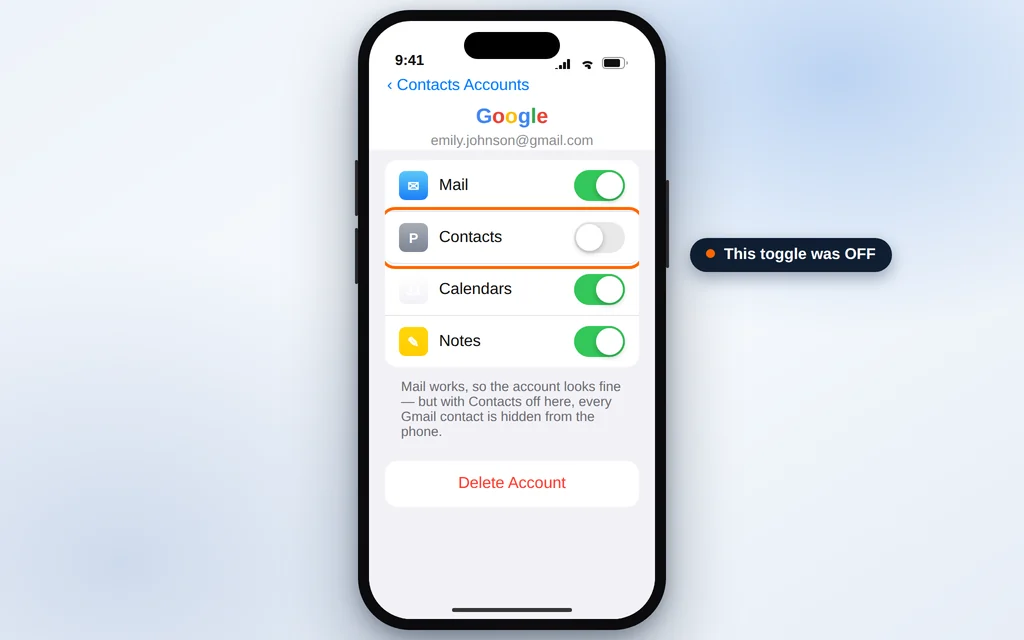
If an account’s toggle is on but its contacts are still missing, re-add the account:
- In Contacts Accounts, tap the account, then Delete Account. (This removes it from the phone only — the contacts stay safe in the account itself.)
- Restart the iPhone.
- Go back to Contacts Accounts > Add Account, choose the provider, and sign in again.
- Make sure Contacts is switched on during setup, and give it a few minutes on Wi-Fi to sync.
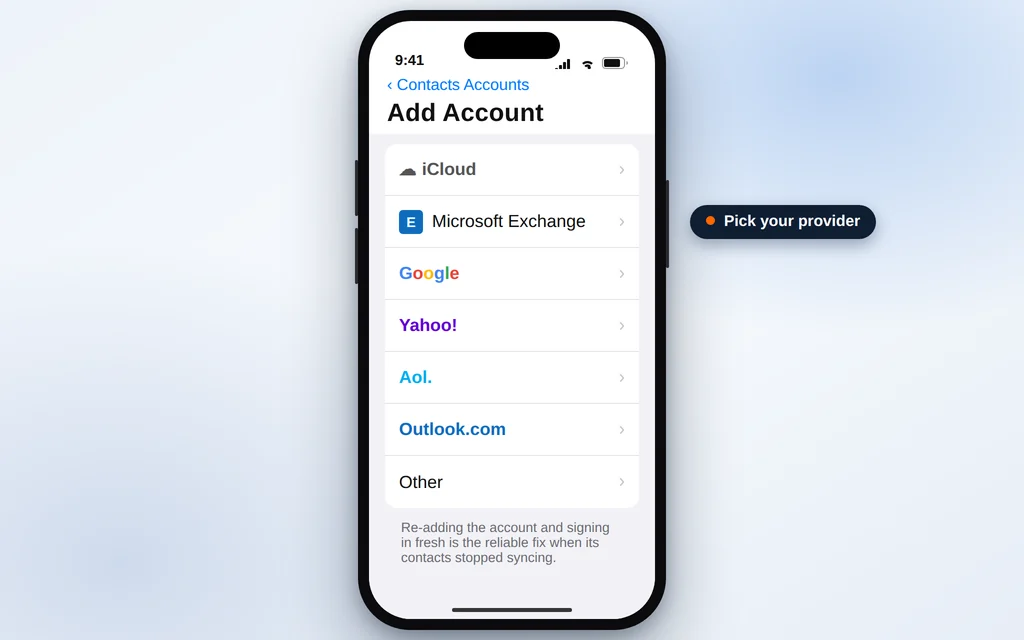
Way 6: Restore an Older Contacts Archive on iCloud.com
If contacts really were deleted — by you, by a family member sharing the account, or by a bad sync from another device — Apple quietly keeps dated backup archives of your contacts, and you can roll back to one. This is done on a computer (or in a desktop browser), not in the iPhone Settings.
- On a computer, go to icloud.com and sign in with your Apple Account.
- Click your name/profile and open iCloud Settings (or go directly to icloud.com/contacts, then open Settings from your profile menu).
- Find Data Recovery and click Restore Contacts.
- You will see a list of archives with dates. Choose one from before the day the contacts disappeared.
- Click Restore next to it and confirm.
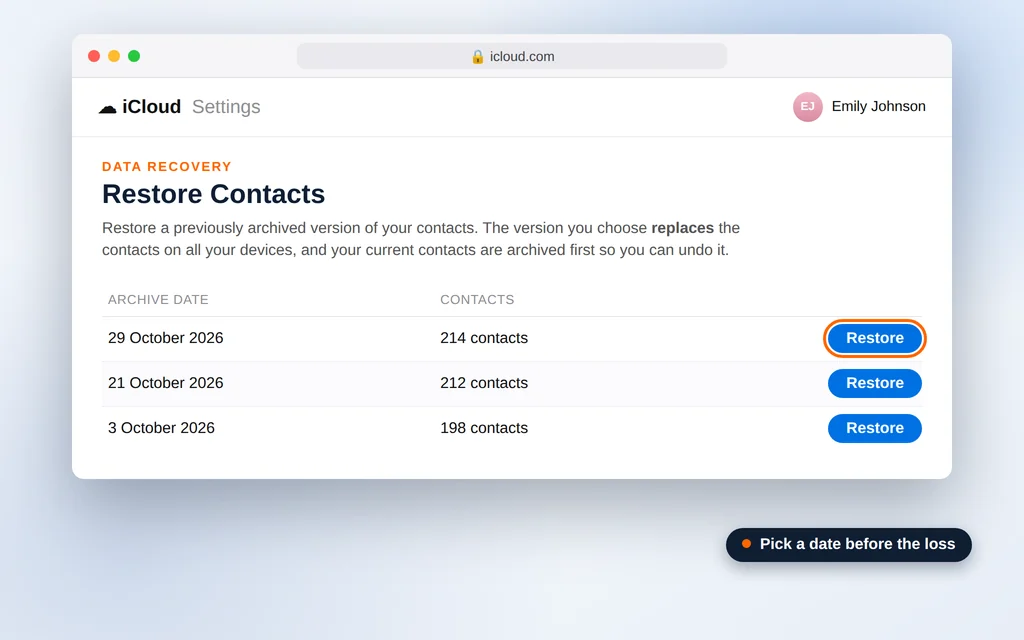
Read this before you restore: the archive replaces the contacts on your iPhone and every device signed in to your iCloud — it does not merge. Any contact you added after the archive date will be removed when you restore. The safety net is that iCloud automatically archives your current contacts first, so if you restore the wrong date, you can restore back again from the list. Because of this replace-not-merge behavior, try Ways 1–5 first and treat this as the recovery step, not the first step.
Way 7: Recently Changed SIM or eSIM? The Honest Truth
After a SIM change or a new eSIM, many people assume their contacts were “on the SIM” and are now lost. Here is the honest picture:
- iOS does not store your contacts on the SIM card, and it never has. Contacts you create on an iPhone go to iCloud or an email account. Changing SIMs or eSIMs changes your phone number — it does not touch your contacts. If contacts vanished at the same time as a SIM change, the real cause is almost always one of Ways 1–5 (something else was reset during the change).
- The one exception: if you moved to iPhone from an Android phone or a much older handset, some contacts may genuinely still live on the old physical SIM. iPhone can copy those off it: go to Settings > Apps > Contacts and tap Import SIM Contacts, then choose the account to import them into.
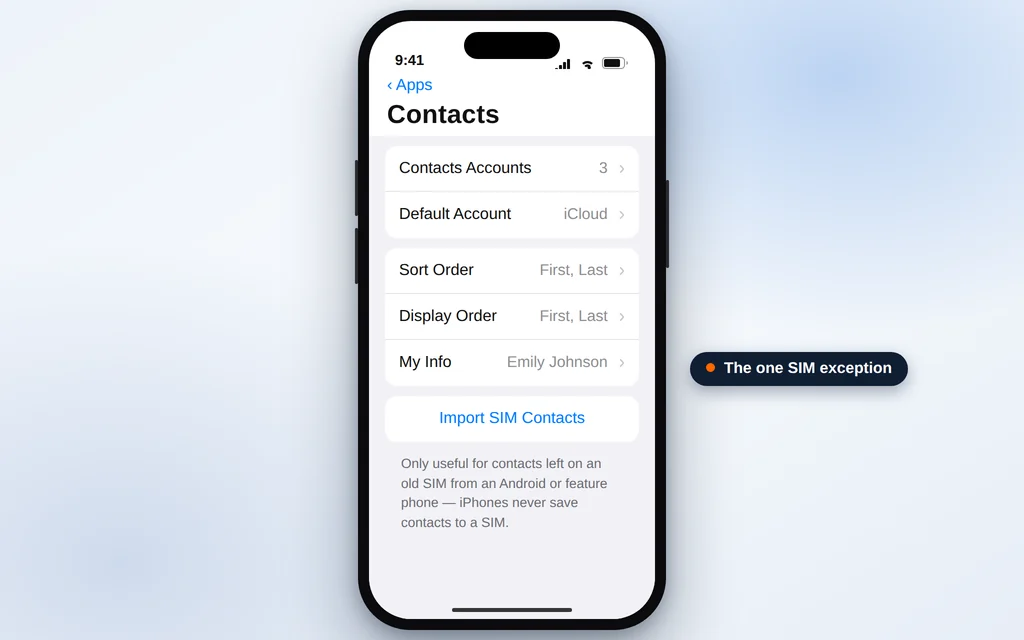
If you no longer have the old SIM, those specific numbers cannot be recovered from the carrier — carriers do not keep copies of your address book. Check the old phone itself, or the Google account that was on it (contacts.google.com), which is where Android contacts usually live.
Way 8: Restore the Whole iPhone From a Backup — The Last Resort
If nothing above worked and you know your contacts existed at some earlier date, restoring the entire phone from an iCloud or computer backup made before the loss will bring that era’s contacts back with it.
- First, back up your iPhone right now (Settings > your name > iCloud > iCloud Backup > Back Up Now, or back up to a computer). Restoring erases the phone, and you will want a way back to today if the old backup disappoints.
- Go to Settings > General > Transfer or Reset iPhone > Erase All Content and Settings, and follow the prompts.
- During setup, on the Apps & Data screen, choose Restore from iCloud Backup (or Restore from Mac/PC if your backup is on a computer).
- Sign in and pick the backup from before the contacts disappeared.
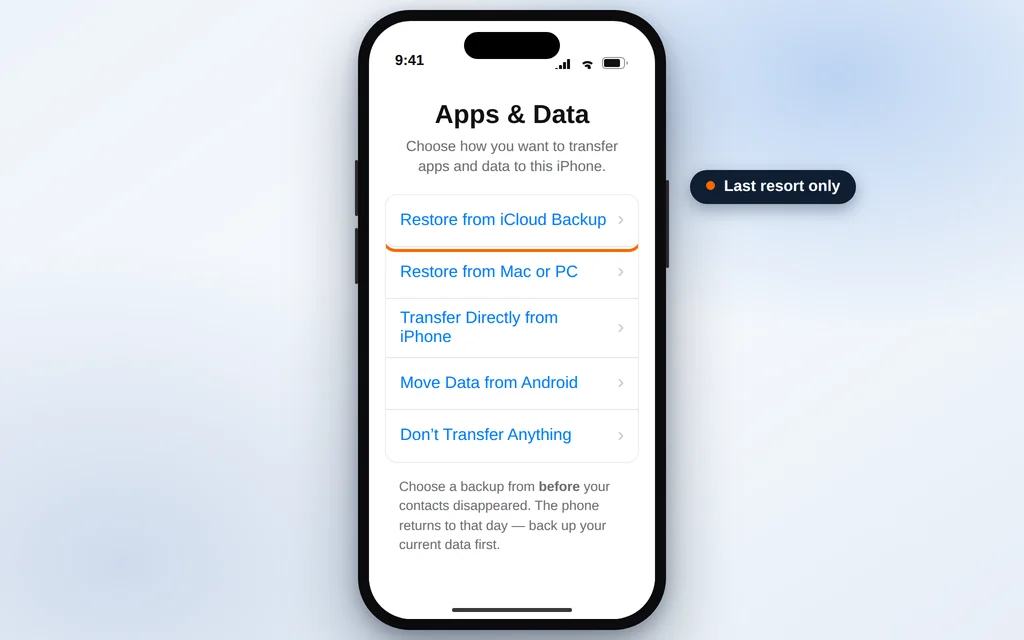
The honest warning: this does not surgically restore contacts — it turns the whole phone back to the day of that backup. Photos, messages, chats and app data created after the backup date will be gone unless they sync from their own accounts (iCloud Photos, iCloud Messages and WhatsApp’s own backup do come back separately if they were on). That is exactly why this is Way 8 and not Way 1: use it only when the contacts matter more than everything created since the backup, and never skip the fresh backup in step 1.
How to Keep Your Contacts Safe From Now On
- Pick one home for your contacts and stick to it. Most losses happen when contacts are scattered across iCloud, Gmail and Outlook with half the toggles off. iCloud is the natural home on an iPhone — check Settings > Apps > Contacts > Contacts Accounts and make sure new contacts default there.
- Keep the iCloud Contacts toggle on and check it after big iOS updates or whenever you sign in or out of accounts.
- Export a copy once in a while. On icloud.com/contacts you can select all contacts and export a vCard file — one small file that holds your whole address book. Save it in email or cloud storage; it takes a minute and makes any future loss a non-event.
- Turn on iCloud Backup (Settings > your name > iCloud > iCloud Backup) so a recent backup always exists if you ever need Way 8.
- Be careful with “cleaner” and duplicate-remover apps. Granting a third-party app access to contacts and letting it merge or delete in bulk is one of the few ways contacts genuinely do get deleted.
- Before selling or wiping a phone, check your contacts on icloud.com from another device first — confirm they live in the account, not only on the handset you are about to erase.
Frequently Asked Questions
Are my contacts really deleted, or just hidden?
Usually hidden. The most common causes are a filtered group/list (Way 1), the iCloud Contacts toggle being off (Way 3), or an email account that stopped syncing (Way 5). True deletion is rare — and even then, the iCloud restore archives in Way 6 can often bring them back.
My contacts disappeared after an iOS update. Why?
Updates occasionally reset account sync states or sign an account out, which flips a Contacts toggle off behind the scenes. Your contacts stay in iCloud or your email account; turning the toggle back on (Way 3) or forcing a fresh sync (Way 4) restores them.
Can I recover contacts without a backup?
Often, yes. If the contacts were in iCloud, the Restore Contacts archives at iCloud.com (Way 6) work independently of device backups. If they belonged to Gmail or Outlook, they usually still exist on that account’s website — contacts.google.com or outlook.com > People — and re-adding the account (Way 5) brings them back.
Does restoring contacts from iCloud.com delete my newer contacts?
Yes — that is the part to understand before you click Restore. The archive replaces your current contacts on all your devices, so contacts added after the archive date disappear. iCloud does automatically archive your current set first, so you can undo it by restoring that newer archive, but try Ways 1–5 before using it.
Were my contacts stored on my SIM card?
Almost certainly not. iPhones have never saved contacts to a SIM — contacts live in iCloud or an email account and sync over the internet. The only exception is contacts left on an old SIM from an Android or feature phone, which you can copy across with Settings > Apps > Contacts > Import SIM Contacts (Way 7).
Only some contacts are missing, not all of them. What does that mean?
A partial loss usually means the missing names belonged to one specific account or list. If all your iCloud names are there but work contacts are gone, for example, it is that one account’s toggle, sign-in or list filter — Ways 1 and 5 are where to look.
How long does iCloud keep restorable contact archives?
Apple does not promise an exact period — the list in Restore Contacts is simply what is available for your account, so check sooner rather than later if you believe contacts were truly deleted.
Contacts still missing after all 8 ways? Tell us what changed just before they disappeared — an update, a new SIM, a new phone — on our Contact page: servicedesk@howtofixerroronline.com, available 24 hours. And if the missing names are on the desktop side instead, our guide to Outlook contacts not syncing or missing covers the same account-toggle checks for Outlook.