
iPhone Calendar Not Syncing? 8 Fixes That Work
You add an appointment on your iPhone and it never appears on your iPad, your computer, or the web. Or it works the other way around: events your colleagues send you, or that you created hours ago on another device, simply never show up on the phone. When your iPhone calendar is not syncing, the calendar itself usually is not broken — one small setting has quietly stopped your events from traveling between your phone and your account.
That is good news, because settings are quick to check. In most cases the cause is one of five things: the iCloud Calendars toggle is off, the wrong calendar is set as default, the account fetches manually, the account connection has gone stale, or a temporary iOS glitch is blocking the refresh. The fixes below go through them in order, from two-minute checks to heavier resets, and cover iCloud, Google and Outlook accounts.
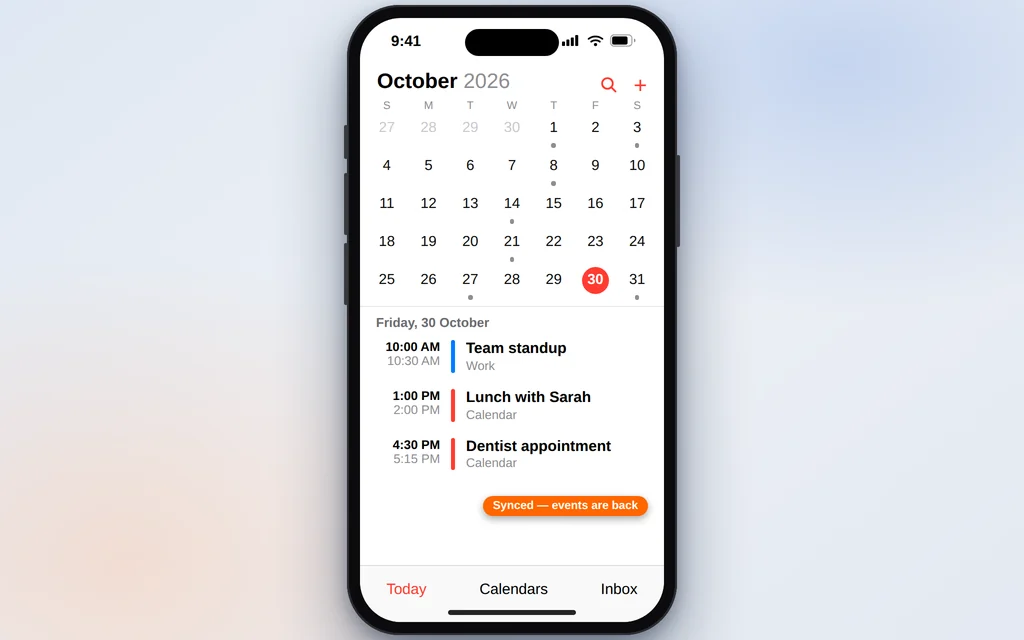
Work through them in order and test after each one — add a test event called “Sync test”, wait a minute, and check whether it appears in your calendar on the web (icloud.com/calendar, Google Calendar, or Outlook on the web). The moment it does, you are done.
Quick Answer: For iPhone calendar not syncing, start with Settings > your name > iCloud > Show All and make sure iCloud Calendar is turned on. Then open the Calendar app, tap Calendars, and confirm your calendars are checked. Next, check Settings > Apps > Calendar > Calendar Accounts > Fetch New Data is set to Push or Fetch Automatically — never Manual. Still stuck? Turn iCloud Calendar off (choose Keep on My iPhone), wait a minute, turn it back on, and restart the iPhone.
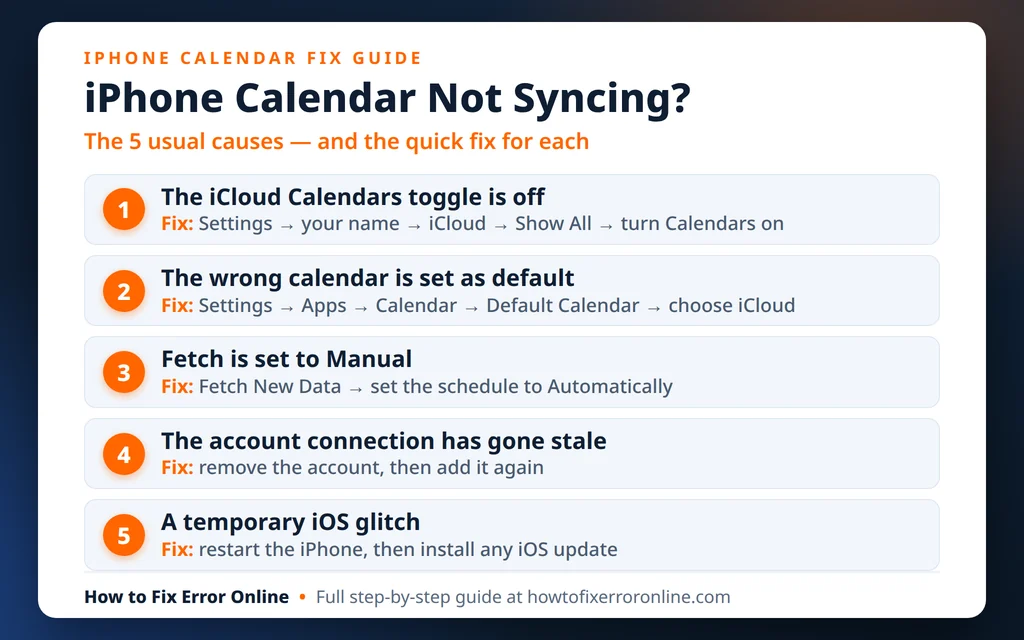
Table of Contents
Why Is Your iPhone Calendar Not Syncing?
Your iPhone does not keep one calendar — it keeps several, one per account. Your events live on a server (Apple’s iCloud, Google, or Microsoft) and your phone constantly exchanges updates with that server. Sync stops when any link in that chain breaks:
- iCloud Calendars is switched off. If the toggle is off, your iPhone stops exchanging events with iCloud entirely. It can get switched off during an iOS update or when you sign out and back in.
- You are looking at — or adding to — the wrong calendar. Events may be syncing perfectly, but into a calendar that is hidden in the app, or your new events are being saved to an “On My iPhone” calendar that never leaves the phone.
- Fetch is set to Manual. Accounts that cannot use Push only update when the phone checks. Set to Manual, it only checks when you open the app — or not at all.
- The account connection has gone stale. A changed password, an expired sign-in, or a server-side change can leave the account connected on paper but no longer actually exchanging data.
- A plain iOS glitch. After updates or long uptime, the background sync process can stall until the phone restarts.
One quick test before you start: open your calendar on the web — icloud.com/calendar, calendar.google.com, or outlook.com — and check whether the missing event is there. If it is on the web but not the phone, the event is safe and the problem is the phone’s connection, which is what these fixes repair. If it is missing everywhere, it was probably added to a local calendar on another device — check Fix 2 there.
Fix 1: Make Sure iCloud Calendar Is Turned On
This is the single most common cause, and the first thing to check if you use iCloud for your calendar. If this toggle is off, nothing else in this guide will help until it is back on.
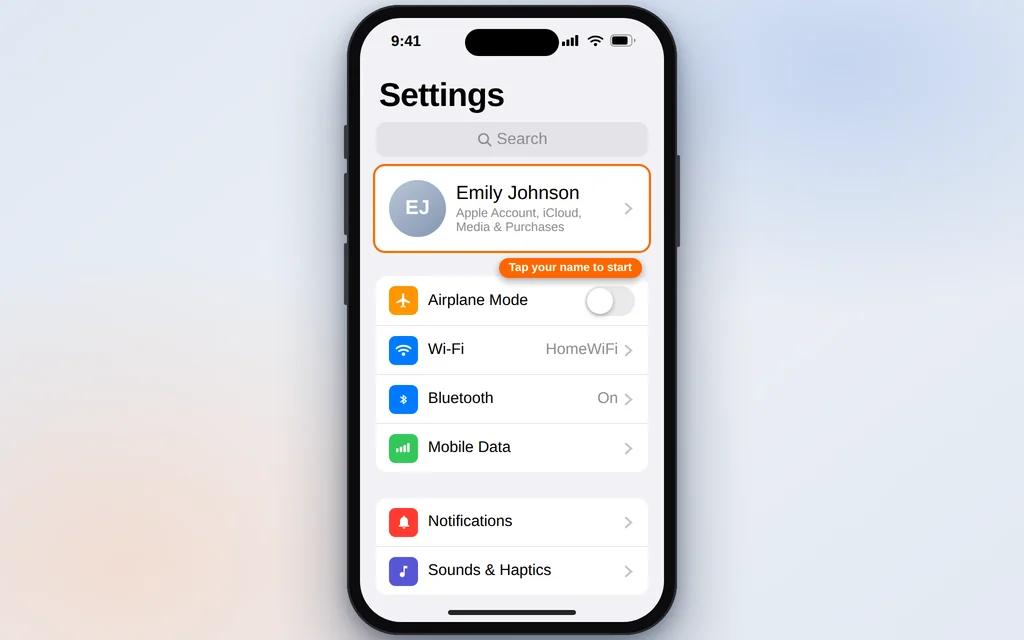
- Open Settings and tap your name at the very top — the card with your photo or initials.
- Tap iCloud.
- Under Apps Using iCloud, tap Show All.
- Tap iCloud Calendar (on older iOS versions it is listed simply as Calendars).
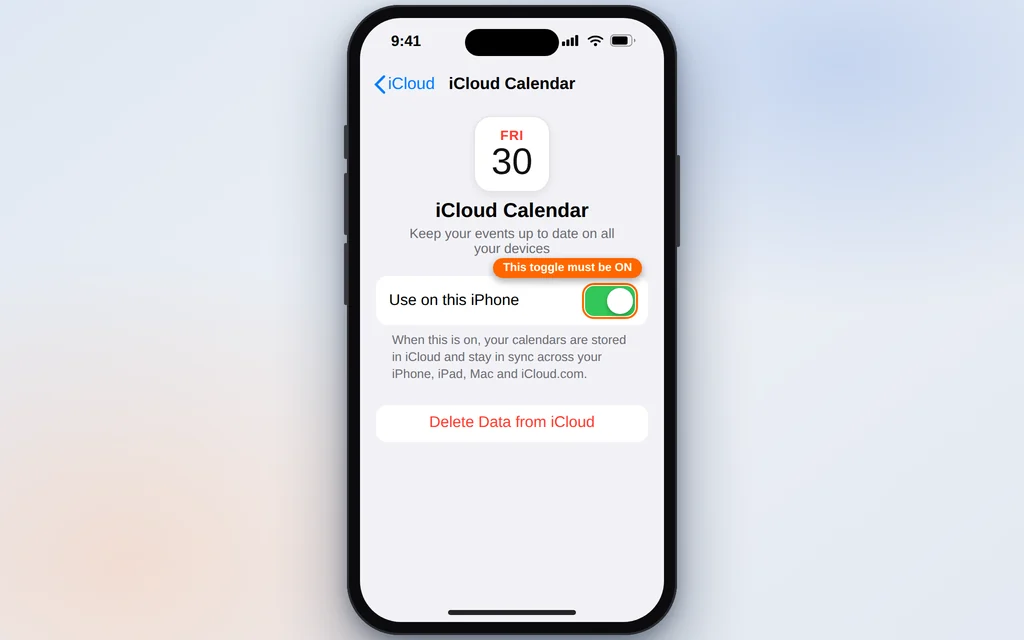
- Make sure Use on this iPhone is switched on. On older versions, where the toggle sits directly in the list, just check that one is on instead.
If it was off, turn it on, open the Calendar app, and give it a few minutes — a backlog of events can take a little while to flow through. If it was already on, leave it for now (Fix 3 revisits it) and check the calendar selection next.
Google or Outlook user? This toggle only controls iCloud. Your equivalent check is Fix 4 and Fix 7 — but still read Fix 2, because the wrong-calendar problem affects every account type.
Fix 2: Check the Right Calendars Are Selected — and the Default Calendar
Sometimes sync is working fine and the events are simply landing somewhere you are not looking — or new events are being saved to a calendar that never syncs at all.
First, check which calendars are visible:
- Open the Calendar app.
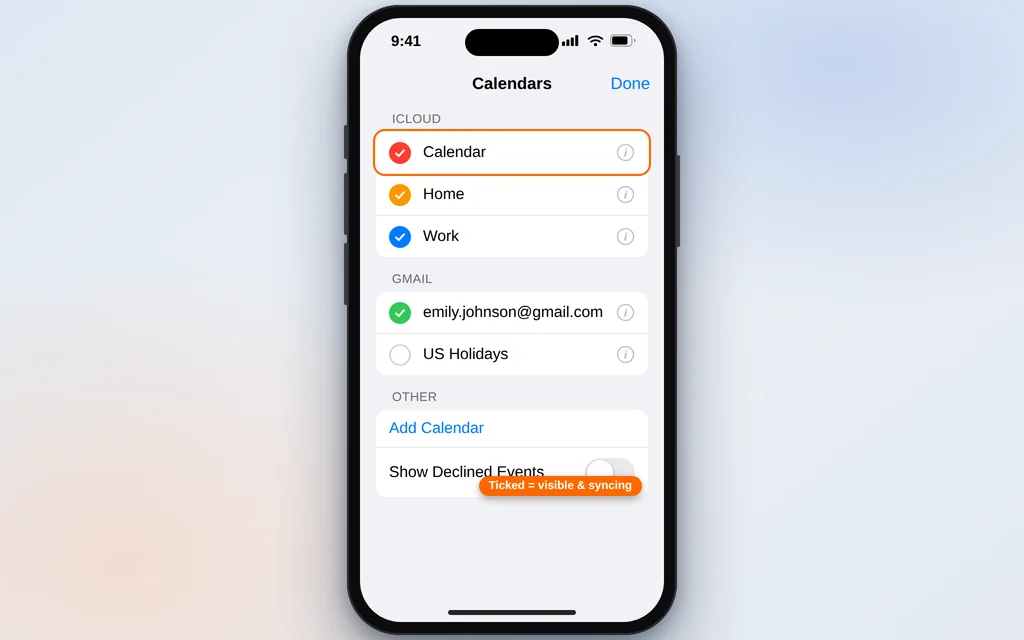
- Tap Calendars at the bottom of the screen.
- Make sure every calendar under your account (iCloud, Gmail, Outlook) has a check in its colored circle. An unchecked calendar is hidden, and its events will look exactly like a sync failure.
- Tap Done.
Then check where new events are saved:
- Go to Settings > Apps > Calendar > Default Calendar. (On iOS 17 and earlier, app settings were not grouped under Apps — go to Settings > Calendar > Default Calendar instead.)
- Set it to a calendar inside your syncing account — for example your iCloud Calendar — and not to anything labeled On My iPhone.
That second check matters: events saved to an “On My iPhone” calendar never reach your other devices or the web, no matter how healthy sync is.
Fix 3: Turn iCloud Calendar Off and Back On
If the toggle was already on but events still do not move, switching it off and on forces your iPhone to tear down the iCloud calendar connection and rebuild it — which clears most stubborn stalls.
- Go to Settings > your name > iCloud > Show All > iCloud Calendar.
- Switch Use on this iPhone off.
- iOS asks what to do with the calendars already on the phone. Tap Keep on My iPhone — this keeps your existing events on the device while the connection resets. (The other option, Delete from My iPhone, only removes the local copies; the events remain in iCloud, but there is no need to use it here.)
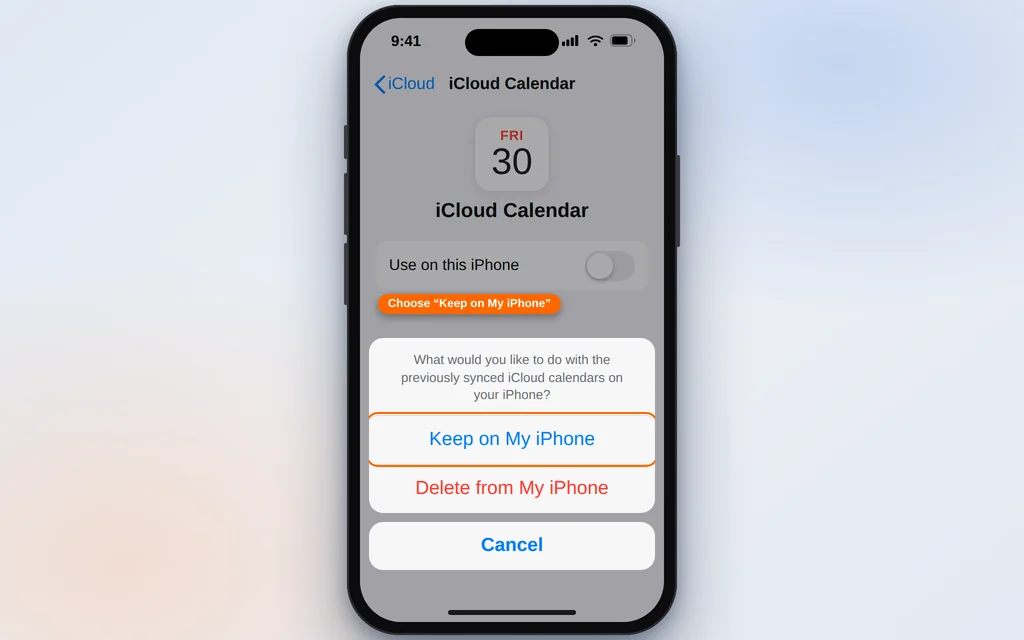
- Wait a full minute.
- Switch Use on this iPhone back on.
- Open the Calendar app and give it a few minutes to re-sync. If the app asks whether to merge, choose Merge.
This fix is iCloud-only. For Google and Outlook accounts, the equivalent reset is removing and re-adding the account in Fix 7.
Fix 4: Check Fetch and Push Settings
Accounts sync in one of two ways: Push, where the server sends new events to your phone the moment they happen, or Fetch, where the phone checks on a schedule. If Fetch is set to Manual, your calendar only updates when you open the app and refresh it yourself — which feels exactly like it is not syncing.
- Go to Settings > Apps > Calendar > Calendar Accounts > Fetch New Data. (On iOS 17 and earlier: Settings > Calendar > Accounts > Fetch New Data.)
- Turn Push on at the top.
- Look at each account: iCloud can use Push. Gmail and most Outlook accounts will say Fetch — that is normal, because Google does not offer Push to the built-in iOS apps.
- Scroll to the Fetch schedule at the bottom and choose Automatically. Avoid Manually, and avoid long intervals if you rely on timely invites.
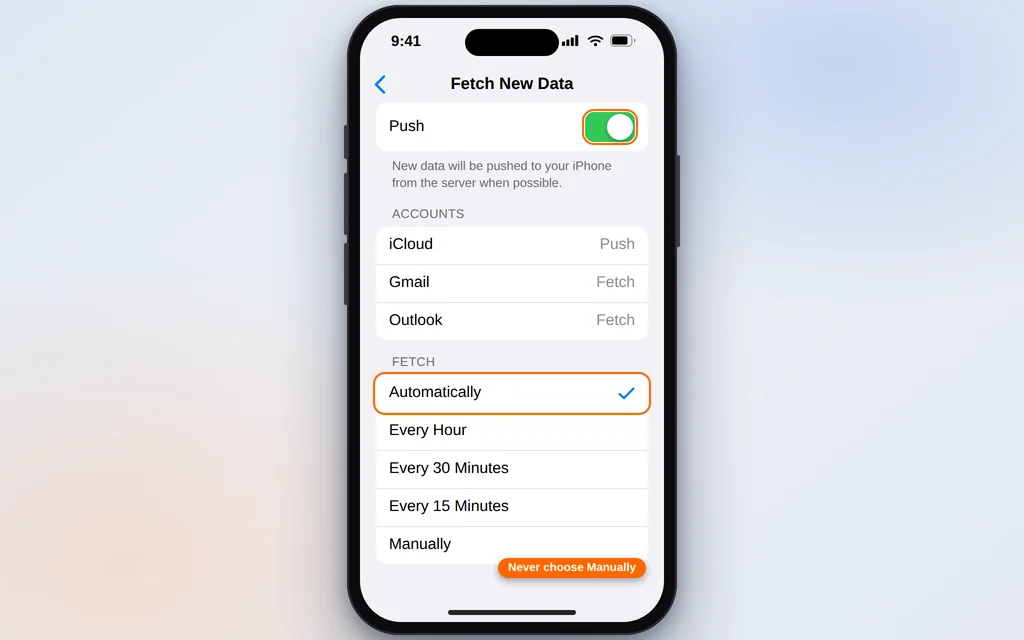
With Automatically selected, events typically appear within minutes rather than whenever you remember to look.
Fix 5: Refresh the Calendar App Manually
If everything is set correctly but the phone is showing old data, force a refresh. This is the quickest fix in the guide and the one to try whenever a single invite seems late.
- Open the Calendar app.
- Tap Calendars at the bottom.
- Pull the list down and release — like refreshing a feed. You will see a spinning indicator while the app talks to your accounts.
- Tap Done and check for your event.
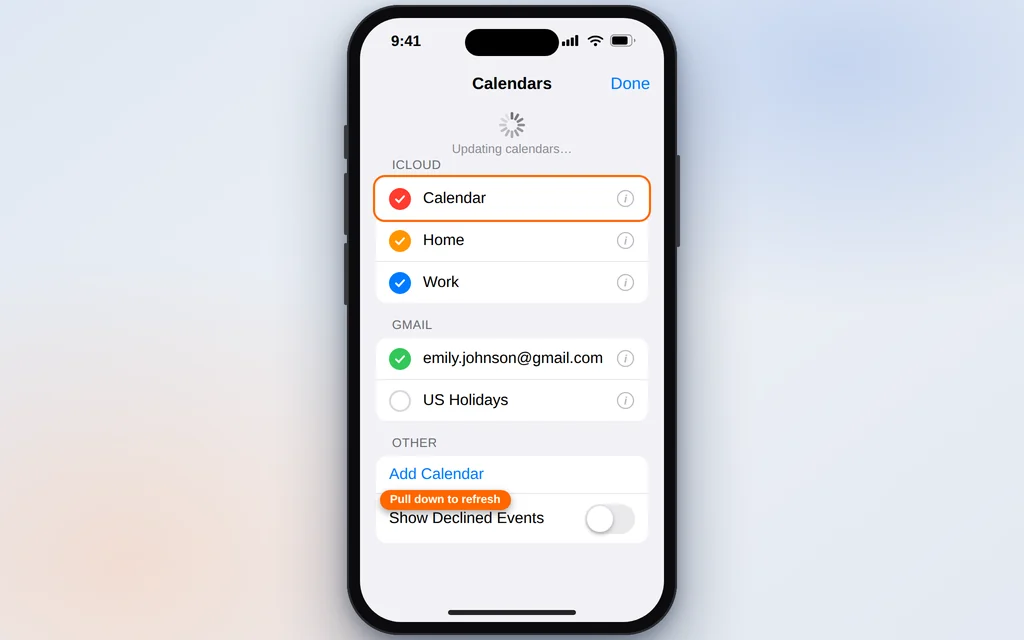
Quitting the app fully (from the app switcher) and reopening it restarts the same refresh. If events only ever arrive after a manual refresh, the real cause is almost always the Fetch setting in Fix 4.
Fix 6: Set Date and Time to Automatic
Calendar sync depends on your phone and the server agreeing on what time it is. If your iPhone’s clock is set manually and has drifted — or is simply wrong after traveling — sync can fail quietly, and events can also appear on the wrong day.
- Go to Settings > General > Date & Time.
- Make sure Set Automatically is switched on.
- Check that the Time Zone shown underneath is where you actually are.
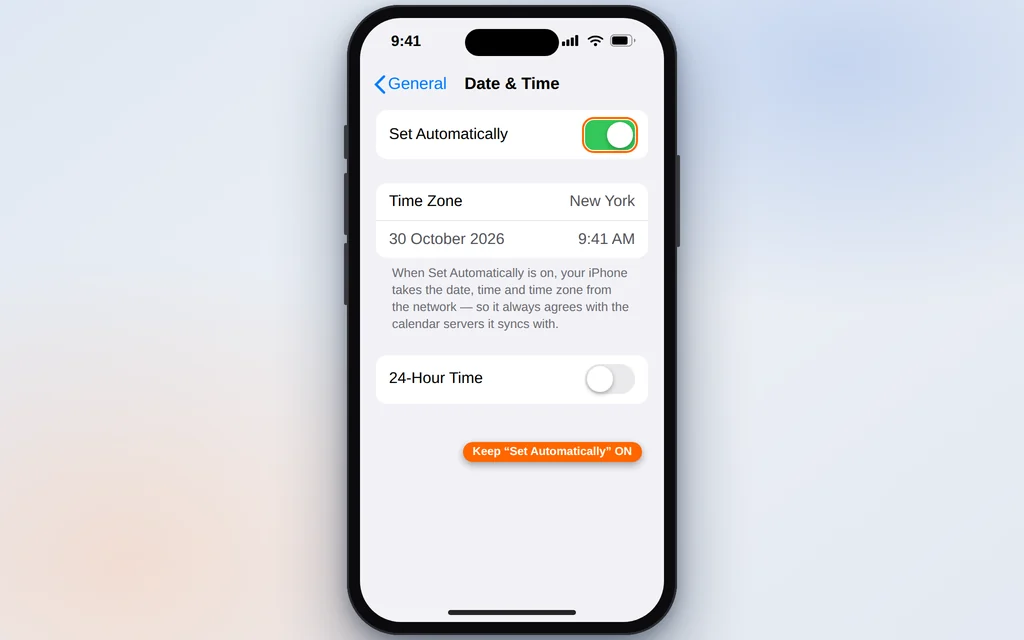
If Set Automatically was already on, leave it — and if the time zone is wrong even with it on, a restart (Fix 8) usually makes the phone pick up the right one from the network.
Fix 7: Remove and Re-Add the Problem Account
When a Google or Outlook account’s connection has gone stale — typically after a password change — no setting on the phone will fix it, because the phone is knocking on the door with an old key. Removing the account and adding it again builds a fresh connection. Your events live on the server, so they are not deleted; they download again when the account returns.
- Go to Settings > Apps > Calendar > Calendar Accounts. (iOS 17 and earlier: Settings > Calendar > Accounts.)
- Tap the account that is not syncing.
- Tap Delete Account and confirm. (This removes the account’s mail, calendars and contacts from this phone only — nothing is deleted from the account itself.)
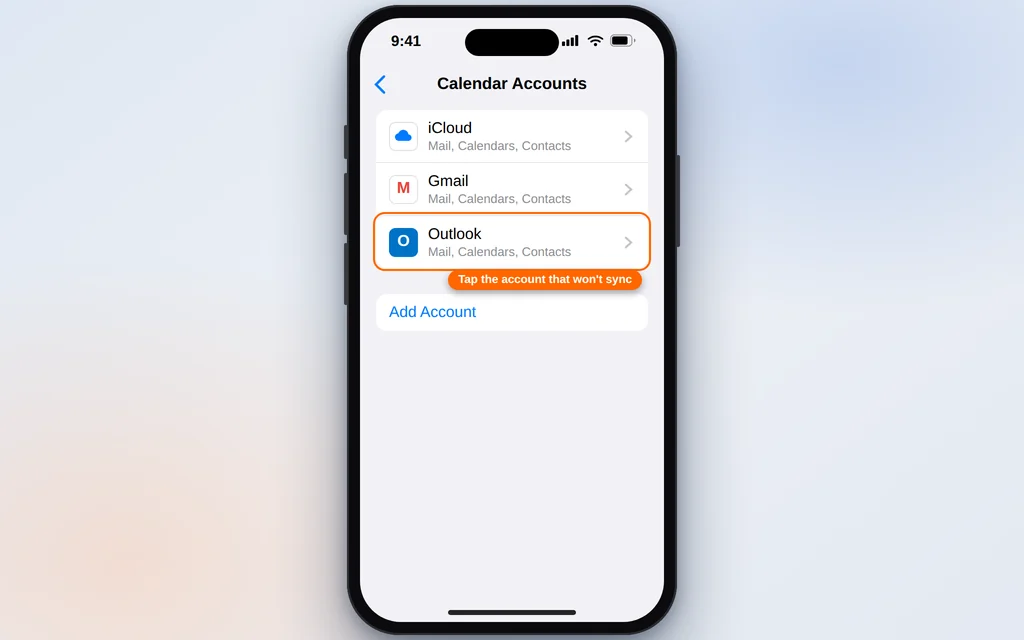
- Back in Calendar Accounts, tap Add Account, choose your provider (Google, Outlook.com, or Microsoft Exchange for a work account), and sign in.
- Make sure the Calendars toggle is on in the account’s switches, and tap Save.
- Open the Calendar app and allow a few minutes for the events to download.
For an iCloud account, you cannot remove iCloud from this list on its own — the off/on reset in Fix 3 is the equivalent and solves almost every iCloud case. Only if Fix 3 also failed should you sign out of your Apple Account (Settings > your name > Sign Out) and back in — and back up first, because signing out affects photos and files too.
Fix 8: Restart Your iPhone and Update iOS
If you reach this point, the settings are all correct and the blockage is most likely a stalled background process or a bug in iOS itself. A restart clears the first; an update fixes the second.
Restart:
- Press and hold the side button and either volume button until the power-off slider appears. (On an iPhone with a Home button, hold the side or top button.)
- Slide to power off, wait 30 seconds, then hold the side button until the Apple logo appears.
- Open the Calendar app and test with a new event.
Update iOS:
- Go to Settings > General > Software Update.
- If an update is available, tap Download and Install — ideally while the phone is on Wi-Fi and charging.
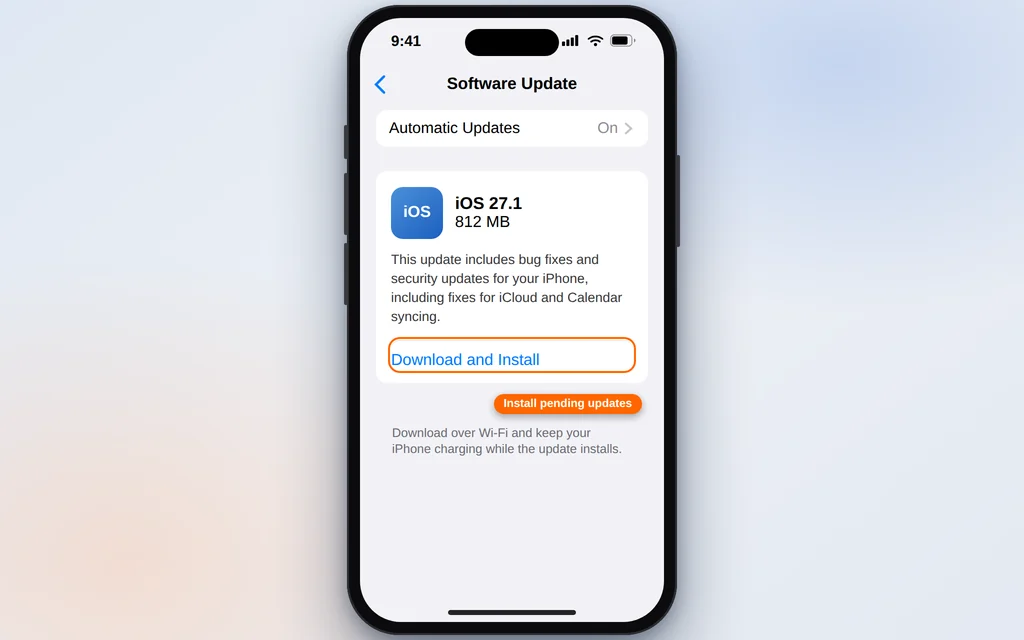
Sync bugs are a regular entry in Apple’s bug-fix lists, so an update is a genuine fix, not a formality. After updating, give the calendar an hour before judging — accounts often re-index quietly in the background.
If nothing above helped an iCloud calendar, check Apple’s System Status page (apple.com/support/systemstatus) — a rare iCloud Calendar outage will show there, and the only fix for that is waiting.
How to Stop iPhone Calendar Not Syncing Problems Coming Back
- Leave Set Automatically on for date and time, especially if you travel — a wrong clock quietly breaks sync and shifts events.
- Keep Fetch on Automatically and Push on. Manual fetch is the setting most likely to make a healthy calendar look broken.
- After changing a password, expect to re-add the account. If a Google or Microsoft password changes anywhere, update it on the phone the same day, or use Fix 7.
- Install iOS updates within a few weeks. Calendar and iCloud fixes ship in minor updates, not just the big yearly ones.
- Check the default calendar once after adding any new account. New apps and accounts sometimes reset it to a local or work calendar.
- Keep some iCloud storage free. If your iCloud storage is completely full, iCloud services — calendar included — can stop updating until space is freed.
Frequently Asked Questions
Why did my iPhone calendar stop syncing after an iOS update?
Updates occasionally reset account settings or leave the sync process stalled. Work through Fix 1 (the iCloud toggle), Fix 4 (Fetch settings) and a restart from Fix 8 first — that combination resolves most post-update cases. Nothing is usually lost: the events are still on the server and reappear once the connection is repaired.
How long should iCloud calendar sync take?
With Push on, changes usually appear within seconds to a couple of minutes. After turning iCloud Calendar back on, re-adding an account, or updating iOS, a full catch-up can take 10–15 minutes on a large calendar. If nothing has moved after an hour, something is still broken.
Will turning off iCloud Calendar delete my events?
Not if you choose Keep on My iPhone when asked — your events stay on the phone while the connection resets, and they merge back when you turn it on again. Even the Delete option only removes the copies on this phone; the events themselves remain stored in iCloud. When in doubt, check icloud.com/calendar first to confirm your events are safely on the server.
My iPhone calendar is not syncing with Google Calendar. What is different?
Two things. First, Google accounts use Fetch on iPhone, not Push, so make sure Fetch is set to Automatically (Fix 4) and allow a few minutes for updates. Second, check on the web at calendar.google.com that the events are in a Google calendar you actually own or subscribe to — events on someone else’s unshared calendar will never appear.
My work Outlook calendar is not syncing to my iPhone. What should I check?
Work accounts are usually added as Microsoft Exchange. Check with your IT team that they have not changed the server or required a new sign-in, then remove and re-add the account using Fix 7, choosing Microsoft Exchange in Add Account. If your employer manages the phone, some sync policies come from them and cannot be changed in Settings.
A shared calendar is not updating, but my own calendar is fine. Why?
Your own sync is healthy, so the problem is the share itself: the owner may have edited or stopped sharing the calendar, or the invitation expired. Ask the owner to re-share it, and accept the fresh invitation in the Calendar app’s Inbox tab (bottom right). Also confirm the shared calendar is checked in the Calendars list (Fix 2).
Still not syncing? Tell us which account (iCloud, Google or Outlook) and where the event does appear — phone, web, or neither — on our Contact page — servicedesk@howtofixerroronline.com, available 24 hours. The same “account stops talking to the app” pattern affects calendars inside Outlook on Windows too — if that is your problem, see our guide to Outlook calendar not syncing for the matching fixes there.