
15 Windows 11 Tips and Tricks Most Users Don’t Know
Windows 11 hides some of its best features in places nobody looks. There is a clipboard that remembers everything you copied, a secret menu with every Control Panel setting on one page, a way to type with your voice, and a battery report that tells you exactly how healthy your laptop battery still is. Most people use Windows 11 for years without finding any of them.
This guide collects the 15 most useful ones, grouped into three sections: productivity tricks that speed up everyday work, hidden tools buried in Settings and menus, and performance and battery tricks that keep your PC fast and lasting longer. Every tip includes the exact shortcut or steps, and none of them need extra software.
Quick Answer: The five tips that change daily use the most are: Snap Layouts (hover the maximise button), clipboard history (Windows key + V), voice typing (Windows key + H), the emoji panel (Windows key + .), and the secret Start menu (Windows key + X). Try those five first, then work through the rest.
Table of Contents
Productivity Tips
Tip 1: Snap Layouts — Arrange Windows in One Hover
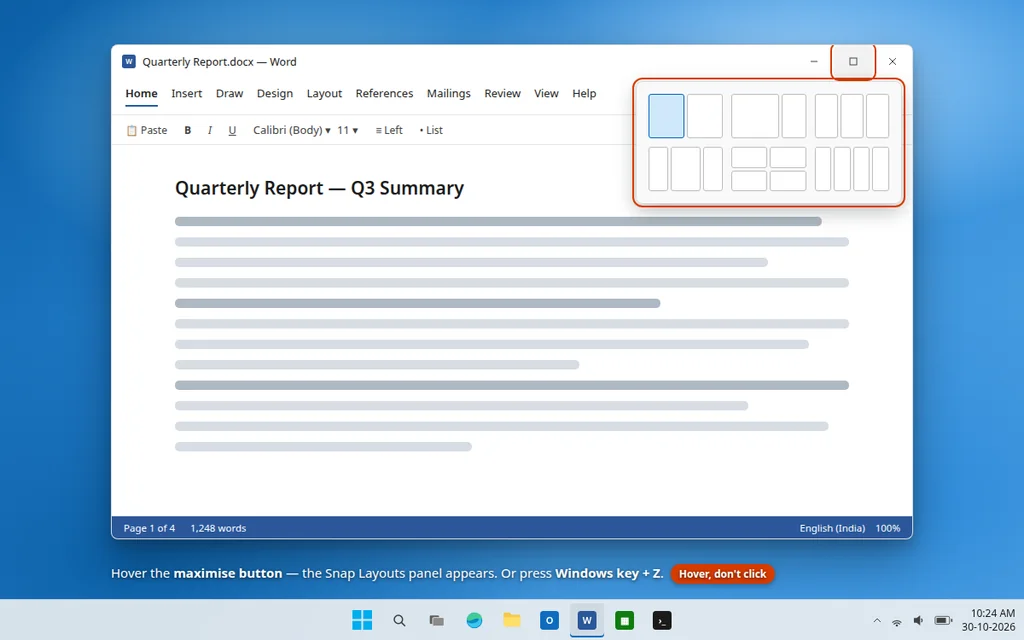
Windows 11 can tile your open windows into clean grids without any dragging and resizing by hand.
- Hover your mouse over the maximise button (the square icon at the top-right of any window) — do not click it.
- A small panel of layout grids appears. Click the position where you want this window to go.
- Windows then shows your other open windows as thumbnails — click one to fill the next space.
- You can also press Windows key + Z to open the same layouts with the keyboard.
Snap groups are remembered, so if you hover the taskbar icon of a snapped app, you can restore the whole group together after minimising it.
Tip 2: Virtual Desktops — One Desktop for Work, One for Everything Else
Virtual desktops let you keep separate workspaces — for example, work apps on one desktop and personal apps on another — on a single screen.
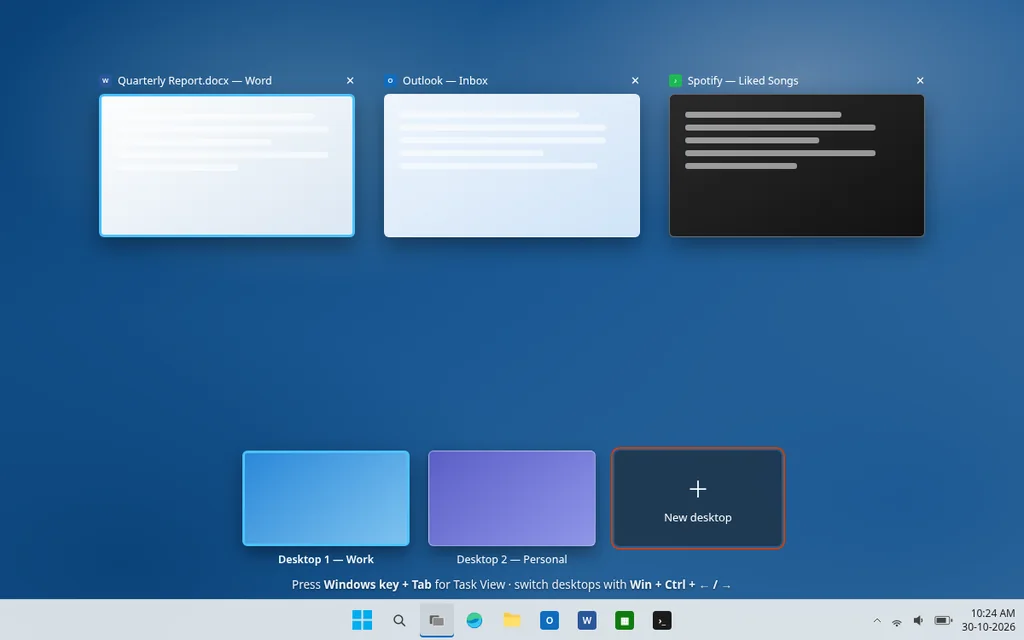
- Press Windows key + Tab to open Task View.
- Click New desktop at the bottom to create another desktop.
- Switch between desktops instantly with Windows key + Ctrl + Left/Right arrow.
- In Task View, right-click a window and choose Move to to send it to another desktop.
- Right-click a desktop thumbnail and choose Rename so you remember which is which.
Tip 3: Clipboard History — Paste Things You Copied Earlier
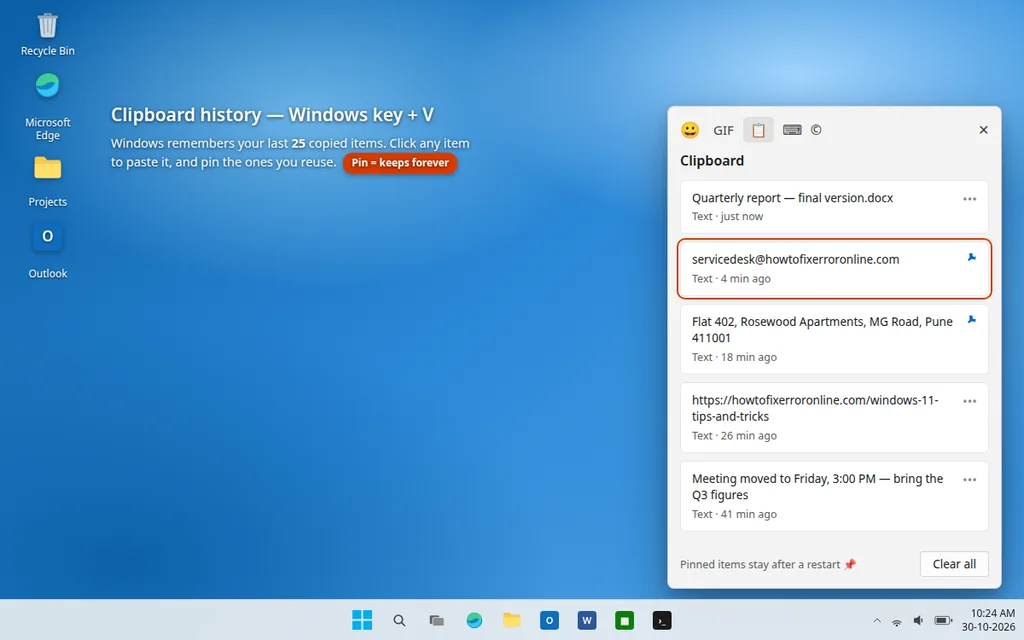
By default, Windows only remembers the last thing you copied. Clipboard history remembers the last 25 items — text and images — and lets you pin items you paste often, like an address or account number.
- Press Windows key + V. The first time, click Turn on.
- Copy things as normal with Ctrl + C.
- Press Windows key + V anywhere and click any earlier item to paste it.
- Click the pin icon on an item to keep it permanently, even after a restart.
- Click Clear all when you want the history wiped.
Tip 4: The Emoji Panel — Emojis, GIFs, Symbols and Kaomoji
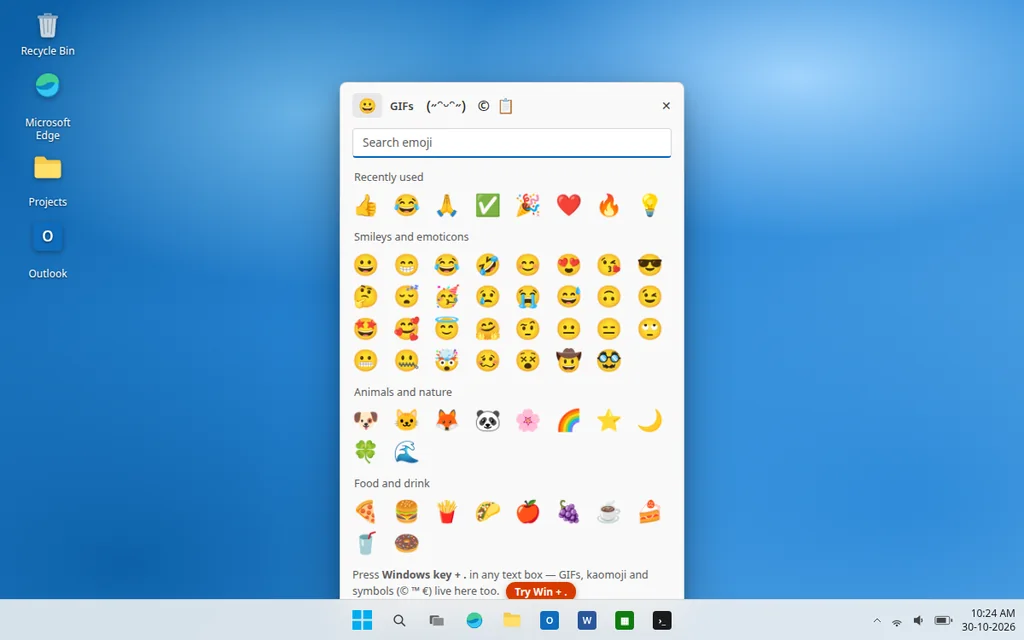
There is a built-in panel with emojis, animated GIFs, symbols like © and ™, currency signs, and kaomoji — no website needed.
- Click into any text box, document or chat.
- Press Windows key + . (period) — or Windows key + ; (semicolon).
- Use the tabs at the top to switch between emoji, GIFs, kaomoji and symbols, or just start typing to search.
Tip 5: Voice Typing — Talk Instead of Typing
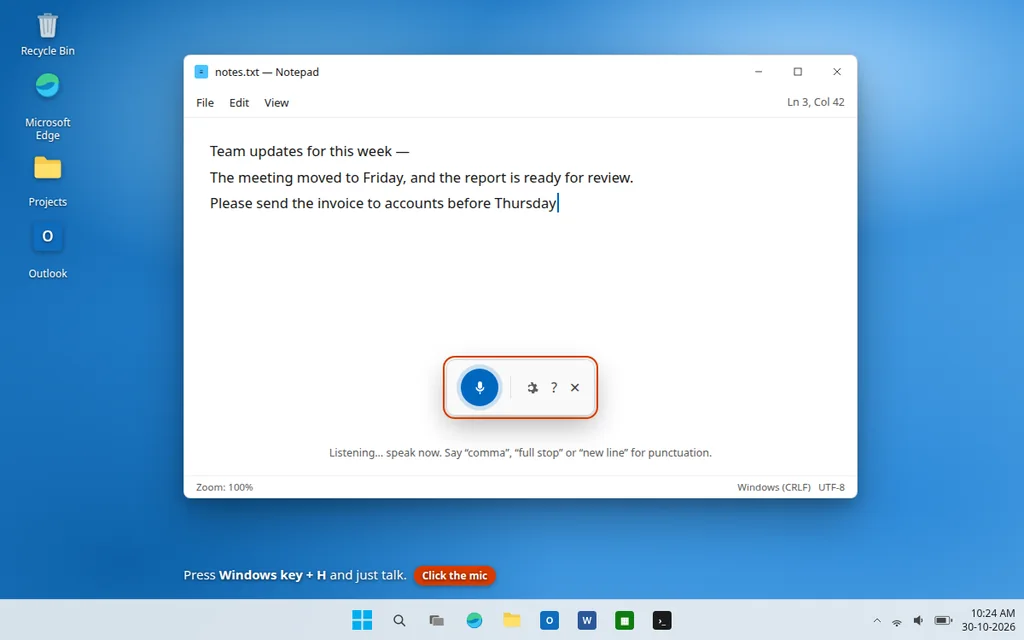
Windows 11 has surprisingly good built-in dictation that works in almost any text field, including Word, browsers and email.
- Click into a text box.
- Press Windows key + H to open the voice typing toolbar and click the microphone (it starts listening automatically the first time in many builds).
- Speak naturally. Say “comma”, “full stop” or “new line” for punctuation and layout.
- Open the toolbar’s settings gear and turn on Automatic punctuation if you prefer Windows to add punctuation for you.
Tip 6: Focus and Do Not Disturb — Silence Notifications on a Schedule
Focus (the feature formerly called Focus Assist) mutes notification banners so you can work — or watch a film — without pop-ups. Notifications still collect in the Notification Centre for later.
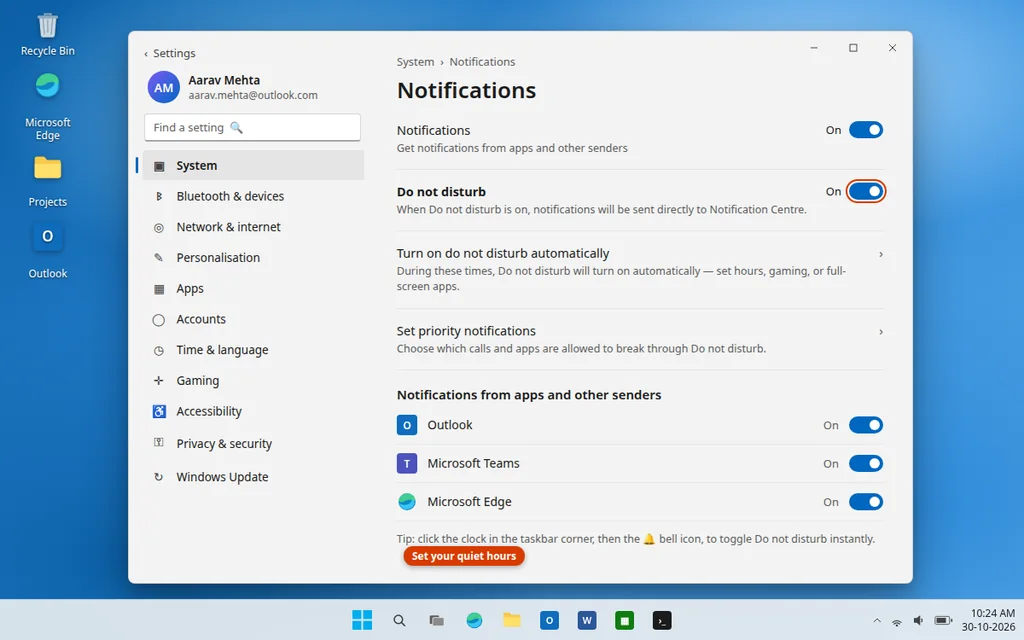
- Open Settings > System > Notifications.
- Turn on Do not disturb, or open Turn on do not disturb automatically to set hours.
- Use the priority list on the same page to let important apps (for example, calls) break through.
- For an instant session, click the time in the taskbar corner, then the bell icon to toggle Do Not Disturb, or open Clock > Focus sessions for a timed work sprint with a built-in timer.
Hidden Tools Most Users Never Find
Tip 7: Screenshot Anything with Win + Shift + S
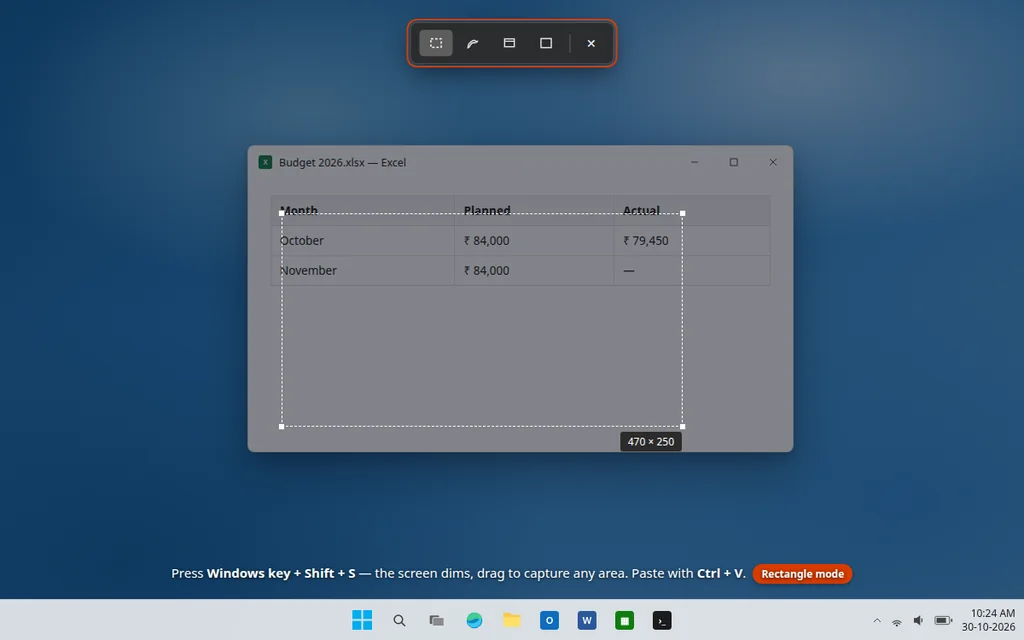
Forget Print Screen and pasting into Paint. The Snipping Tool’s shortcut captures exactly the part of the screen you want.
- Press Windows key + Shift + S.
- Choose a mode at the top: rectangle, freeform, single window, or full screen.
- The capture lands on your clipboard — paste it anywhere with Ctrl + V, or click the notification that appears to annotate and save it.
- Bonus: in the Snipping Tool app itself, use the camera icon to record a screen video — handy for showing someone a problem.
Tip 8: God Mode — Every Setting on One Page
God Mode is a hidden folder that lists more than 200 Control Panel and Settings shortcuts in one long, searchable page. It has existed for years and still works in Windows 11.
- Right-click an empty area of your desktop and choose New > Folder.
- Name the folder exactly:
GodMode.{ED7BA470-8E54-465E-825C-99712043E01C} - Press Enter — the folder icon changes to a Control Panel icon.
- Open it and browse or search every settings shortcut, from autoplay to user accounts.
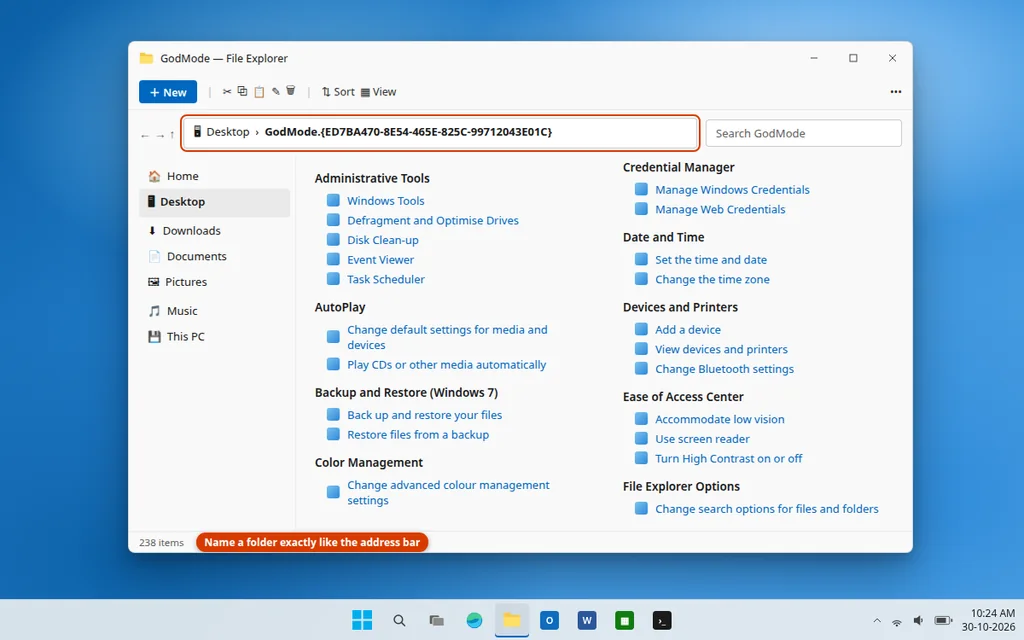
Be careful: the name must be copied exactly, including the code in braces, or the folder stays an ordinary folder.
Tip 9: The Secret Start Menu — Win + X
Right-clicking the Start button (or pressing Windows key + X) opens a plain text menu packed with the tools technicians use most: Device Manager, Disk Management, Terminal, Task Manager, Settings, and the Shut down options.
- Press Windows key + X.
- Notice the underlined letters in the menu — pressing that letter jumps straight to the item, so Win + X, then U, then U shuts the PC down entirely from the keyboard.
- This is also the fastest way to open an admin terminal: Win + X, then A (on builds that map A to Terminal (Admin)).
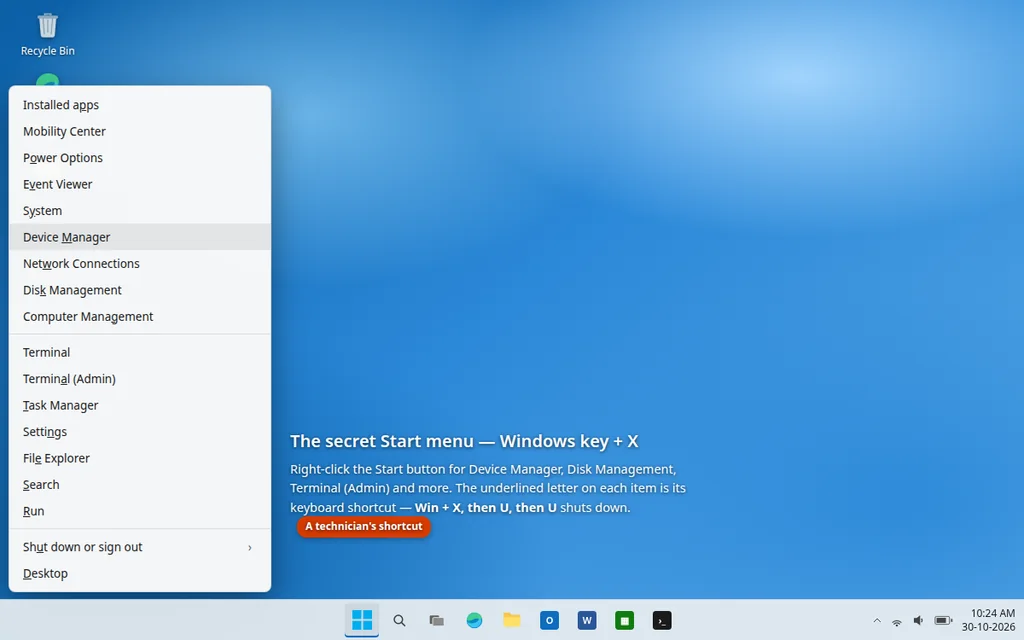
This menu is also where you go first when Windows itself misbehaves — for example, our guide to the Windows 11 Start menu not working starts with tools from this list.
Tip 10: Shake to Minimise — Clear the Desk in One Wiggle
If your screen is buried under windows, grab the title bar of the one window you want and shake it: every other window minimises at once. Shake again and they all come back.
- Open Settings > System > Multitasking.
- Turn on Title bar window shake.
- Click and hold a window’s title bar, wiggle the mouse quickly side to side, and watch the rest disappear.
It sounds like a gimmick until you try it during a busy day — it is one of the fastest ways to focus on a single document.
Tip 11: Phone Link and Nearby Sharing — Move Things Without Cables
Two built-in tools remove the email-it-to-yourself habit:
- Phone Link: Search Start for Phone Link and pair your Android phone (or iPhone, with fewer features). You can then see phone notifications, read and reply to SMS, and drag photos from the phone into PC folders.
- Nearby Sharing: On both devices, turn on Settings > System > Nearby sharing. Then right-click any file, choose Share, and pick the other device — it transfers over your local Wi-Fi/Bluetooth with no cloud upload.
Tip 12: Tabbed File Explorer and Notepad
File Explorer and Notepad both support tabs now, so one window can hold many folders or notes.
- In File Explorer, press Ctrl + T for a new tab (or click the + in the tab bar).
- Drag a tab out to turn it into its own window, or drag folders between tabs to move files.
- In Notepad, press Ctrl + N for a new tab; Notepad now also auto-saves your notes as you type, so unsaved text survives a restart.
Performance & Battery Tips
Tip 13: Storage Sense — Automatic Disk Cleanup
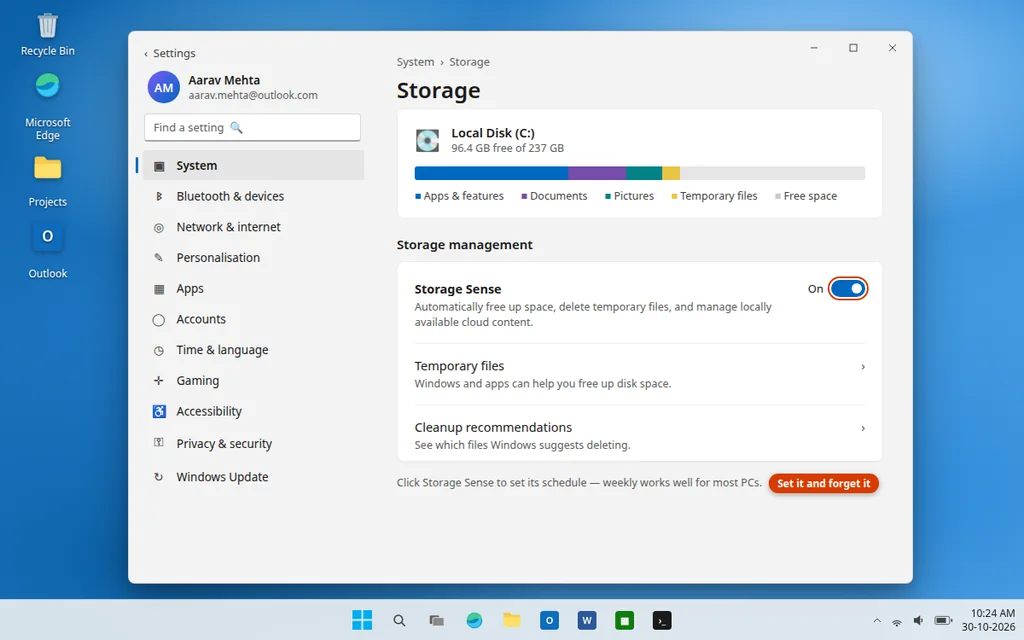
Storage Sense quietly frees space by emptying the recycle bin, clearing temporary files, and (optionally) removing old Downloads — the manual Disk Cleanup routine, automated.
- Open Settings > System > Storage.
- Turn on Storage Sense.
- Click it to set the schedule (for example, run weekly) and choose how old Recycle Bin and Downloads items must be before deletion.
- On the main Storage page, Temporary files shows exactly what is taking space right now if you need room immediately.
Tip 14: The Battery Report — See Your Laptop Battery’s Real Health
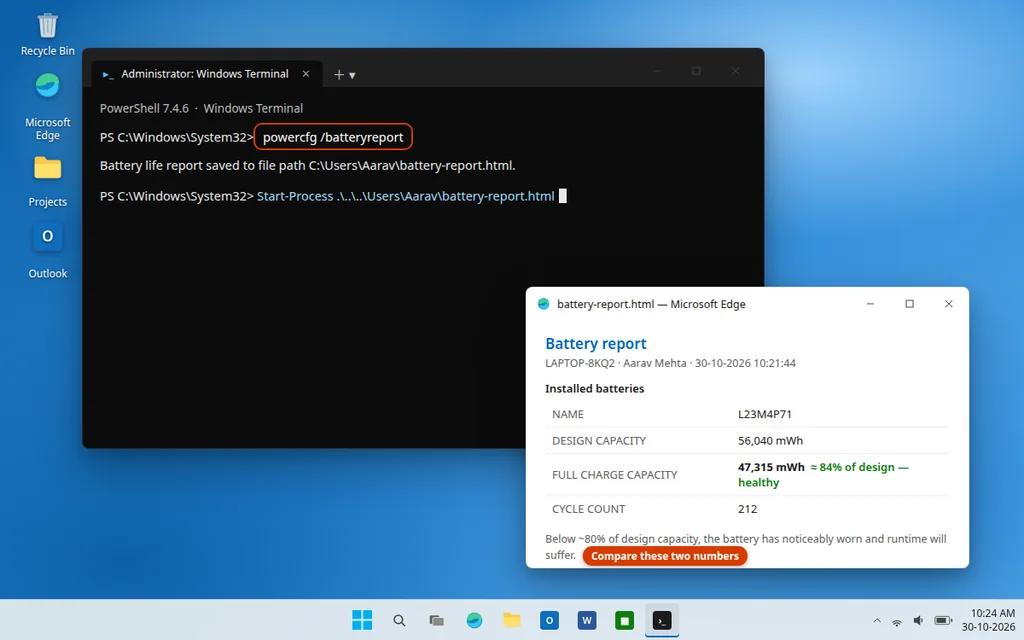
Windows can generate a detailed battery report that shows your battery’s original design capacity versus what it actually holds now — the quickest way to know whether a short battery life means a worn-out battery.
- Press Windows key + X and open Terminal (Admin) (or open Command Prompt as administrator).
- Type
powercfg /batteryreportand press Enter. - Open the saved
battery-report.htmlfile (Windows shows its path, usually inC:\Windows\System32or your user folder). - Compare Design Capacity with Full Charge Capacity — if full charge has fallen below about 80% of design, the battery has noticeably worn.
While you are in Settings > System > Power & battery, check the Battery usage graph to find which app is draining the most charge, and consider Energy recommendations (Settings > System > Power & battery > Energy recommendations) for one-click efficiency tweaks.
Tip 15: Dynamic Lock — Your PC Locks When You Walk Away
Dynamic Lock uses your paired phone’s Bluetooth to detect when you walk away, and locks the PC automatically. It is a small security feature most users never switch on.
- Pair your phone with the PC in Settings > Bluetooth & devices.
- Go to Settings > Accounts > Sign-in options.
- Scroll to Dynamic lock and tick Allow Windows to automatically lock your device when you’re away.
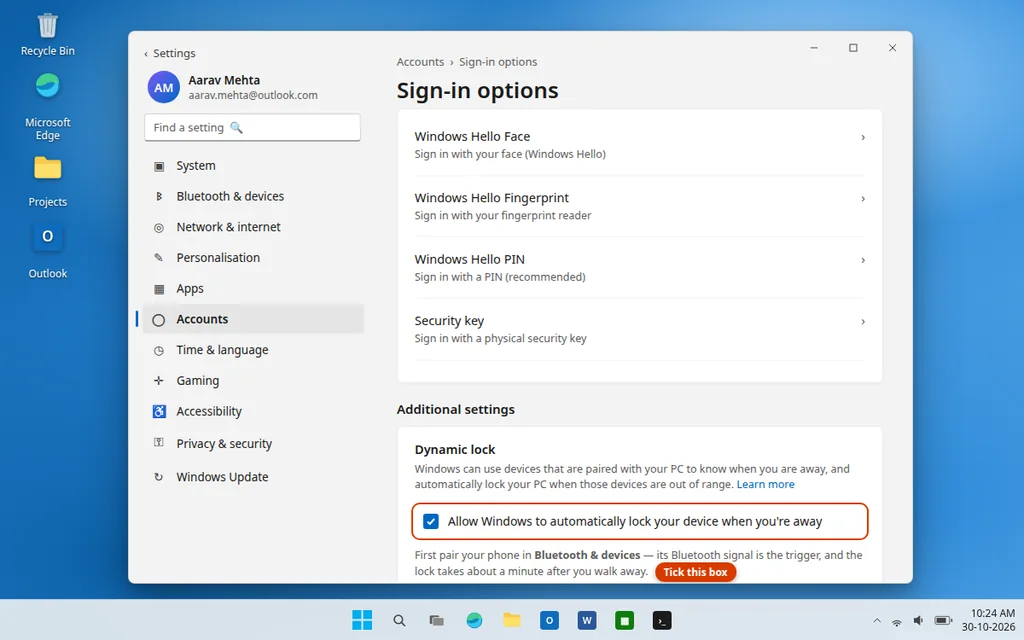
Bluetooth range is the trigger, so give it about a minute after you leave before the lock kicks in — and remember to keep your phone’s Bluetooth on.
Keep Exploring — and When Tips Are Not Enough
You now have a clipboard with memory, windows that arrange themselves, a voice that types for you, and a PC that cleans and locks itself. The fastest way to build these into habits is to pick two or three, use them for a week, then come back for the rest. The widgets board deserves a mention too: press Windows key + W for weather, calendar and news at a glance, and pin the widgets you actually check.
Tips only help when Windows itself is behaving, of course. If an app will not open at all — a common complaint with Outlook — start with our step-by-step guide to fixing Outlook not opening on Windows 11, and browse the Tips & Tricks category for more shortcuts like these.
Frequently Asked Questions
What is the most useful Windows 11 shortcut?
For most people it is a tie between Windows key + V (clipboard history) and Windows key + Shift + S (screenshot any region). Both replace something you do many times a day with a slower method, so the time saved adds up quickly.
How do I turn on clipboard history in Windows 11?
Press Windows key + V and click Turn on the first time. After that, everything you copy is kept in the panel until you clear it or restart (pinned items stay). You can also enable it in Settings > System > Clipboard.
Is God Mode safe to use?
Yes. God Mode does not change anything by itself — it is simply a folder full of shortcuts to existing Control Panel and Settings pages. You only change settings when you open one of those shortcuts and alter it, exactly as you would from Control Panel itself.
Do virtual desktops slow down Windows 11?
No. A virtual desktop is just a way of organising the same open windows — it does not create a second copy of Windows or use extra system resources beyond the apps you already have open.
Why is Title bar window shake not working?
It is off by default on some builds. Turn it on in Settings > System > Multitasking > Title bar window shake. Also note the shake only works with a mouse or trackpad drag on the title bar, not with touch.
How accurate is the Windows battery report?
The design capacity and full charge capacity figures come from the battery’s own controller, so they are a reliable guide to wear. A full charge capacity well below design capacity (under roughly 80%) means the battery genuinely holds less charge than when new.
Can I use voice typing in any app?
Almost any place you can type with a keyboard works, including browsers, Word, Notepad and most chat apps, as long as you have an internet connection (recognition is processed online) and a working microphone.
Want more guides like this? Browse our Tips & Tricks and Windows Errors categories for step-by-step Windows help, or ask us a question on our Contact page — servicedesk@howtofixerroronline.com, available 24 hours.