
How to Move Your Email from Gmail to Microsoft 365 (Migration Guide)
Whether you are a home user who wants everything under one Microsoft account, or a small business leaving Google Workspace, the day you decide to migrate Gmail to Microsoft 365 the same worries show up: Will I lose old emails? What happens to my contacts? When do I change the DNS records?
The honest answer is that the email itself is the easy part. What catches people out is the order of operations — switching mail delivery before the old mail has moved, or assuming contacts and calendars travel with the inbox (they do not). This guide covers both routes: the personal copy method in Classic Outlook, and the business migration run by an admin in the Exchange admin center.
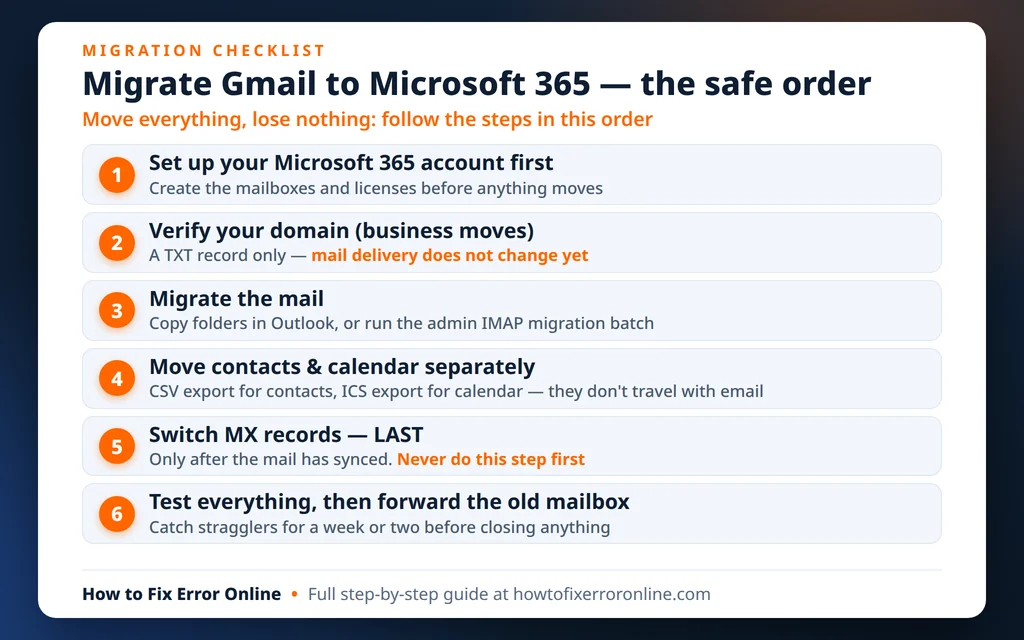
Quick Answer: There are two ways to migrate Gmail to Microsoft 365. Personal move: add both your Gmail account and your Microsoft account to Classic Outlook, let Gmail sync fully, then copy the folders across — and move contacts and calendar separately by export and import. Business move: an admin verifies your domain in Microsoft 365, runs an IMAP migration batch in the Exchange admin center so mail syncs in the background, and only then switches your MX records to Microsoft 365. Never change the MX records first.
Table of Contents
Before You Move: The Pre-Migration Checklist
Thirty minutes of preparation prevents nearly every migration horror story. Work through this list first, whichever route you take.
- Check how much mail you have. In Gmail, look at the storage figure at the bottom of the page or in Google One. Under 2 GB is quick; 15–25 GB is an overnight job on the personal route.
- Make a safety copy. Google Takeout (takeout.google.com) can export your mail as an archive. It will not be your migration method — more on that in the FAQs — but it is good insurance.
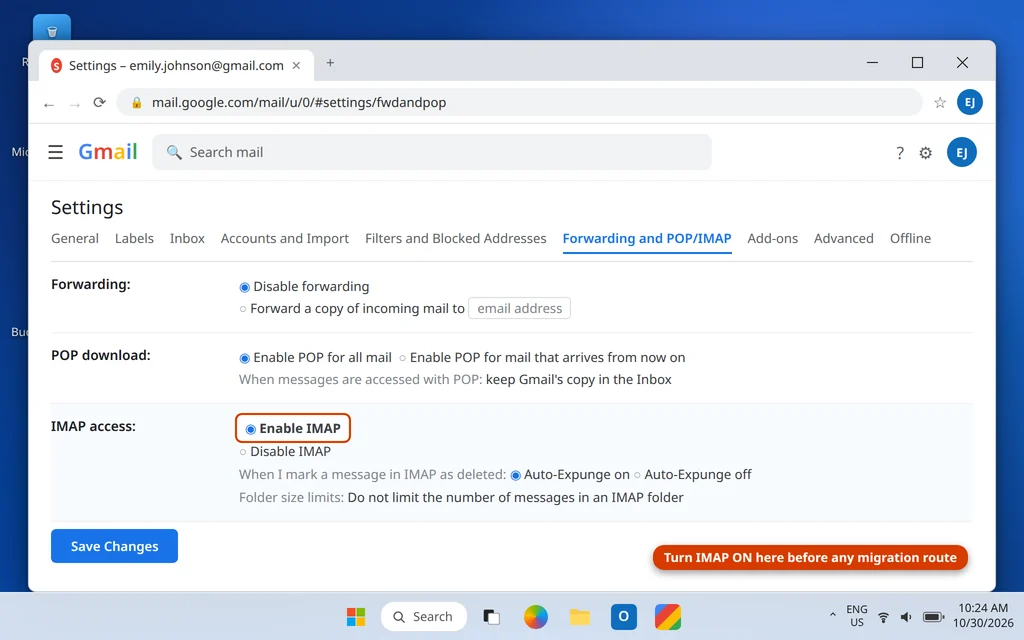
- Turn IMAP on in Gmail. In Gmail on the web, open Settings (gear icon) > See all settings > Forwarding and POP/IMAP, and make sure IMAP access is set to Enable IMAP. Both routes read your mail through IMAP.
- Note your labels. Gmail labels are not folders. A message with two labels exists once in Gmail, but after a folder copy it exists once in each matching folder.
- Decide what is not moving automatically. Filters and rules do not transfer — neither do signatures, settings, or Gmail category tabs (Social, Promotions).
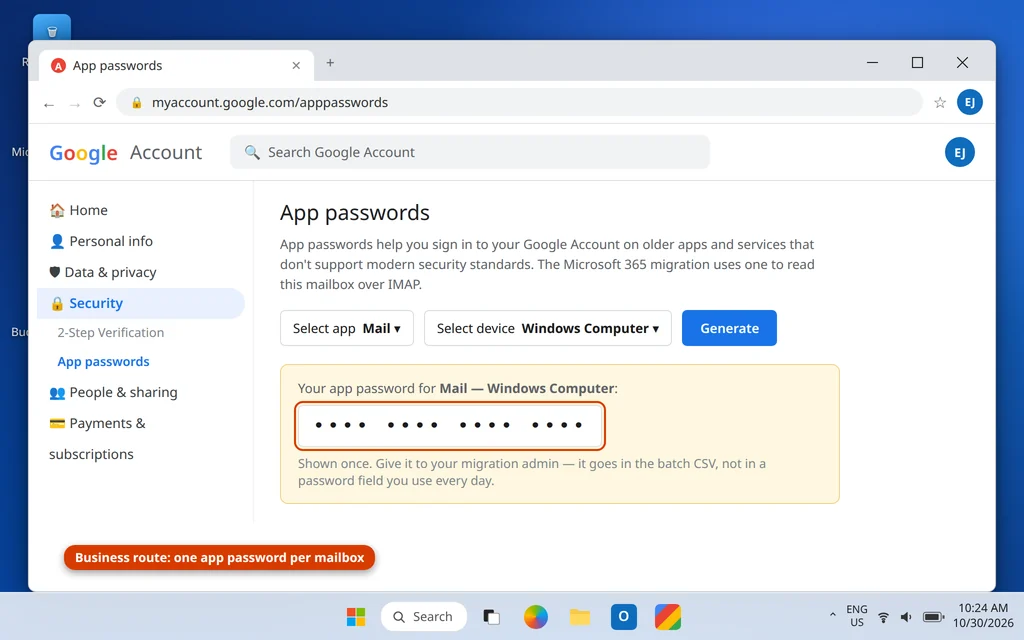
- Businesses: prepare passwords. Each Google account being migrated needs 2-Step Verification on and an app password (Google Account > Security > App passwords) — the migration signs in with that, not the normal password.
What Actually Moves — and What Does Not
| Item | Moves with the mail copy / IMAP migration? |
|---|---|
| Emails, including attachments | Yes |
| Folder structure | Yes — Gmail labels become Outlook folders |
| Read / unread state | Yes, in almost all cases |
| Contacts | No — separate export/import (below) |
| Calendar events | No — separate export/import (below) |
| Filters and rules | No — recreate them in Outlook |
| Gmail stars, category tabs, settings | No |
| Drafts | Usually yes via the Drafts folder |
The key fact in that table: contacts and calendar have their own move, described below. Every “my migration lost my contacts” story is really a “nobody told me contacts were separate” story.
Route A: Transfer Emails from Gmail to Outlook (Personal Move)
This route suits a personal Gmail account moving to a personal Microsoft account (Outlook.com). Classic Outlook is the bridge: both accounts sit in the same app, and you copy folders across. Our guide to how to add Gmail to Outlook covers setup in detail; the short version is Step 1.
Step 1: Add both accounts to Classic Outlook
- In Classic Outlook, click File > Add Account, type your Gmail address, and click Connect.
- A Google sign-in window opens. Sign in and click Allow. Current Outlook versions use this secure sign-in, so you do not need an app password for the personal route.
- Repeat for your Microsoft account (your @outlook.com address, or the one you use for Microsoft 365 Personal/Family).
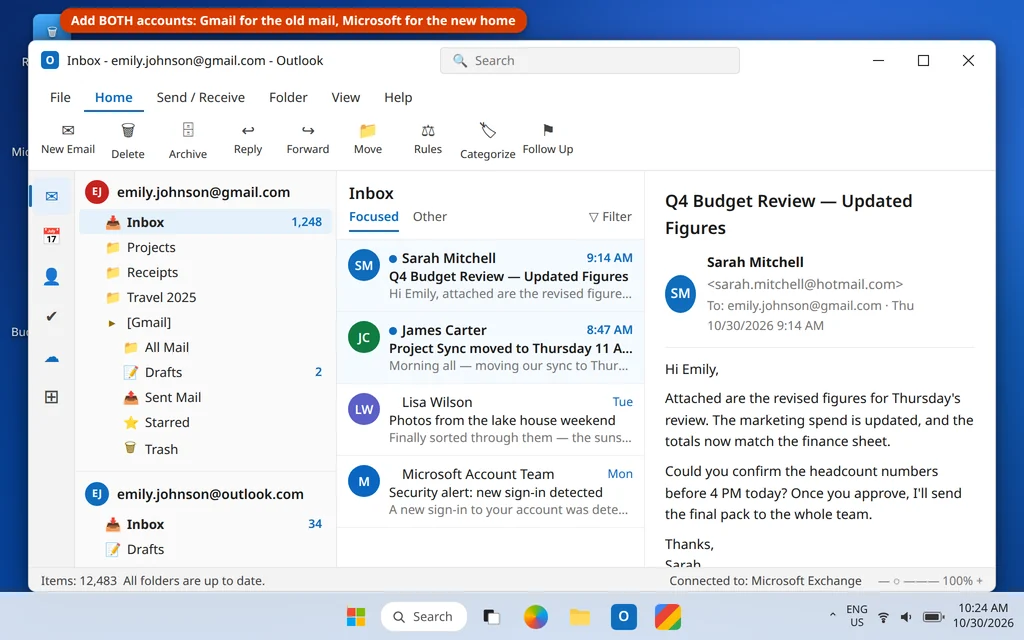
- Both accounts should now appear in the folder pane on the left, each with its own Inbox.
Step 2: Let Gmail download everything first
Outlook only copies what it has downloaded, and by default it may keep only recent mail offline.
- Click File > Account Settings > Account Settings, select the Gmail account, and click Change.
- Drag the “Keep mail offline for” slider all the way to All.
- Click Next, then Done, and give Outlook time to sync. The status bar tells you when the account is fully up to date — let it finish before copying anything.
Step 3: Copy the folders across — in batches
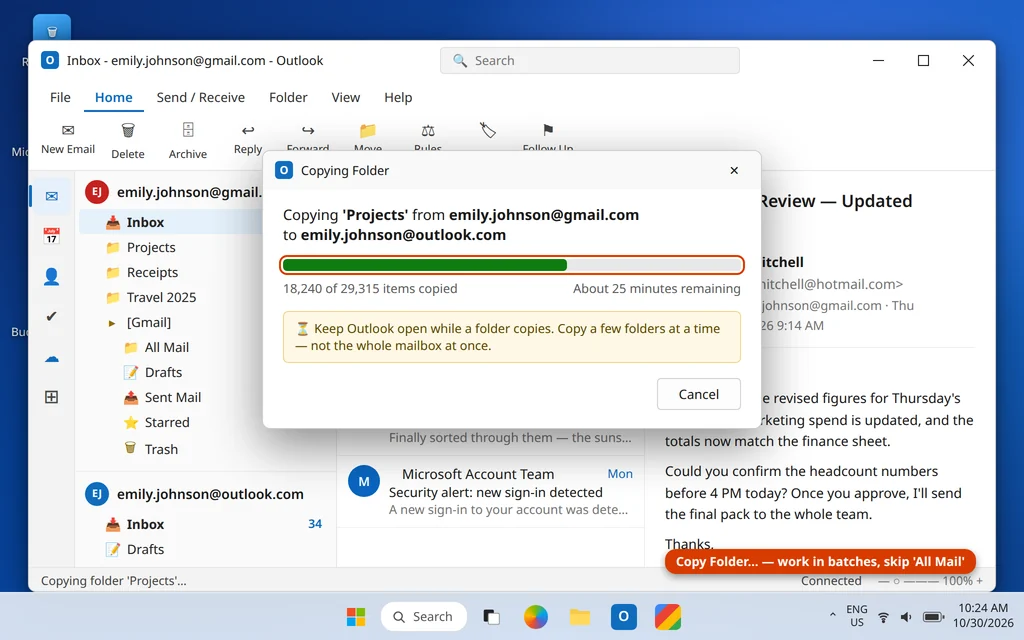
- In the folder pane, right-click a Gmail folder (start with a small one as a test) and choose Copy Folder…
- In the dialog, select the matching location under your Microsoft account (or its top level, to create the folder there) and click OK.
- For individual messages instead, open the folder, press Ctrl + A, right-click, and choose Move > Copy to Folder…
Three rules that keep this painless:
- Work in batches. Copy a few folders at a time, or split a giant folder by year (search by date, select, copy). One copy of 40,000 messages is where timeouts and duplicates are born.
- Skip the [Gmail] system folders. Copy your label folders, Inbox and Sent Mail — but not All Mail, which holds a second copy of everything and would double your mailbox for nothing.
- Stay plugged in and patient. Keep Outlook open on a wired or strong Wi-Fi connection and let each batch finish. Large folders can take hours — normal, not stuck.
Step 4: Verify before you touch anything else
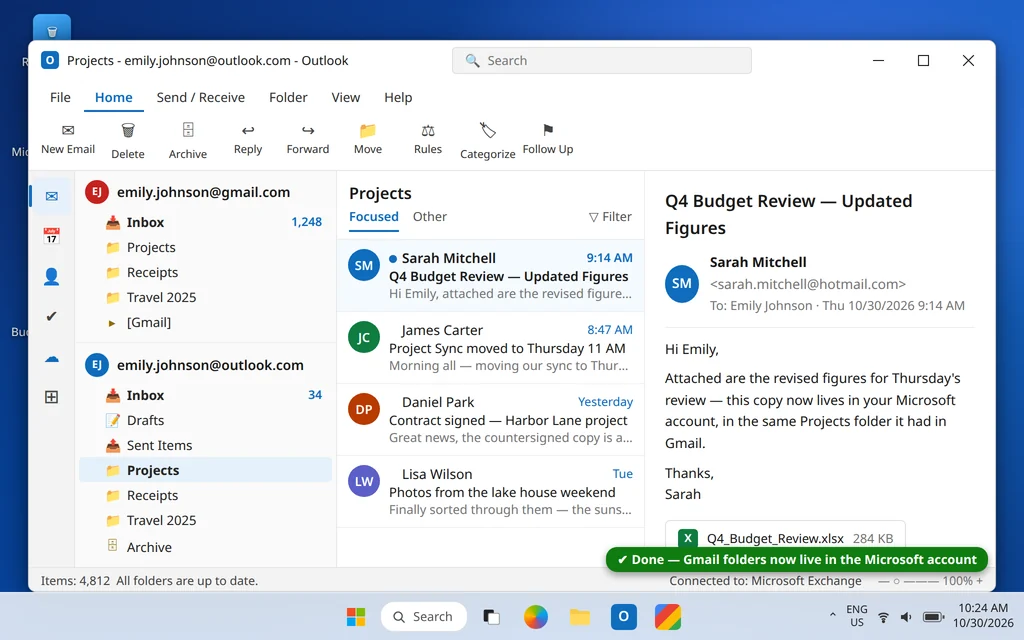
Compare folder by folder: right-click a folder in each account, open Properties, and compare item counts. Send yourself a test email and reply to it. Only when the copy checks out should you remove the Gmail account from Outlook (File > Account Settings > select Gmail > Remove). Removing it does not delete the Gmail mailbox — the mail stays in Gmail until you close that account with Google.
Move Contacts and Calendar Separately
Contacts: CSV export from Google, import into Outlook
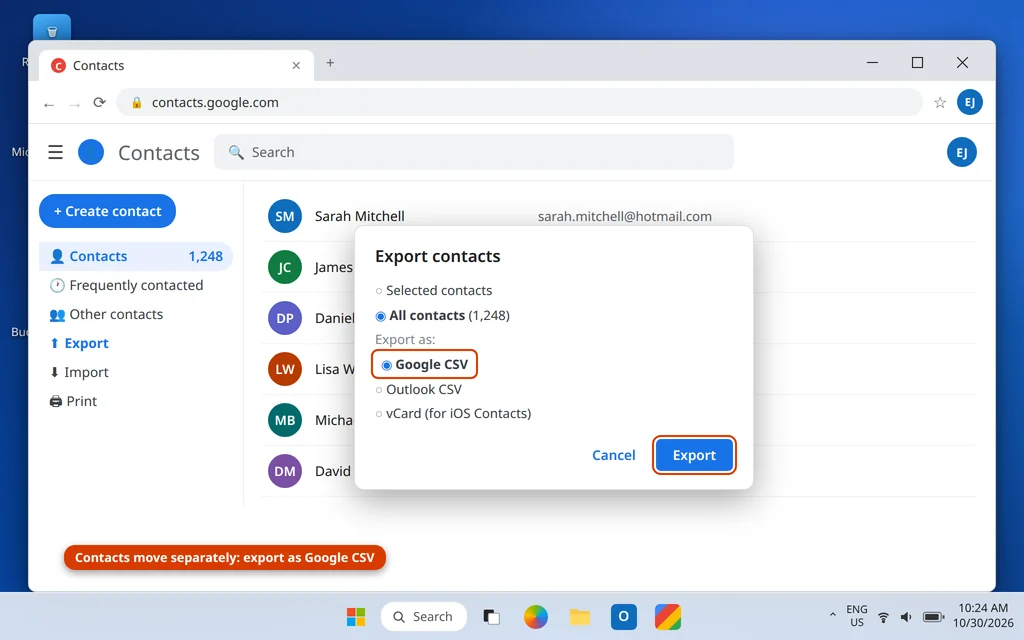
- Go to contacts.google.com, click the Export icon, choose which contacts to export, select Google CSV, and click Export.
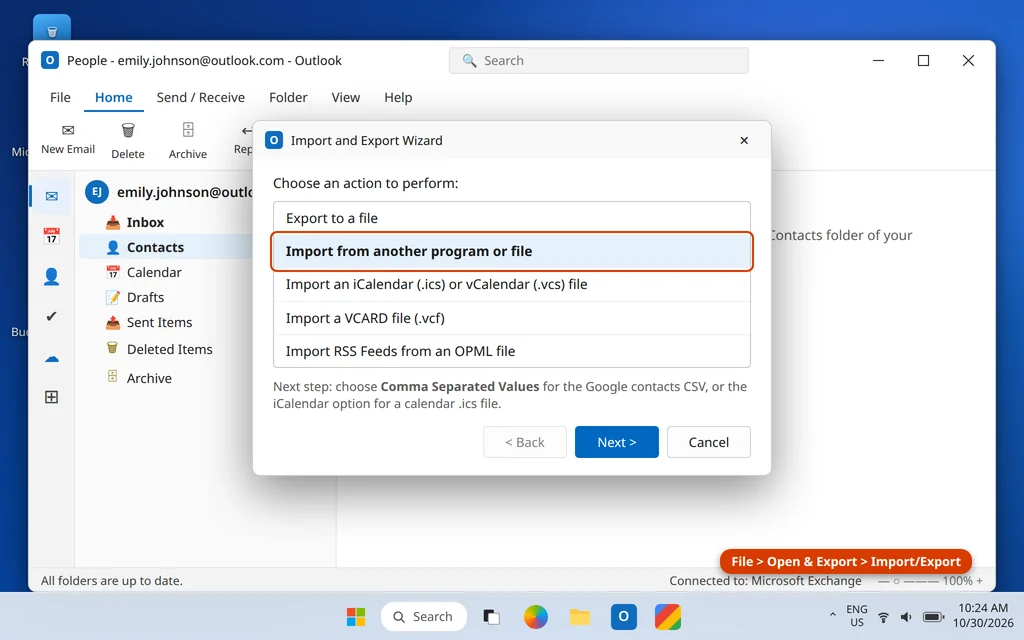
- In Classic Outlook, click File > Open & Export > Import/Export.
- Choose Import from another program or file, click Next, then Comma Separated Values.
- Browse to the CSV file, choose how duplicates should be handled, and click Next.
- Select the Contacts folder under your Microsoft account as the destination, click Next, then Finish. If names land in the wrong columns, use Map Custom Fields first to line them up.
Calendar: ICS export from Google, import into Outlook
- In Google Calendar on the web, open Settings > Settings > Import & export and click Export. You download a .zip with one .ics file per calendar.
- Unzip it. In Outlook, run the same Import/Export wizard and choose Import an iCalendar (.ics) or vCalendar (.vcs) file.
- Pick the .ics file and choose Import to merge events into your Microsoft account calendar (“Open as New” creates a separate calendar you can compare first — safer for a main calendar).
Spot-check a few birthdays, recurring meetings and phone numbers on the other side when you finish.
Route B: Migrate a Business from Google Workspace to Microsoft 365
If your email runs on your own domain through Google Workspace, do not use the personal copy route for a whole team. Microsoft 365 has a proper migration path, run by whoever administers your Microsoft 365 account — if that is not you, hand this section to your IT person or provider. In order:
- Set up Microsoft 365 and verify the domain. In the Microsoft 365 admin center, add your domain and prove ownership with the TXT record Microsoft gives you. This does not move any mail delivery — Gmail keeps working as before.
- Create the user mailboxes. Add your people in Microsoft 365, assign licenses, and make sure each new mailbox address matches their Google address.
- Prepare the Google side. In the Google Admin console, confirm IMAP is enabled. Each user turns on 2-Step Verification and creates an app password (Google Account > Security > App passwords) — the migration signs in with these.
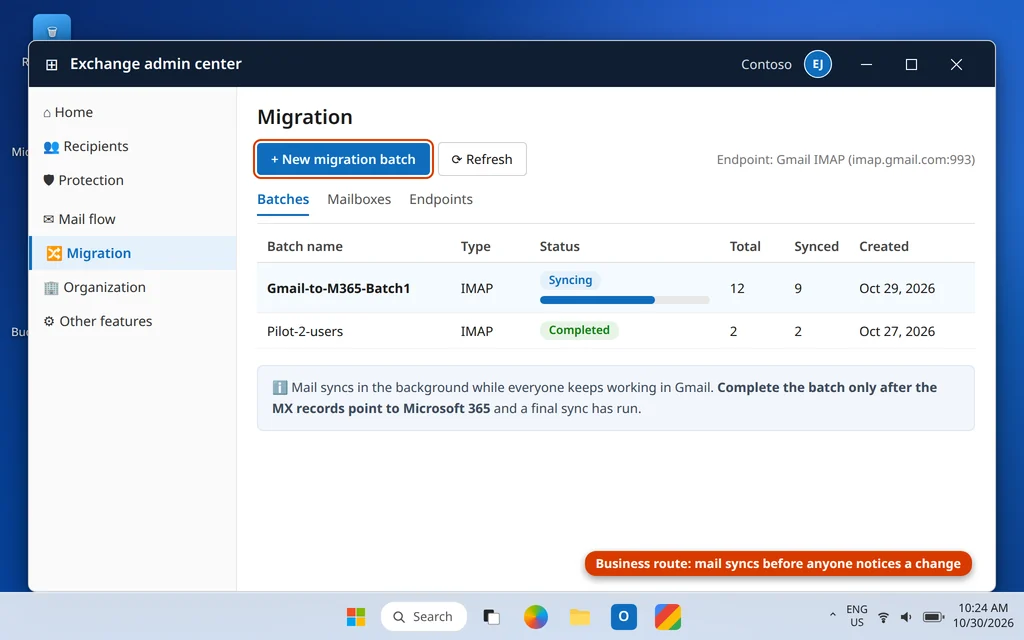
- Run the migration batch. In the Exchange admin center, under Migration, the admin creates a batch using an IMAP migration endpoint for Gmail (imap.gmail.com over SSL), uploads a CSV listing each mailbox and its app password, and starts it. Microsoft’s servers then pull mail across in the background while your team keeps working in Gmail.
- Watch it sync, then cut over. When the initial sync completes, do the DNS cutover in the next section, let a final sync pass run, and complete the batch.
For larger organizations, the same admin center offers a Google Workspace migration option using a Google service account, and paid tools such as BitTitan MigrationWiz exist for exactly this job. For a small business, the IMAP batch above plus the manual contacts/calendar move is usually enough.
The Safe Cutover Order: Switch MX Records Last
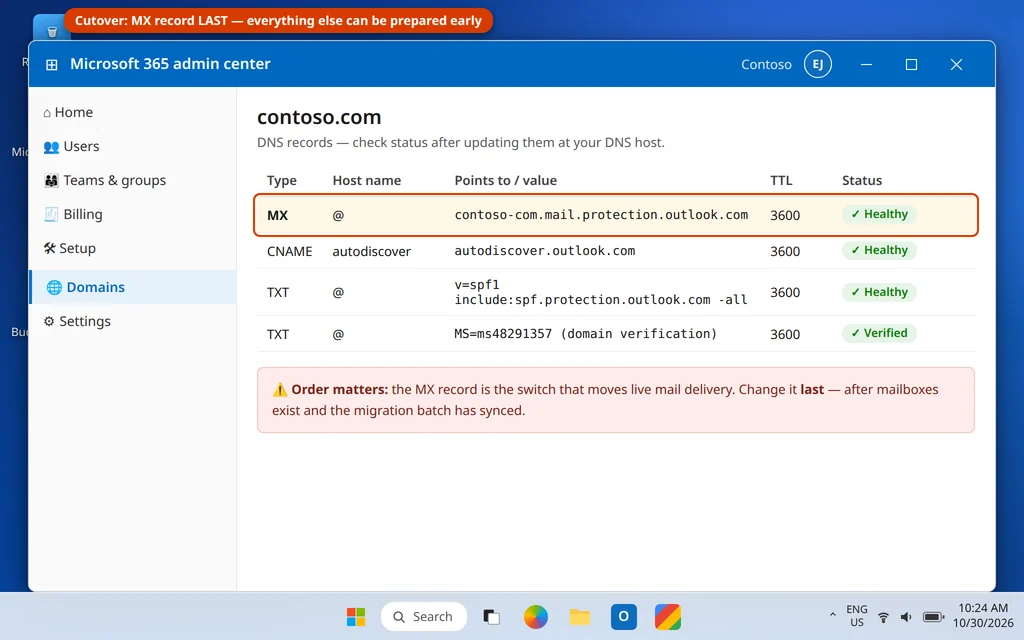
For a business move, when you change DNS matters more than anything else in this guide. Do it in this order:
- A day or two ahead, lower the TTL on your MX record (for example to 300 seconds), so the switch takes effect quickly instead of lingering for hours.
- Domain verified, mailboxes created, migration batch synced — all of the Route B steps above, with Gmail still receiving your mail.
- Now switch the MX record to the value Microsoft 365 shows for your domain — it follows the pattern
your-domain-com.mail.protection.outlook.com. Confirm the companion records Microsoft lists are in place too: the Autodiscover CNAME (autodiscover.outlook.com) and the SPF TXT record (v=spf1 include:spf.protection.outlook.com -all). - Expect a handover period. DNS changes usually settle within a few hours and can take up to 24. An occasional message may still land in the old Gmail mailbox — run the batch’s sync again after the switch to pull those stragglers across.
- Keep the old side alive for a while. For the first week or two, also set a forward in Gmail (Settings > Forwarding and POP/IMAP > Forward a copy of incoming mail) to the new address. Only cancel Google Workspace once every check below passes — and keep your Takeout archive regardless.
After the Move: Checks Before You Call It Done
- Send and receive tests with an outside address (a personal Gmail or Yahoo account is perfect): send from Microsoft 365, reply, confirm both directions.
- Folder counts on a few big folders, old and new side. Small differences are worth a look, not a panic.
- Search test: search for an old attachment or a two-year-old thread. If nothing shows up, give Outlook time to finish indexing first.
- Add the new account to phones and pause the old Gmail profile there, so nobody answers mail from the wrong mailbox.
- Recreate the essentials: signature, the two or three rules you actually used, and any shared-mailbox access your team relied on.
- Personal route only: once verified, you can remove the Gmail account from Outlook. The Gmail mailbox itself stays untouched at Google.
How Long Does a Gmail to Microsoft 365 Migration Take?
On a normal connection: a small personal mailbox (under 2 GB) takes about 30–60 minutes, mostly the first full Gmail sync. A large one (10–25 GB) is an evening or overnight job. A business IMAP migration typically syncs in the background for 24–72 hours for a small team before cutover; the cutover itself is a short DNS change. The bottleneck is data volume, not the steps.
Frequently Asked Questions
Can you transfer emails from Gmail to Outlook and still keep them in Gmail?
Yes, with the copy method. Copy Folder duplicates the mail into your Microsoft account and leaves the Gmail originals untouched. One warning: while Gmail is still added in Outlook it is a live two-way connection — deleting messages from its folders inside Outlook deletes them in Gmail too. Copy first, verify, then remove the account from Outlook.
Can I move all emails from Gmail to Outlook at once?
You can select everything, but you should not — copying a whole mailbox in one action is where copies stall, time out, or duplicate. Copy folder by folder, in batches of a few thousand messages, skip All Mail (it duplicates every labeled message), and the same mail arrives safely.
Does migrating delete my Gmail account or my Gmail address?
No. A migration copies mail; it does not close accounts, and your Gmail mailbox stays at Google until you close it yourself. On the business route, your domain email (you@yourcompany.com) starts arriving in Microsoft 365 after the MX switch — the address itself does not change.
Can I export Gmail to a PST file instead?
Not directly. Google Takeout exports mail as an MBOX file, and Outlook cannot import MBOX — it imports PST. Converting needs a third-party tool and still leaves contacts and calendar separate. For almost everyone, the Route A copy method is simpler and free; a PST export makes more sense after the move, as a backup.
What does it cost to migrate Gmail to Microsoft 365?
The personal route costs nothing beyond what you already have: a free Outlook.com account works, and Classic Outlook comes with Microsoft 365 Personal/Family if you subscribe. The business route needs a Microsoft 365 license per user; the built-in IMAP migration itself is free.
Will my filters, labels and signatures come across?
Labels become folders, but the filters that applied them do not transfer — nor do signatures, send-as aliases, or Gmail settings. Budget ten minutes after the move to recreate your signature and key rules in Outlook (File > Manage Rules & Alerts).
Do I need an app password to migrate Gmail to Microsoft 365?
For the personal route in current Classic Outlook, no — you sign in through Google’s own window and approve access. For the business IMAP migration, yes: each account needs 2-Step Verification on and an app password, because the migration service signs in directly over IMAP. If one is refused, the usual causes are 2-Step Verification not being fully on, or a Workspace policy blocking app passwords.
Still deciding which route fits, or stuck halfway through a copy? Our guides to setting up a business email in Outlook and how to add Gmail to Outlook cover setup in detail — or ask us on our Contact page at servicedesk@howtofixerroronline.com, available 24 hours.
Pingback: How to Export Emails From Outlook to a PST File: Backup Guide (2026)