
Gmail Not Receiving Emails? 9 Fixes
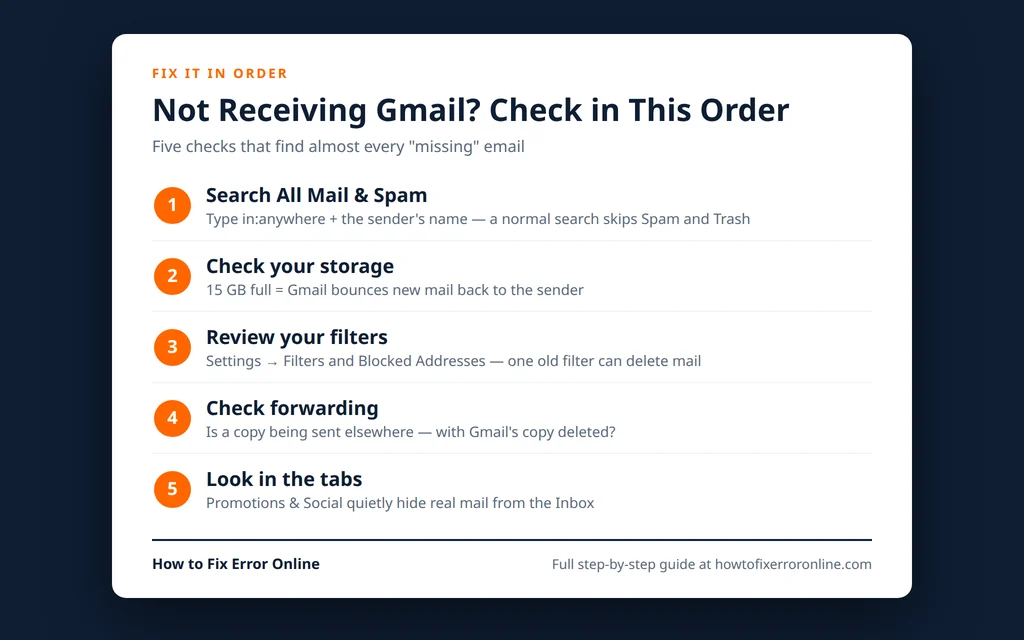
When Gmail is not receiving emails, the messages have usually not vanished into thin air. In most cases the mail arrived and was filed somewhere you are not looking — Spam, a category tab, or an old filter you forgot about — or your account quietly stopped accepting new mail because its storage filled up. The trick is checking in the right order, because the first two fixes below solve the problem for most people in under five minutes.
Work through these checks from the top. Each one names the exact Gmail setting or search to use, and they are ordered so the most common causes come first.
Quick Answer: First, search for the missing message everywhere: click in the Gmail search bar, type in:anywhere followed by the sender’s name — this searches All Mail, Spam and Trash together. If it is truly not there, check your storage at one.google.com/storage: Gmail stops accepting new mail when your 15 GB of free Google storage is full. After that, review Settings > Filters and Blocked Addresses and the Forwarding tab — a filter or forward set up long ago is the next most common cause.
Table of Contents
Fix 1: Search All Mail — the Email May Already Be There
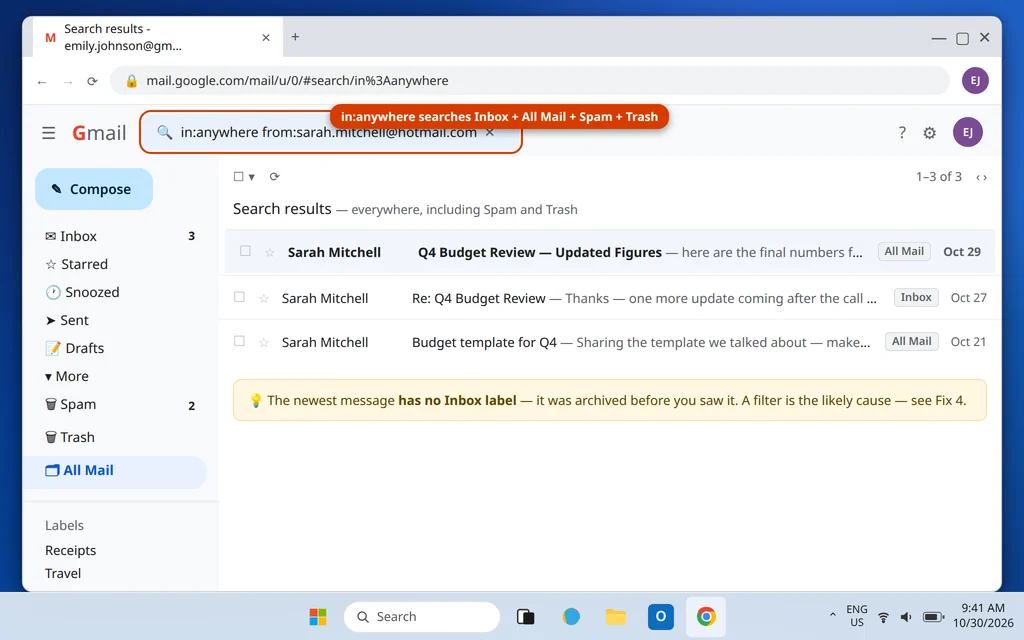
A normal Gmail search does not look in Spam or Trash, and the Inbox only shows mail that was never archived. A message can be sitting in your account right now and still look “missing.”
- Click the search bar at the top of Gmail.
- Type in:anywhere followed by who sent it, for example:
in:anywhere from:sarah.mitchell@hotmail.com - Press Enter.
The in:anywhere search covers your whole account in one go — Inbox, All Mail, Spam and Trash. Read the label on any message you find:
- Labeled Spam — Gmail’s filter caught it (see Fix 3 to stop it happening again).
- No Inbox label, but found in All Mail — something archived it, usually a filter (Fix 4) or the “Skip Inbox” option.
- In Trash — a filter is deleting mail automatically (Fix 4 again — this is urgent).
Also glance at the Social and Promotions tabs at the top of your Inbox while you are here. Receipts, shipping notices and even password-reset emails regularly land in Promotions instead of the Primary tab. Fix 6 covers turning those tabs off if they keep hiding mail from you.
Fix 2: If a Message Landed in Spam, Mark It “Not Spam”
Found the missing email in Spam? Open it and click Report not spam (in the warning banner at the top of the message, or the Not spam button above the message list when viewing the Spam folder). That moves it back to the Inbox and teaches Gmail that this sender is legitimate.
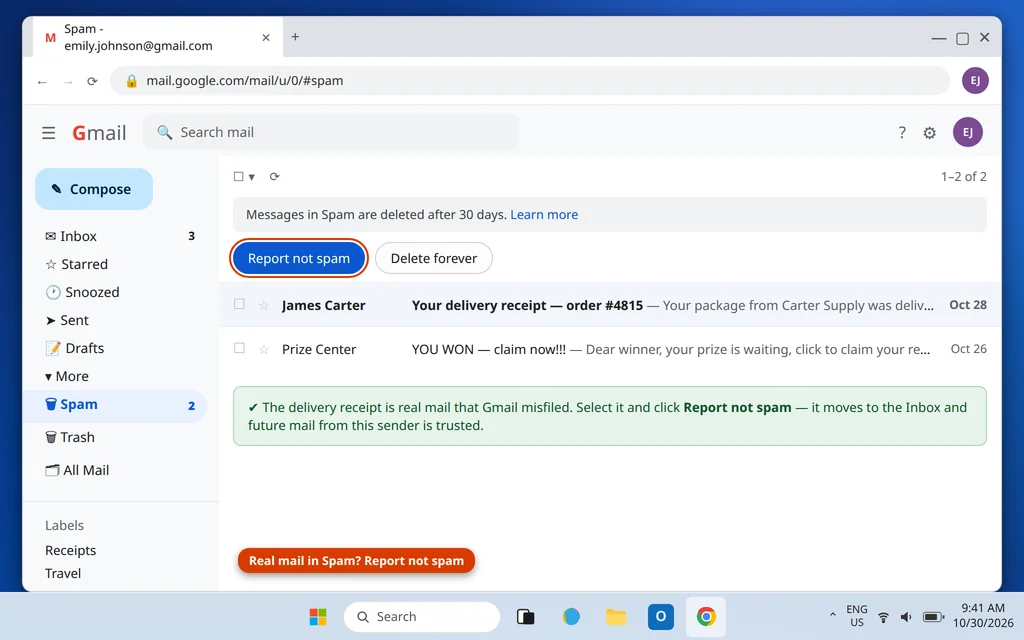
To stop it happening every time, add the sender to your contacts, and never leave a filter matching them with “Send to Spam” behavior — filters are covered in Fix 4.
Fix 3: Check Your Storage — a Full Account Rejects New Mail
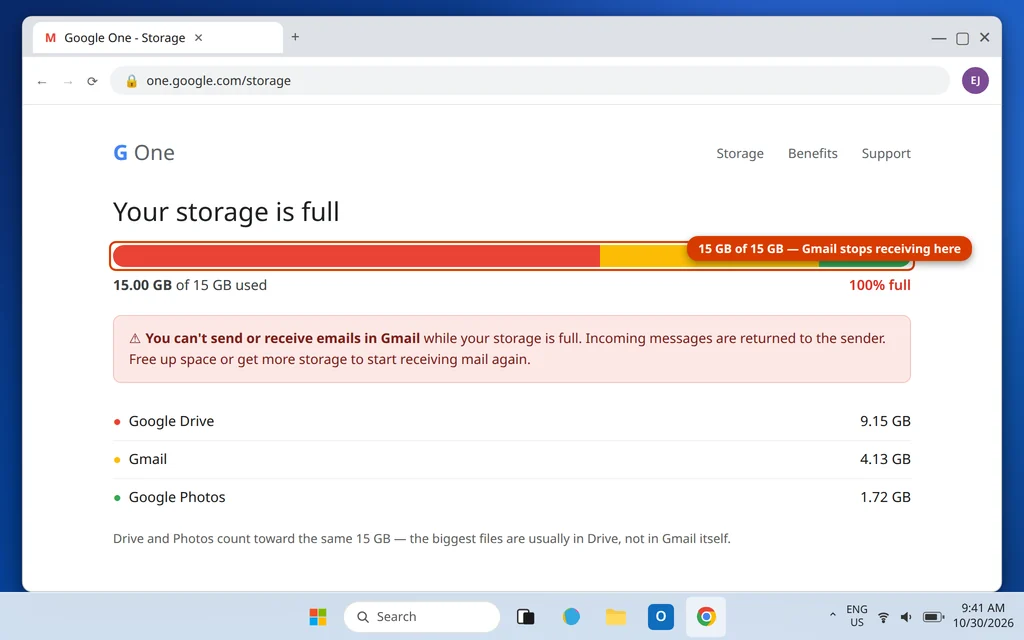
Every free Google account gets 15 GB of storage shared across Gmail, Google Drive and Google Photos. When it reaches 100%, Gmail stops receiving: new messages bounce back to the sender instead of arriving, and you may also be unable to send. This is one of the most common answers to “gmail storage full not receiving emails.”
- Go to one.google.com/storage while signed in.
- Look at the bar at the top. If it shows 15 GB of 15 GB used, your account is full.
- The page breaks down what is using the space — large Drive files and Photos usually dwarf Gmail itself.
To start receiving again, free up space: delete large files from Drive, clear Google Photos videos you have backed up elsewhere, and in Gmail search has:attachment larger:10M to find your biggest emails. Empty Trash in each app afterwards — deleted items still count against storage for 30 days otherwise. Paid storage (Google One) exists if you would rather not delete anything, but freeing space works just as well and takes effect within a short time.
One hard truth: messages sent to you while the account was full do not arrive later. They were bounced to the sender, so anyone important needs to resend.
Fix 4: Check Filters and Blocked Addresses
Filters run on every incoming message, forever, until you remove them — including filters created years ago, by an old “organize my inbox” session, or as a one-click unsubscribe action you have forgotten.
- Click the gear icon (top right) > See all settings.
- Open the Filters and Blocked Addresses tab.
- Read each filter’s actions. The dangerous endings are Skip Inbox (Archive it), Mark as read, Send to Spam and especially Delete it. A filter whose match is broad — say, a single common word — can quietly swallow real mail.
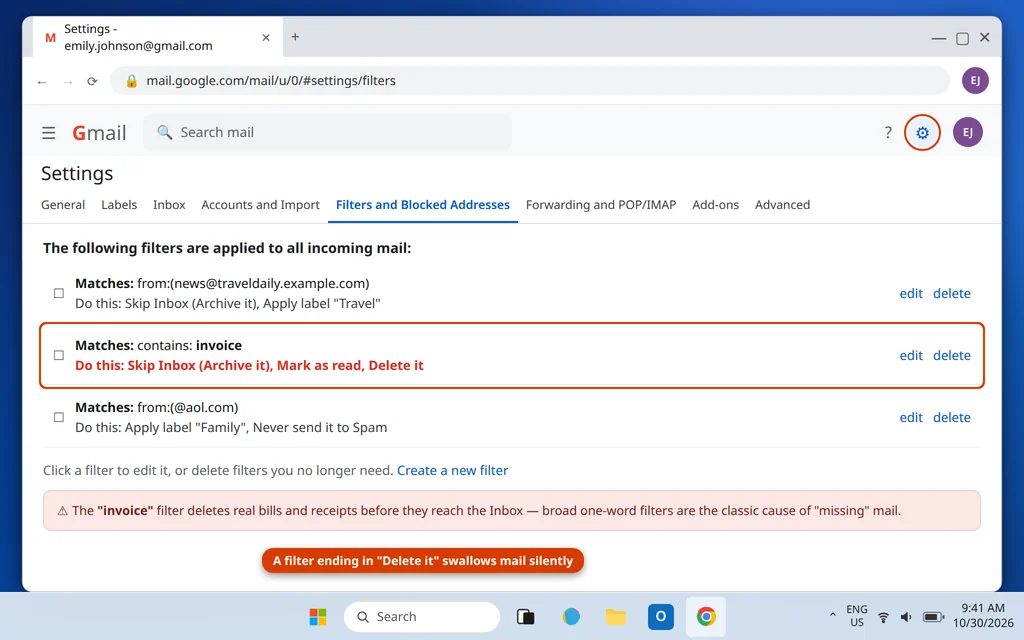
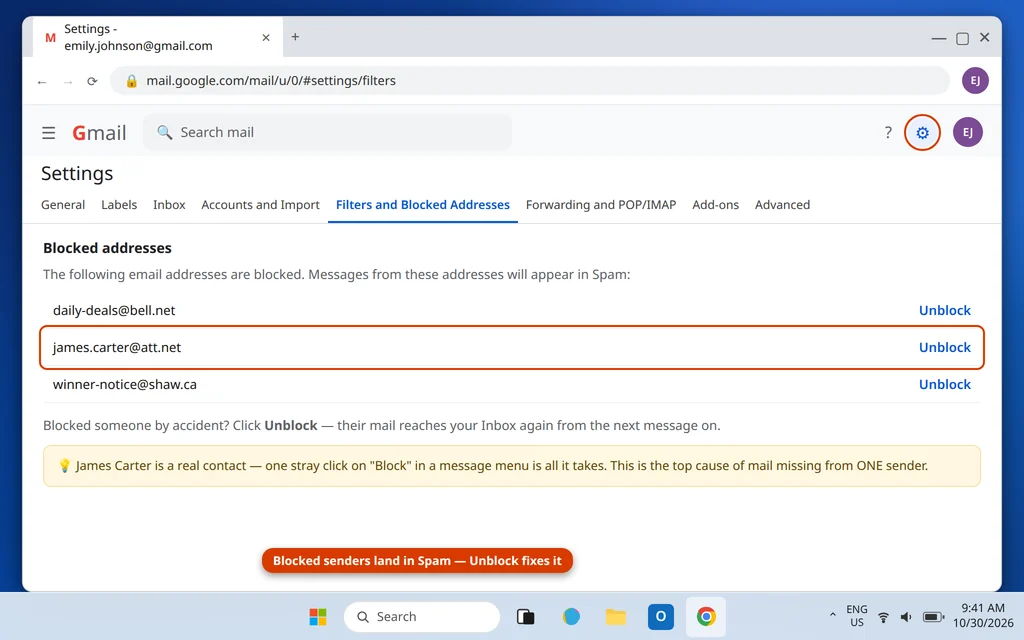
Edit or delete any filter you do not recognize or no longer need. Then scroll to the Blocked Addresses section on the same tab: anyone listed there has all their mail sent straight to Spam. Click Unblock next to any address you actually want to hear from — accidentally blocking a sender is a classic cause of “gmail not receiving emails from one sender.”
Fix 5: Check Forwarding — Mail May Be Leaving as It Arrives
On the same settings screen, open the Forwarding and POP/IMAP tab and read the Forwarding section at the top. If it is set to Forward a copy of incoming mail to an address you half-remember — an old work inbox is typical — look at the dropdown next to it. If it says delete Gmail’s copy, every message is being passed on and then deleted from Gmail, so your Inbox stays empty while mail “disappears.”
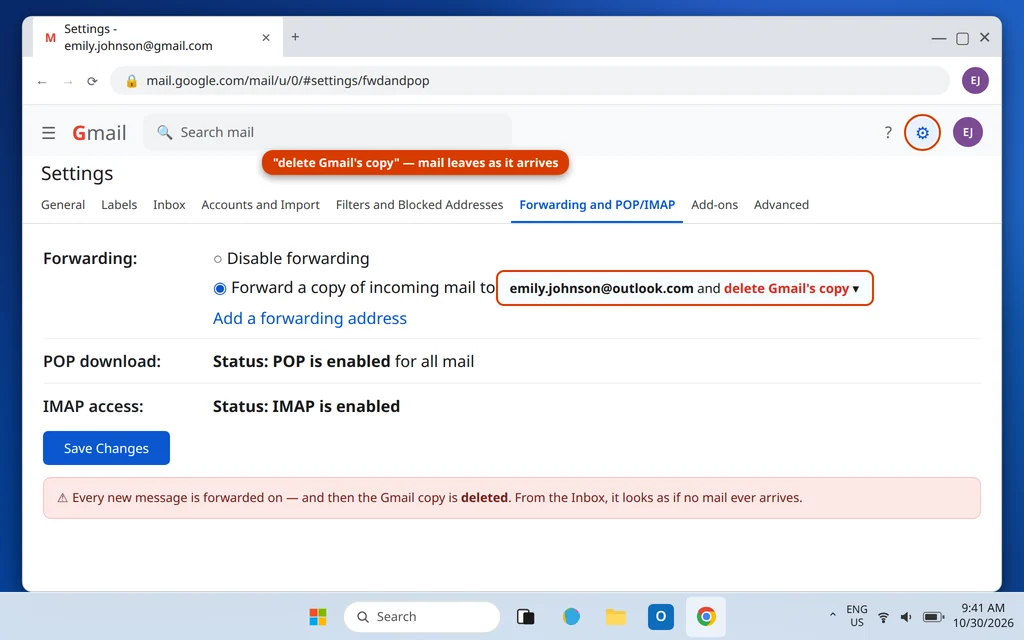
If you do not need the forward, select Disable forwarding and click Save Changes. If you do need it, change the dropdown to keep Gmail’s copy in the Inbox.
Fix 6: Turn Off the Inbox Tabs That Hide Mail
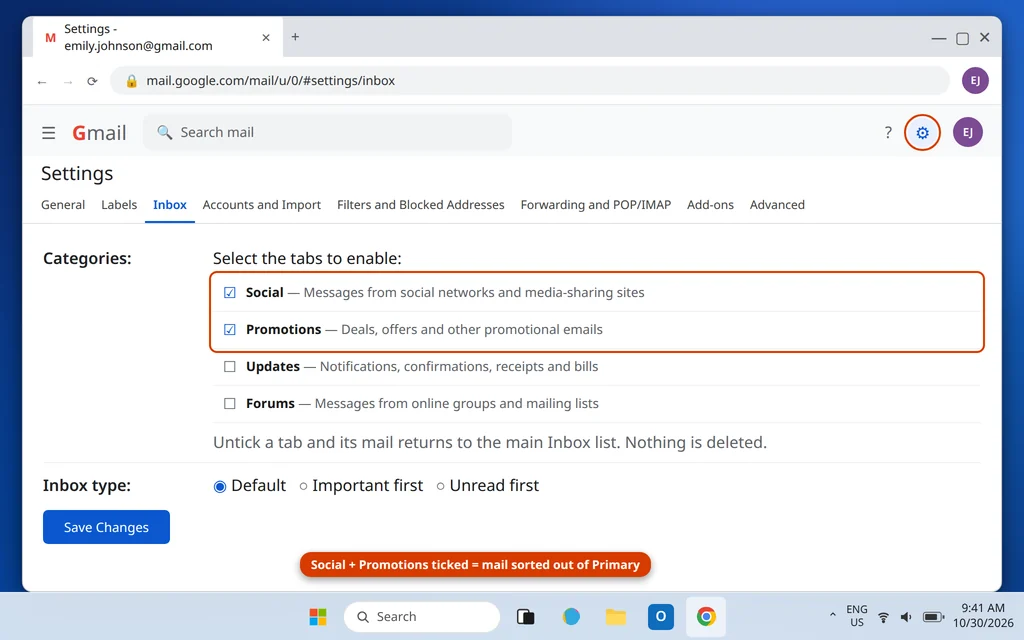
Gmail’s tabbed Inbox sorts mail into Primary, Social, Promotions, Updates and Forums — and anything sorted out of Primary looks “not received” if you only ever check the first tab.
- Click the gear icon > See all settings > Inbox tab.
- In the Categories section, untick Social and Promotions (and Updates/Forums if you use them).
- Click Save Changes.
All mail now lands in one Inbox list. Nothing is deleted by doing this — the tabs were only a view.
Fix 7: If You Read Gmail in Outlook or Another App, Check the App Side
If Gmail works on the web but not in the app you actually read it in, the problem is the connection, not your mailbox. Two checks cover most cases:
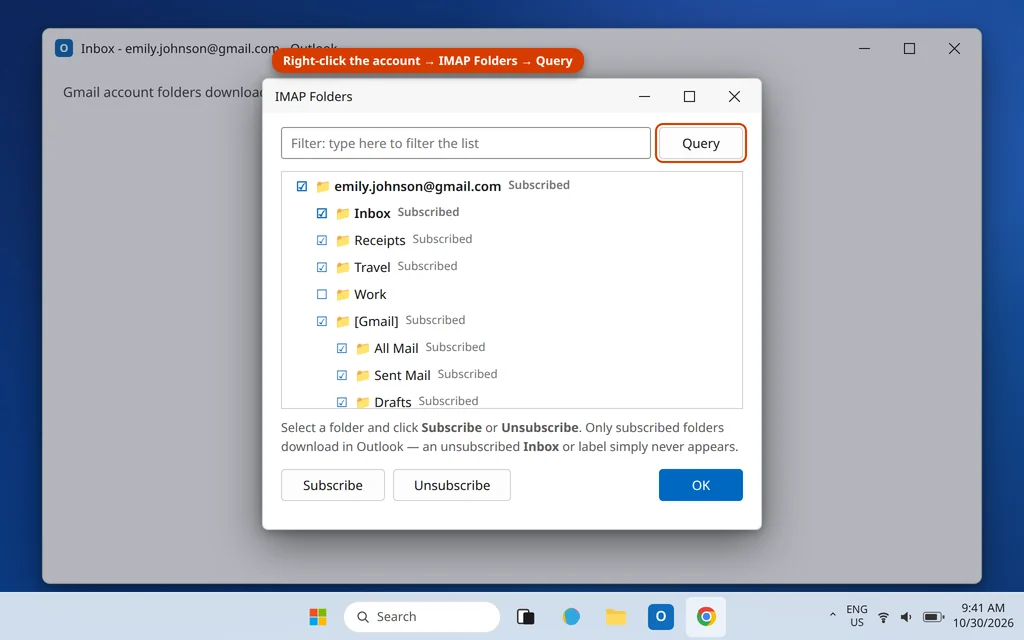
- In Classic Outlook: right-click the Gmail account name, choose IMAP Folders, click Query, and make sure Inbox (and any label you rely on) is Subscribed — unsubscribed folders never download. Also press F9 to force a Send/Receive. If the account was set up before a password change, Outlook may still be holding the old password — this is the “gmail not receiving emails after changing password” complaint. See our walkthrough of adding a Gmail account to Outlook to reconnect cleanly.
- On either side: in Gmail Settings > Labels, every label has a Show in IMAP option. A label with it unticked is invisible to Outlook and other IMAP apps even though it exists on the web.
Occasionally Google also pauses an account’s sign-ins after unusual activity (a new country, a VPN, many failed attempts). If every app suddenly asks for your password or shows a security warning, sign in at myaccount.google.com in a browser, complete any security check there, and then reconnect your apps.
Fix 8: Work and School Accounts — Your Admin May Hold the Fix
If the address is a work or school Google Workspace account, some causes are outside your control: if the organization changed its MX records (the settings that point the domain’s mail at Google) or an admin changed routing or suspended the account, mail stops at the door and no setting in your Gmail can fix it. Mention the exact time new mail stopped and that it affects incoming mail only — that tells your IT admin it is a delivery/routing issue, not your Inbox. Regular personal Gmail accounts can skip this step.
Fix 9: Only One Sender Missing? It May Be Their Side
If mail from everyone else arrives fine and only one person or company never gets through, the failure is often at their end: their message bounced. Ask them one question — “Did you get a bounce-back message?” A bounce contains an error code that says exactly why delivery failed (a typo’d address, a full mailbox on their system, their server being blocklisted). Our guide to emails bouncing back decodes the common codes. Before you ask, run Fix 1’s search for their address one more time and check they are not on your Blocked list (Fix 4) — between those two, most “one sender” cases are solved on your side after all.
If the missing mail is on your phone only, while the web Inbox is fine, refresh the app’s connection:
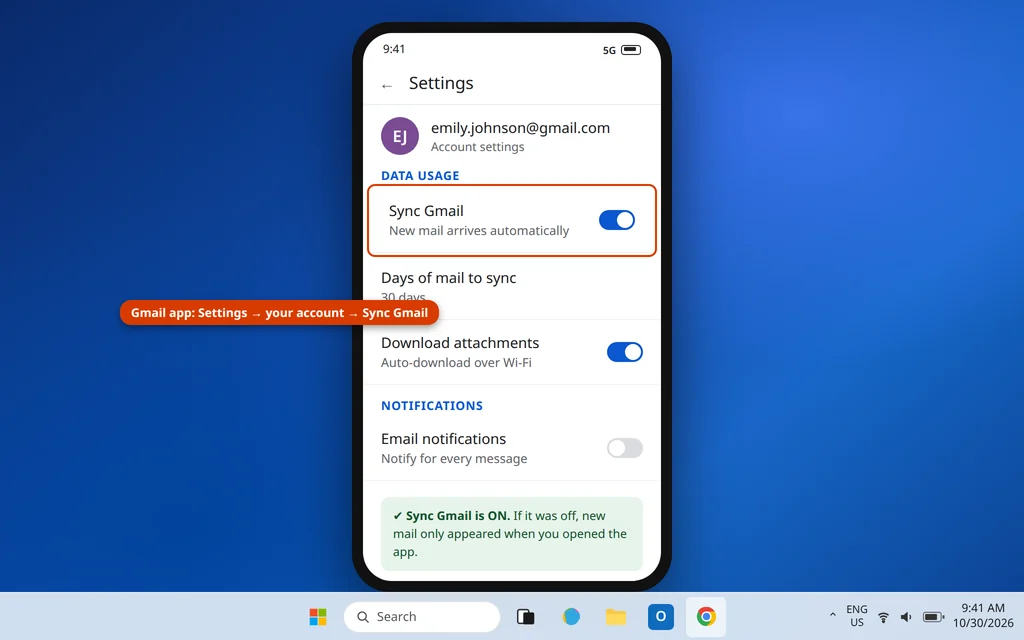
- Android Gmail app: tap your profile picture > Manage accounts on this device, or in the app go to Settings > your account and make sure Sync Gmail is ticked. If it is, remove the account and add it back.
- iPhone Gmail app: remove the account in the app (profile picture > Manage accounts on this device > Remove) and sign in again; also allow Background App Refresh for Gmail in iOS Settings so new mail actually fetches.
When It Is Fixed
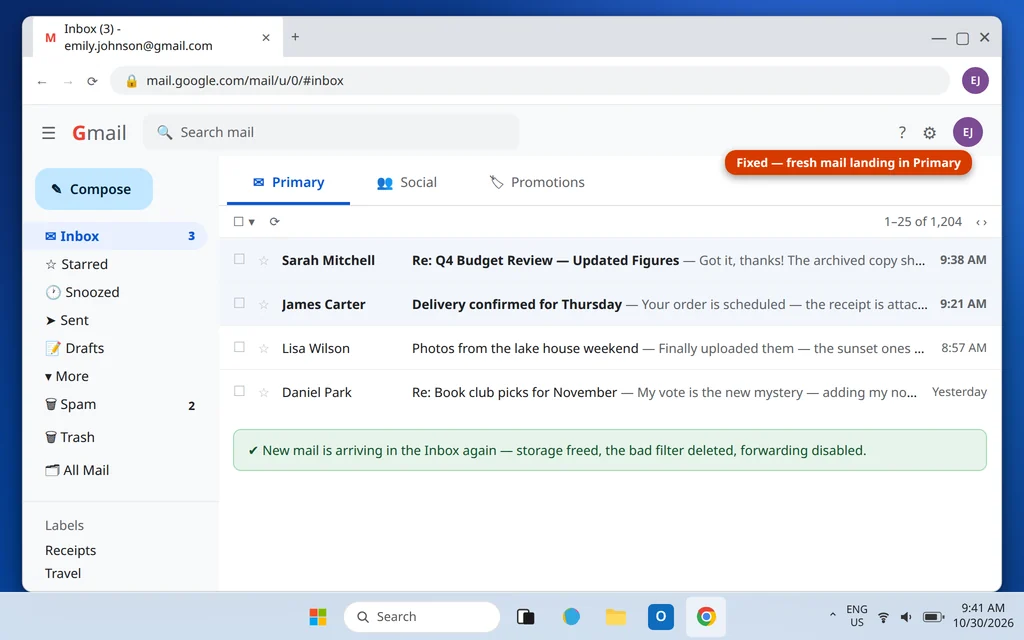
Once the cause is cleared — storage freed, filter deleted, forward disabled — new mail starts arriving normally within minutes. Send yourself a test message from another account (or ask a friend) and watch it land in the Inbox.
If Gmail in a browser is fine but Outlook is still not showing new mail, the remaining checks are on the Outlook side — our guide to Outlook not receiving emails works through them in order.
Frequently Asked Questions
Why am I not receiving Gmail emails but I can send?
Sending uses Google’s outgoing server, which keeps working even when incoming mail is blocked. The usual causes are all inbound: your storage is full (new mail bounces), a filter is archiving or deleting messages, forwarding is set to delete Gmail’s copy, or the mail is landing in Spam or the Promotions tab. Fixes 1, 3, 4 and 5 above cover them in order.
Why is Gmail not receiving emails from one specific sender?
First check whether you blocked them — Settings > Filters and Blocked Addresses lists blocked senders, whose mail goes straight to Spam. Then search in:anywhere for their address. If neither turns anything up, their messages are probably bouncing on their side; ask if they received a bounce-back error.
How do I fix Gmail storage full and not receiving emails?
Go to one.google.com/storage and free space until you are under 15 GB: delete large Drive files, big Photos videos, and Gmail messages found with has:attachment larger:10M, then empty the Trash in each app. Receiving resumes shortly after space is available. Note that mail sent while you were full was bounced and must be resent by the sender.
Why are my emails going to Promotions instead of my Inbox?
Gmail’s category tabs sort bulk and automated mail into Promotions or Social automatically — the mail was received, just filed outside Primary. Turn the tabs off in Settings > Inbox > Categories, or drag one message from Promotions to Primary and choose “Yes” when Gmail asks to do the same for future messages from that sender.
Why is Gmail not receiving emails on my iPhone or Android, but it works on my computer?
The mailbox is fine — the app has lost its sync. On Android, check Sync Gmail is on in the app’s account settings. On both platforms, removing the account from the app and signing in again rebuilds the connection and fixes most cases. Also check the app is allowed to refresh in the background.
Why did Gmail stop receiving emails after I changed my password?
Your web sign-in uses the new password, but apps holding the old one — Outlook especially — get refused until they sign in again. Reconnect the app with the new password (in Outlook, remove and re-add the account), and web Gmail will already be working. If you use a manual IMAP setup with 2-Step Verification, generate a fresh app password.
Can I recover emails that were sent while my Gmail was not receiving?
If they were filtered, forwarded or tabbed, yes — they are in your account and Fix 1’s in:anywhere search finds them. If your storage was full, no: Google bounced those messages back to the senders, and the only fix is asking them to resend now that you have space.
Still not receiving mail? Tell us what the checks above showed — especially the in:anywhere search result and your storage level — on our Contact page — servicedesk@howtofixerroronline.com, available 24 hours.