
OneDrive Files Showing a Red X? What It Means and How to Fix It
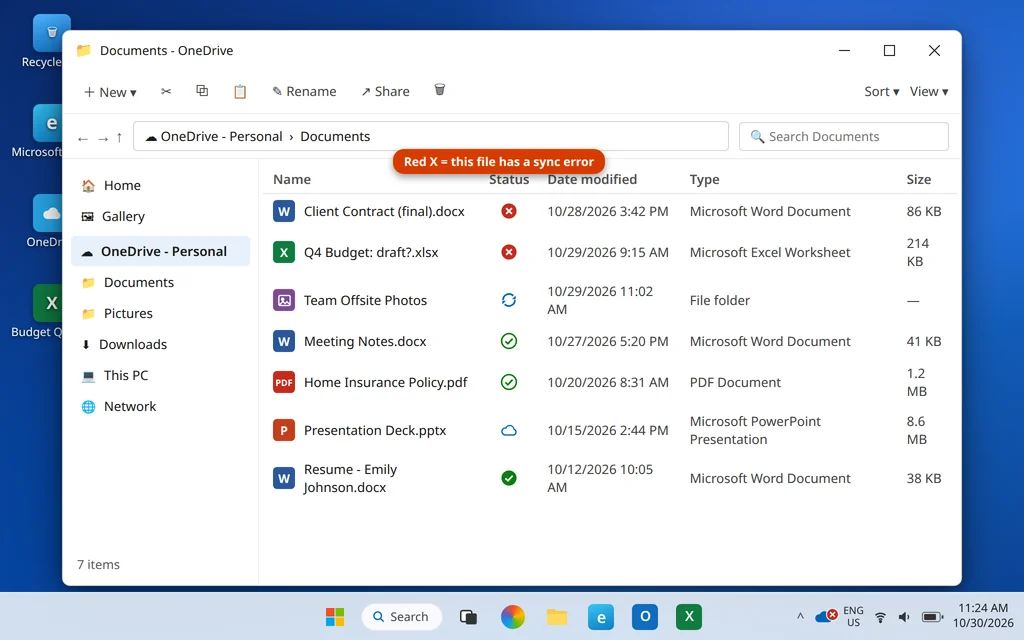
You open File Explorer and there it is: a OneDrive red X sitting on your files, your Documents folder, even the OneDrive cloud icon down by the clock. It looks serious — but in almost every case, your files are safe. The red X is simply OneDrive’s way of saying “this file has a sync problem, and I know which one it is.”
That last part is the key. OneDrive almost always tells you exactly what is wrong — an invalid character in a file name, a file that is still open in Word or Excel, storage that has run out. You just have to know where to look. This guide decodes every OneDrive status icon first, then walks through the 8 fixes in the order you should try them.
Quick Answer: A red X on a OneDrive file means a sync error — the file couldn’t be uploaded or downloaded. Click the OneDrive cloud icon near the clock: the panel lists each problem file with the reason (invalid characters in the name, the file is locked by an app, or your storage is full). Fix that specific cause first. If the error makes no sense, pause and resume syncing, restart OneDrive, then reset it with
%localappdata%\Microsoft\OneDrive\onedrive.exe /reset.
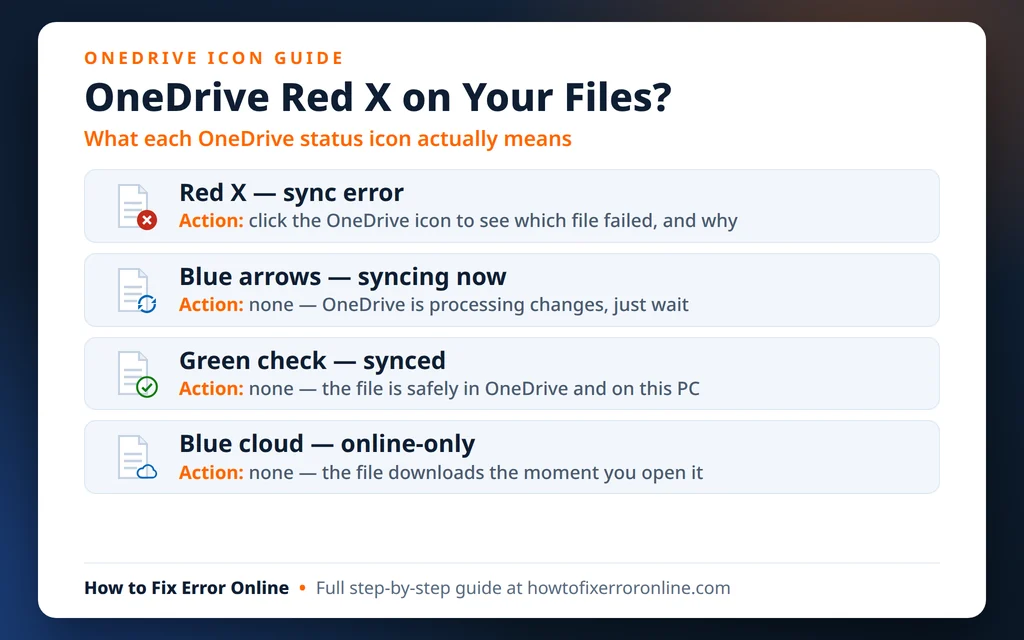
Table of Contents
What the OneDrive Icons Mean
Before fixing anything, it helps to read the icons correctly — because not every symbol is a problem. In File Explorer, the Status column next to each OneDrive file shows one of these:
- Red circle with a white X — a sync error. This file (or folder) failed to sync. This is the one to fix.
- Blue circular arrows — syncing right now. OneDrive is processing changes; just give it a moment.
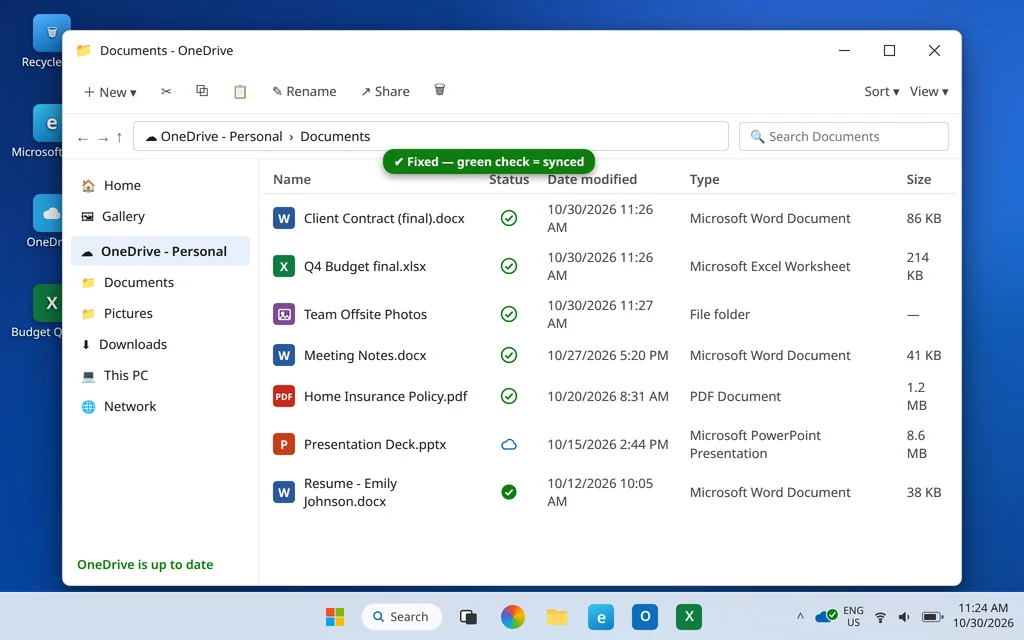
- Green check in a circle — synced. The file is saved in OneDrive and available on this PC. A solid green circle means you chose “Always keep on this device.”
- Blue cloud outline — online-only. The file lives in OneDrive and downloads the moment you open it. This is normal and saves disk space.
- Gray cloud with a line through it (on the tray icon) — OneDrive is not signed in at all, which is a different problem from a red X.
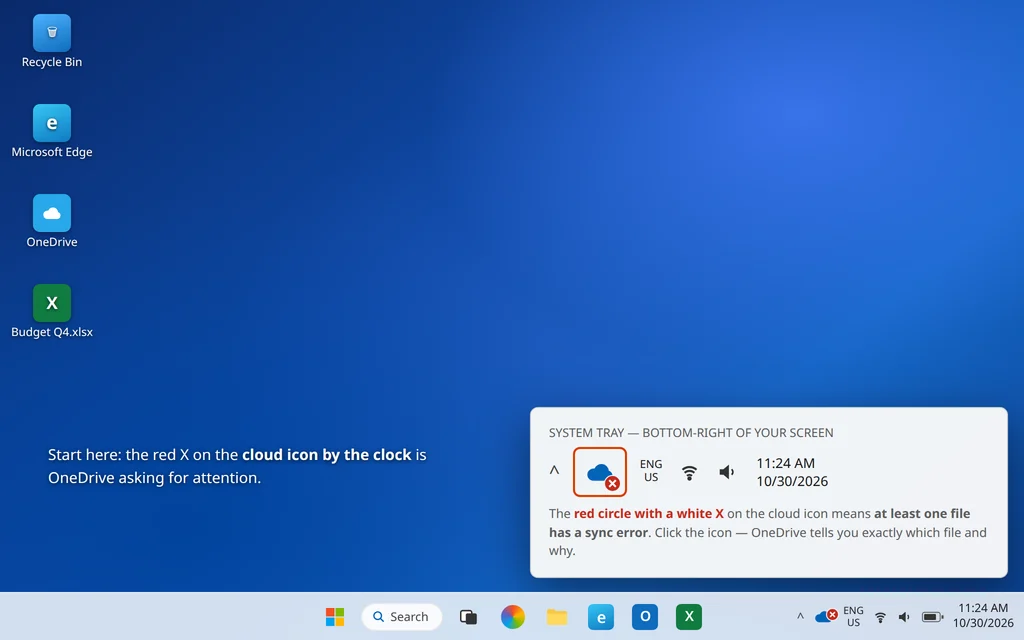
Two things worth knowing: a red X on a folder usually means one file inside it has the problem, not the folder itself. And a red X on the cloud icon by the clock means at least one file somewhere in your OneDrive has an error — the icon is the summary, the files are the details.
Fix 1: Click the OneDrive Icon and Read the Actual Error
Never guess with a red X — OneDrive already knows the answer. This takes ten seconds and points you straight at the right fix below.
- Click the OneDrive cloud icon in the bottom-right corner, near the clock. If you can’t see it, click the small up arrow (^) to show hidden icons.
- At the top of the panel you’ll see “Sync issues” and a list of the problem files.
- Read the message under each file. It will say something like “A file name contains invalid characters,” “This file is locked,” or that your storage is full.
- Jump to the matching fix: invalid characters → Fix 2, locked file → Fix 3, storage → Fix 4.
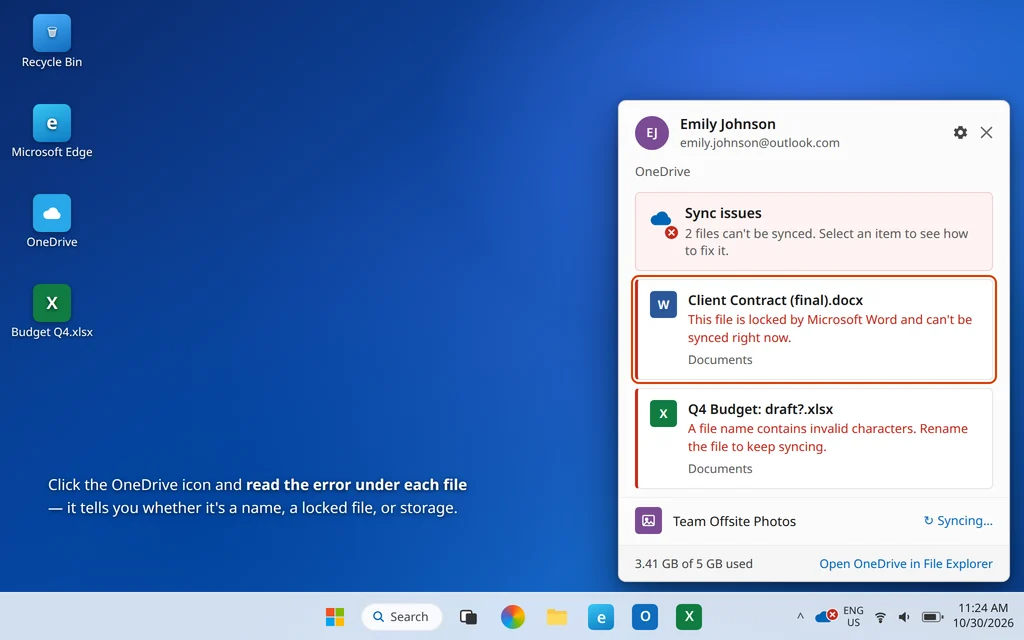
Most people fix their red X right here, because the error message removes all the guesswork.
Fix 2: Rename Files With Invalid Characters or Long Paths
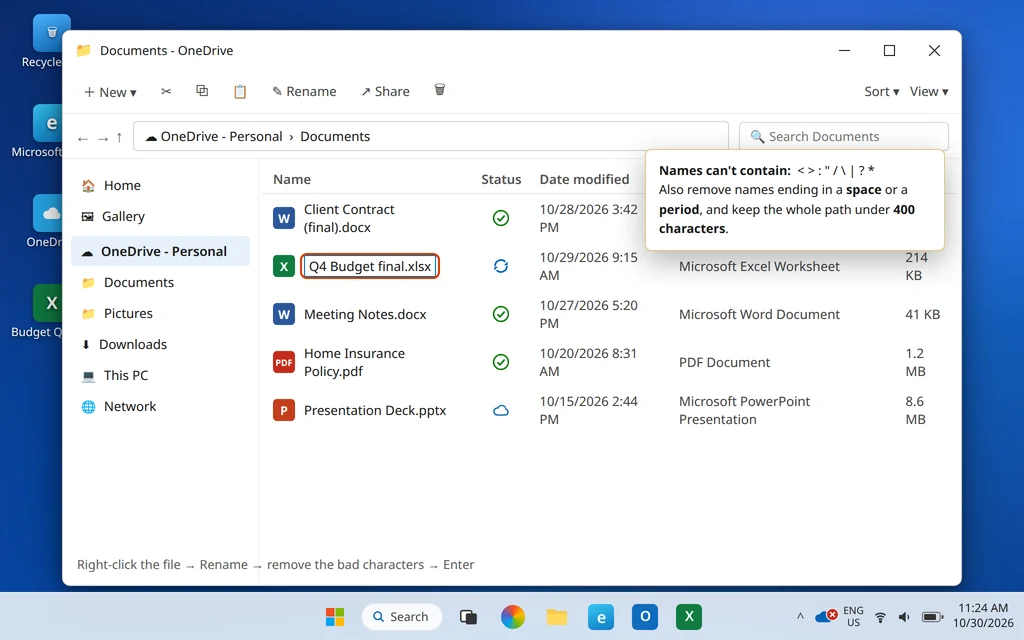
This is the most common cause of a OneDrive red X on some files. OneDrive refuses to sync any file or folder whose name contains these characters:
< > : " / \ | ? *
Names also can’t end with a space or a period, can’t start with a space, and a few names are reserved by Windows — like CON, AUX, NUL, COM1 and LPT1. On top of that, the entire path — every folder plus the file name — can’t be longer than about 400 characters, so a normal file buried in very deep folders can fail too.
These bad names usually arrive from the web version, a Mac, or another app that allows characters Windows doesn’t.
- In File Explorer, find the file with the red X, right-click it and choose Rename.
- Remove the offending characters —
Q4 Budget: draft?.xlsxbecomesQ4 Budget final.xlsx, for example. - If the path is too long, move the file closer to the top of your OneDrive folder and shorten the folder names above it.
- Press Enter and watch the status icon — it should flip to blue arrows, then a green check.
Repeat for every file named in the error list from Fix 1.
Fix 3: Close the File If an App Has It Open
If the error says the file is locked or in use, the cause is simple: the file is open in Word, Excel, or another program, and OneDrive can’t sync a file that is still being edited.
- Look for the file in your taskbar apps — check Word, Excel, PowerPoint, and any PDF or photo editors.
- Save your work and close the file completely (closing the document, not just minimizing it).
- Wait a few seconds and check the icon in File Explorer — the red X normally clears on its own.
- If you can’t find the file open anywhere, it may be stuck from a crashed app: restart your PC, which releases every lock.
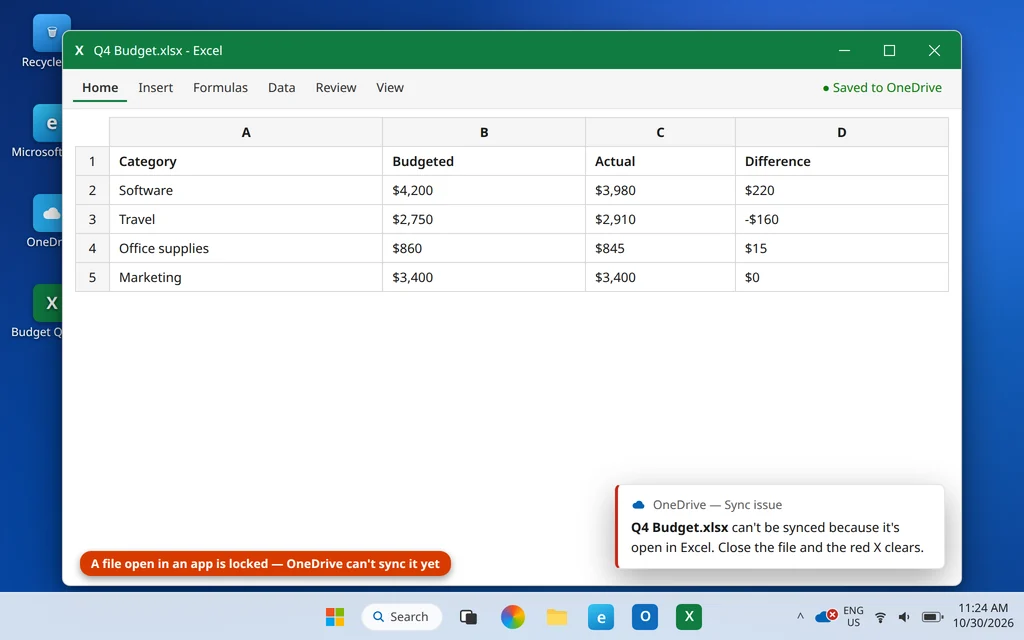
Files shared at work can also be locked by a colleague who has them open — in that case the red X clears when they close it.
Fix 4: Free Up Space — OneDrive Storage and Your Local Disk
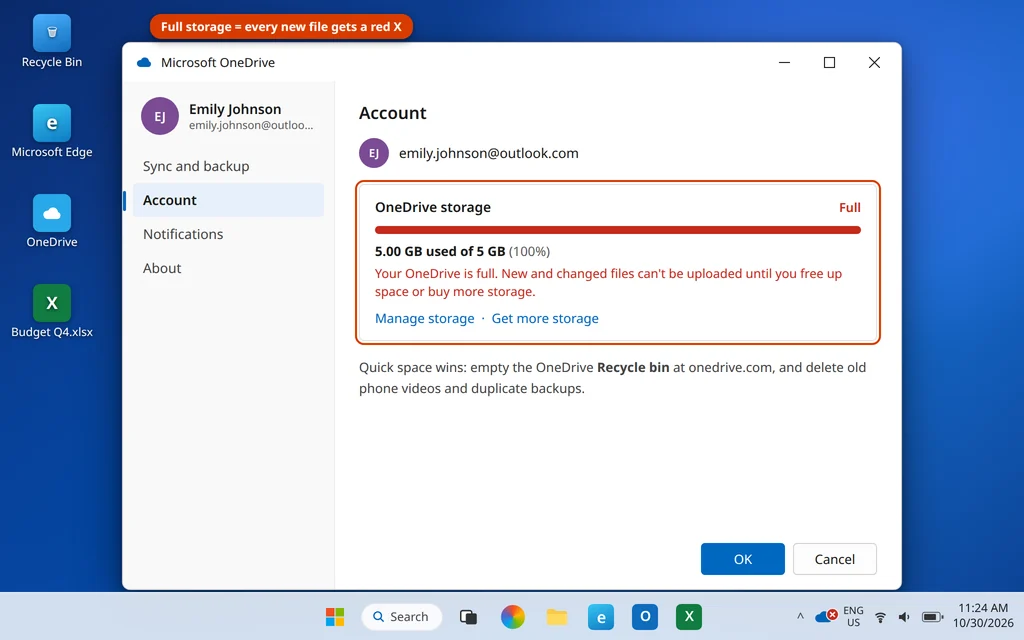
When storage runs out, every new or changed file gets a red X. There are two places to check:
Your OneDrive storage. Free Microsoft accounts include just 5 GB.
- Click the OneDrive icon > gear icon > Settings, and open the Account tab.
- Look at the storage meter. If it is full or nearly full, delete large files you no longer need at onedrive.com — and empty the OneDrive Recycle bin there, because deleted files still count against your quota until you do.
- Large email attachments count toward the same Microsoft storage, so an overflowing mailbox can block OneDrive too.
Your PC’s disk. OneDrive also needs free space on your drive to process files. If your C: drive is nearly full, open Settings > System > Storage and free up space, or turn on Files On-Demand (OneDrive Settings > Sync and backup > Advanced settings) so files stay online-only until opened. A PC that is struggling for space overall often needs a cleanup — see our guide to a PC that is slow on Windows 11.
Fix 5: Pause Syncing, Then Resume It
Sometimes the error is stale — the cause is gone but OneDrive hasn’t retried. A pause-and-resume forces a fresh attempt.
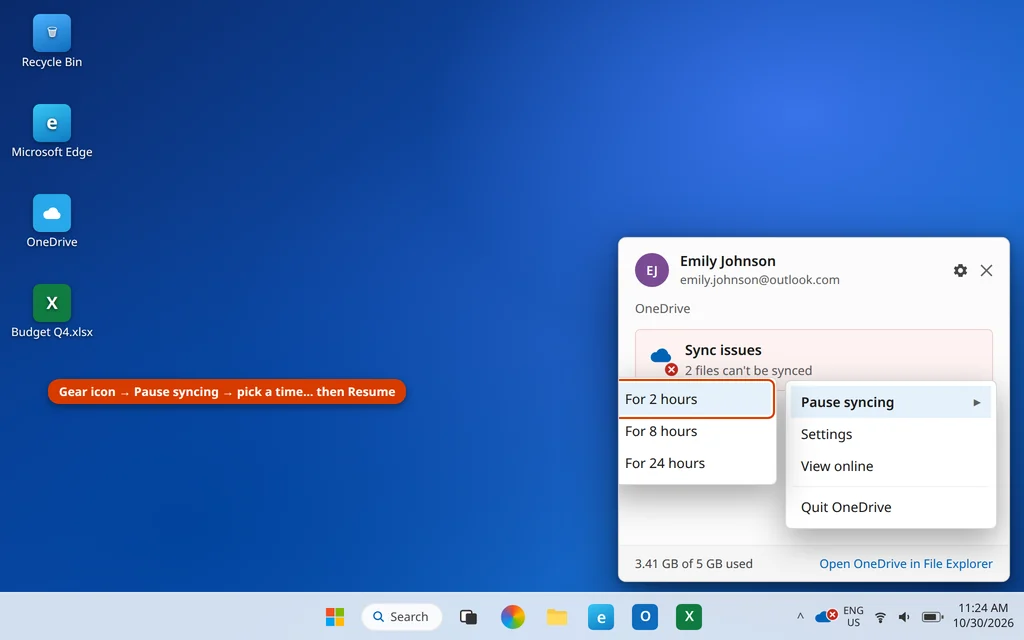
- Click the OneDrive icon, then the gear icon in the panel.
- Choose Pause syncing and pick For 2 hours (the shortest option).
- Wait ten seconds, then click the OneDrive icon again and click Resume syncing at the top of the panel.
- Watch the problem files — most will sync through now.
Fix 6: Restart OneDrive
If the panel itself looks frozen or the red X never changes, restart the app — this clears a stalled sync engine without touching your files.
- Click the OneDrive icon > gear icon > Quit OneDrive, and confirm.
- The cloud icon disappears from the tray. Wait about 10 seconds.
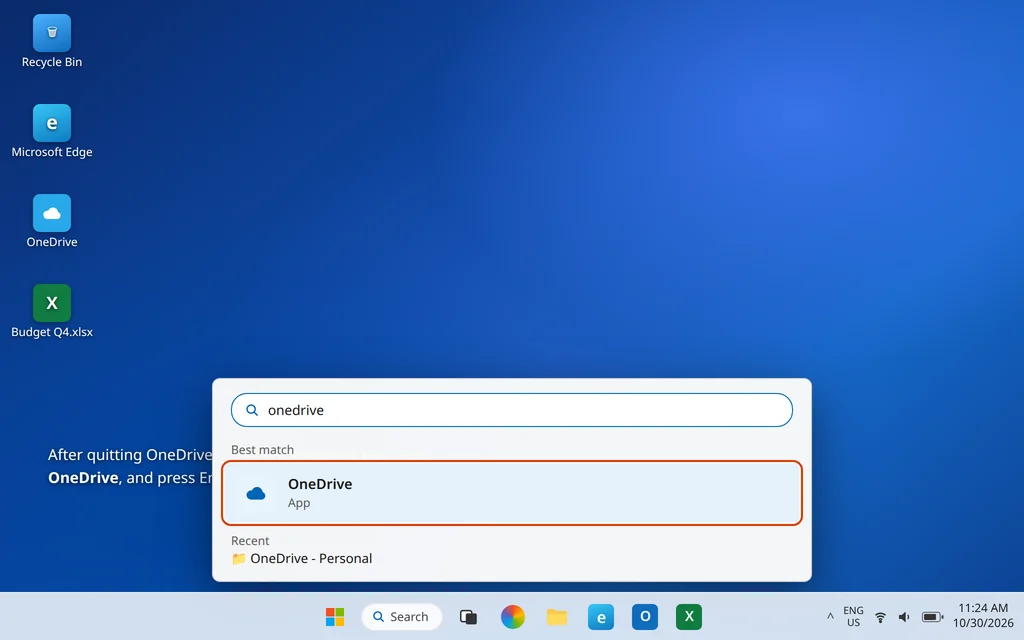
- Press the Windows key, type
OneDrive, and press Enter to relaunch it. - Give it a minute to scan your folders, then check the status icons again.
Fix 7: Reset OneDrive With the /reset Command
A reset is Microsoft’s built-in deep repair: it resets OneDrive’s settings and rebuilds its sync database, then reconnects to your account. Your files are not deleted.
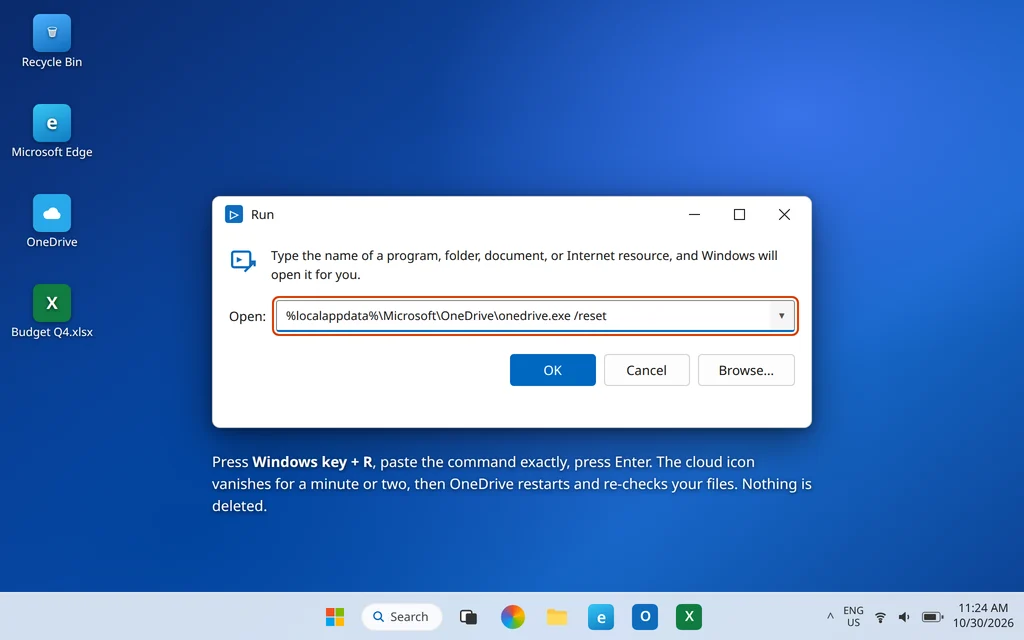
- Press Windows key + R to open the Run box.
- Type this exactly and press Enter:
%localappdata%\Microsoft\OneDrive\onedrive.exe /reset- The cloud icon will disappear from the tray. Wait 1–2 minutes — this is normal.
- If the icon doesn’t return on its own, open OneDrive from the Start menu and sign in if asked.
- Let OneDrive re-scan. On a large folder this takes a while, but it only downloads files that actually differ.
Fix 8: Unlink and Re-link Your Account
If the red X survives a reset, the link between this PC and your account may be corrupted. Unlinking and re-linking rebuilds it from scratch — and again, it does not delete your files.
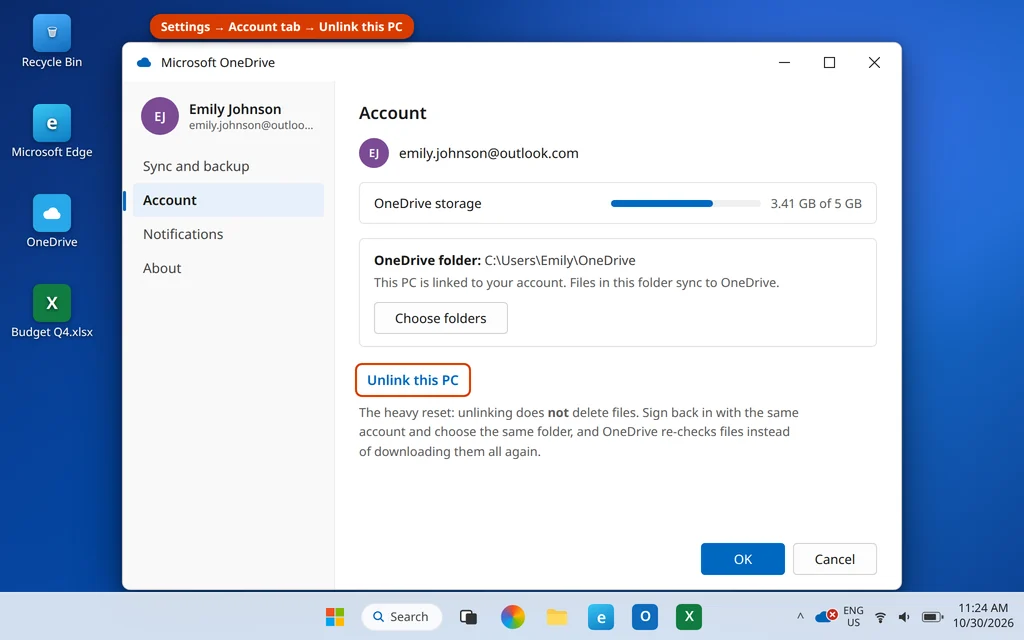
- Click the OneDrive icon > gear icon > Settings.
- On the Account tab, click Unlink this PC and confirm with Unlink account.
- Reopen OneDrive from the Start menu and sign in with the same Microsoft account.
- When asked where your OneDrive folder is, choose the existing folder. OneDrive then compares files instead of downloading everything again.
- Test with one small new file and confirm it earns a green check.
If OneDrive is misbehaving more broadly — files not syncing at all, the app stalling or never starting — work through our full guide to OneDrive not syncing on Windows 11, which covers reinstalling the app and connection problems too.
How to Stop the Red X From Coming Back
- Keep file names simple. Letters, numbers, spaces and hyphens never cause trouble — save the symbols for inside the document.
- Watch the storage meter. Sync gets unreliable right at the limit; leave 10–15% free.
- Don’t bury files too deep. Short folder names near the top of OneDrive keep you far from the 400-character path limit.
- Close files when you finish editing so OneDrive can sync the final version straight away.
Frequently Asked Questions
What does a red X in OneDrive mean?
It means a sync error: OneDrive tried to upload or download that file and couldn’t. The file itself is not deleted or damaged — it just isn’t in sync. Click the OneDrive cloud icon by the clock and the panel names the exact file and the reason, such as invalid characters in the name, the file being open in another app, or your storage being full.
Why does my OneDrive have a red X next to it, but only on some files?
Because the problem belongs to those specific files, not your whole account. One file might have a ? or : in its name while another is still open in Excel. Files without any problem keep syncing normally, which is why you’ll see red X marks and green check marks side by side in the same folder.
OneDrive shows a red X but my files are synced. Why?
Sometimes the icon is simply stale — the file finished syncing but the badge didn’t refresh, or the red X belongs to an older version of the file that was renamed or deleted elsewhere. Click the OneDrive icon: if the panel says “You’re all set” or “OneDrive is up to date” with no files listed under Sync issues, everything really is synced. A pause-and-resume (Fix 5) or restarting OneDrive (Fix 6) clears the leftover badge.
Why did a red X appear after my account name changed at work?
When an employer renames your account (a UPN change) or you change your PC’s name, OneDrive can lose track of which local folder belongs to the account, and files suddenly show red X marks. Sign out of OneDrive and back in with the new account name; if the errors persist, unlink and re-link (Fix 8) and point OneDrive at your existing folder so nothing has to download again.
Will resetting or unlinking OneDrive delete my files?
No. A reset rebuilds OneDrive’s settings and sync database, and unlinking just disconnects this PC from your account. Your files stay in the cloud, and the synced copies stay in your OneDrive folder on the PC. When you sign back in and choose the same folder, OneDrive compares the files instead of downloading everything again.
Why is there a red X on my whole Documents folder?
A red X on a folder almost always means one file inside it has a sync problem — the folder inherits the worst status of anything in it. Open the folder, find the file with its own red X, and fix that one (usually a rename per Fix 2). The folder’s red X disappears as soon as the problem file is resolved.
How long should I wait before trying the advanced fixes?
If the icon shows blue arrows, OneDrive is actively working — give large files or a big first sync real time, even an hour or more. Reach for the reset (Fix 7) only when the red X has sat unchanged for hours and Fixes 1–6 haven’t moved it.
Still seeing a red X? Tell us the exact message shown under the file in the OneDrive panel on our Contact page or at servicedesk@howtofixerroronline.com, available 24 hours. See our Microsoft Office and PC Issues categories for more guides like this one.