
Windows 11 Won’t Boot? Startup Repair Loop Fixes
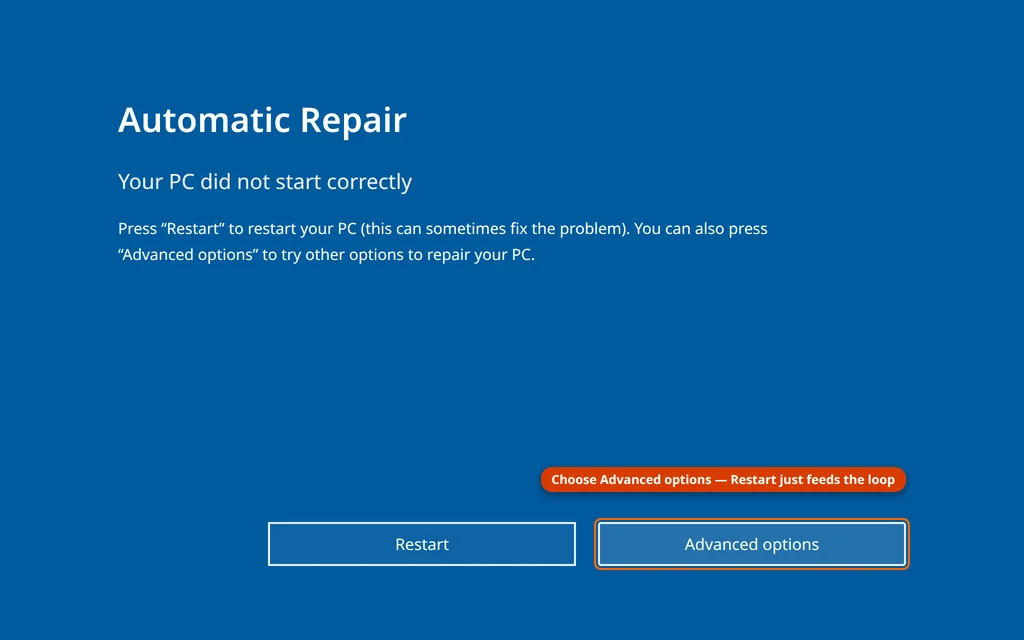
You press the power button and Windows 11 won’t boot. Maybe the spinning dots circle forever, maybe you are staring at “Preparing Automatic Repair” for the tenth time, or maybe your PC keeps landing on a blue screen saying “Your PC did not start correctly.” Either way, you never reach your desktop.
The good news: this is almost never the disaster it feels like. Your files are almost certainly still on the drive, untouched. What failed is usually one step in the startup chain — a recent update, a driver, or damaged boot or system files — and Windows ships a built-in recovery toolbox, the Windows Recovery Environment (WinRE), for exactly this. The trick is using the right tool, in the right order.
Work through the fixes in order. Most PCs are repaired by Fix 4 or Fix 5, both of which run entirely inside WinRE and leave your files alone.
Quick Answer: When Windows 11 won’t boot, get into the Windows Recovery Environment (turn the PC on and force it off during the spinning dots, three times in a row) and go to Troubleshoot > Advanced options. There, Uninstall Updates and System Restore fix most cases — especially if the problem started after an update. Try Startup Repair first if you like, but don’t stop there: uninstall and restore are what usually break an Automatic Repair loop.
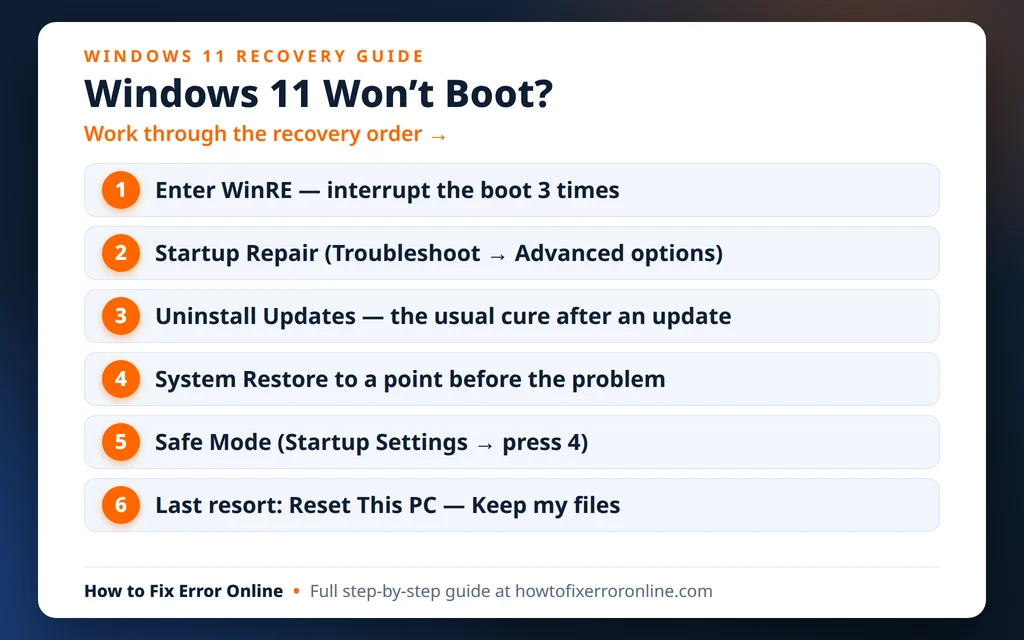
Table of Contents
What You Are Seeing: The Common “Won’t Boot” Screens
Different screens point at different causes, so match yours:
- Spinning dots that never end. Windows starts loading but never reaches sign-in — often a stuck update, a bad driver, or a USB device holding up startup (Fixes 1 and 2, then Fix 6).
- “Preparing Automatic Repair,” then “Your PC did not start correctly.” The classic Windows 11 Automatic Repair loop: Windows tried to repair itself and couldn’t. The manual tools in WinRE (Fixes 4 and 5) are the way out.
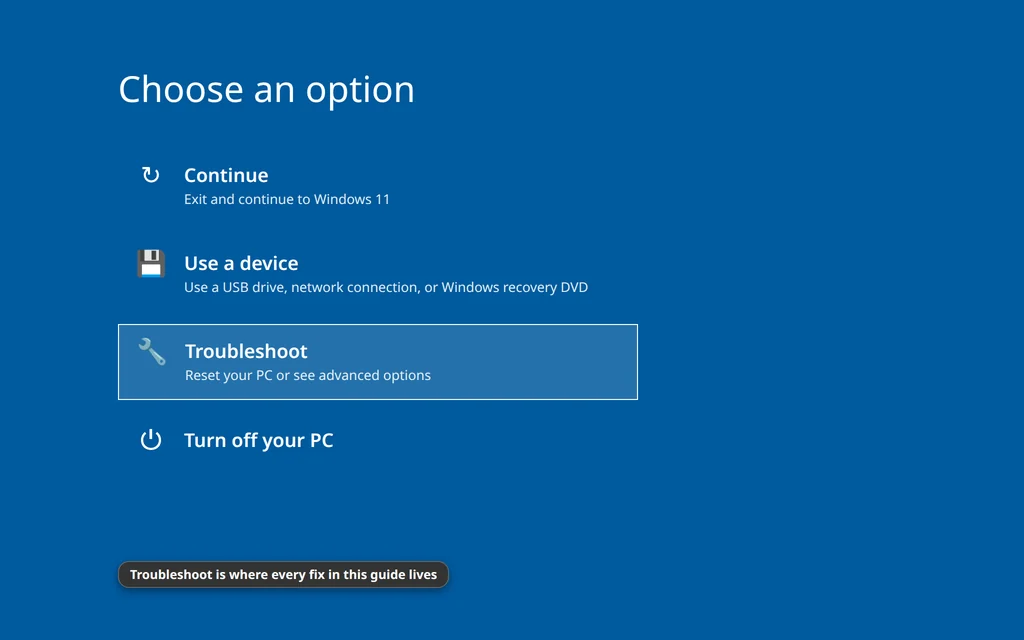
- A blue recovery screen with options like Continue and Troubleshoot. You are already in WinRE. Skip ahead to the fixes.
- A completely black screen before any Windows logo. If you saw the Windows logo or spinning dots at all, this guide applies. If the PC never gets past the manufacturer’s logo (the “won’t boot past BIOS” searches), suspect hardware or a failing drive instead. And if your PC reaches sign-in and only goes black after your password, see our black screen on Windows 11 after login guide instead.
One reassuring fact: no fix up to Fix 7 deletes personal files, and even Fix 8 has a keep-my-files option. Anything that could affect data is flagged where it appears.
Fix 1: Wait Once, Check the Power, Then One Clean Restart
It sounds too simple, but the first boot after a Windows update can legitimately take 20–30 minutes while Windows finishes installing in the background — especially on an older hard drive. If the disk activity light is flickering, give it that time, once.
- Laptop? Plug in the charger. Updates and recovery tools misbehave on a low battery, and some laptops will not finish an update install unplugged.
- Still stuck after a genuine wait? Hold the power button for a full 10 seconds until the PC switches off. Wait 10 seconds, then turn it on once. One clean restart clears many one-off stalls — but don’t keep force-restarting beyond this; the triple-interrupt trick in the WinRE section below is a separate, deliberate move.
Fix 2: Unplug USB Drives and Peripherals
A faulty USB stick, external drive, printer or dock can hang startup — or your PC may be trying to boot from a USB drive that has no Windows on it.
- Shut the PC down (hold the power button if needed).
- Unplug everything except the power cable, keyboard, mouse and monitor: USB drives, external disks, printers, webcams, docks and card readers.
- Turn the PC on and watch whether it boots normally.
If it does, reconnect devices one at a time after Windows loads — the one present when it fails again is the culprit. If nothing changes, leave things unplugged anyway; it keeps the recovery steps clean.

How to Open the Windows Recovery Environment (WinRE)
Fixes 3 to 8 all live inside WinRE, Windows’ built-in recovery toolbox. There are two ways in:
Method 1 — interrupt the boot three times (works when you cannot sign in):
- Turn the PC on.
- As soon as you see the Windows logo or spinning dots, hold the power button until it turns off (about 10 seconds).
- Repeat three times. On the next start Windows shows Preparing Automatic Repair, then the Automatic Repair screen.
- Click Advanced options — not Restart, which simply feeds the loop.
Method 2 — Shift + Restart (if you can reach a sign-in screen): hold Shift while clicking the power icon (bottom-right of the sign-in screen) > Restart, and keep holding Shift until the blue recovery screen appears.
In WinRE, almost every fix follows one path: Troubleshoot > Advanced options, then pick the tool. You may be asked for your Microsoft account password — not your PIN, which WinRE does not accept. Devices with BitLocker on may also ask for the recovery key first (see the BitLocker FAQ below).
Fix 3: Run Startup Repair
Startup Repair is Windows’ automated boot doctor: it checks the boot files, startup configuration and registry, and attempts repairs. It is quick and harmless, so it goes first — just know that in a stubborn Automatic Repair loop it often reports it could not help, which is normal, not a dead end.
- In WinRE, go to Troubleshoot > Advanced options > Startup Repair.
- Choose your account and enter your password if asked.
- Wait — you will see “Diagnosing your PC,” then “Attempting repairs.” Ten to twenty minutes is not unusual.
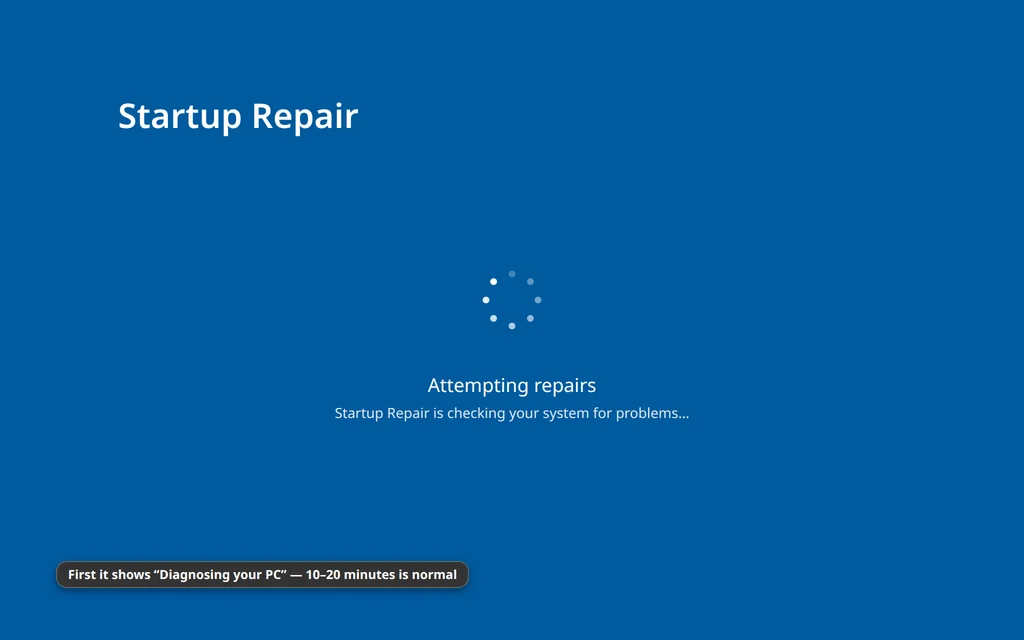
If the PC boots afterwards, you are done. If it reports “Startup Repair couldn’t repair your PC” (it may mention a log file, SrtTrail.txt — see the FAQ), click Advanced options to return to the menu and continue with Fix 4.
Fix 4: Uninstall the Latest Update
If Windows 11 won’t boot after an update landed — the single most common trigger, and one of the most-searched phrases on the topic — removing that update inside WinRE is the highest-success fix on this page.
- Go to Troubleshoot > Advanced options > Uninstall Updates.
- Choose Uninstall latest quality update first. Quality updates are the small monthly patches, and they are the usual suspects.
- Confirm, and let Windows remove it and restart.
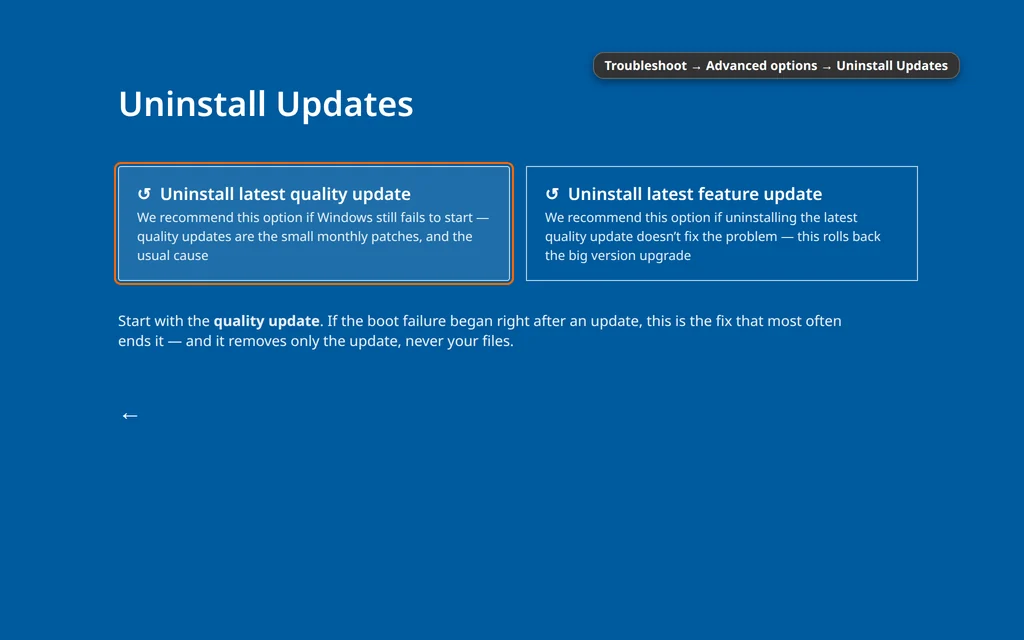
If that is not offered or does not help, repeat and choose Uninstall latest feature update instead — it rolls back the big twice-a-year version upgrade. Two honest limits: Windows won’t uninstall an update it considers essential, and the option can disappear if too much time has passed. Once Windows boots again, pause updates for a week (Settings > Windows Update) so the same patch doesn’t reinstall tonight. If your PC boots but runs badly after an update instead, see our PC slow after a Windows 11 update guide.
Fix 5: Restore Windows to a Point Before the Problem
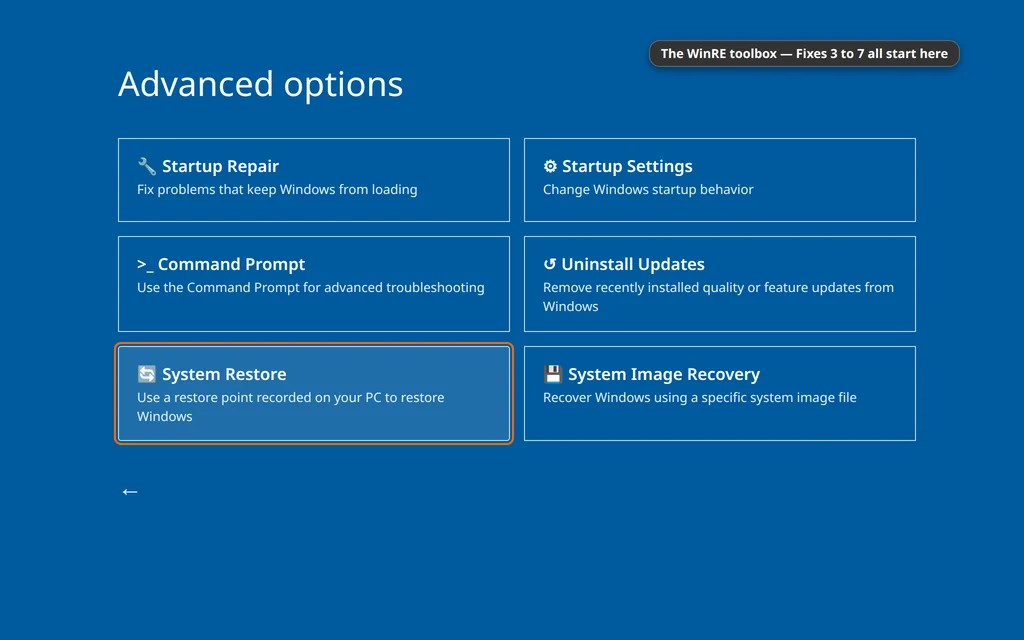
System Restore rolls Windows’ system files, drivers and settings back to a snapshot called a restore point, without touching your documents or photos. If the failure began on a specific day — after an install or an update — a restore point from just before that day is often a complete cure.
- Go to Troubleshoot > Advanced options > System Restore.
- Choose your account, enter your password, and the System Restore wizard opens. Click Next.
- Pick the newest restore point dated before the problem started. Tick Show more restore points if the list is short; Scan for affected programs shows what will be removed or brought back.
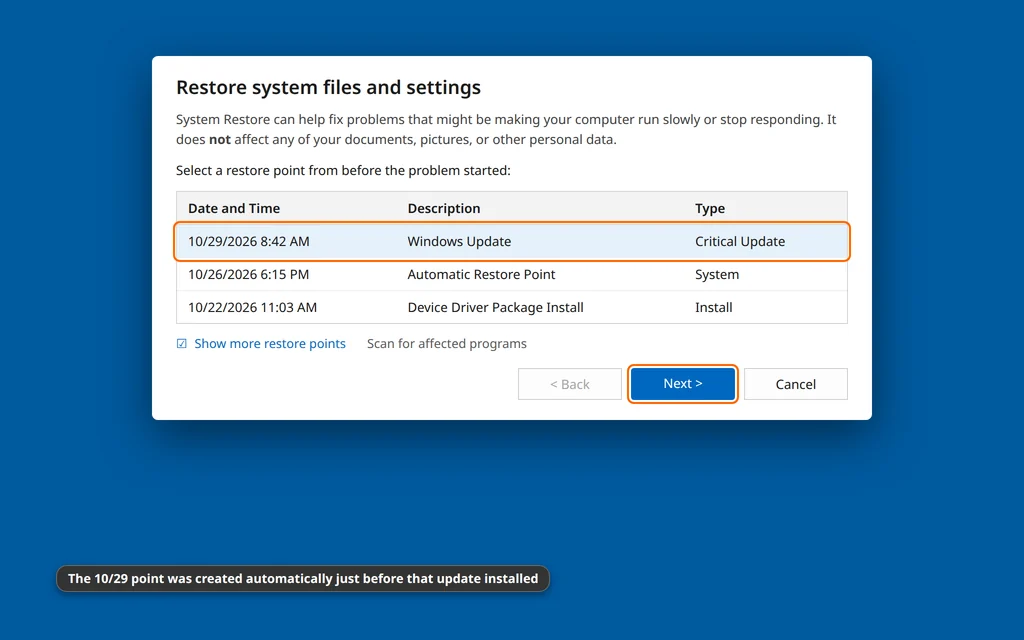
- Click Next > Finish and confirm. The restore takes 15–45 minutes and the PC restarts on its own. Do not interrupt it, even if it looks idle.
Programs and drivers installed after the restore point are removed; personal files are not affected. No restore points listed? Protection was off — see the prevention section later, and move to Fix 6.
Fix 6: Boot Into Safe Mode and Remove the Suspect
Safe Mode starts Windows with only essential drivers and services. If it boots happily there, the core system is fine and something that loads in a normal boot — most often a recent driver or program — is the blocker.
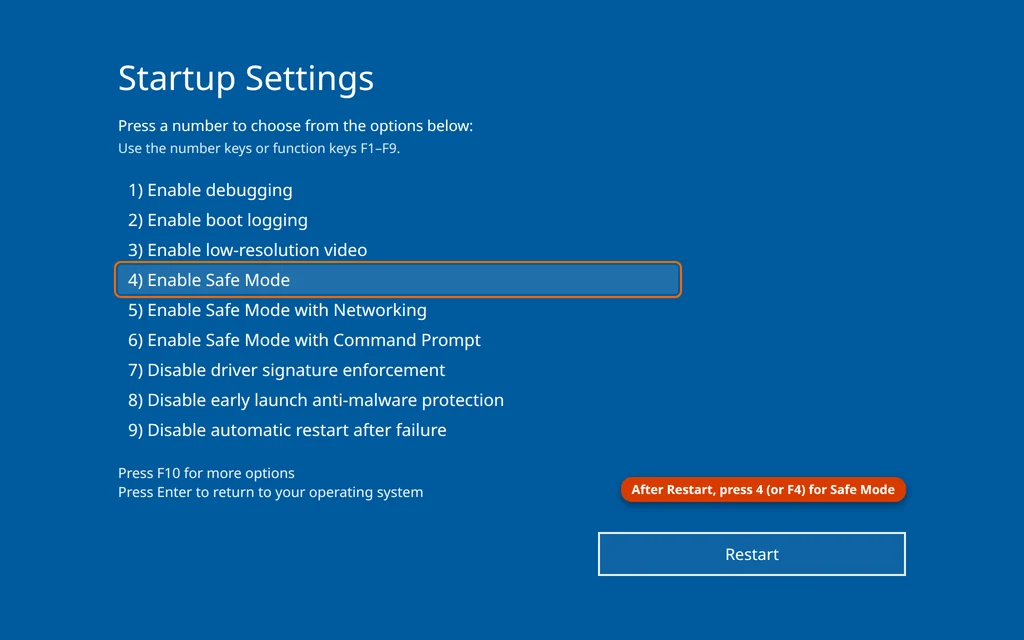
- Go to Troubleshoot > Advanced options > Startup Settings and click Restart.
- When the Startup Settings list appears, press 4 (or F4) for Enable Safe Mode. Press 5 (or F5) if you also need internet access (Safe Mode with Networking).
- In Safe Mode, undo what changed last: uninstall the most recent program in Settings > Apps > Installed apps. If a graphics or network driver updated recently, open Device Manager, right-click the device under Display adapters or Network adapters, and use Properties > Driver > Roll Back Driver.
- Also run Windows Security > Virus & threat protection > Full scan — malware that hooks into the boot process is rare but real.
- Restart normally.
If Safe Mode fails to boot too, the problem sits deeper than a driver — skip straight to Fix 7.
Fix 7: Run Disk, File and Boot Repairs From Command Prompt
The WinRE Command Prompt runs three repairs that cannot run while Windows is half-booted. Go to Troubleshoot > Advanced options > Command Prompt.
First, find your Windows drive letter. Drive letters shift in the recovery environment — Windows is usually still on C:, but it can appear as D:. Type dir C: and press Enter: if the listing shows the Windows, Program Files and Users folders, C: is correct. Otherwise try dir D:, and use that letter in place of C: in every command below.
Then run these, in order:
- Check the disk for errors:
chkdsk C: /f— scans the file system and fixes errors it finds. It can take a while on a large drive. - Repair Windows system files (offline version):
sfc /scannow /offbootdir=C:\ /offwindir=C:\Windows— the/offbootdirand/offwindirparts point System File Checker at your offline Windows installation. This is the correct syntax; plainsfc /scannowrefuses to run here. - Rebuild the boot files:
bcdboot C:\Windows— copies fresh boot files from your Windows folder to the startup partition, the correct modern way to rebuild the boot configuration on today’s UEFI PCs.
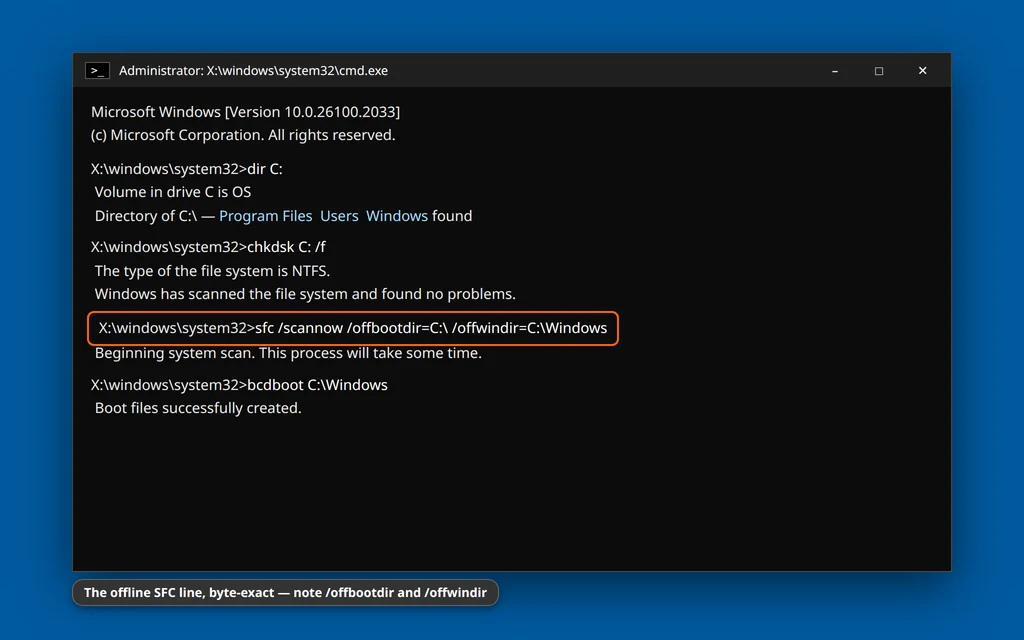
One older command to skip: bootrec /fixmbr and its partners were written for legacy BIOS/MBR systems; on a modern UEFI PC they often return “Access is denied” or simply don’t apply — bcdboot above replaces them. When the commands finish, close Command Prompt, choose Continue, and test a normal boot.
Fix 8: Reset This PC (Keep My Files) — The Last Resort
If Windows still won’t boot after everything above, resetting reinstalls Windows while you choose what happens to your files:
- Go to Troubleshoot > Reset this PC.
- Choose Keep my files (Remove everything wipes the drive — only pick it with a backup elsewhere).
- Choose Cloud download with a good internet connection (a fresh copy of Windows) or Local reinstall to reuse the files on the PC.
- Confirm and let it run, plugged into power — expect 30 minutes to a couple of hours.
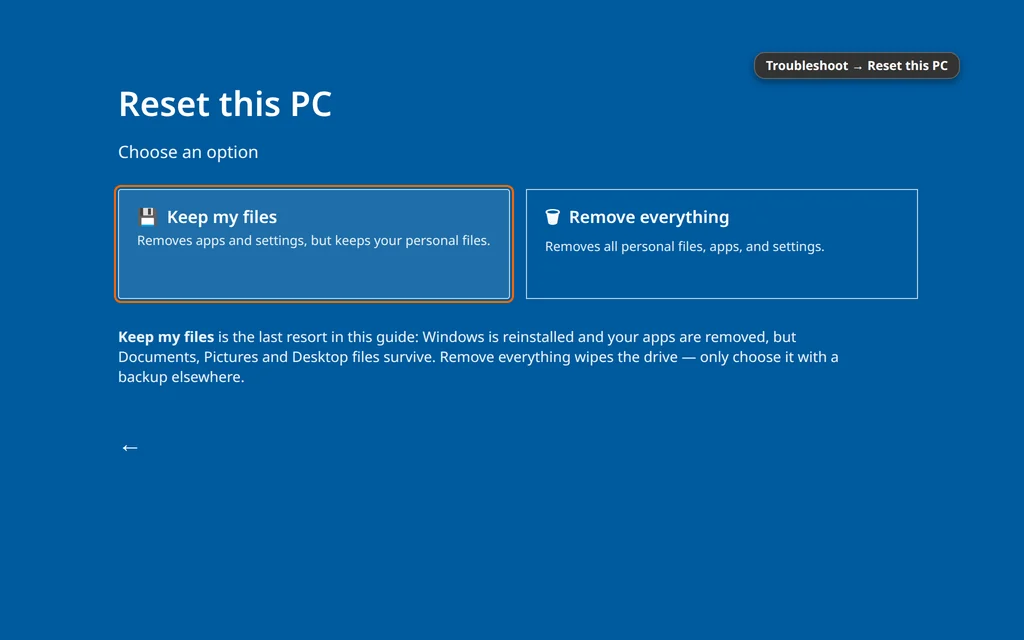
Be clear-eyed about Keep my files: files in your user folders (Documents, Pictures, Desktop) survive, but installed programs are removed and settings are reset — you’ll reinstall your apps afterwards. If even the reset fails, the drive itself is likely failing; recovering your data comes first, and a repair shop is the sensible stop.
Protect Your Files While You Work
- Your files usually survive a boot failure. A PC that won’t start Windows almost always still has an intact drive full of data — this is a startup problem, not a data problem.
- You can rescue files before Fix 8. From the WinRE Command Prompt (Fix 7): plug in a USB drive, type
notepad, and in Notepad choose File > Open with the file type set to All files. You get a mini file browser — right-click files and folders to copy them onto the USB drive. Unsophisticated, but genuinely effective. - Do not format or “initialize” anything a screen suggests, and avoid Remove everything unless you have a backup. No earlier fix needs it.
How to Stop It Happening Again
- Turn on System Restore if it was off: once Windows boots, search for “Create a restore point,” select your C: drive, click Configure and switch protection on. It costs a little disk space and buys you Fix 5 next time.
- Let updates finish. Many boot failures begin as an update interrupted by a forced shutdown or flat battery — if one is installing, give it time and mains power.
- Keep a simple backup of files you cannot replace, on an external drive or cloud storage. A boot problem is an inconvenience with a backup, a crisis without one.
- Create Windows installation media while the PC works: a USB stick made with Microsoft’s Media Creation Tool boots into the same WinRE tools if the built-in recovery ever fails to appear.
Frequently Asked Questions
How long should “Preparing Automatic Repair” take?
Diagnosis normally takes a few minutes; even a slow PC should reach the Automatic Repair screen or a result within about 15–20 minutes. If it has shown far longer — or appears on every start — it’s stuck in the loop and waiting won’t help. Head into WinRE and work through the fixes.
I am stuck in an Automatic Repair loop and nothing works. What order should I try?
In WinRE (Troubleshoot > Advanced options): Uninstall latest quality update first if the problem followed an update, then System Restore, then Safe Mode to remove a recent driver or app, then the Command Prompt repairs (chkdsk, offline SFC, bcdboot). Reset this PC — Keep my files is last. Startup Repair is worth one try — don’t keep re-running it; it repeats the same checks.
What is SrtTrail.txt, and should I worry about it?
When Startup Repair fails it may name a log file, C:\Windows\System32\LogFiles\Srt\SrtTrail.txt. It is just Startup Repair’s diary of what it checked — not a virus, not an error in itself. Read it from the WinRE Command Prompt with notepad C:\Windows\System32\LogFiles\Srt\SrtTrail.txt (adjust the drive letter if needed); the final entries often name the exact check that failed.
Will Uninstall Updates or System Restore delete my files?
No. Uninstalling removes only that update. System Restore rolls back system files, drivers and settings — documents and photos are explicitly not touched, though programs installed after the restore point are removed. Only Reset This PC’s Remove everything wipes personal data; this guide keeps it flagged as a last resort behind Keep my files.
WinRE asks for a BitLocker recovery key. Where do I find it?
Many modern laptops have BitLocker on, and WinRE asks for the 48-digit recovery key before certain repairs. If you use a Microsoft account, the key is saved in it: on another device, sign in online, open Devices, find the BitLocker recovery keys list, and type the key matching the ID on your PC’s screen. On a work or school PC, IT holds the key.
What if Windows 11 won’t boot into Safe Mode either?
Then the problem sits below the driver level — damaged system files, boot configuration or the disk itself. Go straight to Fix 7 (chkdsk, offline SFC, bcdboot C:\Windows), then Fix 8 (Reset this PC, Keep my files). If even the reset cannot run, the drive is likely failing and data recovery comes before further repairs.
Still stuck in the loop? Tell us the exact screen you land on (spinning dots, “Your PC did not start correctly,” a black screen, any error text) on our Contact page — servicedesk@howtofixerroronline.com, available 24 hours. If your PC boots but lands on a black screen after you sign in, follow our black screen after login guide, and if it starts but crawls after an update, see PC slow after a Windows 11 update.