
Windows Update Error 0x80073712 on Windows 11? 8 Fixes
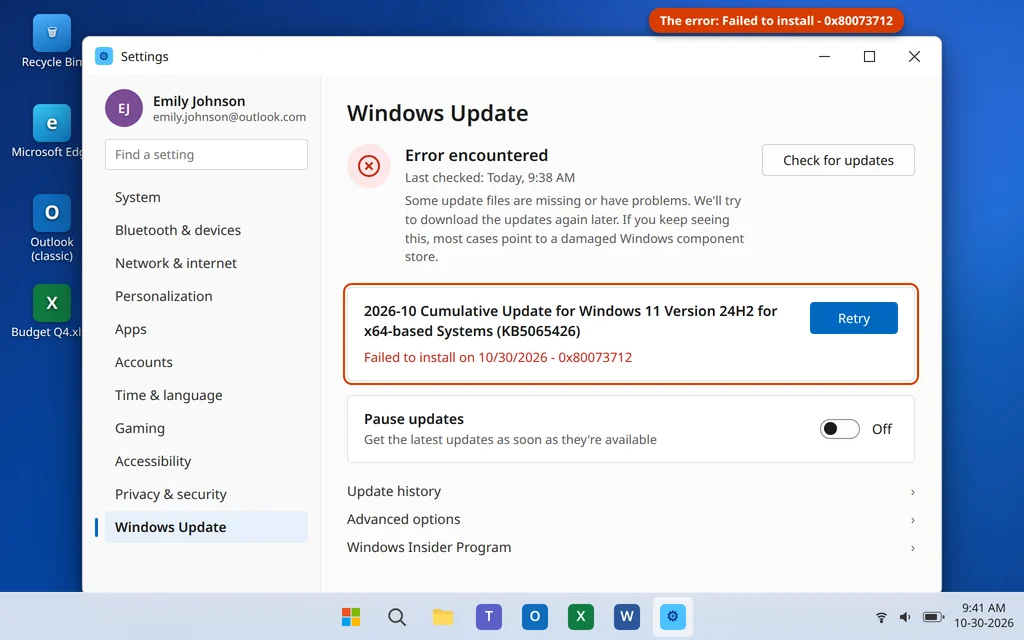
You run Windows Update, the update downloads, the install begins — and then it fails with the message “Some update files are missing or have problems” and the code 0x80073712. When you hit the Windows Update error 0x80073712 on Windows 11, clicking Retry almost never helps, because this code is not about the download at all. It means the Windows component store — the warehouse of parts every update is assembled from — is damaged, so Windows cannot build the update in the first place.
That sounds serious, but it is one of the most repairable update errors there is. Windows ships with a built-in tool, DISM, whose whole job is fixing the component store, and most PCs are updating again within half an hour. The fixes below run from quickest to deepest, and the one that matters most — Fix 3 — is the repair nearly every 0x80073712 case needs.
Quick Answer: Error 0x80073712 means the Windows component store is corrupted. Restart and retry once, run the Windows Update troubleshooter, then do the core repair in this exact order in an administrator Command Prompt: run
DISM /Online /Cleanup-Image /RestoreHealthfirst to repair the store, thensfc /scannowto repair system files from it. Restart and update again. If it still fails, rename the SoftwareDistribution and catroot2 folders so Windows rebuilds its update cache, or finish with an in-place repair upgrade, which keeps all your files and apps.
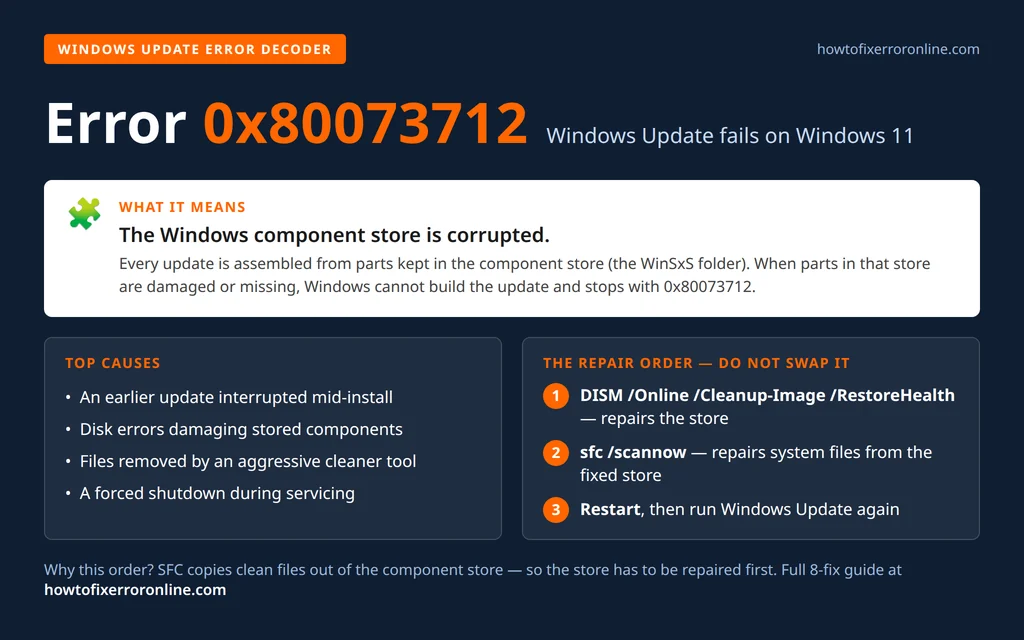
Table of Contents
What Does Windows Update Error 0x80073712 Mean?
Every Windows update is assembled from components stored in a protected warehouse called the component store — the C:\Windows\WinSxS folder. When you install an update, Windows does not just copy files over; it builds the new state of the system out of parts in that store. Error 0x80073712 (its technical name is ERROR_SXS_COMPONENT_STORE_CORRUPT) is Windows reporting that the store itself is damaged: a component it needs is missing or corrupt, so the update cannot be put together and the install is abandoned.
The usual ways the store gets damaged are:
- An interrupted update. A forced shutdown, a power cut, or a crash while an earlier update was mid-install leaves half-written components behind.
- Disk errors. Failing sectors on the drive can corrupt stored component files — one reason Fix 7 checks the drive itself.
- Aggressive “cleaner” tools. Some third-party cleanup utilities delete files from WinSxS to “save space” and break the store in the process.
- A failed servicing operation. If a previous repair or feature update was canceled halfway, the store’s records no longer match its contents.
Fix 1: Restart, Retry, and Check Your Free Disk Space
Before the deep repairs, clear the simple causes. A restart finishes any servicing operation that is still pending — and a PC that is waiting on a reboot from an earlier update can throw 0x80073712 at the next one.
- Save your work and click Start > Power > Restart (choose Restart, not Shut down — Restart clears pending servicing states fully).
- Sign back in, wait two minutes for services to settle, then open Settings > Windows Update and click Retry or Check for updates.
- While you are there, check your free space: open Settings > System > Storage and look at the C: drive. A cumulative update needs room to stage its components — aim for at least 10 GB free. If you are below that, click Temporary files, check the safe categories (leave Downloads unchecked unless you are sure), and click Remove files.
If the error returns after a genuine restart with plenty of space free, the store itself is damaged — keep going.
Fix 2: Run the Windows Update Troubleshooter
Windows 11’s built-in troubleshooter checks the update services, restarts anything stuck, and repairs common configuration damage automatically. It will not fix a corrupted component store, but it clears the smaller faults that can stack up alongside one.
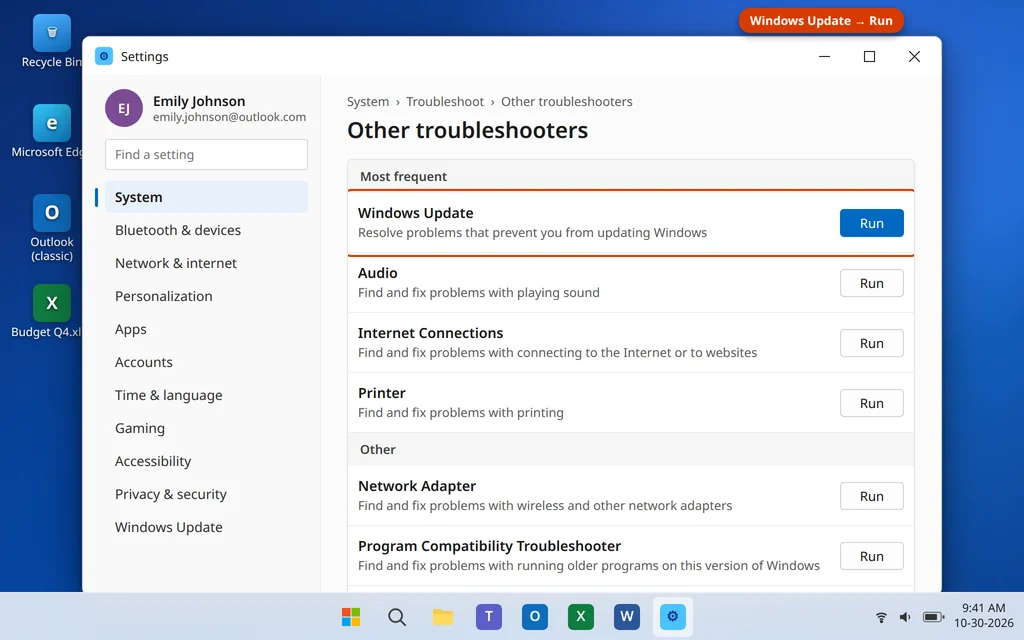
- Open Settings > System > Troubleshoot > Other troubleshooters.
- Find Windows Update at the top, under Most frequent, and click Run.
- Follow the prompts and let the checks complete. Apply any fix it offers.
- Restart the PC if it asks, then run Windows Update again.
If the troubleshooter reports it fixed things but 0x80073712 still comes back, that is expected — move on to the main repair.
Fix 3: Repair the Component Store With DISM, Then SFC
This is the fix that resolves error 0x80073712 in most cases, and the order is the whole point. DISM (Deployment Image Servicing and Management) repairs the component store. SFC (System File Checker) then repairs individual system files — by copying clean versions out of the component store. Run SFC first on a damaged store and it copies from broken stock, which is why so many people run SFC, see “corrupt files found but not repaired,” and stay stuck. DISM first, SFC second.
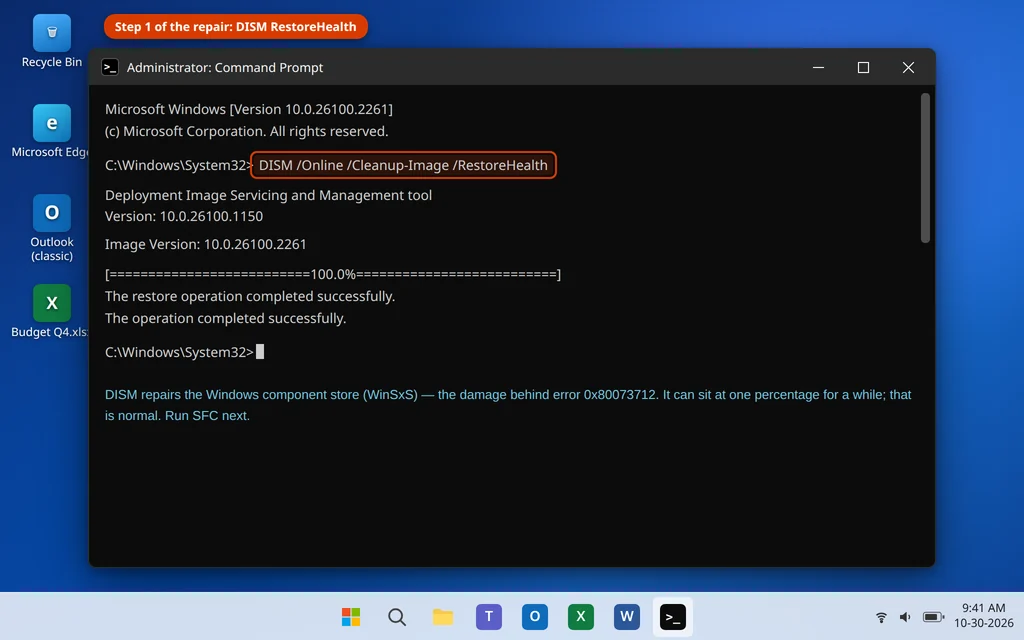
- Type
cmdin Windows search, right-click Command Prompt and choose Run as administrator. (Windows Terminal works too, opened as administrator.) - Type this command exactly and press Enter:
DISM /Online /Cleanup-Image /RestoreHealth3. Wait for it to finish — typically 10 to 30 minutes. It downloads clean component files from Windows Update, so stay connected to the internet. The percentage can sit in one place for a long while; that is normal, do not close the window. Success ends with “The restore operation completed successfully.”
- Optional quick check: if you want to know whether the store is damaged before the full repair, run
DISM /Online /Cleanup-Image /ScanHealthfirst — it only inspects the store and reports whether corruption was found. RestoreHealth is the command that actually repairs, so do not stop at ScanHealth. - When DISM completes, run the second command:
sfc /scannow- Let the scan reach 100%. Ideally it reports “Windows Resource Protection found corrupt files and successfully repaired them” — or that it found no integrity violations, which is also fine.
- Restart the PC and run Windows Update again.
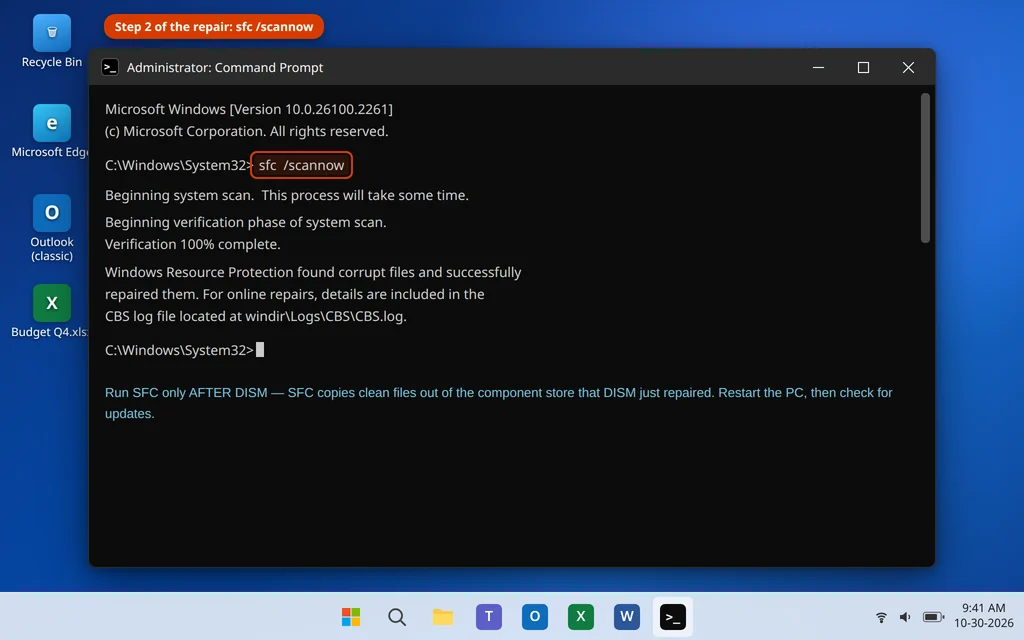
One honest caveat: occasionally DISM reports it “could not find the source files” (error 0x800f081f). That means the store is too damaged to repair itself from Windows Update and needs a matching Windows 11 installation source — the ISO used in Fix 8. If that happens, skip ahead to Fix 8; the in-place repair rebuilds the store completely.
Fix 4: Rename the Update Cache Folders (SoftwareDistribution and catroot2)
If the store is repaired but the update still fails, the update’s own working folders may be damaged. Renaming them forces Windows to build fresh ones — and the catroot2 rename matters specifically for this error, because catroot2 holds the catalog database Windows uses to verify update packages against the component store. Renaming is safer than deleting: you keep a backup you can restore.
- Open an administrator Command Prompt (as in Fix 3) and stop the update services, one line at a time:
net stop wuauserv
net stop bits
net stop cryptsvc- Rename both folders:
ren C:\Windows\SoftwareDistribution SoftwareDistribution.old
ren C:\Windows\System32\catroot2 catroot2.old- Start the services again:
net start wuauserv
net start bits
net start cryptsvc- Restart the PC, then run Windows Update. The update downloads and stages from scratch into brand-new folders.
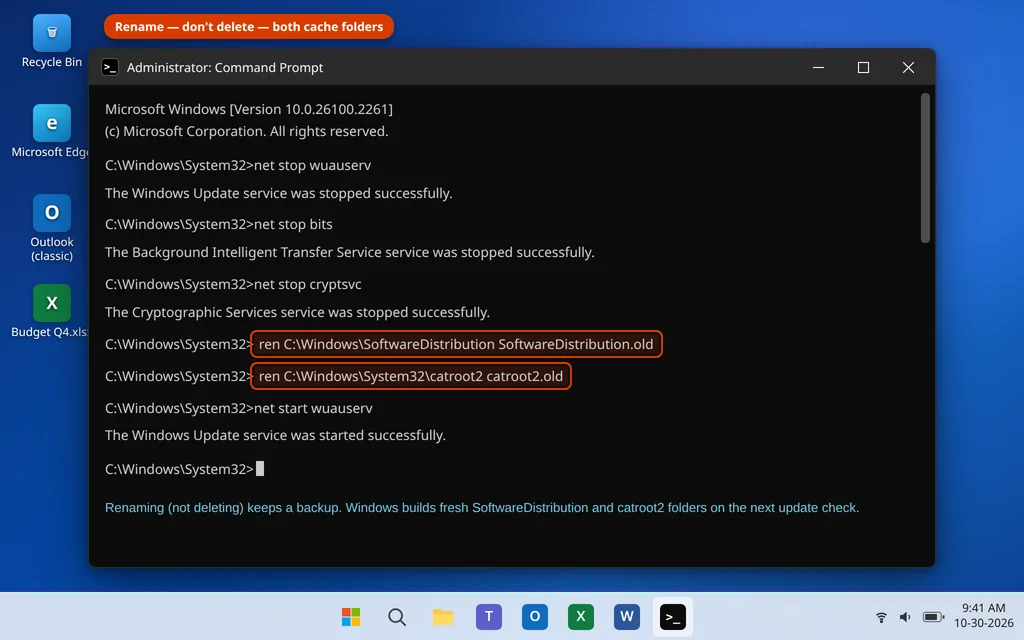
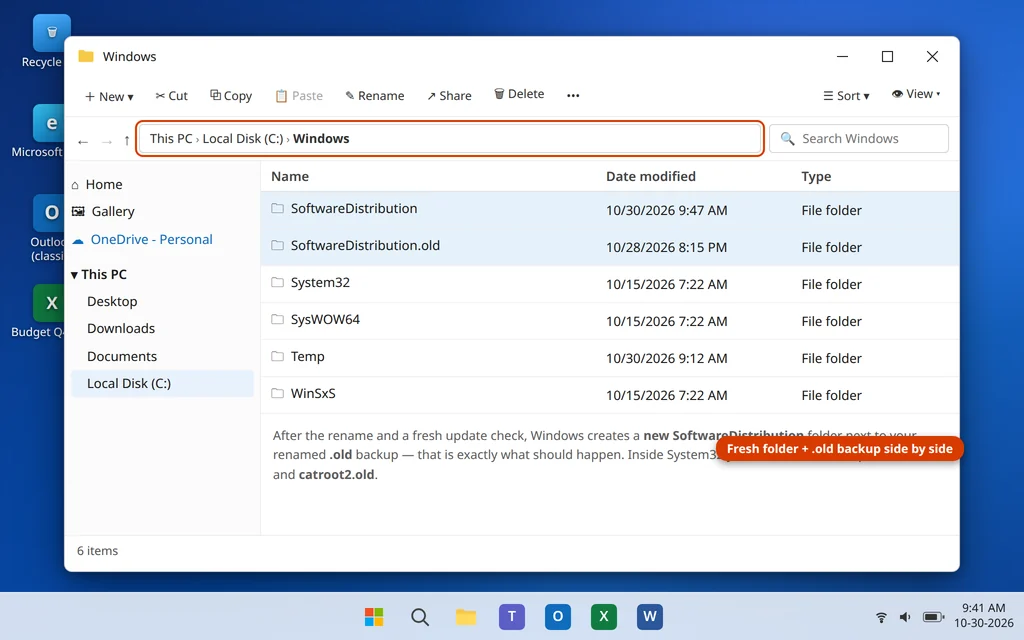
Once an update has installed successfully, the .old folders are just taking up space — you can delete them after a few days (see the FAQ).
Fix 5: Install the Failed Update Manually From the Microsoft Update Catalog
If one specific update keeps failing while the store checks come back clean, bypass Windows Update and install that update yourself from Microsoft’s official catalog.
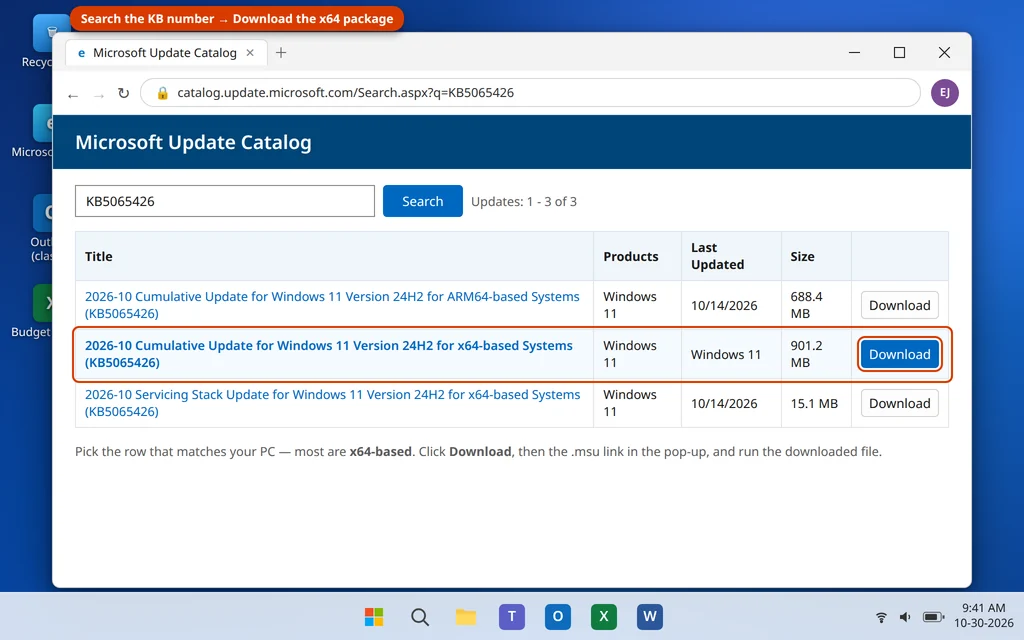
- Note the update’s KB number: open Settings > Windows Update > Update history, find the failed update, and copy the code in its name (for example KB5065426).
- In your browser, go to catalog.update.microsoft.com.
- Type the KB number into the search box and press Search.
- Find the row that matches your system — for most PCs that is the Windows 11 version marked x64-based (choose ARM64-based only if your PC has an ARM processor) — and click Download.
- In the pop-up, click the
.msufile link to download it. - Double-click the downloaded
.msufile, click Yes in the Windows Update Standalone Installer, let it finish, and restart.
Fix 6: Try the Update in a Clean Boot State
Sometimes the store is fine and the update is fine, but a third-party service — a VPN client, a security suite, a “PC optimizer” — hooks into the install and breaks it. A clean boot starts Windows with only Microsoft services running, so you can find out.
- Press Windows key + R, type
msconfigand press Enter. - Open the Services tab.
- Check Hide all Microsoft services first — this step is essential, so you do not disable Windows’ own services.
- Click Disable all. Every remaining (third-party) service is now switched off.
- Click OK and restart the PC when prompted.
- Run Windows Update and install the update.
- Afterwards, open
msconfigagain, select Normal startup on the General tab, click OK and restart to return to your usual setup.
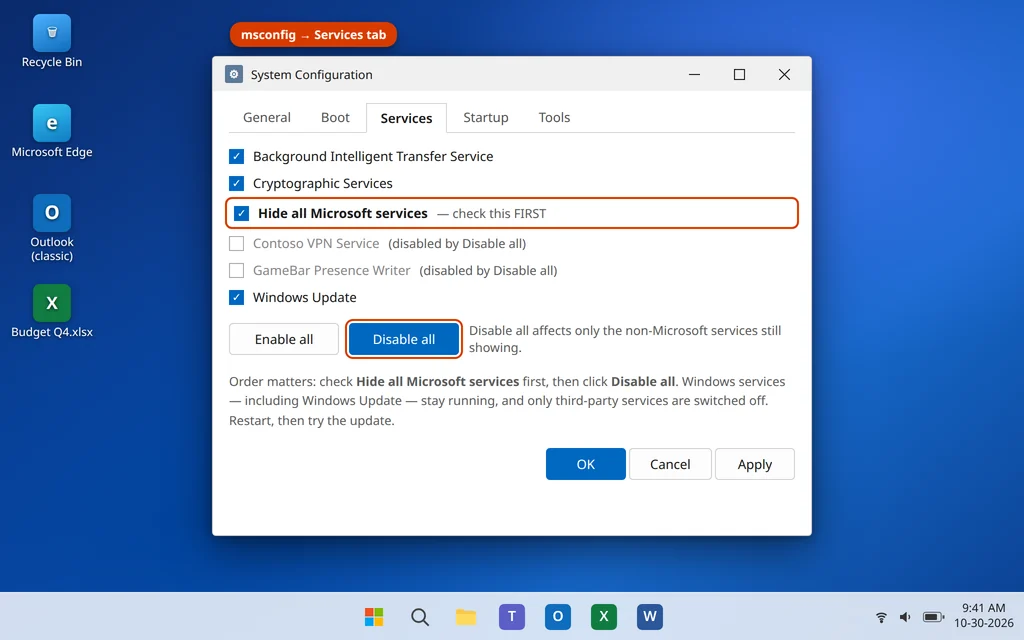
If the update installs cleanly in this state, one of your third-party services is the culprit — security and VPN software are the usual suspects, and updating or temporarily uninstalling them is the permanent fix.
Fix 7: Check the Drive for Errors With chkdsk
Component store corruption is often a symptom, not the disease: if the drive itself has bad sectors or file-system damage, files in WinSxS keep getting corrupted no matter how often you repair them. A quick scan checks for that.
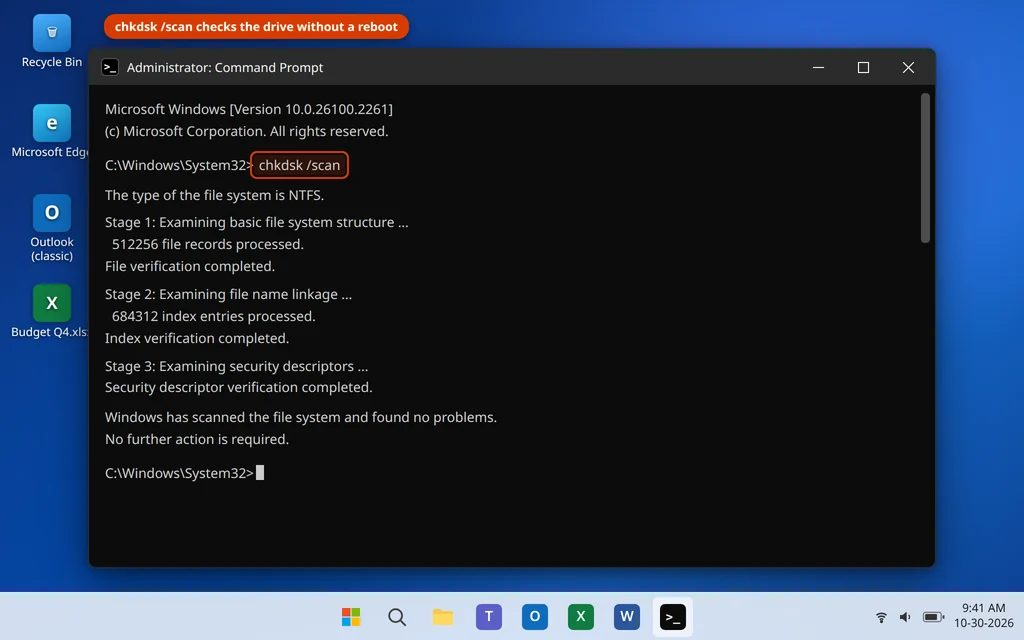
- Open an administrator Command Prompt and type:
chkdsk /scan- The
/scanoption runs an online check — no restart needed — and reports any file-system problems it finds. - If it reports errors, run
chkdsk C: /fand press Y when asked to schedule the check for the next restart, then reboot and let it complete before signing in. - After a clean (or repaired) scan, run Windows Update again. If you had not already done Fix 3, run the DISM and SFC pair once more too — a repaired drive plus a repaired store is the combination that ends this error for good.
Fix 8: In-Place Repair Upgrade (Keeps Files and Apps)
If 0x80073712 survives everything above — or DISM itself failed with a “source files not found” error — the reliable last resort is an in-place repair upgrade: reinstalling Windows 11 over the top of itself. It replaces the entire component store and every update component with fresh copies, while keeping your personal files, installed apps and settings. It takes longer than the other fixes, but it is the one that works when the store is beyond self-repair.
- Download the Windows 11 ISO (or the Media Creation Tool) from Microsoft’s official Windows 11 download page.
- If you downloaded the ISO, double-click it to mount it — it appears as a new drive in File Explorer. (With the Media Creation Tool, choose Create installation media, or simply run the tool’s upgrade option.)
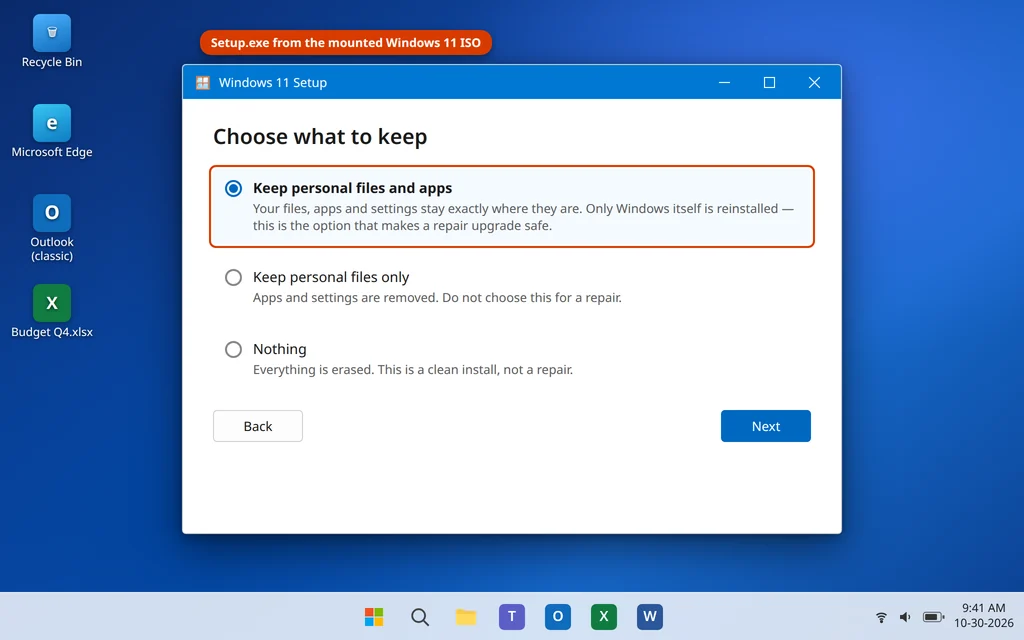
- Open the mounted drive and run setup.exe. Click Yes if Windows asks for permission.
- Click through the setup screens. When you reach Choose what to keep, select Keep personal files and apps — this selection is what makes it a repair instead of a reset.
- Click Install and let it run. The PC restarts several times; expect 30 to 60 minutes.
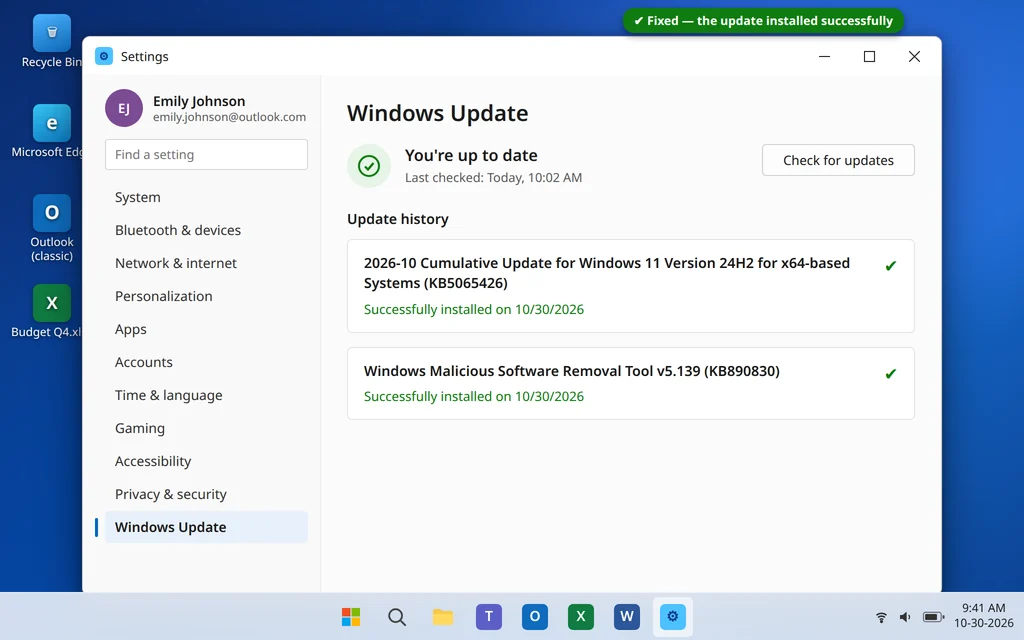
- Sign in and run Windows Update. The previously failing update should now install normally.
How to Stop Error 0x80073712 Coming Back
- Never force the PC off during an update. An interrupted install is the number one cause of component store damage. If an update seems slow, give it time — especially on older drives.
- Keep at least 10 GB free on the C: drive so updates always have staging room.
- Skip aggressive “cleaner” and “registry optimizer” tools. Deleting WinSxS files to free space is how stores get corrupted; Windows manages that folder itself.
- Run the DISM/SFC pair once or twice a year even without an error — it quietly catches store damage early. (
DISM /Online /Cleanup-Image /ScanHealthalone tells you whether the store is healthy.) - Watch for drive warnings. If 0x80073712 returns after a full repair, treat the drive as suspect: back up your files and check the drive’s health, because repeated corruption usually means the hardware is failing.
Frequently Asked Questions
What does error 0x80073712 mean?
It means the Windows component store — the WinSxS warehouse of parts that updates are assembled from — is corrupted (ERROR_SXS_COMPONENT_STORE_CORRUPT). A component the update needs is damaged or missing, so Windows abandons the install. It is repaired with DISM, as shown in Fix 3.
Why do I have to run DISM before SFC?
Because SFC repairs system files by copying clean versions out of the component store. If the store is the damaged part, SFC has nothing clean to copy from and reports that it found corrupt files it could not fix. DISM repairs the store first (downloading clean components from Windows Update), and then SFC can do its job. The order is the fix.
Is DISM stuck? It has sat at the same percentage for ages.
Almost certainly not. RestoreHealth commonly pauses at one percentage for 10 to 20 minutes, especially while it works on a large batch of components. As long as the PC is running and the window is open, leave it alone — closing it mid-repair is one of the ways the store gets damaged in the first place. Only treat it as failed if it returns an actual error message.
Will renaming SoftwareDistribution delete my installed updates?
No. SoftwareDistribution is only the update working folder — downloads in progress and bookkeeping. Updates already installed live in the component store and your update history stays intact. Renaming it (and catroot2) makes Windows build clean working folders; the .old copies remain as backups until you delete them.
Can I delete the SoftwareDistribution.old and catroot2.old folders?
Yes — once the failing update has installed successfully and a few days have passed without the error returning, both folders are safe to delete to reclaim the space. Keep them until then, in case you need to rename them back.
What is the difference between 0x80073712 and 0x80070002?
They fail at different stages. Error 0x80070002 means a file Windows Update expected in its download cache was not found — the problem is upstream, in the delivery. Error 0x80073712 means the component store is corrupt — the problem is in Windows itself. Trying the other code’s fixes rarely hurts, but a 0x80073712 needs the DISM repair in Fix 3; see our guide to Windows Update error 0x80070002 for that code’s fixes.
Is error 0x80073712 a virus?
No. It is Windows servicing damage, not malware — most often the leftover of an interrupted update or a failing drive. If the error arrived together with other strange behavior, a Full scan in Windows Security is a sensible precaution, but the fixes in this guide are the cure either way.
Still getting error 0x80073712? Tell us the KB number of the update that fails and which fix you reached, on our Contact page — servicedesk@howtofixerroronline.com, available 24 hours. More update codes are covered step by step in our guides to Windows Update error 0x80070002 and Windows Update error 0x80070643, and our Windows Errors category has fixes for many more.
Pingback: Windows Update Error 0x80070005 (Access Denied)? 8 Fixes (2026)