
Can’t Join a Teams Meeting? 8 Fixes
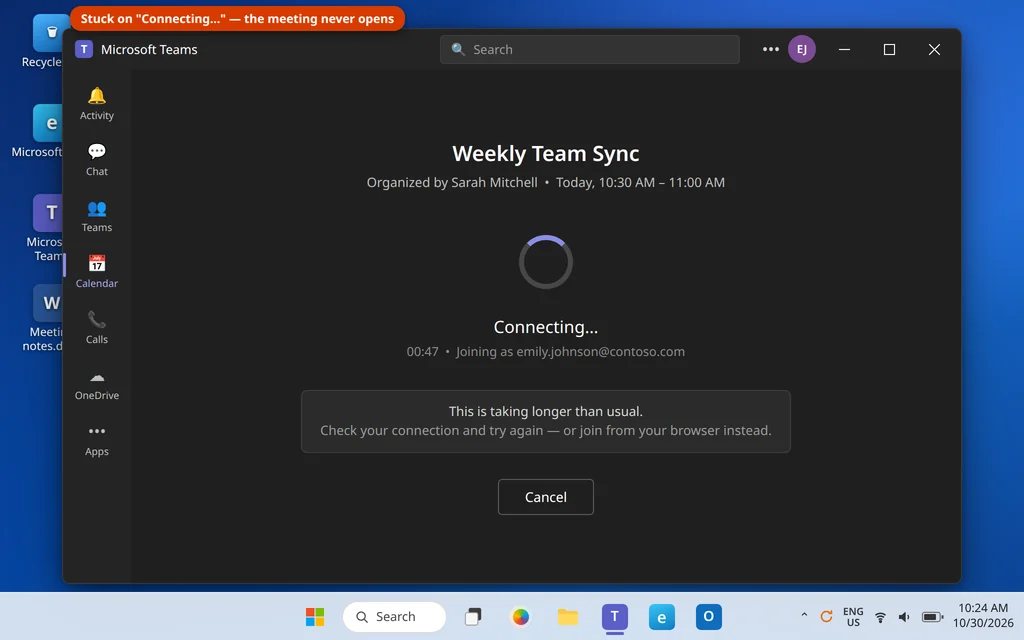
The meeting started three minutes ago. You clicked Join, and Teams is just sitting there — stuck on “Connecting…”, or the Join button does nothing at all, or you get a flat “Sorry, we couldn’t connect you” and get dropped back to the calendar. If you can’t join Teams meeting calls, you are not alone: this is one of the most common Teams problems there is, and it nearly always happens at the worst possible moment.
The good news is that most join failures are not your fault and not a broken PC. The classic causes are a hung Teams session, being signed in to the wrong account (work vs. personal is the big one), a corrupt cache, or a PC clock that has drifted. Work through the fixes in order — Fix 1 gets you into this meeting in under a minute, and the rest stop it happening again.
Quick Answer: Join the meeting from your browser at teams.microsoft.com — that’s the fastest way in right now, app or no app. Then fix the app itself: check you’re signed in to the account the invite was sent to, quit Teams fully (system tray > Quit, not just closing the window) and open callsit, and if joins still fail, Repair or Reset Teams in Settings > Apps and sync your clock under Settings > Time & language.
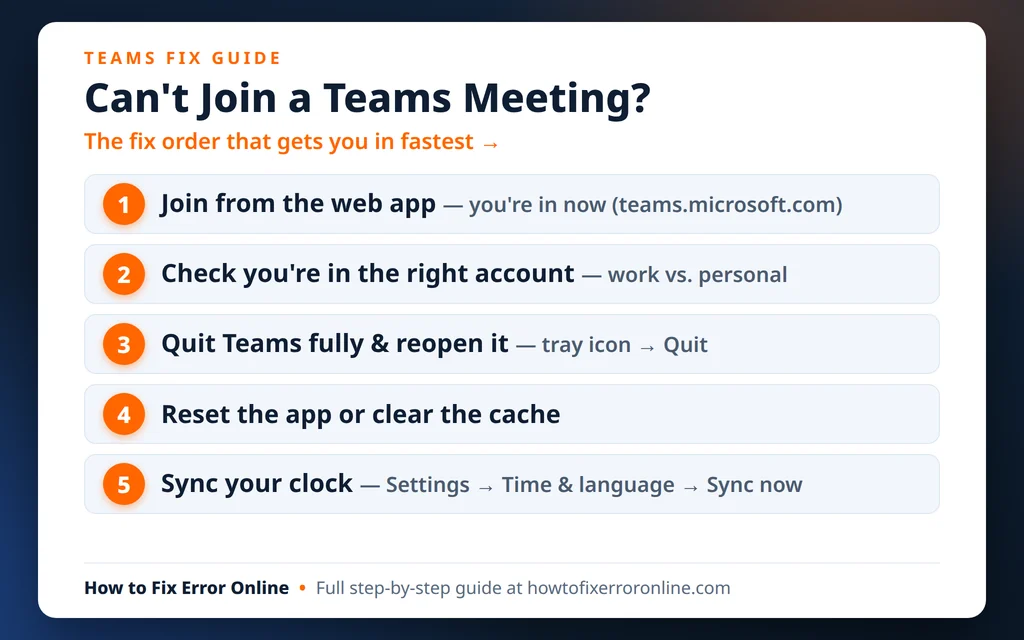
Table of Contents
What a Failed Join Looks Like
Join problems wear a few different disguises. Yours is probably one of these:
- Stuck on “Connecting…” — the spinner runs for a minute or more and the meeting never opens (people search this one as “Teams stuck on connecting when joining meeting”).
- Join button does nothing — you click Join and nothing happens, or there is no Join button on the meeting at all.
- “Sorry, we couldn’t connect you” — sometimes with “try again later” — and you’re bounced back out.
- The meeting opens in your browser instead of the Teams app, even though the app is installed.
Why You Can’t Join Teams Meeting Calls
Teams has to do several things at once to put you in a meeting: prove who you are, fetch the meeting, and connect audio and video. A break anywhere in that chain looks like a join failure:
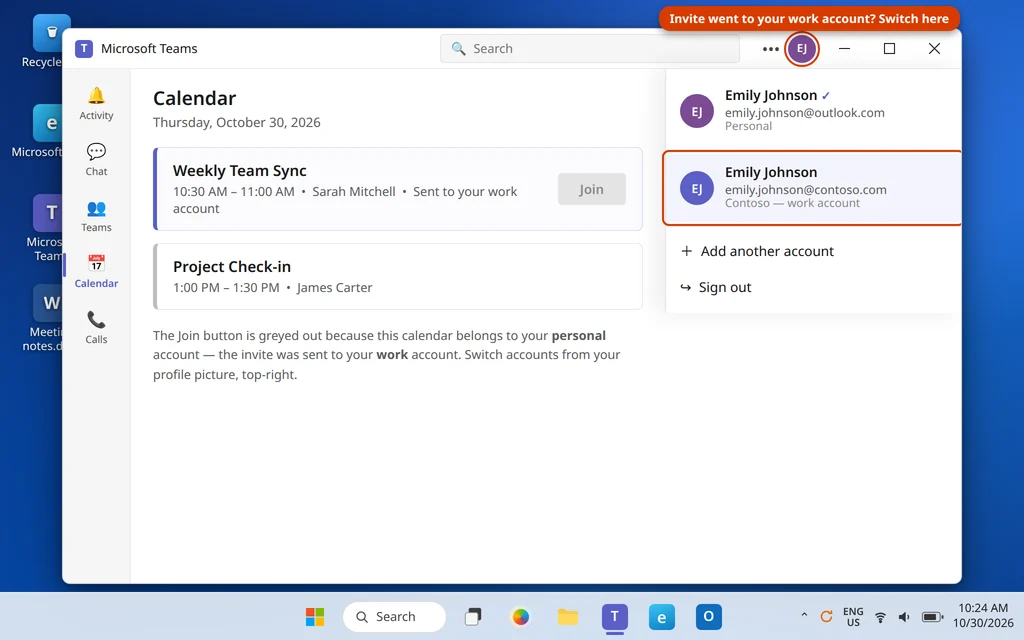
- You’re signed in to the wrong account. Meeting invites belong to one account. If the invite went to your work account but Teams is signed in to your personal Microsoft account, the join can spin, demand another sign-in, or fail outright. This is the single most common cause.
- Teams is hung in the background. Closing the Teams window does not close Teams. A stuck background session can hold a broken connection and refuse every new join.
- A corrupt Teams cache. Teams stores sign-in and meeting data locally. Damaged cache files can break joining while everything else in the app looks normal.
- Your PC clock is wrong. Sign-ins are time-stamped. If your date or time has drifted, Microsoft’s servers can reject the sign-in behind the join, and the meeting never connects.
- Camera or microphone permission is blocked. If the failure happens on the pre-join screen, Windows may be stopping Teams from using your devices.
- The app is out of date or damaged, especially after a Windows update.
- The organizer’s organization blocks you. Some companies only allow signed-in or approved guests. That setting lives on their side — no fix on your PC can override it (see the last section).
Fix 1: Join From the Web App — the Fastest Way In
Your meeting is happening now, so get in first and fix the app later. The web version of Teams runs the same meeting with no app involved. For Microsoft’s own walkthrough, see joining a meeting in Teams.
- Copy the meeting link from the invite, or open the invite in your calendar or email.
- Paste the link into Edge or Chrome (or just go to teams.microsoft.com and click the meeting in the calendar there).
- If you’re asked to choose, pick Continue on this browser / join on the web instead of opening the app.
- Make sure you’re signed in to the account the invite was sent to (see Fix 3 if you’re not).
- Allow camera and microphone access if the browser asks, check your preview, and click Join now.
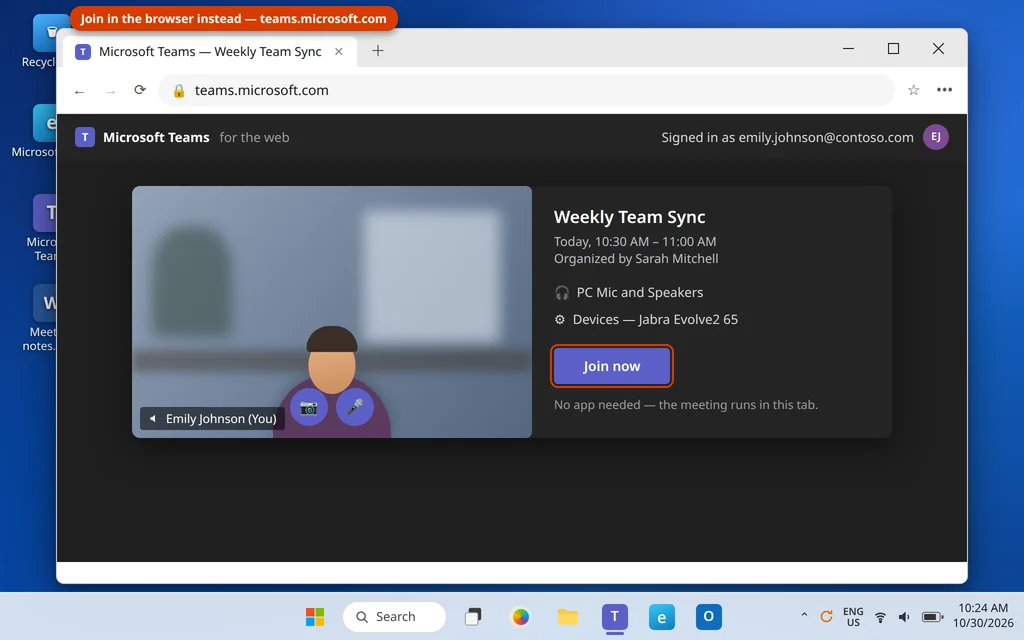
You’re in. Web join is a workaround, though — it borrows your browser’s connection instead of the app’s, which is exactly why it succeeds when the app is stuck. Now fix the app so the next join works normally.
Fix 2: Restart Teams Fully — Quit, Don’t Just Close It
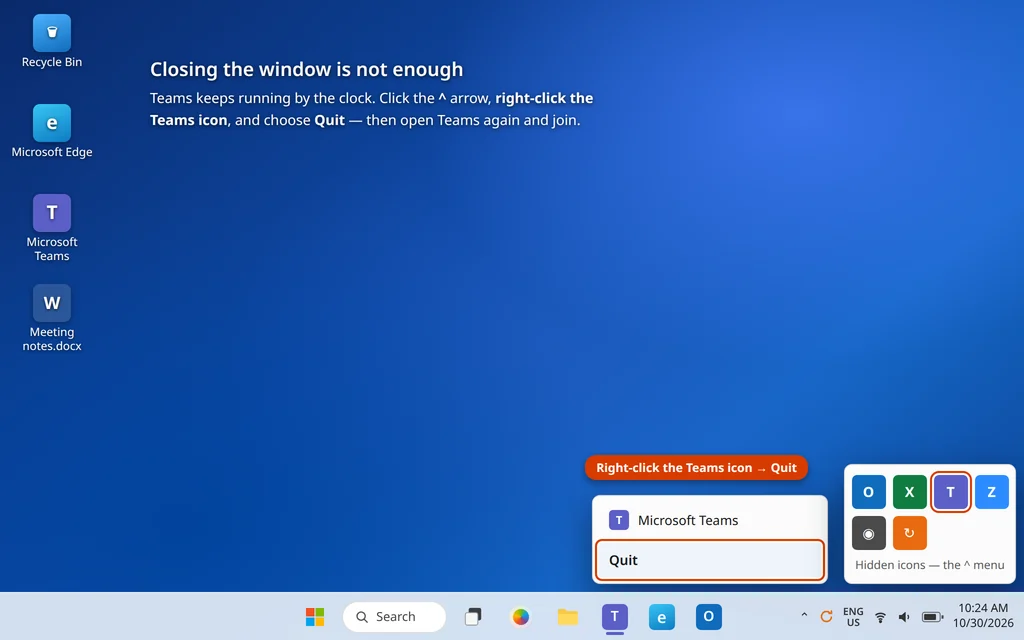
Closing the Teams window leaves Teams running in the system tray, holding the same broken session. A real restart clears it.
- Look at the bottom-right of your screen, by the clock. Click the ^ arrow if you don’t see the Teams icon.
- Right-click the Teams icon and choose Quit.
- Wait about ten seconds, then open Teams again from Start.
- Go to Calendar in Teams, find the meeting, and click Join.
If Teams won’t quit or won’t reopen cleanly, restart the PC — that forces every leftover Teams process to let go. If Teams will not open at all on this PC, that’s a different problem: work through our Microsoft Teams not opening on Windows 11 guide first, then come back here.
Fix 3: Check You’re Signed In to the Right Account
This is the fix people resist — “I’m definitely signed in” — and the one that solves the problem anyway. Teams can hold a work account and a personal account, and it happily stays signed in to the wrong one.
- Look at your profile picture in the top-right corner of Teams and click it.
- Check the email address shown. Is it the address the meeting invite was actually sent to — your work address (something like name@yourcompany.com), or a personal one (Outlook.com, Hotmail, Gmail)?
- If the other account is listed in the menu, click it to switch. If it isn’t, choose Add another account (wording varies) and sign in with the right one.
- Find the meeting in the calendar for that account and join from there.
If Teams also keeps asking you to sign in over and over while you do this, that’s the sign-in loop — our guide to Microsoft Teams keeps asking to sign in covers it step by step.
Fix 4: Reset the Teams App (or Clear Its Cache)
If the right account still can’t join, the app’s stored data is the likely culprit. Windows gives you a safe reset built in — try this before touching any folders.
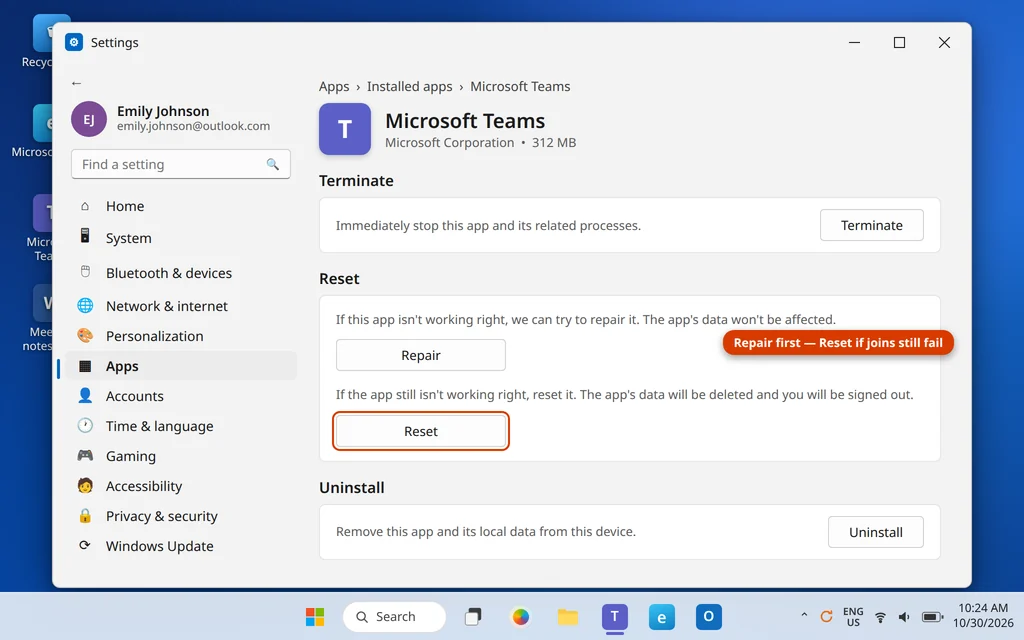
- Open Settings > Apps > Installed apps.
- Find Microsoft Teams, click the three dots (…) and choose Advanced options.
- Click Repair first, then open Teams and try the join.
- If it still fails, go back and click Reset, then sign in again and rejoin. Reset signs you out and clears the app’s local data — your chats, files and meetings live in your account and are not deleted.
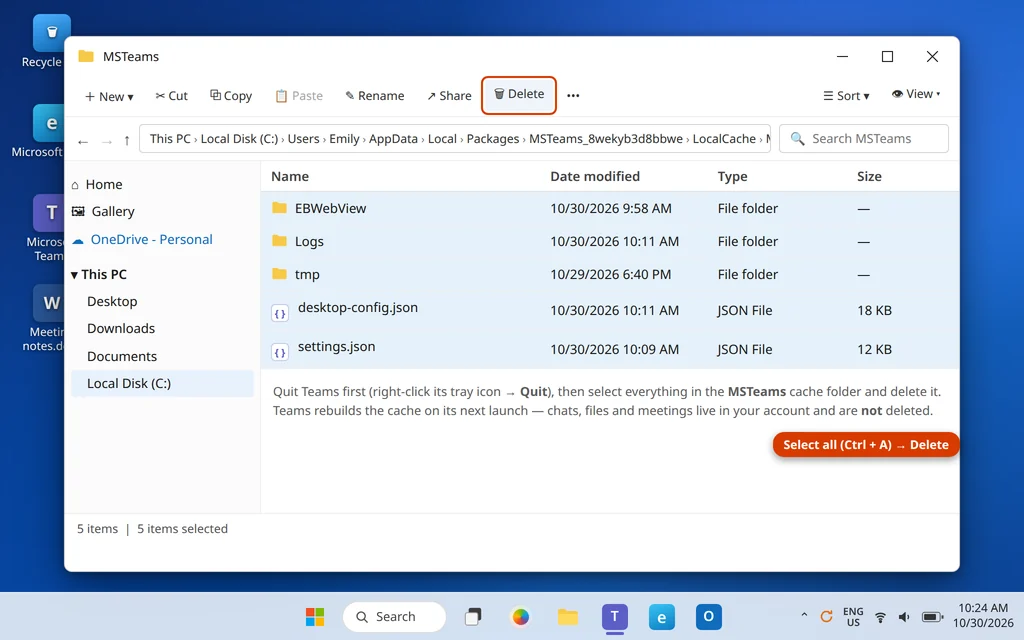
Alternative — clear the cache folder by hand: quit Teams fully (Fix 2), press Windows key + R, paste %userprofile%\AppData\Local\Packages\MSTeams_8wekyb3d8bbwe\LocalCache\Microsoft\MSTeams and press Enter. Select everything in the folder and delete it, then reopen Teams. Same effect as Reset, without signing you out.
Fix 5: Sync Your Date and Time
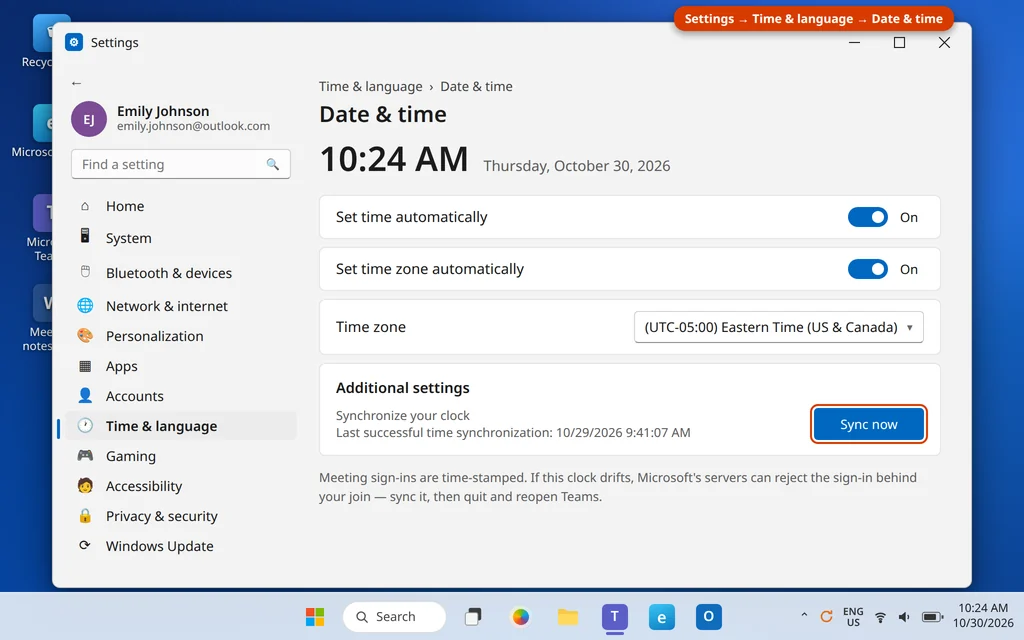
A clock that’s even a few minutes off can quietly break meeting joins, because the sign-in behind the join is checked against the real time. This one takes twenty seconds:
- Open Settings > Time & language > Date & time.
- Turn on Set time automatically (and Set time zone automatically if it’s off).
- Scroll down and click Sync now, then wait for the confirmation.
- Quit Teams fully (Fix 2), reopen it, and join again.
Fix 6: Allow Camera and Microphone Access
If you reach the pre-join screen but joining stalls there — or Teams reports a camera or microphone problem as you join — Windows may be blocking the devices themselves.
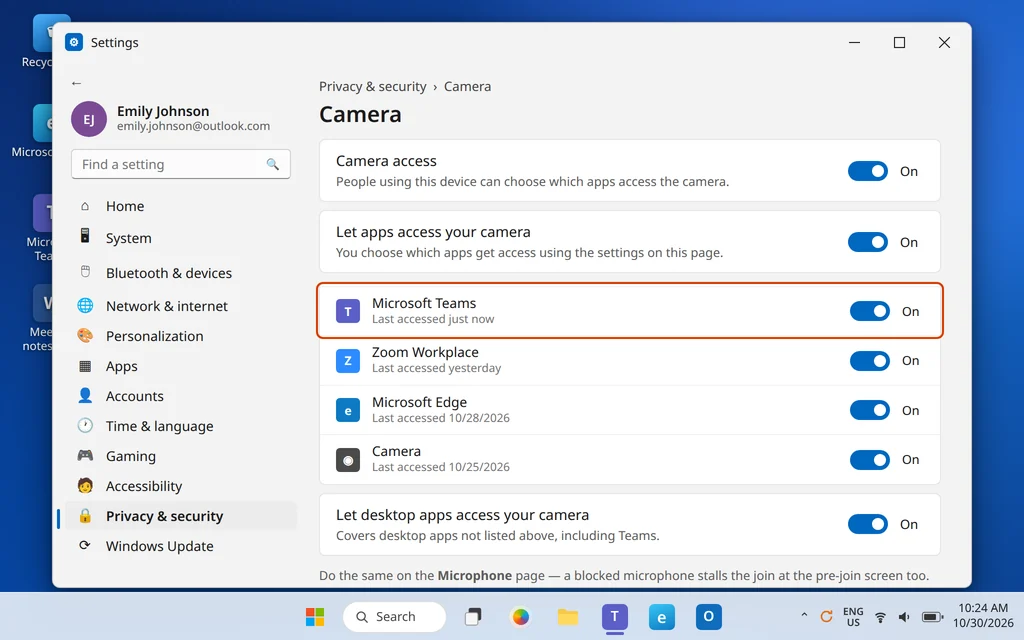
- Open Settings > Privacy & security > Camera.
- Turn on Camera access, Let apps access your camera, and Microsoft Teams in the list. Turn on Let desktop apps access your camera at the bottom too.
- Go back, open Microphone, and switch the same four things on there.
- Restart Teams and join again.
Device problems that continue inside the meeting (black camera, silent mic) have their own full guide: Teams camera or microphone not working.
Fix 7: Update Teams
An outdated Teams build can fail joins against meeting servers that have moved on. Updating is quick:
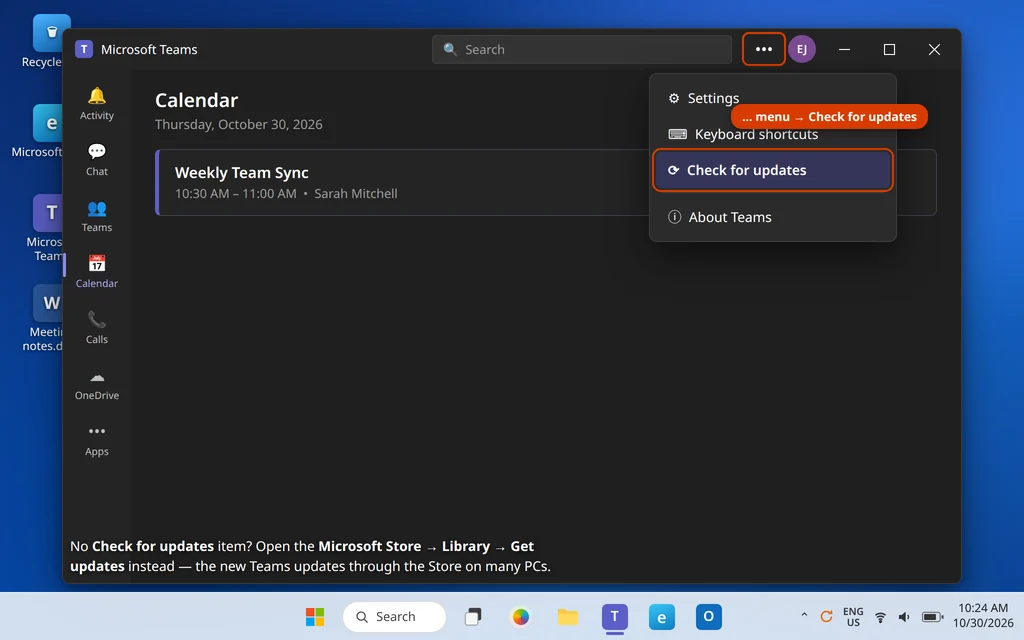
- In Teams, click the … (Settings and more) menu next to your profile picture.
- Choose Check for updates if it’s there (the exact wording and place vary between versions). Teams downloads the update in the background and asks you to restart it.
- No update option? Open the Microsoft Store, go to Library, and click Get updates — the new Teams updates through the Store on many PCs.
- Restart Teams after updating, then try the join again.
Fix 8: Reinstall Teams and Use a Fresh Meeting Link
If joins still fail, remove the app entirely and take a clean copy — and make sure the link itself isn’t the problem.
- Open Settings > Apps > Installed apps, find Microsoft Teams, click the three dots and choose Uninstall.
- Restart the PC.
- Reinstall Teams from the Microsoft Store (search “Microsoft Teams”) or from microsoft.com.
- Don’t reuse an old forwarded link or a chat message from weeks ago. Open the original calendar invite, or ask the organizer to resend the invite, and join from the fresh link.
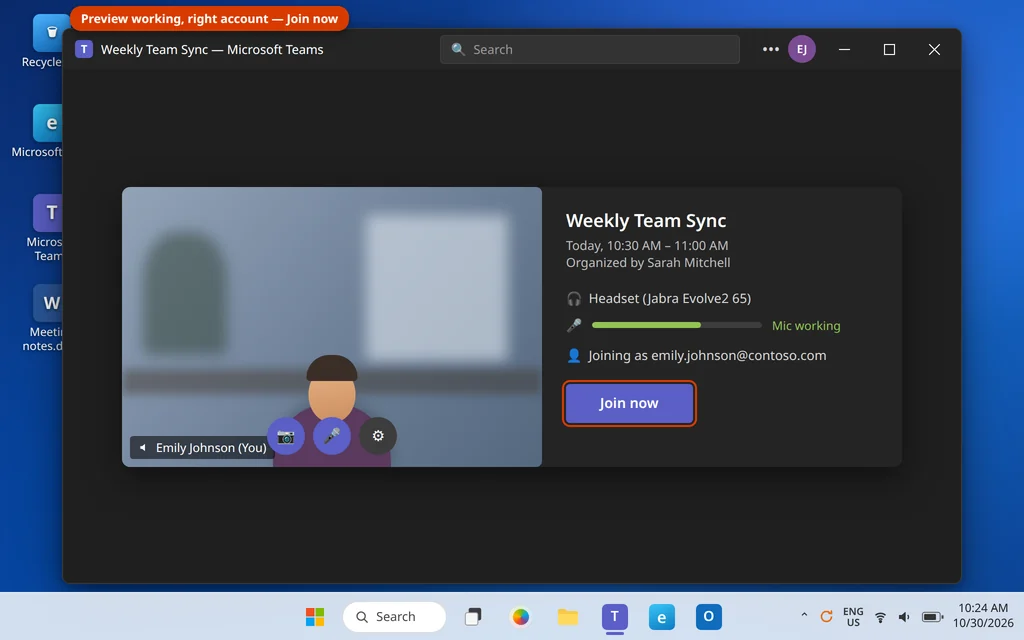
- Sign in to the right account, check your preview on the pre-join screen, and click Join now.
If You Still Can’t Join: It Might Not Be You
If every fix fails and the message mentions your organization, policies, or that you need approval, the block is probably on the organizer’s side. Many companies restrict meetings to their own staff and approved guests, and some invites simply weren’t sent to the account you’re using. There’s no setting on your PC that overrides that. The practical moves:
- Message or email the organizer and ask them to admit you from the lobby, add your email to the invite, or resend the invite to the account you’re signed in with.
- Join as a guest from the browser (Fix 1) if the organizer allows guest access — you’ll wait in the lobby until someone lets you in.
- If it’s your own work account that’s blocked, your IT department has to change the setting.
Frequently Asked Questions
Why is Teams stuck on “Connecting…” when I join a meeting?
Usually a hung Teams session or a corrupt cache. Quit Teams fully from the system tray (Fix 2) and reopen it; if it still hangs, Reset the app or clear the cache (Fix 4). While you fix it, join from the web (Fix 1) so you don’t miss the meeting.
Why does Teams say “Sorry, we couldn’t connect you”?
That message appears when the join starts but the connection or sign-in behind it fails. The usual triggers are the wrong account (Fix 3), a drifted PC clock breaking the sign-in check (Fix 5), or a damaged cache (Fix 4). On calls it can also mean the other side’s service rejected the connection — retry once before digging deeper.
The Join button does nothing — or there is no Join button. Why?
If clicking Join does nothing, the app session is likely hung — quit Teams from the tray and reopen it (Fix 2). If there is no Join button, you’re probably looking at the meeting in the wrong account’s calendar (Fix 3), or the meeting hasn’t started / was scheduled in a channel you’re not a member of. Try joining from the original invite link in the browser (Fix 1).
Can I join a Teams meeting without the app?
Yes. Open the meeting link in Edge or Chrome and choose to continue on the browser, or go to teams.microsoft.com, sign in, and join from the calendar there. The web version handles full meetings — camera, microphone, screen sharing — with nothing to install (Fix 1).
Can I join a Teams meeting without an account, as a guest?
Often, yes — it depends on the organizer’s settings. Open the link in a browser, choose the guest option, type your name, and join; you’ll sit in a lobby until the organizer admits you. Some organizations turn guest access off entirely, in which case you must sign in with an invited account (see the last section).
Why can’t I join a Teams meeting due to org policies?
“Org policies” means the company that organized the meeting restricts who can join — for example, only their staff, or only people named on the invite. You can’t change that from your PC. Ask the organizer to admit you, add your account to the invite, or enable guest access.
Why does the meeting open in my browser instead of the Teams app?
The link is set to open in the browser, or the prompt asking which to use was dismissed with “browser” remembered. When the browser page offers Open in the Teams app (or asks how you want to join), choose the app option. If the app then fails to join, that’s the app’s problem — work through Fixes 2 to 5.
Still stuck? Tell us exactly what happens when you click Join — stuck on Connecting…, an error message, or nothing at all — on our Contact page or at servicedesk@howtofixerroronline.com, available 24 hours. If Teams will not open in the first place, start with our Teams not opening guide, and for camera or mic trouble inside the meeting see Teams camera or microphone not working.