
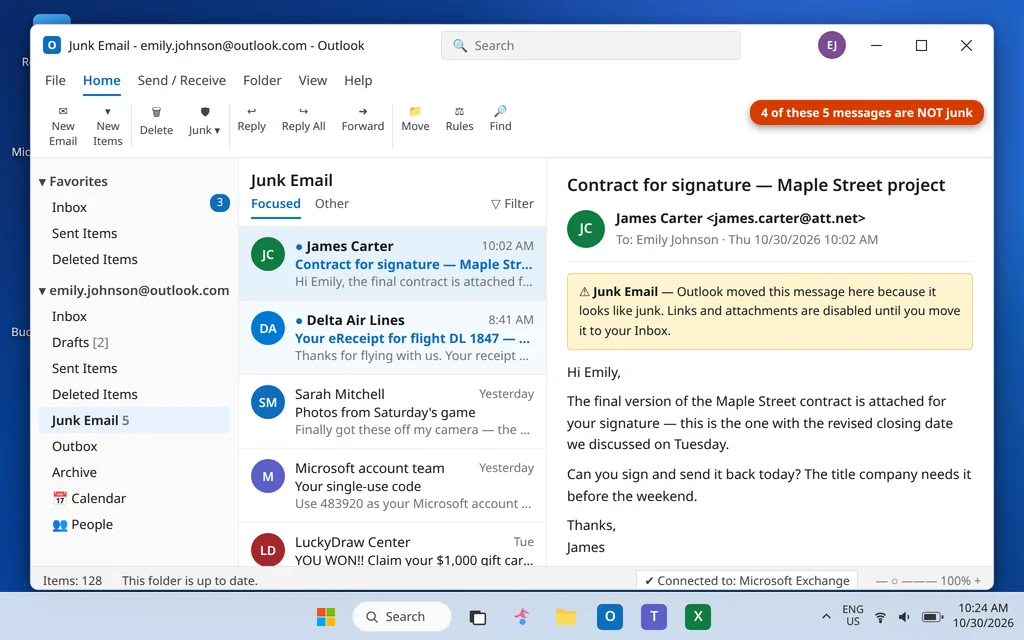
Outlook Emails Going to Junk or Spam? How to Stop It
Few things are more annoying than Outlook emails going to junk folder instead of your inbox — especially when the “junk” is a password reset code, a contract, a flight receipt or a reply you have been waiting for. Important emails going to junk is rarely random: Outlook’s filter guessed wrong, or a setting you made once — a block, a rule, a strict filter level — is quietly filing good mail away.
The good news: this is one of the easiest email problems to fix permanently. You do not just rescue today’s message — you teach Outlook to trust that sender, so the next one lands in the Inbox. Work through the fixes in order; the first two solve most cases.
Quick Answer: Open the Junk Email folder, right-click the good message and choose Junk > Not junk (in the new Outlook, select it and choose Report > Not junk). Then add the sender — or their whole domain — to Safe Senders, so future mail skips the Junk folder entirely. If mail still goes to junk after that, check your Blocked Senders list, your rules, and the filter level (Fixes 4–6).
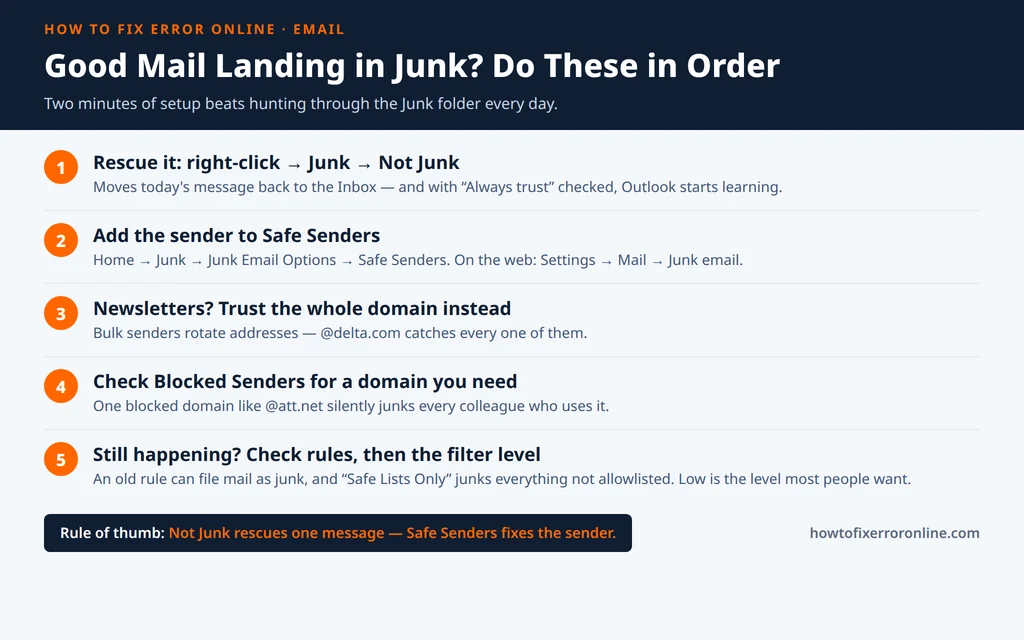
Table of Contents
Why Good Emails End Up in the Junk Folder
Outlook’s junk filter does not know your senders personally — it scores each incoming message on patterns: links and images, sales-style wording, whether the sender is new to you, and whether their mail “looks like” bulk mail. Legitimate mail trips those patterns all the time:
- Automated mail looks like marketing. Receipts, shipping notices, login codes and newsletters are sent in bulk, so the filter treats them as bulk — guilty until proven innocent.
- The sender has no history with you. A first email from a new colleague, a recruiter or a company system has no track record, so Outlook plays safe and files it as junk.
- You (or past-you) told it to. Blocking one spam message from a domain, creating a tidy-up rule years ago, or raising the filter level can all keep catching good mail long after you forgot setting them.
- The server filtered it before Outlook saw it. On Outlook.com and Microsoft 365 accounts, Microsoft filters mail on the server first — which is why the web settings in Fix 2 matter as much as the desktop ones.
If mail is not arriving at all — not in Junk, not anywhere — that is a different problem; see our guide to Outlook not receiving emails. If it is sitting in Junk Email, read on.
Fix 1: Mark the Message “Not Junk”
Start by rescuing the message that is stuck right now. This also starts teaching the filter.
In classic Outlook:
- Click the Junk Email folder in the folder pane.
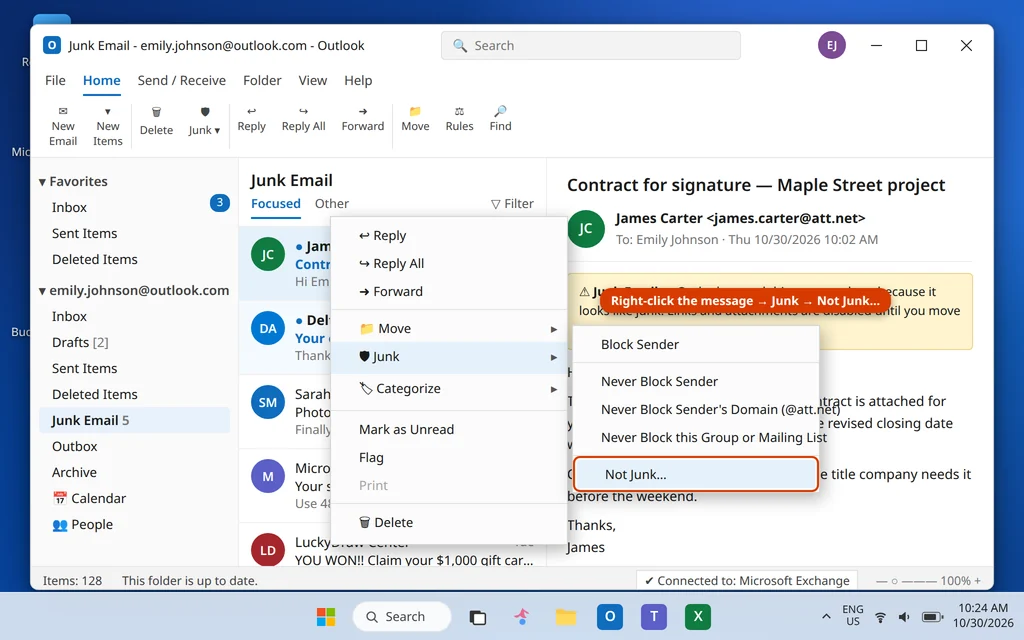
- Find the good message, right-click it, and point to Junk.
- Click Not Junk…
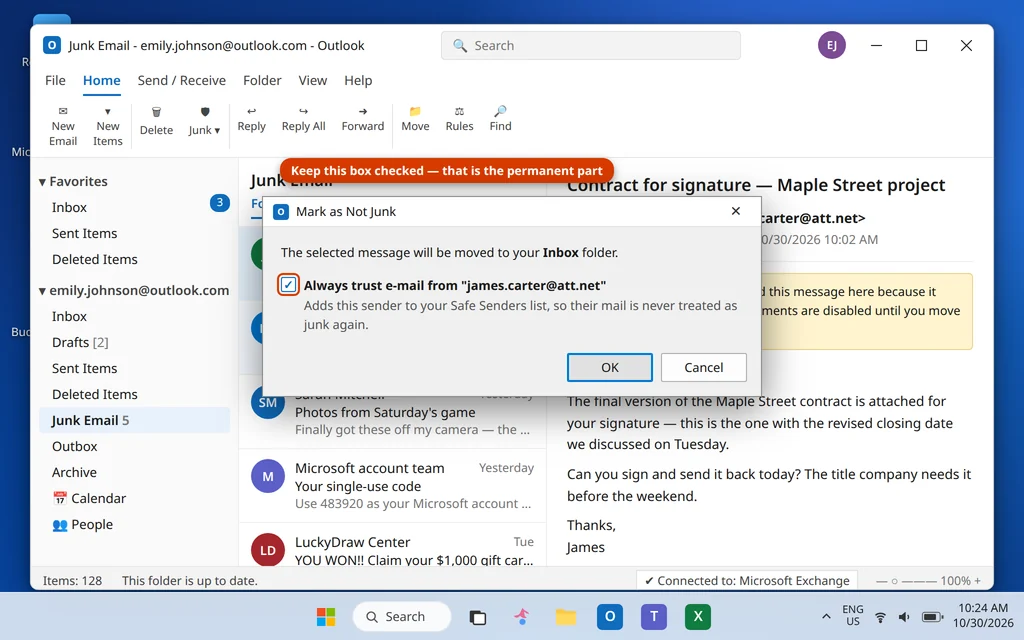
4. In the Mark as Not Junk dialog, check the box Always trust e-mail from “sender@…” and click OK. The message moves to your Inbox, and checking that box adds the sender to your Safe Senders list at the same time — the part that prevents a repeat.
In the new Outlook and Outlook on the web: open the Junk Email folder, select the message, and choose Report > Not junk (in Outlook on the web you will also find Not junk on the toolbar while the Junk folder is open). The message moves to the Inbox, and Outlook offers to trust the sender from now on.
Do this for every good sender you find in Junk — but do not stop here. For senders you rely on, add them to Safe Senders deliberately (Fix 2), including the ones whose mail has not been caught yet.
Fix 2: Add the Sender to Safe Senders
The Safe Senders list is Outlook’s allowlist: mail from anyone on it is never treated as junk. This is the single most reliable fix on this page.
In classic Outlook:
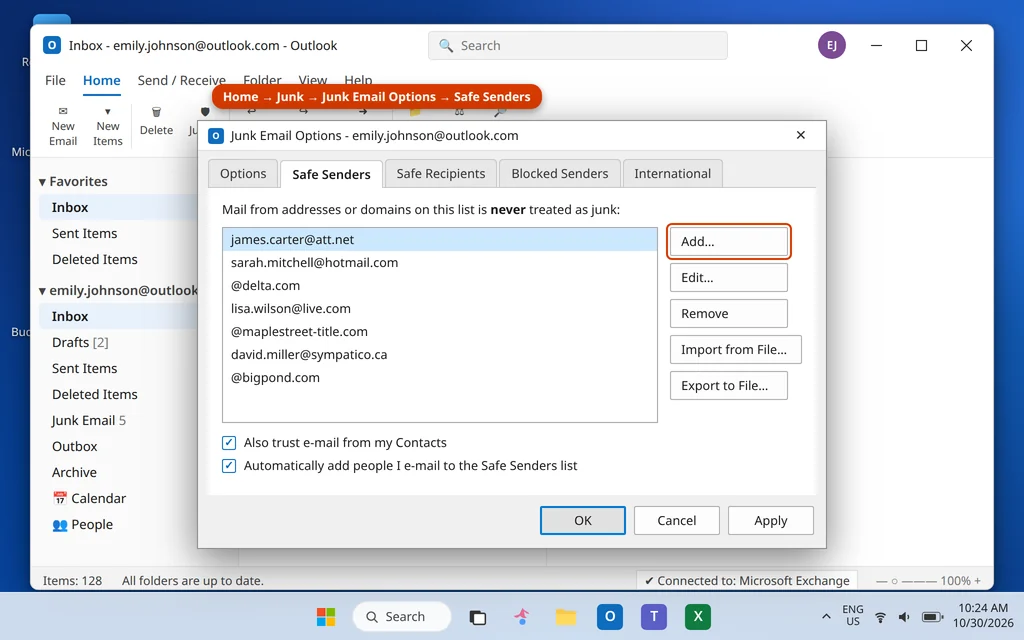
- On the Home tab, click Junk (in the Delete group) and choose Junk Email Options…
- Open the Safe Senders tab.
- Click Add…, type the email address (for example
james.carter@att.net), and click OK. - While you are here, two checkboxes at the bottom are worth having on: Also trust e-mail from my Contacts and Automatically add people I e-mail to the Safe Senders list. Together they mean most people you actually deal with can never be junked.
- Click OK to save.
In the new Outlook and Outlook on the web:
- Click the Settings gear (top right) > Mail > Junk email.
- Under Safe senders and domains, click Add (shown as + Add in some versions), type the address or domain, and press Enter.
- Click Save.
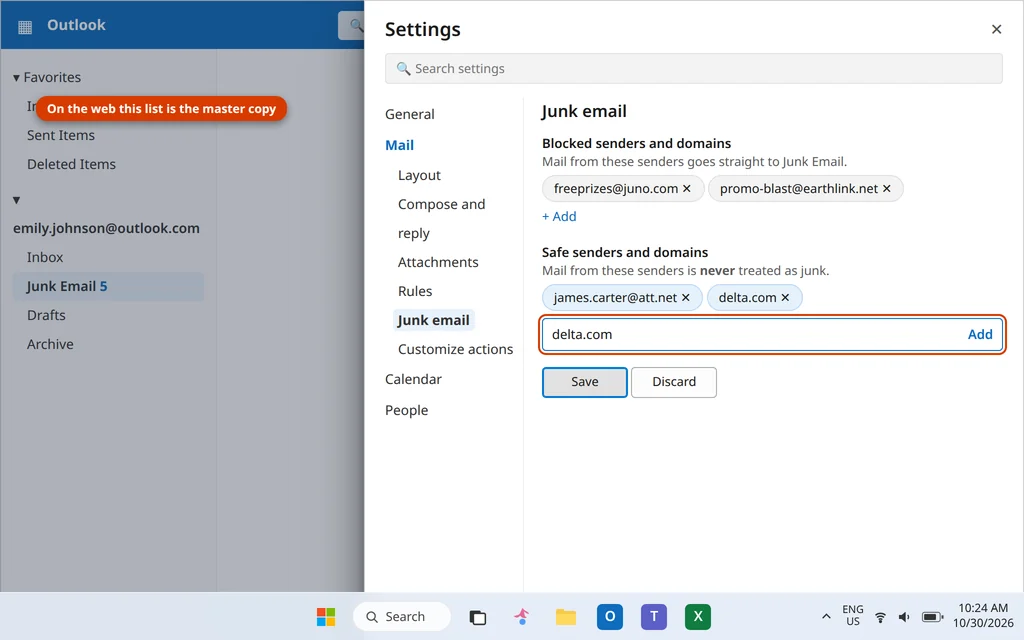
Important: if you use both the desktop app and the web, the web list is the master copy for an Outlook.com or Microsoft 365 account — the server checks it before mail ever reaches your PC. Add critical senders (your bank, your workplace domain, your school) there.
Fix 3: Trust the Whole Domain for Newsletters and Alerts
Added a sender, but their next newsletter still landed in Junk? Bulk senders rotate addresses: this week it is offers@delta.com, next week deals@delta.com, then notifications@delta.com. Allowlisting one address never catches up.
The fix is to trust the domain instead:
- Classic Outlook: in Junk Email Options > Safe Senders > Add…, type just the domain in the form
@delta.comand click OK. - New Outlook / web: in Settings > Mail > Junk email > Safe senders and domains, type
delta.comand press Enter.
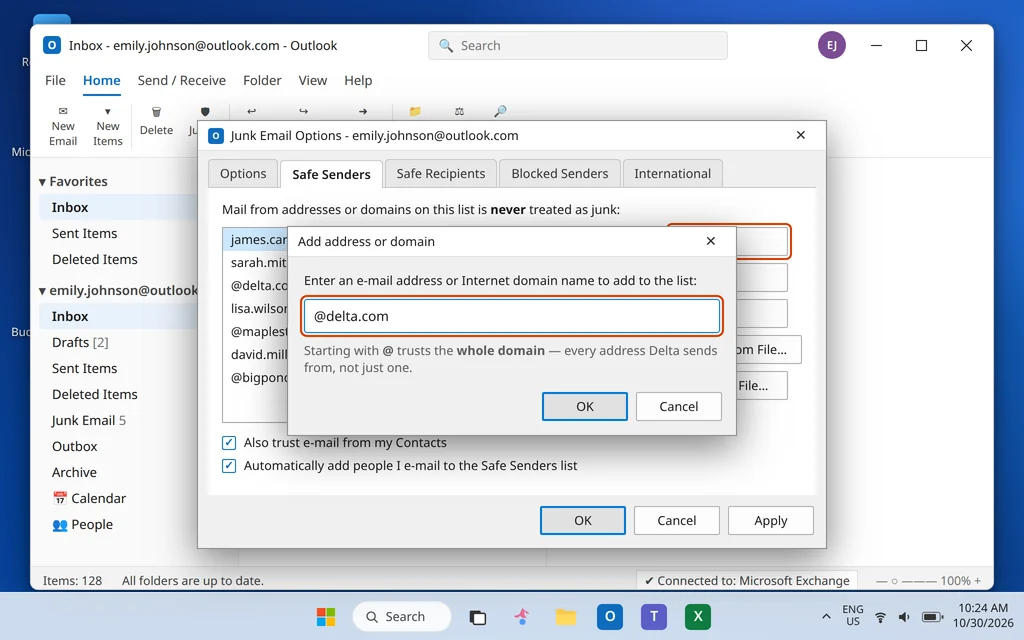
Use domain trust for senders whose mail you genuinely want and who send from many addresses: airlines, banks, delivery companies, your employer’s domain, your kids’ school. Keep individual addresses for individual people.
Fix 4: Check Blocked Senders for a Domain You Need
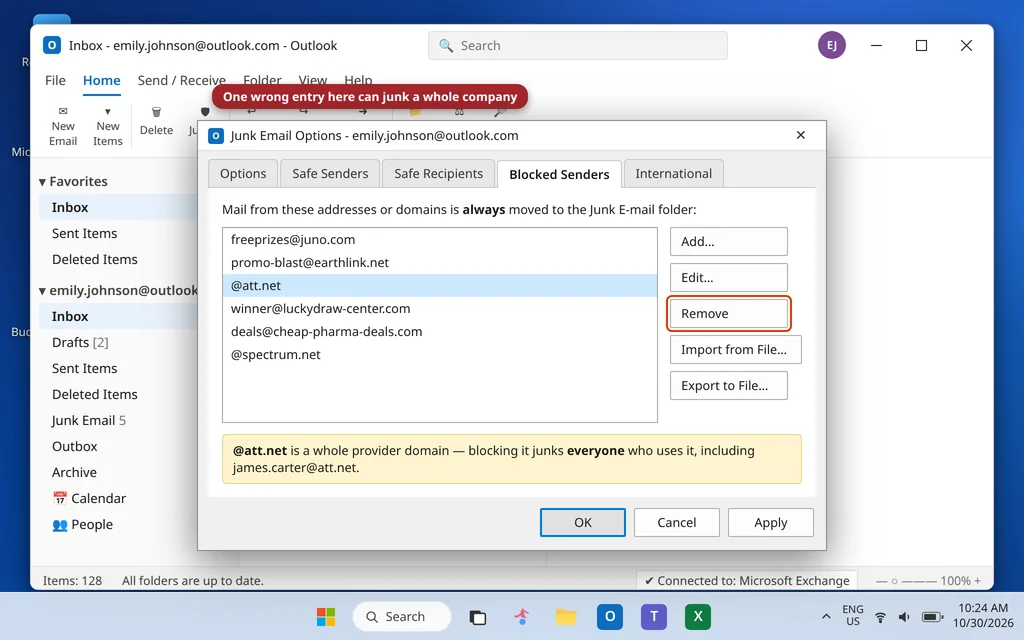
Sometimes the cause is the opposite list. If you once clicked Junk > Block Sender on a spam message and typed — or Outlook recorded — the sender’s whole domain, every legitimate message from that domain has been going straight to Junk ever since. (A classic trap: blocking one junk address at your internet provider’s domain blocks your colleagues who share it.)
- Classic Outlook: Home > Junk > Junk Email Options… > Blocked Senders tab. Scan the list for domains you recognize as legitimate — an entry like
@att.netblocks everyone at that provider. - Select the entry that should not be there and click Remove.
- New Outlook / web: Settings > Mail > Junk email > Blocked senders and domains — same check, same remove button (the trash icon).
- Click OK / Save, then rescue any waiting messages with Fix 1.
Fix 5: Check Your Rules — One May Be Filing Mail as Junk
If it is always the same kind of message that ends up in Junk — everything with “invoice” in the subject, say, or all mail from one list — suspect a rule, not the filter. Rules run on autopilot and happily move good mail forever.
In classic Outlook:
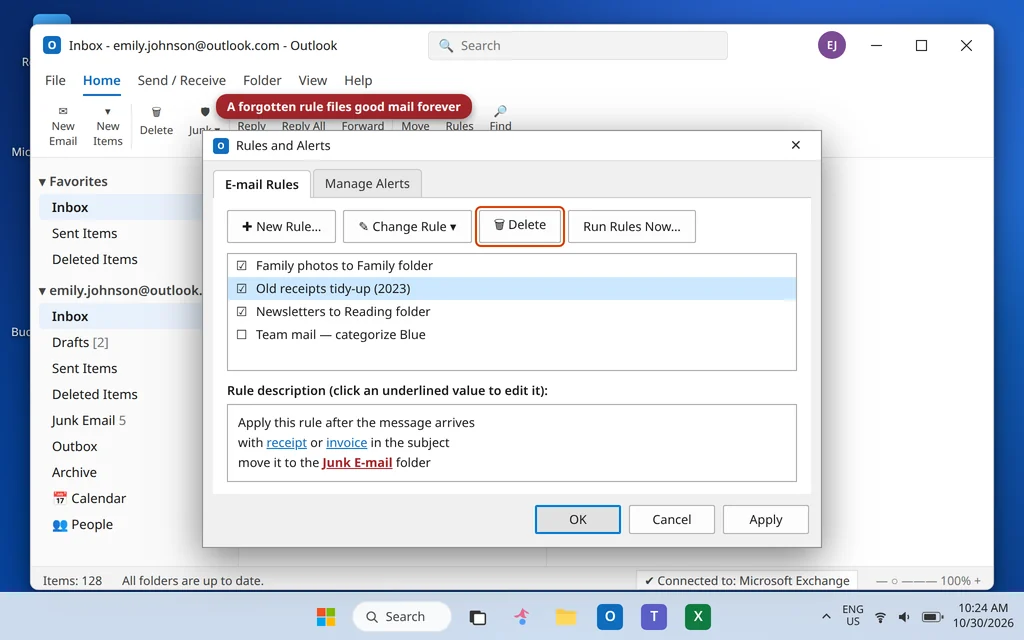
- Go to File > Manage Rules & Alerts.
- Read down the list. Look for any rule whose description includes move to the Junk E-mail folder, or one you do not remember creating (old “cleanup” rules are the usual culprits).
- Select the rule and click Delete, or uncheck it to test for a few days first.
In Outlook on the web: Settings > Mail > Rules — check for the same thing. While you are there, also check Sweep rules (in the Junk email folder view, select a message and choose Sweep to see existing ones): a sweep rule set up to tidy newsletters can keep sweeping a sender you now care about. Delete or edit it.
Fix 6: Turn the Junk Filter Level Down
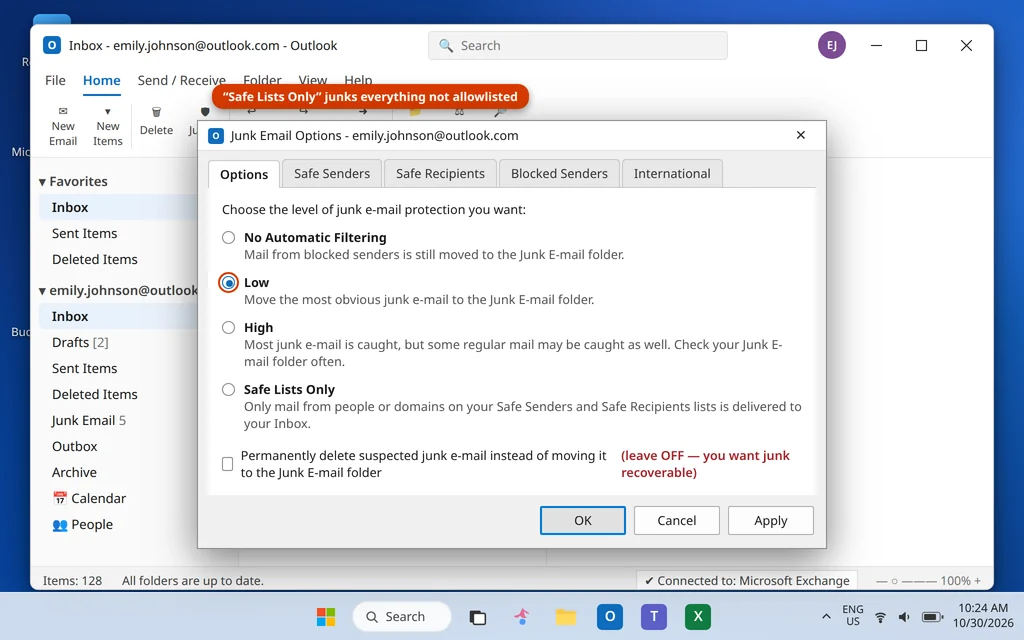
Classic Outlook has its own filter strictness, and if a past cleanup session set it to High or Safe Lists Only, a steady stream of good mail will be caught — Safe Lists Only is the extreme one: everything not on your Safe Senders/Safe Recipients lists is junked, which perfectly matches the symptom “all my emails are going to junk.”
- Home > Junk > Junk Email Options… > Options tab.
- Choose Low: Move the most obvious junk e-mail to the Junk E-mail folder. This is the recommended setting for most people — real spam is still caught (the server filter does the heavy lifting on Outlook.com and Microsoft 365 accounts), but borderline good mail gets through.
- Leave Permanently delete suspected junk e-mail instead of moving it to the Junk E-mail folder unchecked — you always want junk recoverable, in case the filter is wrong. It is, regularly.
- Click OK.
Fix 7: Check the “Other” Tab (Focused Inbox) and Sweep
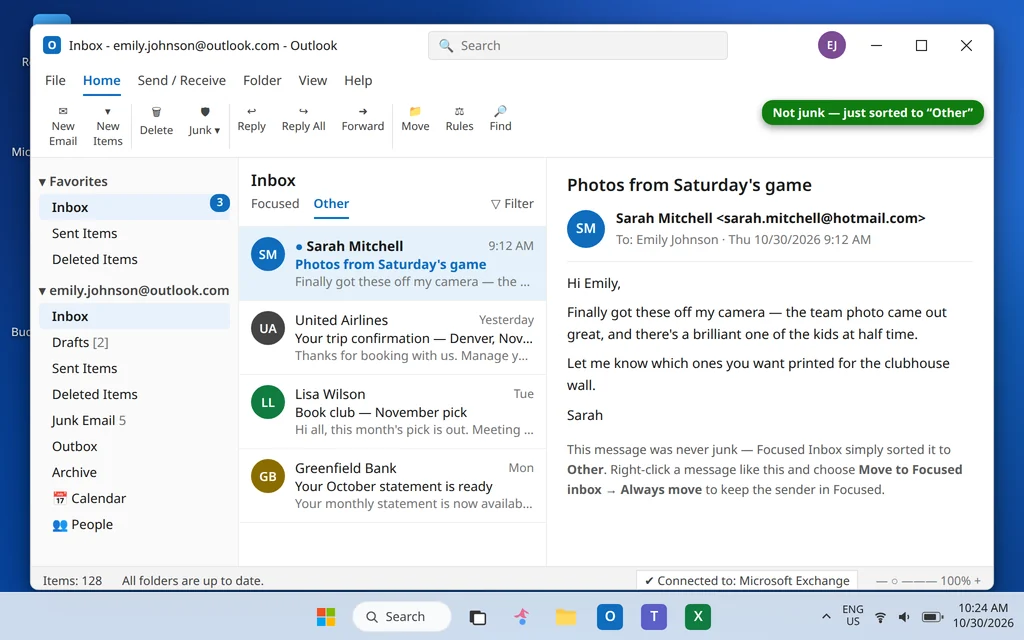
One last hiding place that is not Junk at all: Focused Inbox splits your mail into Focused and Other, and quieter senders — receipts, school mail, club newsletters — are often sorted into Other and simply missed. It looks exactly like mail going to spam.
- Click the Other tab at the top of your message list and look for the “missing” mail there.
- Found it? Right-click the message (or a future one from the same sender) and choose Move to Focused inbox, then Always move to Focused inbox when asked, so that sender always lands in Focused.
- In Outlook on the web, also glance at Sweep (Fix 5) — a sweep rule can file mail away to a folder before you ever see it.
If Your Emails Are the Ones Going to Other People’s Junk Folders
Everything above is written for the recipient. If the problem is reversed — you send, and your customers or colleagues find your mail in their Junk folders — that is a different problem called deliverability, and no setting in your Outlook fixes it. It depends on your sending setup: whether your domain has working SPF, DKIM and DMARC records, how your messages are written (link-heavy, image-heavy mail scores badly), and your domain’s sending reputation. Our guide to email bouncing back explains those authentication checks in plain English — start there, and ask your email provider or domain host to verify the three records. One honest limit: if your domain has a poor sending history, recovery is gradual — there is no switch that restores a reputation overnight.
Frequently Asked Questions
Why do my emails keep going to junk in Outlook?
Because Outlook’s filter scores every new message and errs on the side of caution: bulk-looking mail, first-time senders, and mail with lots of links or images get filed as junk. If it keeps happening to the same sender, the usual causes are a blocked domain (Fix 4), an old rule (Fix 5), or a filter level set too high (Fix 6) — the permanent cure for an individual sender is the Safe Senders list (Fix 2).
How do I stop certain emails going to junk in Outlook?
Rescue one message with Not junk (Fix 1), then add that sender to Safe Senders — or add their whole domain if they send from rotating addresses, like most airlines, banks and shops do (Fix 3). That combination stops that sender’s mail being junked for good.
Where is the Safe Senders list in Outlook?
In classic Outlook: Home > Junk > Junk Email Options > Safe Senders tab. In the new Outlook and Outlook on the web: Settings > Mail > Junk email > Safe senders and domains. If you have both, maintain the web list — for Outlook.com and Microsoft 365 accounts it is checked on the server, before mail reaches your PC.
I added a sender to Safe Senders, but their mail still goes to junk — why?
Three usual reasons. (1) The sender’s address changed — bulk senders rotate addresses, so add the domain instead (Fix 3). (2) A rule is moving the mail after the filter has passed it — Safe Senders cannot override your own rules (Fix 5). (3) You edited the desktop list, but your account filters on the server — add the sender in the web settings too (Fix 2). Very occasionally Microsoft’s server filter junks a message category regardless of lists; marking it Not junk from the web is the strongest signal you can send there.
Why are all my incoming emails going to junk in Outlook?
That pattern points at a setting, not individual messages: the filter level is on High or Safe Lists Only (Fix 6 — Safe Lists Only junks literally everything not allowlisted), a broad domain sits in Blocked Senders (Fix 4), or a rule moves all mail (Fix 5). Work through those three checks and normal delivery returns.
Does marking a message “Not junk” stop future mail from that sender going to spam?
It can — checking Always trust e-mail from… in the classic dialog (or accepting the trust prompt on the web) adds the sender to Safe Senders, which is exactly the mechanism that keeps future mail out of Junk. If you skip the trust step, only that one message is rescued.
How do I stop emails going to junk in the Outlook app on my phone?
The phone app has no Safe Senders setting of its own — junk decisions follow your account’s lists. Move the message out of Junk in the app for today (select it > move to Inbox, and use Report > Not junk where offered), then make the lasting fix once in Outlook on the web or desktop: add the sender or domain to Safe Senders (Fix 2). It then applies on your phone too, because the filtering happens on the account, not the device.
Still finding good mail in Junk? Tell us which sender and whether you use classic Outlook, the new Outlook or the web app, and we will point at the exact setting — servicedesk@howtofixerroronline.com, available 24 hours. If some mail never arrives anywhere at all, start with our guide to Outlook not receiving emails, and browse more step-by-step fixes on How to Fix Error Online.