
Outlook Says “Disconnected”? 8 Fixes to Reconnect
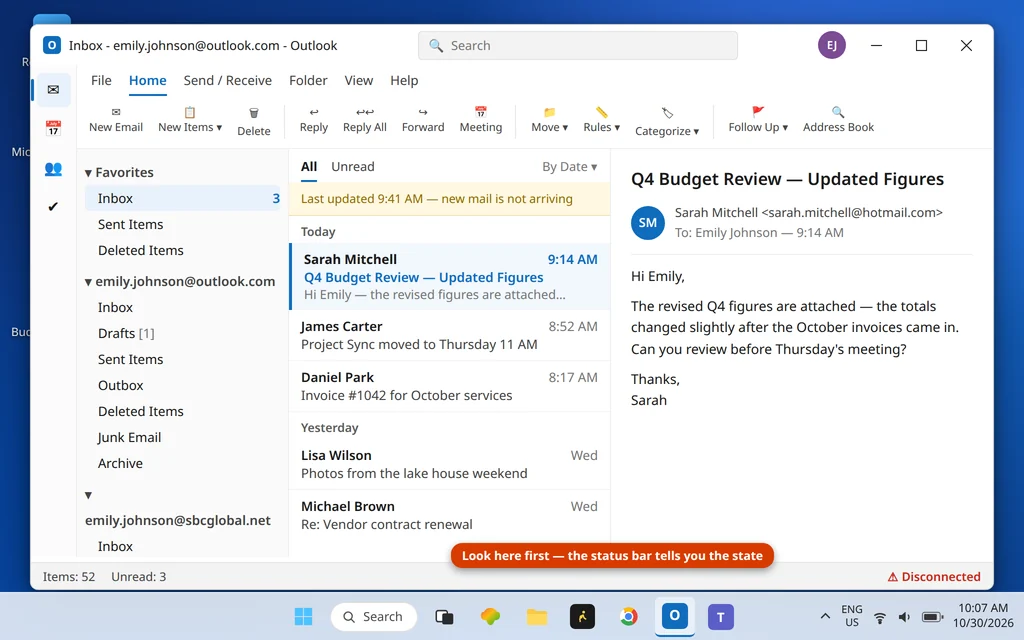
Your inbox has gone quiet. You send a message and it just sits in the Outbox. Then you spot the word in the bottom bar of the Outlook window: Disconnected. If your Outlook says disconnected but your internet is working fine in the browser, the problem is almost never the mailbox itself — something between Outlook and the mail server has broken, and it is usually one of two hidden causes most people never think to check.
The fixes below reconnect Outlook in order, from a ten-second toggle to a fresh profile. Most people are back online by Fix 2 or Fix 4.
This guide is for Classic Outlook on Windows 11 and Windows 10, including Outlook 365 and Outlook 2021/2019, with Microsoft 365, Outlook.com, Exchange and IMAP accounts. If Outlook shows an error code like 0x800CCC0E during Send/Receive instead, use our Outlook error 0x800CCC0E guide — that is the same family of problem, one step deeper.
Quick Answer: When Outlook is disconnected, first check the two hidden causes: Work Offline (Send / Receive tab — turn it off) and Need Password (click it in the status bar and sign in). Then restart Outlook and press F9 for a fresh Send/Receive. Still stuck? Test without your VPN, repair the account (Fix 6), flush DNS with
ipconfig /flushdns, and only then consider a new profile.
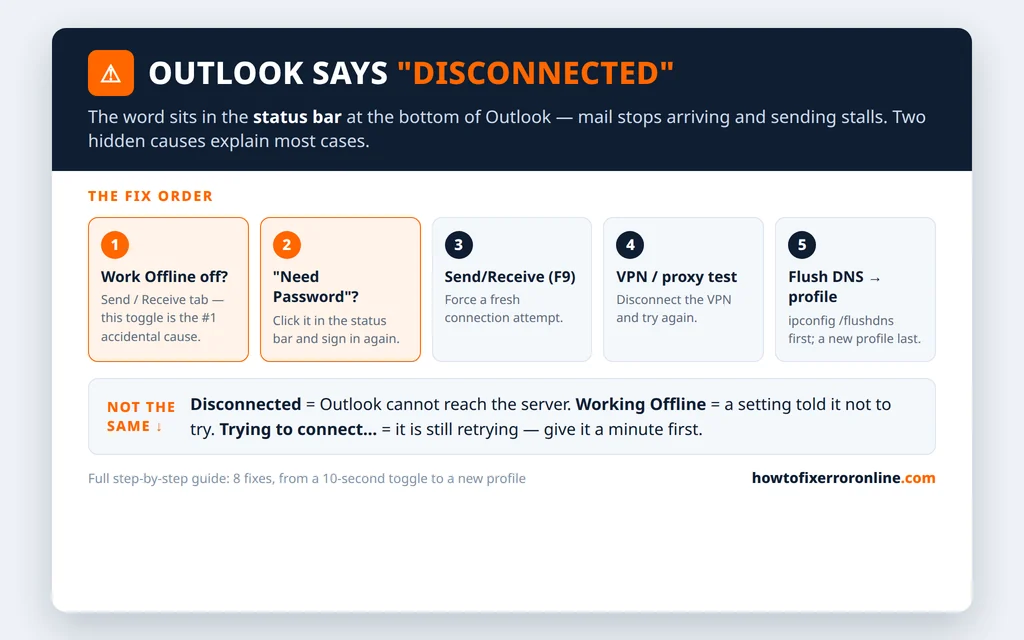
Table of Contents
Disconnected, Working Offline, or Trying to Connect? They Are Not the Same
Outlook’s status bar — the thin strip at the very bottom of the window — always shows the current connection state, and the exact wording tells you where to start:
- Disconnected means Outlook tried to reach the mail server and failed. It is not retrying right now. This is a connection problem: a network, sign-in, VPN or account issue.
- Working Offline is not a failure at all — it is a setting. Somebody (or a keyboard slip, or Outlook itself after a crash) told Outlook not to connect. Outlook is obeying the instruction perfectly.
- Trying to connect… means Outlook is actively retrying. Give it a full minute — after a brief network drop it often reconnects on its own. If it has said “Trying to connect” for ten minutes, treat it as Disconnected and work through the fixes.
- Need Password can appear in the same place, and it is a cause disguised as a status: Outlook has stopped trying because it is waiting for you to sign in.
One more quick test before you start: sign in to your mail in a browser (outlook.com, your provider’s webmail, or Microsoft 365 on the web). If webmail works, your account is healthy and the fault is on this PC — exactly what the fixes below cover. If webmail fails too, check Microsoft’s service status by searching “Microsoft 365 service status” — outages do happen, and no fix on your PC beats waiting one out.
Fix 1: Check Your Internet and Restart Outlook
Outlook disconnected but internet working is the most common version of this problem — but rule out the simple version first, because a half-dropped connection can fool you: the browser shows cached pages while nothing new loads.
- Open a news site or any page you have not visited today. If it loads fresh content, the internet is genuinely up.
- Restart your router if other devices are also struggling — and if the whole network is down, fix that before touching Outlook.
- Close Outlook completely and reopen it. A restart forces Outlook to rebuild its connection from scratch instead of sitting on a dead one.
- Watch the status bar for 30 seconds. If it changes to Connected to: Microsoft Exchange (or the folder text changes to “This folder is up to date”), you are done.
If the browser works but Outlook still says Disconnected, the internet is fine and Outlook itself is the problem — continue.
Fix 2: Turn Off Work Offline (The Most Common Cause)
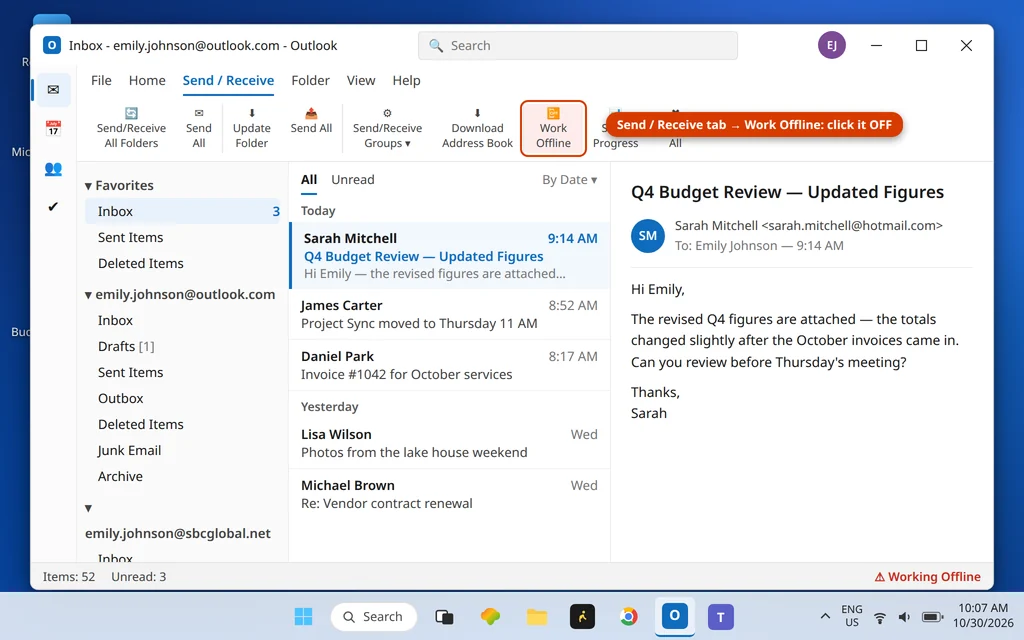
Work Offline is the number one accidental cause of a “disconnected” Outlook. It gets switched on by an accidental click, by Outlook after certain crashes, or while someone was following steps to delete a stuck Outbox message and forgot to switch it back. While it is on, Outlook will never connect — no matter how healthy your internet is.
- Click the Send / Receive tab at the top of Outlook.
- Look at the Work Offline button on the right side of the ribbon. If it is highlighted or shaded, it is ON.
- Click Work Offline once to turn it off.
- Watch the status bar: “Working Offline” should disappear and Outlook should connect within a few seconds.
If Work Offline was already off, or turning it off changed nothing, move on — the next fixes dig into why Outlook cannot complete the connection.
Fix 3: Force a Fresh Connection With Send/Receive (F9)
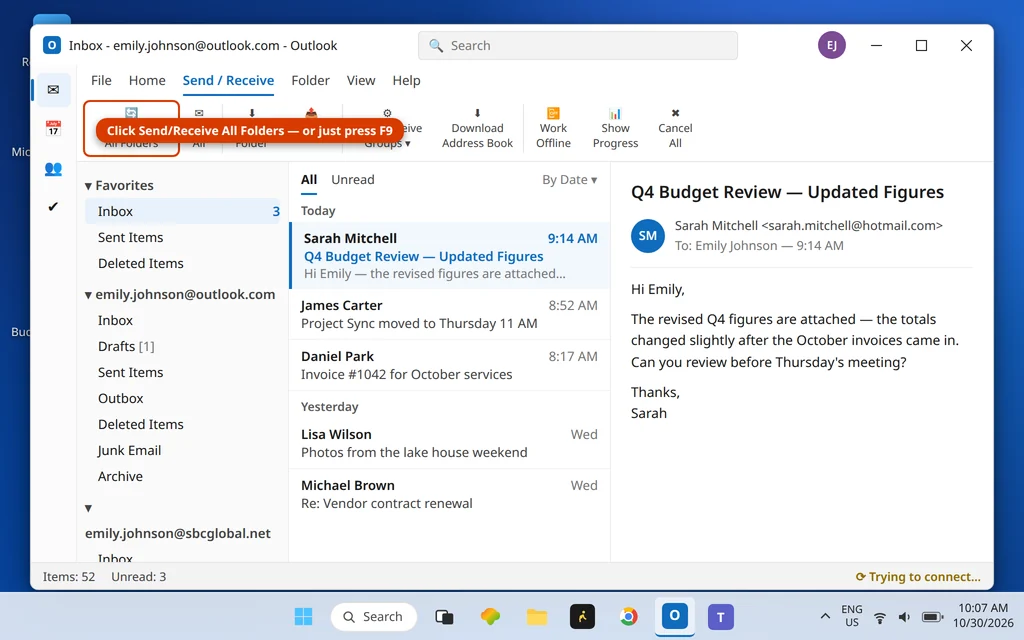
Sometimes Outlook’s connection has quietly gone stale — the server dropped it hours ago and Outlook never noticed. Forcing a full Send/Receive makes Outlook renegotiate the connection right now.
- On the Send / Receive tab, click Send/Receive All Folders — or simply press F9 on your keyboard.
- Watch the status bar. “Trying to connect…” is a good sign: Outlook is actively working on it.
- If the Send/Receive Progress window opens, let it finish. Note anything on the Errors tab — an error code there points you to the account itself (Fix 6), not the network.
- If the status settles on Connected or All folders are up to date, send yourself a test email to confirm both directions work.
Still disconnected after a forced Send/Receive? The connection attempt is failing for a reason — and the most overlooked reason is next.
Fix 4: Click “Need Password” in the Status Bar
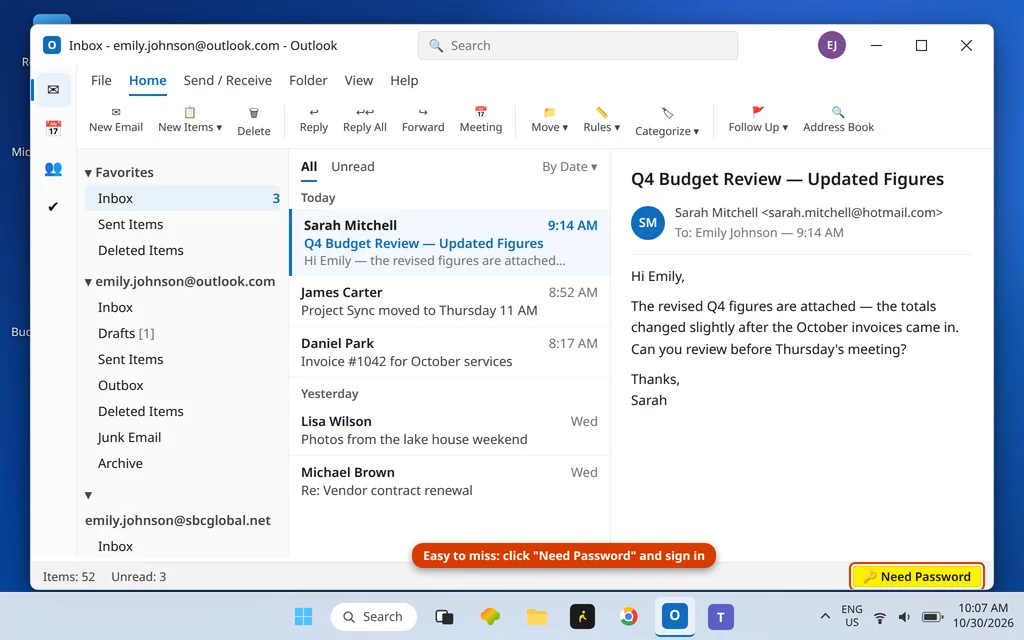
Here is the cause people miss for days: after you change your Microsoft or work password — or after Microsoft asks for a fresh sign-in — Outlook quietly stops connecting and puts Need Password in the status bar instead of popping up a window. There is no error, no prompt, just silence. Outlook sits at Disconnected because it is waiting for a sign-in it never clearly asked for.
- Look at the bottom-right of the status bar. If you see Need Password, click it.
- The Microsoft sign-in window opens. Enter your password (and approve the authenticator prompt, if your account uses one).
- Outlook connects immediately — the status bar changes to Connected and held-back mail arrives.
- If no sign-in window appears when you click, close Outlook, reopen it, and click Need Password again.
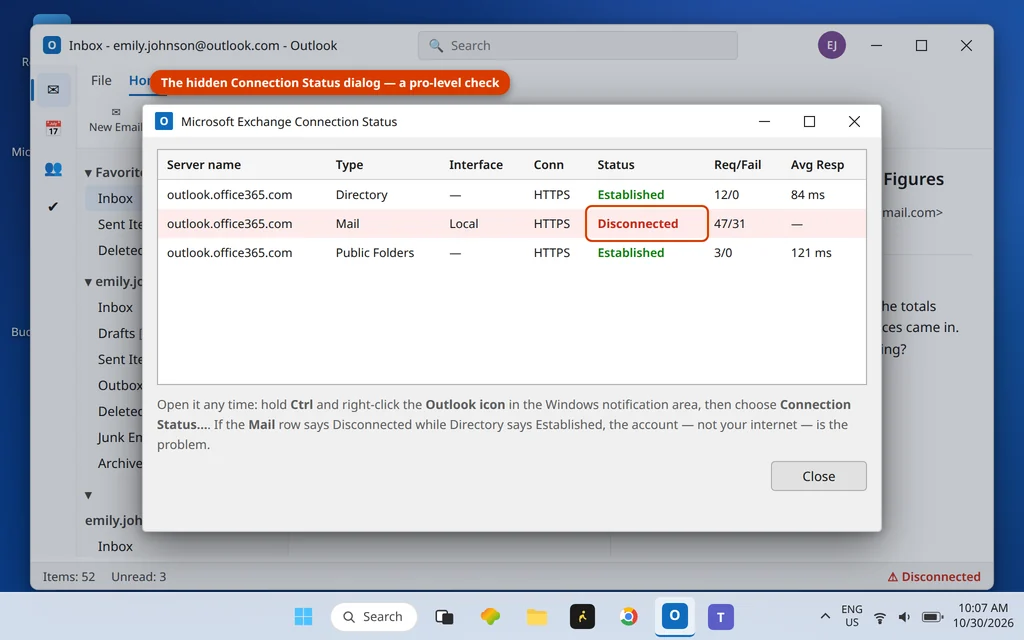
Want proof of which side is broken? Hold Ctrl and right-click the Outlook icon in the Windows notification area (system tray), then choose Connection Status…. This hidden dialog shows each connection separately. If Directory says Established but Mail says Disconnected, your network is reaching Microsoft fine and the account connection itself needs repair — go to Fix 6.
Fix 5: Test Without Your VPN or Proxy
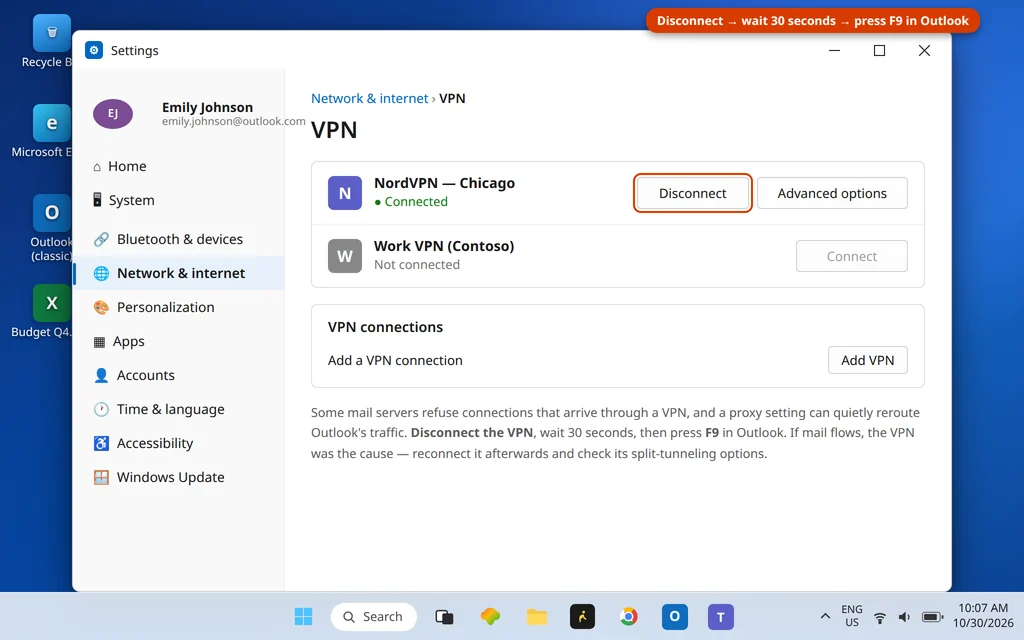
VPNs and proxies reroute Outlook’s traffic, and mail servers — Microsoft’s especially — regularly refuse or stall connections arriving through them. If the disconnect started around when you installed a VPN, changed its server, or joined a new network, this is a prime suspect.
- Disconnect your VPN completely (in the VPN app, or in Settings > Network & internet > VPN).
- Wait 30 seconds, then press F9 in Outlook.
- If Outlook connects, the VPN was the cause. Reconnect the VPN afterwards and look for a split tunneling option that lets Outlook bypass it, or simply disconnect the VPN while sending and receiving.
- On a work PC, also check the proxy: Settings > Network & internet > Proxy — if “Use a proxy server” is on and you do not recognize it, ask your IT team before changing it.
Fix 6: Repair the Account (or Check IMAP Settings)
If the Connection Status dialog showed the account connection itself failing, the stored account configuration may be damaged. Outlook can rebuild it for Microsoft accounts:
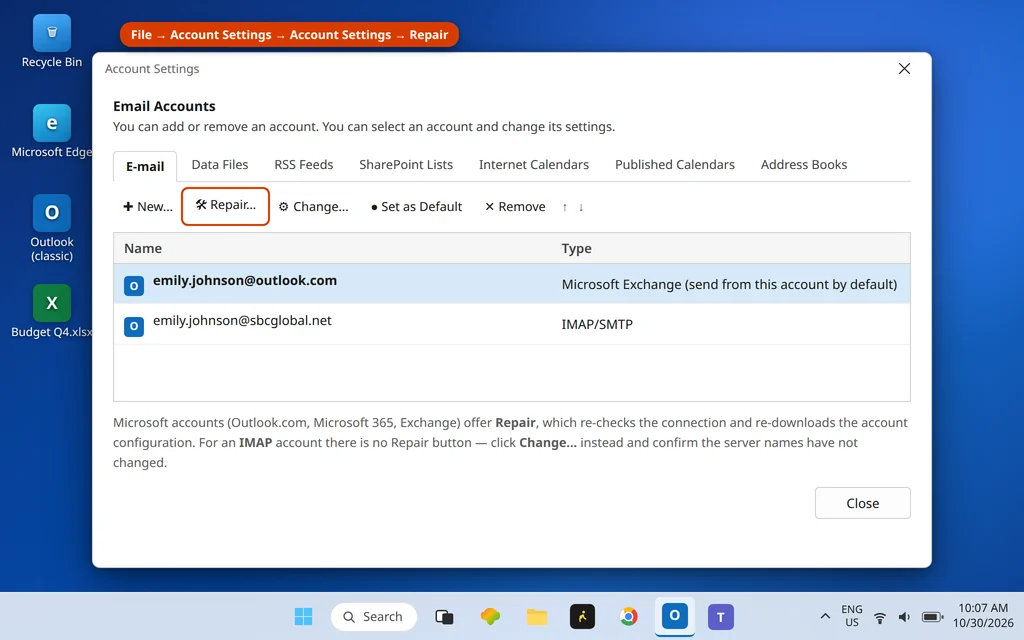
- Click File > Account Settings > Account Settings.
- Select the disconnected account and click Repair… (available for Microsoft 365, Outlook.com and Exchange accounts).
- Follow the prompts and let Outlook re-check the connection, then restart Outlook when it finishes.
- IMAP accounts have no Repair button — click Change… instead and confirm the incoming and outgoing server names still match your provider’s current ones. Providers occasionally retire old server names, and an outdated one disconnects you overnight. If Outlook keeps asking for your password during this check, that is a separate loop with its own fixes in our password guide.
If Repair completes but the account still will not connect, removing and re-adding it (Fix 8) rebuilds it more thoroughly.
Fix 7: Flush DNS — Then, Only If Needed, Reset the Network
The light step first: flush DNS. Your PC keeps a cache of server addresses. If Microsoft moved a server and your cache still points at the old address, Outlook connects to a dead end and reports Disconnected.
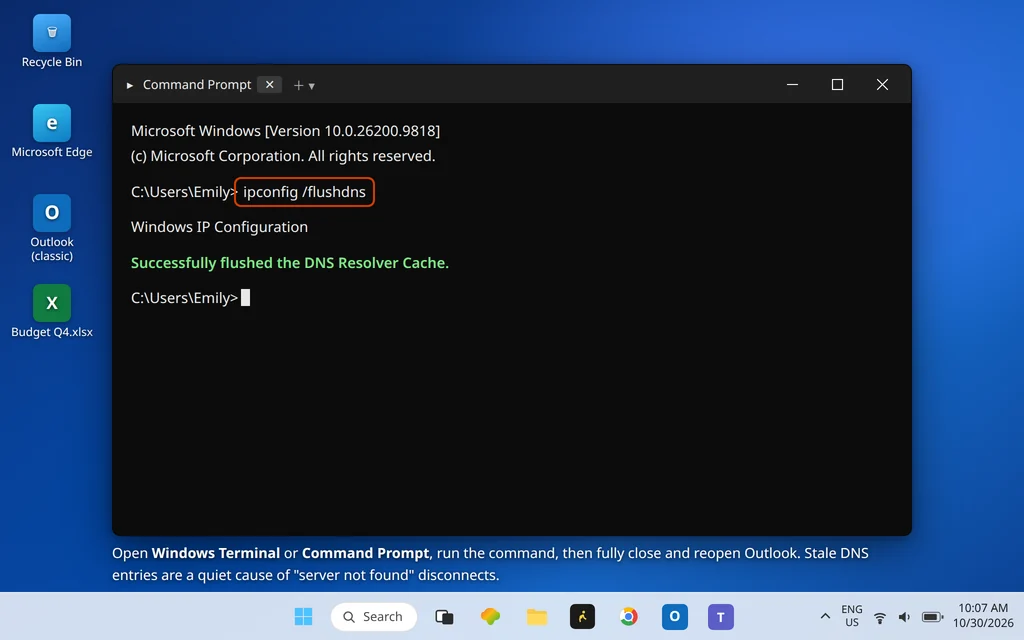
- Open Windows Terminal or Command Prompt (type either name in Start search and open it).
- Type
ipconfig /flushdnsand press Enter. - You should see: “Successfully flushed the DNS Resolver Cache.”
- Fully close Outlook, reopen it, and press F9.
The heavy step — use it last: Network reset. If disconnects hit other apps too (Teams, OneDrive, the browser on some sites), Windows’ network stack itself may be damaged. Settings > Network & internet > Advanced network settings > Network reset > Reset now reinstalls your network adapters and restores networking defaults.
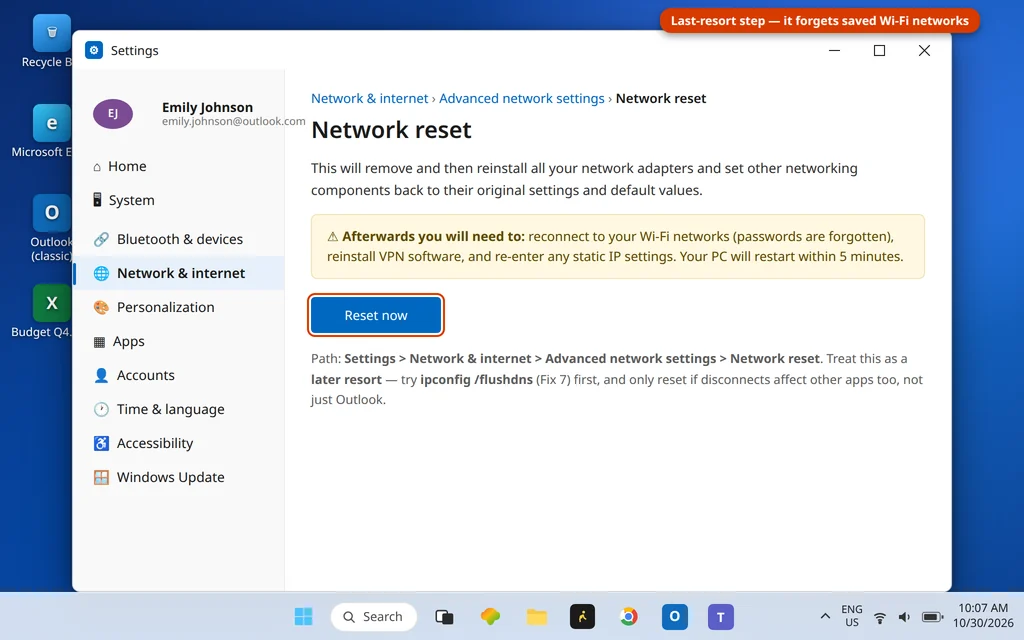
Treat it as a last resort: it forgets all saved Wi-Fi networks and passwords, removes VPN adapters (you will reinstall your VPN), and restarts your PC. Never run it just for Outlook if the light steps have not been tried.
Fix 8: Create a New Outlook Profile (or Re-Add the Account)
If everything above failed, the Outlook profile — the container holding your account’s connection settings — is probably corrupt. A new profile rebuilds every setting cleanly, and creating one does not delete your old profile or your mail (server-based mail downloads again).
- Close Outlook.
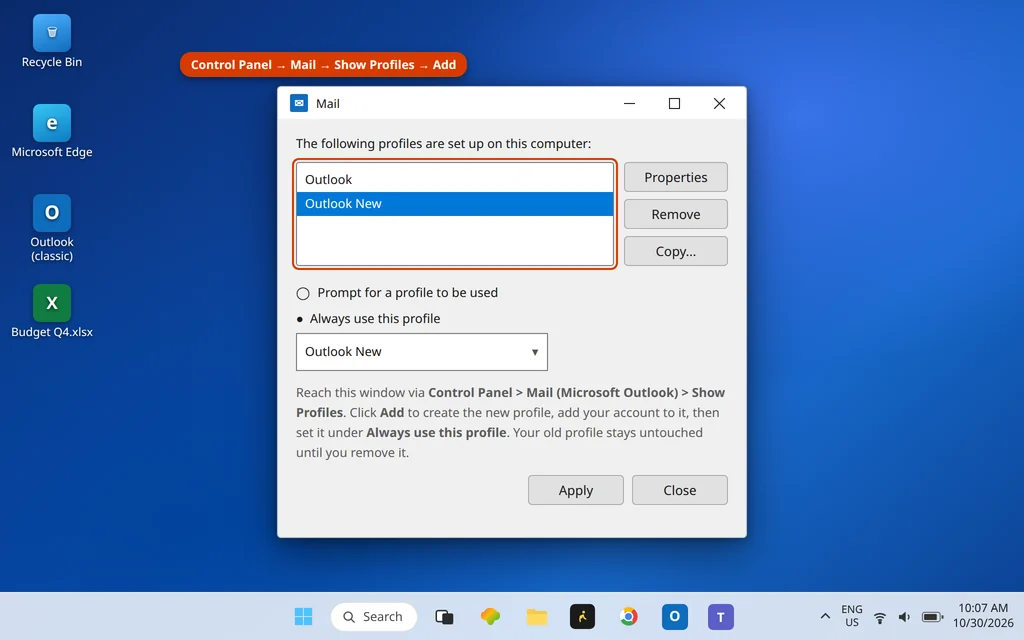
- Open Control Panel and click Mail (Microsoft Outlook).
- Click Show Profiles, then Add. Name it “Outlook New” and click OK.
- Add your email account in the wizard that follows.
- Back in the Mail window, choose Always use this profile and select the new profile. Click Apply.
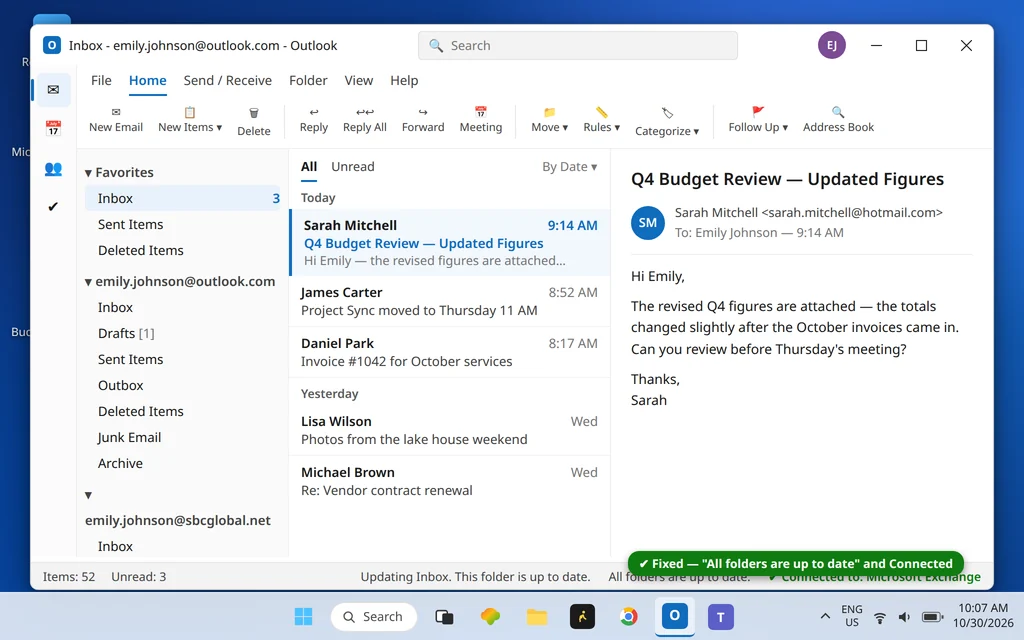
- Open Outlook and confirm the status bar shows Connected.
Simpler alternative for one bad account: remove just that account (File > Account Settings > Account Settings > Remove) and add it again with File > Add Account. For IMAP, Microsoft 365, Outlook.com and Exchange accounts this does not delete email — it lives on the server. (Old POP accounts are the exception: back up the .pst file first.)
When it works, the status bar goes back to the two messages you want to see:
How to Stop Outlook Disconnecting Again
- Watch what changes the day it breaks. New VPN, new password, new office network, a Windows update — the disconnect almost always follows a change, and naming it points you straight at the right fix.
- Change your password in Outlook too. After changing a Microsoft/work password, click Need Password and sign in the same day instead of waiting for the silent disconnect.
- Leave Work Offline off unless you deliberately turned it on to manage a stuck Outbox message — and set a reminder to turn it back off.
- Keep Office updated (File > Account > Update Options) — connection bugs are among the most-patched Outlook issues.
Frequently Asked Questions
Why does Outlook say Disconnected when my internet is working?
Because the break is between Outlook and the mail server, not between your PC and the internet. The usual causes: Work Offline is switched on, Outlook is waiting on a Need Password sign-in it never popped up, a VPN is rerouting the connection, or the stored account settings are damaged. Fixes 2 and 4 solve most cases.
What is the difference between Disconnected and Working Offline in Outlook?
Working Offline is a setting — Outlook has been told not to connect, and it is obeying (turn it off on the Send / Receive tab). Disconnected is a failure — Outlook tried to reach the server and could not. Working Offline is one possible cause of seeing no connection, but a Disconnected status with Work Offline off means a real connection problem.
How do I reconnect Outlook to the server?
Work in this order: turn off Work Offline (Send / Receive tab), click Need Password in the status bar if it is showing and sign in, press F9 to force Send/Receive, test without your VPN, repair the account (File > Account Settings > Repair), flush DNS with ipconfig /flushdns, and create a new profile only if all of that fails.
Why is Outlook stuck on “Trying to connect”?
Outlook is retrying a connection that keeps failing partway — a flaky network, a VPN handshake problem, or a server that accepts the connection then drops it. Give it a minute after any network change; if it stays stuck, disconnect the VPN and press F9 (Fixes 3 and 5), then check the Connection Status dialog in Fix 4 to see which connection is failing.
Outlook is disconnected from the Exchange server at work. What can I do?
Run Fixes 2–4 first (Work Offline, restart + F9, Need Password) — they fix most office cases, especially after a password change. If it still will not connect, note what the Connection Status dialog shows (Mail row: Disconnected) and give that to your IT team — on managed work PCs, server-side and policy causes are theirs to fix, and that one detail saves them a lot of guessing.
Will creating a new Outlook profile delete my emails?
No. For Microsoft 365, Exchange, Outlook.com and IMAP accounts, your mail lives on the server and downloads again into the new profile. Your old profile also stays on the PC untouched until you choose to remove it. The one caution is old POP accounts, where mail may exist only in the local .pst file — locate and copy that file first (its path is under Account Settings > Data Files).
Outlook disconnects every few hours and reconnects on its own. Is that normal?
Brief drops on Wi-Fi are common and harmless if Outlook recovers by itself. If it happens on a wired connection too, or Outlook never recovers without a restart, work through Fixes 5–7 — a VPN with an aggressive timeout and stale DNS are the two frequent culprits behind the pattern.
Still disconnected? Tell us your account type (Microsoft 365, Outlook.com, IMAP) and which fix you reached on our Contact page — servicedesk@howtofixerroronline.com, available 24 hours. If Send/Receive shows an actual error code, see Outlook error 0x800CCC0E — and if mail has stopped arriving without any error, see Outlook not receiving emails.