
How to Export and Back Up Your Outlook Emails (PST Guide)
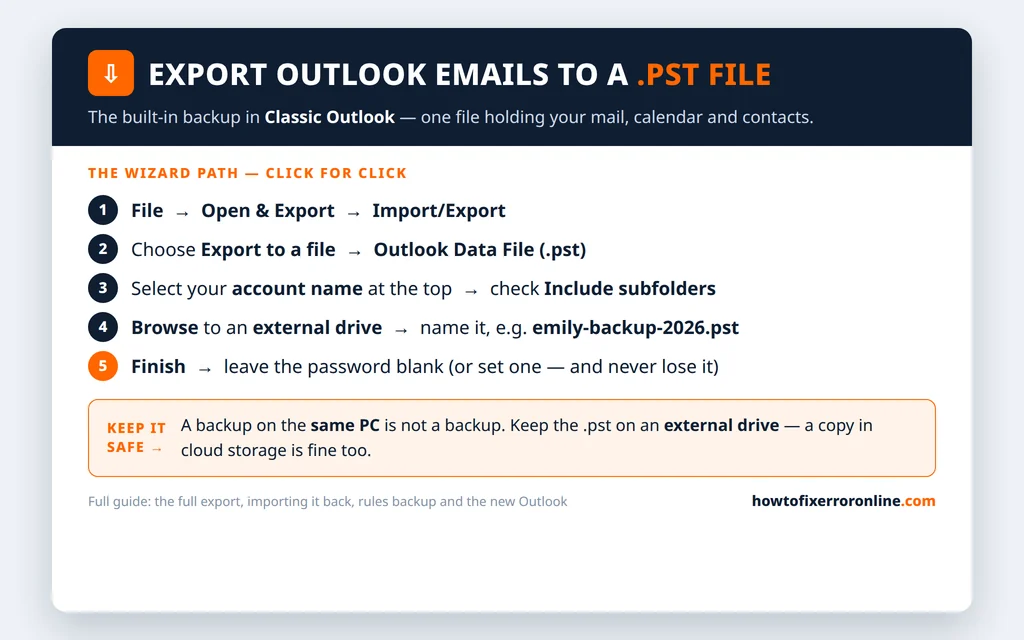
Whether you are switching computers, leaving a job, or just want a copy of your mailbox that no server problem can touch, sooner or later you need to know how to export emails from Outlook into a file you control. Outlook has a built-in tool for exactly this: the Import/Export wizard, which packs your mail, calendar and contacts into a single Outlook Data File (.pst).
A .pst backup is the closest thing email has to a safety net. If your account is closed, your provider has an outage, or a sync problem empties your mailbox (it happens more often than you would think), the .pst on your drive still holds everything. The export takes a few clicks, but there are a few choices along the way that decide whether the backup is actually complete — this guide walks through all of them, then shows you how to import the file back, so you know the backup really works.
This guide is for Classic Outlook on Windows 11 and Windows 10 (including Outlook for Microsoft 365), which has the full wizard. If you use the new Outlook app, read the section near the end first — its export options are limited, and the honest workaround is to run the export from Classic Outlook.
Quick Answer: In Classic Outlook, click File > Open & Export > Import/Export, choose Export to a file > Outlook Data File (.pst), select your account name at the top of the folder list with Include subfolders checked, click Browse and save the file to an external drive with a clear name, then click Finish and leave the password blank (or set one you will never lose).
Table of Contents
Before You Start: Size, Time, and One Setting That Matters
Three things are worth knowing before you click anything, because they decide whether your backup is complete:
- How big is your mailbox? The .pst will be roughly the size of your local data file. A small mailbox finishes in a minute or two; a 10 GB mailbox can take much longer and produces a file of several gigabytes. Make sure the drive you save to has room.
- Check the Cached Exchange Mode slider. If Outlook is only set to keep the last 12 months of mail on this PC, the export can only contain what is stored locally — older mail never reaches the .pst. Go to File > Account Settings > Account Settings, double-click your account, and set Download email for the past to All if it is not already. Let Outlook finish syncing (“All folders are up to date” in the status bar) before you export.
- Pick the destination now. The best home for a backup is an external hard drive or USB drive. Saving it in Documents on the same PC protects you against account problems, but not against the PC itself failing — more on storage below.
How to Export Emails From Outlook to a PST File (Step by Step)
Step 1: Open the Import/Export Wizard
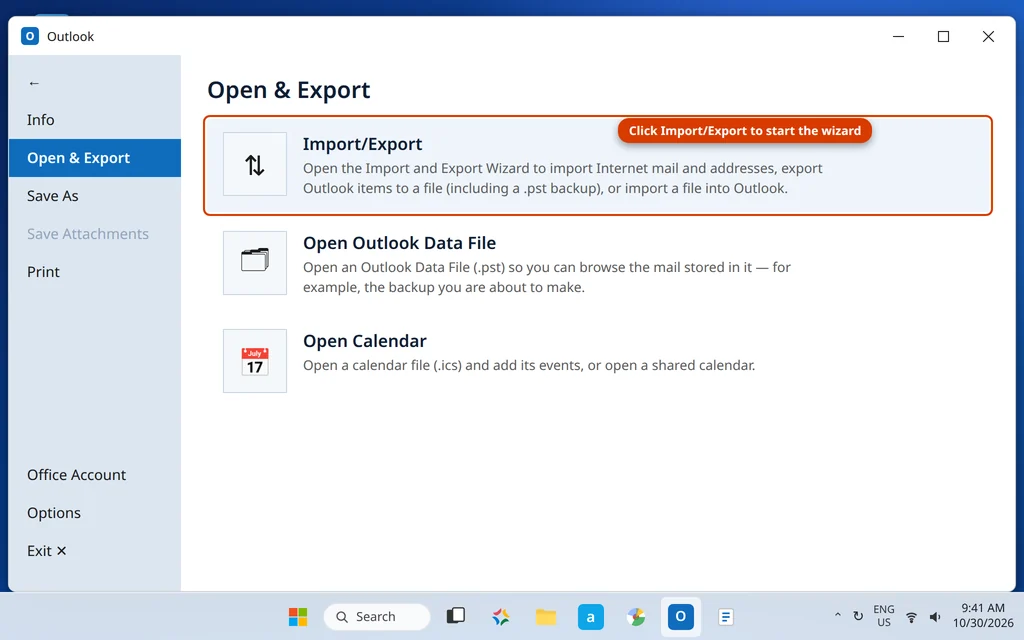
- In Classic Outlook, click File.
- Click Open & Export in the left-hand menu.
- Click the Import/Export button to launch the Import and Export Wizard.
Step 2: Choose “Export to a File”
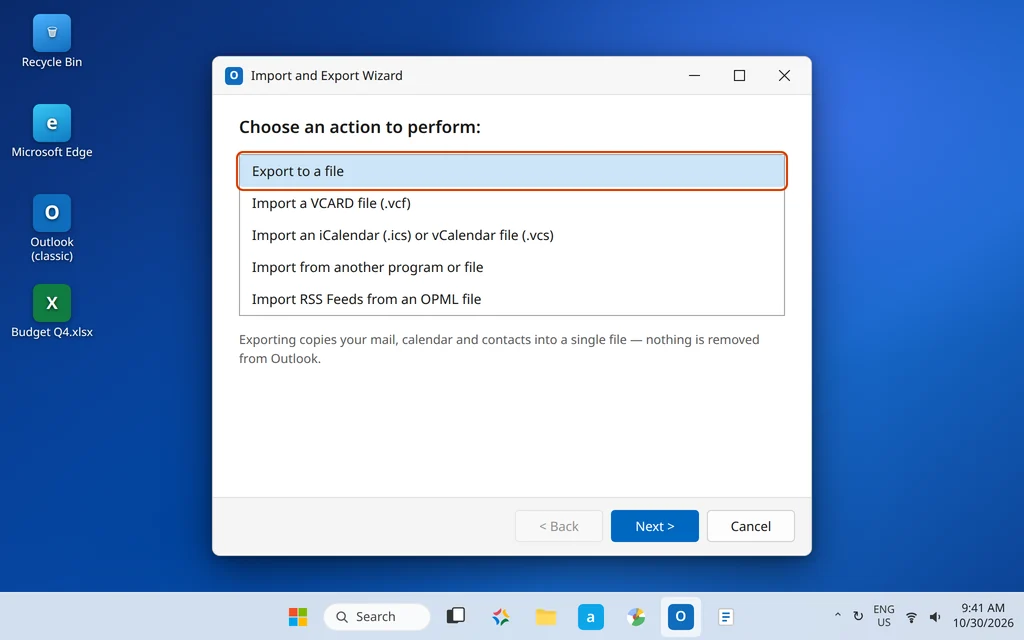
- In the wizard’s list, select Export to a file.
- Click Next.
Step 3: Choose “Outlook Data File (.pst)”
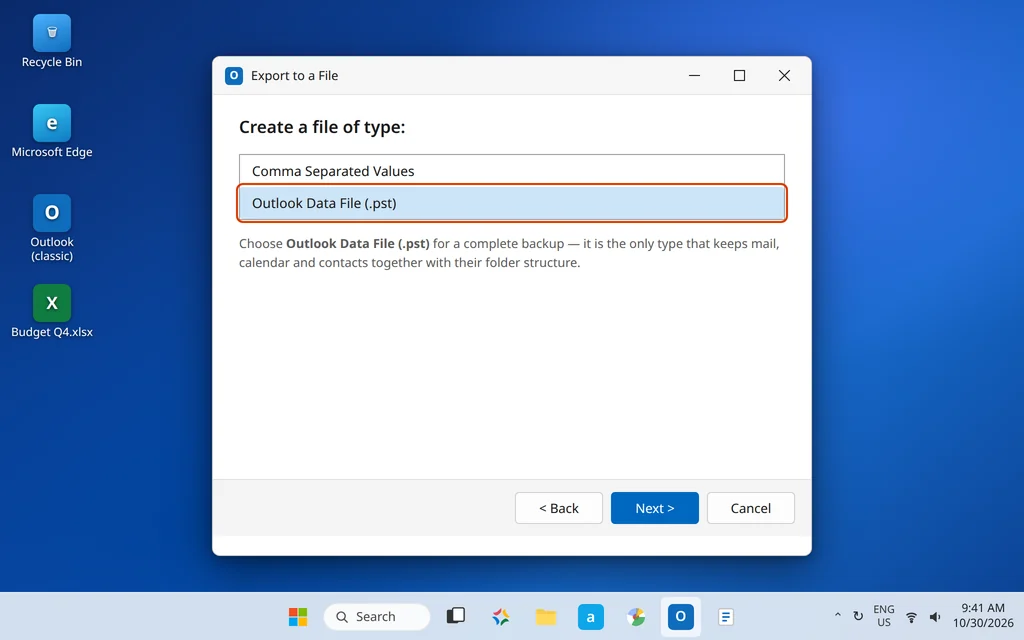
- Under “Create a file of type”, select Outlook Data File (.pst).
- Click Next.
A .pst is the only choice that keeps mail, calendar and contacts together with their folders intact. The “Comma Separated Values” option is for exporting a single folder (usually contacts) into a spreadsheet-friendly file — not a real backup.
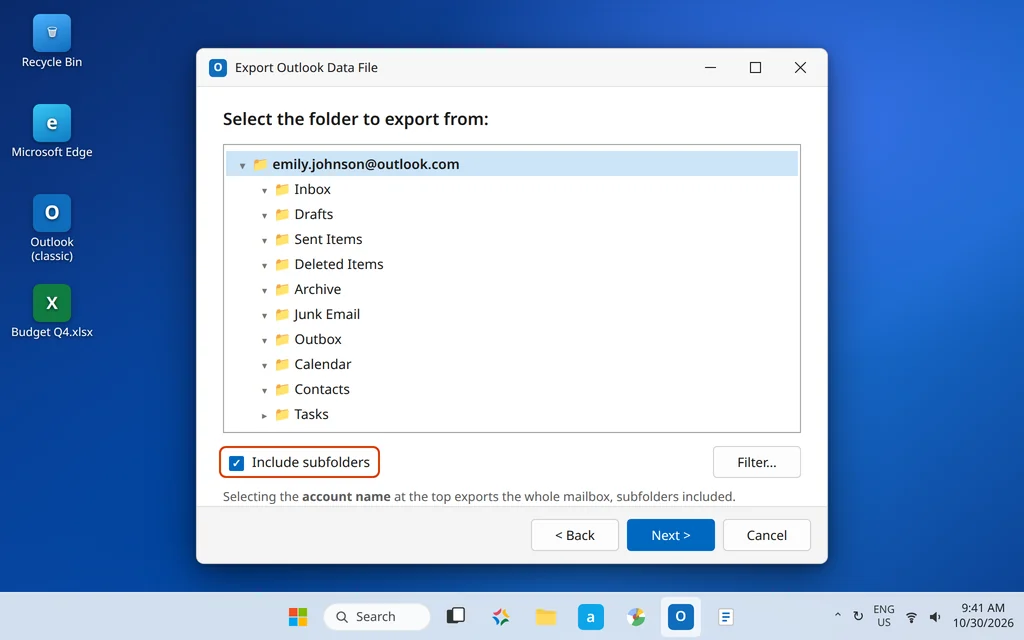
Step 4: Select Your Whole Account and Include Subfolders
- In the folder tree, click your account name at the very top (for example,
emily.johnson@outlook.com). That selects the entire mailbox — Inbox, Sent Items, Calendar, Contacts and every folder you have created. - Make sure Include subfolders is checked. Without it, you export only the top level and the subfolders — where most people keep their organized mail — are left behind. This one checkbox is the most common reason a backup turns out to be half empty.
- Click Next.
You can also export just one folder (only the Inbox, for example) by selecting that folder instead — the file will simply be smaller and contain only that part of your mail.
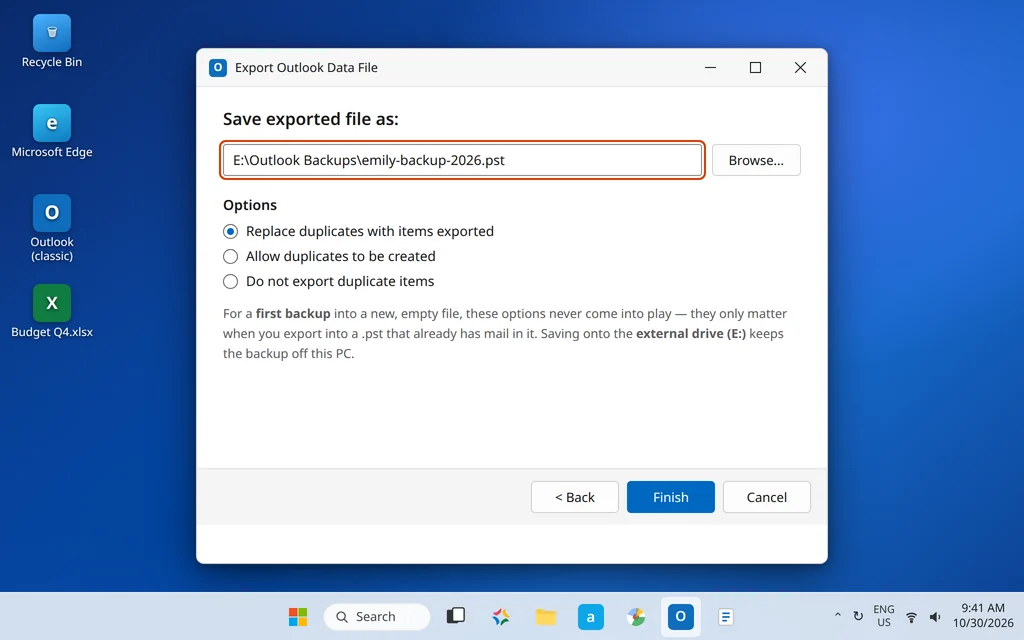
Step 5: Choose Where to Save It, and Set the Duplicates Option
- Click Browse, go to your external drive, and give the file a name you will recognize later — for example,
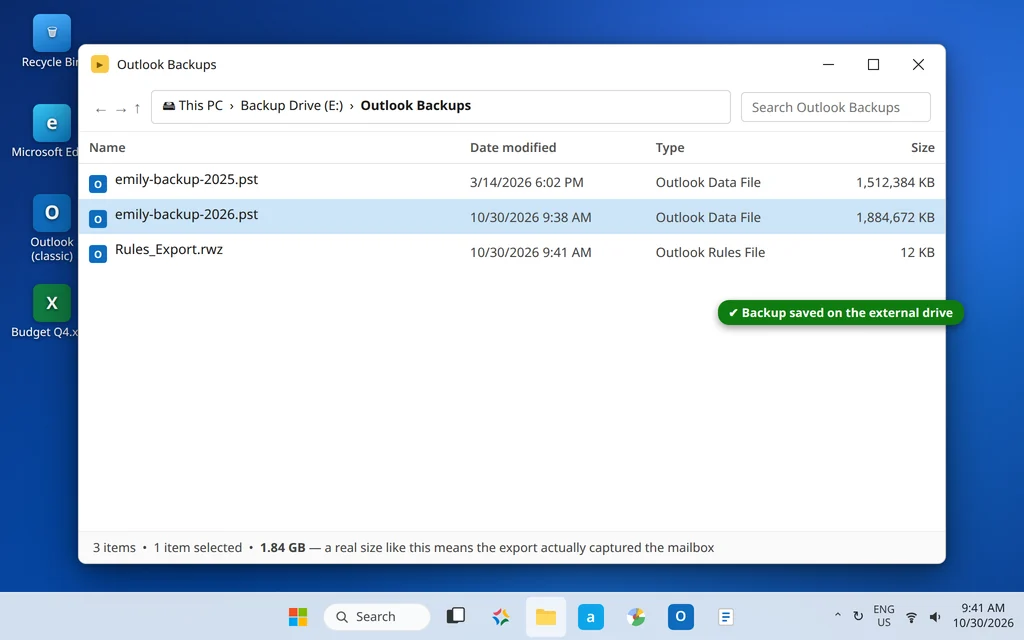
emily-backup-2026.pst. - Leave the Options choice unless it applies to you. The three options — Replace duplicates with items exported, Allow duplicates to be created, and Do not export duplicate items — only matter when you export into a .pst that already contains mail, for example when you top up the same backup file every month. For a first backup into a brand-new file, they make no difference at all.
- Click Finish.
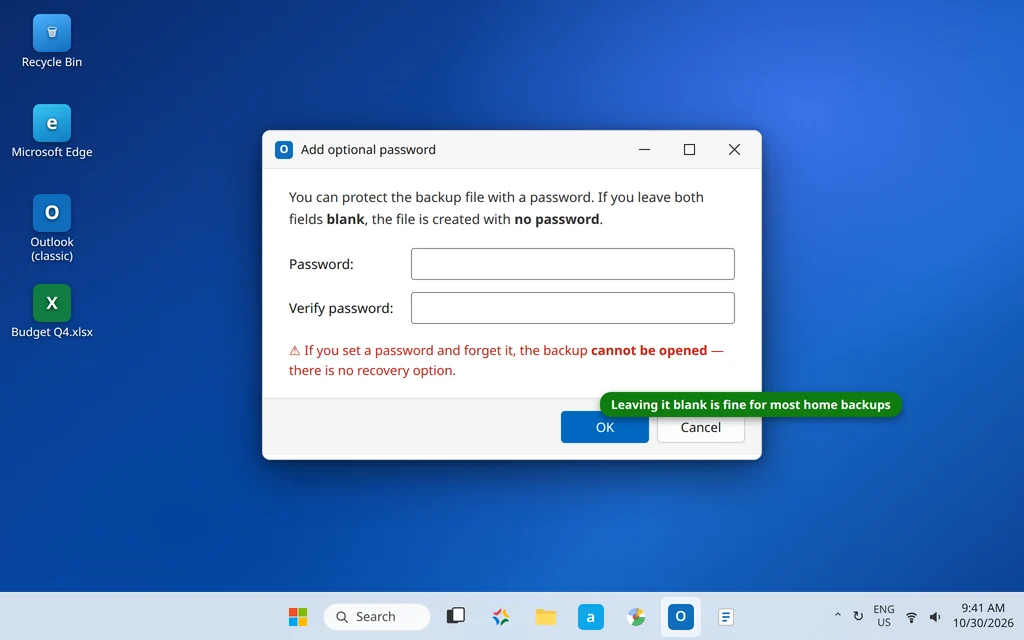
Step 6: The Optional Password — Leave It Blank, or Guard It Carefully
Outlook now shows an Add optional password box.
- Leave both fields blank and click OK, and the file is created with no password. For most home backups this is the right choice — the file lives on your own drive.
- Set a password only if the drive is shared or travels with you. Be warned: if you forget that password, the backup cannot be opened and there is no reset or recovery. A locked backup you cannot open is worse than no password at all.
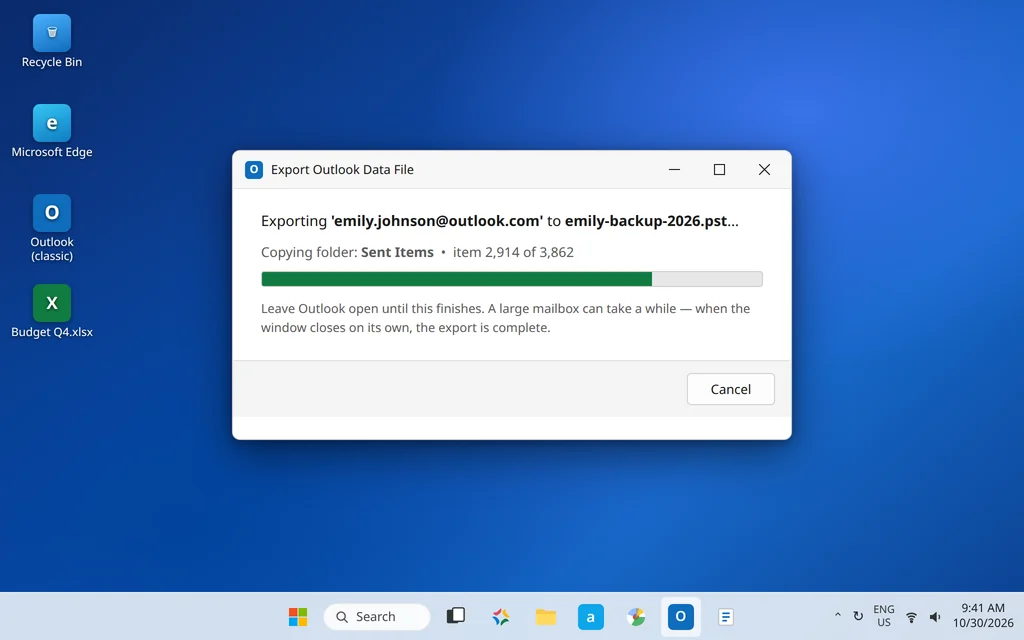
Step 7: Wait for the Export to Finish
Outlook shows its progress as it copies each folder. Leave Outlook open and let it finish — closing it mid-export leaves you with a partial file. When the progress window closes on its own, the export is done.
Step 8: Check the File
Open the folder you saved to in File Explorer and look at the .pst. It should have a realistic size — hundreds of megabytes or several gigabytes for a well-used mailbox. A file of a few kilobytes means the export captured almost nothing; go back and check Steps 4 and the Cached Exchange setting above.
What a PST Backup Includes — and What It Does Not
For every folder you selected, the .pst contains the email messages, calendar events, contacts, tasks and notes, with attachments and folder structure preserved. That is why the .pst is the standard Outlook backup format.
Be clear-eyed about what is not in the file:
- Account settings (server names, passwords) are not stored in a .pst. On a new PC you add your account again as usual; the .pst only supplies the mail itself.
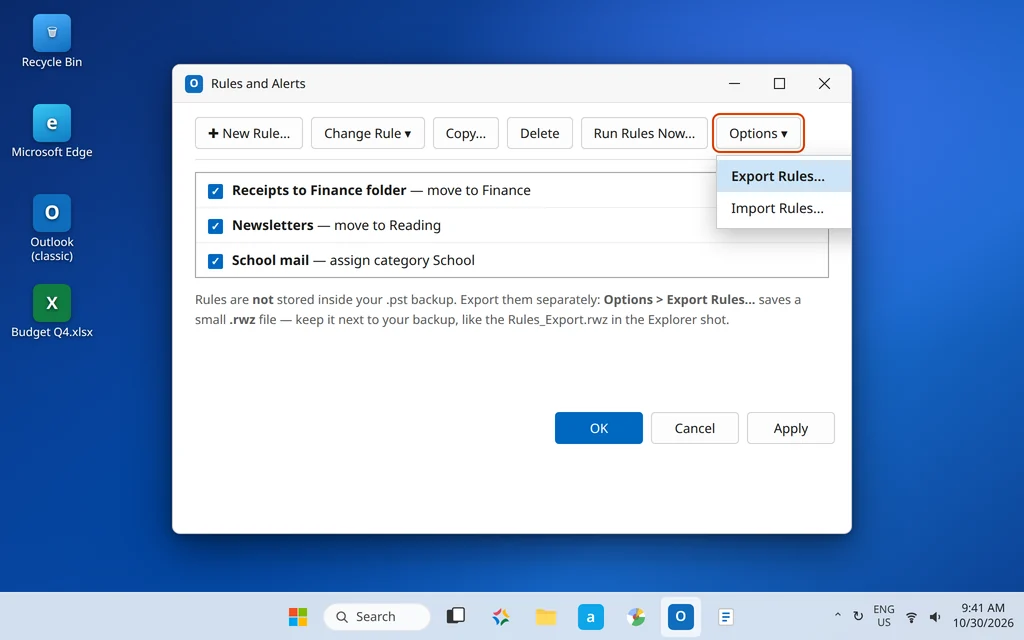
- Rules are not included. Your message rules live with the account/profile, so they need their own backup — that is the bonus step next.
- Email signatures are separate files on the PC (stored under your user profile), so they do not travel with the .pst either.
Bonus Step: Export Your Rules Too
If you have spent time building rules that file your mail automatically, back them up separately — it takes 30 seconds:
- Click File > Manage Rules & Alerts.
- Click the Options button.
- Click Export Rules… and save the small .rwz file next to your .pst backup.
- On the new PC, use Options > Import Rules… in the same dialog to bring them back.
How to Back Up Outlook Emails to an External Hard Drive (and Where Else to Keep the File)
The export above already saves straight to an external drive if you picked it in Step 5. If you exported to Documents first, copy the .pst to the drive afterwards — same result. Where the file lives afterwards matters as much as making it:
- External drive: best default. It survives the PC dying, the account being closed, and ransomware hitting the computer. Unplug it when you are done for real protection.
- Cloud storage (OneDrive, Google Drive, Dropbox): a copy is fine. Uploading a finished backup copy to the cloud is a good second location. But do not keep your active, in-use .pst file inside a synced folder — Microsoft advises against it, because sync tools can lock or corrupt a data file Outlook is writing to, which leads to exactly the kind of error covered in our Outlook error 0x8004010F guide.
- Only on the same PC: weakest. It protects your account, not your data. If the drive fails, the mailbox and its “backup” go together.
- Refresh it. A backup from 2023 does not help in 2026. Re-export every few months — or after any big mailbox cleanup — and keep the newest two versions.
How to Import the PST Back (So You Know the Backup Works)
A backup you have never restored is a hope, not a plan. Importing is the same wizard in reverse:
- Click File > Open & Export > Import/Export.
- Choose Import from another program or file, then Outlook Data File (.pst), and click Next.
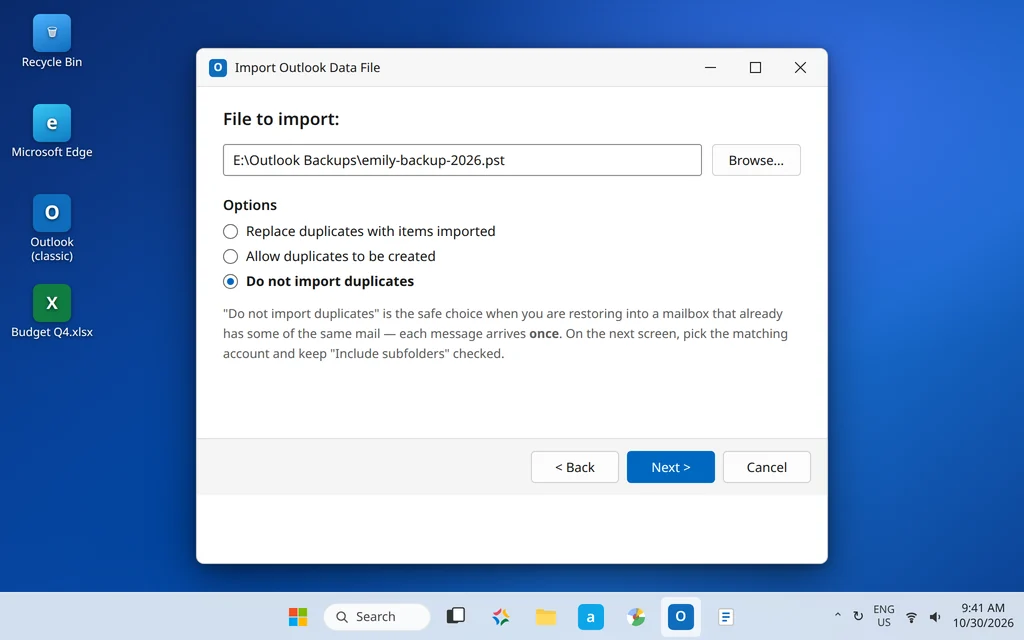
- Click Browse and select your backup .pst.
- Under Options, choose Do not import duplicates — the safe setting when the mailbox already holds some of the same mail, because every message then arrives exactly once.
- Click Next, select the account or folder the mail should go into, keep Include subfolders checked, and click Finish.
Tip: if you only want to look inside a backup, you do not need to import it at all. Use File > Open & Export > Open Outlook Data File, pick the .pst, and it appears in your folder pane as its own mailbox to browse or copy individual messages from. Close it again with a right-click when you are done.
What About the New Outlook and Outlook.com?
The new Outlook app does not currently include the PST export wizard — there is no way to export your mailbox to a .pst from inside it. If you need a real backup, open Classic Outlook (both can sit side by side on the same PC) and export from there. This guide’s steps are written for the classic app for exactly that reason.
Outlook.com in the browser offers a different route: a full mailbox export requested from Settings > General > Privacy and data > Export mailbox. Microsoft prepares the export on its servers — it can take a while, and you receive a download link when it is ready — rather than creating a file instantly on your PC. It is a reasonable fallback if you have no Windows PC handy, but the Classic Outlook export above is faster and fully under your control. And if you are actually moving providers rather than backing up, our Gmail to Microsoft 365 migration guide covers the account-to-account route.
One Warning: AutoArchive Quietly Moves Old Mail
Classic Outlook has an old feature called AutoArchive that periodically moves older items out of your mailbox into a separate file, usually called archive.pst. It surprises people twice: first when old mail “disappears” from the Inbox (it is in the archive file, not deleted), and again when their shiny new backup does not include those older messages — because the archive file is not part of the mailbox export. If AutoArchive is on (check File > Options > Advanced > AutoArchive Settings), note where its archive.pst lives in File > Account Settings > Data Files, and copy that file alongside your backup. If Outlook ever refuses to open or gets stuck reading its files, our Outlook stuck on Loading Profile guide covers the recovery side.
Frequently Asked Questions
How do I export emails from Outlook to a PST file?
Use the wizard: File > Open & Export > Import/Export > Export to a file > Outlook Data File (.pst). Select your account name at the top of the folder list, check Include subfolders, choose where to save the file, and click Finish. The full walkthrough with screenshots is above.
Where is my Outlook PST file located?
Files you export go wherever you chose in the wizard. Outlook’s own default data files (and the usual home of archive.pst) are in C:\Users\YourName\Documents\Outlook Files. You can always see the exact paths in File > Account Settings > Account Settings > Data Files.
Why are some emails missing from my exported PST?
The two usual causes are an unchecked Include subfolders box (subfolders were skipped) and the Cached Exchange Mode setting keeping only the last 12 months of mail on the PC — the export can only contain what is stored locally. Set “Download email for the past” to All, let Outlook sync fully, and export again. Mail already moved out by AutoArchive lives in archive.pst and must be backed up separately.
How do I back up Outlook emails to an external hard drive?
Either save directly to the drive in Step 5 of the export (Browse to the drive letter, for example E:), or export to your PC first and copy the finished .pst file to the drive. Storing it there keeps the backup safe even if the computer itself fails.
How do I back up my Outlook emails before deleting an account?
Do the export in this guide before you remove the account — once an account is deleted and its data is gone from the server, Outlook has nothing left to export. Keep the .pst somewhere safe; you can import it into a new account later with the import steps above.
Can I export emails from Outlook to Gmail?
Not directly — Gmail cannot read a .pst file. The working route is to add your Gmail account to Classic Outlook next to your old account and copy the folders across, which is covered step by step in our Gmail to Microsoft 365 migration guide (the same copy method works in either direction).
Does the new Outlook export to PST?
No. The new Outlook app currently has no PST export. Run the export from Classic Outlook on the same PC instead — it connects to the same mailbox and has the full Import/Export wizard.
Need help with a backup or a move? If your export keeps failing, or you are planning a full mailbox migration and want a hand, ask us on our Contact page — servicedesk@howtofixerroronline.com, available 24 hours — and see our other Outlook Errors guides, including Outlook error 0x8004010F and Outlook stuck on Loading Profile.