
Outlook Error 0x80040600: “An Unknown Error Has Occurred” — 5 Fixes
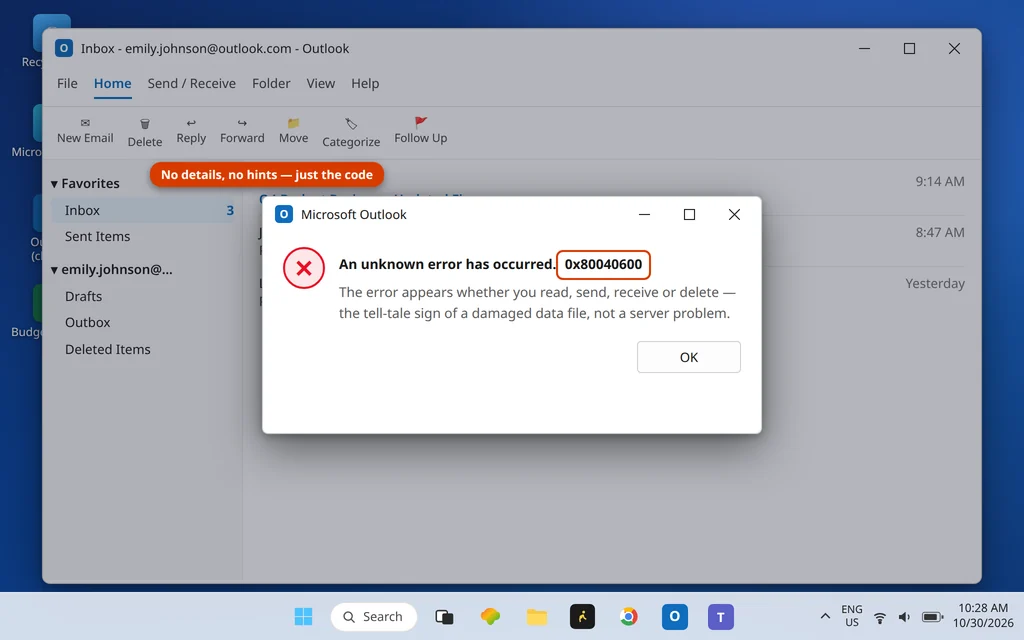
It is the least helpful error message in Outlook: “An unknown error has occurred. 0x80040600.” It pops up when you try to read an email, send one, delete one, or open an attachment — seemingly at random, and always when you are in the middle of something. Unknown to whom? Outlook knows perfectly well; it just is not saying.
Here is the translation the message withholds: 0x80040600 is a data-file error. Your Outlook data file — the .pst (or .ost) where your mail is stored on this PC — is damaged or inconsistent, so any operation that touches the file fails. This is not a server problem, not a password problem, and not an internet problem. The fix is to repair the file properly, and then — the step most guides skip — move your mail into a healthy new file so it stays fixed. Back up first, though: you are about to operate on the file that holds your email.
This guide is for Classic Outlook on Windows 11 and Windows 10. If Outlook instead says the data file cannot be accessed at all, that is a different code — see our Outlook error 0x8004010F guide — before continuing here.
Quick Answer: Outlook error 0x80040600 means the .pst data file is corrupted. First back up the .pst (Fix 1’s warning — copy the file before touching it). Then run SCANPST.EXE, the Inbox Repair Tool, against the file (Fix 1), and recover the repaired mail into a new, healthy PST set as the default (Fix 2). For Exchange/IMAP accounts, skip the repair and simply rebuild the .ost (Fix 3). Recreate the profile only if the error survives (Fix 4).
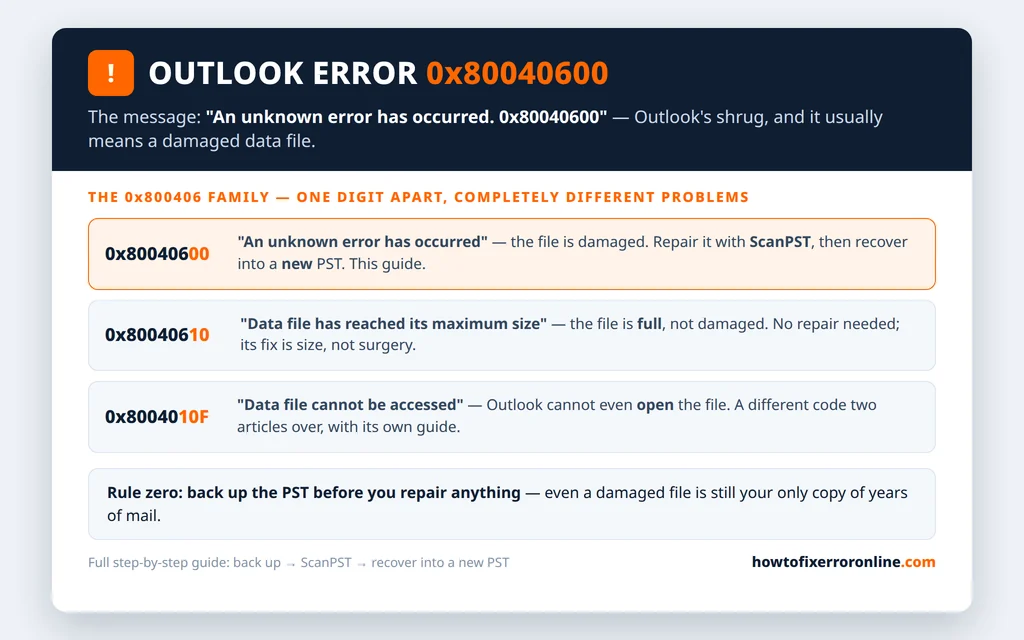
Table of Contents
What Does Outlook Error 0x80040600 Mean?
The message is always the same terse text — “An unknown error has occurred. 0x80040600” — and it can appear when you:
- Read or open an email
- Send or receive mail
- Delete an email (a very common trigger)
- Download or open an attachment
What ties those together is the data file. Every one of those actions reads from or writes to your .pst/.ost, and a damaged file fails them all the same vague way. The usual causes of the damage:
- Outlook or the PC shut down improperly while the file was open (power cut, crash, forced restart)
- The .pst has grown oversized — old ANSI-format PSTs become unstable near their ~2 GB ceiling, and very large modern files corrupt more easily too
- Disk errors in the area where the file sits
- Malware damage to the file
Notice what is not on that list: your mail server, your password, your internet. If a guide sends you to port settings for this code, it is guessing. The server never sees the operation that fails.
Before You Start: Back Up the PST
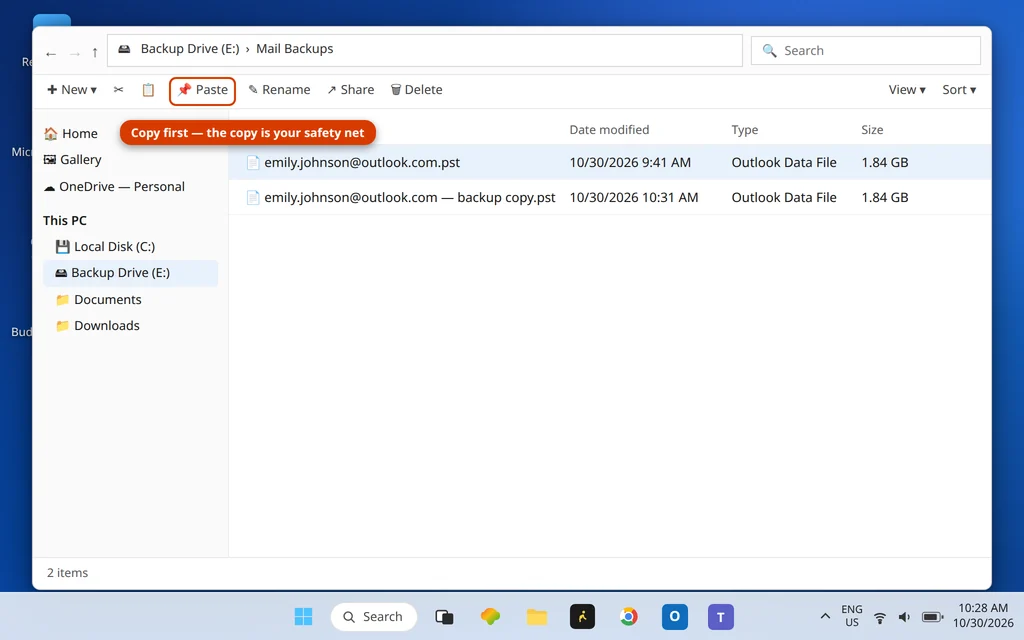
Every fix below works on the file that contains your mail. Repairs are designed to be safe — SCANPST makes its own backup — but “designed to be safe” is not a backup strategy. Take two minutes:
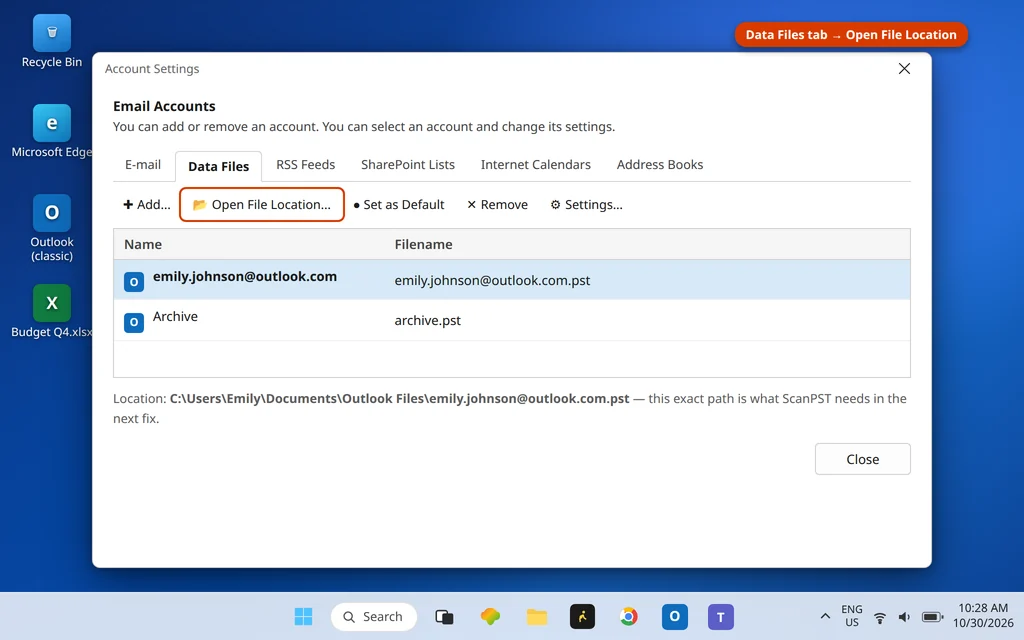
- Find your .pst’s location: File > Account Settings > Account Settings > Data Files. The default file (the one mail is delivered to) is the one that matters.
- Close Outlook completely.
- In File Explorer, copy that .pst to an external drive or another folder. If the repair goes sideways, this untouched copy is your way back.
Our full export and back up Outlook emails (PST) guide covers the belt-and-braces version of this, including the Import/Export wizard.
Fix 1: Repair the PST With SCANPST.EXE (Inbox Repair Tool)
SCANPST is Microsoft’s own repair tool, already on your PC with Office — ignore any site that wants to sell you a repair program before you have run the free one.
- Close Outlook completely — SCANPST cannot repair a file Outlook has open.
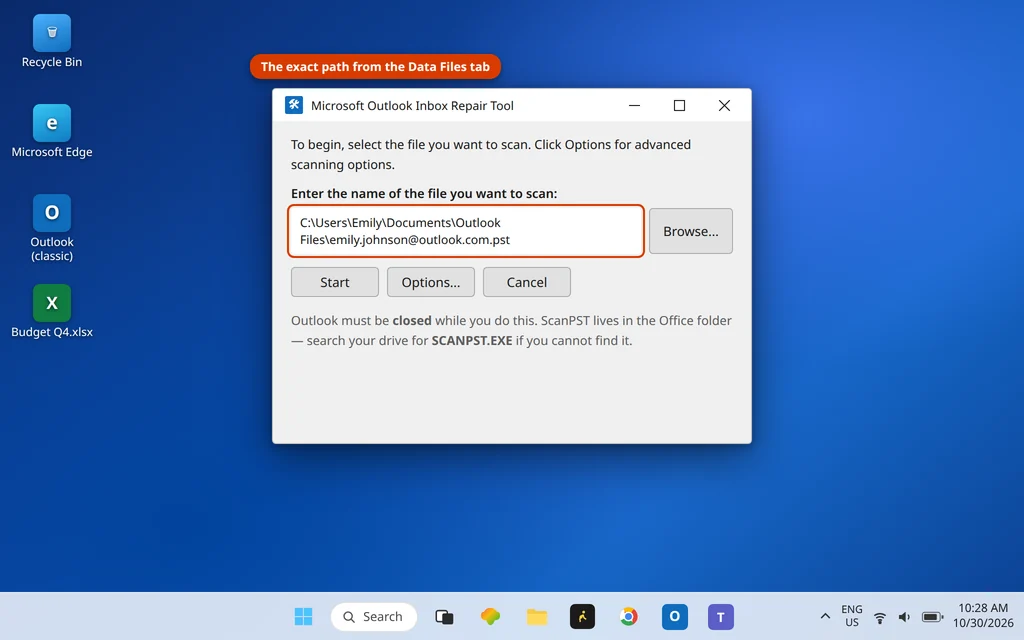
- Find the file to repair. In Control Panel > Mail > Show Profiles > Properties > Data Files (or the Account Settings Data Files tab from the backup step), note the default .pst’s path.
- Find SCANPST.EXE: type SCANPST into Windows search, or browse to your Office folder (typically
C:\Program Files\Microsoft Office\root\Office16\). - Run it, click Browse, and select your .pst.
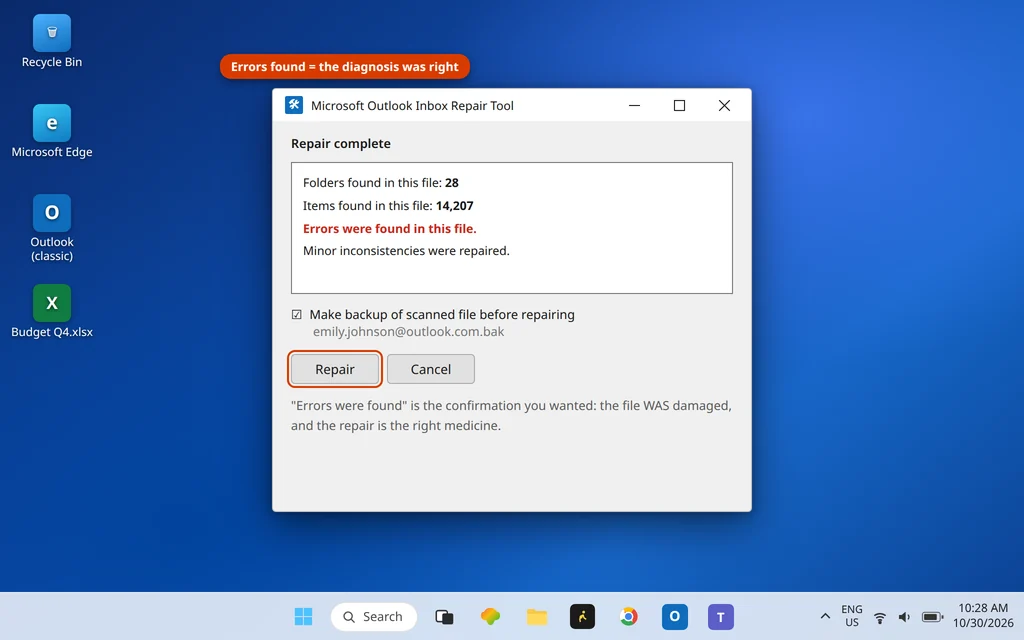
- Click Start. SCANPST scans the file in phases and reports whether it found errors.
- If errors are found, make sure “Make backup of scanned file before repairing” is checked, then click Repair.
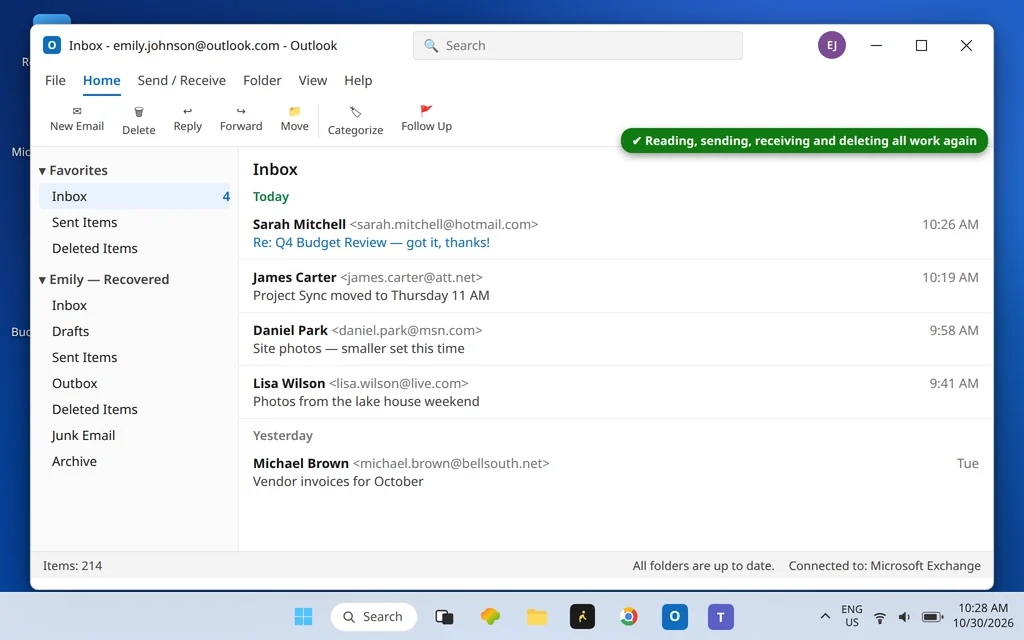
- When it finishes, open Outlook and try the action that failed — read, send, delete.
If the error is gone and stays gone, you may still want Fix 2 — a file that has corrupted once is telling you something about its health.
Fix 2: Move the Repaired Mail Into a New PST File
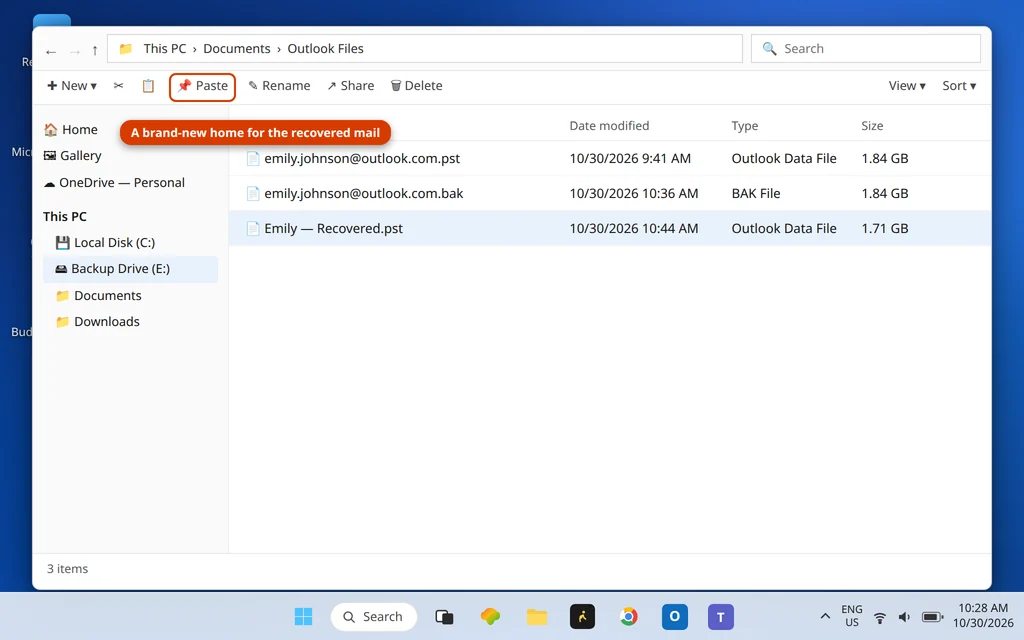
A repaired file is a patched file. The durable fix — the workflow Microsoft’s own support approach follows — is to give your mail a new, healthy home:
- In Outlook, click File > Account Settings > Account Settings > Data Files > Add…
- Create a new Outlook Data File (.pst) in the same Outlook Files folder, with a clear name (for example
Outlook-New.pst). It is created in the modern Unicode format, which has none of the old ~2 GB fragility. - Select the new file and click Set as Default, then restart Outlook.
- Copy your folders from the old file into the new one: right-click each folder in the old PST and use Copy Folder, or drag folders across. Calendar and Contacts copy the same way.
- Use Outlook on the new file for a few days. When everything is confirmed working and the old file is backed up (you did that first, right?), remove the old file from the profile via the same Data Files tab — keep the backup copy on your external drive.
Fix 3: Exchange or IMAP Account? Rebuild the OST Instead
If the account is Microsoft 365, Exchange, Outlook.com or IMAP, your local file is an .ost — a cache of mail that lives on the server. Repairing a cache is wasted effort; rebuild it:
- Close Outlook.
- In the Data Files tab (or File Explorer), find the .ost — same Outlook folder as above — and rename it (for example, add
.oldto the name). - Open Outlook. It creates a fresh .ost and re-downloads your mailbox.
Nothing is lost: the server holds the mail. This is the fastest fix in this guide when it applies — and the reason to check your account type before reaching for SCANPST.
Fix 4: Recreate the Outlook Profile
If a repaired-then-replaced PST (or a rebuilt OST) still throws 0x80040600, the profile itself may be damaged.
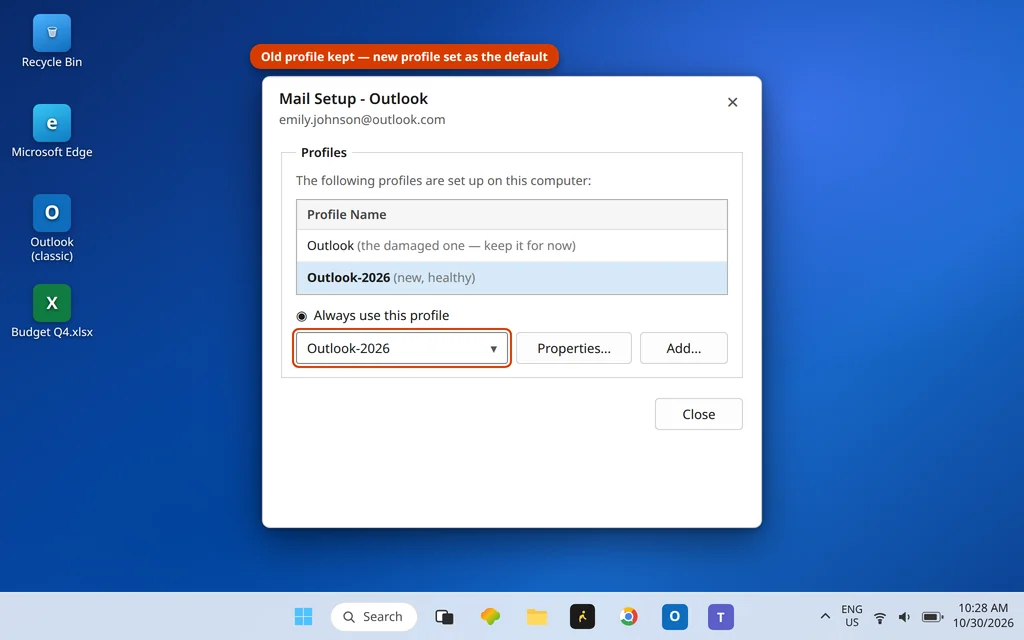
- Close Outlook. Open Control Panel > Mail (Microsoft Outlook) > Show Profiles.
- Click Add, name the new profile, and add your account.
- Set the new profile to be the one Outlook always uses.
- For a POP account, point the new profile at your healthy PST from Fix 2 — your local mail lives in that file, not on a server.
0x80040600 vs 0x80040610 — Damaged File or Full File?
The two 0x800406xx codes are a matched pair and constantly confused:
| 0x80040600 (this guide) | 0x80040610 | |
|---|---|---|
| Meaning | The data file is damaged | The data file / mailbox is full |
| Typical message | “An unknown error has occurred” | “The message store has reached its maximum size” |
| File health | Corrupt — needs repair | Healthy — needs space freed |
| Lead fix | SCANPST, then a new PST | Empty folders, Compact Now, archive |
If your message talks about size rather than an unknown error, use our Outlook error 0x80040610 guide instead. Both codes are also decoded side by side on our Error Codes hub.
How to Keep 0x80040600 From Coming Back
- Let Outlook close properly. Most PST corruption is born in a crash, a forced shutdown, or a power cut while the file was open.
- Keep the file a sane size. Archive old mail to a separate archive PST — the habit that prevents both this code and 0x80040610.
- Back up the .pst on a schedule. A current backup turns this whole guide into a five-minute file swap. (See the PST backup guide again — it earns the second link.)
- Retire ancient PSTs. If your file dates from the Outlook 2002 era (ANSI format, ~2 GB ceiling), migrate it into a new Unicode PST using Fix 2’s method before it fails on its own schedule.
Using the New Outlook? This Is a Classic Data-File Code
The new Outlook for Windows does not work with local .pst files the way Classic does — it has no SCANPST workflow and no Data Files tab. 0x80040600 belongs to Classic Outlook’s data-file stack. If the new app misbehaves with local data, its repair route is removing and re-adding the account, not file repair — and mail you need in .pst form belongs to Classic, as our PST backup guide explains.
Frequently Asked Questions
Will SCANPST delete my emails?
SCANPST is built to repair the file’s structure, not delete mail, and it creates a backup of the scanned file before repairing (keep that option checked). Two honest caveats: items that were already lost inside the corruption can end up in a “Lost and Found” folder rather than their original place, and severely damaged items may not be recoverable at all — which is exactly why this guide has you copy the .pst somewhere safe before repairing.
Where is SCANPST.EXE on my computer?
In your Office installation folder — typically C:\Program Files\Microsoft Office\root\Office16\SCANPST.EXE for current versions (the “Office16” part varies by version). The reliable way: type SCANPST into Windows search and open it from the results. It is already installed; you never need to download it, and you should never pay for it.
What is the difference between 0x80040600 and 0x80040610?
Damage versus size. 0x80040600 means the file is corrupted and needs SCANPST and a fresh PST. 0x80040610 means the file or mailbox has hit its size limit and needs mail deleted, folders emptied and the file compacted. The comparison table above shows both, message wording included — read your actual message text to pick the right guide.
Can a full PST file cause 0x80040600?
It contributes. An oversized file — especially an old ANSI-format PST near its ~2 GB ceiling — is more prone to corruption and inconsistency, and the corruption then surfaces as 0x80040600. But the codes are distinct: a full-but-healthy file reports the size error (0x80040610), not this one. If you see 0x80040600, repair first (this guide), then archive the file down to a healthier size so it does not recur.
SCANPST says my file has no errors, but 0x80040600 continues. What now?
Work down the rest of this guide: if the account is Exchange/IMAP, rebuild the .ost instead (Fix 3) — SCANPST results on a cache file are not the whole story. If it is a PST account, move the mail into a new PST anyway (Fix 2) — SCANPST cannot see every form of damage — and then recreate the profile (Fix 4). Keep your pre-repair backup untouched until one of those settles it.
Still seeing error 0x80040600? Tell us which action triggers it (reading, sending, deleting) and whether your account is POP or IMAP on our Contact page — servicedesk@howtofixerroronline.com, available 24 hours. And if your message mentions the message store’s size instead, the 0x80040610 guide is the one you need.