
Outlook Error 0x800CCC0F: The Connection to the Server Was Interrupted — 8 Fixes
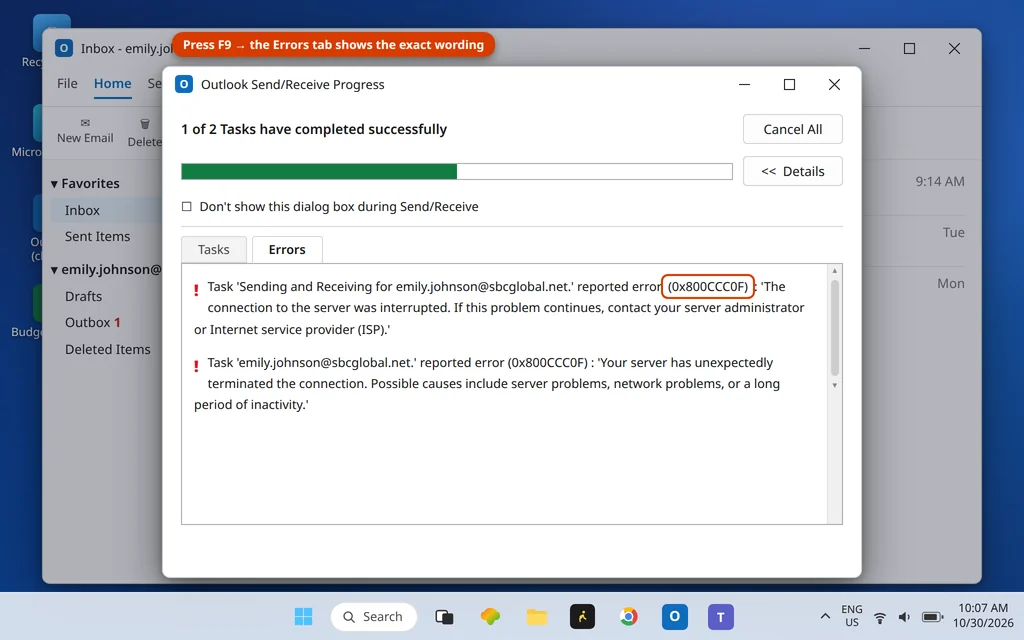
You press Send/Receive and Outlook starts working — then stops. The Progress window reports Outlook error 0x800CCC0F, “the connection to the server was interrupted,” and the mail you were expecting never arrives. Send it again and the same thing happens: Outlook connects, begins, and the session dies halfway through.
That “halfway through” detail is the whole clue. Error 0x800CCC0F does not mean Outlook cannot reach your mail server at all — it means the connection was made and then dropped in the middle of the job. Something along the path is cutting the session: a stale app password, a timeout that is too short, an antivirus scanning mail as it flows, or one oversized email that stalls the send. The fixes below follow those causes in order.
This guide is for Classic Outlook on Windows 11 and Windows 10, including Outlook 365 and Outlook 2021/2019. If Outlook will not open at all, start with our Outlook not opening on Windows 11 guide instead.
Quick Answer: Outlook error 0x800CCC0F means the connection to your mail server was interrupted during Send/Receive. The fix Microsoft’s own support answers lead with is a fresh app password (or secure mail key, for AT&T accounts) pasted into Server Settings (Fix 2). After that: check your server settings and drag the Server Timeouts slider toward Long (Fix 3), test your antivirus email scanning (Fix 4), clear any stuck oversized email from the Outbox (Fix 5), and only then move to Safe Mode, SCANPST and a new profile.
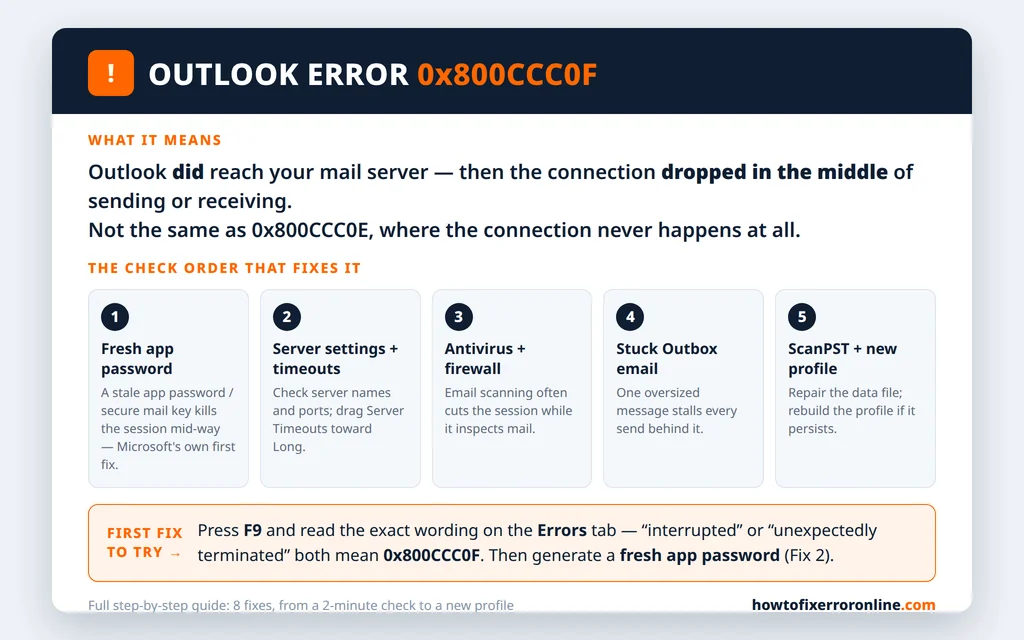
Table of Contents
What Does Outlook Error 0x800CCC0F Mean?
Error 0x800CCC0F appears in the Outlook Send/Receive Progress window, on the Errors tab. Depending on the account it uses one of two wordings — both mean the same thing:
- “Task ‘server name – Sending and Receiving’ reported an error (0x800CCC0F): ‘The connection to the server was interrupted. If this problem continues, contact your server administrator or Internet service provider (ISP).’“
- “Your server has unexpectedly terminated the connection. Possible causes include server problems, network problems, or a long period of inactivity.”
In plain terms: Outlook and the server were talking, and the conversation was cut off mid-sentence. The established causes are a connection that drops (router, Wi-Fi, ISP), an antivirus or firewall ending the session while it inspects mail, a server timeout that expires before a slow job finishes, a corrupt data file or profile — and, on accounts that use them, an app password that no longer matches, which can kill the session right after sign-in.
0x800CCC0F vs 0x800CCC0E: Interrupted vs Cannot Connect
These two codes are confused constantly, and they point at different repairs, so it is worth thirty seconds to separate them:
| 0x800CCC0F (this guide) | 0x800CCC0E | |
|---|---|---|
| What happens | The connection starts, then drops mid-job | The connection cannot be made at all |
| Typical wording | “The connection to the server was interrupted” | “Outlook cannot connect to your e-mail server” |
| First suspects | App password, timeouts, antivirus cutting the session, stuck email | Wrong server name or port, blocked port, no route to the server |
If your error says cannot connect, work through our Outlook error 0x800CCC0E guide instead — its settings and port checks come first there. If it says interrupted or unexpectedly terminated, stay here. Both codes, and the rest of the family, are decoded side by side on our Error Codes hub.
Fix 1: Prove the Connection Itself Is Stable
0x800CCC0F is a dropped-connection error, so first make sure the connection is not literally dropping.
- Open a few web pages and, if you can, stream a short video. If pages stall or the video buffers, the network is the problem — restart your router and PC, and try a wired connection if you are on Wi-Fi.
- If you recently changed networks (new router, new ISP, office VPN), test with the VPN disconnected.
- Back in Outlook, press F9 and watch the Progress window. If the error now appears only sometimes, note what is running when it strikes — a backup, a sync tool or a security scan competing for the connection is a common pattern.
If the internet is rock solid and the error is consistent, the drop is happening further up the chain — continue.
Fix 2: Generate a Fresh App Password or Secure Mail Key
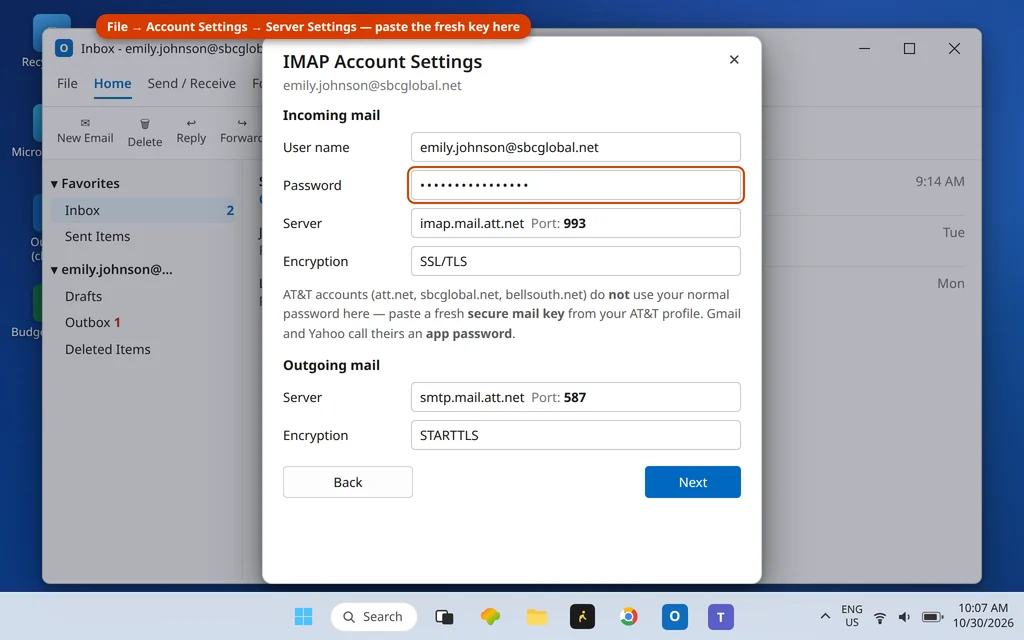
This is the fix Microsoft’s own support answers lead with for this code, and the one most guides bury: on accounts that sign in with an app password, an old or revoked one can let the session start and then get it killed. Gmail and Yahoo call it an app password; AT&T accounts (att.net, sbcglobal.net, bellsouth.net) call it a secure mail key — our Yahoo and AOL in Outlook guide walks through generating one step by step, and the AT&T equivalent lives in your AT&T profile under sign-in info.
- Sign in to your provider’s website and open its security settings.
- Generate a new app password / secure mail key (generating a new one does not always revoke the old one — that is fine).
- In Outlook, click File > Account Settings > Server Settings.
- Paste the new key into the Password field, replacing whatever is saved.
- Click Next, let Outlook test the account, then press F9.
If your account signs in with your normal password or a Microsoft/Google sign-in window instead, skip to Fix 3 — but note that repeated password prompts alongside this error point at our Outlook keeps asking for a password guide.
Fix 3: Check the Server Settings and Raise the Server Timeouts
A timeout that is too short is the other classic 0x800CCC0F trigger: Outlook gives up waiting for a slow server, and the interruption is logged as this error. While you are in the settings, verify the server names and ports match your provider’s published values (a table for common providers is in our 0x800CCC0E guide).
- Open Control Panel > Mail (Microsoft Outlook) > E-mail Accounts.
- Select the account named in the error, click Change, then More Settings.
- On the Advanced tab, check the ports: IMAP is 993 with SSL/TLS; SMTP is 587 with STARTTLS (or 465 with SSL/TLS).
- In the Server Timeouts section, drag the slider toward Long — 5 minutes is a good test value.
- Click OK > Next, then press F9 in Outlook.
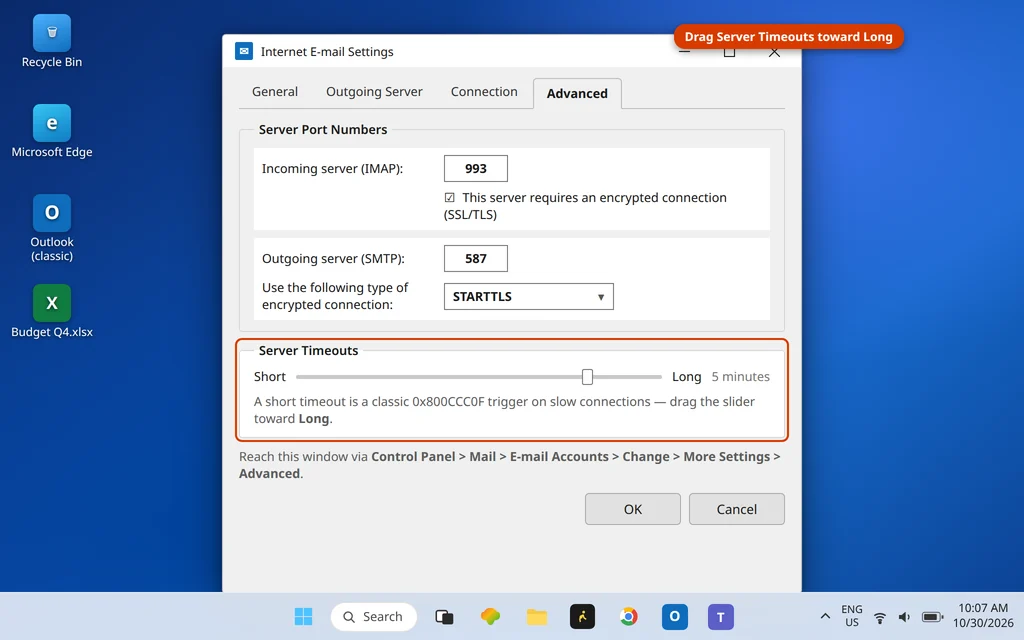
If mail now flows, the timeout was the whole problem — leave the longer setting in place; it does no harm.
Fix 4: Test Your Antivirus and Firewall
Email scanning is designed to sit inside the mail session — which also means a misbehaving scanner can end the session, producing exactly this error, often starting right after an antivirus update.
- Open your antivirus and find its email scanning / email protection option. Turn only that feature off; leave the main protection running.
- Press F9 in Outlook. If Send/Receive now completes, the scanner was the culprit: turn email scanning back on and update the antivirus. If the conflict survives the update, leave email scanning off and tell the antivirus vendor — real-time file protection still covers attachments when you open them.
- Also confirm Outlook is allowed through the firewall: Windows Security > Firewall & network protection > Allow an app through firewall, and check Microsoft Outlook is listed.
Never leave your antivirus or firewall fully disabled — this is a test of one feature, not a fix to live with.
Fix 5: Clear the Stuck Oversized Email in the Outbox
If the error strikes while sending, one huge message can be the whole story: Outlook starts uploading it, the server or the connection gives up mid-transfer, and the session is reported as interrupted — every time, because Outlook retries the same message on every Send/Receive.
- In Outlook, click the Send / Receive tab and click Work Offline (Outlook cannot delete a message it is actively sending).
- Open the Outbox and look for a message with a very large attachment.
- Delete it, or drag it to Drafts and re-send a smaller version — most servers cap messages around 20–25 MB, so share big files with a OneDrive or Google Drive link instead.
- Turn Work Offline off and press F9.
Our dedicated guide to email stuck in the Outlook Outbox covers the stubborn cases, including messages that refuse to delete.
Fix 6: Rule Out Add-Ins in Safe Mode
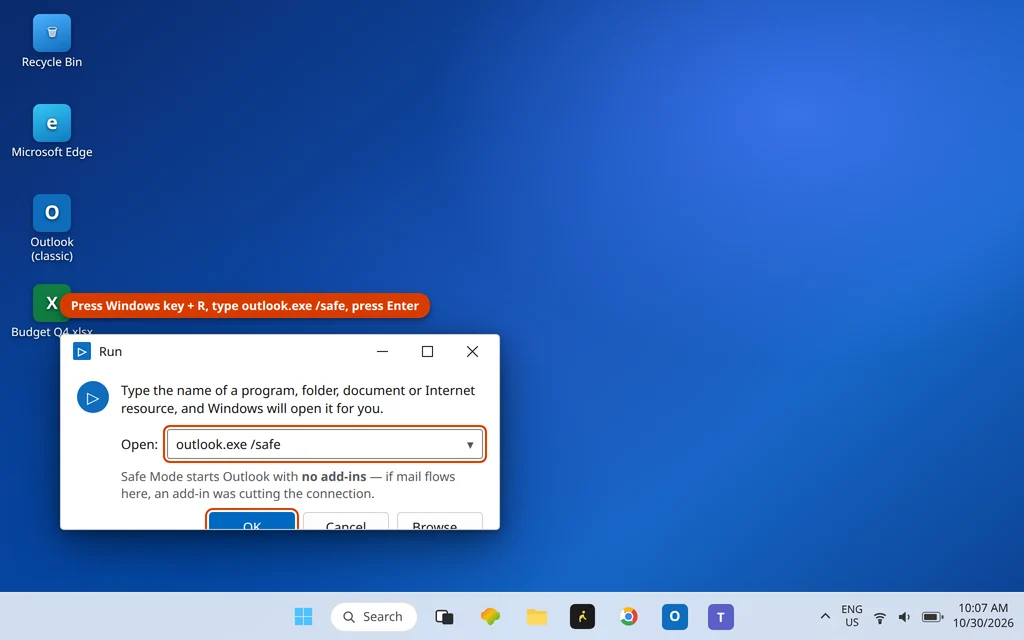
Add-ins load inside Outlook and can interfere with the send/receive engine. Safe Mode starts Outlook with all of them disabled:
- Close Outlook.
- Press Windows key + R, type
outlook.exe /safeand press Enter. - Press F9. If Send/Receive completes cleanly, an add-in is at fault.
- Restart Outlook normally and disable add-ins in batches via File > Options > Add-ins > COM Add-ins > Go until the error stops; the last batch contains the culprit (antivirus and PDF add-ins are the usual suspects).
Fix 7: Repair the Data File With SCANPST
A damaged data file can break a session partway through, once Outlook reaches the damaged item. Microsoft’s built-in Inbox Repair Tool (SCANPST.EXE) checks and repairs .pst and .ost files, and backs the file up before repairing.
- Close Outlook completely.
- Find SCANPST.EXE in your Office folder — usually
C:\Program Files\Microsoft Office\root\Office16\SCANPST.EXE(the folder varies by Office version; typing SCANPST into Windows search is often quicker). - Run it, click Browse, and select your data file — its location is under File > Account Settings > Account Settings > Data Files.
- Click Start. If errors are found, click Repair, keeping Make backup of scanned file before repairing checked.
- Open Outlook and press F9.

If the problem is a data file Outlook cannot even open, that is a different code — see our Outlook error 0x8004010F guide.
Fix 8: Create a New Outlook Profile
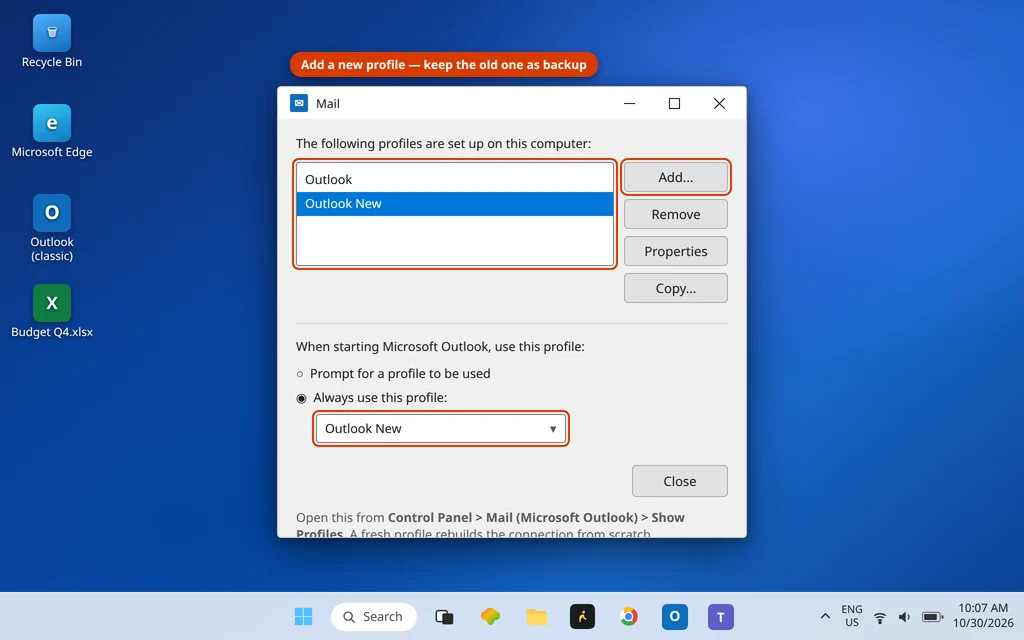
If the error survives a repaired data file, the profile itself — the container holding the account’s connection settings — is likely corrupt. A new profile rebuilds everything from scratch and does not delete your old one.
- Close Outlook.
- Open Control Panel > Mail (Microsoft Outlook) > Show Profiles > Add. Name it “Outlook New”.
- Add your email account in the wizard (for AT&T/Yahoo/AOL, use the fresh secure mail key or app password from Fix 2).
- Back in the Mail window, under “When starting Microsoft Outlook, use this profile”, choose Always use this profile and select the new one.
- Open Outlook, let the mailbox sync, and press F9.
Advanced (Windows 10 Only): The TLS 1.3 Workaround
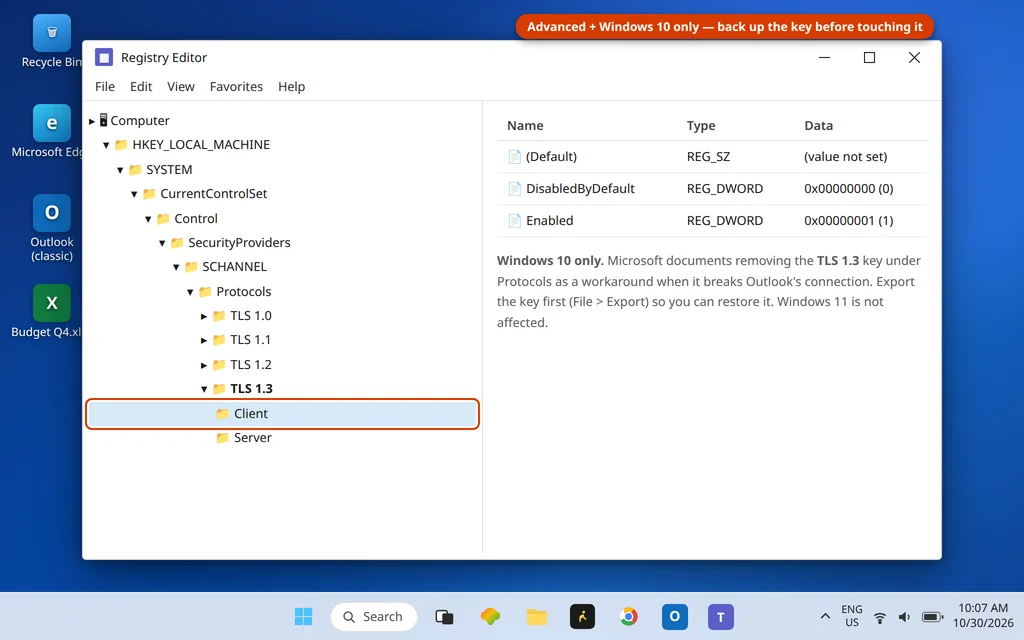
One cause is specific to Windows 10: Microsoft has documented that TLS 1.3 — enabled on some Windows 10 PCs by a registry key — can break Outlook’s connection and produce this exact error. Windows 11 is not affected, and Microsoft’s workaround is to remove that TLS 1.3 key.
Treat this as an advanced step and back up first: in Registry Editor, navigate to HKEY_LOCAL_MACHINE\SYSTEM\CurrentControlSet\Control\SecurityProviders\SCHANNEL\Protocols, right-click the TLS 1.3 key, choose Export to save a backup, then delete the key and restart the PC. If there is no TLS 1.3 key on your PC, this cause does not apply to you — do not create or edit anything else in the registry.
When the interruption is fixed, Send/Receive completes with an empty Errors tab:

Using the New Outlook?
The new Outlook for Windows does not use this error stack — it has no Server Timeouts slider, no SCANPST workflow and no Control Panel profile system, so these steps do not transfer. If the new app drops its connection mid-sync, the equivalents are restarting the app, removing and re-adding the account in its settings, and checking your connection — and if the same account works in Classic Outlook, the account itself is healthy.
How to Stop Error 0x800CCC0F Coming Back
- Keep a note of your working settings — server names, ports, encryption, and where your app password lives.
- Regenerate your app password whenever your provider asks you to change your main password; the old saved key is a classic “broke overnight” cause.
- Send big files with a cloud link, not as attachments, so one message cannot stall the whole queue.
- Keep your antivirus and Office updated — session-cutting bugs are usually fixed in updates, not settings.
Frequently Asked Questions
What causes error 0x800CCC0F in Outlook?
The session between Outlook and the mail server is dropped after it has started: a flaky connection, an antivirus cutting in while it scans, a server timeout expiring mid-job, a stale app password, or one oversized email stalling the send. A corrupt data file or profile can also break the session when Outlook reaches the damaged part.
Why does Outlook say “the connection to the server was interrupted”?
That sentence is error 0x800CCC0F’s own wording: Outlook connected successfully, but something ended the connection before the send/receive job finished. The companion wording — “Your server has unexpectedly terminated the connection” — is the same error reported from the server’s side.
Is 0x800CCC0F the same as 0x800CCC0E?
No. 0x800CCC0E means Outlook cannot connect to the server at all (wrong server name, blocked port). 0x800CCC0F means the connection was made and then interrupted. The fixes overlap, but the order differs — the comparison table above shows the split, and each code has its own guide on this site.
Can an app password cause 0x800CCC0F?
Yes — it is one of the causes Microsoft’s own support answers name for this code. On Gmail, Yahoo, AOL and AT&T accounts, Outlook signs in with an app password or secure mail key rather than your normal password; if the saved one has been revoked or replaced, the session can start and then be killed. Generate a fresh one and paste it into File > Account Settings > Server Settings (Fix 2).
Why does 0x800CCC0F happen with large attachments?
A big attachment makes the send take minutes instead of seconds, and everything that can interrupt a session — timeouts, antivirus scanning, a brief network drop — gets far more time to strike. If the error only appears when a large message is in the Outbox, that message is the cause: remove it (Fix 5) and share the file with a cloud link instead.
How do I fix error 0x800CCC0F in Outlook?
In order: prove the connection is stable (Fix 1); generate a fresh app password or secure mail key (Fix 2); verify server settings and lengthen the Server Timeouts (Fix 3); test antivirus email scanning (Fix 4); clear any stuck Outbox message (Fix 5); test in Safe Mode (Fix 6); run SCANPST (Fix 7); and create a new profile if all else fails (Fix 8). On Windows 10, also consider the TLS 1.3 workaround.
Will creating a new profile delete my emails?
For IMAP, Microsoft 365, Outlook.com and Exchange accounts, no — mail lives on the server and downloads again into the new profile. On old POP accounts, mail may exist only in the .pst file on the PC; the new profile can be pointed at that same file, and nothing is deleted either way because the old profile stays in place until you remove it.
Still seeing error 0x800CCC0F? Tell us your provider and the exact wording on the Errors tab on our Contact page — servicedesk@howtofixerroronline.com, available 24 hours. You can also look this code up on our Error Codes hub alongside its neighbours 0x800CCC0E and 0x8004010F.