
Outlook Error 0x80042108: Unable to Connect to Your Incoming (POP3) Server — 6 Fixes
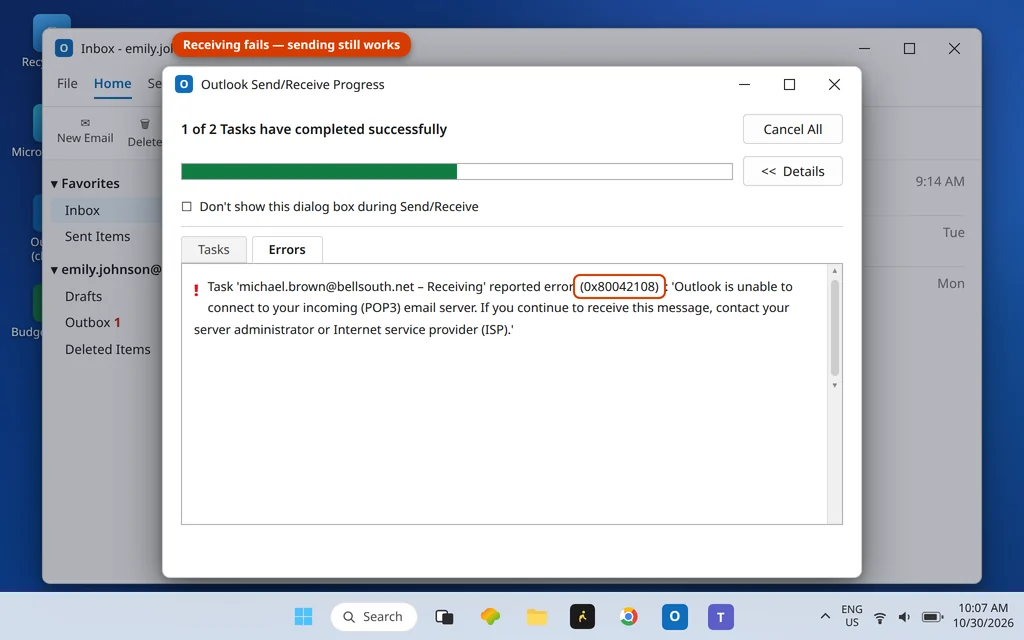
Sending works. Your test message leaves, your colleague replies — and the reply never lands. Every Send/Receive ends with error 0x80042108: “Outlook is unable to connect to your incoming (POP3) e-mail server.”
This error is the exact mirror of the outgoing-mail failure, and it has one unusual advantage: it is precise. It only affects the incoming POP3 connection, and the causes form a short list. The lead suspect, based on what has broken real accounts recently, is a settings mismatch — your provider now requires port 995 with SSL, and Outlook is still offering the old port 110 pairing. Fix 1 is where most people finish.
Quick Answer: Outlook error 0x80042108 means Outlook cannot reach the incoming (POP3) server while sending still works. Set the incoming pair to port 995 with “This server requires an encrypted connection (SSL)” ticked (Fix 1), and make sure POP access is switched on in your provider’s webmail settings (Fix 2). Then check antivirus/firewall interference (Fix 3), use Repair (Fix 4), run SCANPST (Fix 5), and rebuild the profile only if needed (Fix 6).
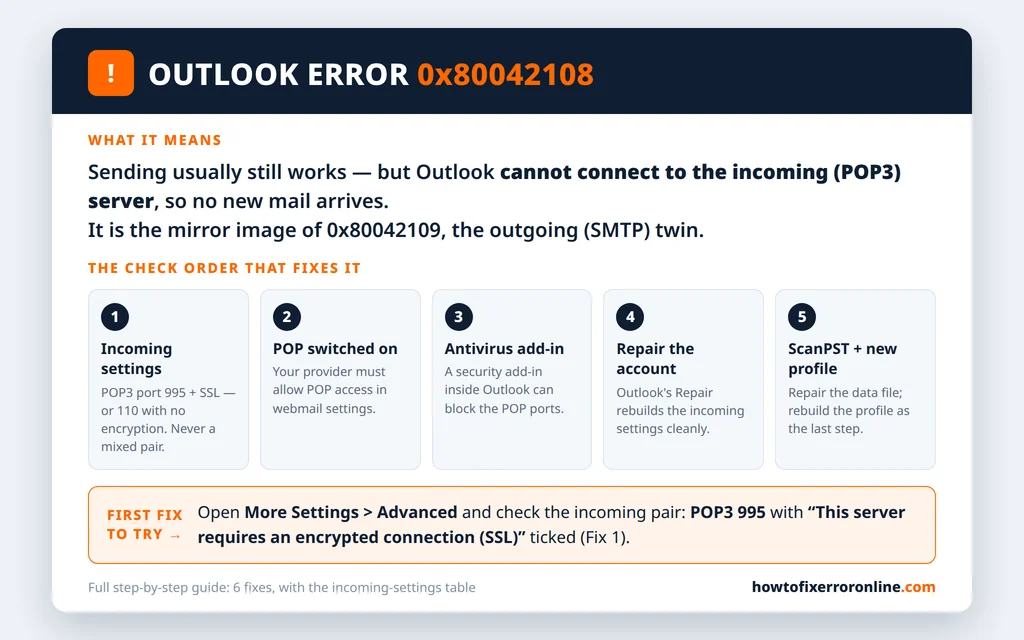
Table of Contents
What Does Outlook Error 0x80042108 Mean?
The error is reported on the Receiving task in the Outlook Send/Receive Progress window:
“Task ‘michael.brown@bellsouth.net – Receiving’ reported an error (0x80042108): ‘Outlook is unable to connect to your incoming (POP3) e-mail server. If you continue to receive this message, contact your server administrator or Internet service provider (ISP).’”
POP3 is the older of Outlook’s two incoming protocols (IMAP is the other). Code 0x80042108 says the connection to the POP3 server was never established: the server name or port is wrong, the port and encryption do not match, POP access is switched off at the provider, or something local — antivirus, firewall, a damaged file — is in the way. Everything about sending is untouched, which is why outgoing mail keeps working.
The companion cases, so you are sure you are in the right guide: can receive but not send → Outlook error 0x80042109 (outgoing SMTP). Neither direction connecting on an IMAP account → Outlook error 0x800CCC0E or 0x800CCC0F. And mail not arriving at all, with no error code, is a different hunt — see Outlook not receiving emails. All codes are indexed on the Error Codes hub.
Fix 1: Check the Incoming Server Settings — 995 Needs SSL
Providers have been retiring the unencrypted POP3 pairing, and that change is the evidenced lead cause of this error: the account worked for years on port 110, then the provider required SSL — and Outlook, still on the old pairing, can no longer connect. The rule is simple: the port and the encryption checkbox are a pair, and they must match.
- In Outlook, go to File > Account Settings > Account Settings.
- Select the POP3 account from the error and click Change, then More Settings.
- Open the Advanced tab and check the Incoming server (POP3) row:
- Port 995 with “This server requires an encrypted connection (SSL)” ticked — the current standard; try this first.
- Port 110 with the box unticked — the legacy pairing, only if your provider’s published settings still say so.
- A mismatch — 995 without the tick, or 110 with it — fails the connection exactly like a wrong password. Fix the pair, click OK > Next, and let Outlook test.

While the dialog is open, confirm the Incoming mail server name is your provider’s current one (for AT&T-family addresses such as bellsouth.net and sbcglobal.net it is inbound.att.net; Yahoo is pop.mail.yahoo.com). A server name left over from a previous provider produces this same error.
Fix 2: Make Sure POP Is Switched On With Your Provider
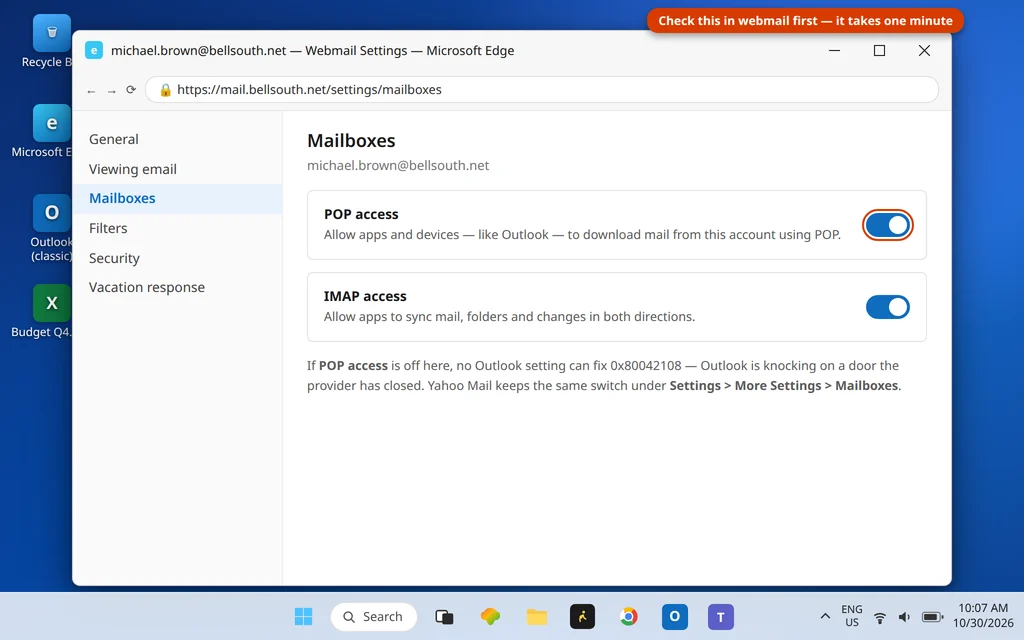
Unlike IMAP, POP access is something several providers make you enable — and it can be reset by provider-side changes, which is why an account can break without you touching anything. Yahoo’s move to SSL-only POP caught many Outlook users this way.
- Sign in to your account in a browser (your provider’s webmail).
- Open Settings and find the mail/account section that mentions POP access (on Yahoo-family mail it sits with the mailbox settings; Gmail calls it “POP download”).
- Make sure POP is enabled, and save.
- Back in Outlook, press F9.
If your provider lets an app password or secure mail key expire or get revoked, POP sign-in fails in a way Outlook may report as this connection error rather than a password prompt — generate a fresh key and update it in File > Account Settings > Server Settings. If prompts keep looping instead, that pattern has its own guide: Outlook keeps asking for a password.
Fix 3: Antivirus and Firewall — Including the Add-In Inside Outlook
Two places where security software can block only the incoming path:
- The add-in inside Outlook. Antivirus suites install a COM add-in that intercepts incoming mail. Start Outlook in Safe Mode — close it, press Windows key + R, type
outlook.exe /safe, press Enter — and press F9. If receiving works in Safe Mode, open File > Options > Add-ins > COM Add-ins > Go and untick the antivirus add-in (and any others) to confirm the culprit, then update the suite.

- The firewall. Open Windows Security > Firewall & network protection > Allow an app through firewall and confirm Microsoft Outlook is allowed. For a third-party firewall or security suite, its own allowed-apps list is where Outlook must appear — a suite update can silently drop the entry.
Fix 4: Repair the Account
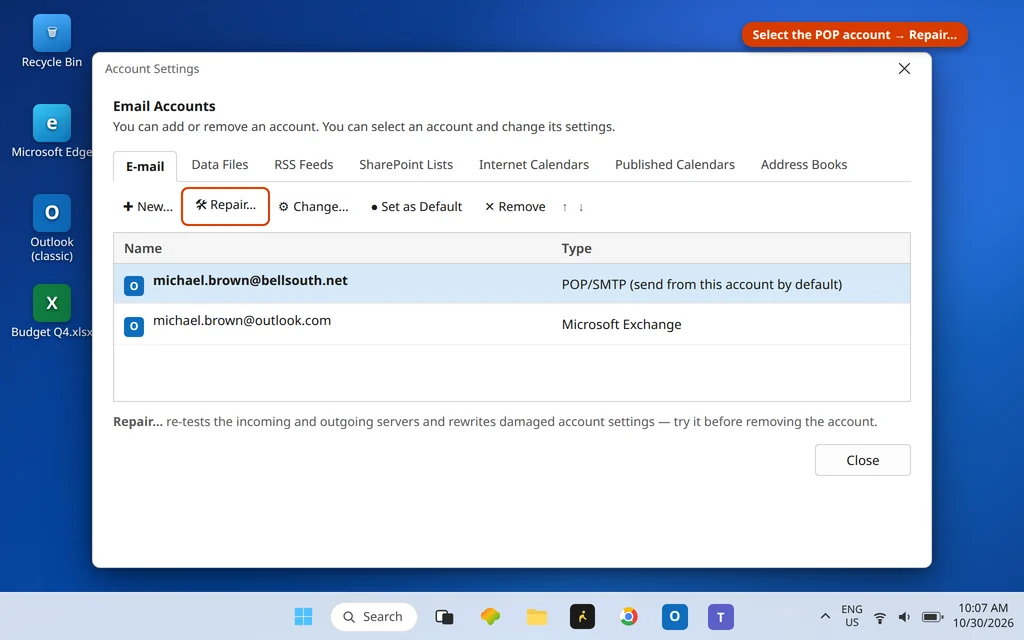
Outlook’s built-in Repair re-tests the account and re-applies the server settings automatically — worth running before any manual rebuild.
- Go to File > Account Settings > Account Settings.
- Select the POP3 account and click Repair.
- Let the wizard run its checks and finish, then press F9.
Fix 5: Repair the Data File With SCANPST
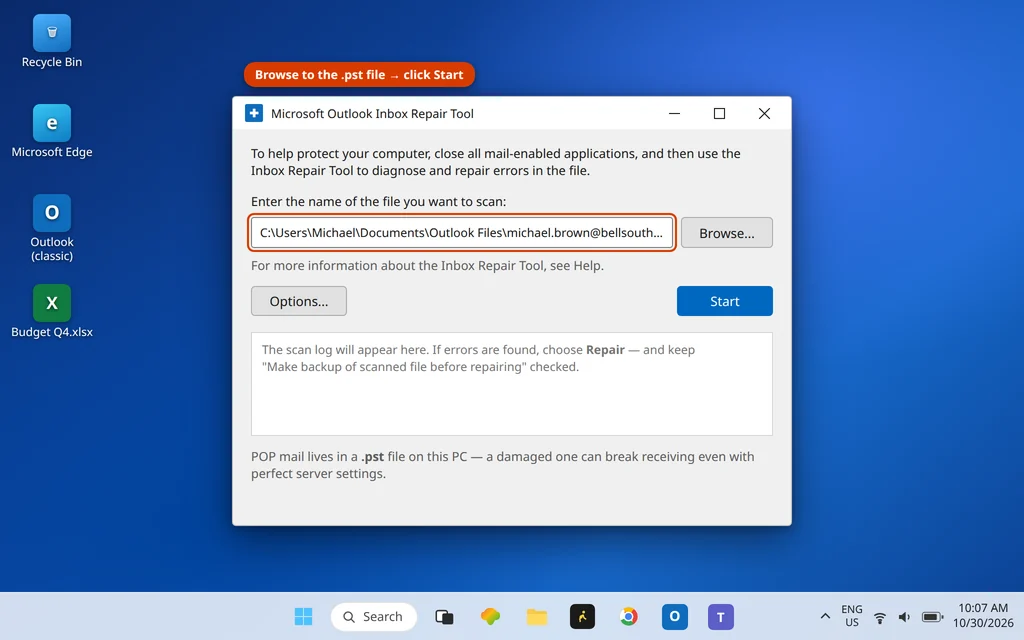
POP3 mail lives in a local .pst file, and damage in that file can block receiving even when the connection itself is fine. SCANPST is Microsoft’s built-in repair tool and backs the file up before making changes.
- Close Outlook.
- Run SCANPST.EXE — usually
C:\Program Files\Microsoft Office\root\Office16\SCANPST.EXE(searching SCANPST in Windows also finds it). - Click Browse and select the account’s .pst file (its location shows under File > Account Settings > Account Settings > Data Files).
- Click Start; if errors are reported, click Repair.
Fix 6: Create a New Outlook Profile
If every check passes and receiving still fails, the profile’s connection settings are likely corrupt. A new profile rebuilds them cleanly — and because a POP3 account’s mail lives in its .pst file, you point the new profile at the same file and lose nothing.
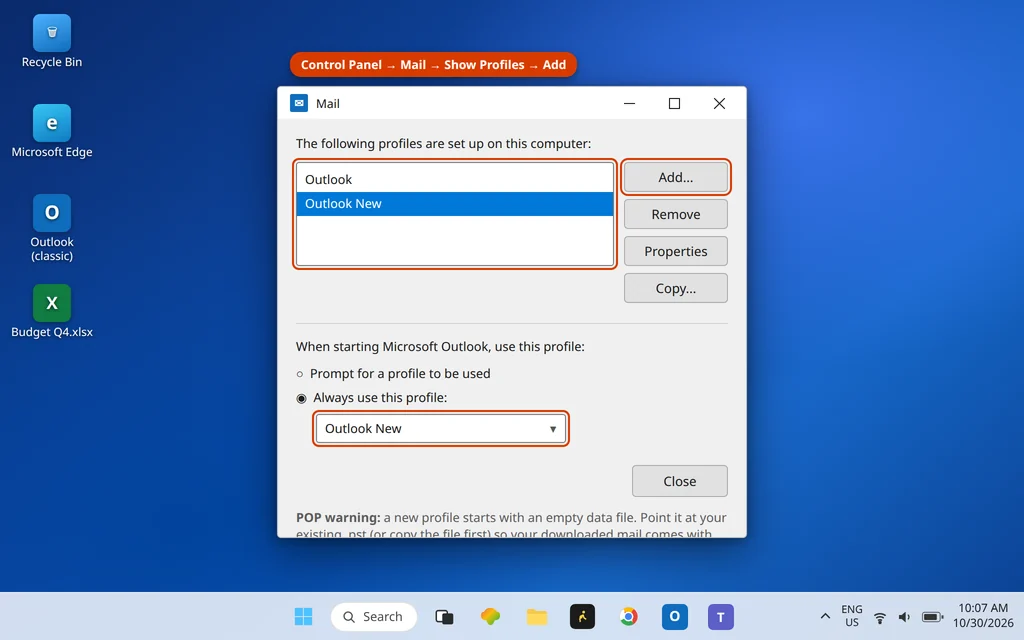
- Close Outlook. Open Control Panel > Mail (Microsoft Outlook) > Show Profiles > Add and name the new profile.
- Add the account with the correct settings (port 995 + SSL, fresh app password/key if your provider uses one).
- When adding, choose the option to use an existing data file and select the account’s current .pst.
- Set Always use this profile to the new one, open Outlook, and press F9.
When receiving works again, Send/Receive completes with no errors:

One POP3 warning worth heeding: if mail is also missing rather than just blocked, check the account’s Advanced tab setting “Leave a copy of messages on the server.” A profile rebuilt without it can pull mail down and delete the server copy — fine on your main PC, a nasty surprise if you also read mail elsewhere.
Using the New Outlook?
POP3 accounts are supported in the new Outlook for Windows, but it has none of the Classic dialogs above — no More Settings, no Advanced tab. If the new app cannot connect a POP account, the same two provider-side facts decide it: POP must be enabled on the account, and the sign-in must be current. Remove and re-add the account in the new app’s settings with those in place; if it still fails there while webmail works, Classic Outlook with the fixes above remains the reliable diagnostic path.
How to Stop Error 0x80042108 Coming Back
- Match the pair, always: 995 with SSL ticked; if a guide or provider page gives you a port, take its encryption setting from the same page.
- After any provider announcement about “security updates” to email, re-check Fix 1 and Fix 2 first — provider-side changes are this error’s favourite trigger.
- Keep the antivirus add-in updated or leave it disabled; Outlook receives perfectly well without it.
Frequently Asked Questions
How do I fix error 0x80042108 in Outlook?
Set the incoming pair to port 995 with SSL ticked (Fix 1), confirm POP is enabled in your provider’s webmail settings (Fix 2), test without the antivirus add-in and check the firewall (Fix 3), then run Repair on the account (Fix 4). SCANPST (Fix 5) and a new profile (Fix 6) are the last resorts.
What does Outlook error 0x80042108 mean?
“Outlook is unable to connect to your incoming (POP3) e-mail server”: the Receiving task in Send/Receive could not establish a connection to the POP3 server. Sending is unaffected because outgoing mail uses a different server and protocol (SMTP).
Why can I send but not receive in Outlook?
Because the two directions are independent. Sending leaves through SMTP; receiving arrives through POP3 (this error) or IMAP. A POP3-specific problem — wrong incoming port pairing, POP switched off at the provider, an incoming-mail add-in — blocks only the receiving path, so sent mail keeps working while the inbox stays frozen.
What is the correct POP3 port — 995 or 110?
995, with “This server requires an encrypted connection (SSL)” ticked, is the current standard and the pairing to try first. Port 110 is the legacy unencrypted pairing (box unticked), which many providers have retired. What never works is mixing them: 995 without the SSL tick, or 110 with it.
Does error 0x80042108 affect IMAP accounts?
No — 0x80042108 belongs to the POP3 stack, and IMAP accounts do not report it. An IMAP account that cannot connect shows its siblings instead: 0x800CCC0E (“cannot connect”) or 0x800CCC0F (“connection interrupted”), which share several fixes — settings pairs, antivirus, SCANPST-equivalents — and have their own guides linked at the top of this page.
Still not receiving? Tell us your provider and whether your account is POP3 (this guide) or IMAP via our Contact page — servicedesk@howtofixerroronline.com, available 24 hours. Its sending-side twin is Outlook Error 0x80042109, and every code in the family is indexed on the Error Codes hub.